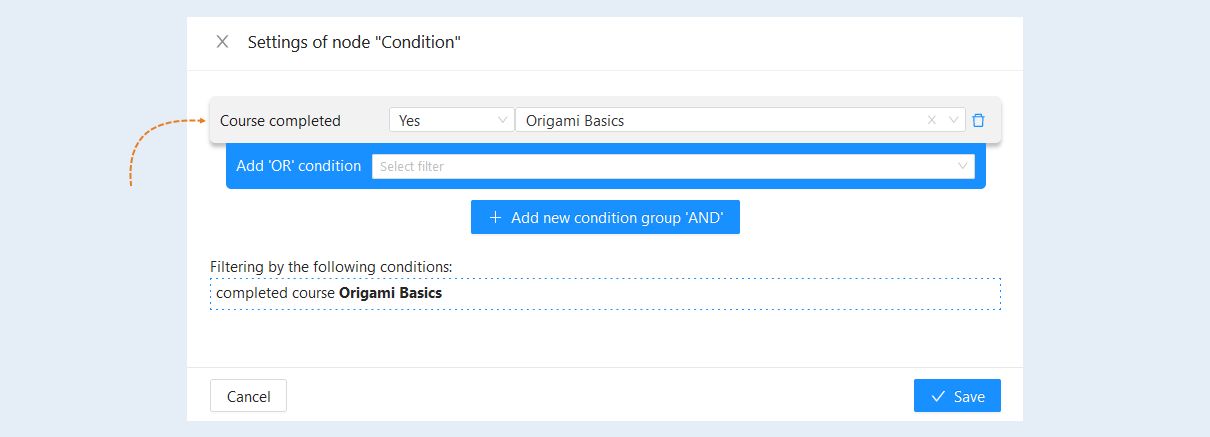
This function allows you to select contacts by certain parameters. You can create various combinations of conditions for choosing contacts: customers who bought a product, visited your site no more than 1 month ago, completed a course, and so on.
After you select the contacts according to the necessary parameters, you can send them a newsletter, add them to a group or choose another action in the scenario.
Let's consider in detail the "Condition" in the scenario. Click on the desired section of the article to go to its description:
Node settings "Condition"
Select "Condition" from the list of actions and drag it to the scenario field. Next, you need to perform the settings - configuration. Click on the "Configure Node" button in the upper right corner of the condition.
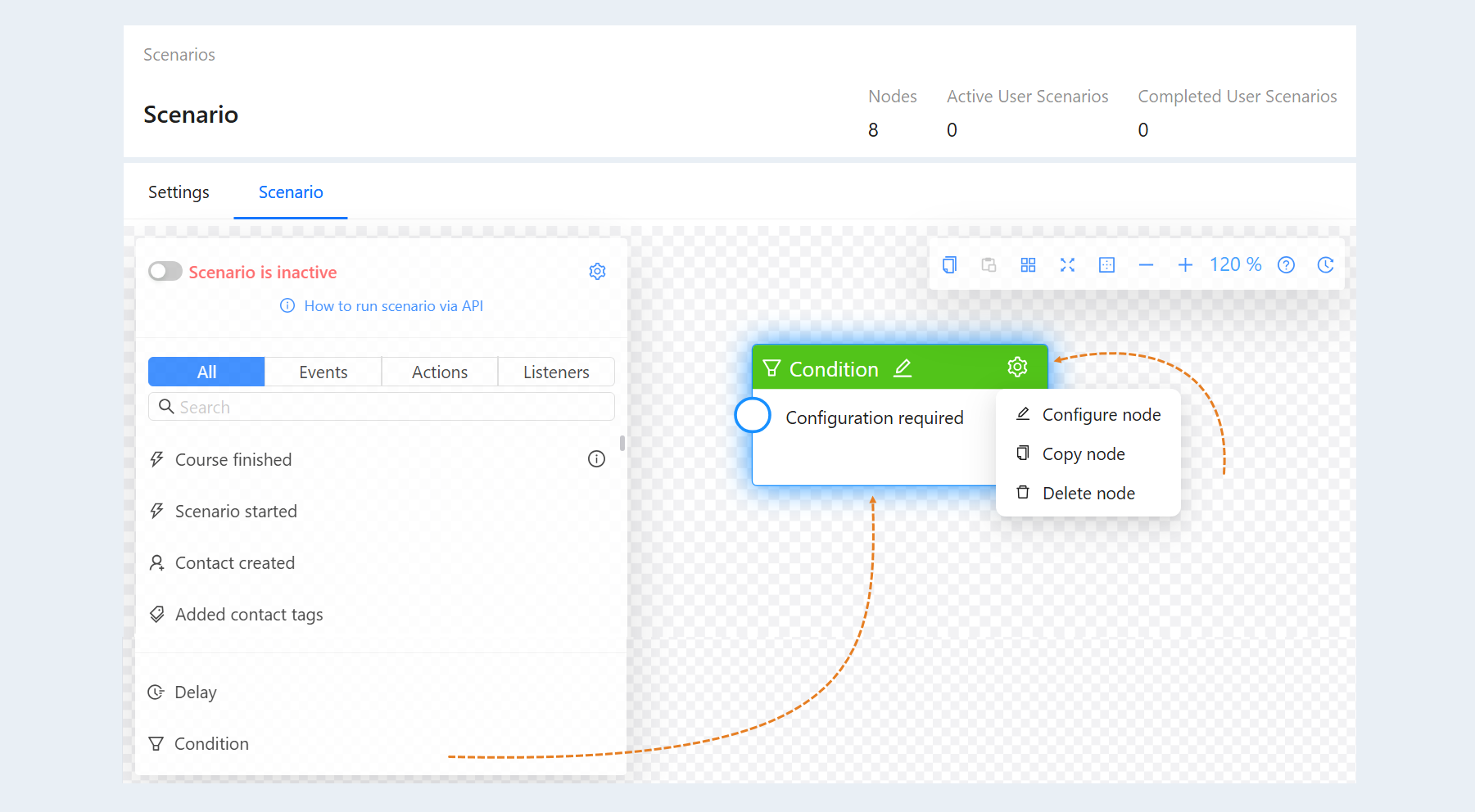
You will see the "Node Condition Settings" window. Click the "Add OR Condition" or "Add AND Condition Group" button, and a list of available conditions will open.
The "AND" and "OR" conditions relate to logical operations used to determine how conditions are grouped.
- AND Condition Group: This is a logical condition under which all specified criteria must be met simultaneously. For example, if you have the condition: "A user must complete course A AND course B to receive a certificate," then the user must complete both courses to achieve the goal.
OR Condition Group: This condition specifies that satisfying at least one of the stated criteria is sufficient. For instance, the condition: "A user can receive a certificate if they complete course A OR course B". In this case, the user can choose one of the two courses, and completing it will be sufficient for obtaining the certificate.
"AND" conditions allow for stricter requirements, while "OR" conditions provide more freedom of choice.
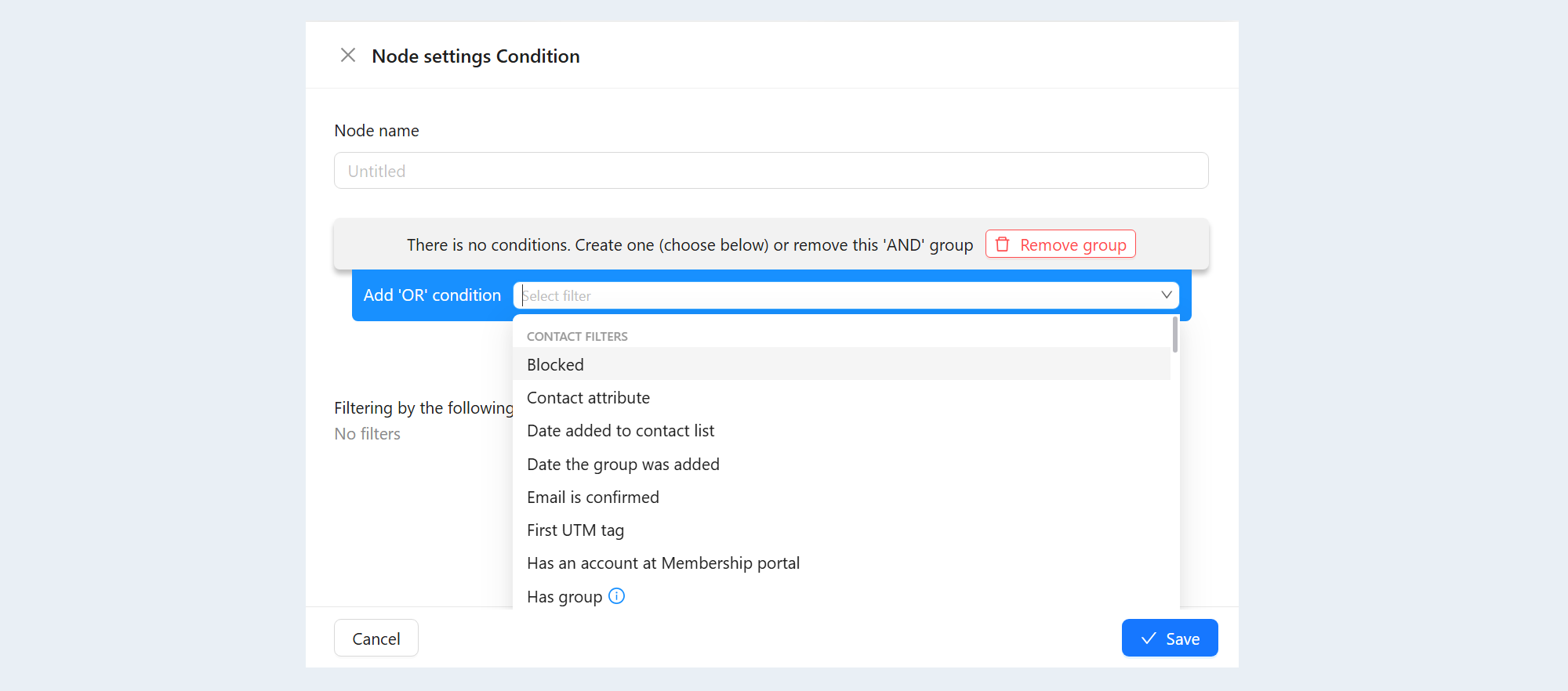
Below are the possible conditions for the scenario.
Filter Conditions
Contact Filters
- Blocked
This condition allows you to quickly and conveniently separate blocked users from active ones, making it easier to exercise control and take appropriate actions.
Filter conditions:
- Blocked:
Yes. The system generates a list of users who are currently blocked. This may mean they have had their access to the platform suspended for various reasons, such as rule violations, unpaid fees, insufficient activity, or other administrative measures. In this list, decisions about unblocking, conducting additional measures (such as conversations or consultations), or their continued participation in learning can be made.
No. By selecting this condition, a list of users who are not blocked and have the opportunity to continue their learning will be formed. This can be useful for administrators, for quickly identifying active participants on the platform who can interact with courses, receive tasks, participate in discussions, and so on. This can also be helpful for general monitoring and analysis of the users' status on the platform.

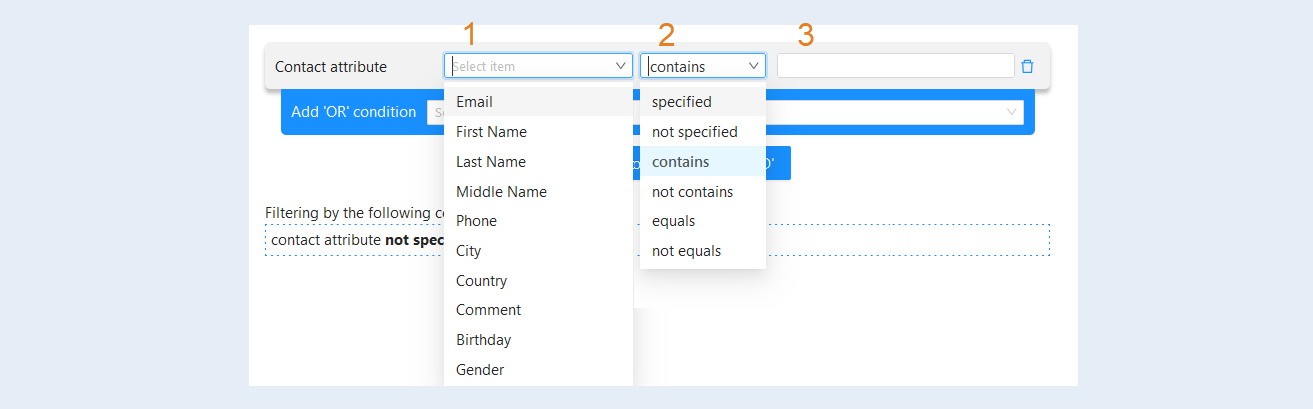
- Contact Attribute
This condition is used to search for and select users based on specific criteria. It allows for flexible searches of the desired user groups for various purposes, such as personalized learning, communication customization, special promotions, etc.
Filter Conditions:
- Attribute: This is the category of user information that will be filtered. For example, email, name, city, gender, etc. Selecting a specific attribute determines which information you will filter.
Condition Options:
- Specific. This filter will find users whose chosen attribute has any value (for example, those for whom an email is specified). If you select the "email defined" filter, the list will show all users who have a specified email address.
Not Specified. This filter shows users whose chosen attribute is not filled in (for example, missing email). If you select the "city not defined" filter, all users for whom no city is specified will be selected.
Contains. With this condition, the list of users will be formed based on whether the chosen attribute contains a specific value. For example, if you select "name contains - Anna," it will display all users whose names contain the substring "Anna" (e.g., "Anna," "Annushka," "Svetlana Anna").
Not Contains. This filter selects users whose chosen attribute does not contain the specified value. For example, "gender does not contain - female" will show all users whose information does not include "female".
Equals. Using this condition, you can select users whose attribute exactly matches the specified value. For example, if you select "city equals - New York," only those users who specified "New York" as their city will be shown.
Not Equals. This filter selects users whose attribute differs from the specified value. For example, "name does not equal - Ivan" will show all users whose names are not "Ivan".
Text Input Field. This is an area where you can enter a specific value for filtering by the chosen attribute. The value entered in this field will be used to execute the logic of the selected condition.
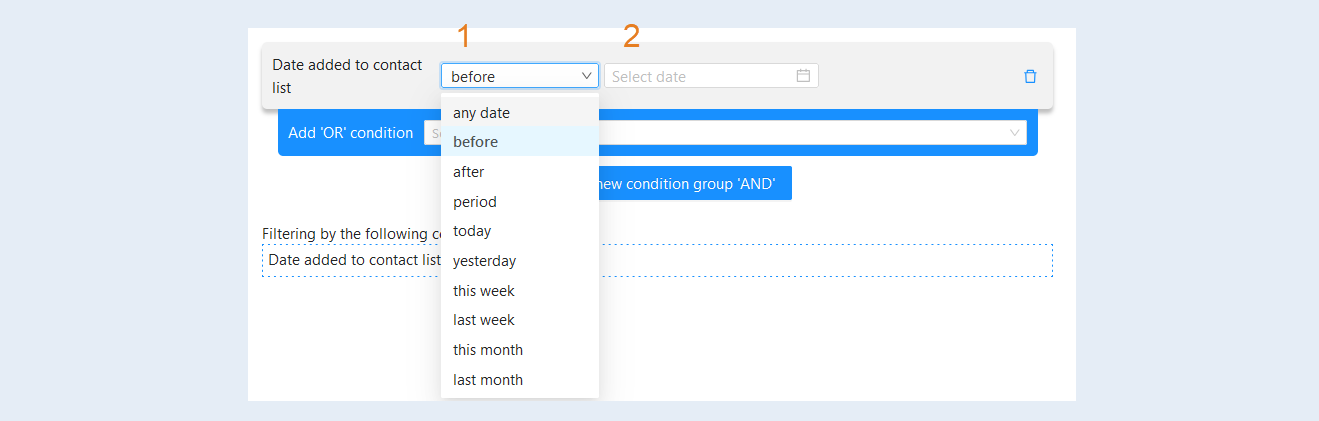
- Date Added to Contact List
This condition allows sorting or limiting the contact list based on the time when they were added to the system. Each of these filters helps the user narrow down the selection of contacts for more targeted work and analysis.
Filter Conditions:
- Condition:
- Any date. This allows for an unlimited selection of dates. All contacts will be displayed without exception. It enables viewing the complete list of all contacts, regardless of their addition date.
Before. This will show all contacts added before the specified date. This condition is useful if you need to analyze or select old contacts up to a certain point in time.
After. This will show all contacts added after the specified date. It's convenient for analyzing the most recent contacts or for promotions aimed at new users.
Period. This allows you to set the start and end of the period during which contacts were added. It helps to precisely select a group of contacts added on specific dates.
Today. This will show all contacts added on the current day. Convenient for tracking recent additions.
Yesterday. This will show all contacts added on the previous day. Useful for analyzing and tracking additions if the data for the day is still relevant.
Current week. This will show all contacts added from the start of the current week up to the current day. It allows tracking activity over the week.
Last week. This will show all contacts added during the past week. It helps to understand how the increase or decrease of contacts occurred in the previous period.
Current month. This will show all contacts added from the beginning of the current month. Convenient for monthly analysis and planning.
Last month. This will show all contacts added in the previous month. This allows for analyzing monthly trends and performance results.
Date or period selection. This field will be available when selecting conditions: before, after, period. Choose specific dates and times.
- Date the group was added
This condition highlights users who were added to a group on specific dates. Choose the desired group from the list. Then set the filter "less than," "greater than," and "period". Specify the desired date.
Filter conditions:
- Group. Selecting a specific group determines which information you will filter.
Condition:
- Greater than. This condition allows you to choose users who were added to the group after the specified date and time. This can be useful for analyzing new users, keeping you updated on the latest changes.
Less than. This condition allows you to choose users who were added to the group before the specified date and time. This can be useful for finding older additions that may contain important materials but were added long ago.
Period. This allows you to select users added to the group within a specified time interval. It's convenient if you need to analyze changes and activity during a period of time – for example, for a report on group additions in December.
Date or period selection. Choose specific dates and times.

- Email is confirmed
This condition allows tracking the confirmation status of users' email addresses. This filter can be used for various purposes, such as managing the user base, sending notifications, or analyzing user activity.
Filter Conditions:
- Email Confirmed:
- Yes. If this value is selected, the system will display a list of users whose email addresses have been successfully confirmed.
No. By selecting this value, the system will show a list of users who have not confirmed their email addresses. These users may require additional actions, such as reminders or assistance with the email confirmation process.

- First UTM Tag
This condition allows analyzing data related to UTM tags that are used to track traffic sources and the effectiveness of advertising campaigns. Understanding the various filter conditions will help effectively segment users and their behavior. You can specify the value of the first UTM tag to select only those contacts who clicked on this tag to your website.
UTM tags are special parameters added to URLs to track the effectiveness of marketing campaigns. They help collect information about where visitors came from and how they interact with the content.
Filter Conditions:
- First UTM Tag:
- utm_source - traffic source; indicates where the user comes from (e.g., Google, Facebook, newsletter, etc.).
utm_medium - medium (channel) of marketing; denotes the type of traffic (e.g., CPC, email, banner, etc.).
utm_campaign - name of the advertising campaign; used to track a specific campaign or promotion.
utm_term - term, keyword, or phrase; usually used in the context of contextual advertising to track the keywords by which users find the ad.
utm_content - content; allows differentiating similar links or content elements in the same campaign, helping to determine which content performed better (e.g., different versions of the same ad or banner).
Condition:
- Equals. The filter selects users whose value for the selected UTM tag exactly matches the specified text. Example: If you select "utm_course" and specify "python_course", it will select all users whose first UTM tag "utm_course" equals "python_course".
Does not equal. Using this condition, you can exclude users whose value for the selected UTM tag matches the specified text. Example: If you select "utm_medium" and specify "email", it will include users whose first UTM tag "utm_medium" is not equal to "email".
Contains. This filter searches for users whose UTM tags contain the specified text as part of the string. Example: If you select "utm_campaign" and specify "sale", it will include users whose first UTM tag "utm_campaign" contains "sale" (e.g., "summer_sale", "holiday_sale", etc.).
Does not contain. This filter excludes users whose selected UTM tag contains the specified text. Example: If you select "utm_content" and specify "banner", users with UTM tags containing "banner" will not be included.
Is set. This condition selects users whose first UTM tag is set (i.e., not empty). Example: If you select "utm_term", the filter will show all users with a set value for the UTM tag "utm_term".
Is not set. This filter collects users who do not have a first UTM tag (i.e., the value is empty). Example: If you select "utm_course", users who do not have a value for this UTM tag will be shown.
Text entry field. This is the area where you can enter a specific value to filter by the selected attribute. The value entered in this field will be used to perform the logic of the selected condition.

- Has an account at Membership portal
This condition creates a list of contacts who have registered on the platform and are currently users in your membership portal, meaning they have access to your educational courses on the platform.
Filter conditions:
- Has an account at Membership portal:
- Yes. If you select this option, the system will generate a list of users who have active accounts and are registered as users. This filter is useful for administrators to manage users, check their status, and assign courses or update information. For example, if the account wants to send notifications only to its users, they can use this filter to select only relevant recipients.
No. Choosing this option will filter out users who are not registered as users. This filter can be helpful in identifying potential new users. For instance, administrators can use this filter for advertising campaigns or to analyze the audience that has not yet joined the membership portal.
- Yes. If you select this option, the system will generate a list of users who have active accounts and are registered as users. This filter is useful for administrators to manage users, check their status, and assign courses or update information. For example, if the account wants to send notifications only to its users, they can use this filter to select only relevant recipients.

- Has group
This condition highlights users based on their affiliation with certain groups. This can be useful for providing content or notifications, setting access to materials, as well as analyzing user activity in particular groups. It significantly simplifies the management of the educational process and interaction with users.
Filter conditions:
- Belongs to group:
- Yes. When this option is selected, the system will generate a list of users who belong to one or more selected groups. This can be used, for example, to send notifications or provide access to materials only to those who are participants of a specific group.
No. In this case, a list will be generated of users who do not belong to any of the selected groups. This can be useful when there is a need to direct information or access to those not in certain groups, such as for new users or those who have not completed training at a specific level.
Select a group from the list. You can specify a specific group for filtering. This approach allows for more accurate management of content access based on the user group.

- Has tag
This condition highlights users to whom a tag is attached. With the tag, you can select new clients or clients with specific conditions. This condition checks for the presence of any selected tags or the absence of ALL selected tags.
Filter conditions:
- Has a tag:
- Yes. By selecting this condition, the system will only show users who have at least one of the selected tags. This means that if you select, for example, the tag "Beginner," you will receive a list of users marked with this tag.
No. By selecting this condition, the system will only show users who do not have any of the selected tags. This allows you to filter out users, excluding those marked with specific tags. For example, if you select the tag "Experienced," a list will be generated of users who do not have this tag.
Tag. This field allows you to select one or several tags for more precise filtering. Click the "Manage Tags" button to find or create new tags.

- Last UTM tag
You can specify the last UTM tag value (at the time of the last conversion) to select only those contacts that clicked on this tag to access your site. UTM tags are special parameters added to URLs to track the effectiveness of marketing campaigns. They allow you to collect information about where visitors to the site came from and how they interact with the content.
Filter conditions:
- Last UTM tag:
- utm_source - the source of traffic; indicates where the user is coming from (e.g., Google, Facebook, email, etc.).
utm_medium - the medium (channel) of marketing; denotes the type of traffic (e.g., CPC, email, banner, etc.).
utm_campaign - the name of the advertising campaign; used to track a specific campaign or promotion.
utm_term - term, keyword, or phrase; usually used in the context of contextual advertising to track the keywords through which users find the advertisement.
utm_content - content; allows differentiation between similar links or content elements within the same campaign, helping to determine which content performed better (e.g., different versions of an ad or banner).
Condition:
- Equal to. The filter selects users whose selected UTM tag value exactly matches the specified text. Example: If you select "utm_course" and specify "python_course," it will filter all users whose last UTM tag "utm_course" equals "python_course".
Not equal to. Using this condition, you can exclude users whose selected UTM tag value matches the specified text. Example: If you select "utm_medium" and specify "email," the list will include users whose last UTM tag "utm_medium" is not equal to "email".
Contains. This filter searches for users whose UTM tags include the specified text as part of the string. Example: If you select "utm_campaign" and set "sale," users whose last UTM tag "utm_campaign" contains "sale" (e.g., "summer_sale," "holiday_sale," etc.) will be included.
Does not contain. This filter excludes users whose selected UTM tag contains the specified text. Example: If you select "utm_content" and specify "banner," users with a UTM tag containing "banner" will be excluded from the selection.
Set. This condition selects users who have a last UTM tag set (i.e., not empty). For example, if you choose "utm_term," the filter will show all users with a specified value for the UTM tag "utm_term".
Not set. This filter collects users who do not have a last UTM tag (i.e., the value is empty). For example, if you select "utm_course," it will show users who do not have a value for this UTM tag.
Text input field. This area allows you to enter a specific value for filtering by the selected attribute. The value entered in this field will be used to apply the logic of the selected condition.

- Last activity date
This condition separates contacts based on activity on the AXL learning platform and applies only to registered users. This condition can be used if you need to group users who have not shown activity after a specific date and take action (for example, send them an email). Alternatively, it can highlight users who actively visit your account and reward them (send an email, add a product as a bonus, etc.).
Filter conditions:
- Condition:
- Equal. This condition allows you to identify users whose last activity date exactly matches the specified date. This helps in finding users who were active at a specific point in time.
Not equal. By selecting this condition, the list will contain users whose last activity date does not match the specified date. This can be useful for finding all users except those who were active at a particular moment.
Less than. By choosing this condition, a list of users who were active before the specified time will be generated. This can assist in reaching out to inactive users or analyzing the history of activity.
Greater than. In this case, the list will consist of users who were active after the specified time. This allows you to find active users who interacted with the platform after the specified date.
Date or period selection. Select specific dates and times. This enables you to get very precise data.

- Last online date
This condition allows you to find and sort accounts based on the time of their last visit. This filter can be useful for various tasks such as analyzing user activity, identifying abandoned accounts, or finding active participants.
Filter conditions:
- Last online:
- Equal to. This condition allows you to select users who were online exactly at the specified time. For example, a list will be generated of users who logged on to the platform and logged off at the exact specified time. This can be useful for analyzing user actions at a specific moment.
Not equal to. Here you can select users who were online at any other time except for the specified one. This can help exclude users who showed activity precisely at that moment.
More than. This condition allows you to get a list of users who last logged onto the platform after the specified date and time. This can be used to find active users or assess the last activity.
Less than. In this case, the filter will display users who were last online before the specified date and time. This filter can help identify less active users or potentially abandoned accounts.
Select date and time. Choose a specific date and time. This allows you to obtain very precise data about users.

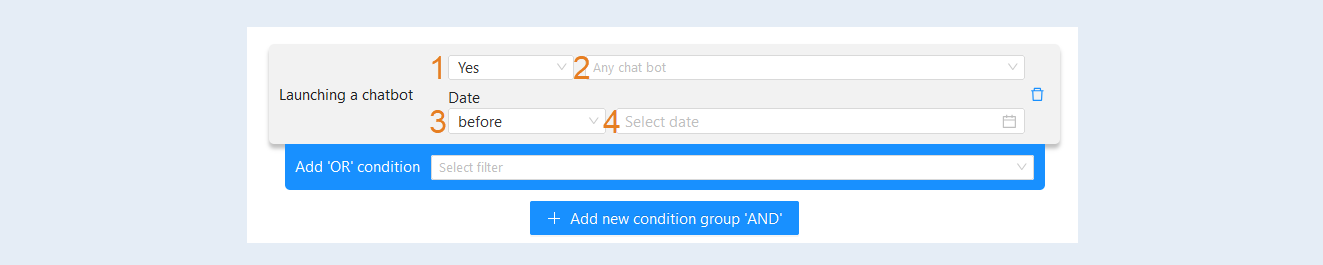
- Launching a chatbot
This condition highlights users who have activated or not activated a specific chatbot during specified dates. Such a filter will help to determine which users actively engage with the chatbot on the platform and who does not use it at all. This can provide insights into the effectiveness of the chatbot and help optimize its operation to improve user experience.
Filter conditions:
- Chatbot activation:
- Yes. This selection allows you to filter users who interacted with the chatbot. This is useful when you need to know who among the users accessed the chatbot.
No. This option shows users who have not activated the chatbot. This can be useful for analyzing a lack of engagement or planning further steps regarding these users.
Chatbot. This option allows you to select a specific chatbot from a list of available ones. This allows for more targeted filtering of users based on which specific chatbot they interacted with.
Date:
- Any date. Shows all users who interacted with the chat bot at any point in time.
Before. Allows you to specify a specific date up to which users will be shown.
After. Similar to the previous one, but displays users who interacted with the chat bot after the specified date.
Period. Allows you to set a start and end date within which users will be displayed. This is convenient for analyzing activity over a specific time interval.
Today. Shows users who interacted with the chat bot on the current day.
Yesterday. Filters users who used the chat bot on the previous calendar day.
Current week. Displays users who interacted with the chat bot during the current week.
Last week. Displays users who used the chat bot in the previous week.
Current month. Shows users who interacted with the chat bot in the current month.
Last month. Filters users who used the chat bot in the previous calendar month.
Date or period selection. This field will be available when selecting conditions: before, after, period. Choose specific dates and times.
- Online status
This condition allows sorting participants based on their current status on the platform.
Filter conditions:
- Online status:
- Online. This status means that the user is currently active on the platform. This may indicate that they are online, participating in a session, viewing materials, or communicating with other users. The filter allows seeing active users, which is useful for creating a more interactive educational experience. For example, if you want to grant access to additional materials to users who are currently online.
Offline. This status shows that the user is inactive on the platform at the moment. They may be offline, have ended a session, or have not logged in yet. The filter can be useful, for example, for reviewing the list of users who are not participating in current sessions for further analysis of their activity.

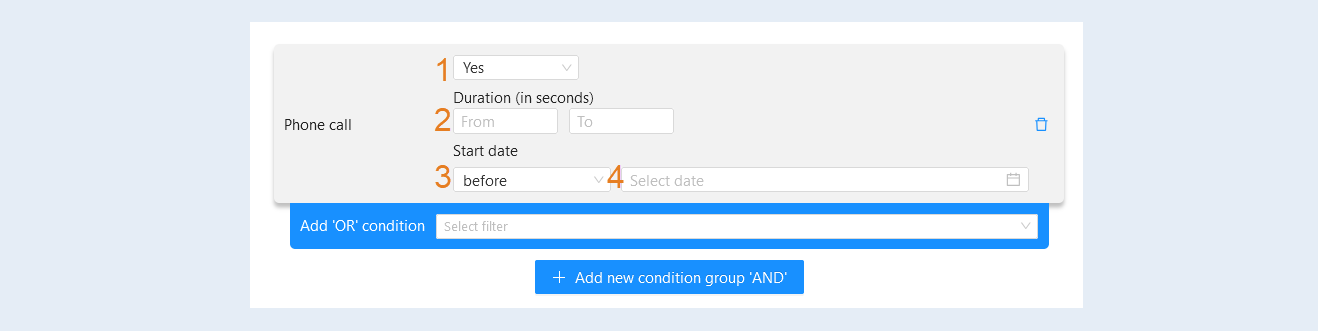
- Phone Call
This condition allows for the sorting and analysis of data regarding phone calls. It highlights users who received a call on specified dates and of a specified duration (in seconds). Utilizing these filter conditions enables more effective analysis of phone calls, identifying trends, and making informed decisions based on the acquired data.
Filter conditions:
- Phone Call:
- Yes. A list of users who made phone calls will be generated.
No. A list of users who did not make any calls will be generated.
Duration (in seconds). Allows you to set a range for the duration of phone calls. You can specify the minimum and maximum time during which the phone conversations should take place. This condition allows finding calls of a certain duration, for example, short, long, or average interaction times.
Start Date:
- Any date. All calls will be included, regardless of their date.
Before. You can select a specific date to show calls that occurred before this date.
After. Calls that occurred after the specified date will be filtered.
Period. Allows you to select a start and end date to display calls that took place within the specified period.
Today. Shows all calls that were made on the current day.
Yesterday. Shows all calls from yesterday.
Current week. Includes calls that occurred from Monday to Sunday of the current week.
Last week. Includes calls from Monday to Sunday of the previous week.
Current month. Allows seeing all calls made in the current month.
Last month. Shows calls made in the previous month.
Select date or period. This field will be available when selecting conditions: before, after, period. Select specific dates and times.
- Responsible
This condition highlights users based on who is responsible for them.
Filter conditions:
- Responsible:
- Assigned. This condition is used to filter elements for which a specific responsible person has been assigned. If this option is selected, the system will generate a list of users who have an assigned responsible person (for example, a teacher or curator).
Not assigned. This option allows showing elements where no responsible person has been assigned. If this filter is chosen, users will be displayed who need an assigned responsible person. This can be useful for identifying areas that require additional attention and assigning responsible parties to ensure proper control and support.
Select responsible person. Here, you can choose a specific name of the responsible person. If this condition is selected, a list of users associated with the chosen teacher or curator will be generated.
Select position. In this case, elements can be filtered by the position of the responsible person. If this condition is chosen, the system will show a list of all users associated with a responsible person holding that particular position. This is convenient for managing the educational process and distributing duties by roles.

- Membership portal registration date
This condition separates contacts based on the user registration date on the platform. This filter is important for analyzing user activity and tracking new and old users.
Filter conditions:
- Condition:
- Equal. Choosing this option will allow you to find users who registered exactly on the specified date and time. This can be useful for analyzing specific promotions or events.
Not equal. This condition allows you to filter out users who registered at a specific time. A list of all users will be formed except those who registered at the selected time. This will help you focus on other users.
Less than. Selecting this condition will highlight users who registered before the specified date and time.
Greater than. This condition allows you to find users who registered after the specified date and time.
Period. This option enables you to set a date range within which users registered.
Date or period selection. This element allows you to choose specific date and time for use with other filter conditions. This is convenient for precise query configuration.

- Subscribed to the chat channel
This condition is designed to manage access and interaction with users who participate in specific channels. It helps organize groups of users and improve communication based on their subscriptions to chats. This condition creates a list of clients who are subscribed to the selected chat or have no subscriptions to any chat channel.
Filter Conditions:
Subscribed to the chat channel.
- Yes. This filter is used to select users who are subscribed to at least one of the available chat channels. If this condition is selected, a list of users active in chats will be generated, and they may receive messages, announcements, and other information related to courses or events.
No. This filter allows you to select users who are not subscribed to any of the chat channels. If this condition is selected, a list of users who may be potentially inactive in communications or receiving information will be generated, which may require additional attention.
Selecting a chat channel. This option allows you to choose a specific channel (e.g., Telegram, WhatsApp, etc.) that users are subscribed to. If a specific channel, such as "Telegram," is selected, a list of users subscribed to that particular chat channel will be generated. This can be useful for targeted communication with participants who prefer to receive information through a specific messenger.

- Tag added date
This condition allows you to create a sample of contacts based on the time when a specific tag was assigned. This filter is useful for data analysis and segmenting contacts, for example, for mailings, notifications, or other marketing activities.
Filter conditions:
- Tag. Selecting a specific tag that was previously assigned to contacts allows you to focus on a particular group of contacts related to a specific category or topic. Click the "Manage Tags" button to find or create new tags.
Condition:
- Greater than. The condition implies that the tag addition date must be later than the specified time. This allows you to obtain a list of users who received this tag after a certain date.
Less than. The condition implies that the tag addition date must be earlier than the specified time. This allows you to see users who received this tag before a certain date, which can be useful for analyzing old records or managing interaction history.
Period. The condition allows you to set a date range during which the tag was added.
Date or period selection. Choose specific dates and times. This allows you to obtain very precise data about users who received the tag at a certain point in time.

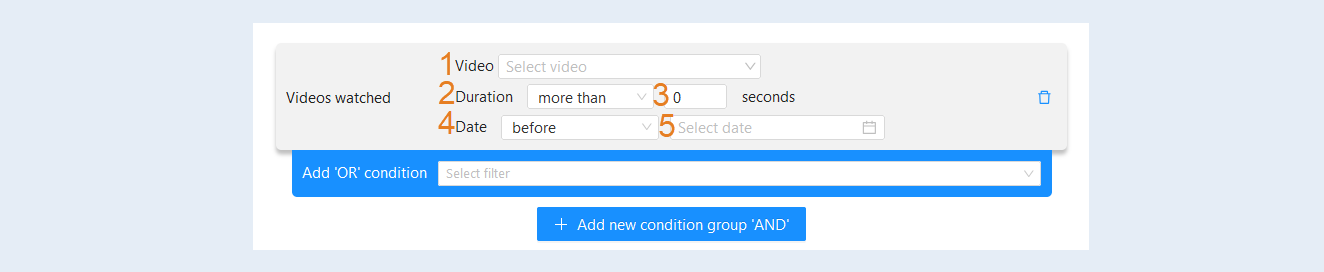
- Videos watched
This condition is designed to analyze data about users who have watched videos. Each filter element allows you to refine search parameters and obtain more precise information about user interaction with video materials.
Filter conditions:
- Video. Allows you to select a specific video to retrieve information about. This can be useful if the platform contains many videos and you need to analyze interactions with just one or a few of them.
Duration:
- Greater than. Selects users who have watched the video for longer than a specified time. For example, "greater than 10 seconds" means you want to see users who not only opened the video but also watched it for at least 11 seconds.
Less than. Used to find users who watched the video for less than a specified duration. This is relevant if you are interested in episodic or superficial interaction with the video.
Seconds. Specify the number of seconds.
Date:
- Any date. All data for all time.
Before. Allows you to select users who interacted with the video before a specified date.
After. Provides the opportunity to see users who started interacting with the video after a specified date.
Period. Helps to set a date range for analysis, such as from January 1 to January 31.
Today. Will generate a list of users who watched the video on the day of the request.
Yesterday. Will display users who interacted with the video the day before.
Current week. Will show users who watched the video from Monday to Sunday of the current week.
Last week. Will generate a list of those who interacted with the video over the past week
Current month. Information about users who watched the video since the first of the current month.
Last month. Analysis of users who interacted with the video last month.
Select date or period. This field will be available when selecting conditions: before, after, period. Choose specific dates and times.
Orders and payments
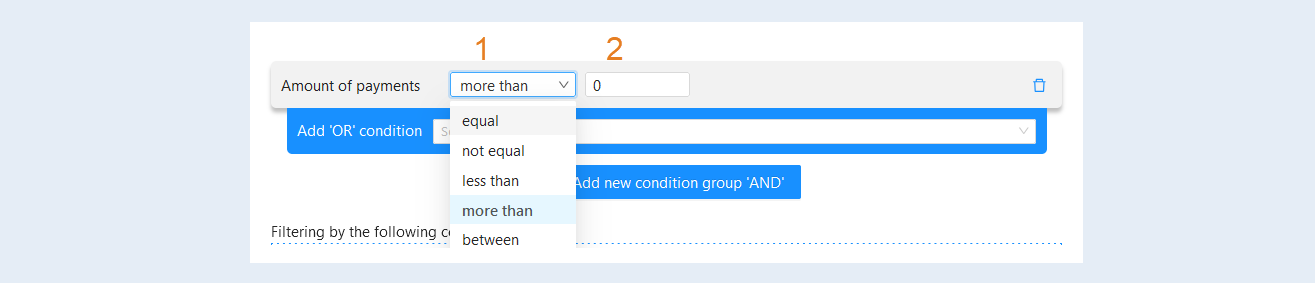
- Amount of payments
This condition allows you to filter data about users based on the total amount of their payments.
Filter conditions:
- Payment Amount:
- Equals. This condition allows you to generate a list of users whose total payment amount is exactly equal to the specified value. For example, "Payment amount equals $150" will create a list of users who spent exactly $150.
Not equal. This value is used to exclude users with a specified payment amount. For example, "Payment amount not equal to $100" will generate a list of users whose total spending is not equal to $100.
Greater than. Choosing this condition allows you to get users whose payment amount exceeds the specified value. For example, "Payment amount greater than $300" will create a list of users who spent more than $300.
Less than. This condition allows you to select users with a payment amount that is less than the set value. For example, "Payment amount less than $50" will generate a list of users whose spending is less than $50.
Between. This condition allows you to filter users whose payment amounts fall within a certain range. For example, selecting "Payment amount between $50 and $200" will create a list of users who spent between $50 and $200 inclusive.
Field for entering value. Specify the exact amount by which filtering will occur.
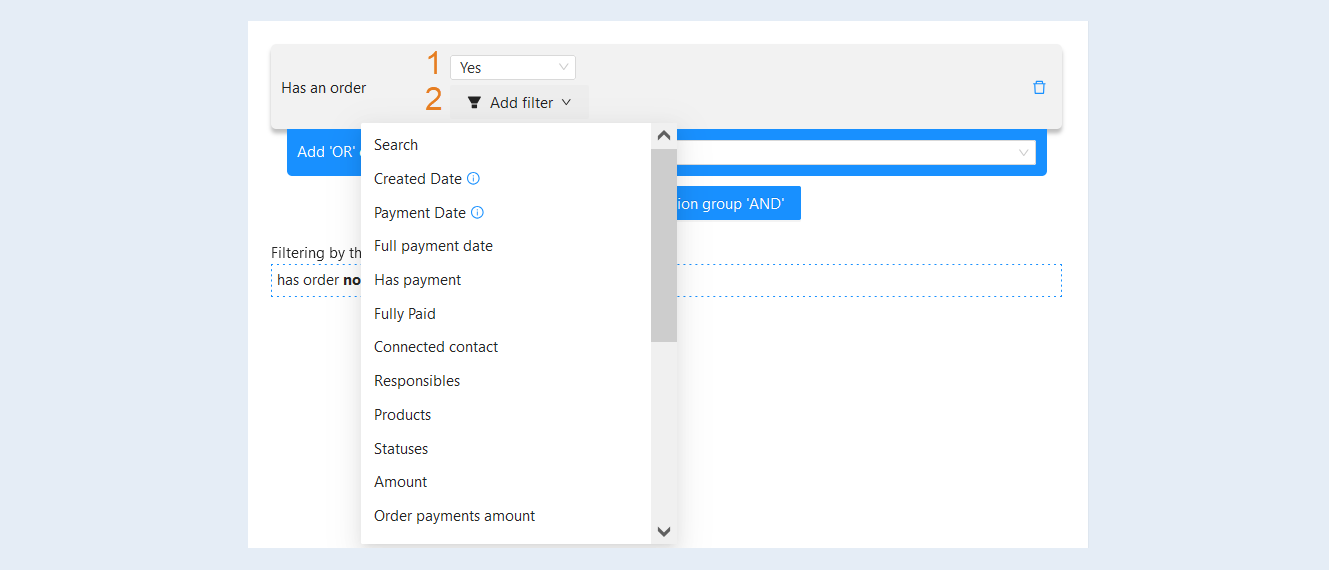
- Has an order
This condition highlights users who have a specific order. Use various criteria for sorting and searching.
Filter Conditions:
Has an order:
- Yes. Shows users who have orders in the system.
No. Shows users without orders (for example, potential customers who have not yet placed an order).
Add Filter:
- Search. Allows entering specific words or phrases to search for orders that contain these words in course titles, tags, or other text fields.
Creation Date. Allows filtering orders by their creation date. This is useful for seeing orders placed within a specific period (for example, in the last month).
Payment Date. Filters orders by the date they were paid. This can be useful for analyzing the time gaps between order creation and payment. Any payment for an order within the specified period will be shown, including partial payments.
Date of Full Payment. Allows filtering orders that were fully paid within the specified time period.
Has Payments. This filter shows orders for which any payments have been made (which may be partial or full).
Fully Paid. Allows you to see only those orders that have been fully paid and have no outstanding balance.
Related Contact. A filter that allows searching for orders associated with a specific contact. You can select one or more contacts from the CRM contact list.
Responsible. This filter allows filtering orders by the responsible manager or employee servicing the order. Select one or more employees from the list.
Products. This condition allows you to filter orders by specific products contained in the order. Choose one or more products from the list.
Statuses. This condition allows you to see orders with a specific status (e.g., "in processing", "completed", "canceled") at the present moment.
Amount. Filters orders by the amount specified in the order. This can be useful for searching orders within a certain price range.
Order payment amount. This condition allows you to filter orders by the total amount of all payments made for a given order. Set the desired amount range.
Renewal. This condition highlights subscriptions that have been renewed or not renewed. Move the slider to the active or inactive position to set the desired parameters.
Courses. This condition highlights orders that have a specific course. Choose one or more courses from the list.
UTM tags. Filters orders based on the UTM tags used to track advertising sources and campaigns. You can select only those orders in which related contacts clicked on a specific UTM tag leading to your website.
Tags. This condition allows you to search for orders by tags that have been applied to them for more detailed classification.
Promo code. This condition allows you to filter orders for which specific promo codes were applied.
Partner. This condition highlights orders associated with a specific partner within the affiliate program. You can select one or more partners.
Affiliate program. This condition highlights orders created within the affiliate program.
Show deleted. This filter allows you to see orders that have been deleted from the system (useful for analyzing deleted records).
Additional fields. This condition allows you to sort orders that have additional fields. You can select one or more additional fields.
Subscription mode. This condition highlights orders with a trial subscription period, renewal after the trial period, full payment, or renewal of a non-trial period.
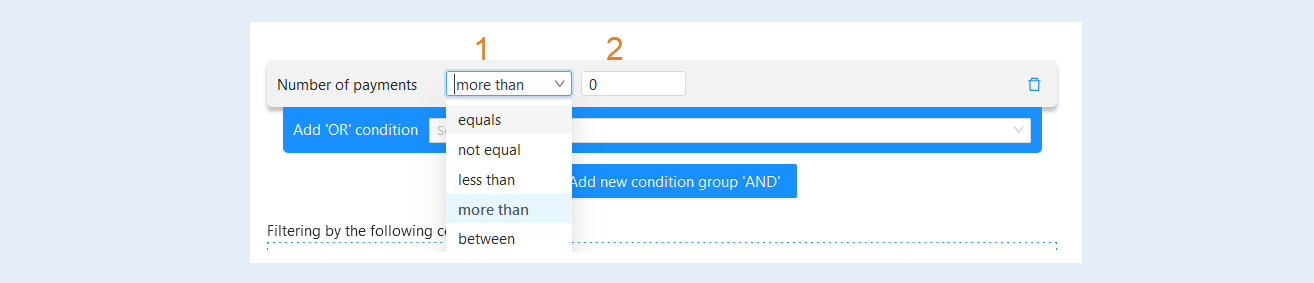
- Number of payments
This condition allows selecting specific criteria to filter the list of users based on the number of payments they have made.
Filter Conditions:
- Number of Payments:
- Equals. Selecting this condition will filter users whose number of payments matches the specified value exactly. For example, if you select "Number of payments equals 5," a list will be generated of users who made 5 payments.
Does not equal. This condition is used to exclude users with the specified number of payments. For example, if you select "Number of payments does not equal 3," a list will be generated of users who made any number of payments except for 3.
Greater than. This value allows filtering users whose number of payments exceeds the specified number. For example, if you select "Number of payments greater than 2," a list will be generated of users who made 3 or more payments.
Less than. This condition allows obtaining users who have made fewer payments than specified. For example, "Number of payments less than 4" will generate a list of users who made 0, 1, 2, or 3 payments.
Between. This condition allows selecting users whose number of payments is within a specified range. For example, if you select "Number of payments between 1 and 5," a list will be generated of users who made between 1 and 5 payments inclusively.
Field for entering value. Specify a specific amount by which filtering will be performed.
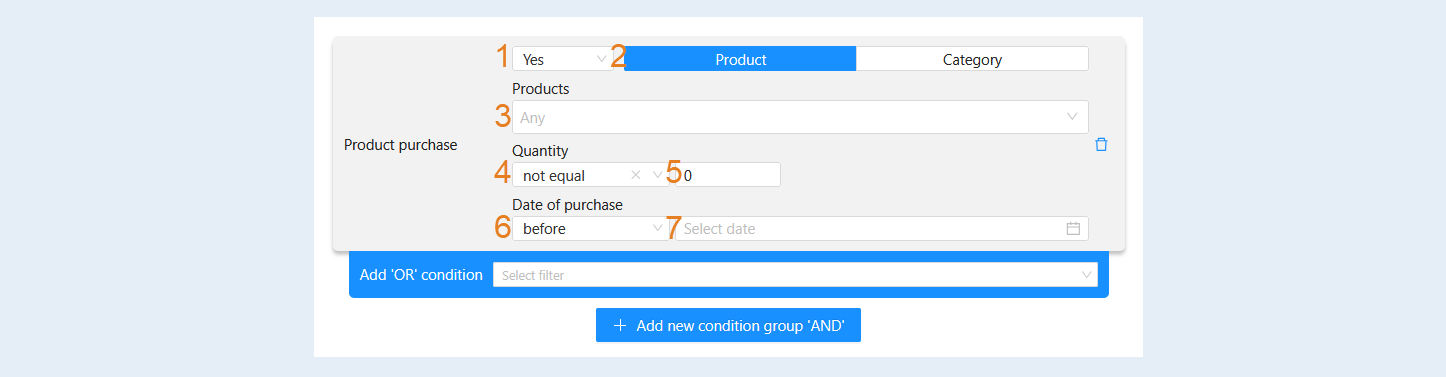
- Product Purchase
This condition is designed to select and track information about product purchases related to courses or training materials.
Filter conditions:
- Product purchase:
- Yes. Selecting this option will display users who have already purchased a product. The system will filter all records and show only those users who actually acquired a product.
No. This option will display users who have not made any purchases. This can be useful for analyzing the target audience or for working with potential clients.
Product or category. The option to select a product or category provides flexibility and convenience when searching and selecting products. This part of the filter determines which product or product group the "Product Purchase" condition will apply to. It provides two options:
- Product. Allows you to select one or more specific products from the suggested list.
Category. Allows you to select one or more product categories. This option is useful if you want to select several products from the same category at once. For example, you can filter out users who bought a product from the "Online Courses" category.
Products. This option allows you to select a specific product that you want to receive data about. If you selected product category filtering above, then a list of categories will be available in this field.
Quantity:
- Equals. Choosing this parameter will filter records where the quantity of purchased products exactly matches the specified value.
Does not equal. This filter will show all records except those where the quantity of purchases is equal to the specified value.
More than. This option allows you to select records where the quantity of purchases exceeds the specified value. This is useful for analyzing active clients.
Less than. Conversely, this filter will display records with a quantity of purchases that is less than the specified value.
Field for entering value. Specify the exact quantity for filtering.
Purchase date:
- Any date. This option allows you to display all records, regardless of the purchase date.
Before. With this filter, you can select records with purchase dates that precede the specified date.
After. This option will display purchases made after the specified date.
Period. This option allows you to choose a specific date range to see records that fall within that period.
Today. Selecting this parameter will display only those purchases made on the current day.
Yesterday. This filter will show all purchase records made yesterday.
Current week. Allows you to see purchases made in the current week.
Last week. This option will display records of purchases made in the previous week.
Current month. The filter will show all purchases made in the current month.
Last month. This filter allows you to see records of all purchases made in the past month.
Select date or period. This field will be available when selecting conditions: before, after, period. Choose specific dates and times.
Education
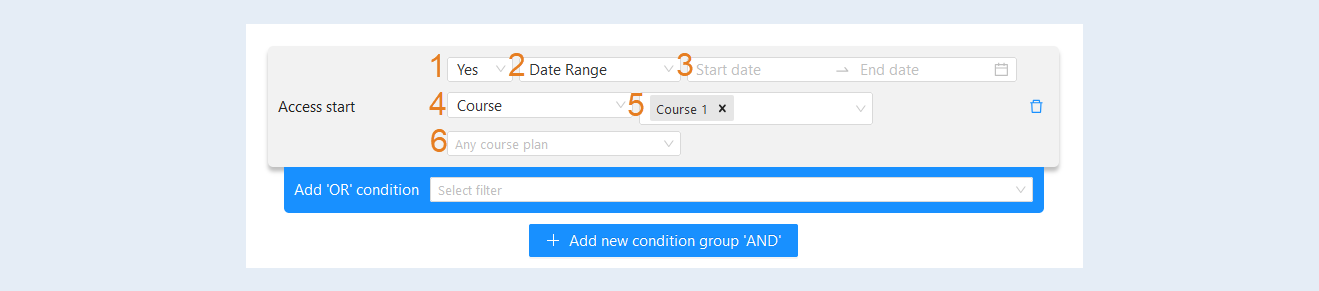
- Access start
This condition highlights users who have gained access to products on specific dates. This can be useful for preparing materials for a course launch or for notifying users about the upcoming start of training.
Filter conditions:
- Access Start:
- Yes. Selecting this condition means you are interested in users who have access to the course or program materials. A list of users who have already started their training will be generated.
No. In this case, the system will show users who do not yet have access to the requested materials.
Date Range Selection:
- Date Range. Allows you to specify specific dates for access start. In this case, the system will display users whose access to the materials started within the specified time frame.
Today. Will show users whose access to the materials was activated on this day.
Yesterday. Will display users who gained access the day before.
Tomorrow. Will show those users who will be granted access the next day.
Before the current date. Allows you to view users who gained access before today.
After the current date. Will display users who will be given access after today.
Last week. Will generate a list of users who gained access last week.
This week. Shows users who will gain access to the materials this week.
Next week. Displays users whose access will be opened next week.
Last month. Shows users who gained access in the previous month.
This month. Displays users whose access opened in the current month.
Next month. Will generate a list of users who will gain access to the materials next month.
Date Selection. This field will be available when selecting the date range condition. Choose specific dates and times.
Material Type Selection:
- Course. Filters users based on their access to specific courses.
Library. Will show users with access to library materials.
Stream. Users participating in specific streamed trainings.
Product. Users with access to a specific product or set of products.
All courses. Will create a list of users with access to all courses in the system.
All libraries. Similarly, will show all users with access to all libraries.
Specific Product Selection. An option that allows filtering users who have access to only a specific product. For example, if you select a web development course, only those users enrolled in that course will be displayed.
Tariff Selection. Allows you to view users based on their tariff plans. For example, you can choose users who have access at the basic tariff and get information only about them.
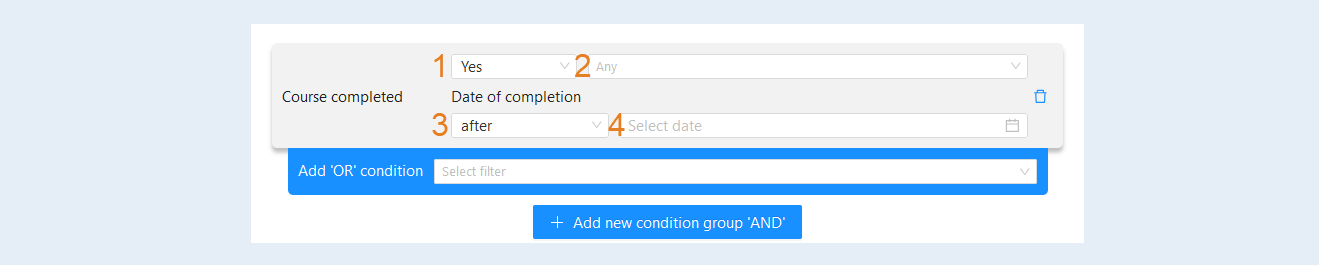
- Course completed
This condition allows you to identify users who have successfully completed a course on the AXL platform.
Filter Conditions:
- Course Completed:
- Yes. Displays only those users who have completed the course. This filter is useful for analyzing the success of course completions and for generating reports on completed programs.
No. Shows users who have not yet completed the course. This can help identify those who need additional support or motivation to finish their training.
Selecting a specific course. Allows you to filter users by a specific course. This is convenient for analyzing results and progress for a particular subject or field of study.
Completion Date:
- Any date. Shows all courses without date completion restrictions.
Before. Filters courses completed before a certain date.
After. Filters courses completed after a specified date.
Period. Allows you to set a date range for selecting courses completed during that period.
Today. Shows only courses completed today.
Yesterday. Shows courses completed yesterday.
Current week. Allows you to select courses completed this week.
Last week. Allows you to select courses completed last week.
Current month. Allows you to select courses completed this month.
Last month. Allows you to select courses completed last month.
Selecting a date or period. This field will be available when choosing the conditions: before, after, period. Select specific dates and times.
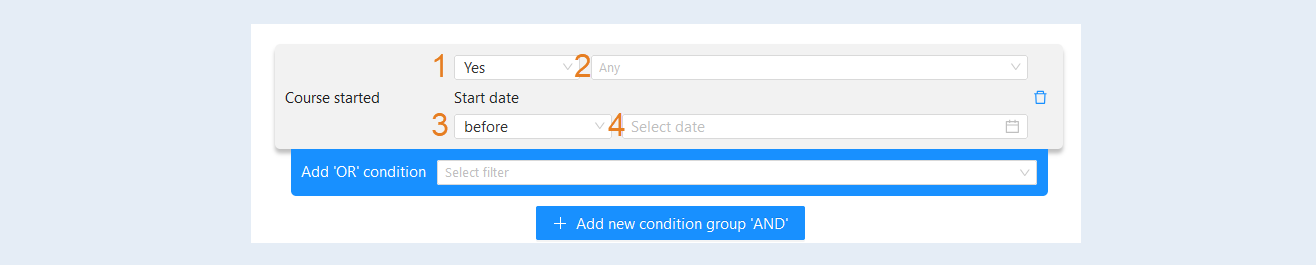
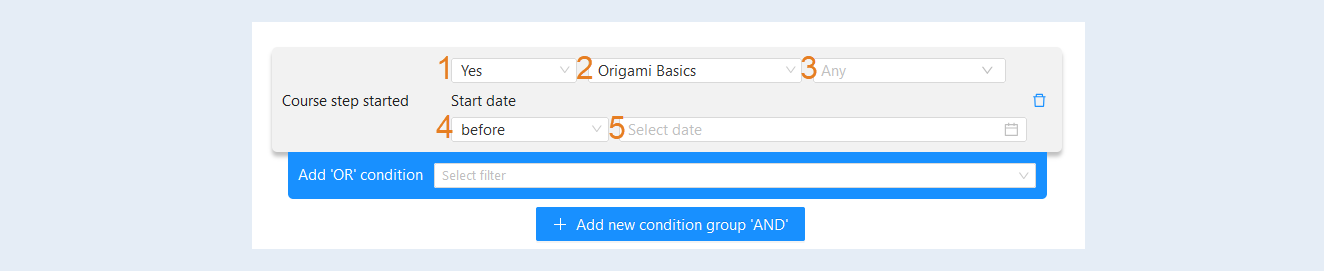
- Course started
This condition highlights all AXL users who have started a training course in your membership portal. For example, you can select users who haven't started a specific training course and perform an action—like sending them an email.
Filter Conditions:
- Course Started:
- Yes. Displays only those users who have begun studying the course.
No. Shows users who have not yet started studying the course. This can help identify those who may need additional support or motivation to start learning.
Select Specific Course. Allows filtering users by a specific course, which is convenient for analyzing results and progress in a particular subject or area of study.
Start Date:
- Any date. Shows all courses without restrictions on the start date.
Before. Filters courses started before a specific date.
After. Similarly filters courses started after a specified date.
Period. Allows you to specify a range of dates for selecting courses started during this period.
Today. Shows only the courses that were started today.
Yesterday. Shows courses that were started yesterday.
Current week. Allows selection of courses started this week.
Last week. Allows selection of courses started last week.
Current month. Allows selection of courses started this month.
Last month. Allows selection of courses started last month.
Select Date or Period. This field will be available when selecting the conditions: before, after, period. Choose specific dates and times.
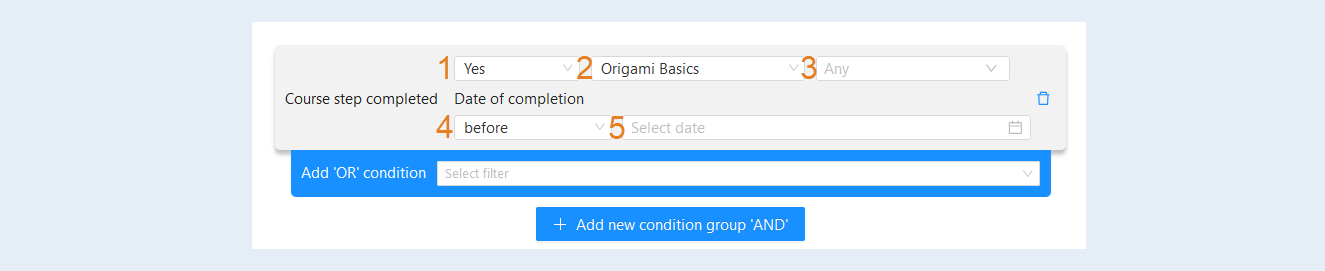
- Course step completed
This condition highlights users who have completed a specific step within a training course in your membership portal on the AXL platform.
Filter Conditions:
- Step of the Course Completed:
- Yes. Displays users who have completed a specific step in the course. This helps to understand who is progressing through the course content.
No. Shows users who have not completed the step. This is useful for identifying those who need support.
Selecting a specific course. Allows you to filter steps by a specific course.
Selecting a course step. Allows you to choose a specific step in a given course for analysis. This is useful for monitoring the completion of individual course elements.
Completion Date:
- Any date. Shows all steps without date restrictions.
Before. Filters steps completed before the selected date.
After. Filters steps completed after a specific date.
Period. Allows you to select a date range.
Today. Shows steps completed today.
Yesterday. Shows steps completed yesterday.
Current week. Displays steps completed this week.
Last week. Displays completed steps from last week.
Current month. Displays steps completed this month.
Last month. Displays steps completed last month.
Selecting a date or period. This field will be available when choosing the conditions: before, after, period. Select specific dates and times.
- Course step started
This condition highlights users who have started a specific step within the training course. For example: they began watching a particular video, and now you can send them a checklist related to the lesson's topic via email.
Filter Conditions:
- Course Step Started:
- Yes. Displays users who have begun studying a specific step in the course. This helps to understand who is progressing through the course content.
No. Shows users who have not started studying the step. This is useful for identifying those who may need support.
Select Specific Course. Allows filtering steps by a specific course.
Select Course Step. Allows you to choose a specific step in a certain course for analysis. This is helpful for monitoring the completion of individual course elements.
Start Date:
- Any date. Shows all steps without restrictions on the date.
Before. Filters steps started before the selected date.
After. Filters steps started after a specified date.
Period. Allows you to select a range of dates.
Today. Shows steps started today.
Yesterday. Shows steps started yesterday.
Current week. Displays steps started this week.
Last week. Displays steps started last week.
Current month. Displays steps started this month.
Last month. Displays steps started last month.
Select Date or Period. This field will be available when selecting the conditions: before, after, period. Choose specific dates and times.
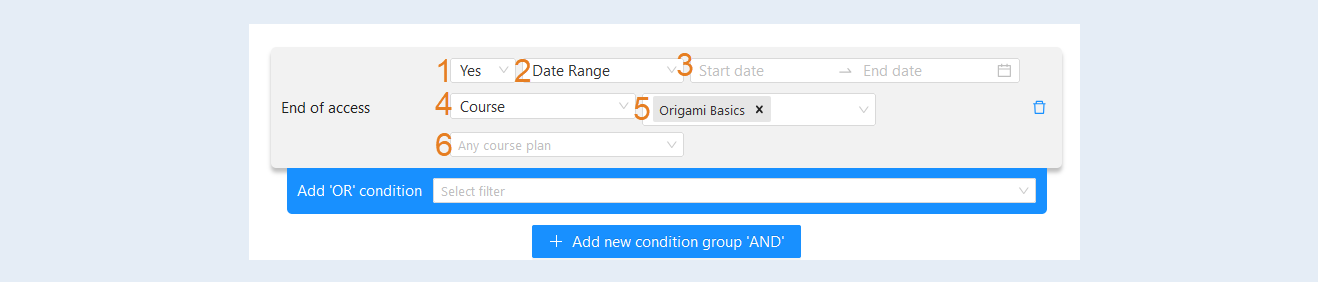
- End of access
This condition highlights users whose access to courses was closed on specific dates or within a date range.
Filter Conditions:
- Access End:
- Yes. This filter shows users whose access to materials will end during the specified period. If you select this condition and specify a date (for example, "next week"), the system will generate a list of all users whose access to certain materials (courses, libraries, etc.) will expire within the next week.
No. This filter shows users whose access to materials does not end during the specified period. If you select this condition along with date filtering, you will get a list of users whose access remains valid.
Date Range:
- Date range. Allows you to set a specific time period. For example, access will expire from October 1 to October 10. A list of all users with access that expires during this period will be generated.
Today. Will generate a list of users whose access expires on the current day.
Yesterday. Will display those whose access expired the day before.
Tomorrow. Will show users whose access will expire the next day.
Up to the current date. Will show all users whose access has already expired up to this moment.
After the current date. Will display users with access that expires after the current date.
Last week. Will show those whose access expired last week.
This week. Will generate a list of users with expiring access this week.
Next week. Will display users whose access will expire next week.
Last month. Will show users whose access ended last month.
This month. Will generate a list of users with access that will expire this month.
Next month. Will display users with expiring access next month.
Select date and time. Choose a specific date and time. This allows for very precise data on users.
Selection of Material Type:
- Course. Displays only courses.
Library. Displays materials from educational libraries.
Stream. Displays streaming resources tied to a specific date, aimed at bringing together event participants.
Product. Includes various products that may be related to educational content (for example, subscription, service, etc.).
All courses. Shows all available courses, regardless of their access status.
All libraries. Shows all libraries, regardless of their access status.
Specific Product Selection. An option that allows filtering users who have access to only a specific product. For example, if you select a web development course, only those users enrolled in that course will be displayed.
Tariff Selection. Allows you to view users based on their tariff plans. For example, you can choose users who have access at the basic tariff and get information only about them.
- Has an access
This condition highlights users who have access to certain platform materials.
Filter conditions:
Has an access:
- Yes. Selecting this option will show only those users who have access to the materials.
No. This option allows you to see users who do not have access to the materials. This can be useful for understanding which users do not have access to learning materials.
Material Type Selection:
- Course. Displays only courses.
Library. Shows available libraries with resources (e.g., articles, books).
Stream. Displays streaming resources linked to a specific date, aimed at bringing together event participants.
Product. Includes various products that may be related to educational content (e.g., subscription, service, etc.).
All courses. Shows all available courses regardless of their access status.
All libraries. Displays all libraries regardless of their access status.
Specific Material Selection. Allows filtering users by access to specific platform materials.
Active Access. Check this box to sort users with active access to materials. Active access means that, at this point in time, the user has access to the platform's learning materials.
Automatic renewal is active. This option allows you to filter out users with automatic subscription renewal. This means that the user has enabled the function of automatically debiting funds and renewing the subscription after the end of the paid period. It is counted only for products with the "Subscription" type.

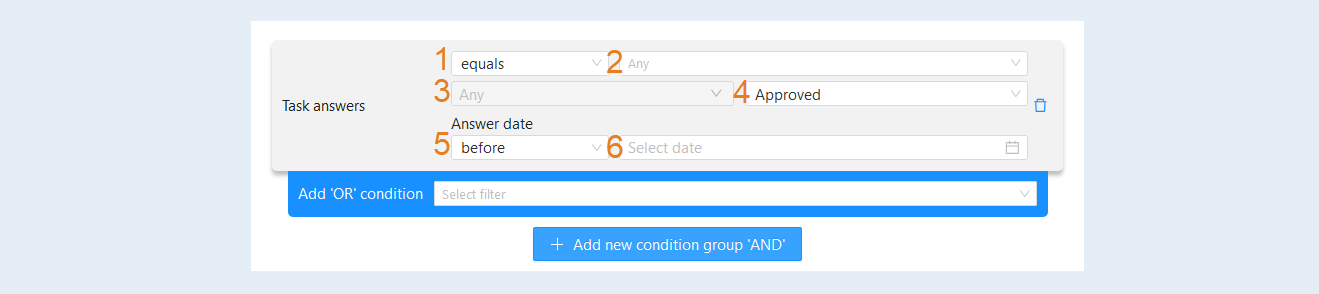
- Task answers
This condition is designed to sort and display users based on their activity and interaction with course assignments.
Filter Conditions:
- Assignment Responses:
- Equal. If this value is selected, the system will show users who match the selected filter conditions. This can help the instructor see who is actively participating in the learning process.
Not equal. Choosing this value will exclude users who meet the selected filter conditions. This filter is useful for identifying users who are not participating in assignments.
Select specific course. Allows for filtering steps by a specific course. If a course is selected, only those users registered for the specified course and who meet the other set filter conditions will be included in the list.
Select course step. This parameter allows selection of a lesson from the chosen course. This is useful for analyzing how users handle specific assignments within a particular lesson. If a lesson is selected, only those users who responded to assignments from that lesson will be shown.
Status:
- Approved. This status will show users whose assignment responses have been reviewed and approved by the instructor.
In progress. This status will display users who have submitted assignments but have not yet received a final grade or approval. This is useful for monitoring user progress.
Response Date:
- Any date. The list will be compiled regardless of the response dates.
Before. Allows the upper limit to be set for the date by which responses will be shown.
After. Establishes the lower limit for response dates, showing only those who responded after the specified date.
Period. Allows you to set a specific time interval for which responses will be selected.
Today. Displays responses submitted only today.
Yesterday. Displays responses submitted only yesterday.
Current week. The list will contain responses for the current week.
Last week. The list will contain responses from last week.
Current month. Allows filtering responses for the current month.
Last month. Allows filtering responses from last month.
Select date or period. This field will be available when selecting conditions: before, after, period. Choose specific dates and times.
Webinars
- Attendance at the webinar
This condition is intended to create a list of users who meet certain conditions for participating in a webinar. For example, you can generate a list of users who joined the webinar after the 15th minute from its start. Thus, you can see who among the participants was late and joined later.
Filter Conditions:
- Type of Webinar:
- Webinar. This allows differentiating regular webinars from automated ones. A webinar is a live event featuring a host.
Autowebinar - this is a recorded webinar that is broadcast automatically.
Choosing a specific webinar from the list. This parameter allows you to select one or more webinars to filter users. This is useful if you need to see participants of a specific webinar rather than all at once.
Choosing a period:
- Before. This filter element helps narrow down the search based on the time of a user's participation in the webinar. This option allows filtering users who started participating in the webinar before the specified time.
After. This option allows filtering users who started participating in the webinar after the specified time.
Period. Allows you to set the start and end of the period during which users joined the webinar.
Minutes. Indicates the time interval, the use of which allows seeing participants who attended the webinar for a specified time. This helps assess user activity.

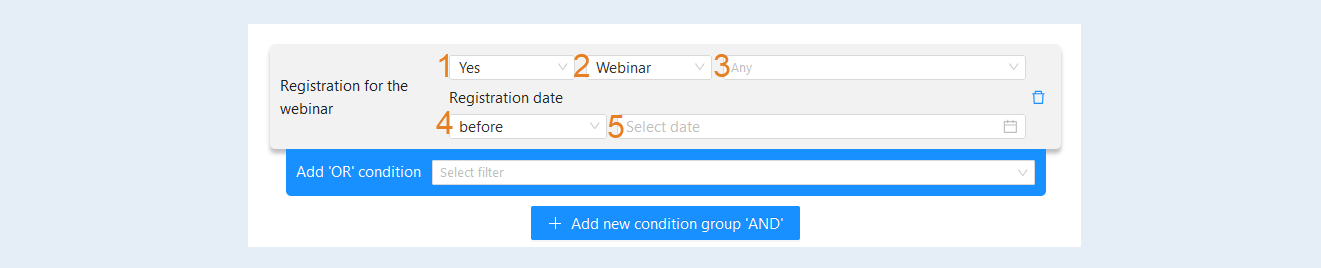
- Registration for the webinar
This condition is intended for searching and forming a list of users who registered for webinars, as well as for analyzing their activity.
Filter Conditions:
- Registration for the Webinar:
- Yes. The filter will show all users who registered for the webinar. This allows generating a list of interested participants for further actions, such as sending reminders or additional information.
No. The filter will find users who did not register for the webinar. This can be useful for identifying potential participants to whom invitations or reminders can be sent.
Type:
- Webinar. The filter will display users who registered for regular live webinars. This can help analyze how interesting live events are.
Autowebinar. The filter will highlight those who registered for pre-recorded webinars. This may be important for assessing interest in automated content.
Choosing a specific webinar from the list. This parameter allows selecting a specific webinar and displaying only those users who registered for it. This simplifies event management and personalized communications with participants.
Registration Date:
- Any date. All users who registered for the webinar during the entire period.
Before. Users who registered before the specified date.
After. Users who registered after the specified date.
Period. Users who registered within the specified time frame.
Today/Yesterday/Current week/Last week/Current month/Last month. This allows quickly finding users by specific periods and analyzing changes over time (for example, registration activity across different weeks or months).
Choosing a date or period. This field will be available when selecting conditions: before, after, period. Choose specific dates and times.
- Attendance at the webinar (duration)
This filter is intended for analyzing the time users spent in the webinar. For example, if you choose "Attendance at the Webinar (Duration) greater than 15 minutes," it will create a list of users who were in the webinar for more than 15 minutes. This will help identify more interested users and assess their level of engagement with the webinar content.
Filter Conditions:
- Type of Webinar:
- Webinar. This allows differentiating regular webinars from automated ones. A webinar is a live event featuring a host.
Autowebinar - this is a recorded webinar that is broadcast automatically.
Choosing a specific webinar from the list. This allows focusing on a specific webinar and assessing the duration of participation only in that one. This will help identify which participants showed interest in a particular event.
Condition:
- Greater than. These conditions allow setting parameters to filter users based on their attendance time in the webinar. For example, the condition "greater than" selects those who attended the webinar for longer than the specified time.
Less than. The "less than" condition selects users who did not make it to the specified time.
Minutes. Here, a specific number of minutes is indicated. This is the time that the user must spend at the webinar to be included in the selection.

- Broadcast View
This condition highlights users who have viewed messages from the selected email newsletter.
Filter conditions:
- Viewed the newsletter:
- Yes. By selecting this option, a list of users who have opened and viewed a specific newsletter will be generated. This may indicate that the content of the newsletter was interesting to the recipient.
No. By selecting this option, a list of users who have not opened or viewed the specified newsletter will be generated. This can help identify an audience that is not responding to communication and requires additional attention.
Newsletter selection. This allows you to specify which newsletter should be filtered. This is useful for analyzing reactions to specific offers.

- Click on the link in the broadcast
The filter is used to highlight users based on their interaction with newsletters. This helps in formulating more targeted marketing strategies and offers.
Filter conditions:
- Click on a link in the newsletter:
- Yes. Choosing this option generates a list of users who clicked on a link in the specified newsletter. This might indicate that the user showed interest in the content or offer. This allows identifying potentially interested users for further communication or offers.
No. Choosing this option will create a list of users who did not click on a link in the specified newsletter. This filter can be used to work with those who have shown no interest and require additional engagement or follow-up reminders.
Select newsletter. This option allows specifying which particular newsletter to filter by. This is useful for analyzing reactions to specific events, such as webinars, promotions, or various offers.

- Date of last click email
This condition creates a list of users based on when they last clicked on a link in the email sent to them.
Filter conditions:
- Date of last email click:
Any date. This filter allows you to select users who clicked on an email at any time. It is useful for mass analysis and assessing overall user activity.
Before. It sets an upper time limit. You can create a list of users who clicked on a link in an email before a specified date and time. This can be helpful for analyzing user interactions with previous messages.
After. It sets a lower time limit. A list will be generated of users who clicked on a link in an email after a specified date. This can help in identifying active users over a specific period.
Period. This allows you to select a date range within which the last click interaction occurred. It is useful for analyzing user activity during certain time frames, such as during promotional campaigns.
Today. The filter allows you to highlight users who clicked on an email today. This is important for understanding current user engagement.
Yesterday. This filter highlights users who clicked on an email the day before. It can help assess the effectiveness of mailings sent the day before.
Current week. It allows you to select users who clicked on an email from the beginning of the current week to the present moment. This is useful for operational analytics.
Last week. This filter selects users who interacted with emails last week. This can help evaluate weekly activity and plan future campaigns.
Current month. Highlights users who clicked on an email since the beginning of the current month. This is convenient for analyzing monthly activity.
Last month. The filter allows you to highlight users who clicked on an email last month. This can help analyze the success of previous campaigns.
Select date and time. Choose a specific date and time. This allows for obtaining very precise data about users.
Include those who did not click. This option allows adding users who do not click on emails at all to the list. This can be helpful for analyzing the entire user base, including those who showed no interest.

- Included in the mailing list
This condition allows for segmenting users based on their subscription to newsletters. For example: sending invitations to webinars, etc.
Filter conditions:
- Subscribed to the mailing list:
- Yes. The filter will show users who are subscribed to a specific mailing list. This helps in identifying the target audience for business communication, as well as for sending targeted offers and promotions.
No. The filter allows seeing users who are not subscribed to the mailing list. This can help segment the audience to prevent information overload and identify those who need convincing to subscribe to newsletters.
Select mailing list. This option allows for choosing a specific list, which enables more precise targeting of the audience for various mailings. For example, separate offers can be created for different user groups based on their interests or activity.

Subscribed to email broadcasts
This filter helps understand the user base that is willing to receive information and highlights those who require additional attention for engagement. This enables effective planning of further promotional offers.
Filter conditions:
- Subscribed to email newsletters:
- Yes. By selecting this option, a list of users who are subscribed to specific email newsletters will be generated. This can be relevant for understanding who is already ready to receive information and updates about new courses or events.
No. By selecting this option, a list of users who are not subscribed to email newsletters will be generated. This can help identify potential users who need to be convinced to subscribe to receive information about new opportunities.

- The date the email was last opened
This condition creates a list of users based on when they last opened an email message. This condition helps in setting up marketing campaigns focused on user engagement levels.
Filter conditions:
- Date of last email open:
Any date. This filter allows you to select all users regardless of when they opened the email. This can be useful if you want to work with the maximum audience without specific time constraints.
Before. If you select this filter, a list of users who opened the email before this date and time will be generated. This can help analyze mailing effectiveness up to that point.
After. A list will be formed of users who opened the email after this date. This can be useful for identifying recently active users.
Period. This filter allows you to set a date range within which users must have opened the email. This is an ideal option for analyzing user activity over a certain time to see trends or reactions to specific campaigns.
Today. This filter selects users who opened the email today. It can be extremely useful for quick feedback on recent mailings or for analyzing current activity.
Yesterday. With this filter, you can select users who opened the email the day before. This is a good way to monitor the reaction to your messages and promotions sent the previous day.
Current week. This filter allows you to select users who opened the email during the current week. This will help you assess open rates over a broader time frame than one day while still remaining relevant.
Last week. With this filter, you can select users who opened the email during the week prior to the current one. This is useful for analyzing short-term changes in user behavior.
Current month. This filter allows you to select users who opened the email during the current month. This will help understand how your mailings are performing over a longer period than a week.
Last month. This filter selects users who opened the email last month. This can be useful for comparing results with the current month and analyzing activity on a larger scale.
Select date and time. Choose a specific date and time. This allows for obtaining very precise data about users.
Include those who did not click. This option allows including users who did not open emails at all. This can be useful for understanding overall engagement and working with inactive users.

Deal
- Has a deal
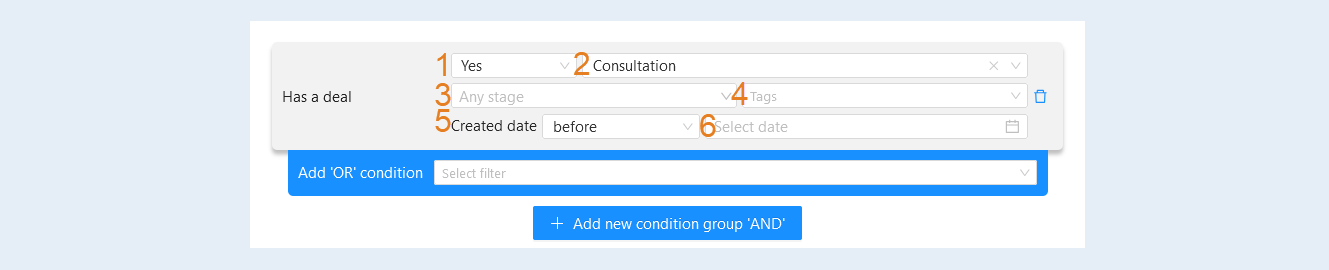
This condition adds or excludes contacts related to the selected deal. It is also possible to filter contacts by the date of creation of the deal or to select a period.
Filter conditions:
- Has a deal:
- Yes. By selecting this option, a list of users with at least one deal will be generated.
No. If this option is selected, users without active deals will be displayed.
Deal selection. This parameter allows filtering users by a specific deal. For example, if you choose the "Marketing Seminar" deal, the list will include only those users who are associated with that deal.
Stage selection. This filter allows you to shortlist users by the current stage of the deal. For example, if you select the "Application" stage, the resulting list will include users who are at that stage in their deals.
Tags. Tags can be used for additional classification of users or deals. Selecting a specific tag will filter users who have that tag. For example, if you choose the tag "Active," you will get a list of only those users who have been marked as active.
Creation date:
- Any date. Returns all users regardless of the deal creation date.
Before. Allows setting an upper limit for the deal creation date.
After. Allows setting a lower limit for the deal creation date.
Period. Specifies a specific time range during which the deal was created.
Today/Yesterday/Current week/Last week/Current month/Last month. These allow filtering only users whose deals were created on the specified day or period.
Date or period selection. This field will be available when choosing conditions: before, after, period. Select specific dates and times.
Affiliate program
- Is a partner
This condition highlights users who are or are not partners in the affiliate program. You can also filter active and inactive partners.
Filter conditions:
- Is a partner.
- Yes. This highlights users who are registered in the platform's affiliate program. This is necessary for identifying users who promote products and earn commissions for attracting clients. Using this condition, for example, you can provide such users access to additional materials and tools for promotion.
No. This highlights users who do not participate in the affiliate program. This helps to identify which users are not interested in collaboration and promotion.
Active.
- Yes. This highlights users who participate in the affiliate program and whose links have been clicked or purchased at least once.
No. Indicates that the user is registered in the affiliate program but does not attract clients (no one has clicked or purchased using their partner links). This helps understand which partners require additional attention or motivation.

- Partner
This condition highlights users who were invited through the affiliate program. For this, select from the list the desired partner whose invitation link the new participants used to register and make purchases. You can also highlight users who do not have a specified partner.
Filter conditions:
- Partner.
- Set. This selects users who were registered through a partner link. This means that these users have associated information about the partner who brought them to the platform. When this condition is selected, a list will be generated of all users who were invited through the links of certain partners. This can be useful for analyzing partner effectiveness, tracking their activity, or assessing the profit they bring.
Not set. This selects users who registered independently of the partner program. This means they have no connection with any partners. This can help understand how many users came to the platform on their own, without the involvement of partners.
Select a specific partner. This option allows you to choose a specific partner from the list. Selecting a specific partner will show all users registered through their link. This can be useful for a deeper analysis of a specific partner's interactions with users and for assessing their contribution to the overall affiliate marketing strategy.

Other
- Bonus account
This condition highlights users who have a certain amount in their bonus account. The amount is specified in the account’s currency.
Filter conditions:
- Bonus Account:
- Equals. This condition will generate a list of users whose bonus account equals a specified numerical value below. This is necessary for precisely identifying users with a certain amount.
Does not equal. A list will be generated of users whose bonus account does not equal a specified numerical value below. For example, not equal to 150. This is useful if it is necessary to exclude a specific group of users.
Less than. A list will be generated of users with a bonus account less than the specified number. For example, less than 150. This can help identify users who have not reached a certain bonuses threshold.
Greater than. Here, a list of users with a bonus account greater than the specified number will be generated. This can be useful for offering special promotions or bonuses only to more active users.
Between. A list of users with a bonus account within the specified range is created. This condition allows for more precise targeting of users with specific scores, for example, for special offers.
Field for entering a numerical value. This is the area where you can enter a specific value for filtering by the chosen attribute.

- Has been imported with session
This condition adds or excludes contacts that were imported into AXL manually. You can either select only those contacts that were imported or, conversely, exclude these contacts from the search list.
Filter conditions:
- Imported with Session:
- Yes. A list of users who were imported into the system during a specific session is generated. This can help analyze the effectiveness of a particular import and track users who came from a specific campaign.
No. A list of users who were not imported with this session is generated. This is important for identifying users who may have registered or been added in various ways, not through import.
Import Session Selection. Allows filtering users imported as part of a specific campaign or period. This is useful for analyzing the results of specific marketing promotions or events.

- Has possible duplicates
This condition allows selecting all contacts that have possible duplicates in the CRM contact database. With this filter, you can regularly tidy up the contact database. Apply this filter to the contact database, click “Similar Contacts Found,” and merge them. For more information on how to merge contacts, read the article "Merging Contacts".
Filter Conditions:
- Has Possible Duplicates:
- Yes. A list of users with possible duplicate entries is generated. This is necessary for analytics and understanding the duplication issue to take measures to eliminate it.
No. A list of users without duplicates is generated. This is important for working with a clean database and minimizing errors in communications.

- Submitting an embed form
This filter allows generating a list of users based on their interactions with embedded forms that may be placed on the website or widgets. Submitting a form embedded in the website or widget through the content editor.
Filter Conditions:
- Submitting Embedded Form:
- Yes. A list of users who actually submitted embedded forms is generated. This may include applications, registrations, and other forms of interaction.
No. A list of users who did not submit embedded forms is generated. This can be useful for analyzing users who began interacting but did not complete the process.
Source:
- Any. Includes users from all sources (website and widget).
Website. Limits the list to users who interacted with forms on the website.
Widget. Limits the list to users who interacted with forms in widgets.
Date:
- Any date. Allows obtaining data for the entire period.
Before. Filters users who interacted with forms before a specific date.
After. Filters users who interacted with forms after a specific date.
Period. Sets a date range for filtering.
Today. Generates a list of users who submitted forms on the current day.
Yesterday. Generates a list of users who submitted forms the day before.
Current Week. Generates a list of users who submitted forms since the beginning of the current week.
Last Week. Generates a list of users who submitted forms last week.
Current Month. Generates a list of users who submitted forms since the beginning of the current month.
Last Month. Generates a list of users who submitted forms last month.
Date or Period Selection. This field will be available when selecting conditions: before, after, period. Select specific dates and times.

Gamification
- Has an achievement
This condition is designed to help find specific groups of users based on their achievements and activity on the platform. It allows you to select contacts that have particular achievements in the "Gamification" section. For more details on this section, read the article "Gamification".
Filter Conditions:
- Has Achievement:
- Yes. Selecting this option will filter users who have one or more achievements. For example, you can find out how many users have received the "First Test," "Marathon Runner," or other forms of recognition for their efforts.
No. This option will select users who have no achievements at all.
Achievement. Here, you can choose a specific achievement to filter users by. For example, if you want to see only those who have received the "Level 1 Buyer" achievement.
Number:
- Less than. This option allows you to select users who have fewer achievements than the value you specify. For example, if you set "less than 5," you will receive a list of users with 0-4 achievements.
Greater than. Similarly, you will receive users whose number of achievements exceeds the specified value.
Equal to. This parameter will filter users whose number of achievements exactly matches the entered number.
Not equal to. This will show users whose number of achievements differs from the specified value.
Input field for numerical value. This is an area where you can enter a specific value to filter by the chosen attribute.
Date:
- Any date. This allows you to see achievements regardless of when they were received.
Before. Filters users by the date of achievement if the achievement date was before the date you specified.
After. Similarly, it filters by achievements that were received after the specified date.
Period. Allows you to specify a certain time frame during which achievements were received.
Today. Filters users who received achievements on this day.
Yesterday. Similarly, but for the previous day.
Current week. Selects achievements received during the current week.
Last week. Filters achievements from the previous week.
Current month. Selects achievements from the current month.
Last month. Selects achievements from the previous month.
Date or period selection. This field will be available when selecting conditions: before, after, period. Choose specific dates and times.
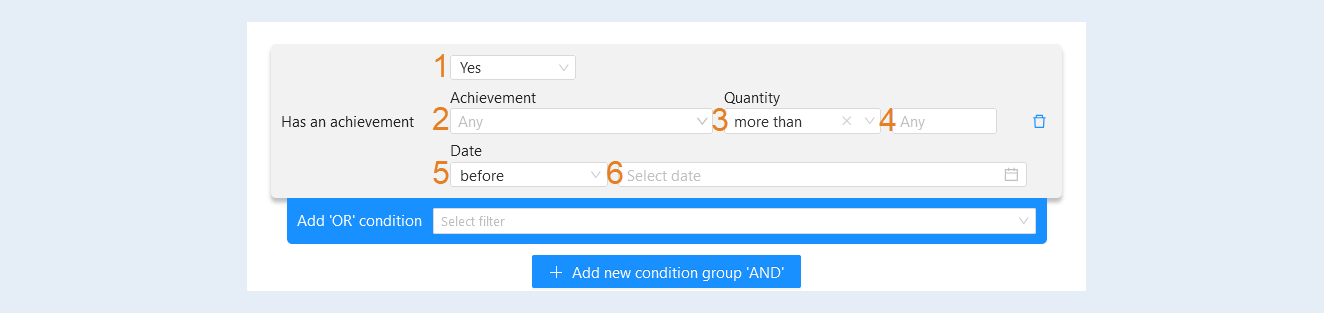
Date and time filters
- Current date
This condition will trigger the next action in the scenario on the date chosen in the settings. The condition allows for more precise automation settings and triggers scenarios at specific times, considering different parameters such as date, time, and timezone. This allows for the creation of more flexible and adaptive scenarios for user interaction on the educational platform.
Filter Conditions:
- Current Date:
- Equal to. This condition checks if the current date matches the specified exact date. If the condition is true, the next action in the scenario is triggered. For example, if March 15, 2023, is chosen, then the action will only execute on that date.
Not equal to. This condition checks if the current date does not match the specified date. If true, the next action is triggered. For example, if March 15, 2023, is set, the action will execute on any day except March 15, 2023.
Greater than. This condition checks if the current date is later than the specified date. If true, the next action is triggered. For instance, if March 15, 2023, is set, the action will execute starting from March 16, 2023.
Less than. This condition checks if the current date is earlier than the specified date. If true, the next action is triggered. For example, if March 15, 2023, is set, the action will execute starting from March 14, 2023.
Date and Time Selection. This allows you to select a specific date and time when the action should take place.
Timezone Selection. Choosing a timezone is necessary for correct handling of dates and times in different regions. It ensures that the action is performed at the right time according to the specified timezone.

- Current time
This condition will trigger the next action in the scenario at the selected time on the chosen days of the week.
Filter Conditions:
- Current Time. This condition allows you to set a time range. If the current time falls within the specified range, the next action is triggered.
Timezone Selection. Important for correctly determining the time, it ensures that actions are performed at the right time for the specified region.
Day of the Week Selection. This condition allows you to choose specific days of the week on which the action should be executed.

Scenario filters
- Chatbot channel type
This condition selects users who are either members or non-members of the chosen chatbots. The condition is used to create complex scenarios with multiple branches based on users’ participation in specific chatbots. This condition helps to identify groups of users who may have different interests or preferences depending on which chatbots they belong to.
Please note that this condition is available in the chatbot scenario.
Filter Conditions:
- Bot Channel Type:
- Contains. If you select this condition and specify, for example, "Telegram", a list of users who interacted with the bot via Telegram will be generated.
Does not contain. If you select this condition and specify, for example, "Telegram", users who interacted with the bot through this channel will be excluded.
Select chat channel. In this field, you can choose specific channels such as "Telegram", "WhatsApp", "Facebook", and so on. When a specific channel is selected, users associated with the chosen channel will be displayed in the final list.

- Email link
This filter allows you to generate a list of users based on how they interacted with the link contained in the email. Please note that this condition is available in the scenario if the previous node is "Click in Email".
Filter Conditions:
- Link in Email:
- Contains. Generates a list of users whose actions include links containing a specific word or phrase. This is useful for finding users interacting with specific content.
Does not contain. Generates a list of users who did not interact with links containing a specific word or phrase. This can be useful for analyzing the lack of interest in specific content.
Equals. Generates a list of users interacting with a specific link (e.g., by full URL). This allows precise tracking of interaction with a particular item.
Does not equal. Generates a list of users who did not interact with the specified link. This can help identify users who bypassed a specific offer or content.
Text input field. This is an area where you can enter a specific value for filtering by the chosen attribute. The value entered in this field will be used to execute the logic of the chosen condition.

- Webhook data
The "Webhook Data" condition means that the system can use information received via webhooks to perform specific actions or checks.
A webhook is a mechanism that allows one application to send data to another application in real-time when an event occurs.
Please note that this condition is available if one of the previous nodes is "Webhook".
Filter Conditions:
- Key. This field is for specifying the key by which filtering will occur. For example, it could be "user_id", "event_type", or any other identifier passed via webhook.
Condition:
- Equals. If you select this condition, a list of users whose value for the specified key exactly matches the entered value will be generated. For example, if the key "user_id" equals "123", only data for the user with ID 123 will be shown.
Does not equal. In this case, a list of users whose value for the specified key does not match the entered value will be generated. For example, if "123" is specified, the list will include all users except the user with ID 123.
Contains. If you select this condition, users whose key value includes the specified substring will be displayed. For example, for a key of type "event_type" containing the word "signup", all events related to registration will be selected.
Does not contain. This is the reverse condition that excludes users whose specified key value contains the given substring. For example, if the filter is set to "signup", the list will include everyone except those who have events related to registration.
Set. This condition filters users whose specified key has some value, regardless of what it is.
Not set. This condition selects users whose specified key has no value or is empty.
Value. This field is for specifying the value by which filtering will occur.

- Scenario run data
The condition is used to create complex scenarios with multiple branches depending on the data. This condition allows you to check specific data related to the scenario launch and make decisions based on that data regarding how the scenario will continue. Such data may include information about the user, their actions, preferences, or the context in which they interact with the platform.
In the "Key" field, select the key that points to a specific part of the data, such as "product.id", to identify a specific product or module. Next, set the condition based on the chosen key, for example, if "product.id" equals a specific value. Depending on whether the condition is met or not, the scenario can follow different branches: showing different materials, suggesting additional tasks, or sending different messages.
Please note that this condition is available if the previous node is "Scenario Started".
Below is an example of a scenario using this condition.
Filter Conditions:
- Key. This field is for specifying the key used for filtering. For example, it could be "user_id", "event_type", or any other identifier.
Condition:
- Equals. If this condition is selected, a list of users will be formed where the value of the specified key exactly matches the entered value. For example, if the key "user_id" equals "123", only data for the user with ID 123 will be displayed.
Not Equal. In this case, a list of users will be formed where the value of the specified key does not match the entered value. For example, if "123" is specified, the list will include all users except for the user with ID 123.
Contains. If this condition is selected, users will be displayed whose key value includes the specified substring. For example, for a key like "event_type" that contains the word "signup", all events related to registration will be selected.
Does Not Contain. This is the opposite condition, excluding users whose specified key value contains the specified substring. For example, if a filter is set for "signup", the list will include everyone except those associated with registration events.
Is Set. This condition filters users whose specified key has some value, regardless of what it is.
Is Not Set. This condition selects users whose specified key has no value or is empty.
Value. This field is for specifying the value by which filtering will occur.

- Form data
The condition is used to check values entered by users in the form. It allows the system to respond to the entered data and manage the further scenario based on the values of this data.
When a user fills out a form and submits it, the values of each form element (such as text fields, switches, checkboxes, etc.) are saved. In this condition, you can specify specific elements from this form and set a condition for their values.
Please note that this condition is available if the previous node is "Form Submitted".
Filter Conditions:
- Form Element Name. This field allows you to select a specific field from the form you are working with.
Condition:
- Equals. Filtering occurs based on an exact match. If this condition is selected and a value is entered, only those users with that value in the selected field will be displayed.
Not Equal. This condition excludes users whose data in the selected field matches the specified value. In other words, all users except for the specified ones will be displayed.
Contains. If this condition is selected, the system will show users whose selected field contains the entered value (partial match).
Does Not Contain. This condition works oppositely to the "Contains" condition – all users whose selected field does not contain the entered value will be displayed.
Less Than. Allows you to select users whose value in the selected field is less than the specified value.
Greater Than. Works similarly to the previous condition, but filters users with values greater than the specified one.
Value. This field is for specifying the value by which filtering will occur.

Course
- Course duration
This condition highlights users who have completed a course with a specified duration in days, hours, or minutes.
Please note that this condition is available if the previous node is "Course Completed".
Filter Conditions:
- Condition:
- Equals. This condition shows only those users whose course duration is equal to the specified value.
Does not equal. Excludes users whose course duration matches the specified value.
Less than. Allows filtering users whose courses lasted less than the specified value.
More than. Displays users whose course duration is greater than the specified value.
Input field for a numeric value. This is the area where you can enter a specific value for filtering based on the selected attribute.
Measure. This condition allows for the selection of specific time units (days, hours, minutes).

- Course score
This condition highlights users who received a certain number of points upon completing the course. Choosing these conditions allows for more precise filtering of users based on their scores, focusing on a specified range.
Please note that this condition is available if the previous node is "Course Completed".
Filter Conditions:
- Range. These fields are used to determine the range of points received by users during the course.
From. Allows setting the lower boundary of the score range. Users who received less than the specified value will not be displayed. To. Sets the upper boundary of the score range, and users who received more than the specified value will also not be shown.
Inclusive. If this checkbox is checked, the boundary values (both "From" and "To") will be included in the sample. This means that users with an exact score match at the boundaries will also be included in the result.

Form/quiz
- Answer in the form
This condition is used for segmenting users based on their responses in forms, which helps in better understanding their preferences and evaluating the quality of the information obtained.
Filter Conditions:
- Selection of Form. This allows you to specify which form to search for user responses. For example, you can choose a registration form or feedback form.
Selection of Form Field. This allows you to select a specific field in the chosen form, such as name, email, question, or any other requested value.
Condition:
- Equals. Selects users whose response in the specified field exactly matches the provided value. For example, "Name equals Ivan" will find users who specified the name Ivan.
Does not equal. Excludes users with the specified response value. For example, "Age does not equal 25" will exclude all users who stated they are 25 years old.
Contains. Finds users whose response partially matches the specified substring. For example, "Comment contains help" will find those who mentioned "help" in their comments.
Does not contain. Excludes users whose response contains the specified substring. For example, "Review does not contain negative" will exclude all who left negative reviews.
Specific. Finds users who provided a response in the specified field. For example, "Email defined" will show all users who provided their email.
Not Specific. Finds users who did not fill in this field. For example, "Phone not defined" will show all users who did not provide a phone number.
Field for entering value. Here, a specific value is entered for comparison with user responses.
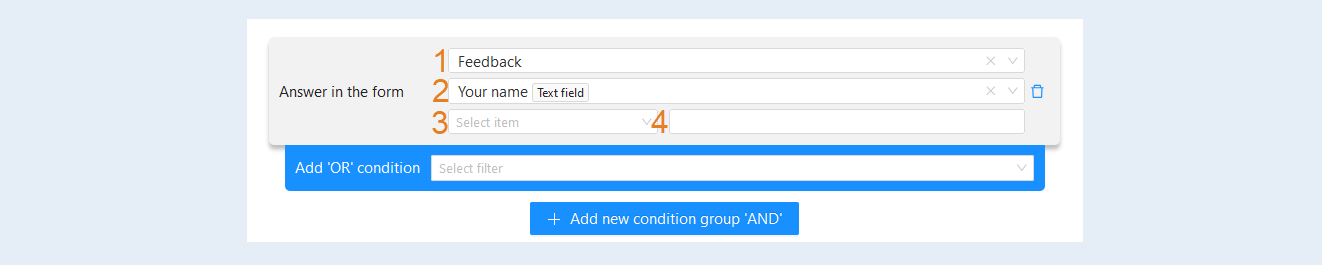
- Form UTM tag
This condition allows segmenting users based on UTM tag parameters used in forms to track traffic sources and marketing campaign results.
Filter Conditions:
- Form Selection. Allows specifying a particular form whose data will be analyzed. For example, if you have multiple forms on the platform, you can choose which one you want to investigate.
UTM Tag Selection. Allows you to select a specific UTM parameter of interest.
- utm_source - traffic source; indicates where the user comes from (e.g., Google, Facebook, newsletter, etc.).
utm_medium - marketing medium (channel); denotes the type of traffic (e.g., CPC, email, banner, etc.).
utm_campaign - name of the advertising campaign; used to track a specific campaign or promotion.
utm_term - term, keyword, or phrase; usually used in the context of contextual advertising to track the keywords that users use to find ads.
utm_content - content; allows distinguishing similar links or content elements within the same campaign, helping to identify which content performed better (e.g., different versions of the same ad or banner).
Condition:
- Equals. Filters users whose specific UTM parameter value exactly matches the specified value. For example, utm_source equals Facebook will find users who came from Facebook.
Does not equal. Excludes users with the specified value. For example, utm_source does not equal Google will show all users except those who came from Google.
Contains. Selects users whose UTM parameter value includes the specified substring. For example, utm_medium contains email will find users who came from email newsletters.
Does not contain. Excludes users whose UTM parameter value includes the specified substring. For example, utm_source does not contain Instagram will exclude users who came from Instagram.
Input field for value. Here you enter the specific value against which the selected item and condition will be compared.

- Submitting a form/quiz
This filter is designed to select users based on criteria related to the submission of forms or quizzes on the learning platform. Its use allows administrators to compile a list of users who completed or did not complete certain actions, which can aid in analyzing user activity and engagement.
Filter conditions:
- Form/Quiz Submission:
- Yes. If this option is selected, the platform will display users who completed and submitted the form or quiz. This helps track mandatory assignments and levels of engagement.
No. If this option is chosen, users who did not submit the form or quiz will be shown. This can help identify users who may be facing difficulties or who are simply not participating in the survey.
Selection of Form. This allows you to choose a specific form or quiz for filtering users. If a specific form is selected, the list will be narrowed down to only those who submitted or did not submit that specific one. This is useful for assessing work on a particular task.
Date:
- Any date. Shows all users without a limitation on the submission date of the form or quiz.
Before. Allows selecting users who submitted the form before a certain date. This can be useful for analyzing task completion before an important date or event.
After. Allows selecting users who submitted the form after a certain date. Useful for tracking user activity within a specified period.
Period. The user sets two time parameters to select people who submitted assignments during this period.
Today. Will display users who submitted forms or quizzes specifically on the current day.
Yesterday. Will display users who submitted forms or quizzes the day prior.
Current week/Past week. Weekly selection allows for understanding how users are managing assignments over a longer timeframe, helping to monitor dynamics.
Current month/Past month. Similarly, but on a monthly level. This is useful for long-term analysis of activity and task completion.
Date or period selection. This field will be available when choosing conditions: before, after, period. Select specific dates and times.
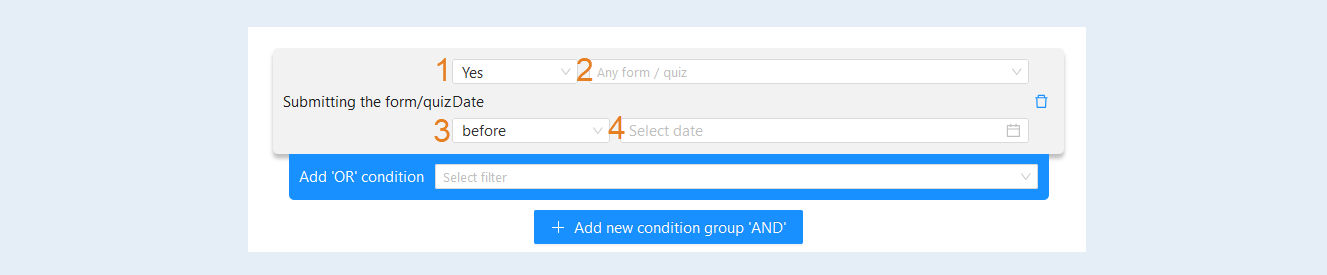
Order
- Order has been paid
This filter helps track users who made payments for training or access to content. This filter is important for financial management and understanding how many users are actually engaged in paid studies.
Please note that the condition is available if there is an order present in the scenario chain.
Filter conditions:
- Order Paid:
- Yes. This option shows only those users who successfully paid for their orders. This allows educational institutions or platforms to assess the volume of paid services and monitor finances.
No. Choosing this option will display users who did not make a payment. This may help identify potential customers or users who are interested but did not complete the payment process. Intervention may be required, such as sending reminders or offering assistance.

- Product
This filter is used to determine a group of users related to products in the system. It helps in analyzing and segmenting users based on the presence or absence of products in their orders.
Please note that the condition is available if there is an order present in the scenario chain.
Filter conditions:
- Product:
- Yes. If you select this condition, the system will display all users who have a specific product in their orders. This can be useful for analyzing customers who have already shown interest in a particular product, or for targeted marketing.
No. When this condition is selected, the system will show users who do not have the specified product in their orders. This can help identify potential customers who might be interested in the product but have not yet made a purchase.
Selecting a specific product. If you choose one of the specific products, the system will show users who do or do not have the specified product in their orders. This allows for more precise targeting of the audience for marketing campaigns or notifications.

- Payment amount
This filter allows analysis of users based on their payments. Selecting each condition will generate lists of users based on their payment amounts, which will aid in analysis and decision-making related to marketing and promotions.
Note that this condition is available if an order is present in the scenario chain.
Filter Conditions:
- Condition:
- Greater than. When this condition is selected, the system will show users who have paid an amount exceeding the specified number. This can help identify customers with high purchasing power.
Less than. This condition allows finding users whose payment amount is less than a certain value. This is useful for identifying customers who may need motivation to increase their spending.
Equal to. The system will display users who have paid exactly the specified amount. This can be helpful if you need to identify groups of users who have made identical purchases.
Not equal to. This option will help find users whose payment does not match the specified amount. This can be useful for analyzing unusual situations or identifying customers who make purchases under special conditions.
Field for entering a numerical value. This is an area where you can enter a specific value to filter by the selected attribute.

- Order amount
This condition highlights users whose order amounts are greater than, less than, equal to, or not equal to the selected value.
Note that this condition is available if an order is present in the scenario chain.
Filter Conditions:
- Condition:
- Greater than. Selecting this condition will show customers whose orders have a total amount exceeding the specified value. This helps identify more active and financially capable customers.
Less than. This condition will display users whose orders total less than a certain amount. This is important for working with customers who may be less engaged.
Equal to. If this condition is selected, the system will show users whose total order amounts match the specified one. This can be useful for analyzing specific customer segments.
Not equal to. This condition will help find users who have placed orders for amounts different from the specified one. This can identify users with non-standard purchasing habits.
Field for entering a numerical value. This is an area where you can enter a specific value to filter by the selected attribute.

Cohort
- Current cоhort data
This filter allows tracking and managing participants in streams (courses or groups). Note that this condition is available in the stream scenario.
Filter Conditions:
- Current Stream Date:
- Yes. When this condition is selected, the filter will only consider those users who are currently enrolled in the course or are active participants in the current stream. This allows instructors or platform administrators to quickly see who is currently studying.
No. When this condition is selected, the filter will show users who are not currently enrolled in the course. This could be those who have completed their training or those who have not started yet.
Selecting a specific stream. This condition allows selecting one specific stream, course, or group for which users will be displayed.

Applications
- Telegram groups. Member of groups
This condition allows forming a list of users who meet certain criteria related to their participation in Telegram groups and channels. It highlights users who are or are not members of the selected Telegram groups.
Filter Conditions:
- Membership in Groups/Channels:
- Yes. This option allows you to select users who are members of at least one group or channel in Telegram. This can be useful for identifying active participants who are engaged in communities and may be more interested in content or products.
No. This filtering option excludes users who are members of any groups or channels in Telegram, which may help focus on those who are not involved in such communities, possibly for later engagement or attracting their attention.
Choosing a specific group. This filter allows you to choose specific groups or channels in Telegram that users must be members of. Such a filter helps to more precisely direct your efforts toward a specific audience segment.
Date:
- Any date. Shows all users regardless of the date they joined.
Before. Allows you to select users who joined before a specified date.
After. Displays users who became members starting from a specified date.
Period. Allows you to set a specific time frame for selecting users.
Today. Shows users who joined groups/channels on the current day.
Yesterday. Displays participants who joined the day before.
Current week. Filters users who joined during this week.
Last week. Displays those who became members in the previous week.
Current month. Shows users who became members this month.
Last month. Filters users who joined last month.
Date or period selection. This field will be available when selecting conditions: before, after, period. Choose specific dates and times.

Example of setting up the "Condition" node
Select a condition from the list, for example condition: "The course is completed". Then the condition line "Yes" or "No" will appear. Select "Yes". If you select "No", a list of users who have not completed the course will be displayed. And then select a course from the list of courses of your account. Click the "Save" button.
Then you can choose the following action in the script, for example: "Send an email". Thus, the email will be sent only to those users who have completed the selected course.
Below is a simple example of configuring a node based on a single condition. But the list can be complicated by adding several conditions "OR" and "AND".