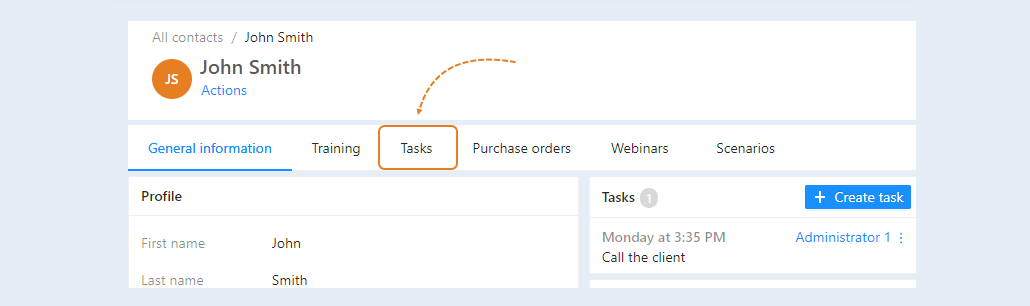
In the "Tasks" tab, you see a list of tasks for this contact. All information in this tab is duplicated from the “CRM” - “Tasks” section.
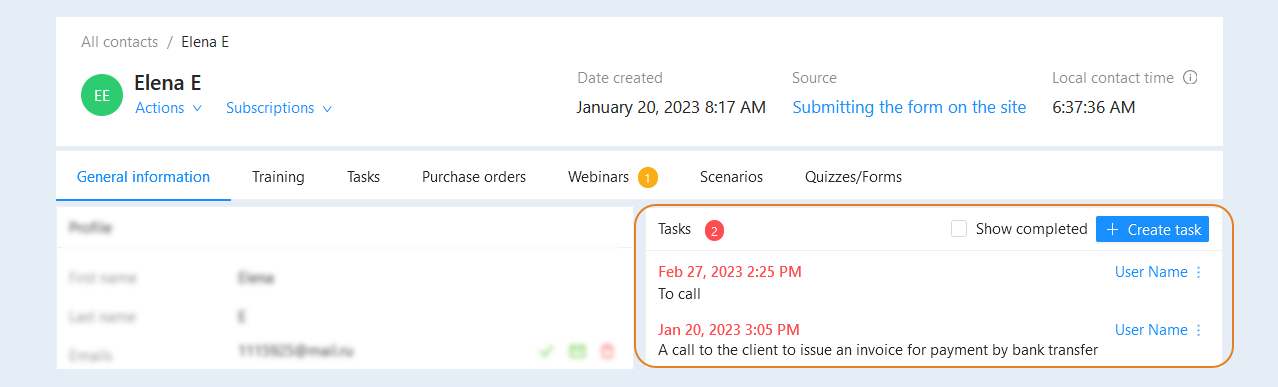
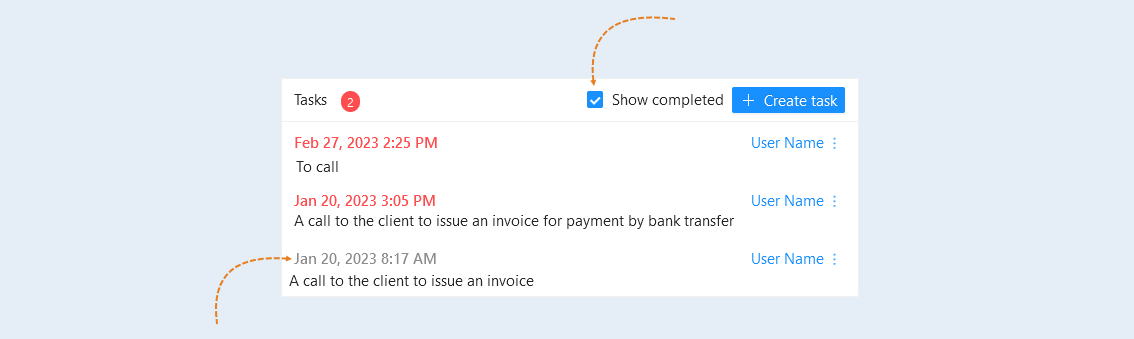
In the "Tasks" tab of the contact, only those tasks that have not yet been completed are displayed. If you want to see the completed tasks of this contact, check the "Show completed" box. Tasks with the status "Done" will be added to the contact's task list.
You can also go to the "Tasks" section and see more detailed information about the tasks for this contact. Read more about the "Tasks" section in the "Tasks in the contact card" article.
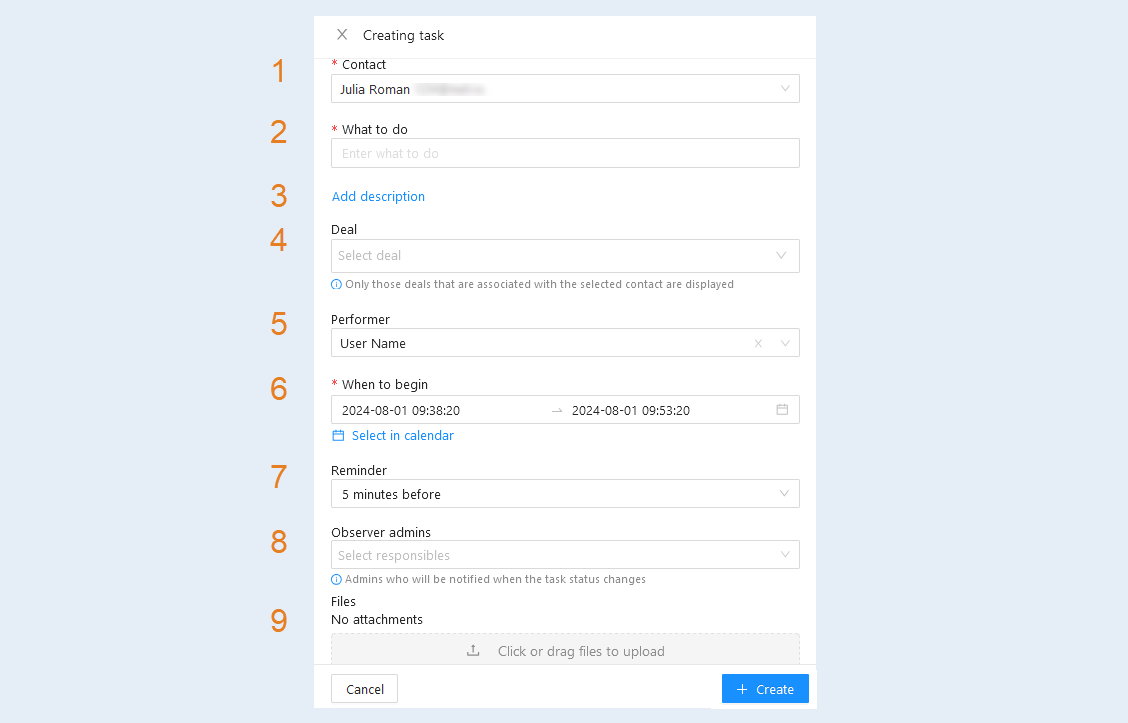
Contact. Select a customer from the list.
- What to do. Write the action to be taken with the client
- Add a detailed description. Click to add a description to the task.
Deal. The deal can be added to the task from the script.
Performer. Assign a responsible employee to complete this task.
- When to begin. Set the time interval for the task. Click "Select in calendar" and use your mouse to select a period of time on the calendar, and then click Apply.
Reminder. Set a reminder period for the task: 5 minutes, 30 minutes, 1 hour before the start or do not remind.
Observer admins. Assign an administrator to monitor the execution of this task.
- Files. Attach files as needed.
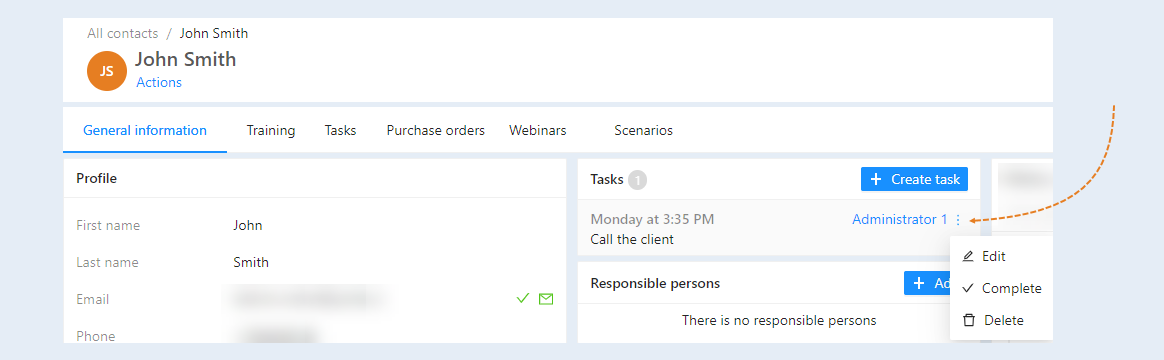
Click the Create button. The task appeared in the "Tasks" tab. After the task is created, you can manage this task. Click the three dots to the right of the task. You will see a list of actions:
- Edit. Click to make changes to the task.
- Complete. Click to complete this task.
- Delete. Click to delete a task.