An automation does routine work for you: when something happens (an event), AXL runs the actions you chose. In this lesson, your team gets a notification every time someone submits a form.
Create the Automation
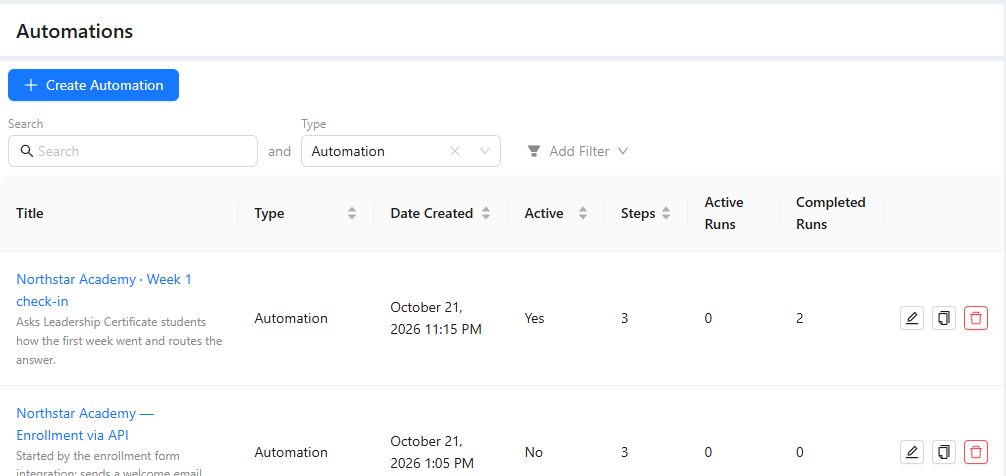
- Open Settings → Automations and click Create Automation.
- Enter a Title, for example "New form request", and click Create.
- Open the new automation and go to its Automation tab.
Add an Event and an Action
- In the panel on the left, find Form Submitted and drag it onto the canvas, or double-click it. Leave Form Name empty to react to any form.
- Add the Notification action the same way. Write the Notification Text and choose Admin as the type and the admins to notify.
- Connect the cards: drag from the circle on the right of the event to the circle on the left of the action.
- Switch the toggle at the top of the panel to Active.
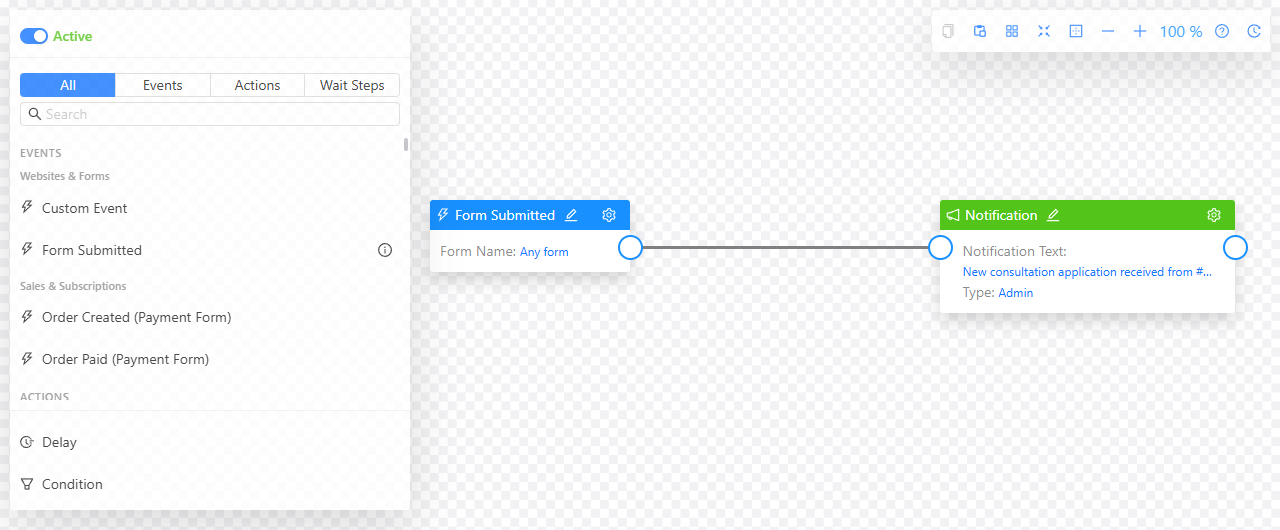
Add more actions to the chain the same way, for example Send Email to thank the person or Add Tags to mark them. Event cards are blue, action cards are green. More in "Automations", "Automation Event Types" and "Automation Action Types and Settings".