Your team calls customers and takes their calls right in AXL, without a desk phone. During a call, the phone window shows who you are talking to: the contact, their deals, local time and notes, so you never have to look things up. After the call, AXL saves the outcome, your note, the recording and an AI summary on the contact's card.
To use the phone, a team member must be added to a number with Calls permission. See "Phone Numbers".
The Phone Window
Click the phone icon in the top bar. A green dot on it means the phone is on: incoming calls ring even if the window is closed.
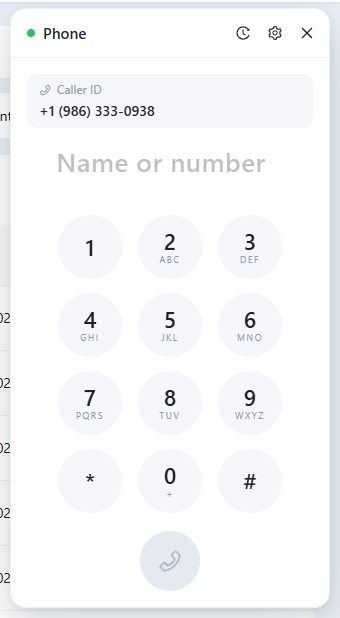
- Caller ID: the number your call goes out from, normally your default number. When a substitute number is cheaper for the destination, the window says so.
- Name or number: type a contact's name or a phone number, or use the keypad, then press the call button. You can also call from the contact card.
- The clock icon opens My calls: your calls on your numbers with their status (missed, no answer, busy, voicemail and so on), a date filter, and buttons to call back or write a text.
- The gear opens Sound settings: choose the microphone and speaker, check the microphone level and play a test sound.
During a Call
The Contact pane shows the contact's name, deals, local time, email and notes. If the number isn't in your CRM yet, Add contact creates the contact. The buttons at the bottom mute the microphone, open the keypad and end the call.
If a second call comes in while you are talking, the window shows Second call: Hold and answer puts the current caller on hold and connects the new one, and Swap switches between them. When you finish one call, you go back to the one on hold.
After the Call
When the call ends, the window shows Call ended:
- Call summary: AXL transcribes the recording and writes a short summary while you watch. If the recording is too short or unclear, the summary says so.
- How did it go?: pick the outcome, for example Agreed or Not interested. The list comes from "Call Settings". Outcomes with a suggested follow-up offer to create a task, and the Call back later button creates a task to call back in an hour.
- Notes: a comment saved with the call.
Click Save, or Skip to close without an outcome. Open call opens the call card with the recording, transcript, summary and cost. Every call also appears on the History tab. See "Call Analytics".
Incoming Calls
An incoming call shows the caller and the Answer and Decline buttons. Whether it rings you depends on the number's incoming-call settings. See "Incoming Calls".