Payment Instruments are means of payment on AXL for visitors to your web pages. It is imperative to connect payment methods so that on your site the guest can see the "Payment" button in the shopping cart.
Click on the desired section of the article to go to its description:
Creating payment intergation
Go to the "Settings" - "Payment settings" section. Click on the "Create Payment Integration" button.
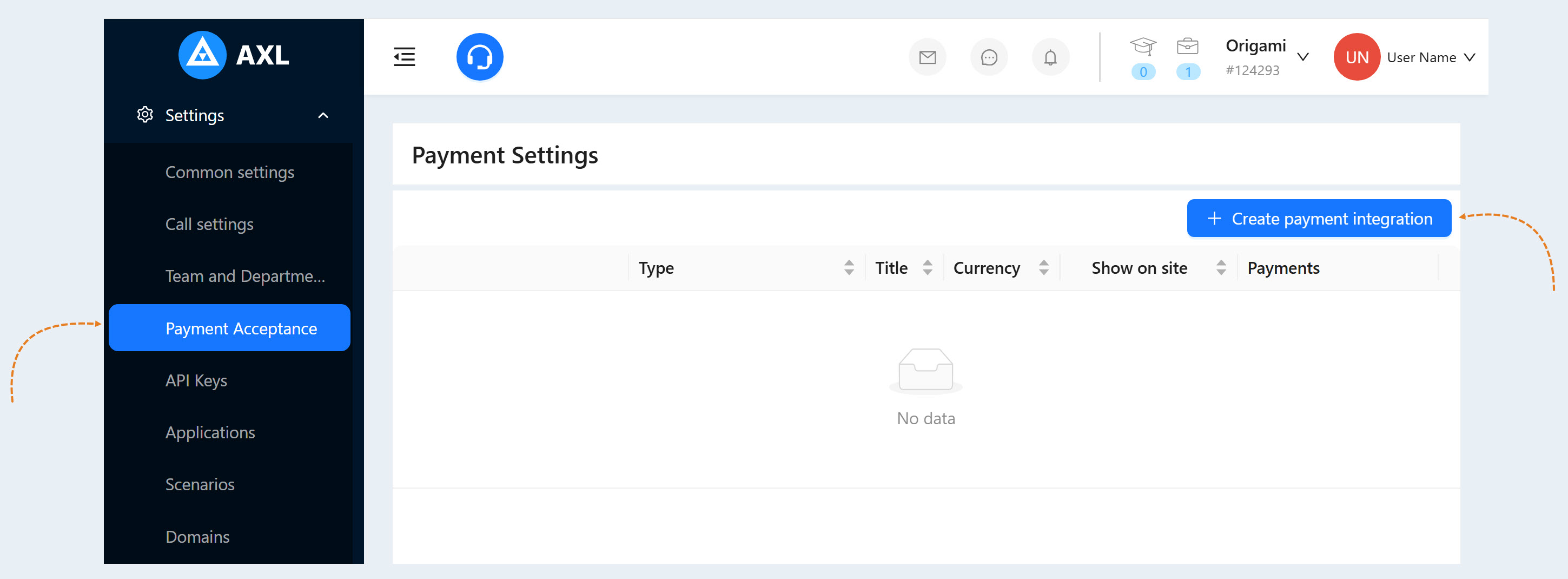
A list of available payment methods on the AXL platform will open:
Stripe
PayPal
- Cash
- Wire Transfer
Fondy
SquareUp
Smart Glocal
BitPay
ecPay
MecadoPago
Midtrans
CyberSource
WayForPay
Mobbex
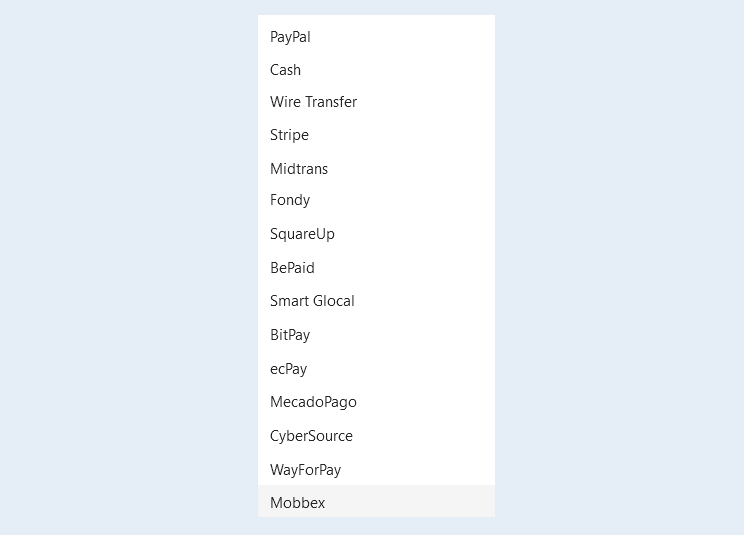
You can connect any of these methods or several at once.
How to connect payment instruments
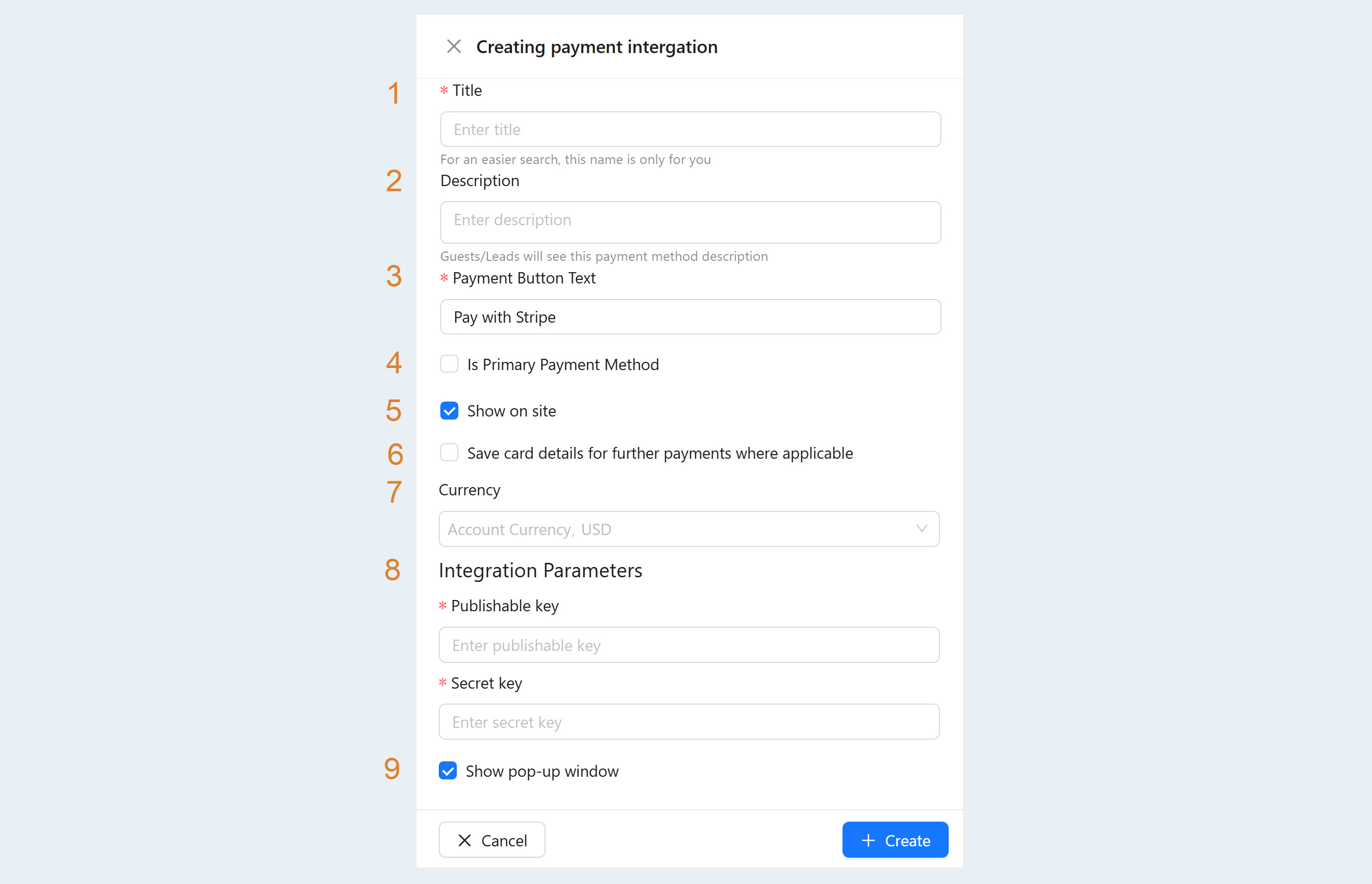
Click the "Create Payment Integration" button and select a payment method from the list. An additional window will open. Fill in the fields.
All payment methods have similar settings:
- Title. Enter the name of the payment instrument.
- Description. Visitors to your pages will see this description of the payment method.
- Payment button text. This text will be displayed on the payment button on your web page (site).
- Is primary payment method. Check the box if you want to make this payment method the main one.
- Show on the site. Check the box to make this payment method available on your website.
- Save card details for further payments where applicable. Check the box in this line so that when paying for repeated orders, the user does not have to enter the bank card data again. In this case, the subsequent payment will be available to the user in one click. This setting is necessary for making recurring payments.
Currency. Select the currency in which you plan to accept payments. If you work in different markets in different countries, you can choose the currency for accepting payments in each payment system. For example, by selling courses in dollars through one payment system, you can accept rubles through another payment system. Automatic currency conversion takes place at the international exchange rate.
- Integration parameters (not available in the "Cash" and "Cashless" payments). Integration parameters differ for different payment methods. For Stripe, you need to specify two keys - published and secret, for PayPal - only e-mail, for Robokassa - store ID and passwords, and for YooMoney - detailed information (store number, secret key, tax system, subject of payment, method of payment ). You will receive the integration connection parameters when you connect one or another payment method. Read more about filling in the "Integration parameters" fields in the articles: "PayPal settings", "Stripe settings" and others.
Show a pop-up window. This feature will open a payment pop-up window for customers instead of redirecting them to the payment page of the selected payment integration.
All means of payment are integrated in such a way that information about the payment is displayed in the "Orders" and "Payments" tabs. If you specify the payment method in cash, you will need to manually change the order parameters in the "Orders" tab.
List of payment instruments
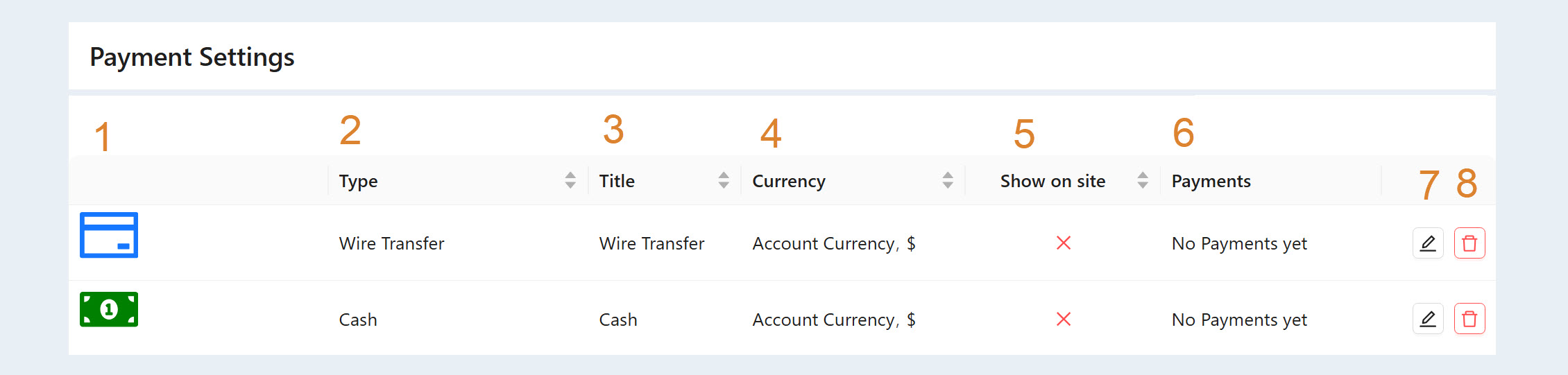
When you added payment instruments to your account, they appeared in the "Set up Payments" list. Here you can see the following information:
- Icon. In the first column, you see an icon for the payment method.
- Type. You can see the type of payment method.
- Title. Here you can see the name of the payment integration that you specified when creating this payment method.
Currency. In this column you can see the currency in which your customers will pay for purchases when choosing this payment method.
- Show on site. In this column, you can see whether the payment method on the site is shown or not.
- Payments. Here you can see the number of payments for this type of payment.
- Edit button. Click on the button to edit the payment method.
- Delete button. Click on the button to delete this payment method.
Read more about each payment instrument in the corresponding articles: "Stripe settings", "Pay Pal settings" and others.