Twilio is a platform for creating SMS newsletters. To send mailings and notifications via SMS, you can integrate the Twilio service with the AXL platform through the "Webhook" action in the scenario.
To integrate Twilio, you need:
1
Registration in Twilio
Go through the registration procedure on the Twilio website by clicking on the link. Fill in the required fields and launch the free trial version.
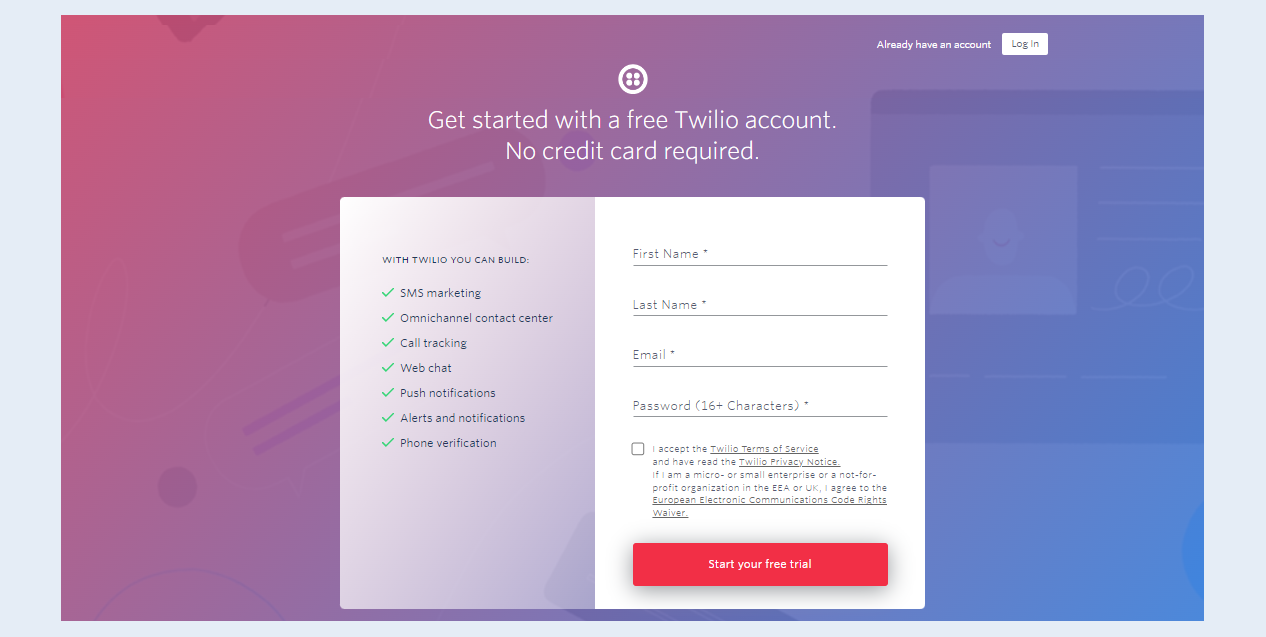
Check the email address specified during registration. After registration, you may receive a letter from Twilio technical support asking you to describe the use of the service in a reply letter. Your account will be activated within 24 hours after receiving the response.
After activating your Twilio account, you will receive a free phone number, ACCOUNT SID (Account Security Identifier) and AUTH TOKEN (Authentication Token). The ACCOUNT SID and AUTH TOKEN are displayed on the Twilio account page.
To get a free number on the account page, click the "Get a Trial Number" button.
2
Encoding a long string
To fill in the "Headers" field when integrating Twilio, you need to get a long string. To do this, go through the encoding procedure on the "BASE64" website by following the link.
In the field, enter - TWILIO_ACCOUNT_SID:TWILIO_AUTH_TOKEN (in this line, replace the text with the ACCOUNT ID and AUTH TOKEN number received when registering with Twilio).
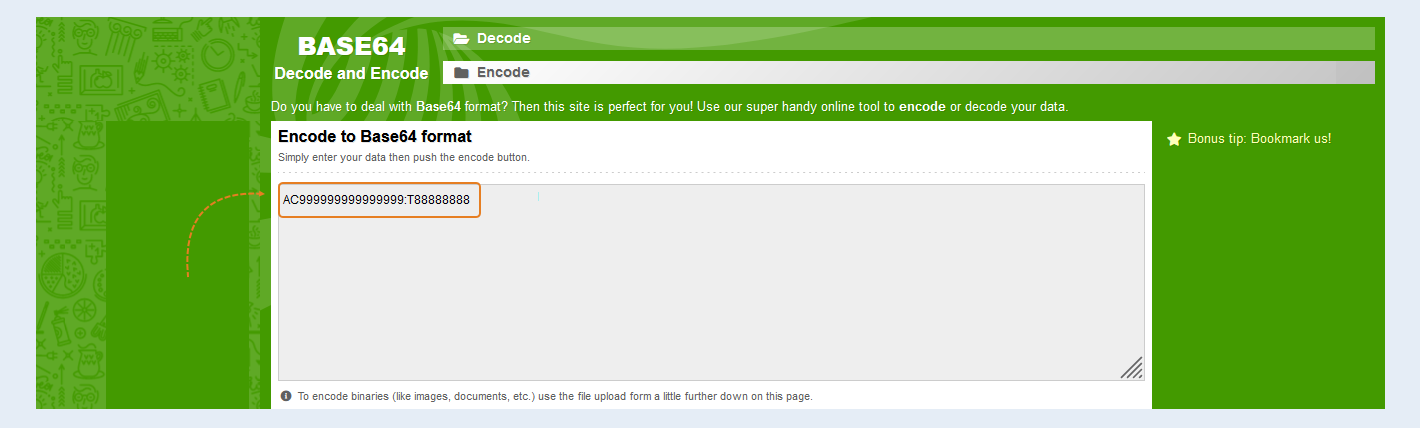
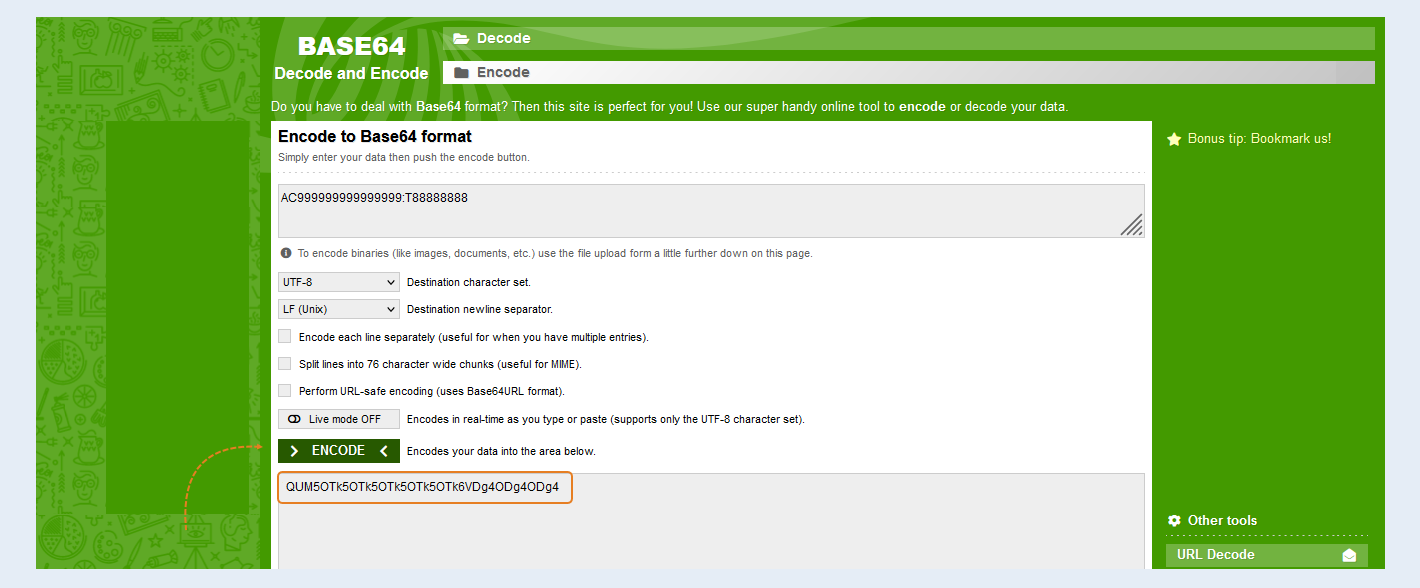
Click the "Encode" button and get a long string. Copy the long line, you will need it in the next step.
3
Setting up the "Webhook" node
Go back to the AXL platform, to your account, to the Scenario creation page. In the Scenario, add a Custom event that will launch an SMS newsletter. Next, add the "Webhook" action and connect the event and the action together. Open the configure of the "Webhook" node.
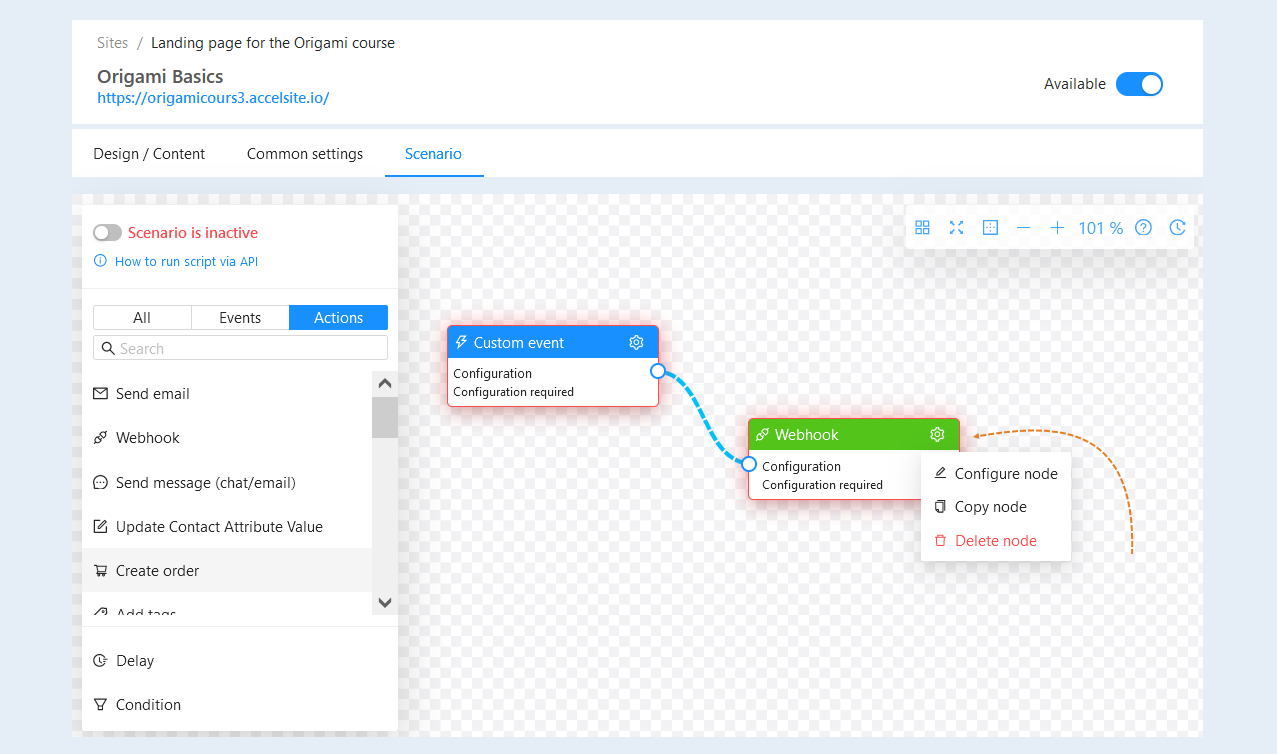
An additional window will open for you. Fill in the fields according to the settings below.
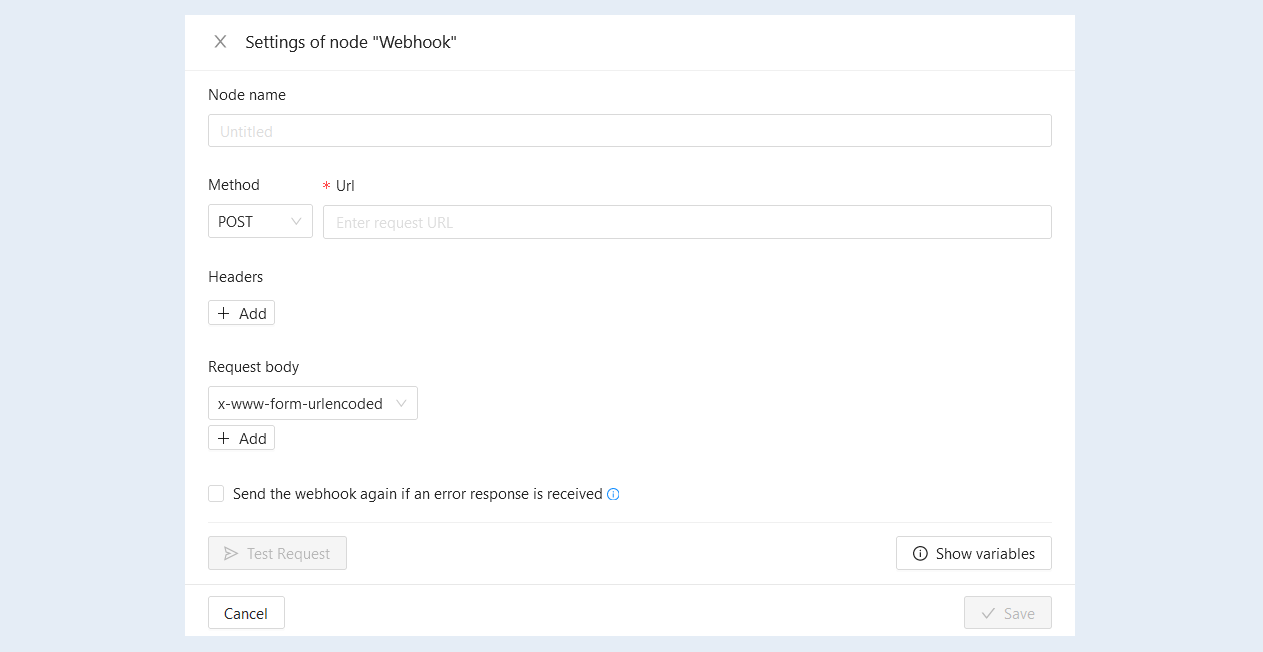
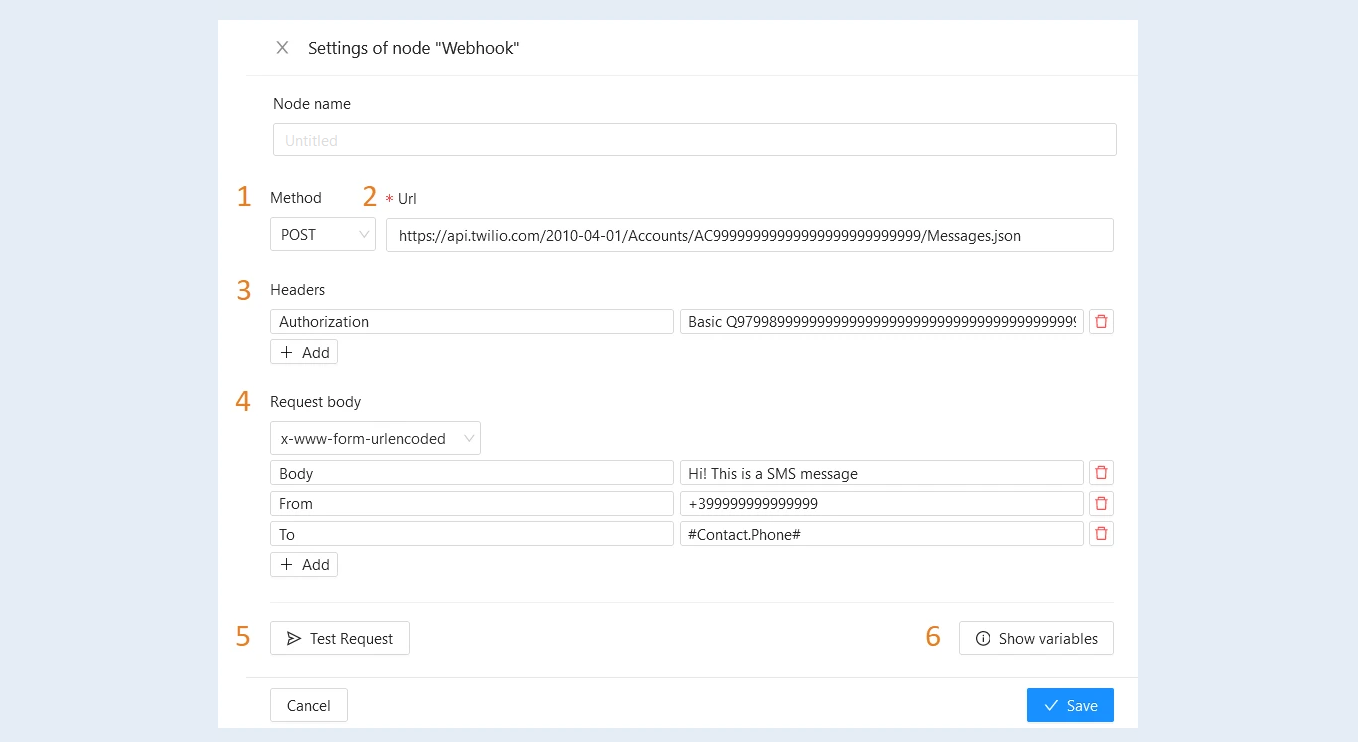
- Method. In the "Method" field, select - POST from the list.
URL. In the "URL" field, enter - https://api.twilio.com/2010-04-01/Accounts/SID_YOUR_ACCOUNT_IN_TVILIO/Messages .json (in this link, replace the text with ACCOUNT SID Twilio received during registration).
Headers. In the "Key" field, enter - Authorization. In the "Value" field, enter - Basic LONG_STRING_WHICH_RECEIVED STEP_2 (in this link, instead of the text, enter the long string obtained during encoding in step №2).
Request body. In the "Request Body" field, select - x-www-form-urlencoded from the list.
Next, add three lines by clicking the "Add" button. Enter the data in each row:- Key - Body. Value - the content of the SMS message you want to send. Write in text.
Key - From. Value - specify the phone number from which the SMS will be sent.
Key - To. Value - specify the phone number to which the SMS will be sent. Use variables
Test request. Tests the created settings.
Show variables. Click the "Show variables" button, a list of variables will open on the right. Select the necessary variables from the list.
A variable is a value to be automatically replaced with the data you selected. This can be the contact's name, e-mail, account name, order number, etc. Variables will automatically replace the data in the email. Specify the variable “Contact Name” and when sending an email, this variable is replaced with the recipient's name. If the "Create order" action was added in the script at the previous step, then data about the user's order will appear in the list of variables.
Click the "Save" button.