In the "Membership portal account" tab, you see information about whether the contact has registered with your membership portal or not. If the client is not yet registered, then send him an invitation. Click on the "Invite" button.
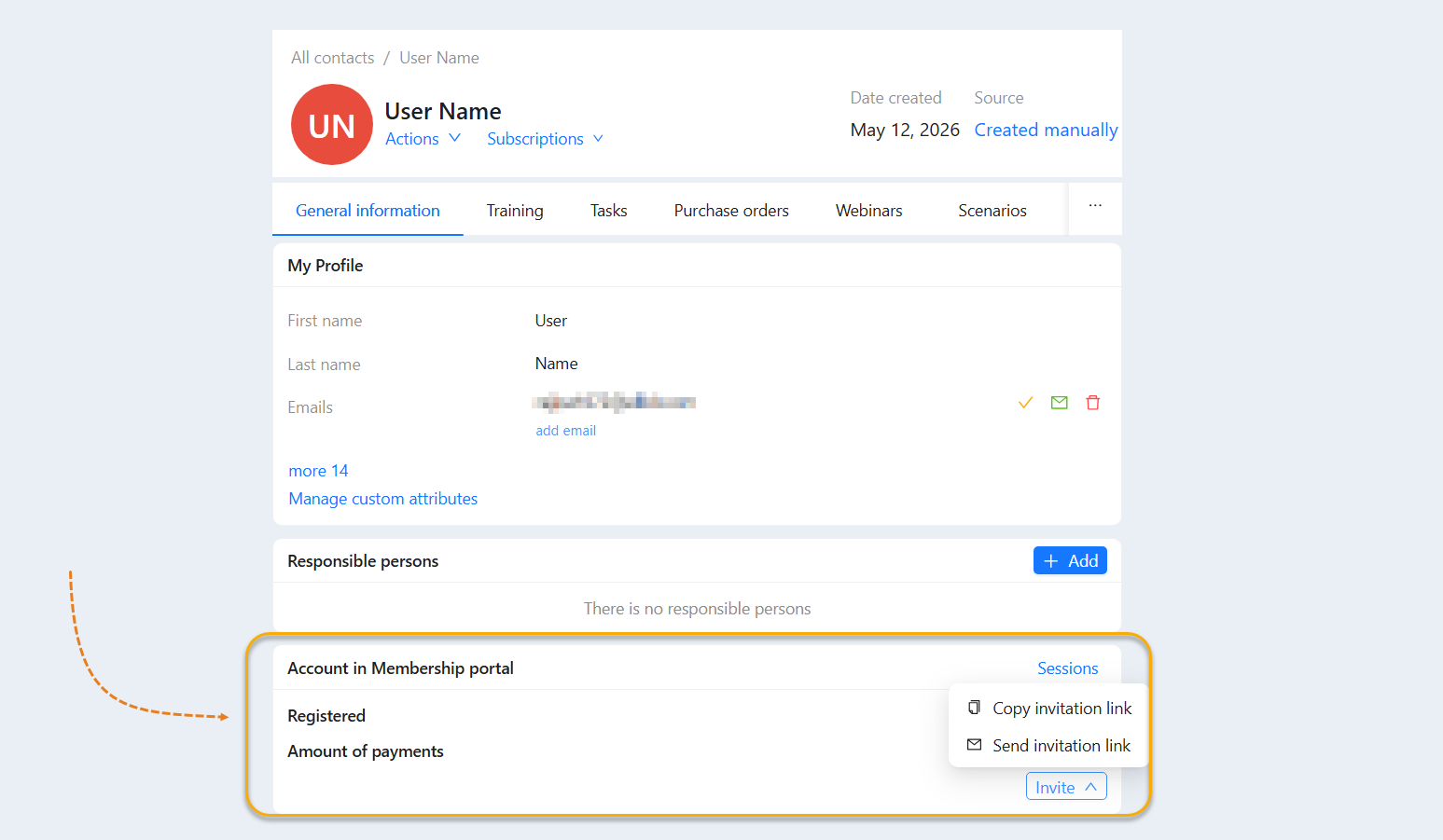
Then click the "OK" button and a registration link will be sent to the contact by email. After the contact follows the link and registers at the membership portal, you will see the information in the "Membership portal account" section:
- Registered. You can see the exact date and time when the contact registered with your membership portal via the link.
- Amount of payments. In this line you see how much the client paid.
- Last Activity. The exact time and date of the client's last activity at the membership portal.
- Email confirmed. Here you can see the information whether the email is confirmed or not.
- Change Password. You can change the password for logging into the customer account.

In case the client has lost the password to his account at the membership portal, you can change the password manually. Click the "Change password" button. You will see an additional "Password Management" window. Enter a new password and check the box "You must set a new password after logging in". When a client logs into their account at the membership portal they will be taken to the create a new password page.
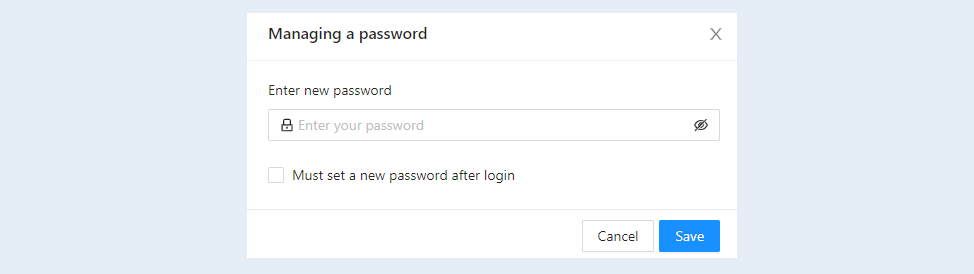
Click the "Save" button.