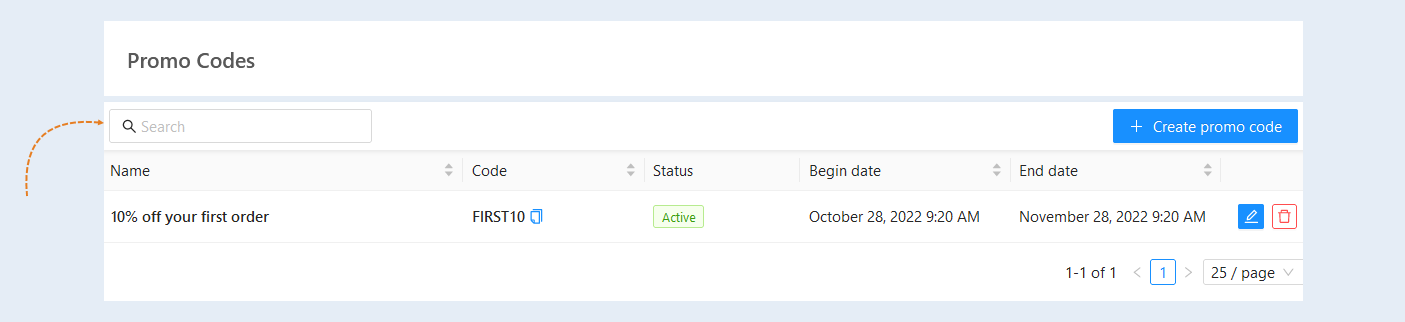
A promo code is a unique set of letters and numbers, the activation of which gives the right to purchase a product or a group of products on special conditions. Promo codes are one of the sales promotion tools.
For example, special offers are made for new users. By leaving your e-mail and subscribing to the newsletter, the client can receive a personal discount on the promo code by email. Usually such offers are valid for a limited time, after which the discount expires.
Promo codes reduce the cost of the order by a fixed amount or by some percentage of the cost.
Click on the desired section of the article to go to its description:
How to create a promo code
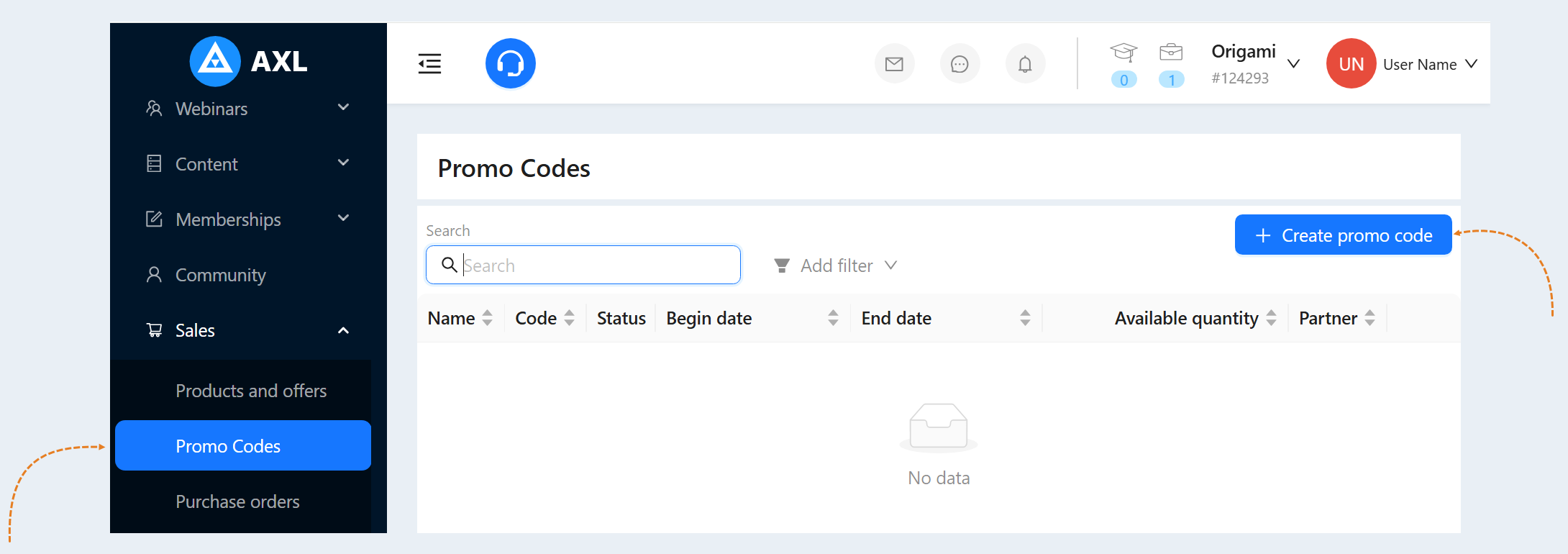
To create a promo code, go to the "Sales" section, select the "Promo Codes" tab. Click the "Create promo code" button.
In the window that opens, fill in the fields:
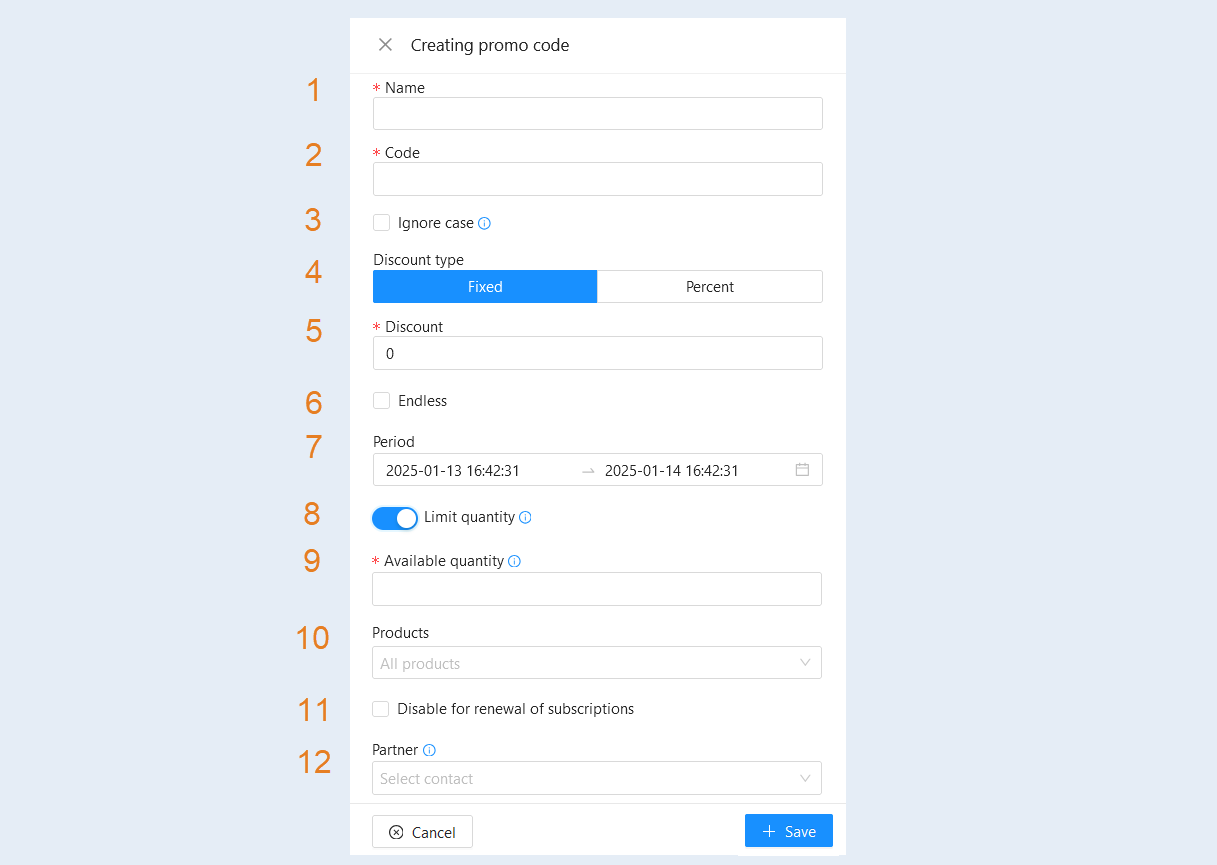
Name. A unique name for the promo code that helps identify it within the system. It allows administrators and users to easily find and distinguish one promo code from another. For example, "SUMMER2023" or "USER50."
Code. Enter the code—a unique combination of letters and numbers that the user inputs to activate the discount. This is the key that activates the discount or bonus. For example, "LEARN50" or "WELCOME10."
Ignore case. This option means that when entering the promo code, the system will not consider whether the characters are in uppercase (capital letters) or lowercase (small letters). For example, if the promo code is LEARN2023, the user can enter it as learn2023, Learn2023, or LEARN2023, and the system will recognize it as correct. This reduces the likelihood of errors and makes the process more user-friendly.
Discount Type. Choose the type of discount:
- Fixed. A discount in the form of a specific amount (e.g., 5$).
Percent. A discount as a percentage of the total product cost (e.g., 10%).
This allows for flexible discount settings depending on the goals. For example, a fixed discount may be useful for small products, while a percentage discount is better suited for expensive courses.
Discount. Set the discount amount in the specified currency or as a percentage, according to the selected discount type.
Endless. Check this box if the promo code should have no time restrictions and can be used at any time. Such a promo code does not have an expiration date.
Period. Set the start and end dates for the promotion. The promo code is valid only within the specified time frame (e.g., from January 1 to January 31, 2024). This allows you to control when the promo code will be available. For example, for limited-time offers or special campaigns.
Limit quantity. Toggle the slider to the active position to limit the number of times the promo code can be used. Once the usage limit is reached, the promo code will no longer be available. This is useful for creating scarcity and increasing demand.
Available Quantity. Specify how many times the promo code can be used. The quantity will only decrease upon successful payment. Each payment using the promo code will reduce the available quantity.
Products. Select one or more products from the product list. This allows you to restrict the promo code's validity to specific products or services. For example, the promo code may only apply to the "Programming for Beginners" course.
Disable for renewal of subscriptions. Check this box to disable the use of the promo code for subscription renewals. This prevents abuse, such as users trying to renew a subscription with a discount intended only for new customers.
Partner. If a buyer applies this code during a purchase, the selected partner will receive a commission regardless of the commission settings and will be linked to the contact as a partner if no partner has been assigned yet. Specifying the partner who will receive the commission is useful for affiliate programs and tracking referrals.
List of promo codes
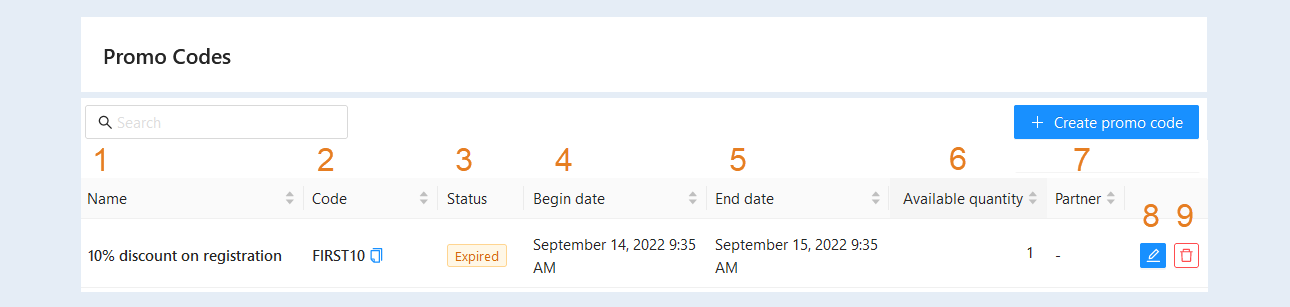
The promo code you created appeared in the list. Here you can see information about the promo code:
- Name. The column displays the name of the promo code for easy search. This field is sorted alphabetically in descending or ascending order.
Code. From this field, the promo code can be copied by clicking on the "Copy" button next to the code. This field is sorted alphabetically in descending or ascending order.
Status. The promo code can be active (the promo code is still valid) or inactive (the promo code has expired).
Begin date. The column shows the start date of the promo code. This field is sorted in descending or ascending order.
End date. The column shows the expiration date of the promo code. This field is sorted in descending or ascending order.
Available quantity. It is shown whether the promo code has restrictions on the amount of use.
Partner. The partner who will be charged a commission for using this promo code is shown.
The "Edit" button. Click to edit the promo code.
The "Delete" button. Click to delete the promo code.
At the top of the page you have a field for filtering promo codes, search by name. For a quick search, enter the name of the promo code in the search bar.