You can use widgets during webinars. For example, you can connect a payment form during a broadcast, display the form on the screen so that webinar participants don't have to navigate to other pages and can fill out the form directly on the webinar page or make a payment on the webinar page.
To do this, create a widget in the "Widgets" section. Read how to do it in the "Widgets" article.
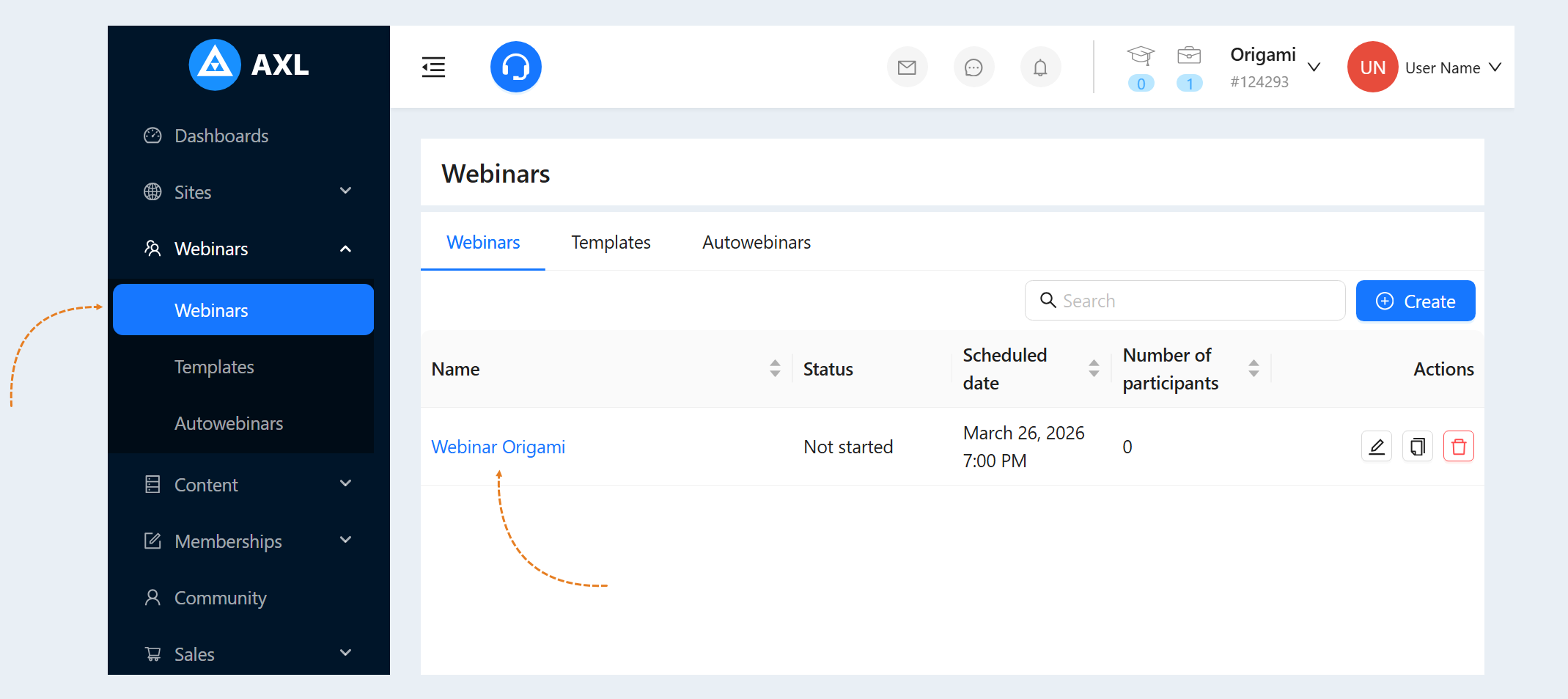
Next, go to the "Webinars" section. Choose or create a webinar. Read how to do it in the "Webinars" article.
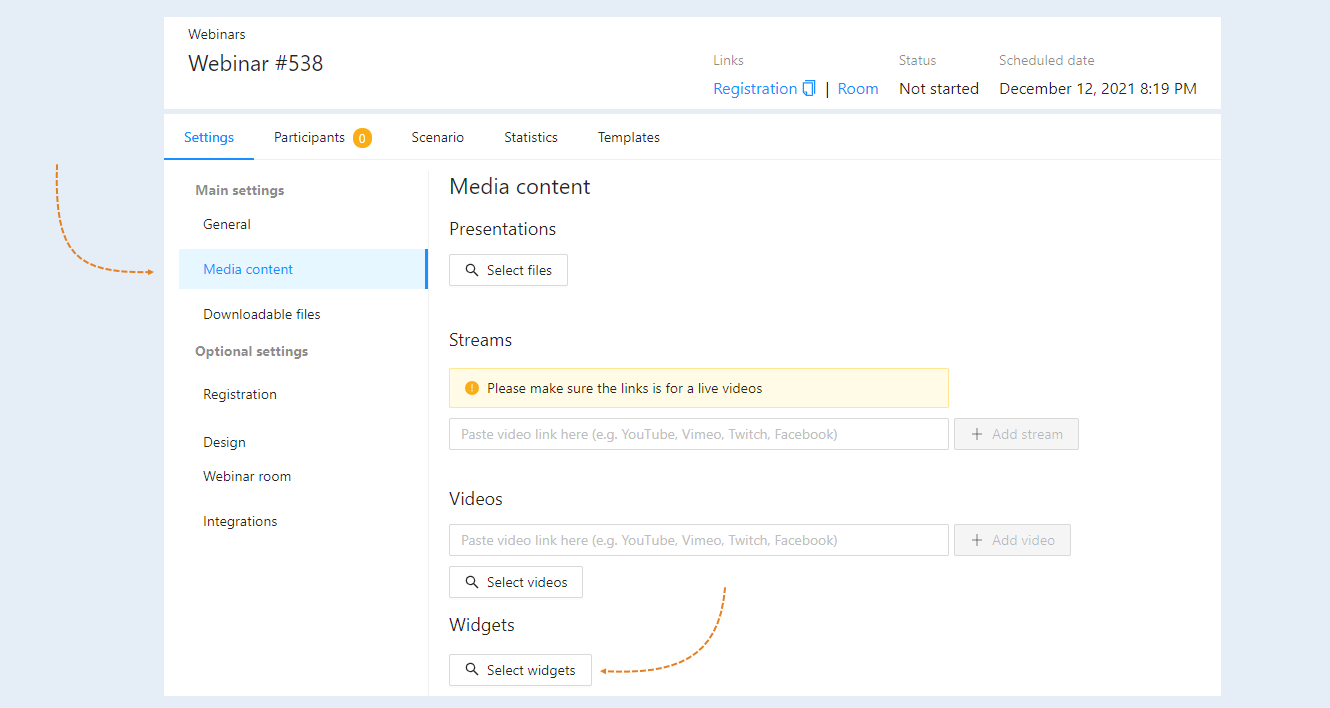
Go to the webinar settings, "Content and Presentation" tab. Click on the "Select Widgets" button.
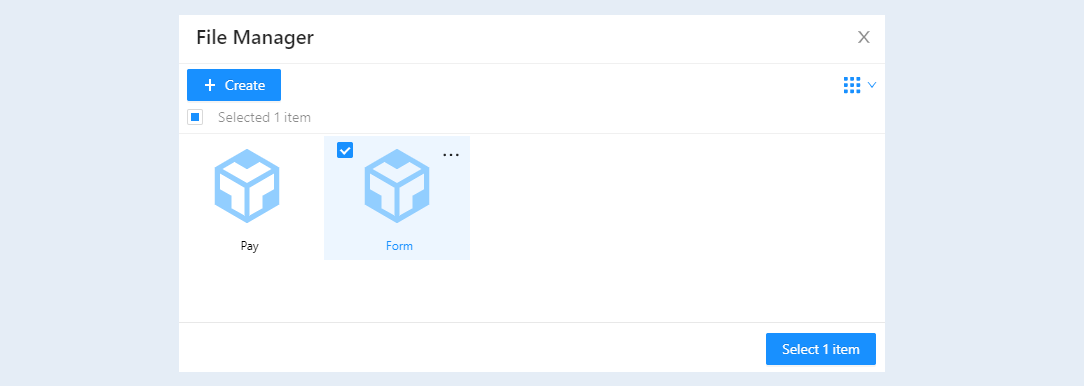
An additional window called "File Manager" will open. Choose the necessary widget and click the "Select 1 File" button.
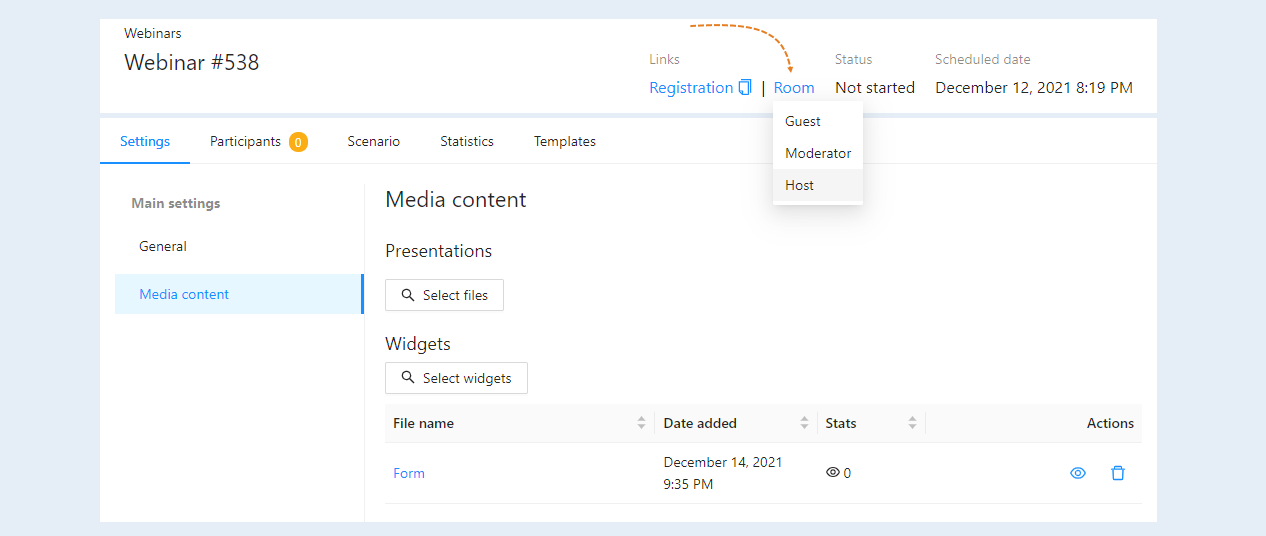
The widget will be uploaded to the webinar presentation. To use it during the broadcast, go to the webinar room.
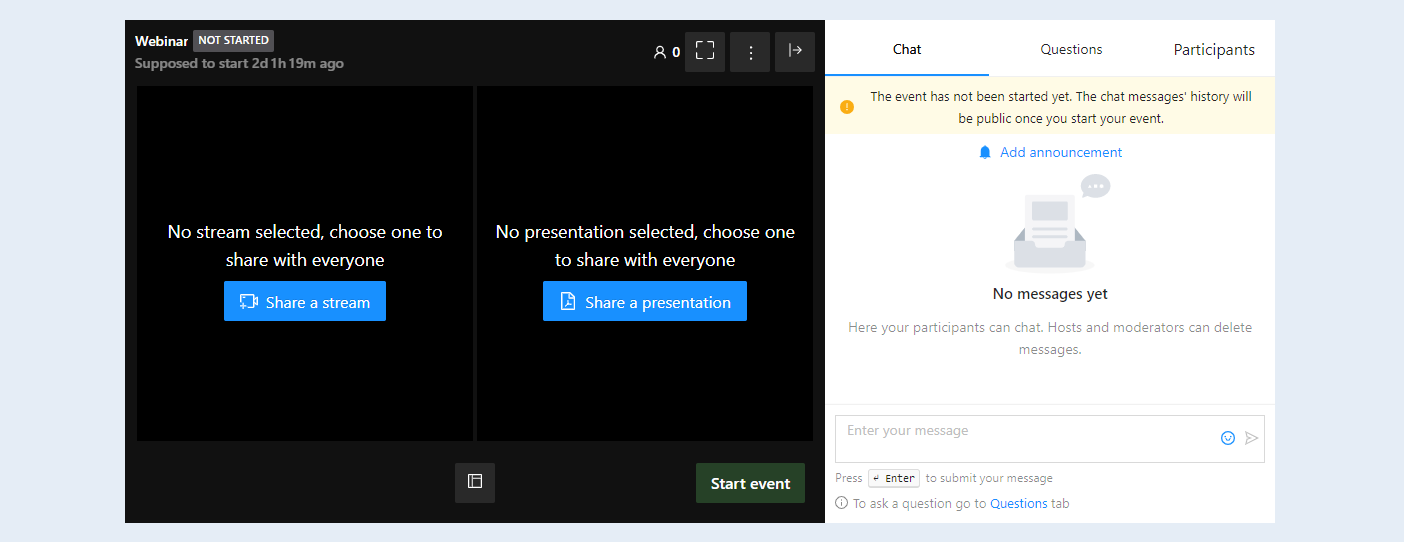
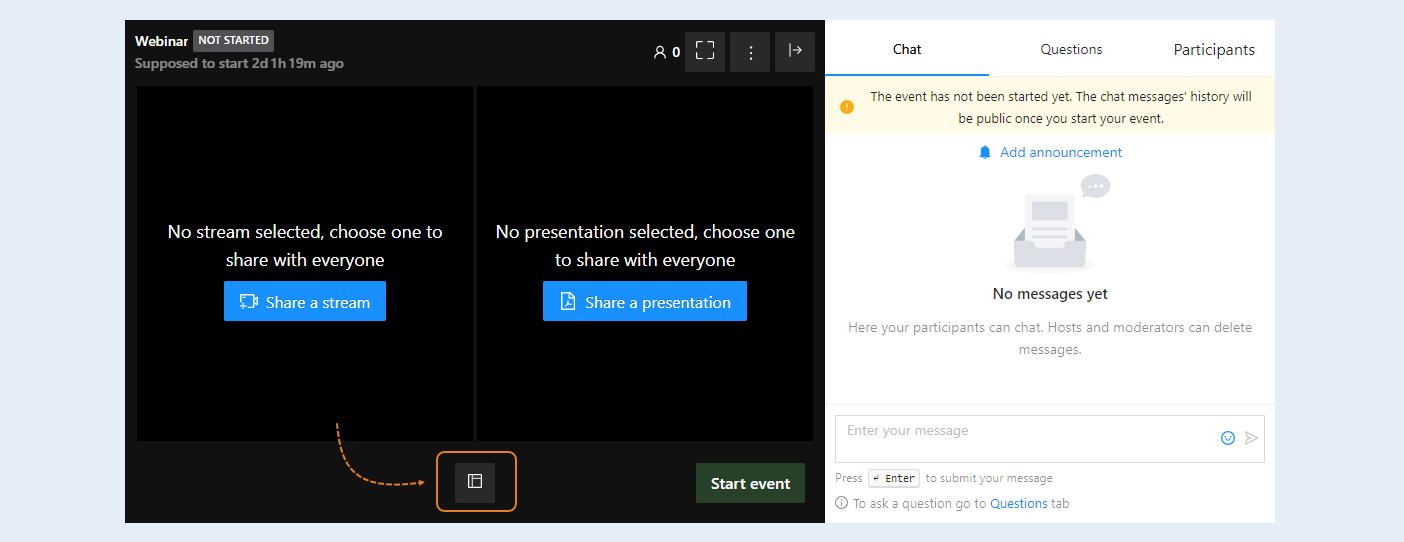
Then click on the "Choose Layout Template" button in the webinar room.
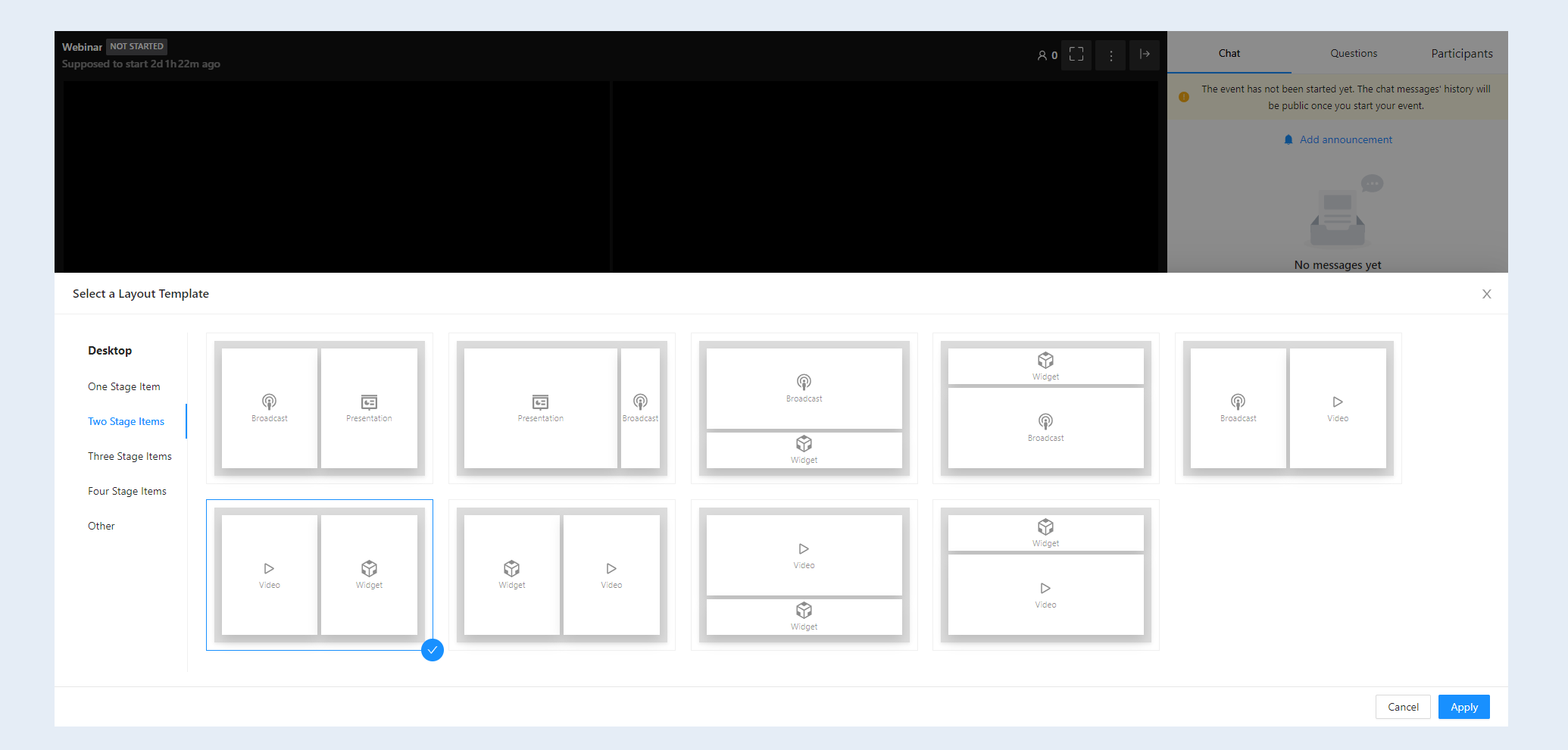
In the additional window, select a template that includes the "Widget." Highlight the template and click the "Apply" button.
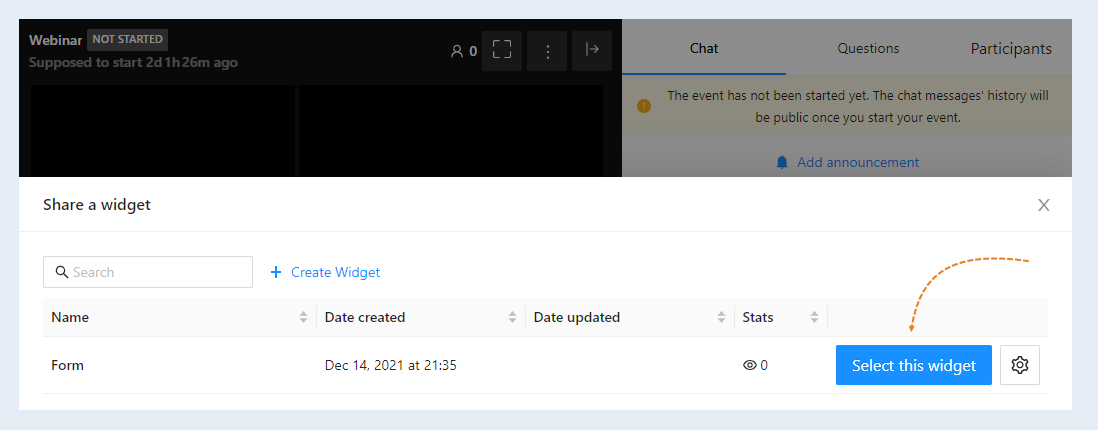
Next, click the "Share Widget" button.
In the additional window, select the desired widget. Click the "Select this widget" button.
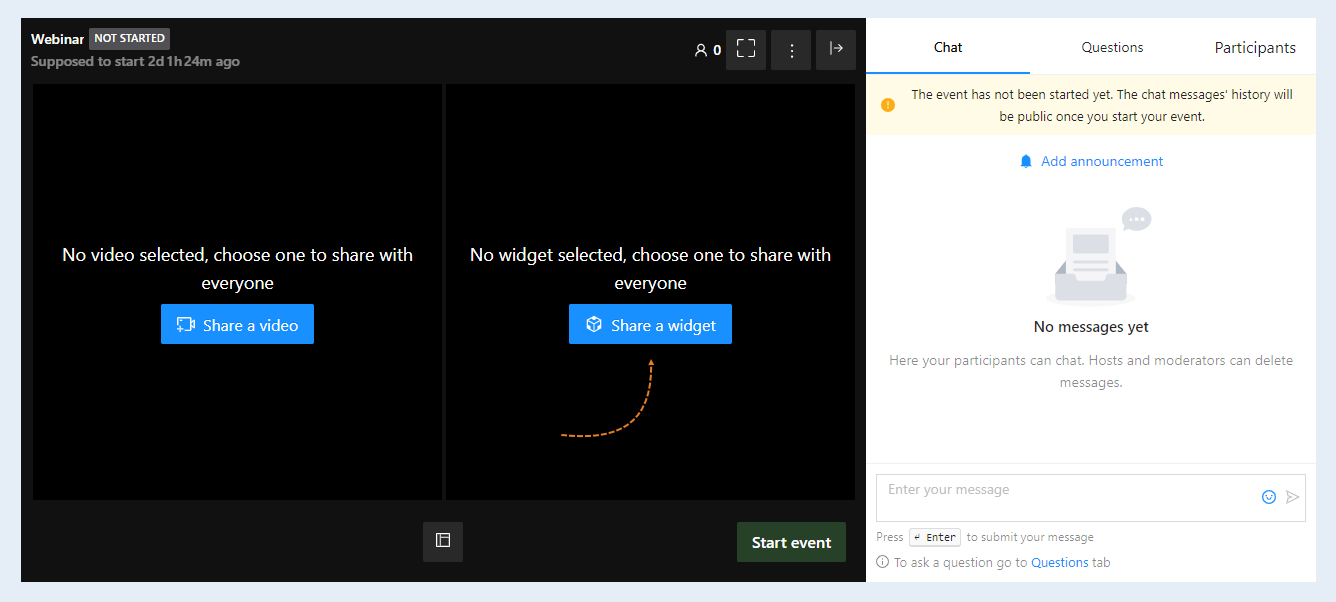
The widget will be displayed in the webinar broadcast window. Webinar participants will be able to fill out the form during the live stream without leaving the webinar page.