Subscription is a built-in payment system in which the customer will regularly pay a recurring amount for access to a product or service. When paying for repeated orders, the user will not have to enter the bank card details again, the subscription fee will be charged automatically. Users can independently manage subscriptions from the membership portal's personal account: put the subscription renewal on pause, renew the subscription manually if the payment failed, etc.
The system of recurrent payments on the AXL platform is built-in. You can use any payment integration that supports saving cards. For more information on how to set up payment integration, read the articles "Payment Settings", "Stripe settings", etc. Payment execution is fully configured on the AXL platform and takes place according to your schedule. You can also accept cash payments, and just make a payment in the system.
Click on the desired section of the article to go to its description:
Subscription
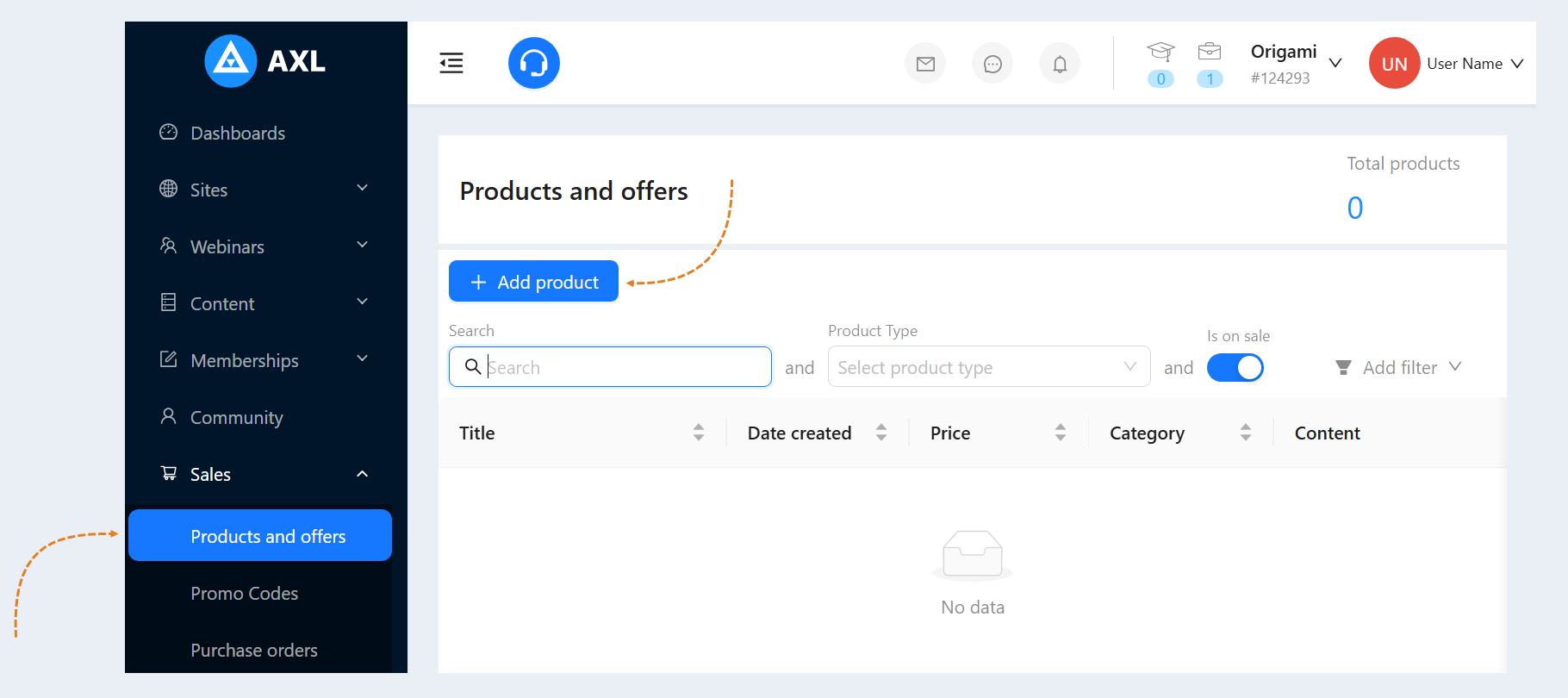
To create a subscription for your products, go to the Sales section and select the Products and Services tab. Click on the "Add Product" button.
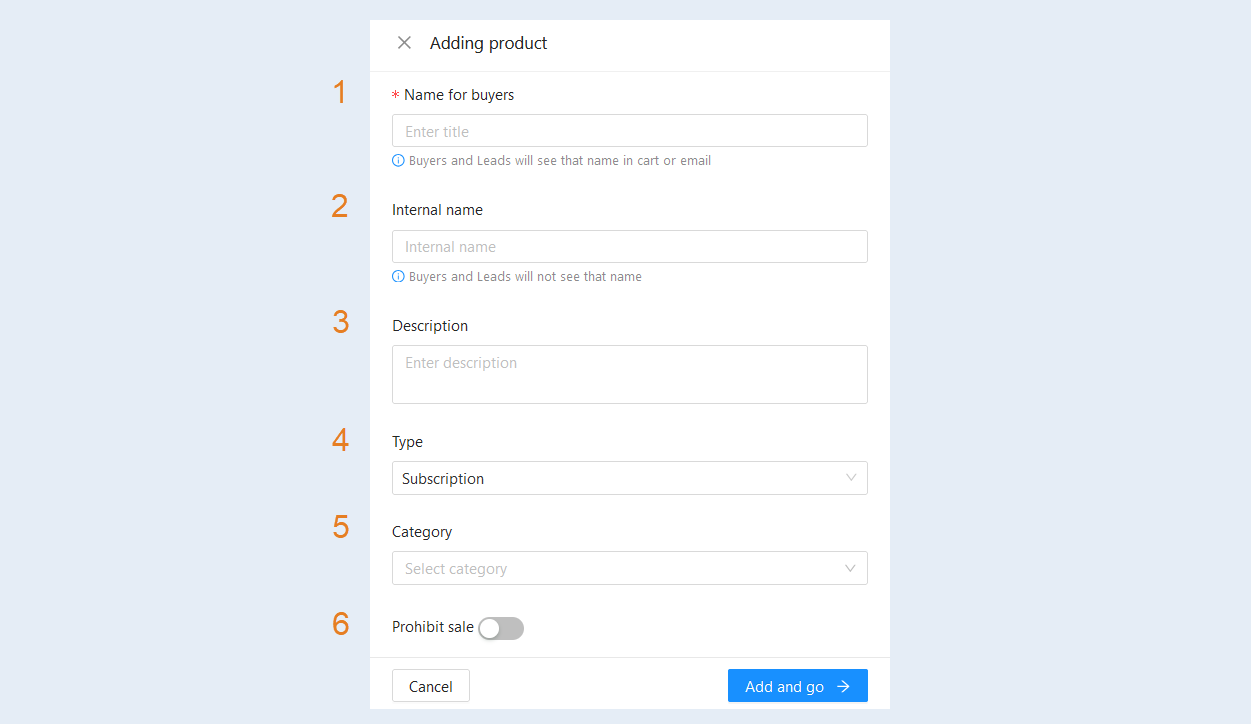
In the window that opens, fill in the fields:
Name for buyers. Enter the product name.
Internal name. The internal name will be visible only to you and will not be shown to users.
Description. Add a description to this product. This field is optional.
Type. Select the product type from the list: subscription.
Category. This condition highlights a specific product category that you want to view. This condition allows you to quickly filter and see only those products that match the selected category, excluding the rest.
Prohibit sale. Move the slider to the active position to prohibit the sale of this product.
Click on the "Add and Go" button, the product settings window will open. Make the necessary changes in the "Common Settings" tab.
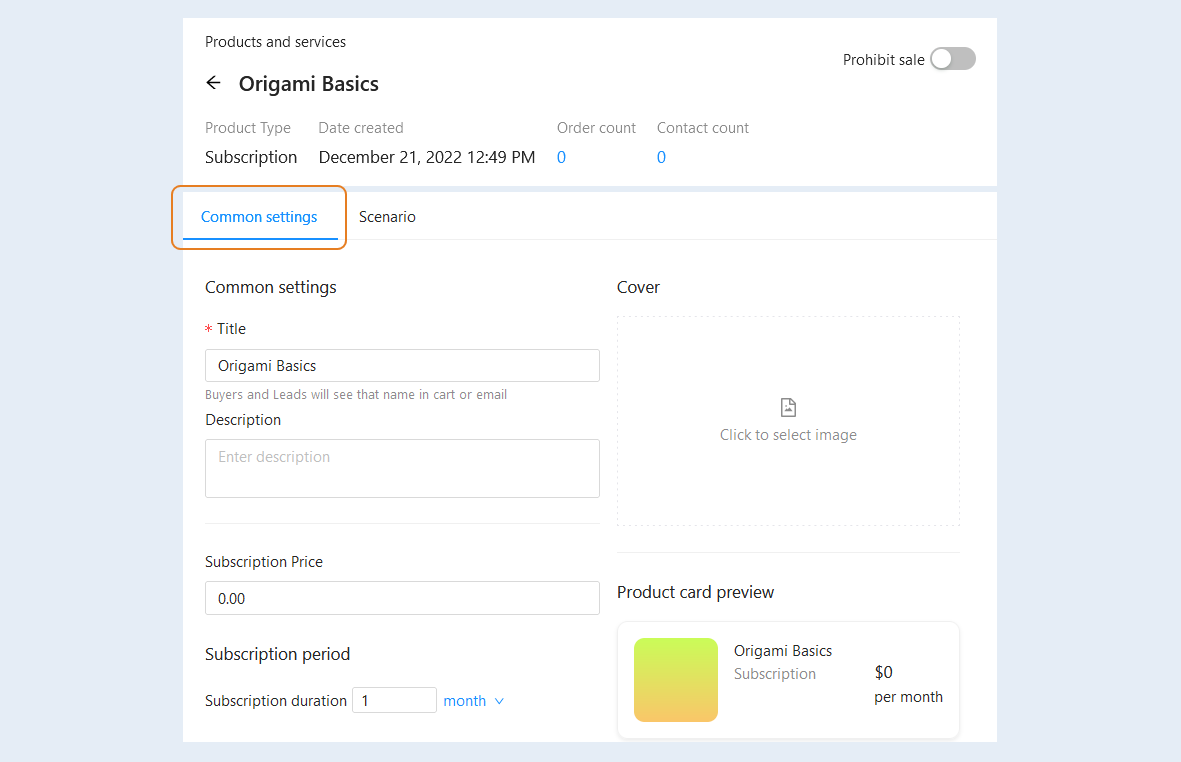
Common Settings
In the "Common Settings" section, you manage the advanced settings of the created product or service.
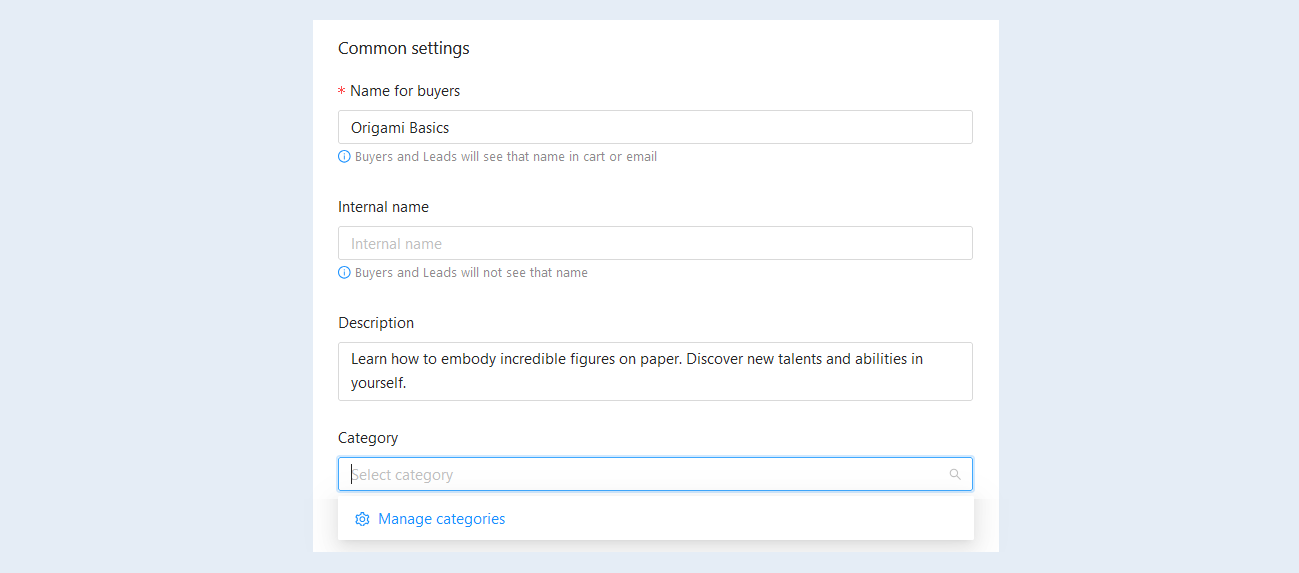
- Name for buyers. You can change the product name. Buyers and customers will see this product name in the shopping cart or in the email newsletter.
Internal name. The internal name will be visible only to you and will not be shown to users.
Description. You can add a more detailed product description. The description will also be available to users in the shopping cart or in the email newsletter.
Category. This is a way of grouping products within a single system. Categories help to structure and organize products, which makes it easier to find the information you need. Click on "Manage Categories" and create product and offer categories.
Subscription price. Specify the subscription price, this amount will be debited from the user's linked card with a specified frequency.
Discount price settings. Move the slider to the active position to open the fields for setting the discounted price. Specify the price of the product without taking into account the discount, this amount will be crossed out in the shopping cart and in the payment forms of the product.
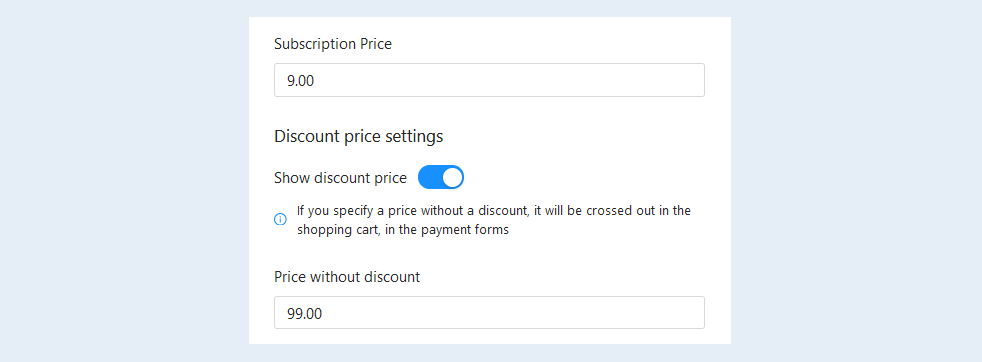
Payment for the product with bonuses. Move the slider to the active position so that users can pay part of the cost or the full cost of the subscription with points from the bonus account.
Choose to pay with bonuses in the form of interest or set a fixed amount. Specify the numeric value below. If you have chosen the amount as a percentage, then set how many percentages of the subscription price the user will be able to pay with bonuses. If you have chosen a fixed amount, then set the maximum amount that will be debited by bonuses to pay for the signature.

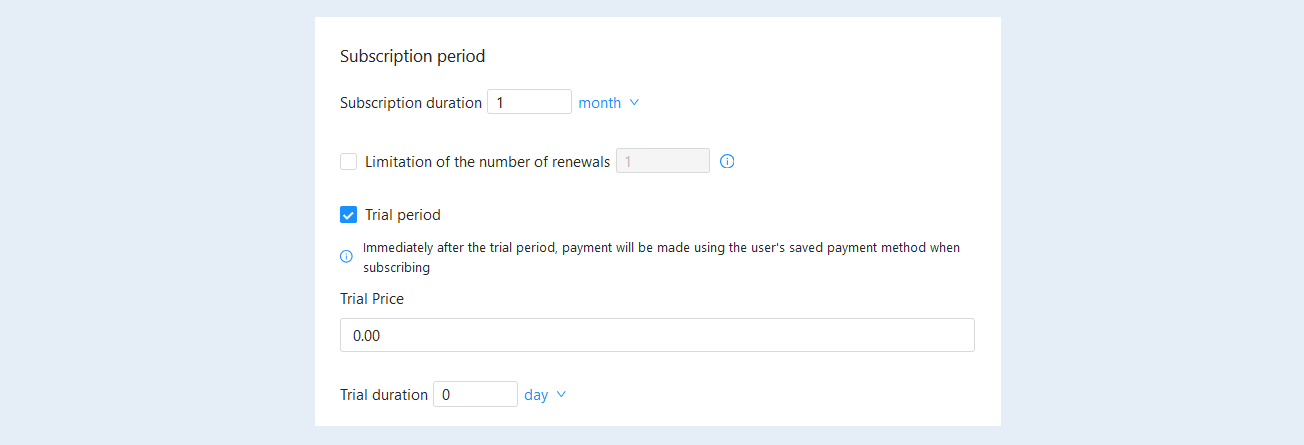
Subscription period. The subscription period is a time frame during which a contract for a specific product or service subscription is valid. Subscription periods are usually monthly, quarterly, annual, or for any other predetermined duration of time. For users, a subscription period means continuous access to selected services or products for a specific length of time without the need to purchase or pay separately each time. It can be a convenient and more cost-effective way to use certain services or products on a long-term basis.
- Subscription duration. Set the duration of the subscription in days or months. You can create a subscription with any payment frequency – whether it's every 10 days or every calendar month.
Limitation of the number of renewals. You can set the maximum number of automatic renewals for a given subscription. When the user reaches this maximum number of renewals, auto-renewal of the subscription is disabled and access to the product will be terminated after the last paid period. The restriction allows you to control how long members can use the subscription and can help prevent situations where users will indefinitely renew their subscription without using the product. By setting a limit on the number of extensions, you can motivate users to take courses more actively and use the material before their access is restricted.
Trial period. A trial period is an offer that allows new users to use a service or product for a limited time at a reduced price or for free. Typically, this offer is available for a limited time, such as one week or one month. A trial period allows users to familiarize themselves with the features and benefits of a product or service and determine if it meets their needs. This can help users make a more informed decision on whether to continue using and paying for the service or product. A trial period can also be a way to attract new users and expand the customer base, which is especially helpful for new companies that are just starting out to gain attention and create a loyal customer base.
Check the box to proceed to trial period settings. Please note that a trial period subscription requires providing payment information, such as a credit card, and will automatically transition to a paid subscription after the trial period ends. Payment will be processed using the user's saved payment method.
- Trial price. Set the price for the trial period.
Trial duration. Set the duration of the trial period in days or months. The trial period can vary in length from a few days to several weeks or even months. During the trial period, the user has access to all the features and functionality of the product or service.
For example, the first 15 days for $9, and then $99 per month. The user will initially pay $9, and after 15 days, the full subscription will begin.
Note: Subscription renewal terms.
At the end of each subscription period (at the same time when the user paid for the subscription for the first time), the system will try to automatically debit money from the card linked to them for the next subscription period.
If the card was not linked by the user, the system will send the user an email about the unsuccessful payment. The email will indicate that the subscription payment failed, as well as a link to the payment page. By clicking on the link, the user will be able to pay and renew their subscription.
You can configure the letter and change the text of the letter in the "Mail Settings" section, the "System Templates" tab. For more information on how to configure system email templates, see the article “Mail Settings".
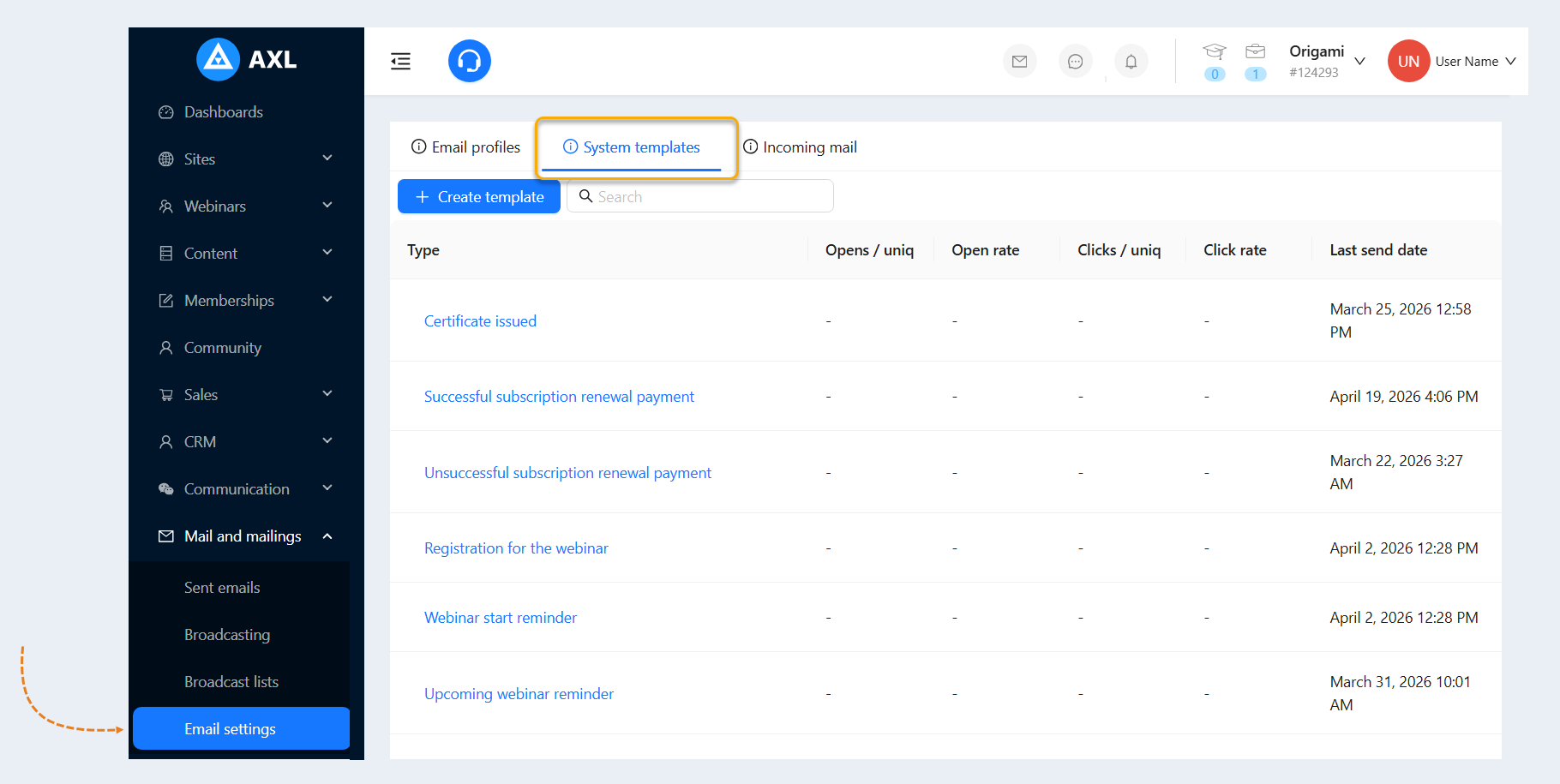
If the card was saved by the user and the debit of the payment for the new subscription period was successful, the user will receive a letter about the successful payment and renewal of the subscription. The email will contain a link to the user's personal account at the membership portal. By clicking on the link, the user will be able to independently manage subscriptions from the membership portal's personal account. In the user's personal account, in the "Accesses and payments" section, he can put the subscription renewal on pause or pay for the subscription.
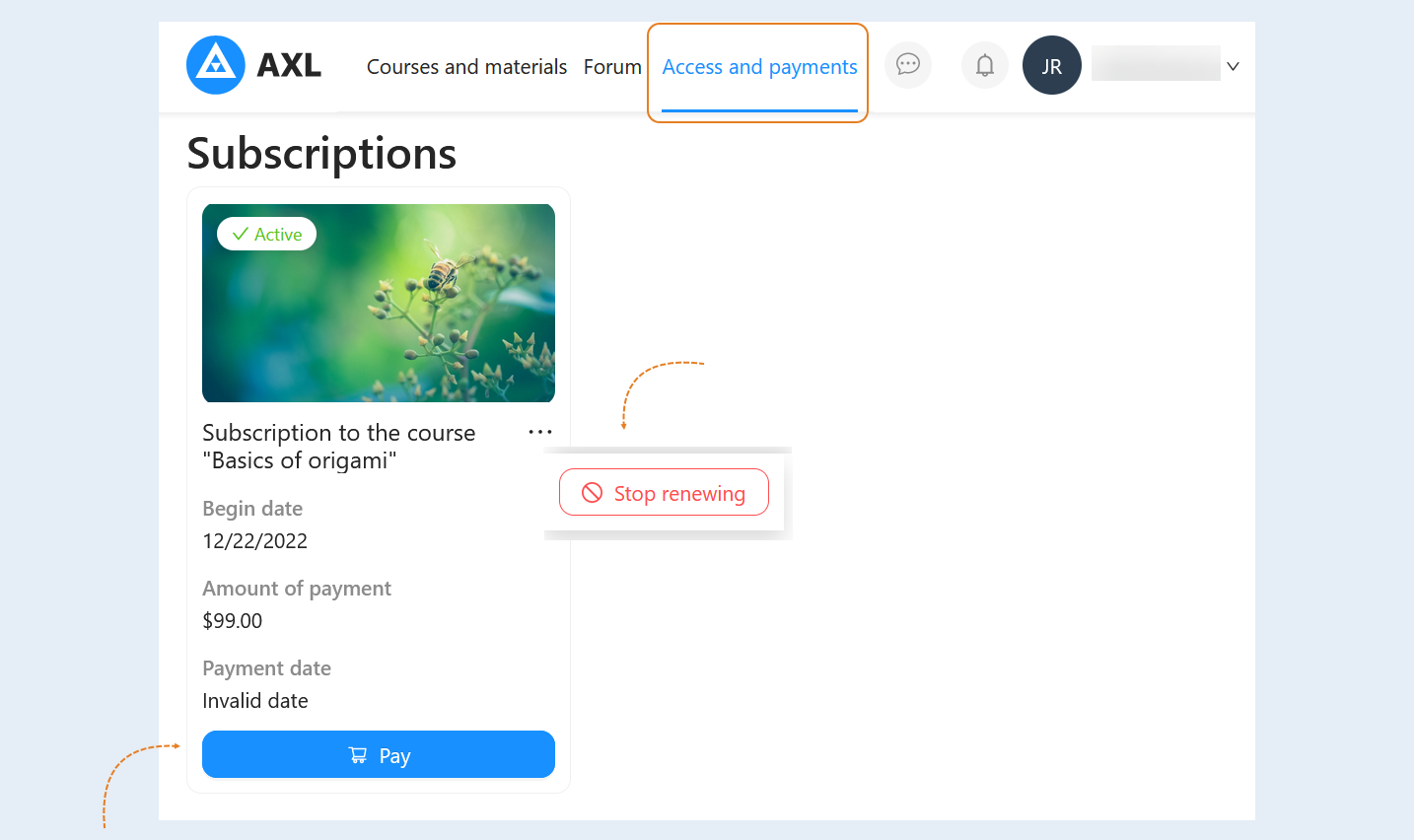
If the write-off failed on the first day (for example, due to insufficient funds in the account), the system will try to write-off for another three days, once a day. If the payment failed on the third day, the subscription will be suspended for the user. Thus, after the end of the subscription period, the user will have three more virtual days until the end of the subscription. When the user pays for the subscription again, it will resume from the date when it ended, excluding three virtual days.
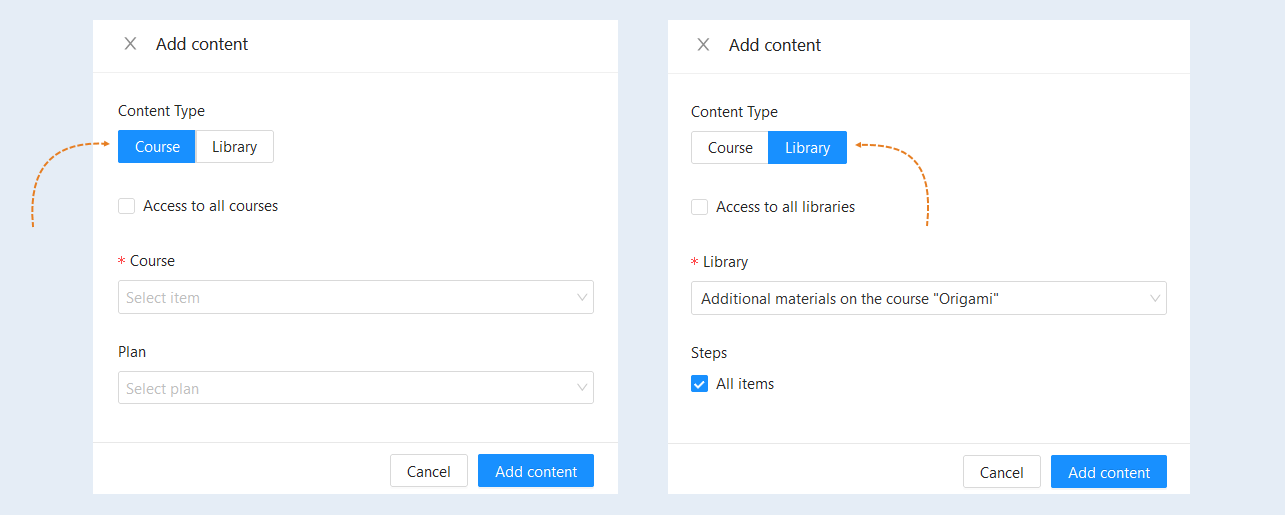
Content. You can add multiple courses and libraries to your subscription. Click the "Add Content" button, a new window will open for you.

In the window that opens, fill in the fields:
- Content type. Select the desired content type: course or library.
Access to all courses/Access to all libraries. Check the box if you want to open access to all courses/libraries for subscription users.
Course/Library. Select from the list the course/library that you want to open access to in the subscription.
Plan/Steps. Select a course plan or library sections from the list.
Additional Settings. This section presents additional product settings.
- Do not send standard email after payment. You can disable the sending of the standard email after product purchase by checking the box. You can configure email sending in the "Scenarios" tab. For detailed instructions on creating scenarios, read the article "Scenario".
Limit order validity time. Check the box to set time limits within which the order will be valid. This feature can be useful for motivating users to complete their order payment. If there is more than one product in the order, the order validity period will be set according to the product that expires first.

Setting up payment methods. This section is intended for managing the methods by which users can pay for access to products or courses. It allows the platform administrator to set various parameters and restrictions for processing payments.
Prohibit payment in installments. Check the box to remove the option of paying for this product in installments. If this option is enabled, users will need to pay the full cost of the course or product upfront, without breaking it into payments. This may be useful for high-cost products, where the company does not want to risk potential losses from non-payments.
Payment gateways for payments. For each product, you can set an individual payment system. For more details on creating and configuring payment integrations, refer to the article "Payment Settings".

Failed payments.
- Payment attempts. The first payment attempt will be made at the end of the subscription. Make settings for payment attempts:
- Automatically. This option allows the system to automatically make additional attempts to debit funds from the user's card or account if the first attempt failed. You can set the number of additional attempts and the time period during which they will be made (for example, to make 3 more payment attempts within 7 days). This setting helps to reduce the number of cancelled subscriptions.
Custom. In this mode, the system pauses between payment attempts. The user gets the opportunity, for example, to resolve the issue with the card or replenish the balance. You can determine how long the pause will last after the last failed attempt (for example, the pause after the last attempt is 3 days).
Keep access on failed attempt. This option allows you to keep access to the content or services of the platform, even if the payment was unsuccessful, for the time you set (for example, if an attempt is unsuccessful, access is saved for 7 days). This feature can increase user loyalty, as they can continue to study or use the service while having time to resolve payment issues. This can help retain customers and reduce the likelihood of them unsubscribing.

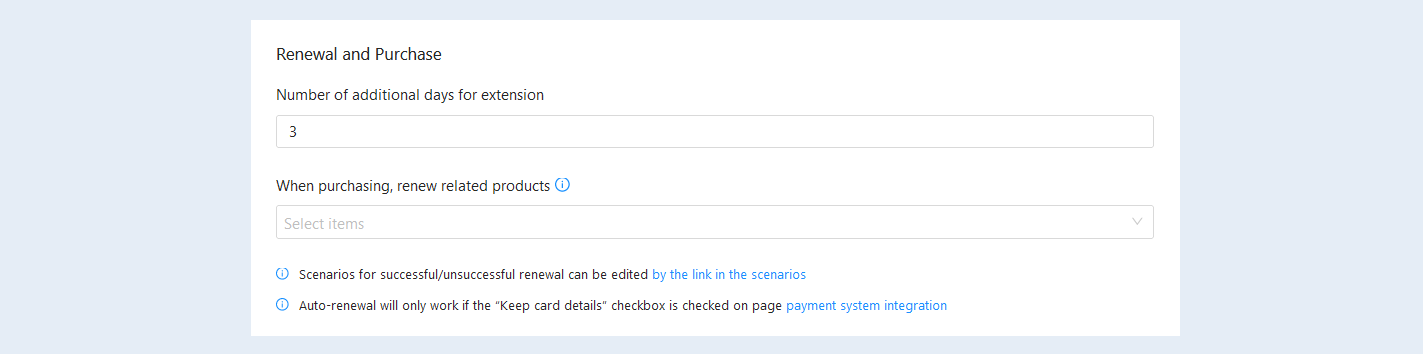
Renewal and purchase.
- Number of additional days for extension. Set the number of additional days to extend. Automatic renewal will only work if the “Save card details“ checkbox is checked on the payment system integration page. Set up a subscription script. More details about the flow script settings are described below.
When purchasing, renew related products. Select a subscription from the suggested list so that purchases of related products extend each other for the user and do not overlap. If any of these products are available (active access), it will be extended for the specified time. Further renewal will be continued from the last purchased subscription.
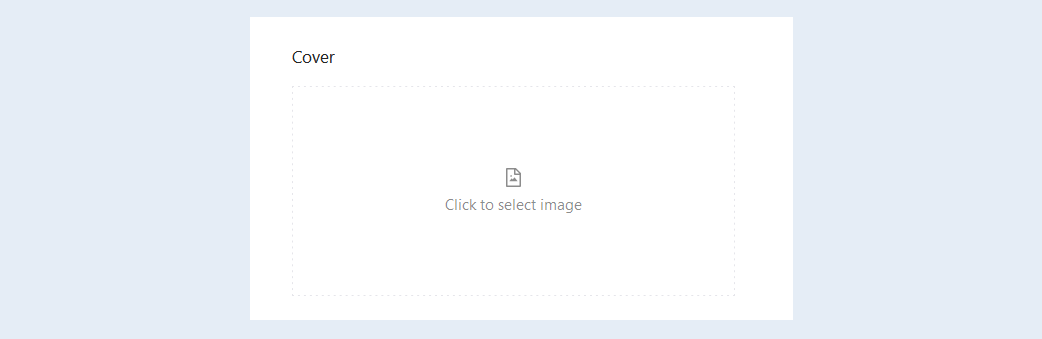
Cover. Upload images for the subscription avatar. Click on the icon to open the file manager, then upload the image and select it from the already downloaded ones.
Product card preview. In this section, you can see the subscription card in the form in which it will be available to users in the shopping cart or in the email newsletter.

Complete the subscription settings and click the "Save Changes" button.
Scenario
The subscription scenario determines the sequence of events and actions at the moment when a user of your account bought a subscription, successfully or unsuccessfully paid for subscription renewal. You can also manage some third-party service by sending data during renewal - for example, exclude it from a group in a telegram or add it.
When creating a scenario, first set the "Product Purchase" event. This event will be triggered when the user pays for the trial subscription period. This event will trigger a scenario (a sequence of response actions). Next, you need to add actions to the subscription: send an email, add or remove access to a product, add to a group, etc. Connect events and actions. This is how you define the sequence of actions in the scenario.
Go to the "Scenario" section. There is already a subscription scenario here by default. It is automatically created when you create a subscription.
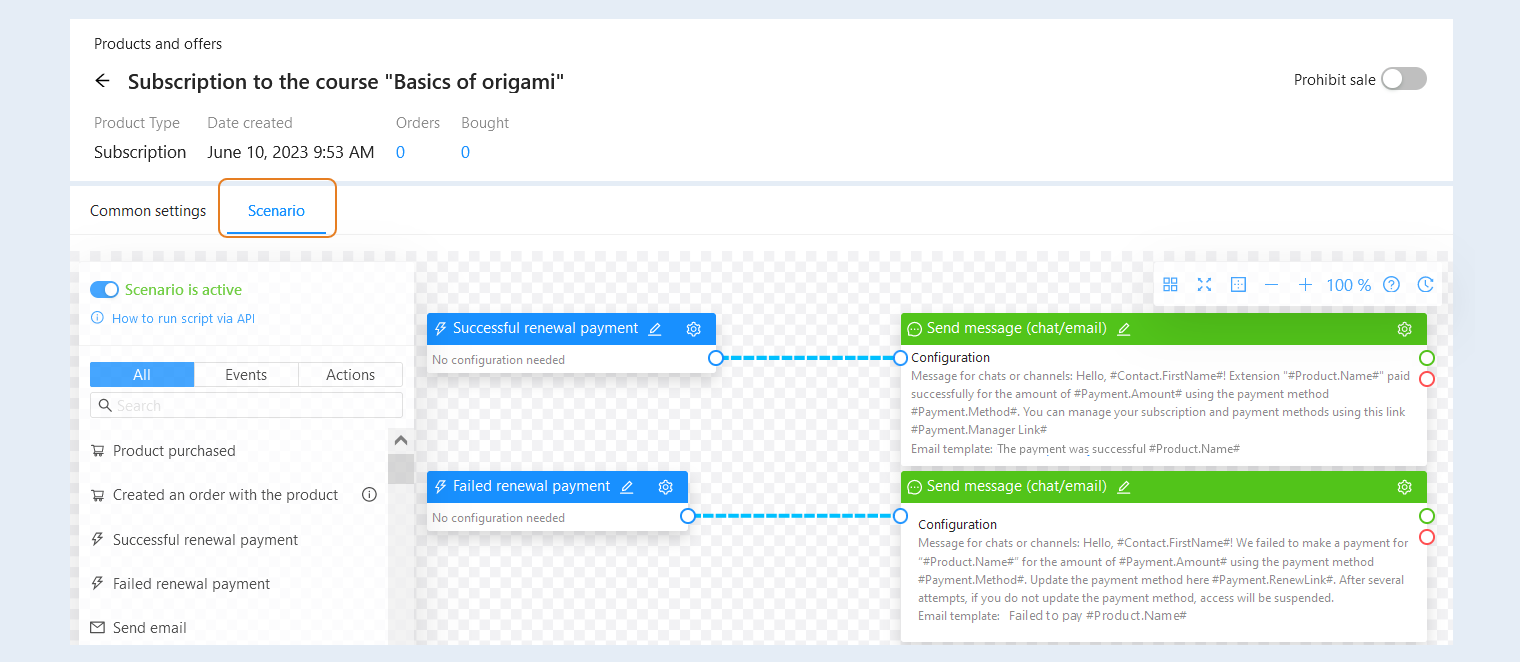
The following events are available for the subscription scenario:
- Checking the subscription period. This event triggers a few days before or a few days after the subscription expires. The event allows, for example, to warn the user about the end of the subscription a few days before the renewal. In the event settings, check the box "Has saved payment method (can extend)" to make the event only trigger for users who have a saved payment method for their subscription, meaning they can automatically extend the subscription. Or uncheck the box to make the event only trigger for users who cannot extend the subscription (do not have a saved payment method).
End of subscription. This event triggers when the paid subscription period ends. The event allows notifying the user a few days before the renewal. No additional settings are required.
Failed renewal payment. The event will be triggered when all attempts to debit and pay within the specified number of additional days for renewal are completed unsuccessfully. After that, access to the product will be stopped. No additional settings are required.
Successful renewal payment. This event is triggered when the next subscription period is paid. No additional settings are required.
Created an order with the product . This event is triggered if the user has created an order with a subscription, but has not yet paid for it.
Product purchased. This event is triggered when the user pays for the trial subscription period.
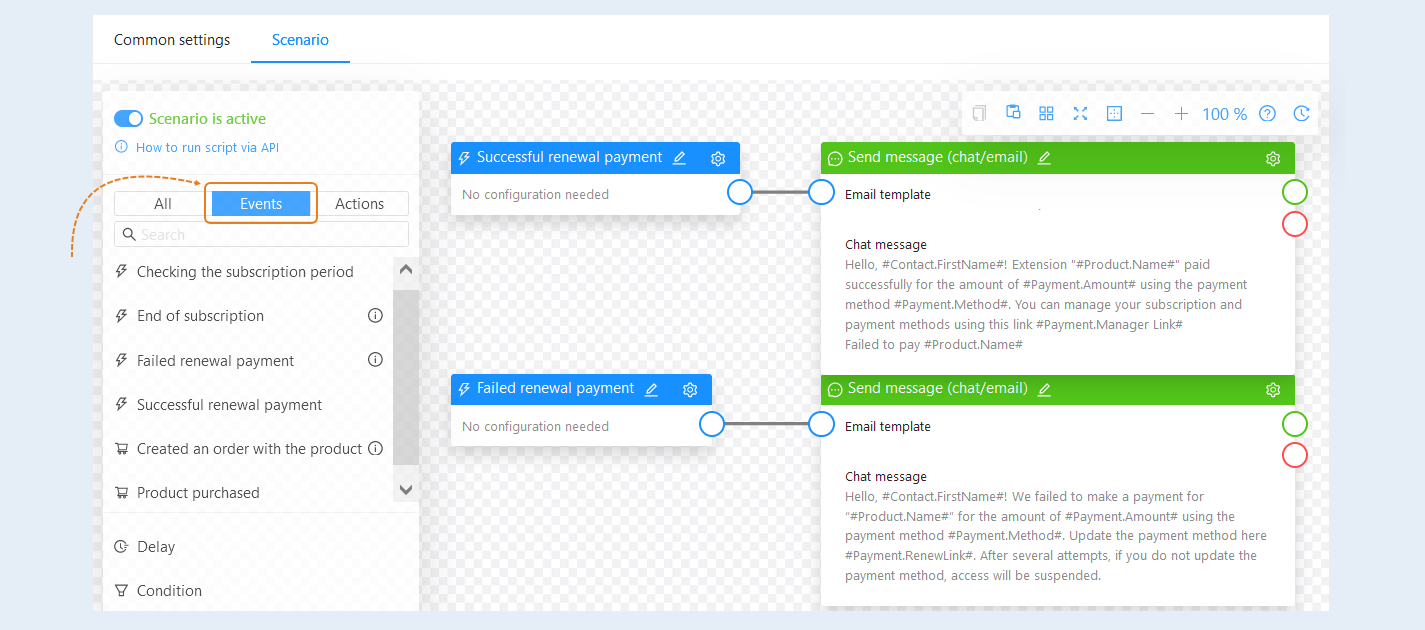
Next, add the action to the scenario. Read more about the actions in the article "Types of actions in the scenario and their configurations".
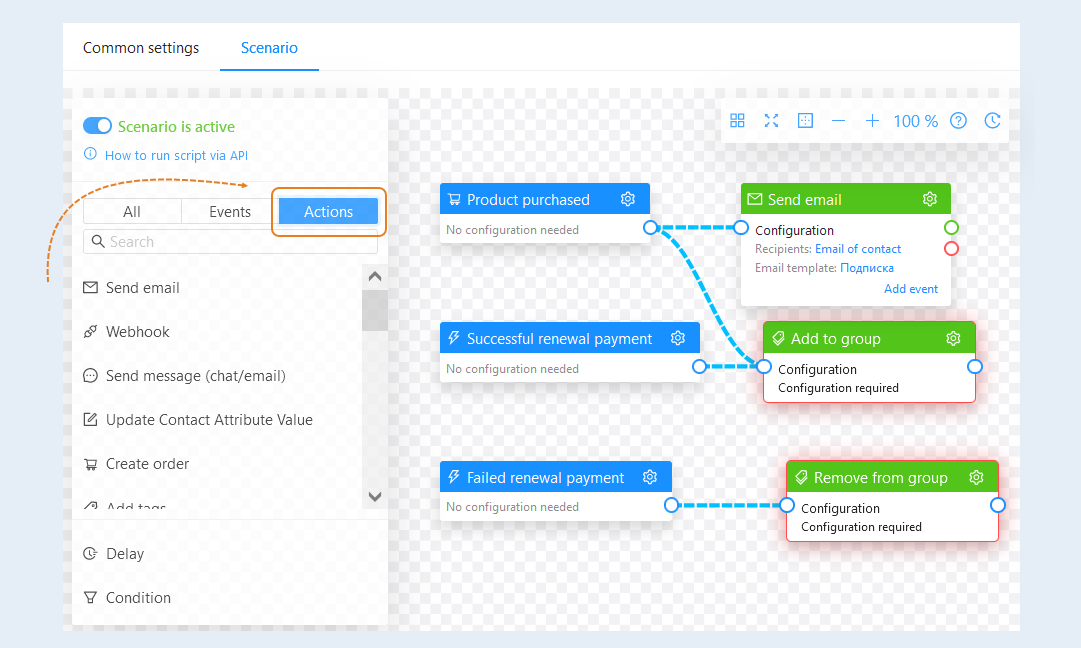
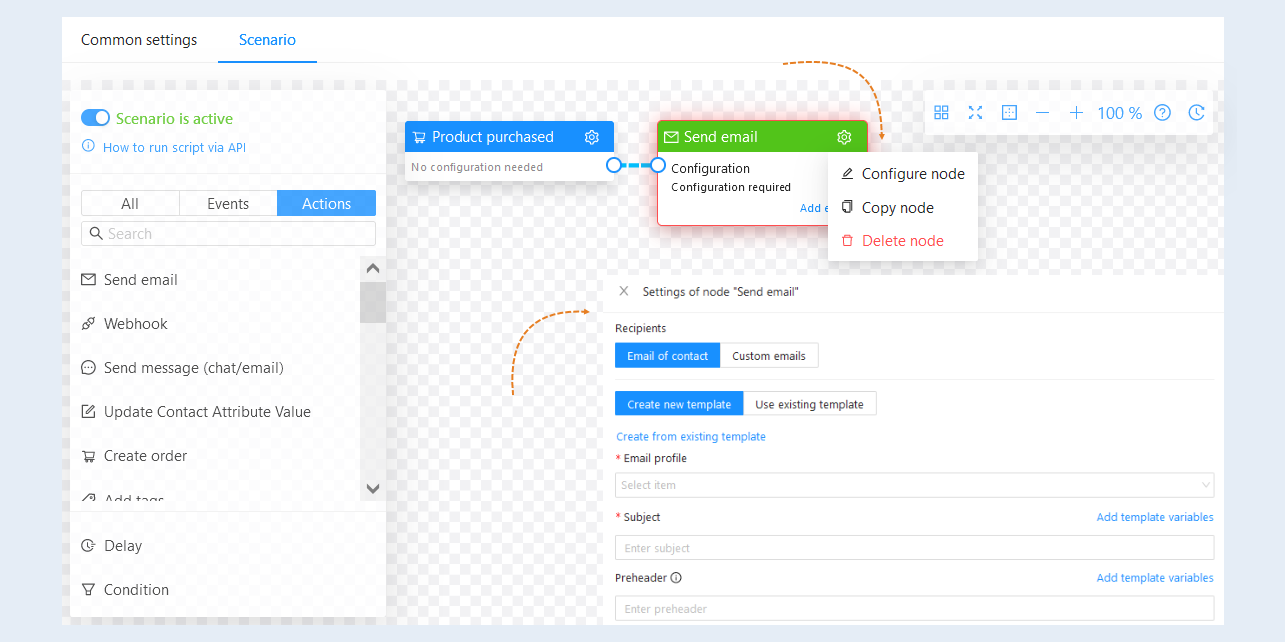
For each action, you need to perform settings configuration.
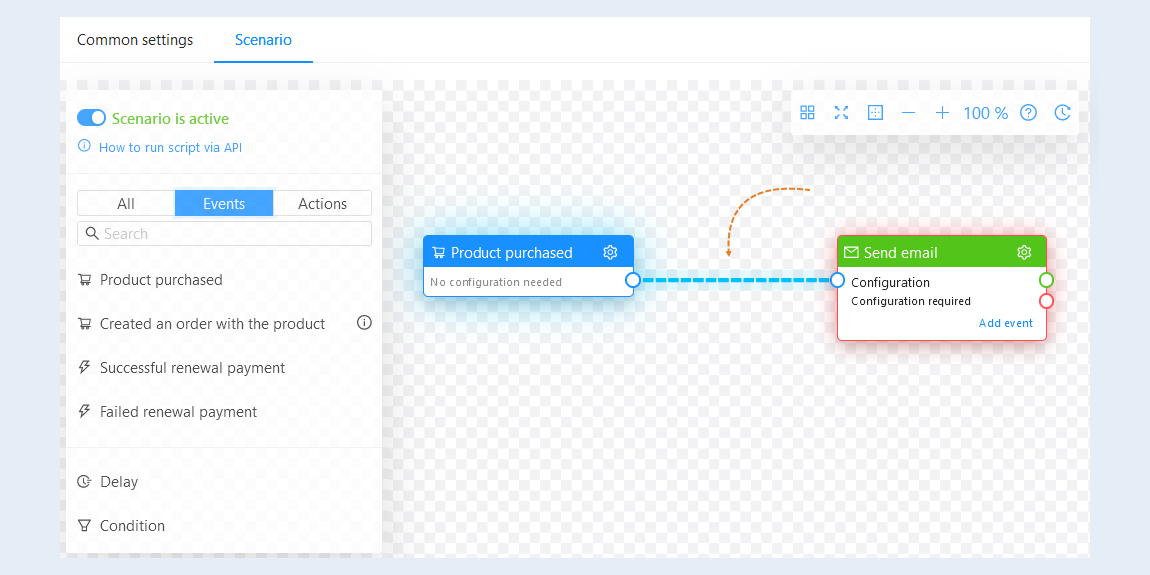
Next, you need to connect the event and the action. You can create one or more links between events and actions.
To remove the link between the script elements, double-click on the link.
Add the required number of events and actions to your script. Now your script is ready.