The webinar script uses the "Webinar Date" and "Webinar Time" data type. When you create a webinar script, you set the date and time for the webinar. To make this date and time in an understandable format, we made an additional variable "DateFormat" - Webinar Date Format.
Date Format are variables that convert the date and time of an event into a readable format.
Click on the desired section of the article to go to its description:
Where DateFormat is Used
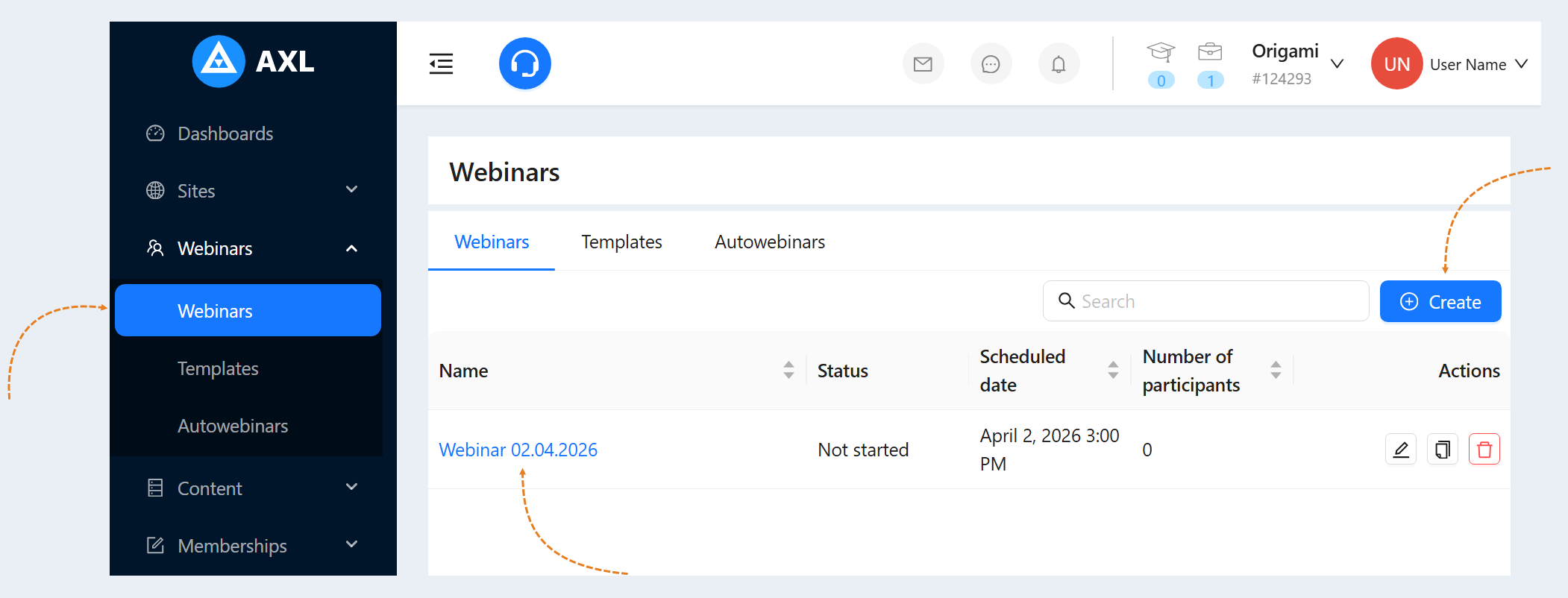
Go to the "Webinars" tab. Create a webinar or choose an existing one.
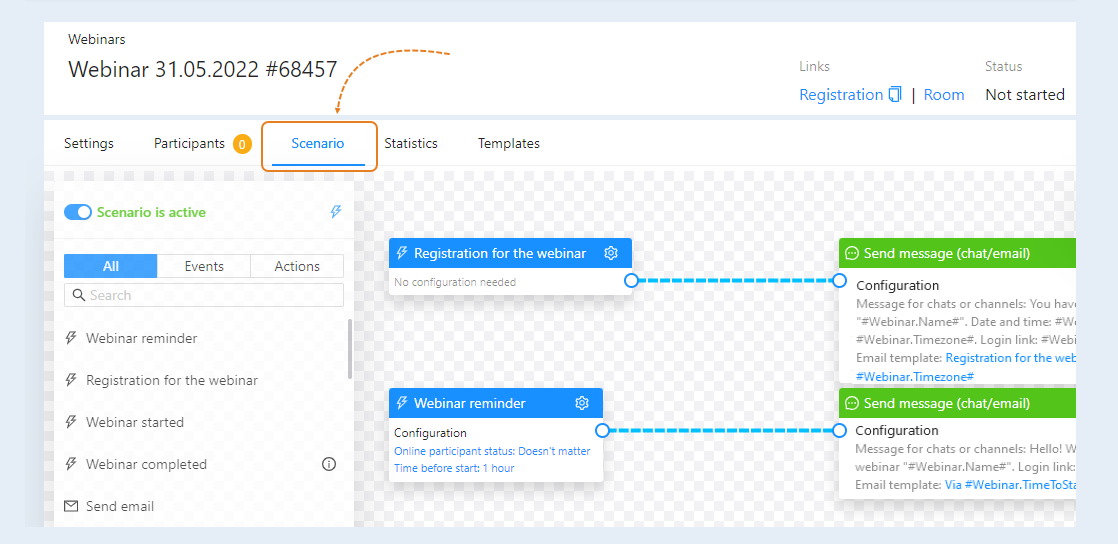
Next, go to "Webinar Scenario".
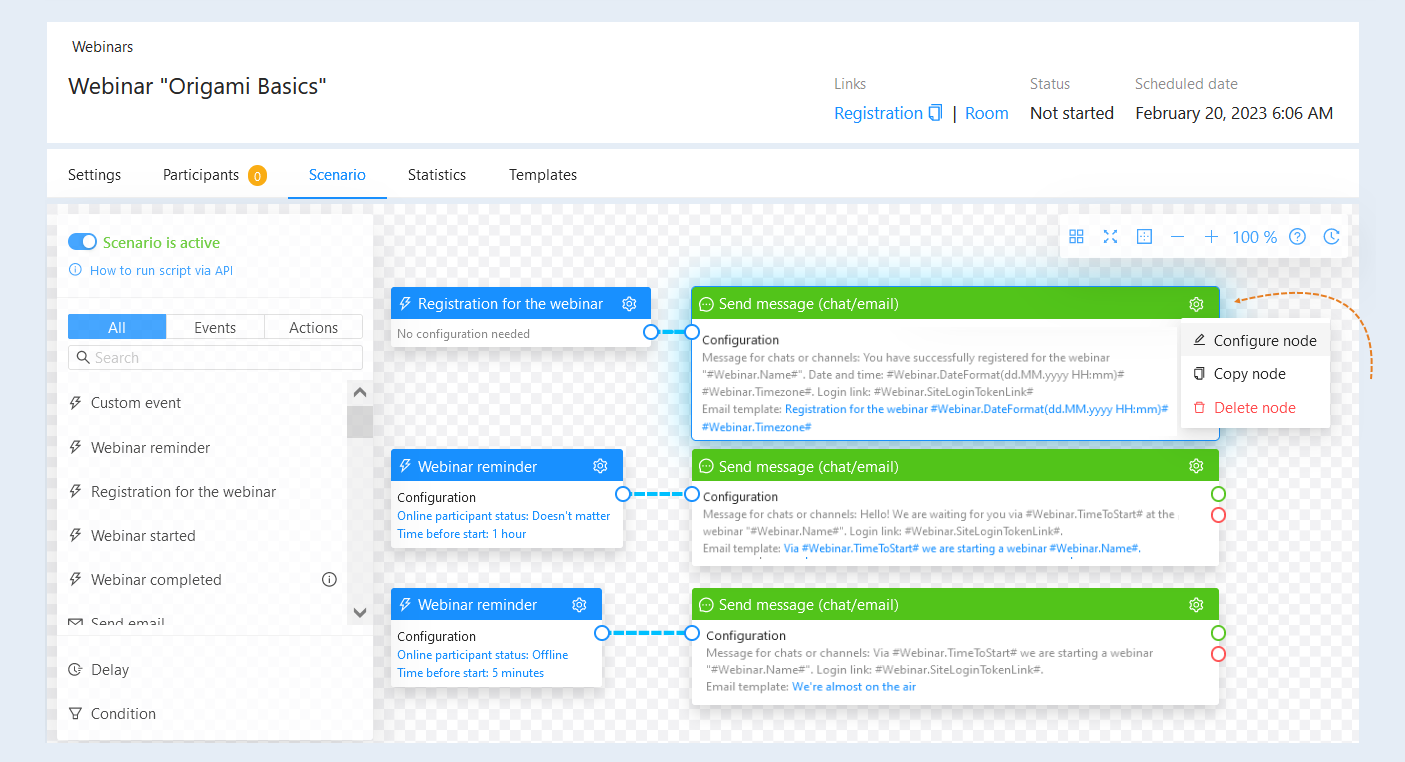
Select an action in the webinar scenario. Click on the "Settings" button in the upper right corner of the action and open the settings of the "Send message" node.
In the window that opens, you can see where the date and time format is used.
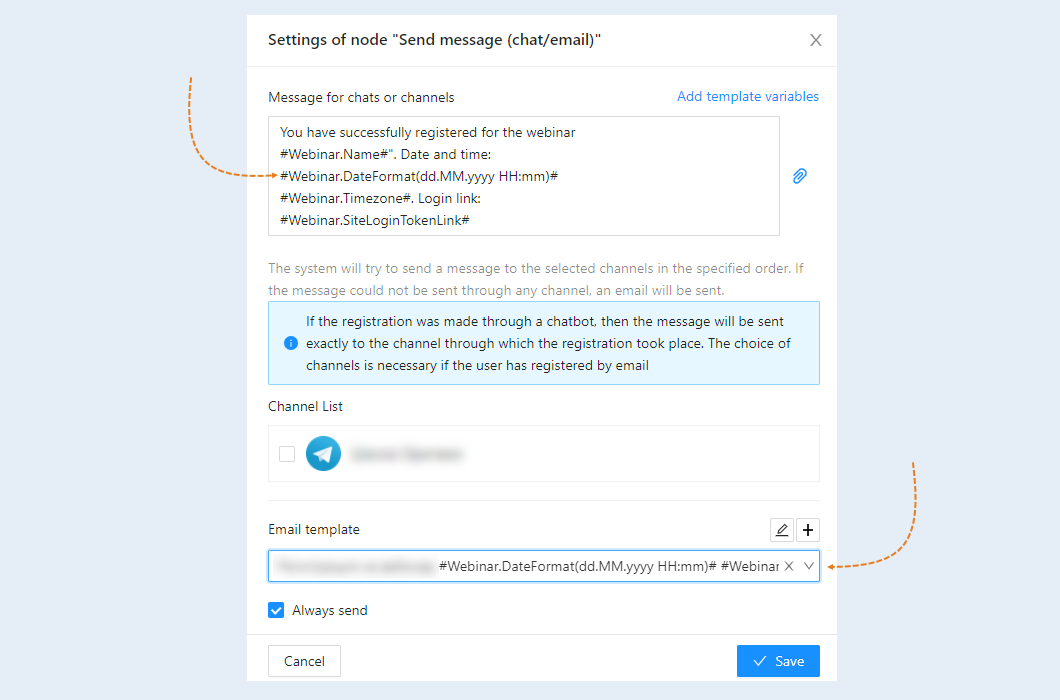
You can change the date and time format in the "Messages for Chats or Channels" text and edit the "Email Template".
How to set DateFormat
The table below shows the various date and time formats and their results. Here you see the possible DateFormat options and their results, that is, how the date and time format will be displayed in the text of the recipient of the message.
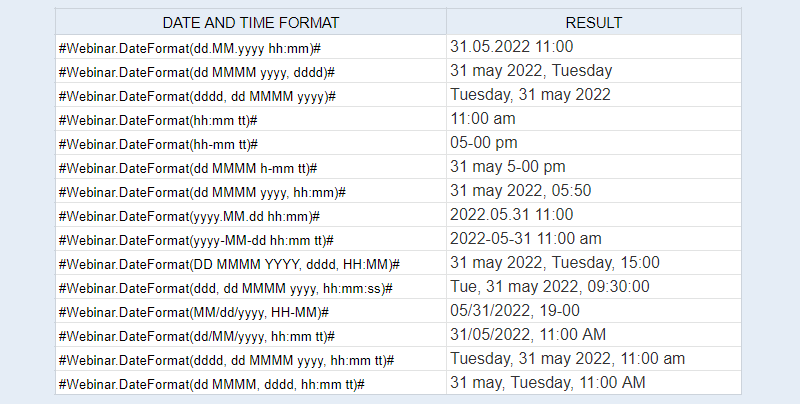
To select the date and time format you need, use the following values:
d -> Represents the day of the month as a number between 1 and 31
dd -> Represents the day of the month as a number between 01 and 31
ddd -> Abbreviated name of the day (Mon, Tue, Wed, etc.)
dddd -> Represents the full name of the day (Monday, Tuesday, etc.)
h -> 12 hour hour (e.g. 4)
hh -> 12 hour format, with a leading 0 (e.g. 06)
H -> 24 hour clock format (e.g. 15)
HH -> 24 hour clock format, with leading 0 (e.g. 22)
m -> Minutes
mm -> Minutes with leading zero
M -> Month number (for example, 3)
MM -> Month number with leading zero (e.g. 04)
MMM -> Abbreviated month name (e.g. Jan, Feb, Sep, Oct, Dec)
MMMM -> Full month name (e.g. December)
s -> Seconds
ss -> Seconds with leading zero
t -> Abbreviated AM/PM (e.g. A or P)
tt -> AM / PM (e.g. AM or PM
y -> Year, no leading zero (e.g. 2022 would be 22)
yy -> Year, leading zero (e.g. 2022 would be 022)
yyy -> Year (e.g. 2022)
yyyy -> Year (e.g. 2022)
K -> Represents the time zone information of a date and time value (e.g. +05:00)
z -> With DateTime values, represents the signed offset of the local operating system's time zone from Coordinated Universal Time (UTC), measured in hours (for example, +6)
zz -> Like z but with a leading zero (e.g. +06)
zzz -> With DateTime values represents the signed offset of the local operating system's time zone from UTC, measured in hours and minutes. (e.g. +06:00)