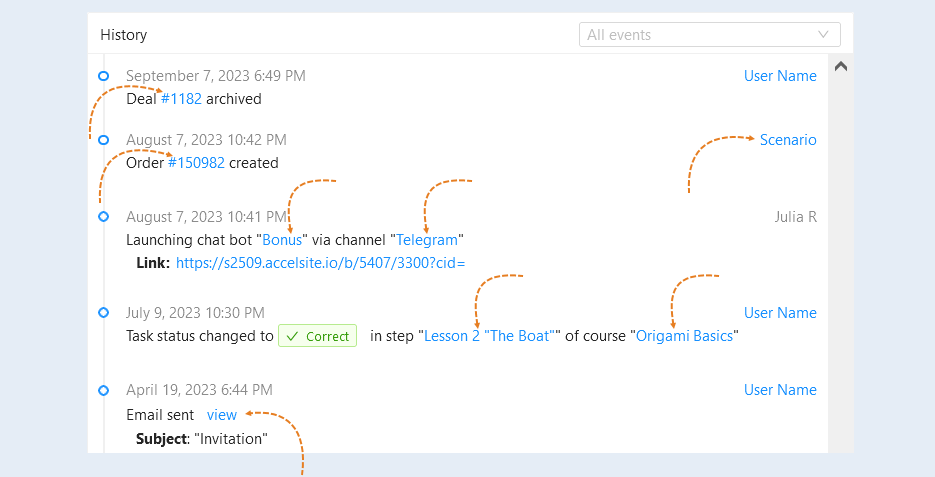
In the "History" tab in the General Information section, you can see interactions with the contact: sent letters, completed courses (course steps), changes in contact details, calls made, and so on. It shows a detailed history of all interactions, indicating the dates and times of the action, as well as the names of the responsible admins and links to sites (course, lesson, mailing list, etc.).
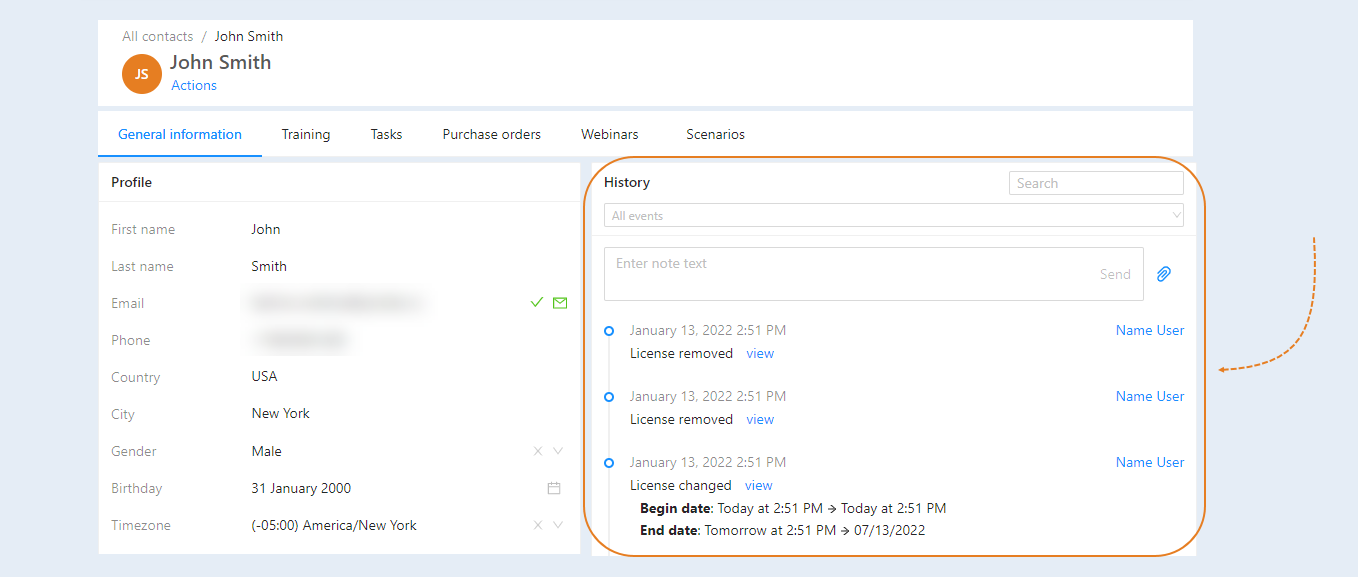
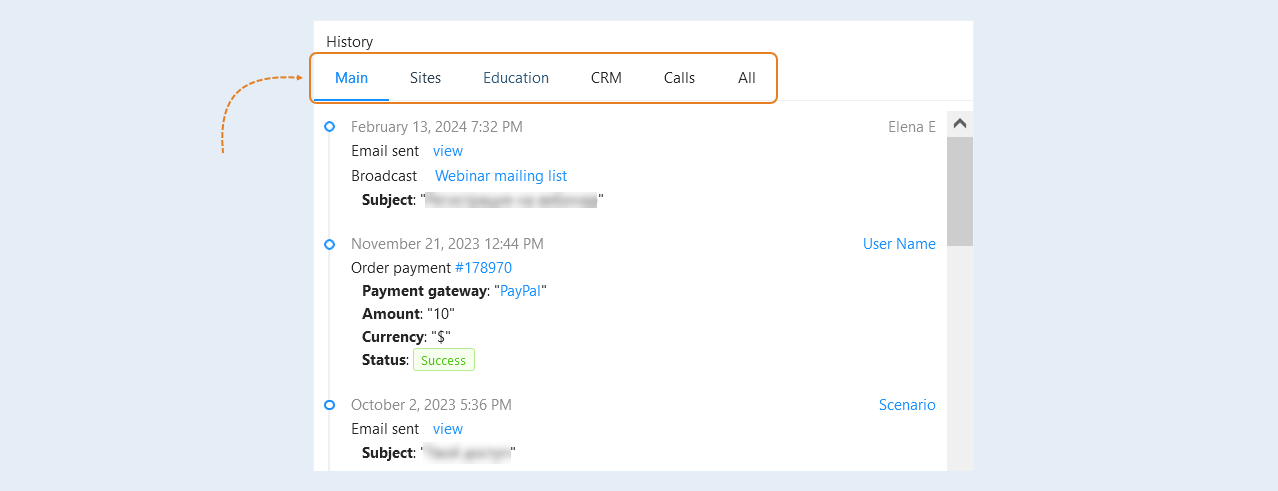
This section allows for a detailed analysis of interactions with a specific contact. The following tabs are available in this section:
- Main. This tab displays key events related to the contact's interaction with the platform. These may include registration, logins, content views, course subscriptions, and other actions that help understand how the user interacts with the platform.
Sites. This subsection records data about the user's website visits. It helps analyze the contact's interests, their behavior on the platform, and tailor offers to their needs.
Education. This tab is dedicated to the educational process. It displays data on course starts and completions, assignment submissions, learning progress, and other events related to educational activity. This helps assess user engagement and identify which materials are most interesting.
CRM. This subsection provides information on interactions with the CRM system: tasks, deals, sales funnel stages, and other actions that help manage relationships with the contact. This is useful for analyzing the user's commercial activity.
Calls. This tab shows the call history associated with the contact. It includes incoming and outgoing calls, their duration, and other details that help better understand interactions with the user.
All. This subsection combines all the information from the other tabs, providing a comprehensive overview of the contact's interaction with the platform. Here, you can see both educational events and commercial actions, making this section convenient for general analysis.
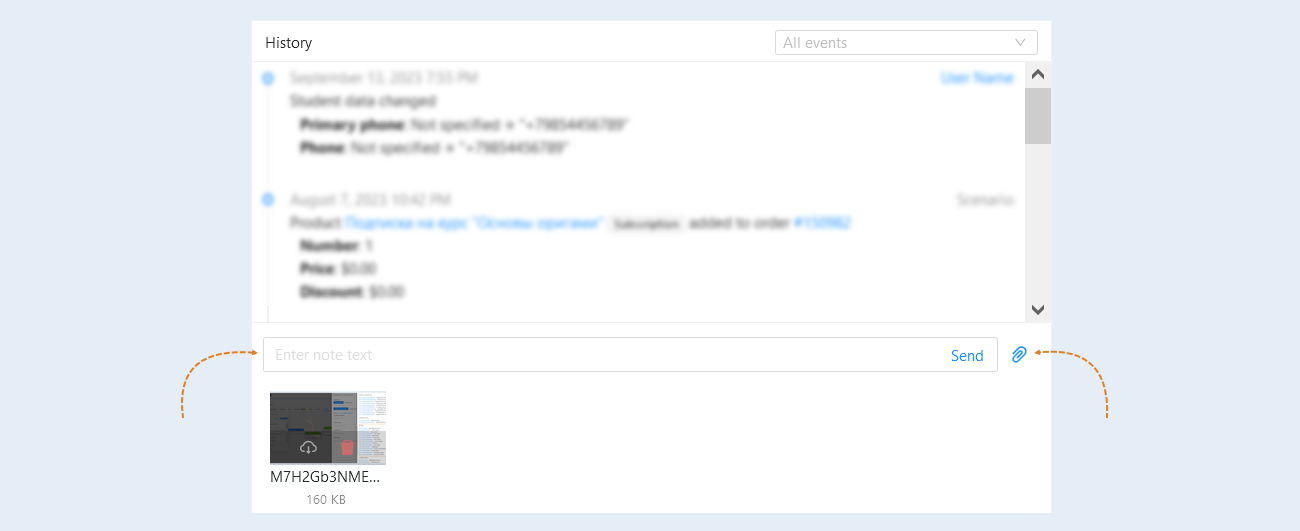
Below is the "Note" field. In this field, you can enter additional information about this client. It will be kept in history. Here you can also attach files related to this client: pictures, photos, text files, etc. Click on the “Paperclip” icon and select the necessary files on your computer. Uploaded files will be shown below the "Notes" field as small icons. Other administrators will be able to download these files to their computer.
The contact history has clickable content. In the contact history, you can go to the scenario or transaction that triggered a certain action. And also open the website, course, order, task and more by clicking on its name in the history.