The event calendar tells your students what is coming up: live Q&As, workshops, webinars and in-person meetups. Students see the events in the membership portal and register with one click; you see who registered. Open Memberships → Event Calendar. If Memberships is missing from the menu, turn it on in Account Features.
Create an Event
- Click Create Event.
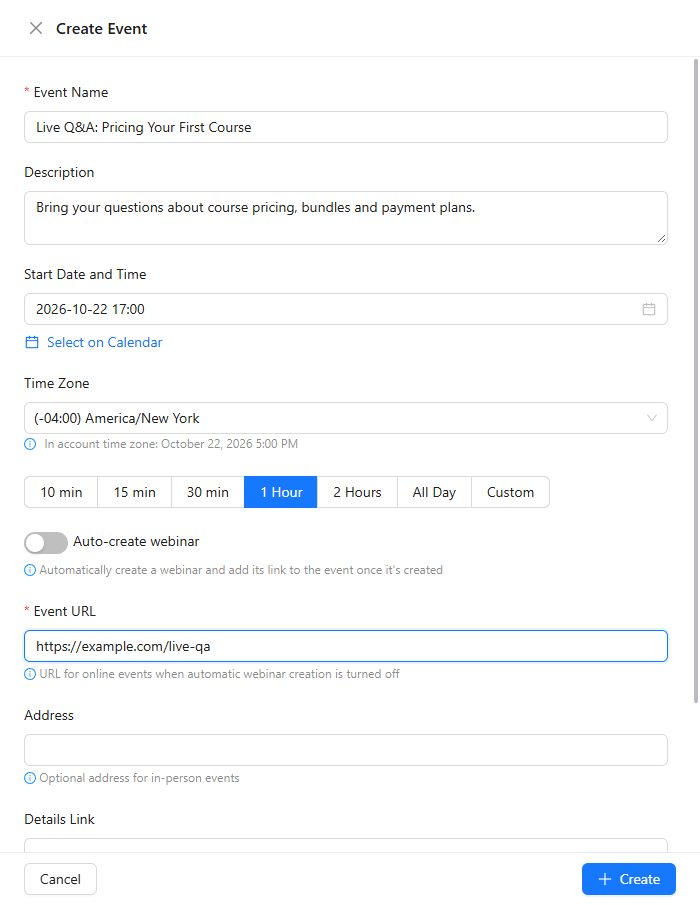
- Enter the Event Name and a Description.
- Set the Start Date and Time and the Time Zone; the hint under it shows the same time in the account's time zone. Select on Calendar lets you drag over a time range on the calendar instead.
- Choose the duration: from 10 min to 2 Hours, All Day, or Custom with your own end time.
- Turn on Auto-create webinar to create a webinar for the event and use its link. Otherwise enter the Event URL: the link students follow to join, for example your video call.
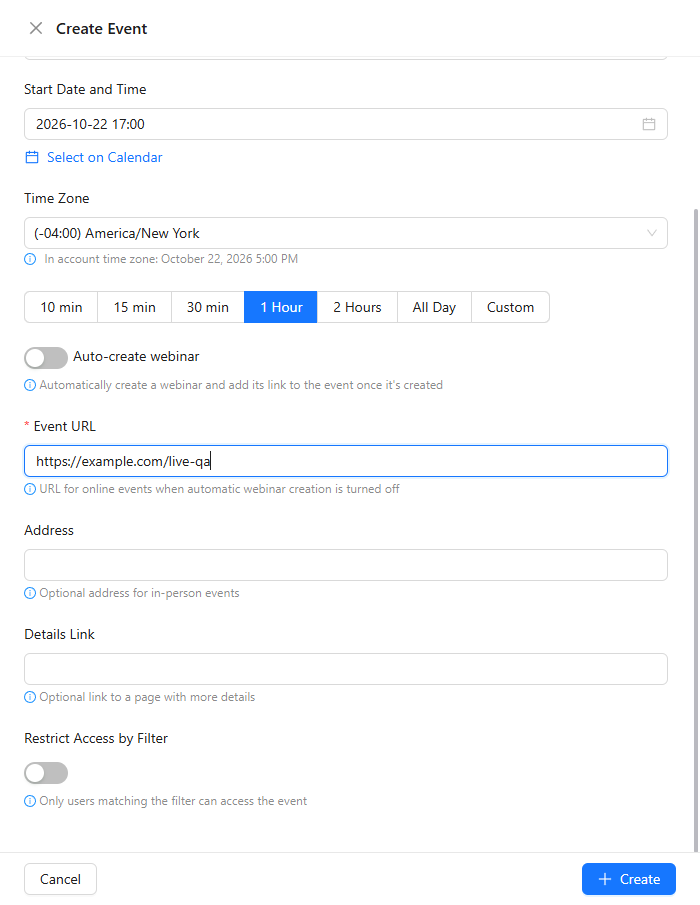
The optional fields further down:
- Address: where an in-person event takes place.
- Details Link: a page with more about the event.
- Restrict Access by Filter: only contacts who match the filter you build see the event, for example the students of one course.
Click Create.
Manage Events
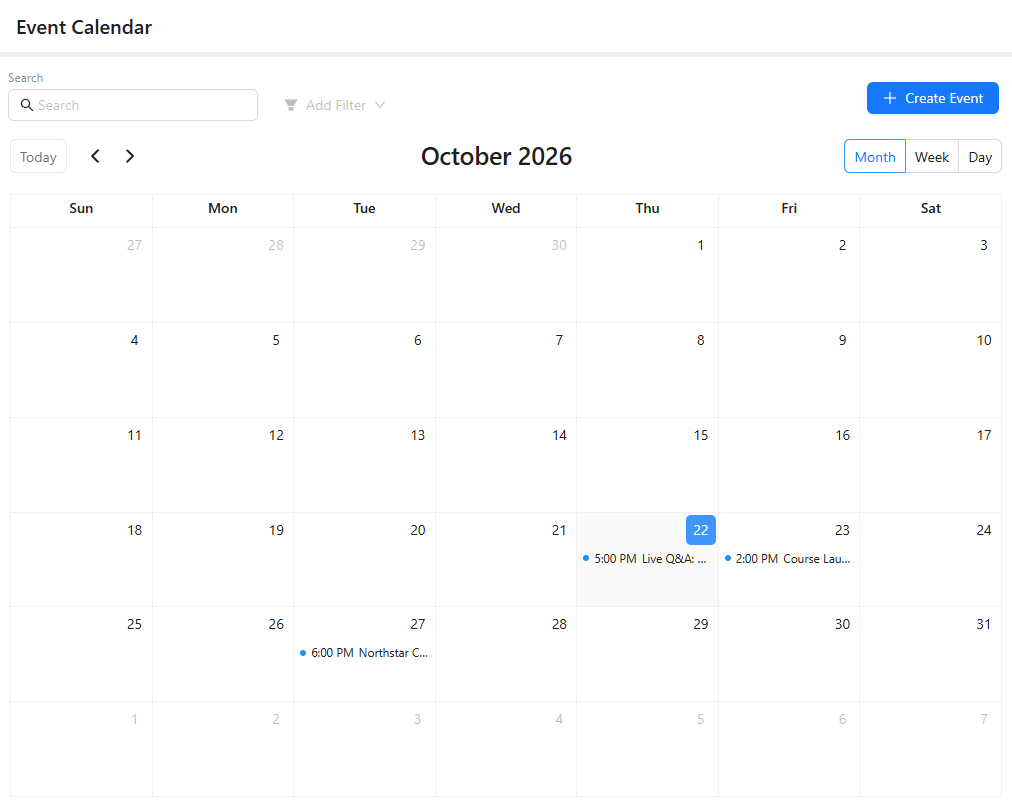
The calendar shows events by Month, Week or Day; Today and the arrows move between periods, and Search and Add Filter find an event.
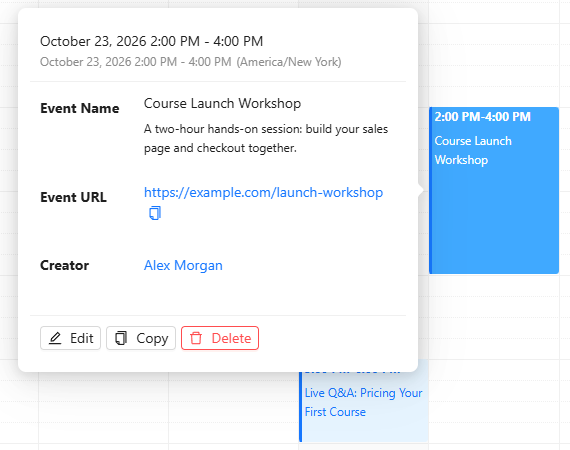
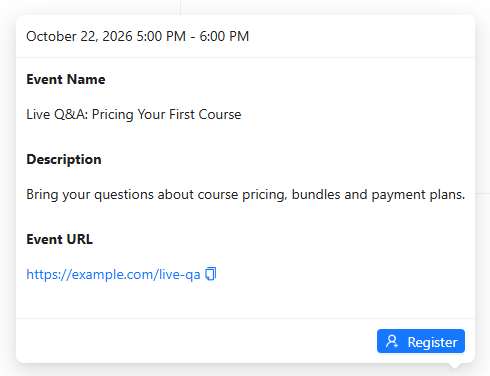
Click an event to see its time, description, link and creator. Edit changes it, Copy creates a copy, for example for the next session, and Delete removes it.
What Students See
In the membership portal, the Upcoming Events card on the courses page and on the community page lists the next events. Show All Events opens the whole calendar.
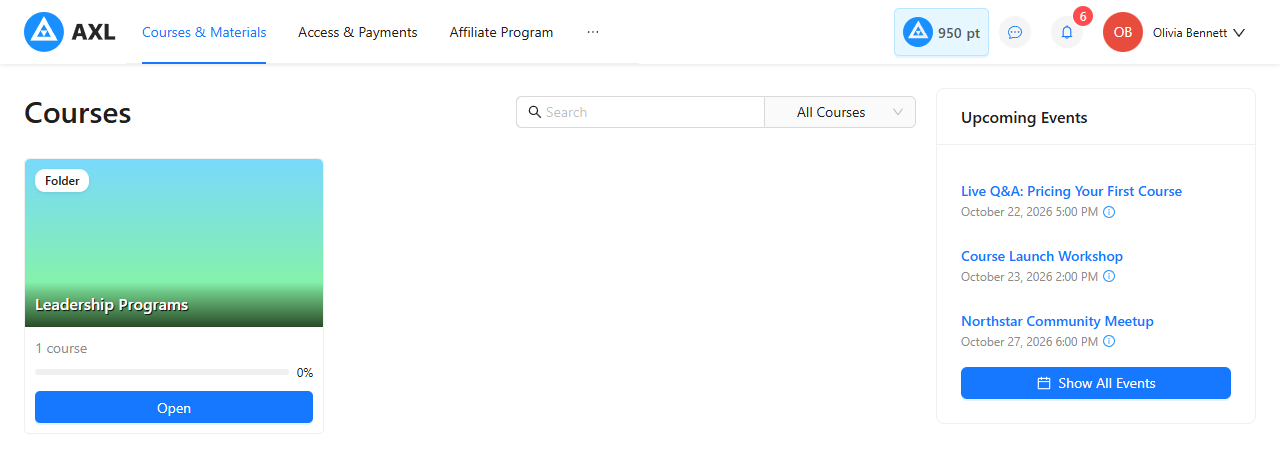
A student clicks an event to see the details and clicks Register. The event is then marked with a check, and the button changes to Registered. If the event has a webinar, registering also signs the student up for the webinar, and the event link becomes their personal link to the webinar room.
See Who Is Coming
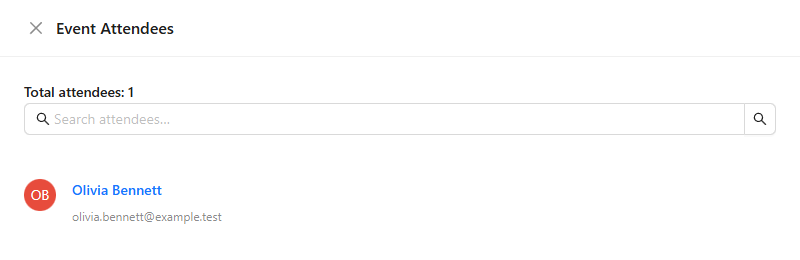
Open the event, click Edit, then View Attendees. The list shows everyone who registered, with a search. For an event with a webinar, people who registered for the webinar are added here too.
More about the portal in "Membership Portal Account" and "Community"; about webinars in "Webinars".