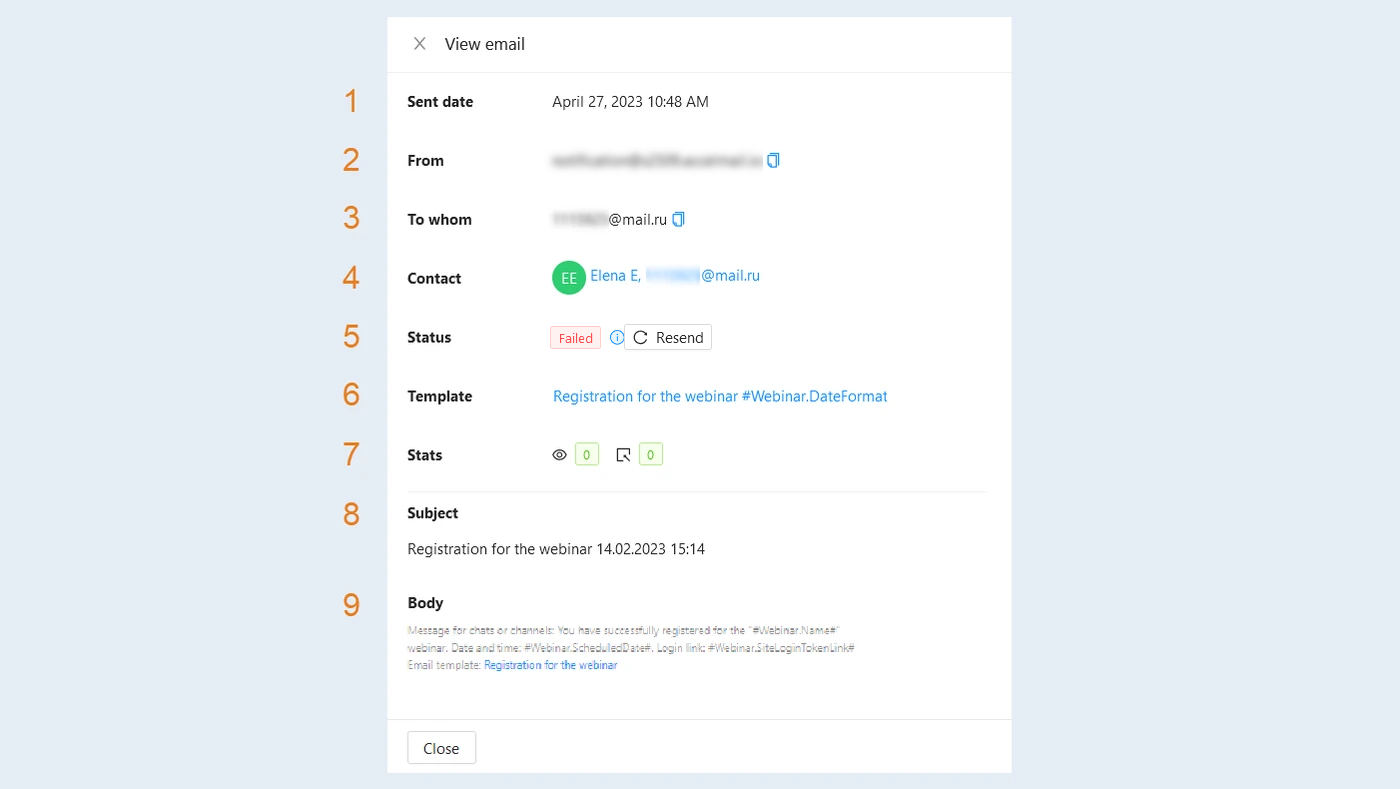
Sent Emails is a list of all outgoing emails within your account, sent automatically or manually.
Go to the "Mail" section, the "Sent Items" tab.
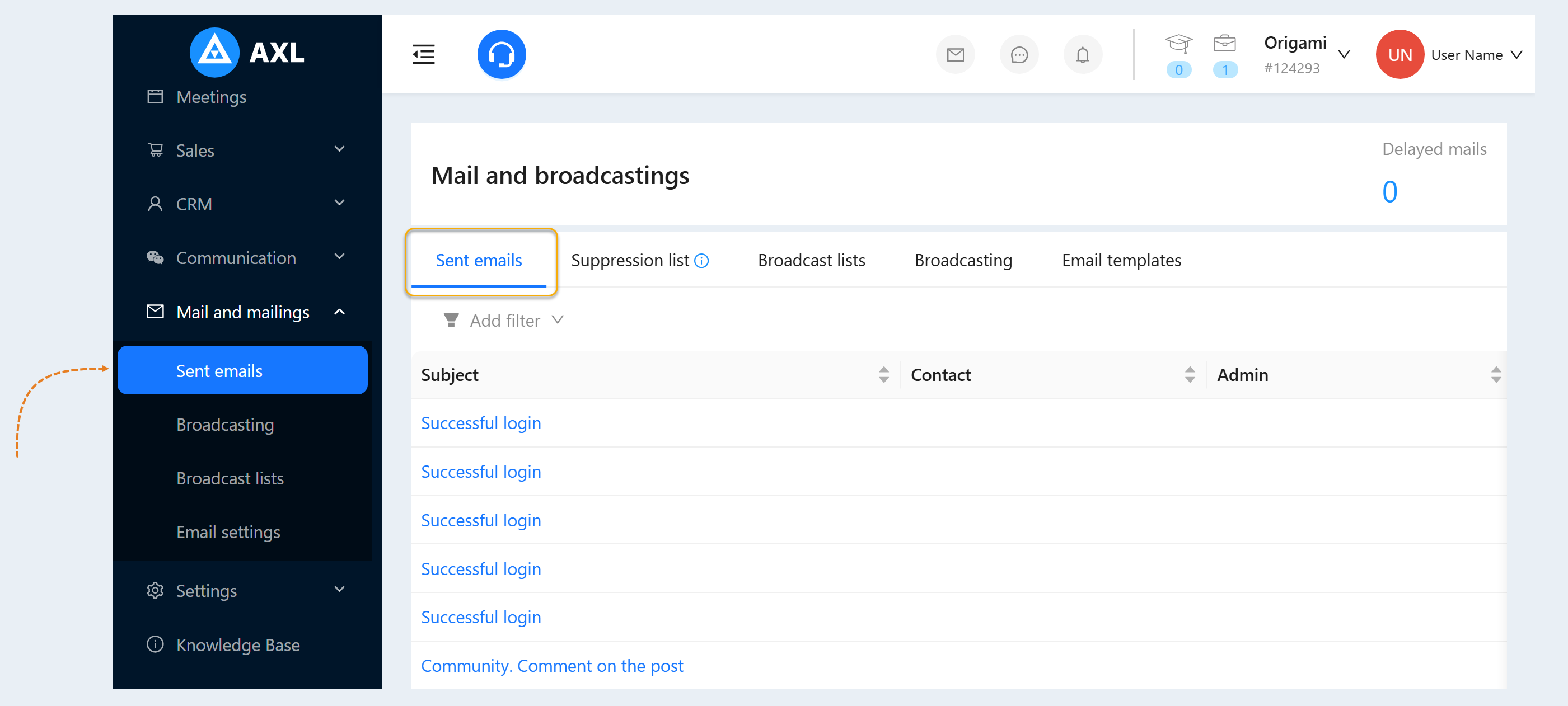
In this tab, you can see the following information on sent emails:
- Letter subject.
- Contact. The email address of the contact to which the email was or will be sent.
- Admin. The name of your account administrator who sent the email. This column will be empty if letters were sent using mailing lists.
Opens. The number of times this letter has been opened.
- Clicks. The number of clicks on the link inside the letter.
Sales. In this column, you can see information about the number of sales or revenue that was received as a result of the emails sent. This column helps you evaluate the effectiveness of your communication approach and the profitability of your marketing campaigns.
- Status. Here you can see the status of sending the letter: planned or sent.
- Date. The date this letter was sent.
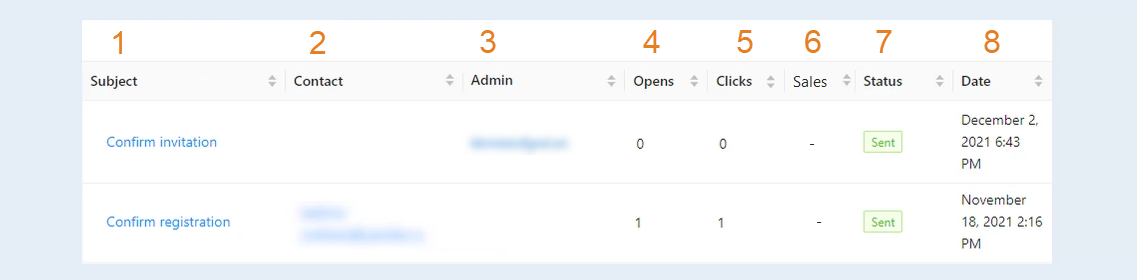
Click on the subject line. An additional window will open with information:
- Sent date. The date of sending the letter is specified.
From. The mail from which the letter was sent is specified.
- To whom. Here you can see email address of the person to whom the email was sent.
Contact. Here you can see the name and email address of the contact.
- Status. In this line, you can see the status of the shipment: scheduled, sent, error. In case of an error, you can resend the email by clicking the "Resend" button.
- Tampate. Here you can see the name of the email template that was used for this mailing list. Click on the name, in the window that opens you will see the text of the template.
Statistics. The number of views and clicks in the email is indicated.
- Subject (when the email was sent).
- Body. Here you can see the text of the sent letter.