A call campaign lets an AI voice agent call a list of contacts for you, a few at a time and only during calling hours. Use it for a survey after a visit, a reminder about an unpaid order, an invitation to a webinar, or to reconnect with customers who haven't contacted you in a while. The agent has the conversations, records the outcome of each call, and an automation acts on the outcomes.
You need a voice agent first. See "AI Voice Agents".
Create a Campaign
Open Communications → Telephony, the Call Campaigns tab, and click New Call Campaign.

- Name: so you can find the campaign later.
- Voice Agent: the agent that makes the calls.
- Opening Line: spoken word for word as soon as someone answers, instead of the agent's usual greeting. Say who is calling, from which company, and ask whether it's a good time to talk. Contact tags such as #Contact.FirstName# are filled in. Leave it empty to use the agent's greeting.
- Campaign Instructions: why the agent is calling, what to ask or offer and how to end the conversation. They are added on top of the agent's own instructions on every call of the campaign.
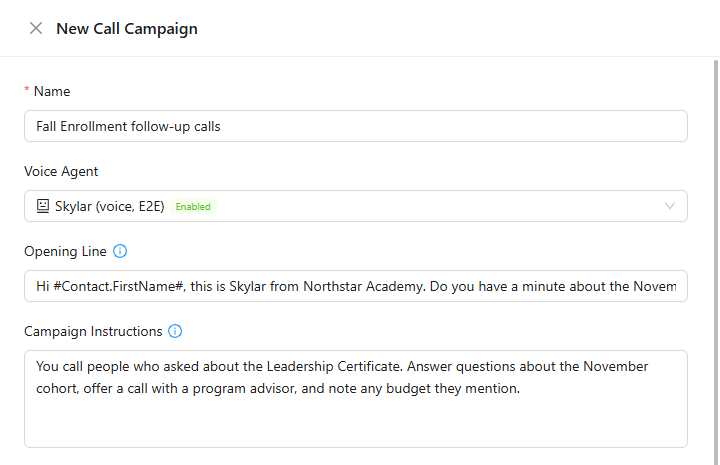
Calls go out from the number routed to the selected agent. If no number is routed to it, the account's first number with calls is used.
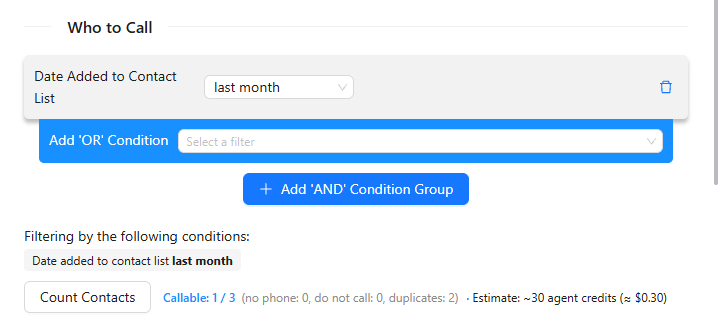
Who to Call
Build the audience with CRM contact filters, including OR conditions and AND condition groups. Click Count Contacts to see how many contacts can be called and the estimated cost. The list is fixed when the campaign starts.
Pace and Calling Hours
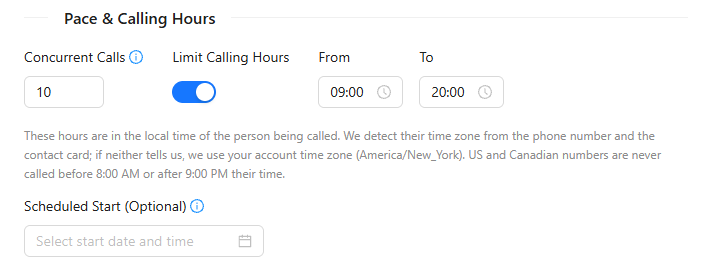
- Concurrent Calls: how many calls run at once.
- Limit Calling Hours: the hours when contacts may be called. The hours are in the local time of the person being called, worked out from the phone number and the contact card, or the account time zone if neither tells. US and Canadian numbers are never called before 8:00 AM or after 9:00 PM their time.
- Scheduled Start (Optional): start the campaign automatically at a set date and time instead of right away.
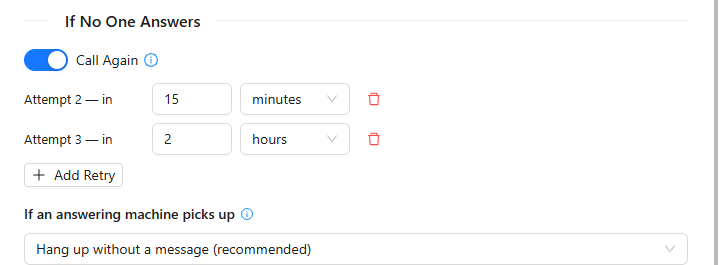
If No One Answers
Turn on Call Again to retry unanswered calls, and set the interval for each attempt. Add Retry adds an attempt; the trash can removes one. Under If an answering machine picks up, choose Hang up without a message (recommended) or Leave a message.
Call Outcomes
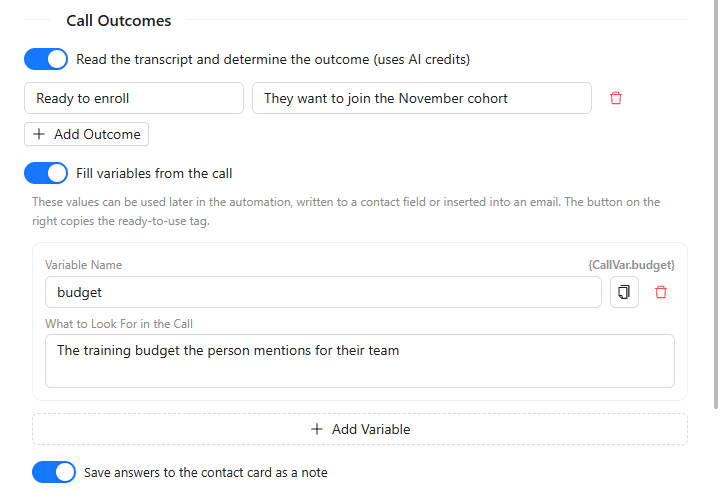
Turn on Read the transcript and determine the outcome (uses AI credits) to have AI decide the outcome of each call. Click Add Outcome to describe your own outcomes. Fill variables from the call extracts information from the conversation, such as a budget, for use in the automation, a contact field or an email; Save answers to the contact card as a note keeps them on the contact.
When you save the campaign, AXL creates an automation with a branch for each outcome. Click Open Automation to decide what happens next, for example create a deal for everyone who is ready to enroll.
Forms and Meetings
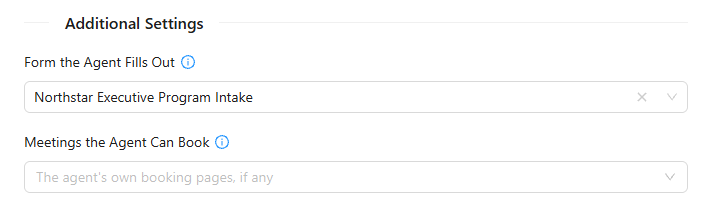
Form the Agent Fills Out: a form whose questions the agent asks during the call. Meetings the Agent Can Book: the booking pages the agent may use; if none is chosen, the agent's own pages are used.
Selling on Calls
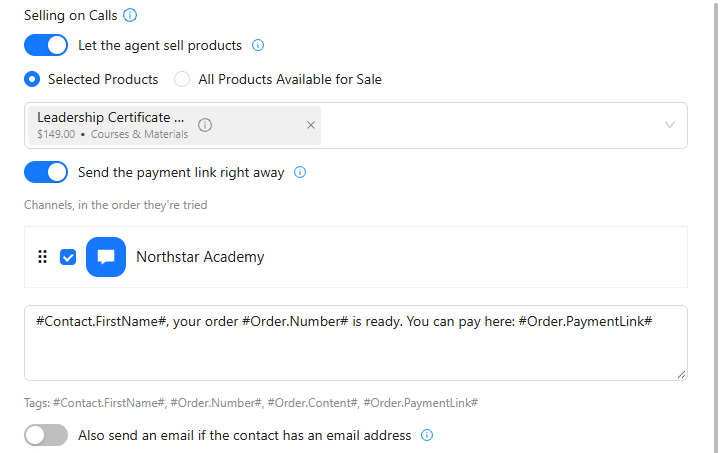
Turn on Let the agent sell products to let the agent create an order during the conversation, and choose Selected Products or All Products Available for Sale.
Send the payment link right away sends the link during the call. AXL tries the channels you choose in the order you set and uses the first one that can reach the person: your SMS number can reach anyone by phone number (with an approved SMS registration), while Telegram, WhatsApp and other chat channels work only if the person has messaged you before. Write the message with the tags #Contact.FirstName#, #Order.Number#, #Order.Content# and #Order.PaymentLink#. You can also turn on Also send an email if the contact has an email address.
If no channel and no email is chosen, the agent still creates the order and tells the customer that a team member will send the payment link.
Test and Launch
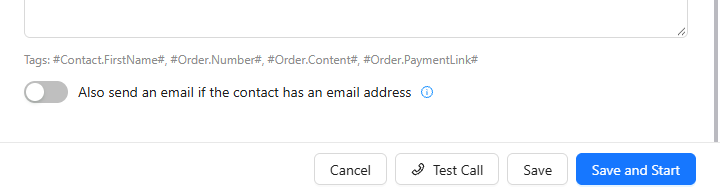
Click Test Call to hear how the agent handles the conversation. Then click Save to keep the campaign as a draft, or Save and Start to launch it.
The campaign list shows the progress and how many calls were answered. Every call appears on the History tab with its transcript. See "Call Analytics".