Orders are generated automatically when a visitor on the site adds a product to the cart and / or pays for the product. But you can create orders manually. In the event that you need to manually send a link to pay for the product, or make a payment without creating a website (page).
Let's say you have added courses to account, but have not yet created a website to sell your product, you can create an order to pay for this course and send a payment link to your client.
How to create an order
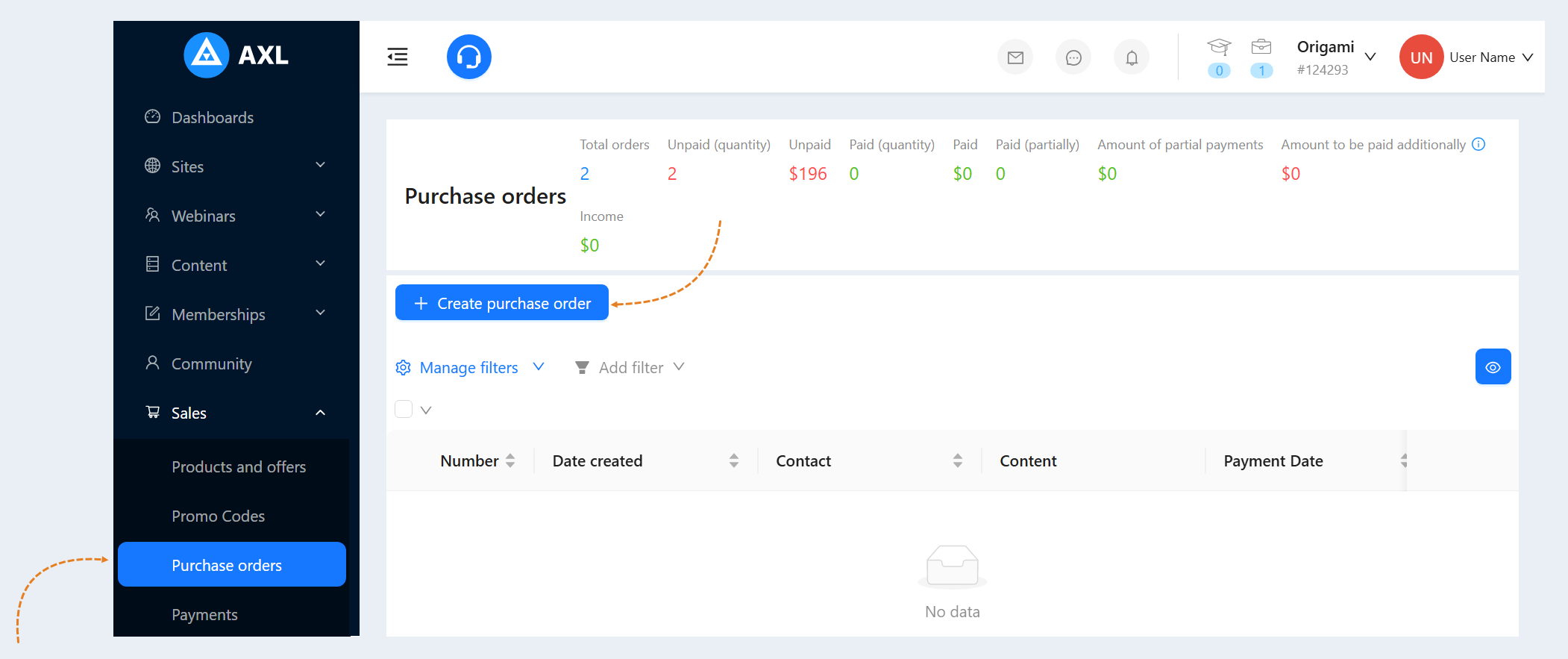
Go to the "Sales" section, select the "Purchase orders" tab. Click the "Create purchase order" button.
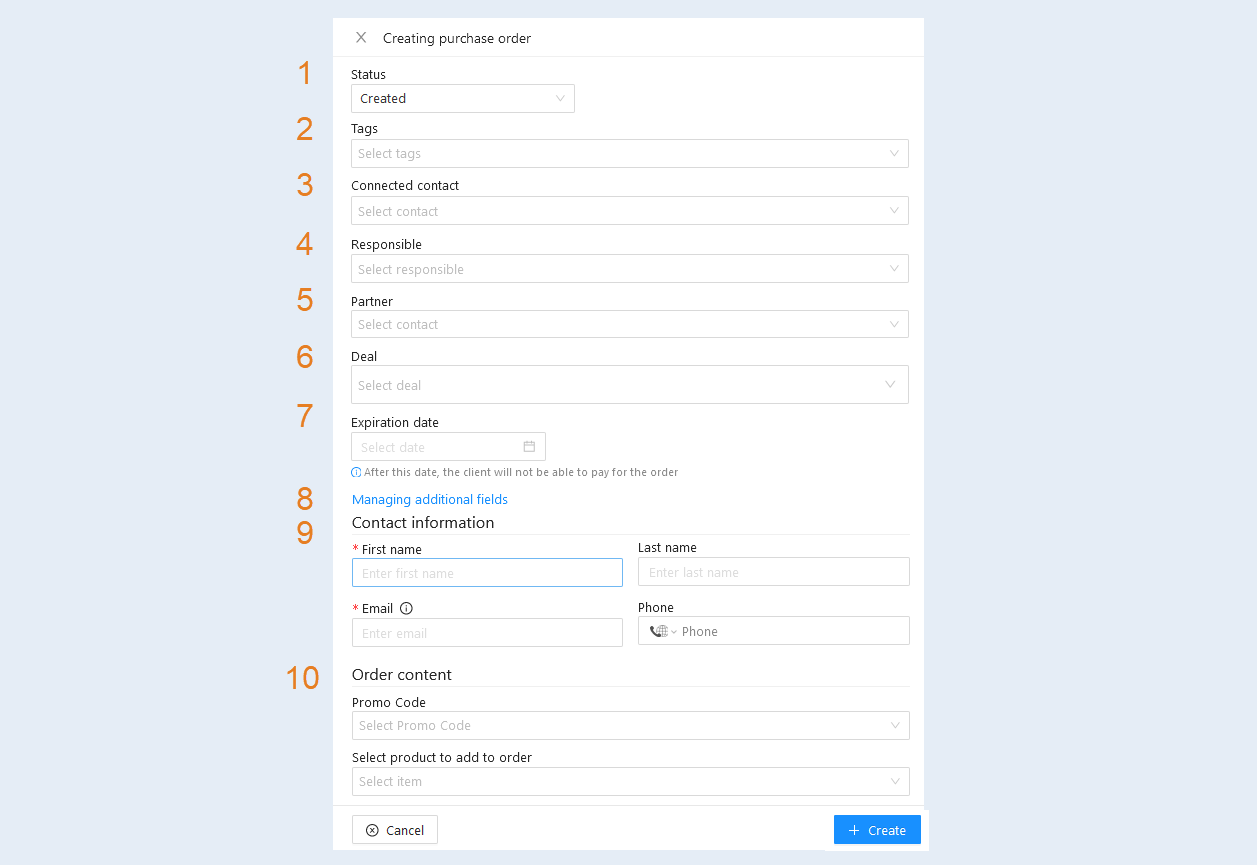
An additional window "Create order" will open. Fill in the fields:
- Status. Select an order status from the list.
Tags. Select the tags for the order from the list.
Connected contact. Select the customer's name from the list. If the contact is not in the list, then leave this field blank and fill in the contact information below.
Partner. Specify the partner who will be charged the commission for the affiliate program.
Responsible. Select the responsible administrator from the list.
Deal. Select from the list the number and stage of the deal that are associated with the order.
Expiration date. After this date, the customer will not be able to pay for the order.
Managing additional fields. Click to create additional fields for the order.
Contact Information. Enter customer contact information: first name, last name, email address, phone number.
Order content. Select one or more products from the list to add to the order. Select a promo code for the order.
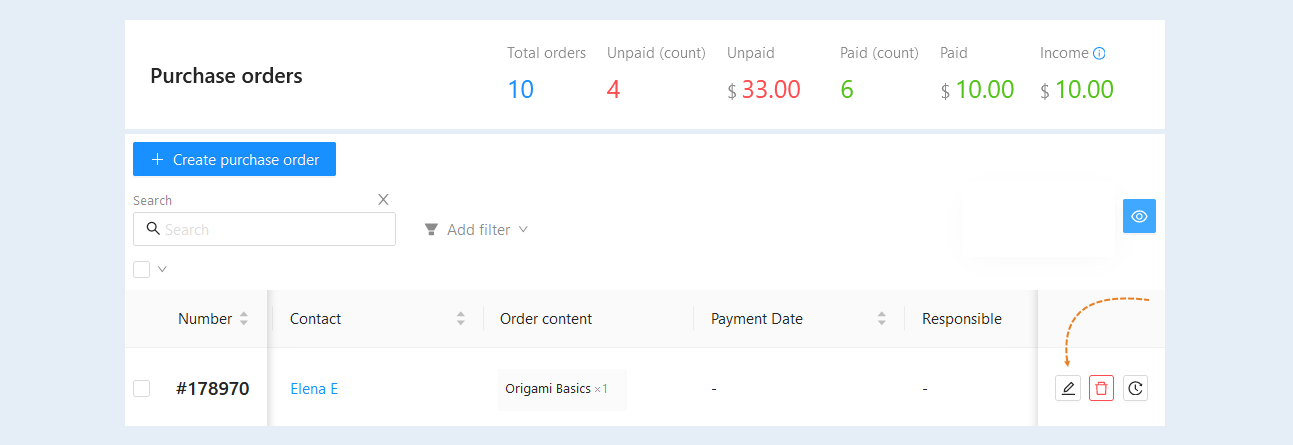
Click the Create button. The order you created appears in the list of orders. Click the "Edit" button.
You will be taken to the order page. Copy the payment link and send it to your client.

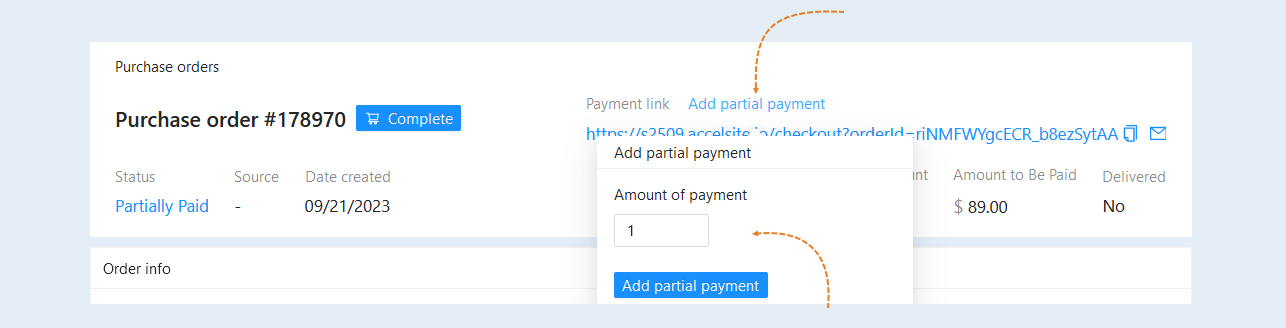
You can also create a link for partial payment of the order. To do this, click the "Add partial payment" button. In the window that opens, specify the amount of the partial payment. Copy the link and send it to your client.