Call analytics is located in the "Communication" section → "Telephony", on the "Analytics" and "History" tabs. It is designed for monitoring and analyzing telephone interactions with clients and shows how efficiently the employees who talk to clients by phone are performing.
Click on the desired section to go to its description:
Analytics
Open the "Communication" section in the left menu and select "Telephony". Call analytics is split into two tabs of this page:
- Analytics (page address: /telephony/analytics). Summary figures for each administrator over the selected period: the number of incoming and outgoing calls, their duration, sales and conversion. Based on this data, you can identify bottlenecks and optimize how the team works with clients.
History (page address: /telephony/history). The list of individual calls: who called whom, when, how long the call lasted, its status, cost and recording. It helps the team quickly find previous conversations with a client.
Both tabs are available to administrators with the "Call analytics and history" access right.
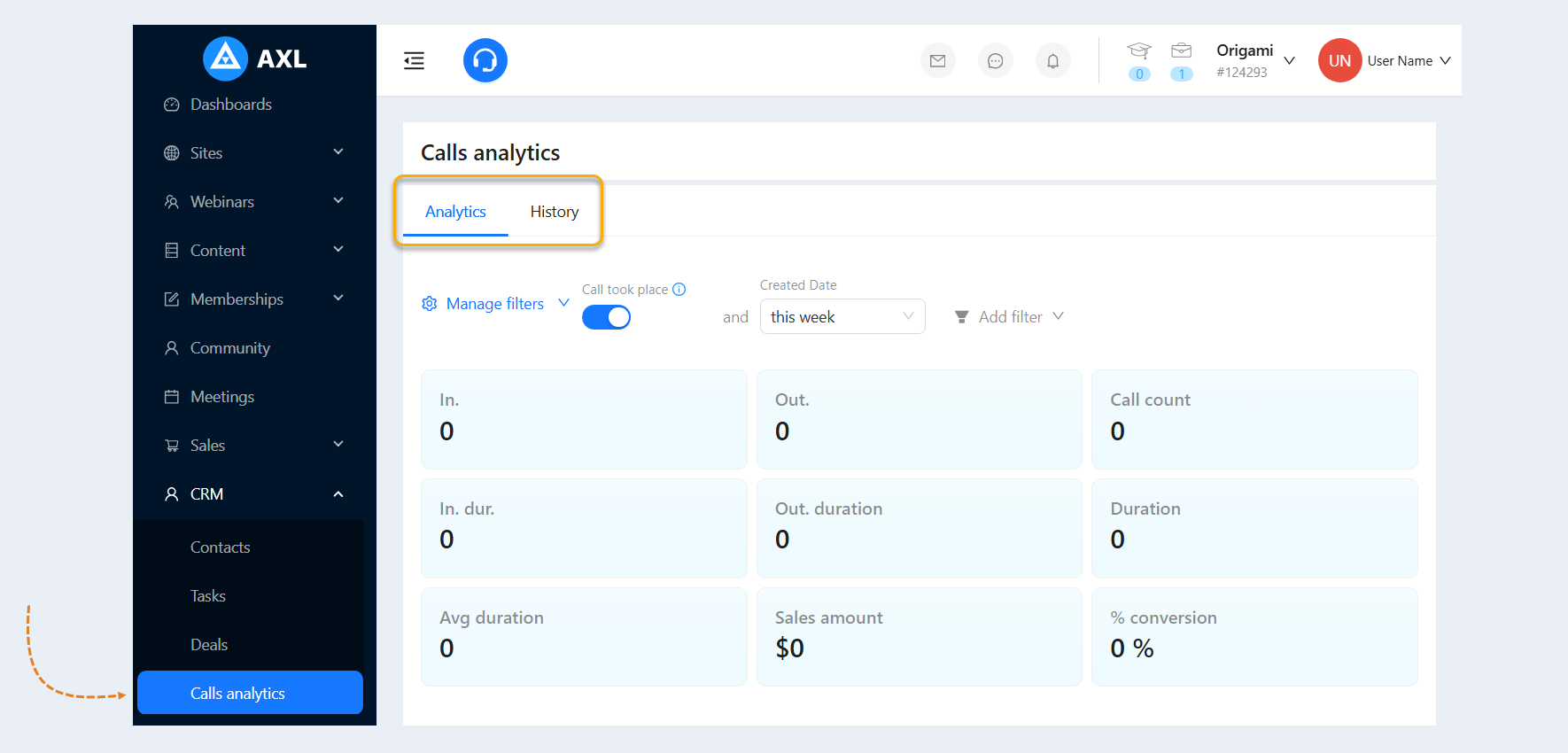
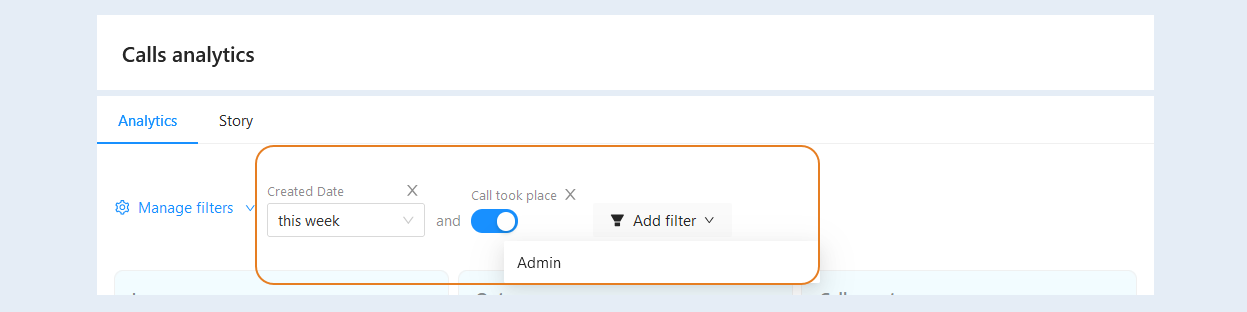
At the top of the "Analytics" tab there is a filter. Filters allow you to quickly find the necessary data without having to scroll through all the information. All dates are counted in your account's time zone.
The following filter conditions are available to you:
Created Date. Limits the calls by date. By default, the tab opens with the "This week" condition. You can also choose "Today", "Yesterday", "Last week", "This month", "Last month" or set a period with specific dates. To see the statistics for a single day, choose "Today", "Yesterday" or a period that starts and ends on that day.
Admin. Shows the statistics of the selected administrators only.
Call took place. A call is considered to have taken place if it lasted more than 10 seconds. This condition is added to the filter by default.
If the toggle is on, the analytics counts only calls longer than 10 seconds, allowing you to focus on real conversations with clients.
If the toggle is off, the analytics counts only calls of 10 seconds or less: missed, failed and very short calls.
To count all calls regardless of their duration, remove this condition from the filter.Duration (Seconds). Limits the calls by duration: from and to the specified number of seconds.
Please note: the analytics counts only calls in which an administrator took part. Calls handled entirely by an AI agent are not included in the analytics, but they are shown on the "History" tab.
The "Manage Filters" function is needed for more precise and convenient analysis of call data.
By selecting various filter conditions, you can create a "set" filter that can be saved for later use. This is especially convenient if you frequently search for the same data.
You can copy a unique link to the "set" filter and send this link to other team members so they can quickly access the same filter settings and see a similar selection of calls. This significantly simplifies collaboration and discussions.
With the help of filters, the team can find the necessary data more quickly, making it easier to manage time and resources and improving overall productivity.
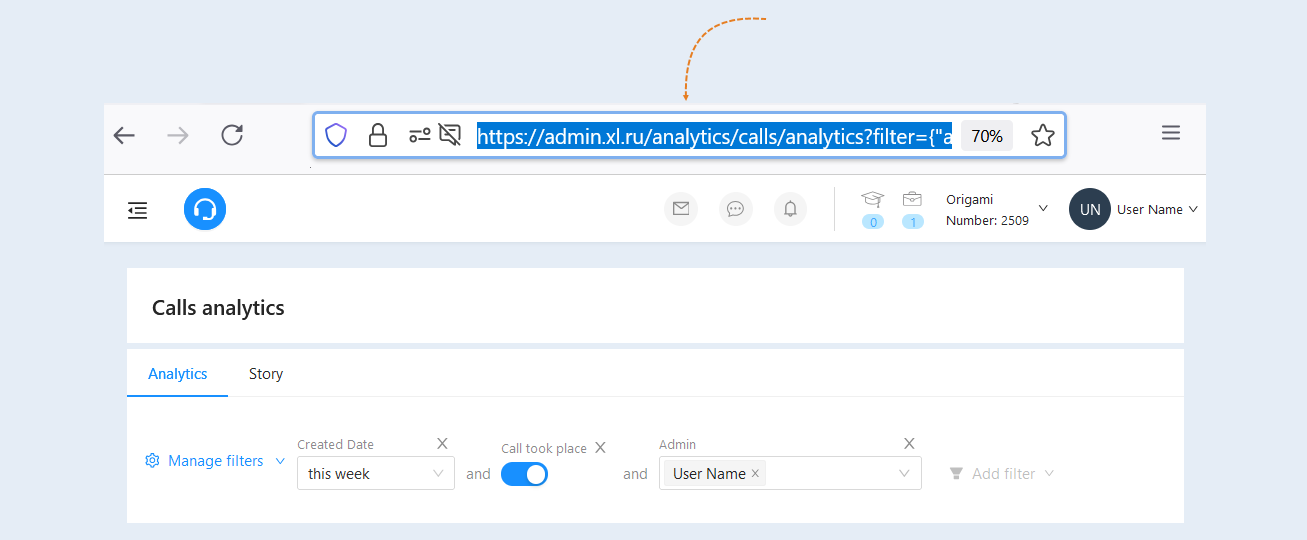
Click the "Manage Filters" button, then click "Copy Link." The link to the filter will be copied to your clipboard.
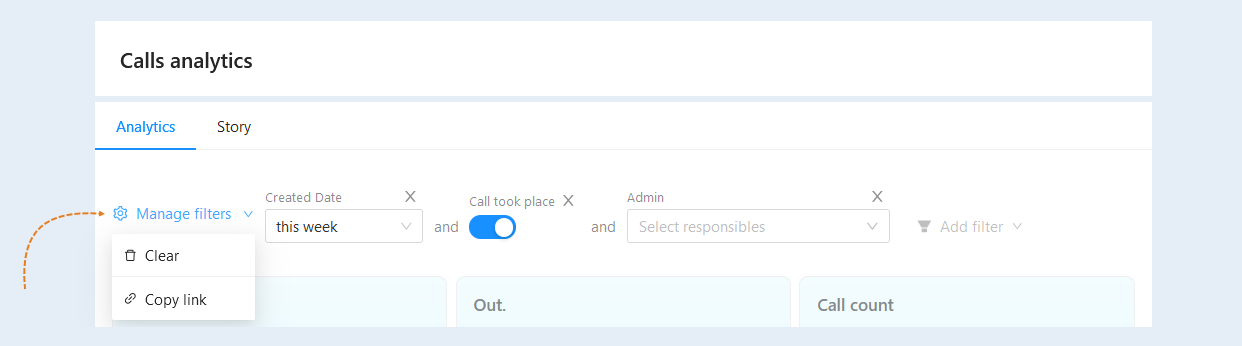
The "set" filter will also be saved in the page address. You can also copy the page address and forward it to your colleagues. If a colleague follows this link, the "Analytics" tab will open with the "set" filter you created.
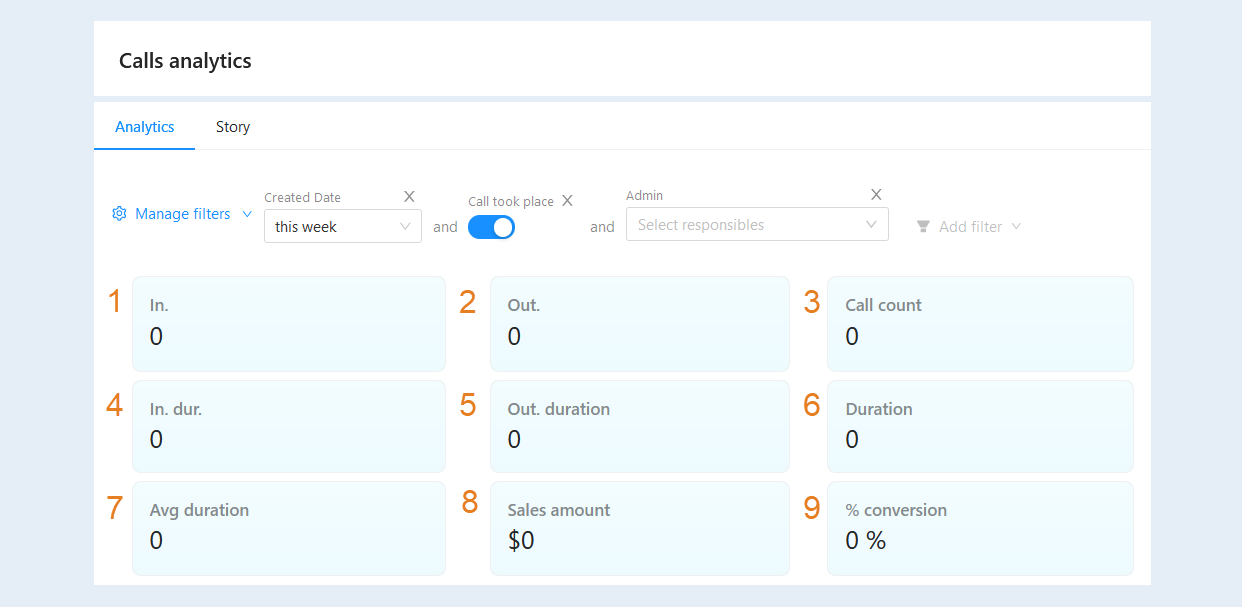
Below, you will find data on calls. The overall call analytics includes:
- In. The number of incoming calls, that is, calls from clients to the platform. This metric is important for analyzing client interest in services and identifying peak periods of activity.
Out. The number of outgoing calls that employees made to potential or current clients. It helps monitor the team's proactive work with clients.
Call count. The total number of calls, incoming and outgoing. This metric shows the team's workload.
In. dur. The total duration of incoming calls.
Out. duration. The total duration of outgoing calls.
Duration. The total duration of all calls, incoming and outgoing.
Avg duration. The average duration of one call: the total duration divided by the number of calls.
Sales amount. The total amount of payments attributed to the calls (both incoming and outgoing). This metric is important for analyzing the financial effectiveness of the work.
% conversion. The percentage of calls after which a payment was received, compared to the total number of calls. This metric shows how well the team closes deals and helps identify areas that require improvement.
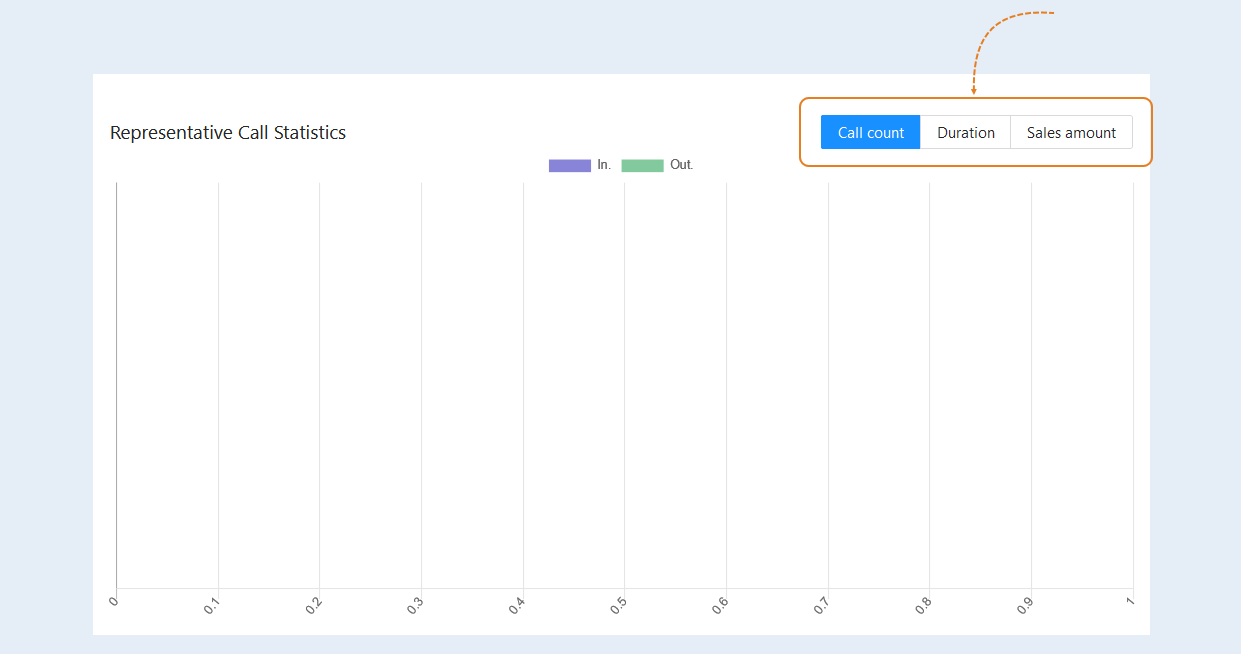
Below is the "Representative Call Statistics".
This chart is designed to analyze the effectiveness of employees involved in sales or customer consulting over the phone. It allows you to assess how representatives' calls impact overall business results and to identify areas for improvement.
Click on the card to display detailed statistics on each metric in the chart:
Call count. The total number of calls made by representatives over a certain period. It helps assess the team's activity and determine how well representatives are performing.
Duration. The total duration of the calls made by representatives over the selected period. Together with the call count, it shows how much time the team spends on the phone.
Sales amount. The total revenue generated from sales resulting from calls. It allows you to evaluate the financial contribution made by the employees. This is an important indicator for analyzing the success of marketing and sales strategies.
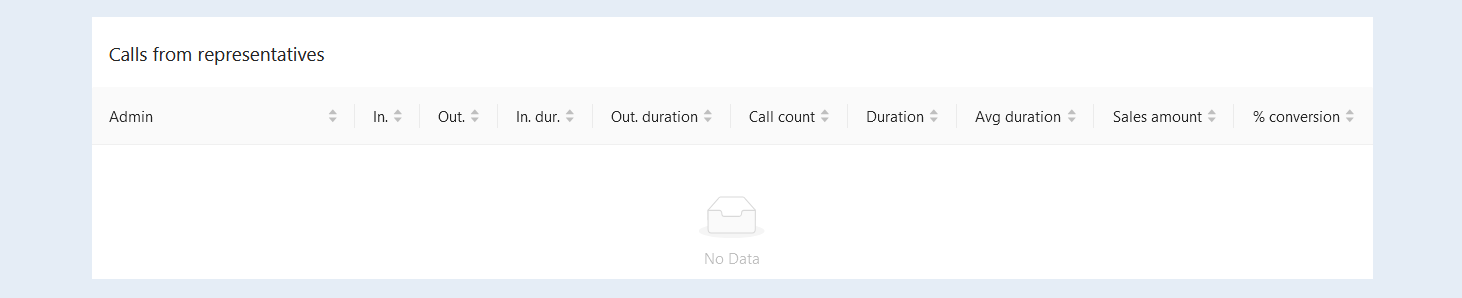
Below are the "Calls from representatives".
This table provides detailed information about customer interactions for each administrator. It allows for analysis of how effectively the administrators are working and where improvements may be needed.
History
The "History" tab is intended for analyzing and tracking calls. On this tab, you will see a list of outgoing and incoming calls:
- From. Who made the call: an employee, a contact, an AI agent or a phone number.
To whom. Who received the call.
Duration. How long the call lasted. The call status is shown below it, for example, a missed call.
Cost. How much the call cost. For calls on AXL numbers, hover over the amount to see what it consists of.
Date. Shows the date and time when the call was made. It allows tracking activity during specific periods.
Source. How the call started: an incoming call, the web phone, a scenario, manually or a mass calling campaign.
Integration type. Indicates through which telephony the call was made.
Actions. The "Details" button opens the call card: the call recording (it can be played and downloaded), the transcript and the AI summary of the conversation if they are enabled, the call result and the cost breakdown. You can also open the call card by clicking the row.
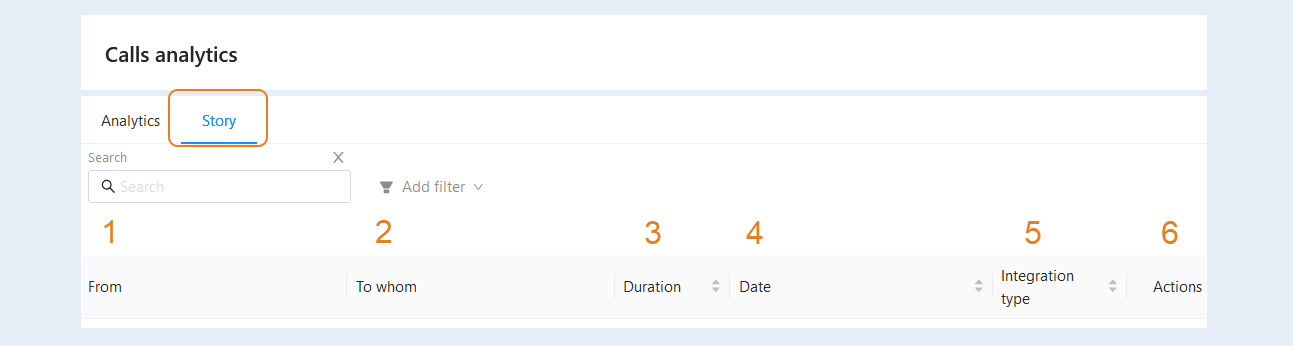
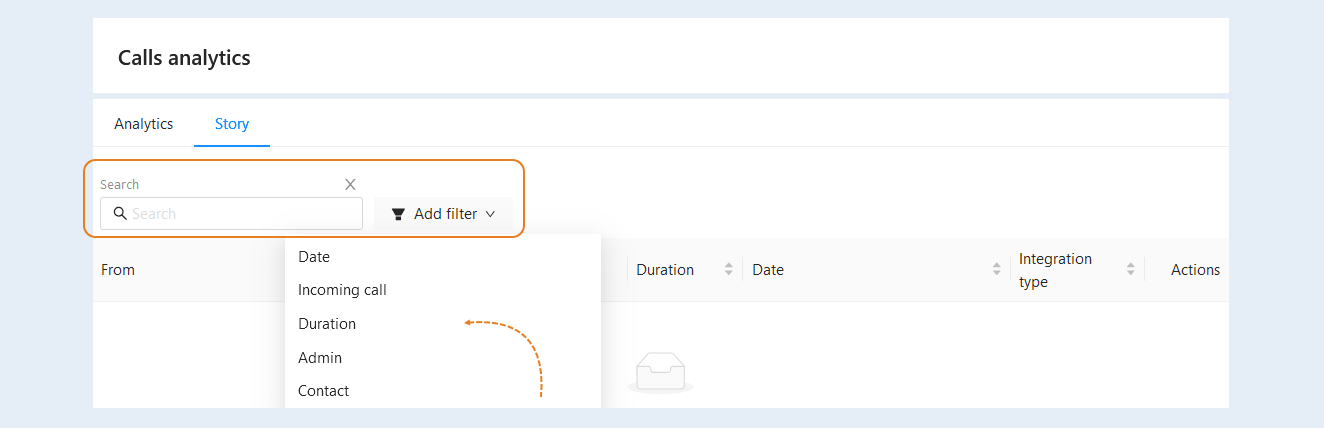
At the top of the page, you have access to a search bar and filter:
- Search. Free search by keywords.
Click the "Add Filter" button and select a filter condition from the list:
- Date. This condition filters calls by the start and end date and time of the call.
Incoming call. This condition highlights only incoming calls.
Duration. This condition filters calls based on a specific duration.
Admin. This condition filters calls made by a specific employee.
Contact. This condition filters calls to specific contacts from the CRM list.