In the Mail section, you manage outgoing emails and newsletters.
On the toolbar on the right, you see the tabs: Sent, Mailing Lists, Mailing Lists, and Mail Settings. In the top menu of the "Mail" section, two more tabs are available: stop list and letter templates. These tabs are not displayed on the toolbar, because they are rarely used in work.
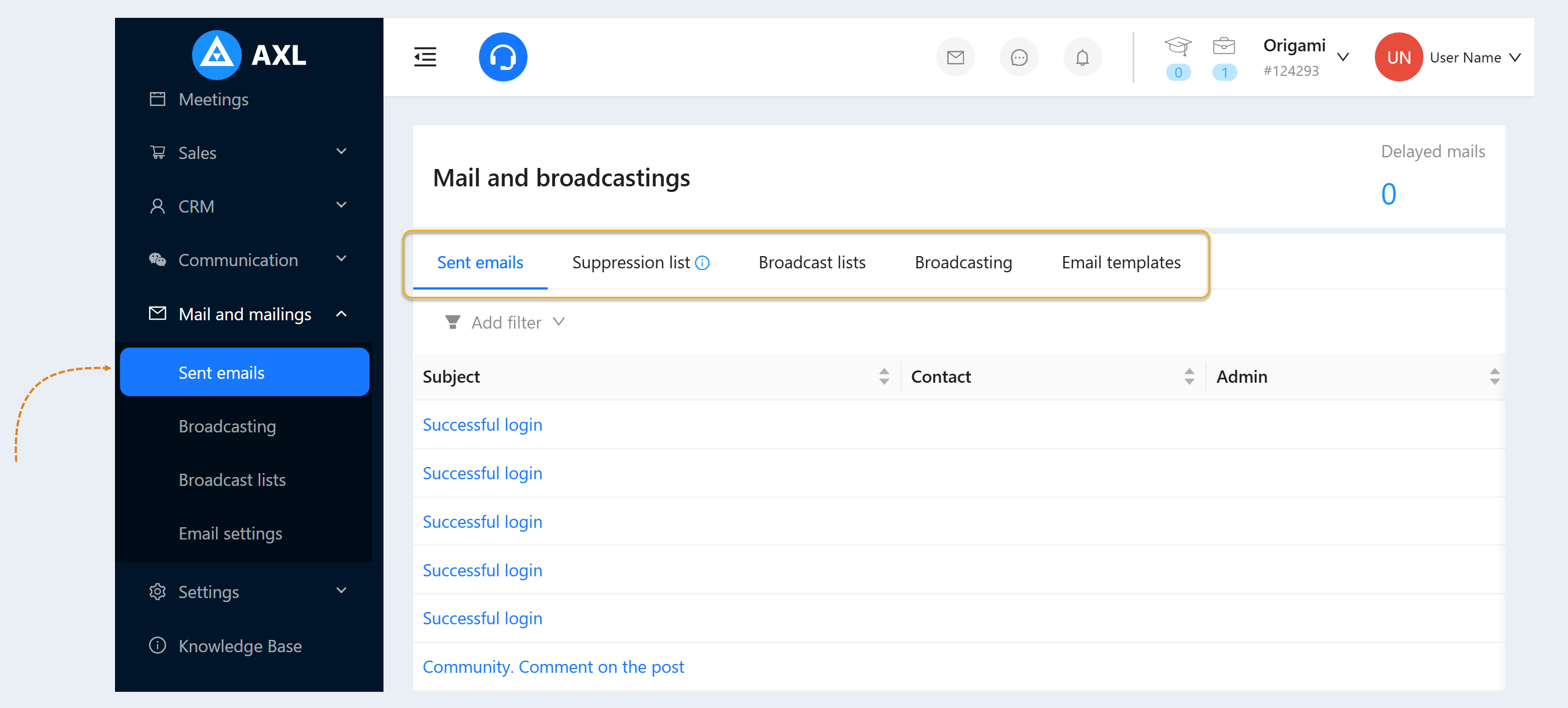
Let's take a quick look at each tab. Click on the desired section of the article to go to its description:
Sent emails
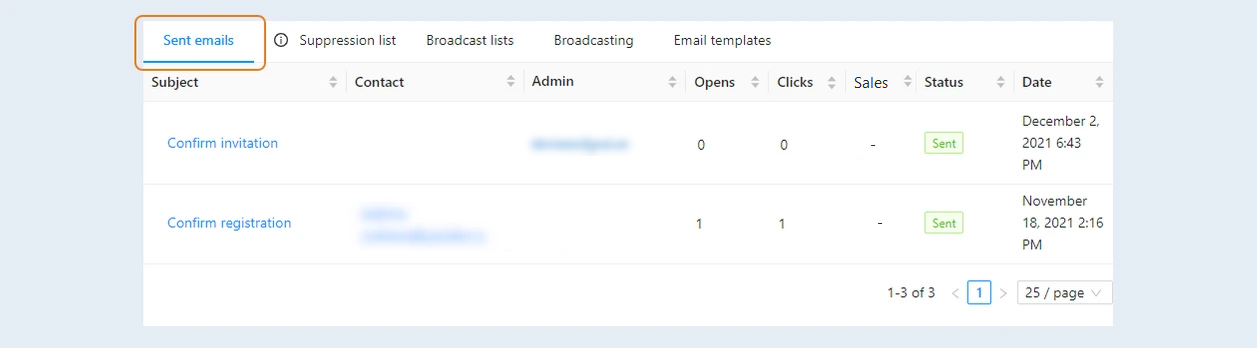
This is a list of all outgoing emails within your mailing lists or manual emails. Here you can see information on sent emails:
- Subject. Here you can see the subject of the sent email.
- Contact. In this column, you see the email address to which the email was sent.
- Admin. Here you can see the name of the administrator who sent this email. This column will be empty if the letter was sent by mailing.
- Opens. Here you can see the number of email openings.
- Clicks. This shows the number of clicks on the link within the email.
Sales. In this column, you can see information about the number of sales or revenue that was received as a result of the emails sent. This column helps you evaluate the effectiveness of your communication approach and the profitability of your marketing campaigns.
- Status. In this column you can see the status of the submission: sent, scheduled, sending error.
- Date. Here you can see when the shipment was made.
Read more in the "Sent" Items article.
Suppression list
The stop list is a list of email addresses to which the sending of letters is prohibited. This sheet is filled in manually. Read more about how to create a stop list in the article "Stop List".

Broadcast lists
In the Mailing Lists fold, you can create and manage mailing lists. A mailing list is a targeted list for your mailings based on conditions. In this tab, you define the conditions for sending a specific letter. For details on how to create a list, see the "Mailing Lists" article.
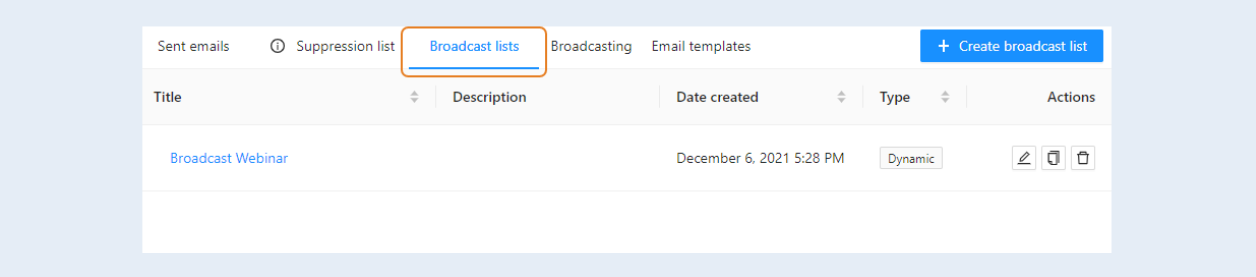
In this tab you can see a list of existing mailings:
- Title. Duplicates the "Edit" button. Opens the "Edit Mailing List" window. Here you can change the shipping conditions.
- Description. Here you see a description of the mailing list.
- Date of creation. This is the date when this newsletter was created.
- Mailing type: dynamic or manual.
- Total letters. The number of email addresses in the mailing list.
- Edit button. You can make changes to this mailing list.
- Copy button. You can create a copy of this mailing list.
- Delete button. This button removes the mailing list.
With the help of a mailing list, you can create any customer filter you need and send them emails with specific information. Filtering Conditions helps you create any combination of conditions.
For example, you can create a newsletter for customers who have purchased a specific course from your account. Or you can filter your clients and select those who have completed the course. Or create a mailing list for those clients who have not been active for more than 1 year within the courses available on the membership portal.
To learn more about the conditions for sending letters, see the article "Conditions for mailing".
Broadcasting
A mailing list is an activity of sending letters. You have created a mailing list and now you need to send emails. To do this, go to the "Mailings" tab. Here you can see a list of existing mailing lists:
- Date created of the mailing list. The exact date and time of the mailing list creation.
- Title of the mailing list.
- Sent stats. The number of letters sent and the number of errors, that is, letters that could not be delivered to the addressee.
- Progress. Indicator of the process of sending letters as a percentage. Here you can see the percentage of the emails sent.
- Opens. Here you can see the number of times this email has been opened.
- Clicks. The number of clicks on the link in this letter.
- Unsubscribing. The number of unsubscriptions from the mailing list upon receipt of this letter.
Sales. In this column you can see information about the income that was received as a result of sending emails.
- Scheduled. This is the scheduled date for sending this newsletter.
- Status. "Scheduled" - if the letters have not been sent yet, "Sent" - if the delivery has already been completed.
- Actions:
Statistics button. Click to see the mailing statistics.
Edit button. Click to edit this mailing list.
Copy button. Click to create a copy of the mailing list.
Delete button. Click to remove this mailing list from the list.
History. Here you will display a detailed sending history
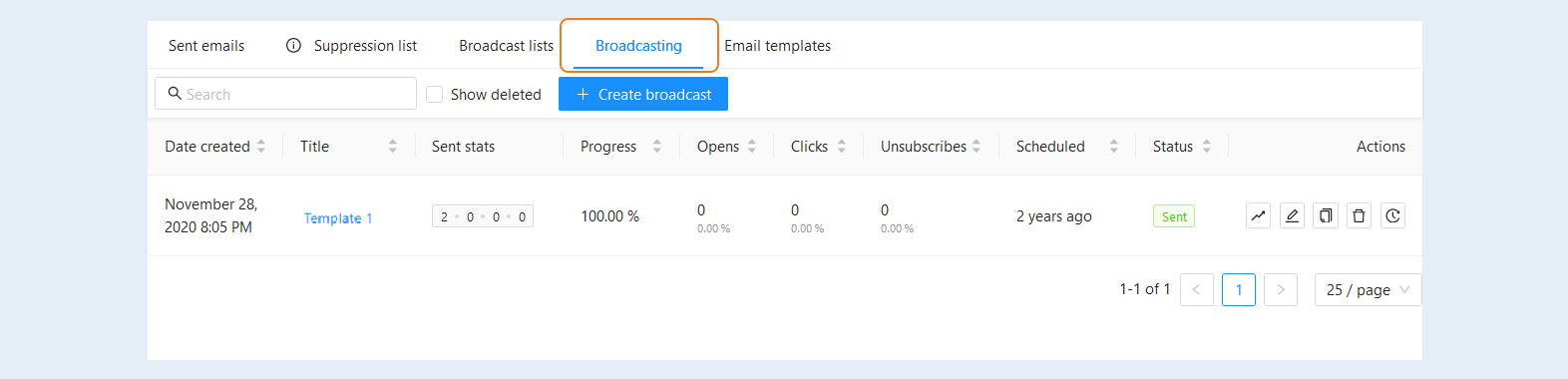
After sending the newsletter, you can analyze the results: the number of openings, clicks, unsubscriptions. And based on this data, make changes to subsequent mailings. For details on how to create and edit a mailing list, see the article "Broadcast".
Email templates
Email templates are pre-prepared text of an email to be sent to a contact. You can create email templates and use them in various mailing lists. Templates allow you to quickly create mailing lists. You can edit the template or create a new newsletter based on it. Read more about how to create and edit templates in the article "Email templates".

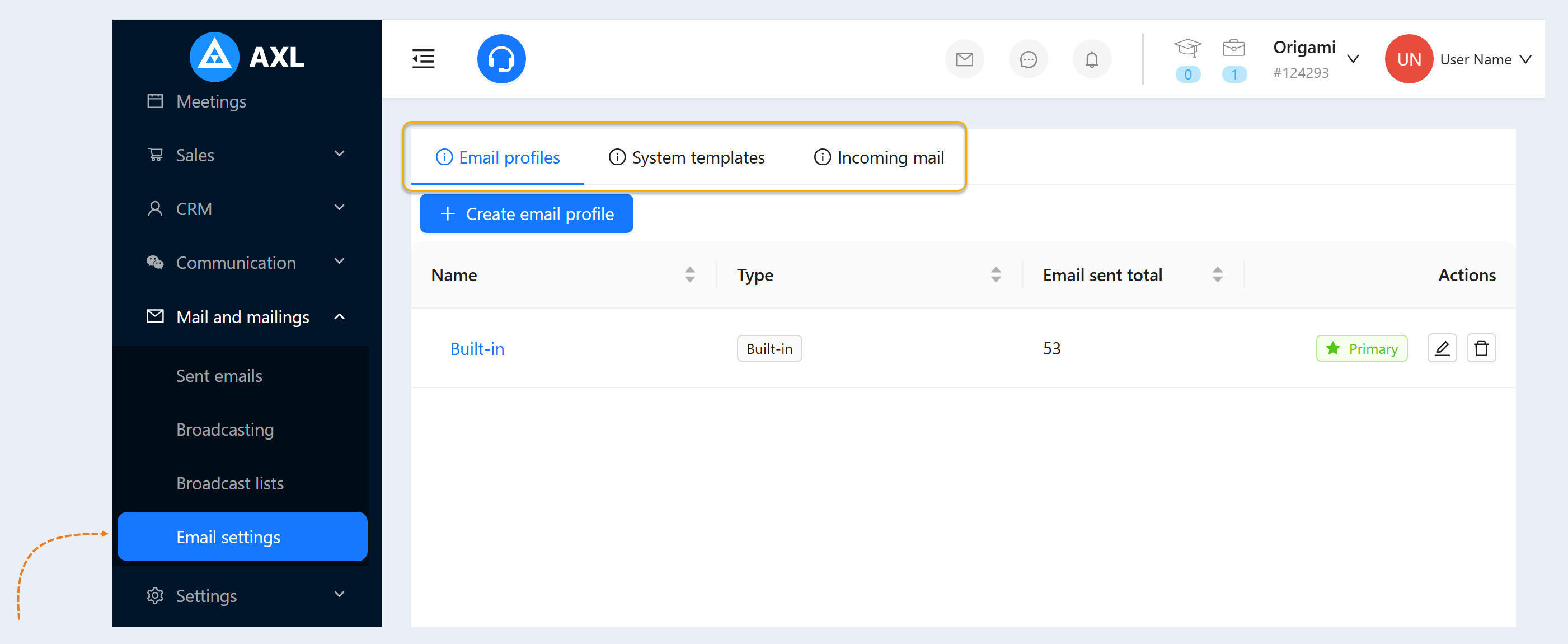
Mail settings
In this tab, you configure the service for sending letters.
A Send Profile is a service for sending emails.
System templates are email templates for sending notifications. These templates are already built into the system. You can make changes to the text of the system templates.
Incoming mail is an incoming mail setup.
Read more about the settings in the "Mail settings" article.