Line is a messenger developed in Japan. It provides the ability to send messages, make calls and video calls, as well as exchange stickers and emojis. Line also supports creating group chats and video calling, and is available on smartphones, tablets, and computers.
1
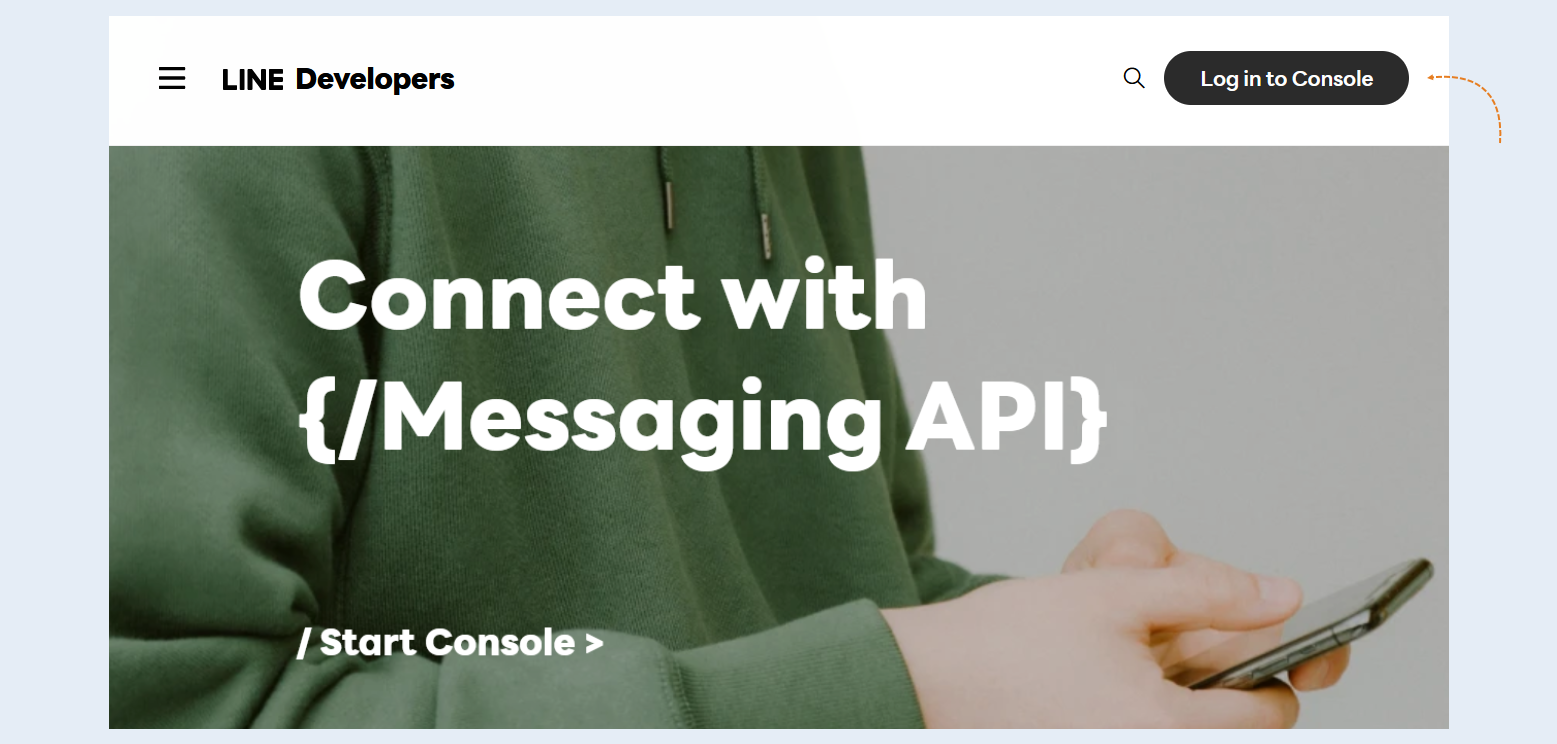
To create a Line channel, you need to register on the website. Follow the link. Then click "Login to Console".
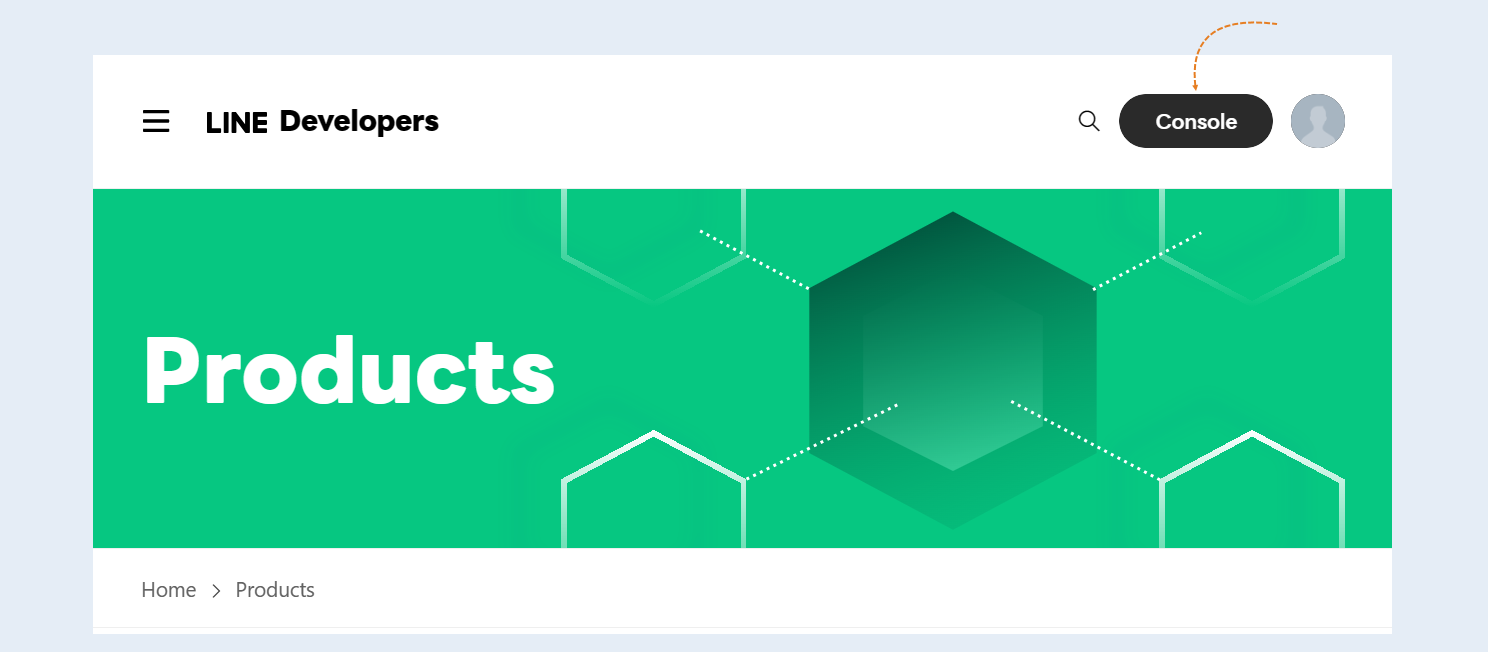
Click the "Console" button.
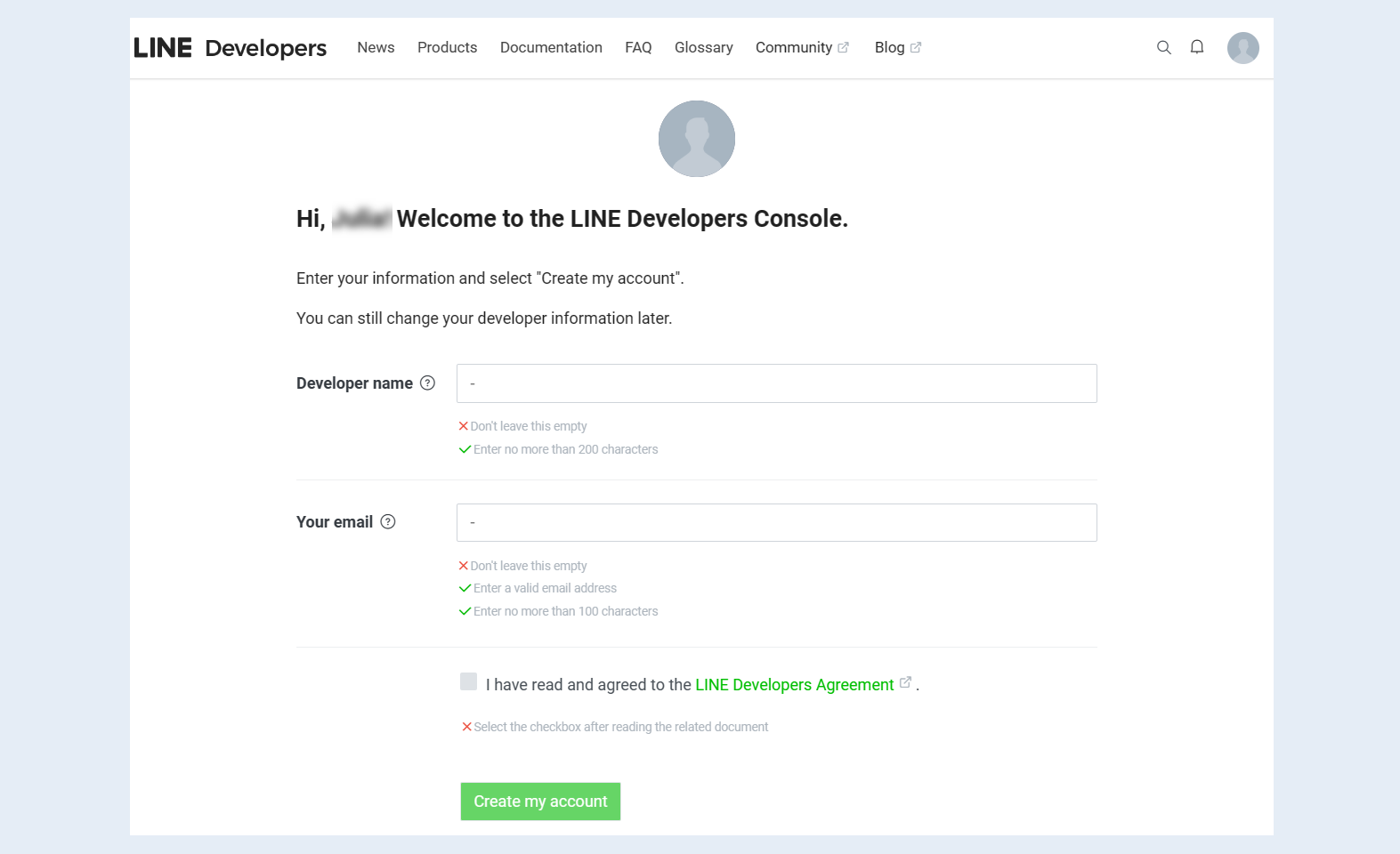
The first time you log in to the LINE Developers Console, enter your name and email address to create a developer account.
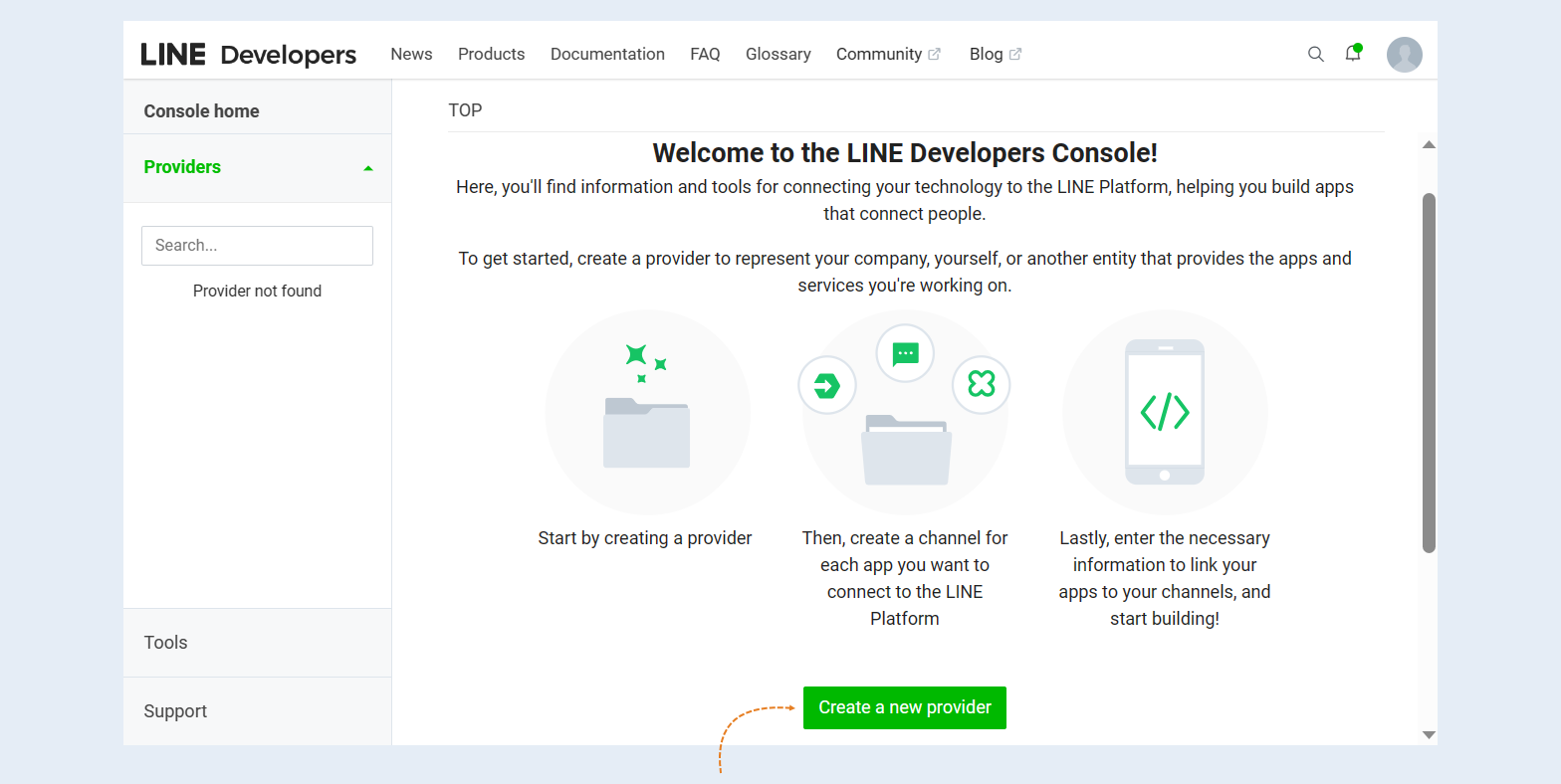
On the main console page, click "Create a new provider".
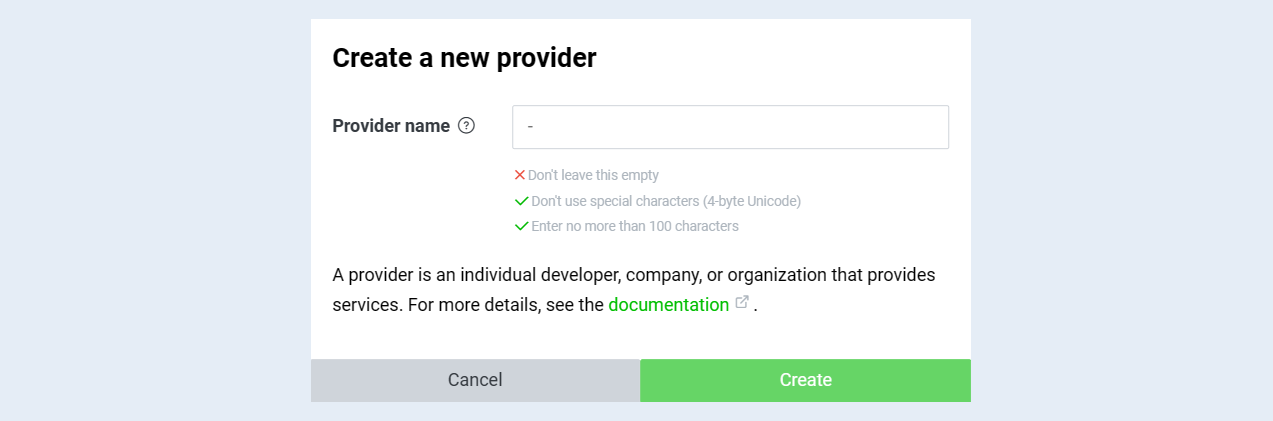
Enter any Provider name on the Create a new provider screen, and click the Create button.
The provider is the entity that offers the service of your app. You can choose to use any name, such as your own name or the name of your company.
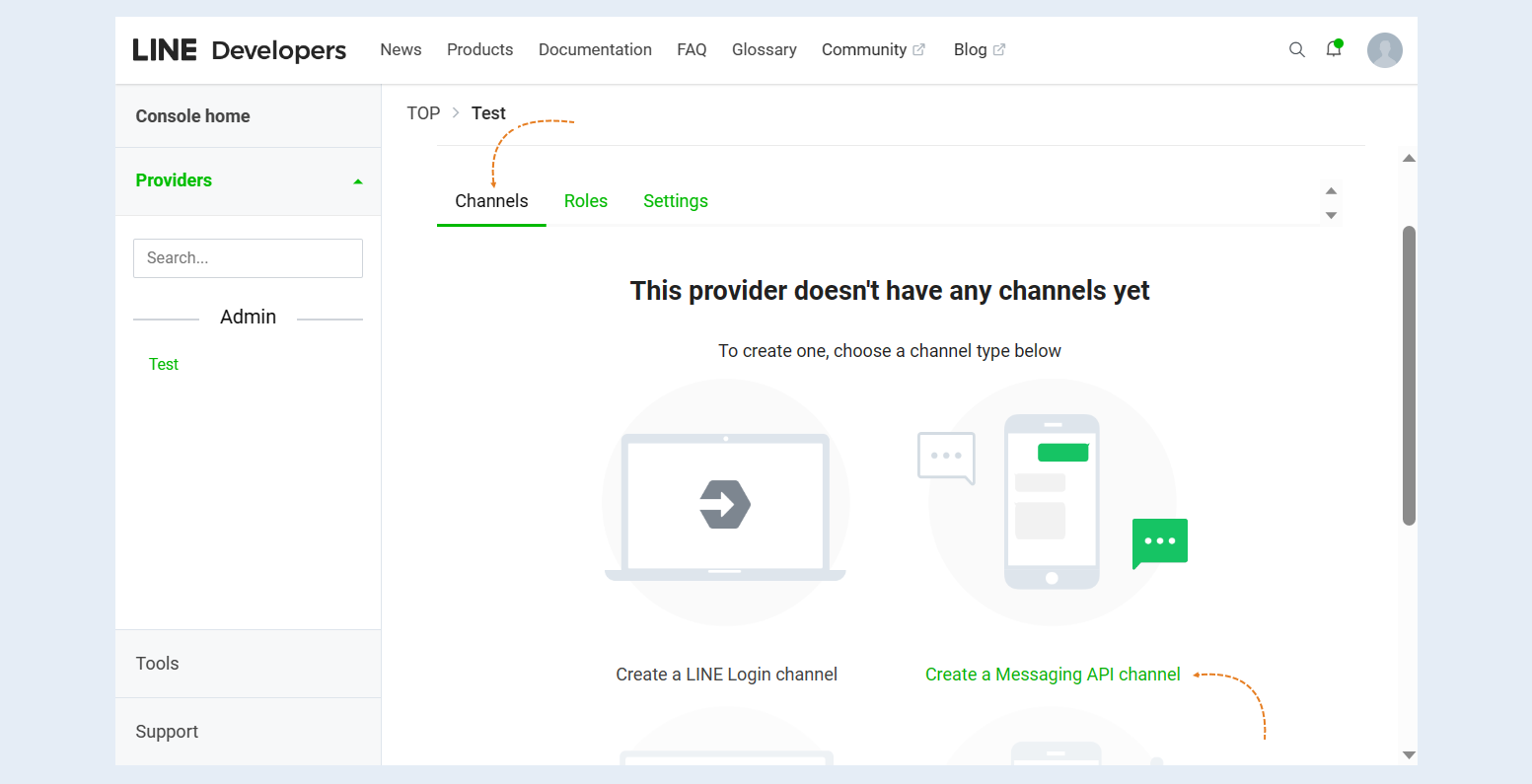
On the "Channel" tab on the created page there is a button "Create a messaging API".
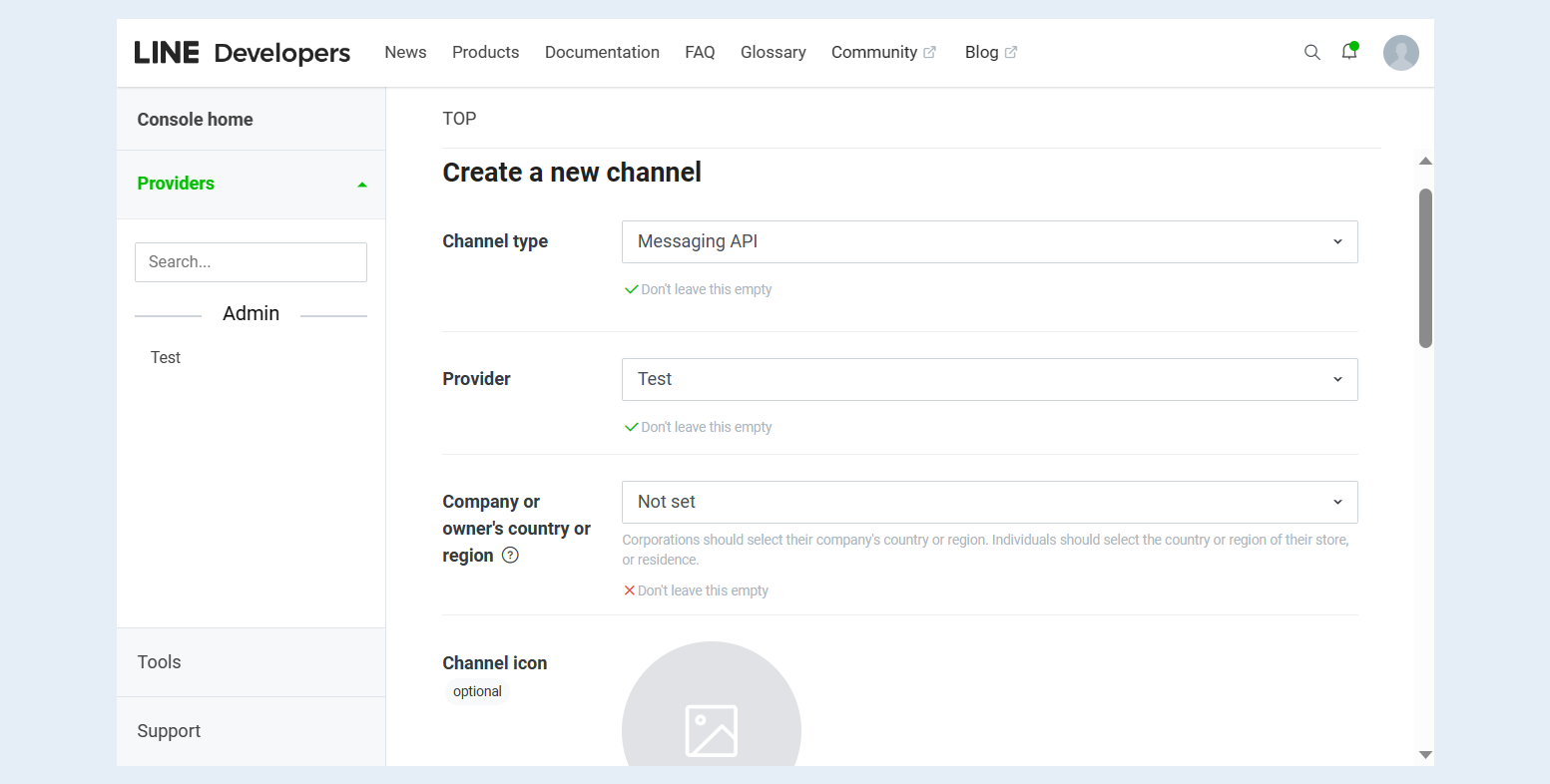
Enter the necessary information for your channel. LINE or a similar line cannot be included in the channel name.
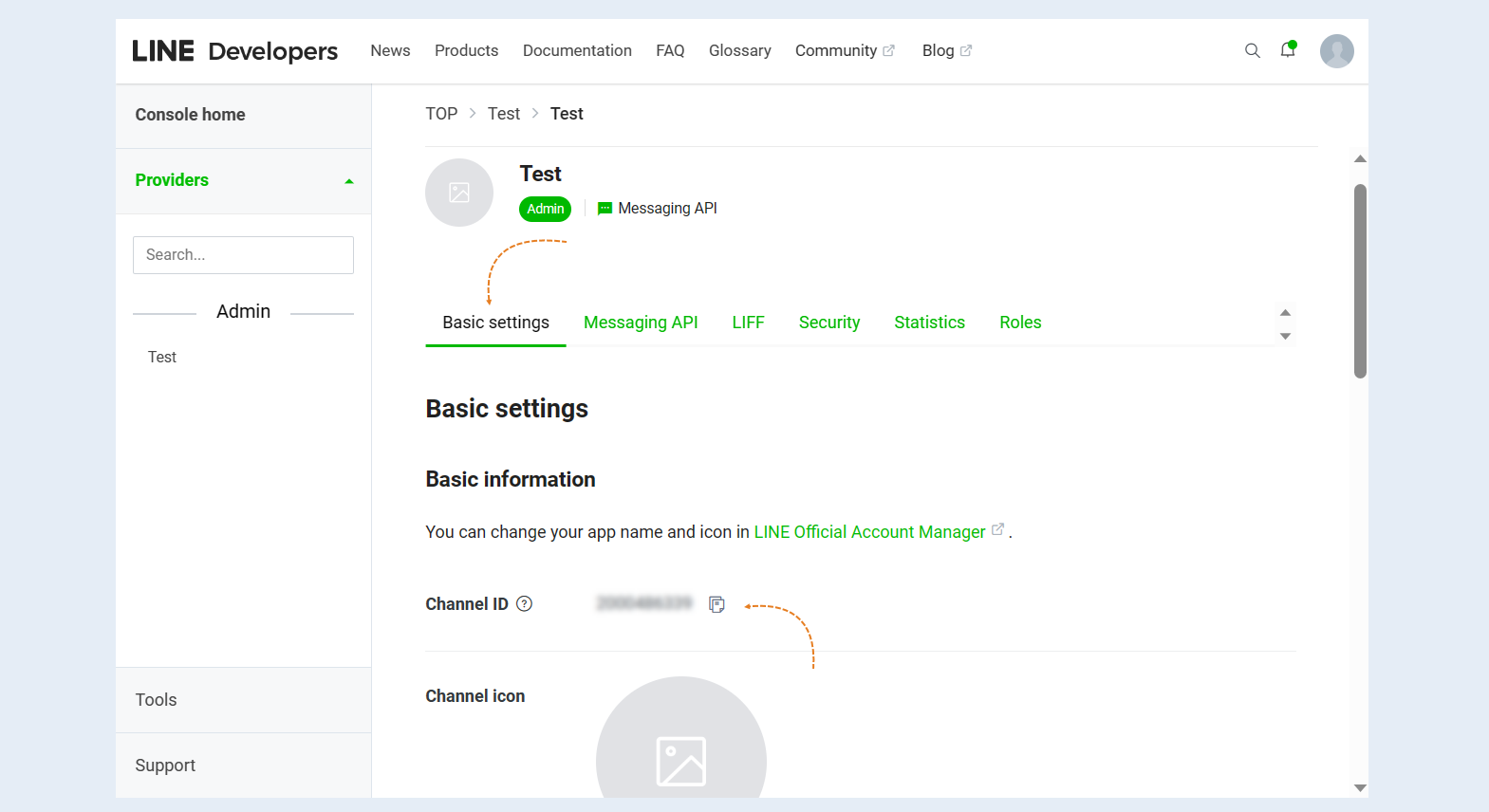
In the "Basic Settings" tab, find the "Channel ID" parameter and copy it. You will need the "Channel ID" at the next stage of connecting the channel.
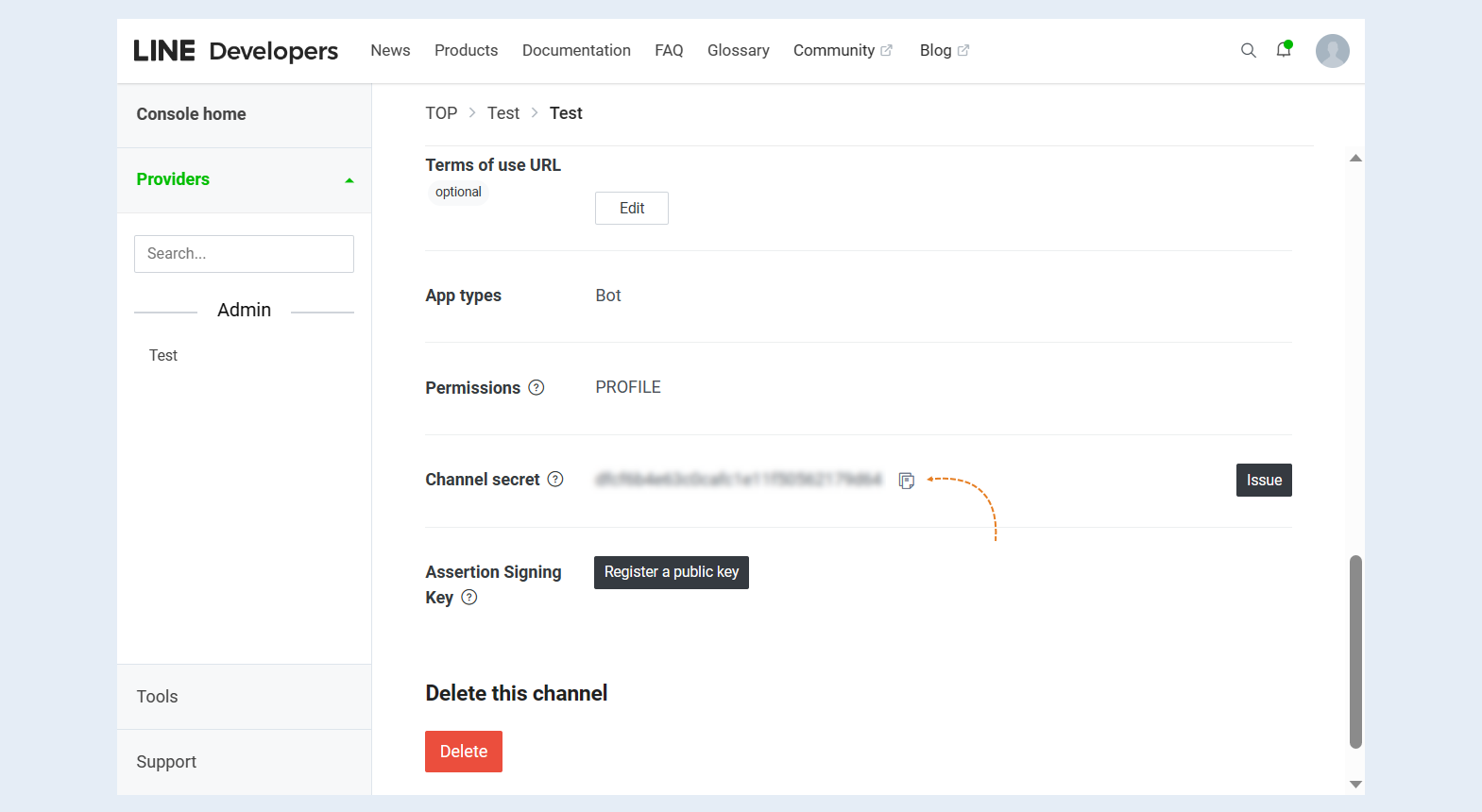
Scroll through the page below and find the "Channel secret" parameter, copy it. If "Channel secret" is missing, click "Issue".
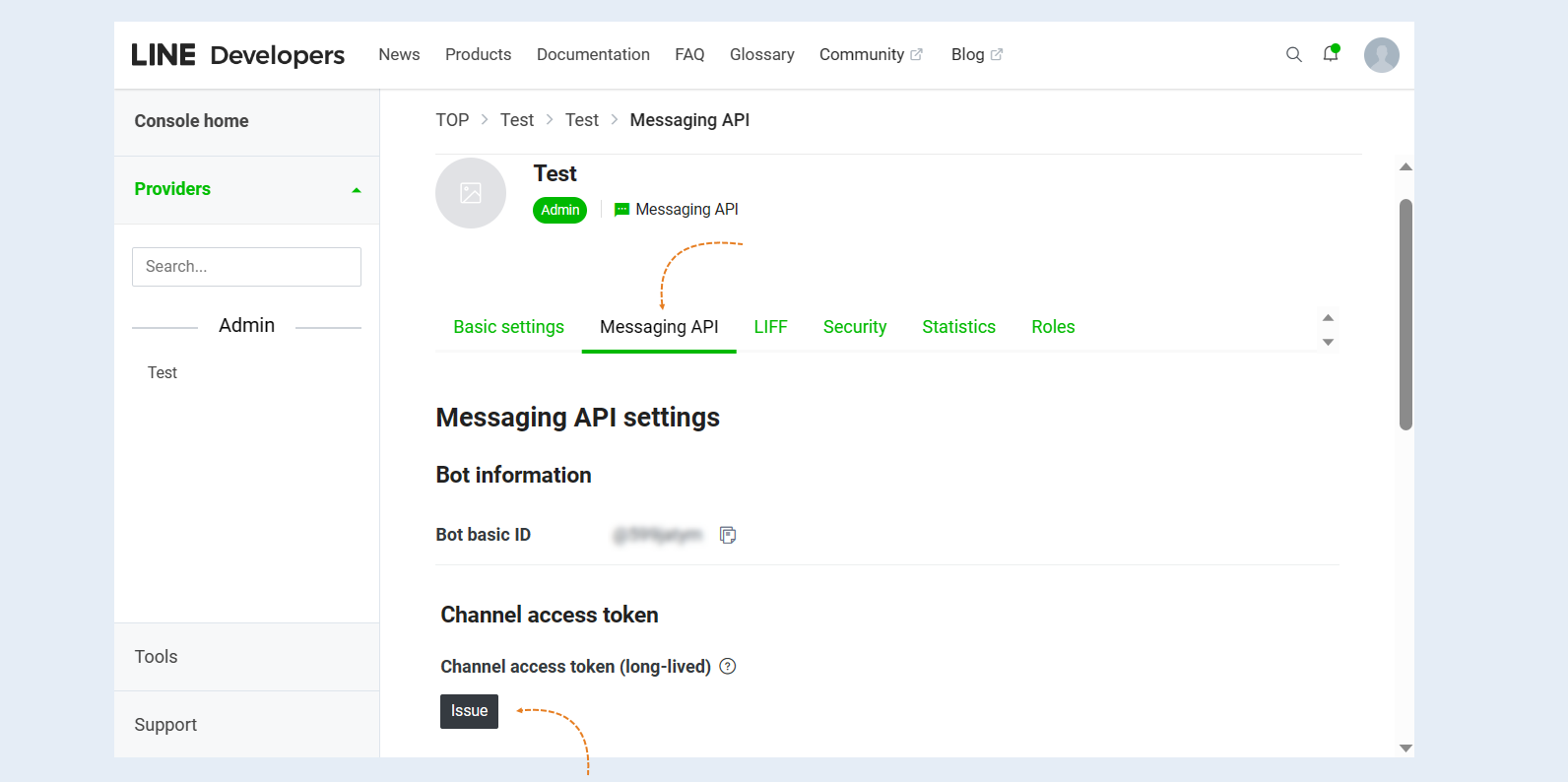
In the "Messaging API" tab, find the "Channel Access Token" parameter, if there is no token, click "Issue".
2
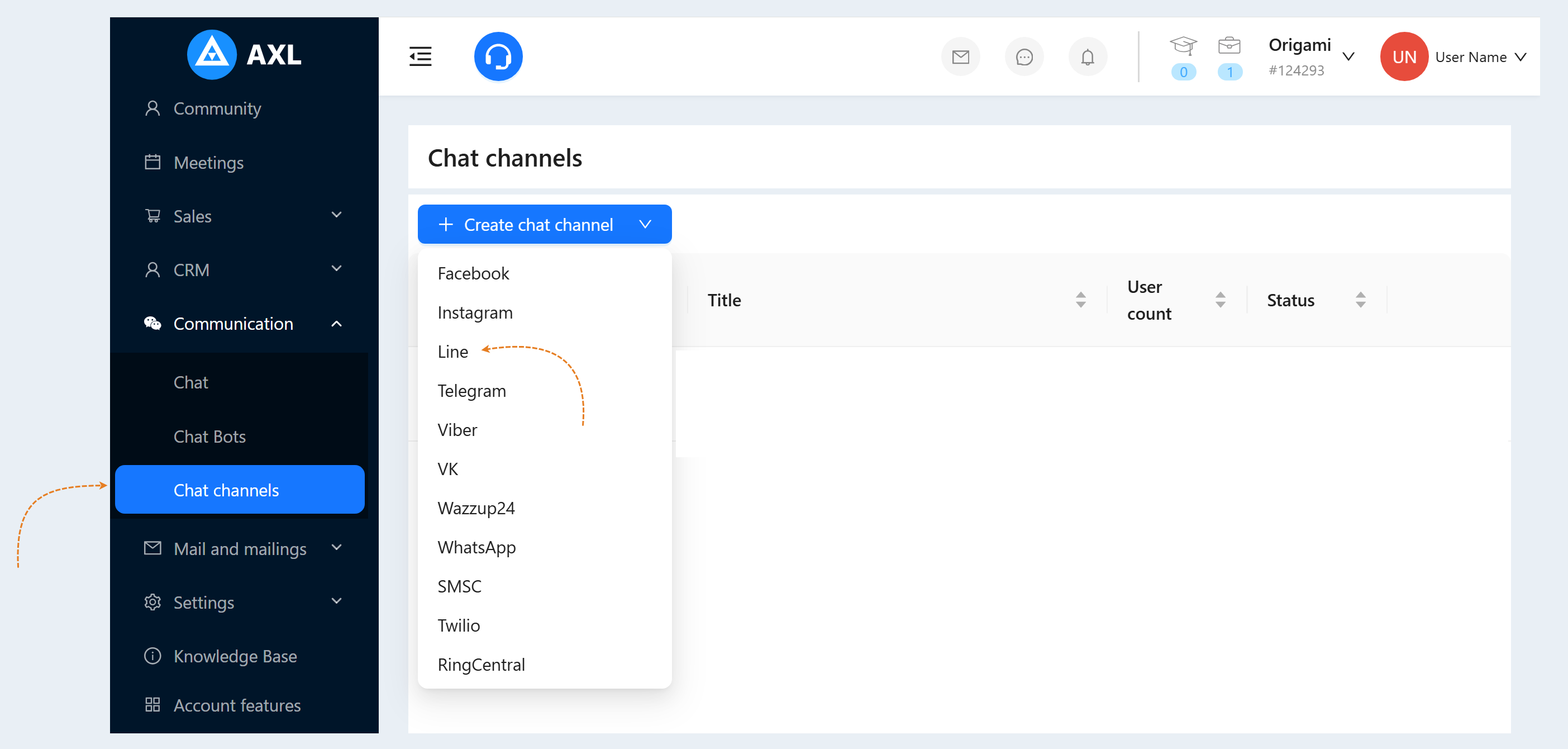
Return to the AXL platform. To create a "Line" channel, go to the "Communication" section, the "Chat Channels" tab. Click the "Create Channel" button and select the line "Line" in the list of channels.
- Title. Enter the name of your channel to facilitate the search.
Colour. Set the color of the channel icon.
Broadcast disabled. Check the box to disconnect this channel from the mailing list.
Default chatbot scenario. Select a scenario from the list. This scenario will work if the guest goes to the bot via a direct link (through a search, sent by a friend) and does not run a specific scenario.
Token. Enter the "Channel Access Token" that you copied in step №1 of this article.
Secret key. Enter the "Channel secret" copied in step №1 of this article.
Channel ID. Enter the "Channel ID" copied in step №1.
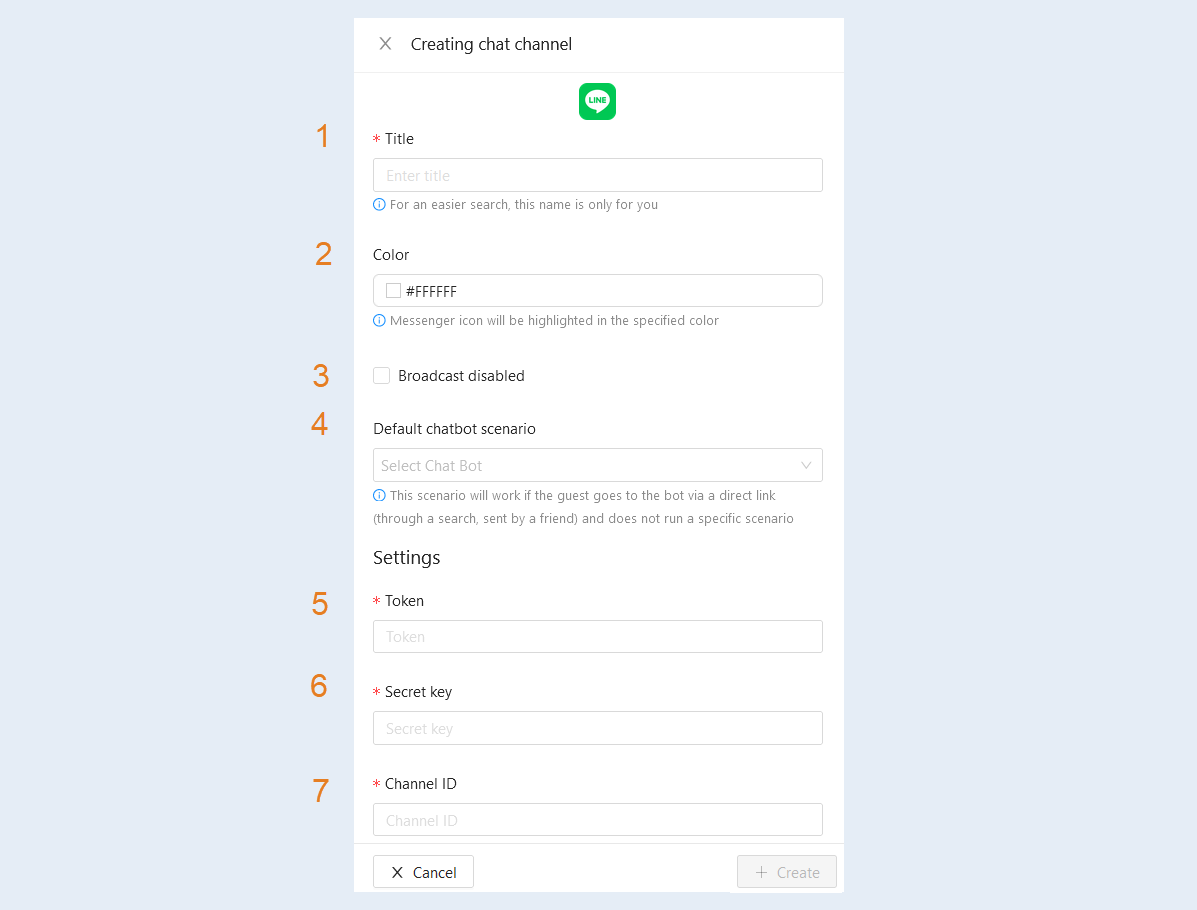
Click the "Create" button. The Line channel you created will appear in the list of chat channels.
3
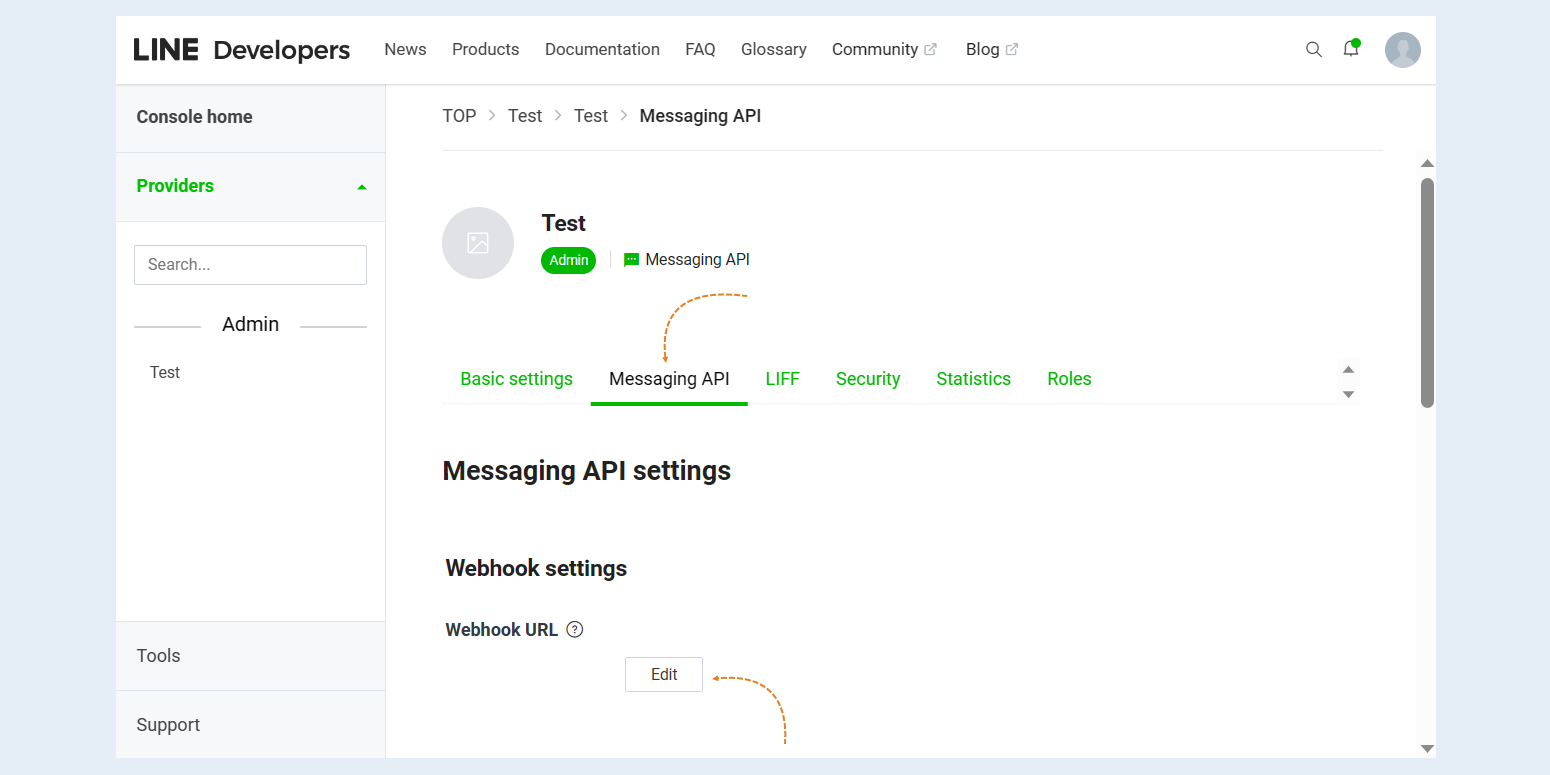
After successfully connecting the channel, return to the LINE Developers Console. In the "Messaging API" tab, find the "Webhook URL" parameter and enable it.