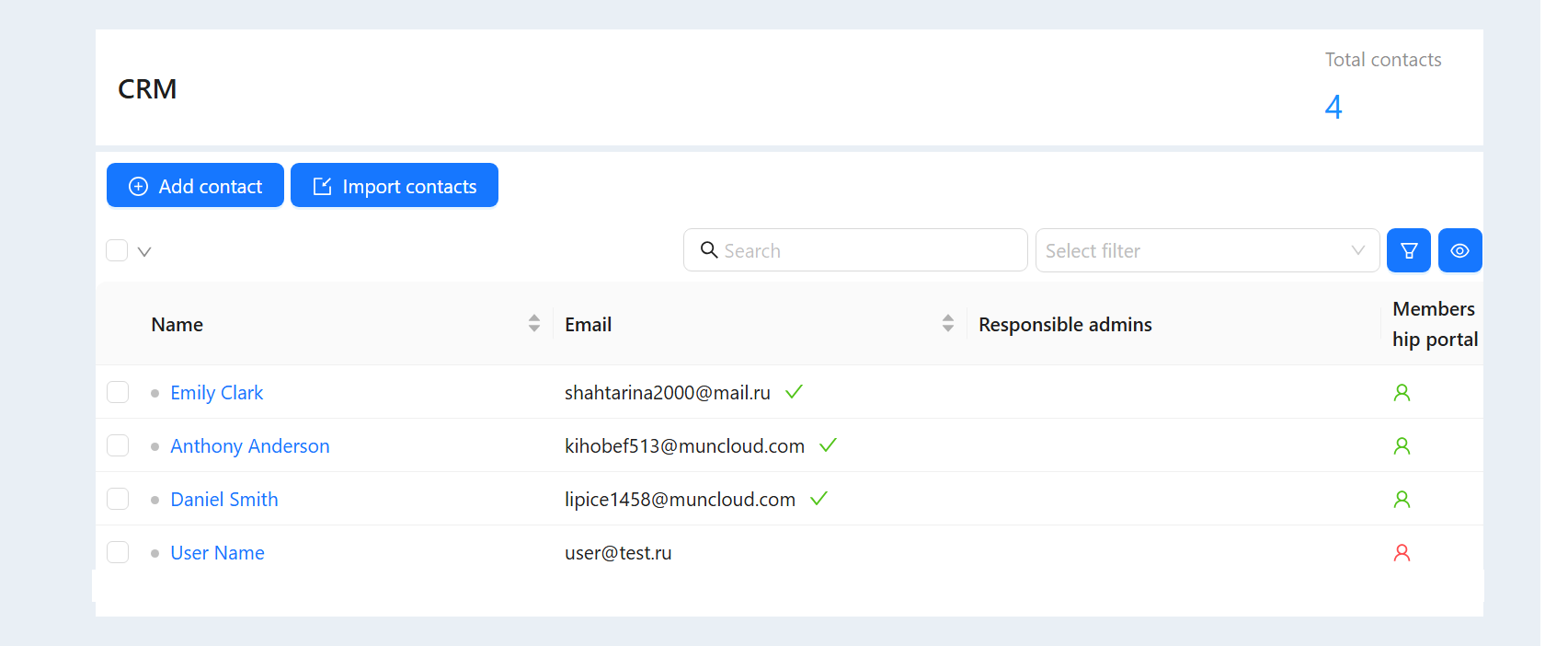
Importing contacts is the transfer of a list of contacts (customer base) to the CRM system of your account on the AXL platform. You can download the list of contacts from your device (computer, laptop, tablet) in one file (TXT, CSV, XLSX format). Thus, you can quickly transfer a large number of contacts of your clients to the CRM of your account.
Click on the desired section of the article to go to its description:
1
Data source
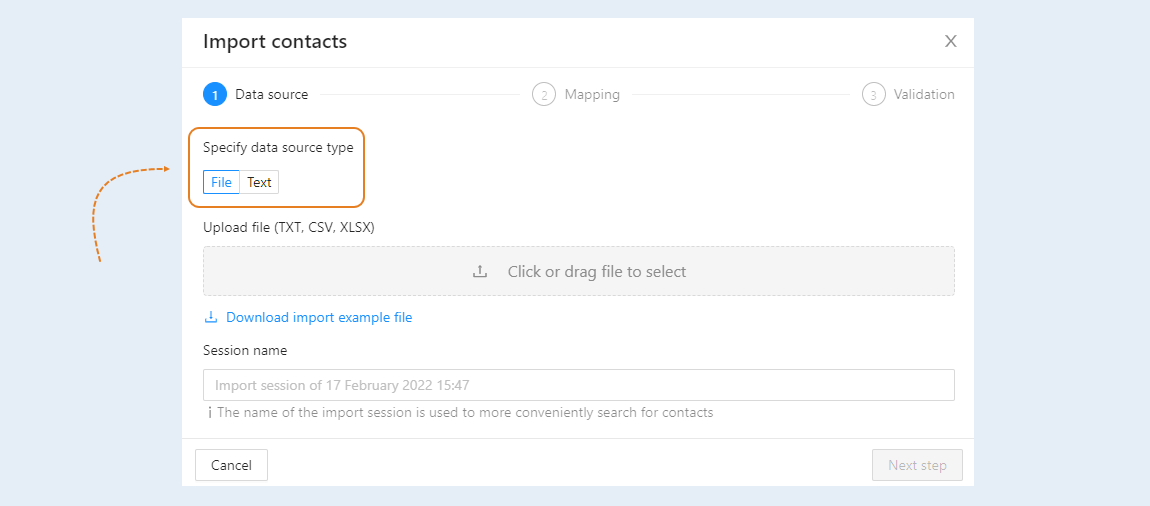
Click the "Import contacts" button and fill in the fields in the window that opens. First select the data source: file or text.
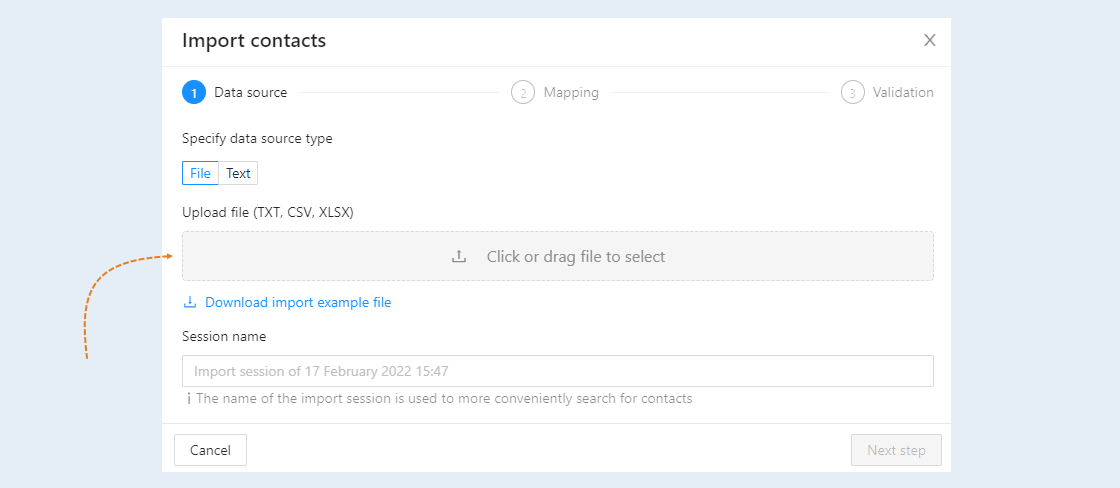
Then click on the button to select files on your computer.
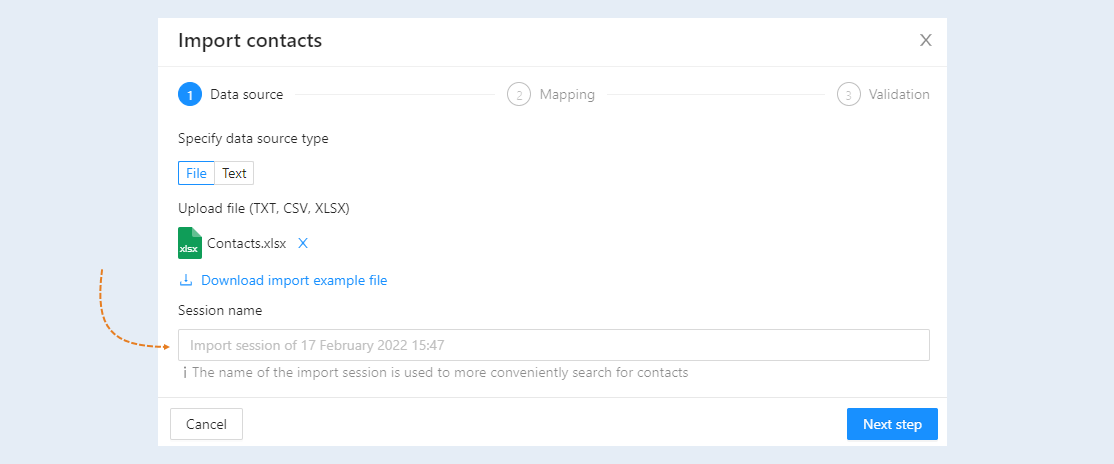
File is attached. Next, enter a name for this session of importing contacts. This is required for convenient future contact search. Click the Next Step button.
2
Linking fields
At this stage, it is necessary to agree on the fields: the "name" field must correspond to the contact's name, the "e-mail" field - the contact's e-mail, etc. Check if the data is correct.
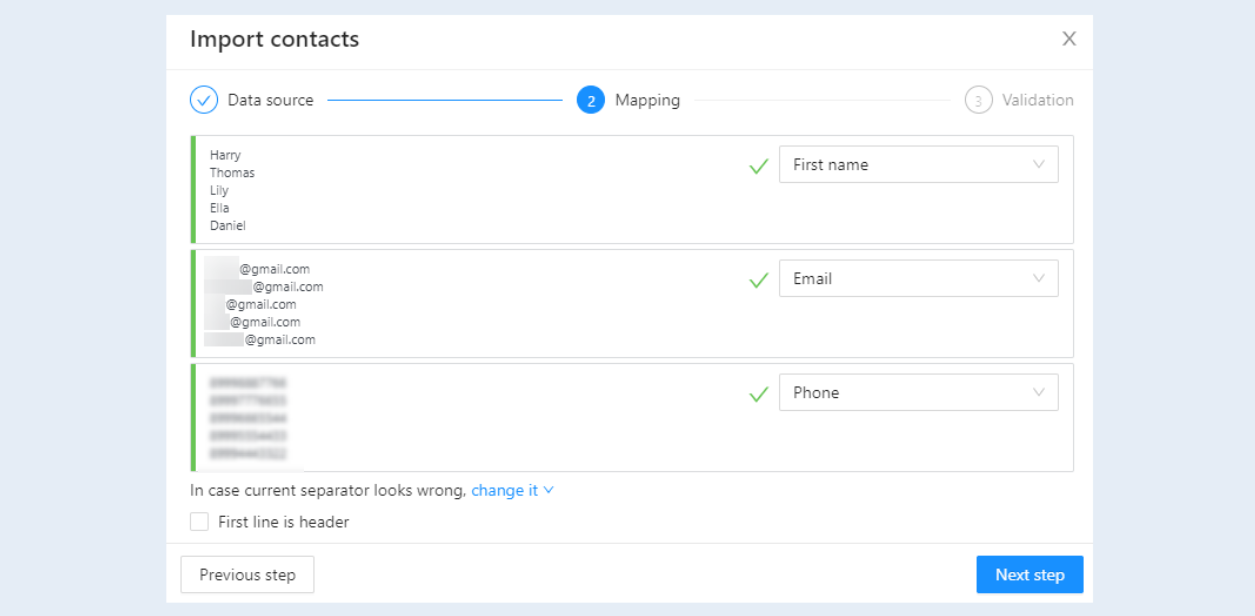
When importing contacts, if you have selected a column that affects any contact attribute (first name, last name or any other, including custom), this attribute will be replaced or deleted if the value is empty.
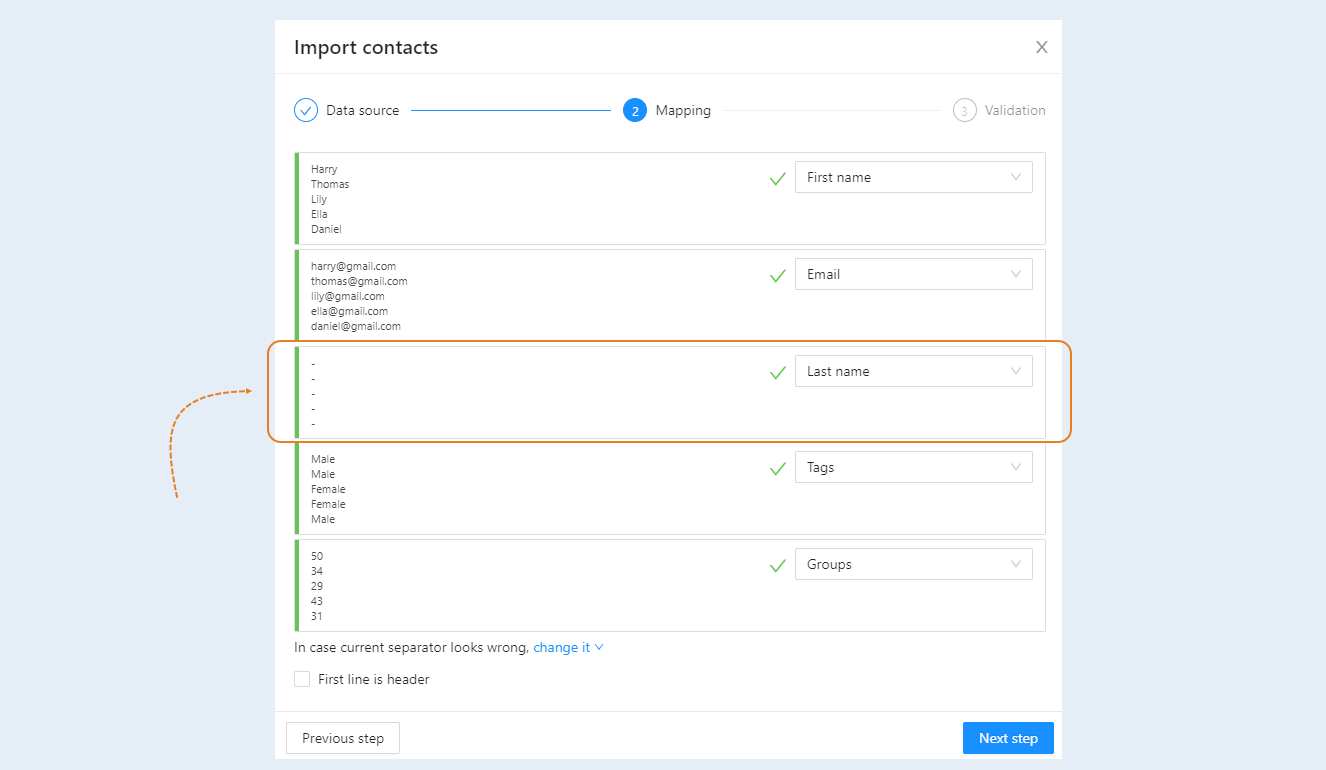
Categories and tags will not be removed if the value is empty and will be added to the contact card.
Example in the screenshot below: the column with the "Last name" attribute will be deleted when importing contacts, since the values are empty. The "Tags" and "Groups" columns will be added to the contact card.
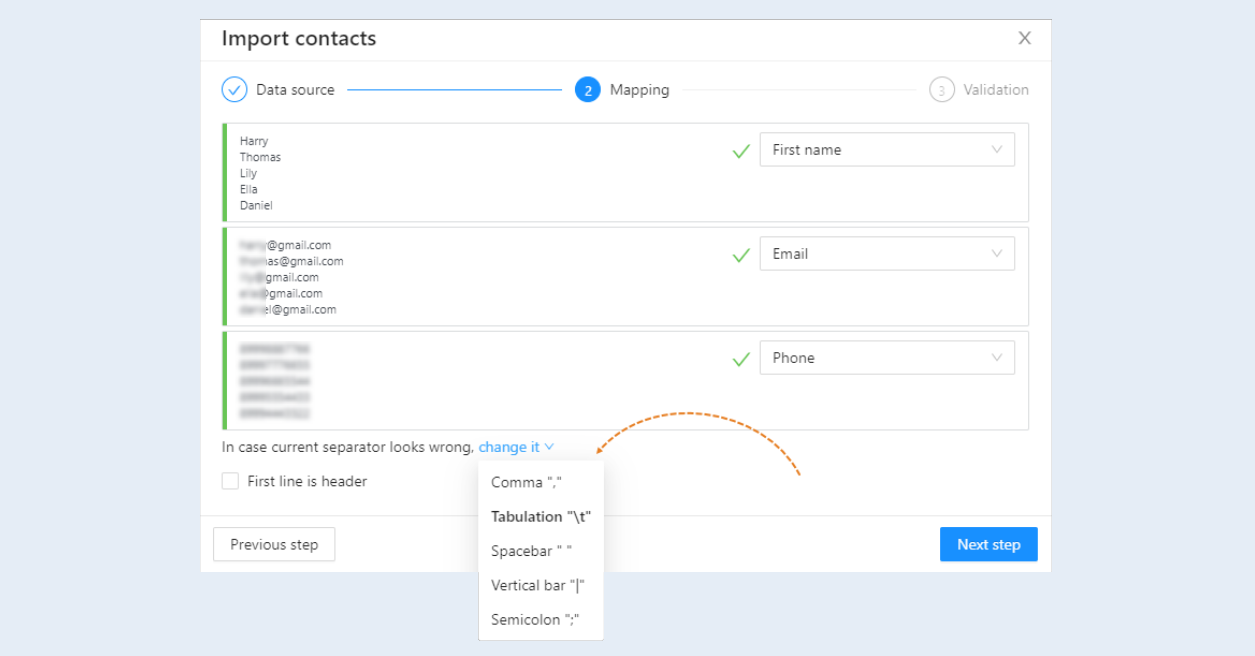
You can choose the kind of split for your contacts. Click on the arrow and select a separator character from the list.
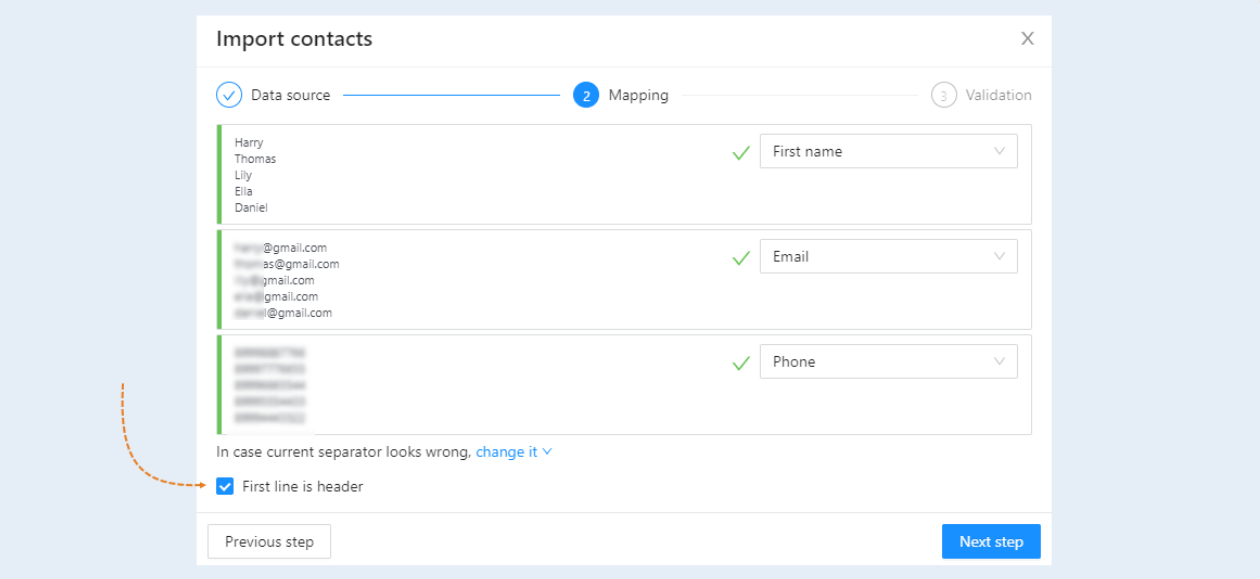
You can add a line to your contact list: the first line is "Title". Check the box if you require a "title" line. Click the Next Step button.
3
Validation
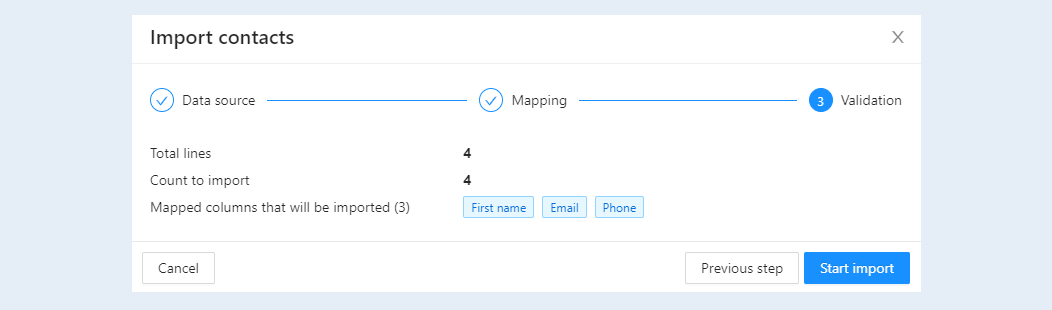
The last step is to check the correctness of the data. If there are errors, go back one step by clicking the "Previous step" button. If all the data is correct, then click the "Start import" button.
Contacts are uploaded to your account's CRM system. Refresh the page. You will have a list of contacts.