A user's bonus balance is a virtual account where bonus points are credited for specific actions. Bonus points will be reflected in the user's personal account.
The bonus balance can be used to obtain additional benefits or privileges when purchasing products. For example, a user can use their bonus points to get a discount on the cost of a course or access additional materials and sections. For each product, you can specify the maximum amount that can be paid with bonuses when making a purchase.
To stimulate sales through bonus points, you can offer users the opportunity to earn additional points for referring new customers or successfully completing a course. You can also run promotions and special offers where users can earn more bonus points for specific actions or purchases. This can incentivize users not only to purchase more courses but also to actively promote them among their acquaintances and colleagues.
In this article, we will discuss the following topics in detail:
Bonus balance in contact card
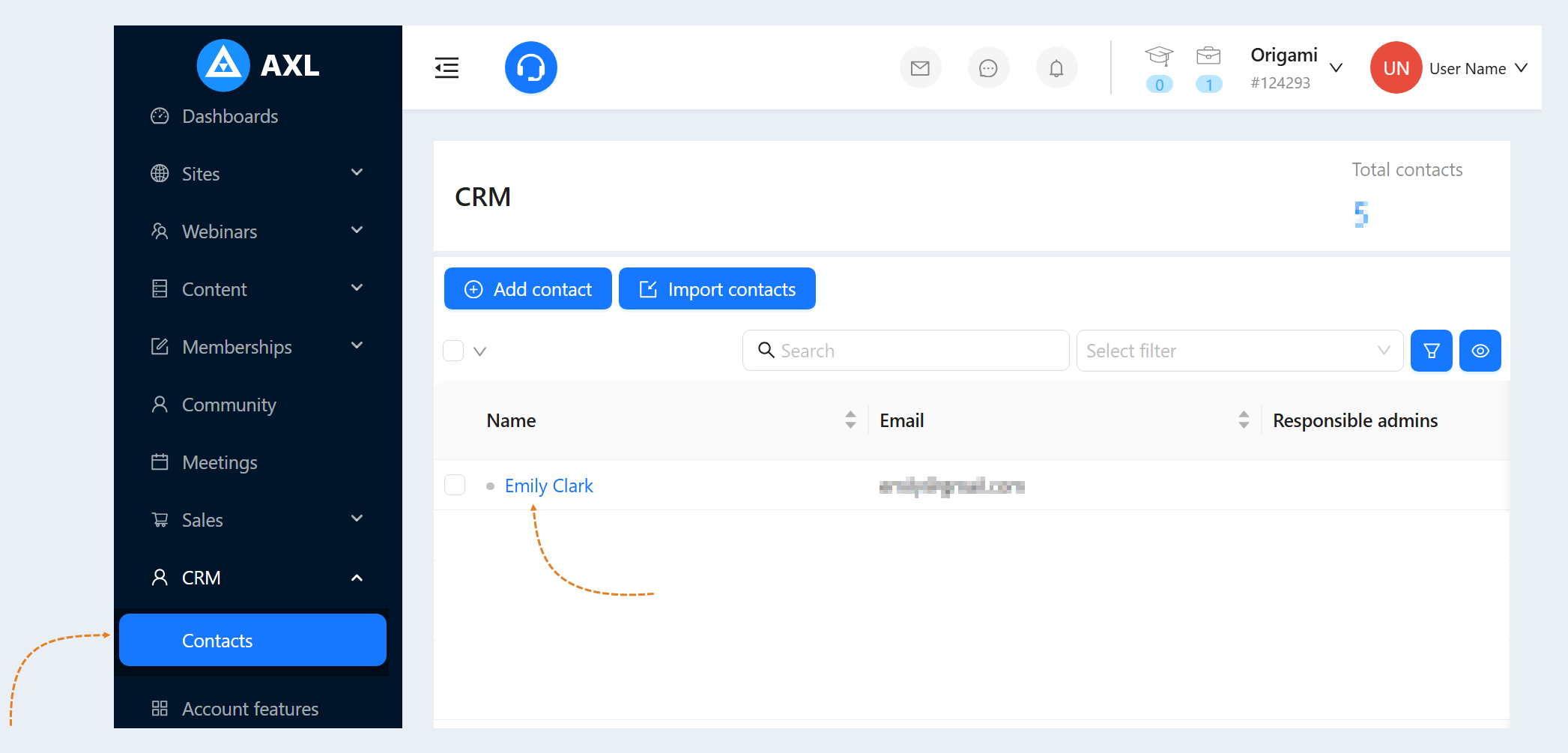
Go to the "CRM" section, "Contacts" tab. Click on the username. The contact profile (card) will open.
In the upper right part of the page, the user's bonus balance is displayed.
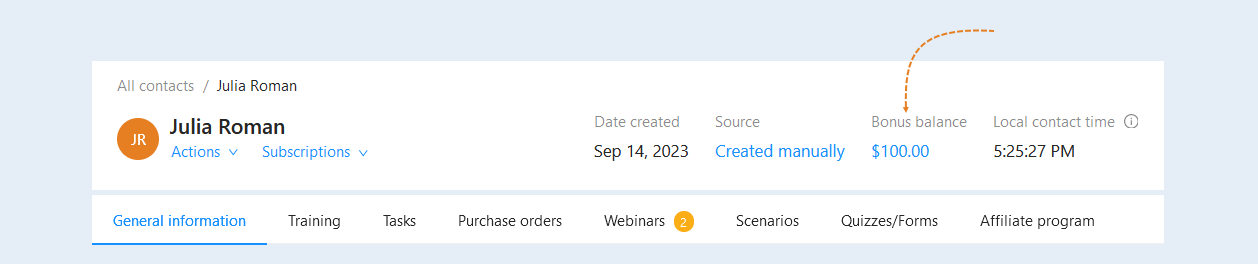
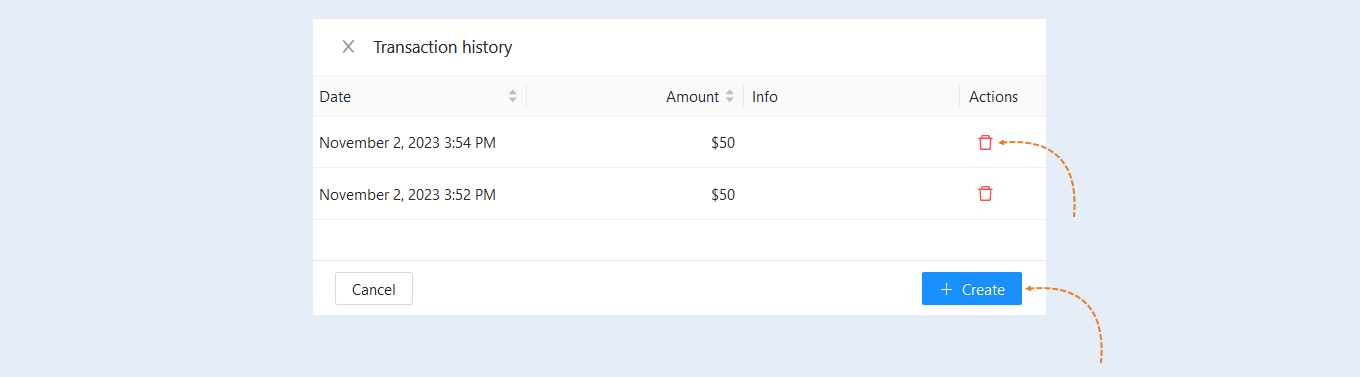
Click on the amount of the bonus balance to see the accrual history.

The popup window that opens will show a detailed history of accruals to the bonus balance , with dates and transaction times. In this section, you can delete transactions or create new ones.
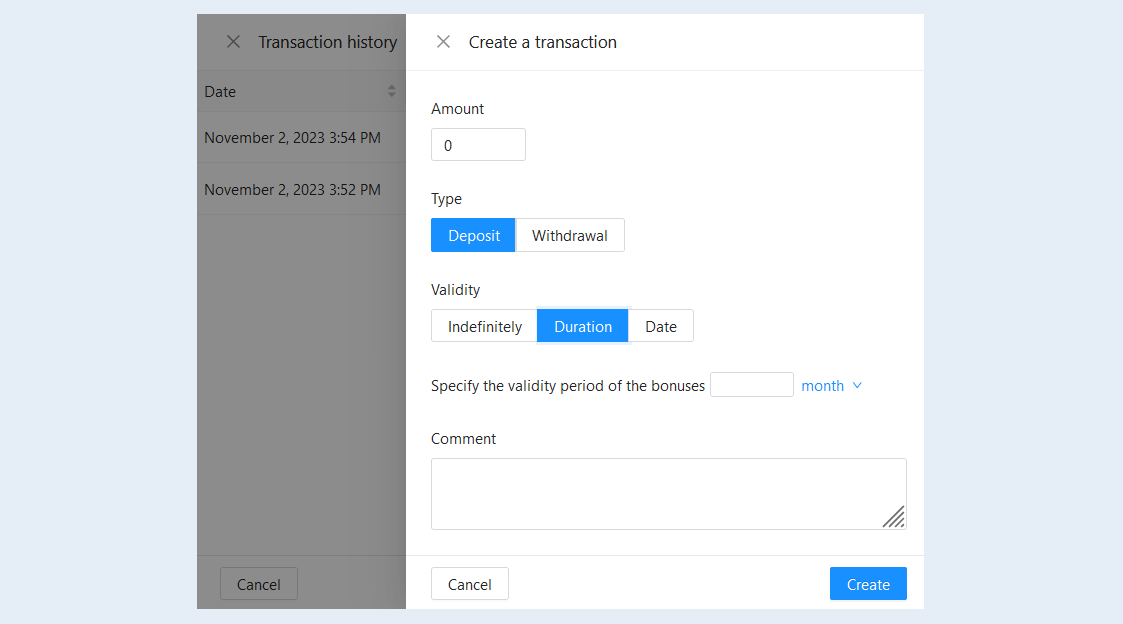
From the contact card, you can create new transactions for this user. To create a new accrual or withdrawal transaction, click the "Create" button. In the popup window that opens, fill in the fields:
- Amount: specify the amount of replenishment or withdrawal. The amount is stated in the account's currency.
Type: select the type of commission - deposit or withdrawal.
- Replenishment is a transaction for crediting bonus credits to the user's bonus balance.
Withdrawal is a transaction for debiting bonus credits from the user's bonus balance.
- Replenishment is a transaction for crediting bonus credits to the user's bonus balance.
Validity. Set the validity period of the accrued bonuses.
- Indefinitely. The validity period of bonuses is unlimited.
Duration. The bonuses will be active for the selected amount of time. In the field below, set the validity period of bonuses in days or months.
Date. The bonuses will be active until the selected date. In the field below, select the date when the accrued bonuses will be burned.
Comment: add a comment to the transaction.
Click the "Create" button.
The amount in the user's bonus balance will instantly change, and the new transaction will appear in the transaction history list.
Bonus balance in the user's personal cabinet
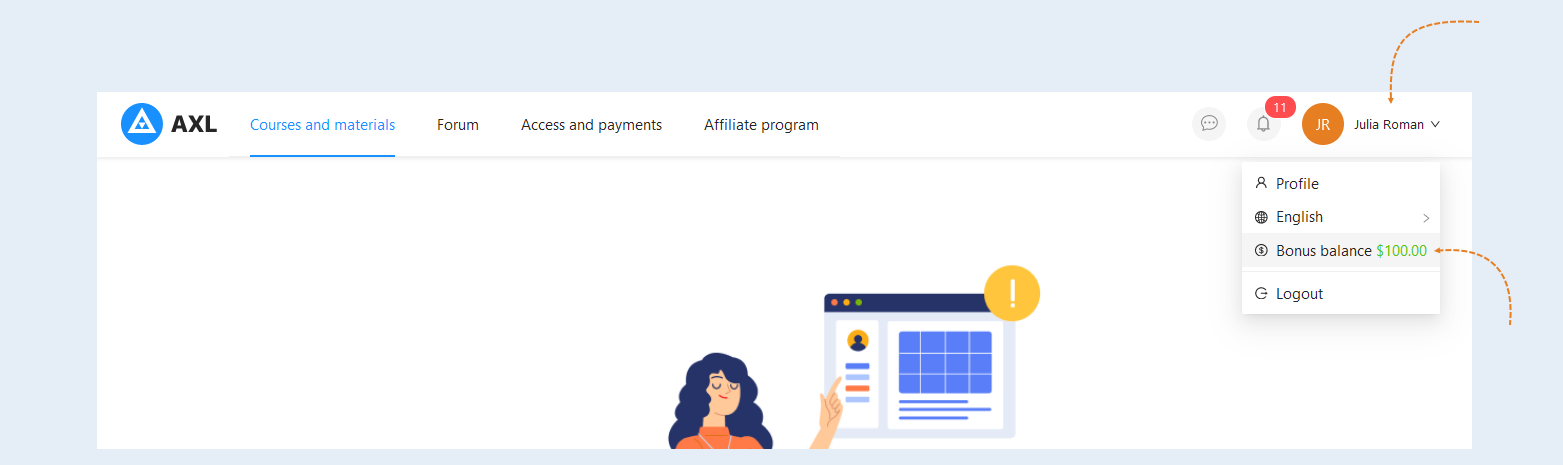
The bonus balance is reflected in the user's personal cabinet. Open the user's personal cabinet on the Axl platform. Click on the username in the upper right corner and select the "Bonus balance" section from the drop-down list.
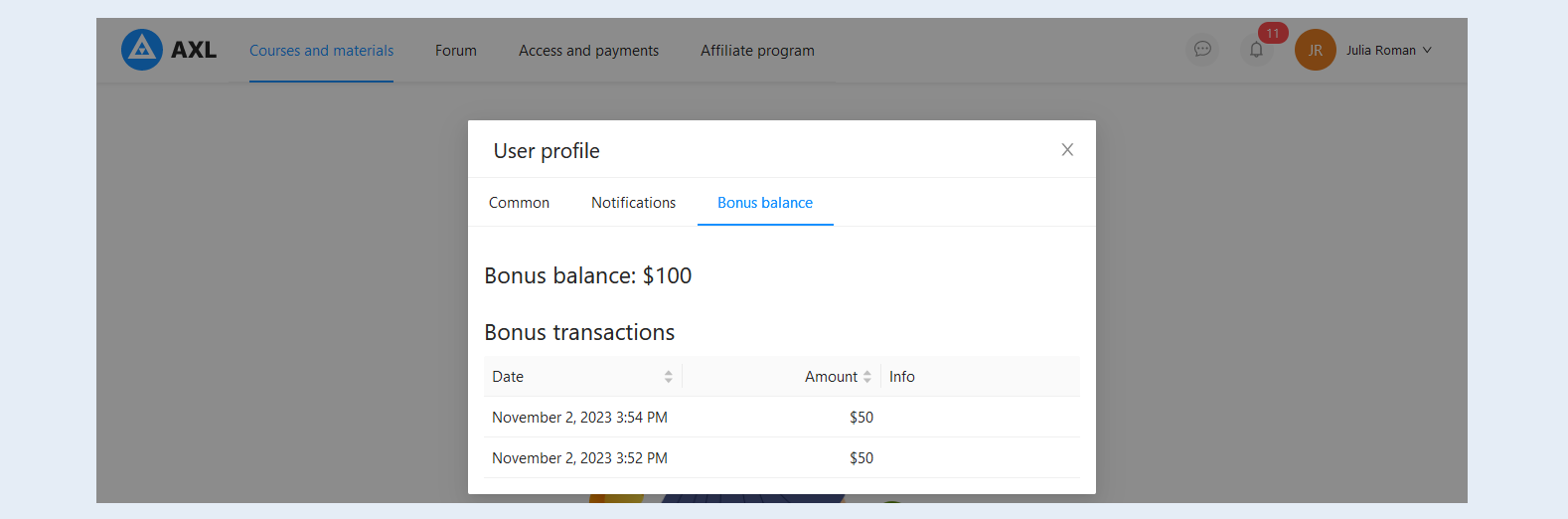
In the opened window, the user will see the amount in the bonus balance and a list of bonus transactions, indicating the date, transaction amount, and comment.
How to set up bonus points accrual through a scenario
Using a scenario, you can create a sequence of events and actions in which bonus points will be automatically awarded to users for meeting certain conditions.
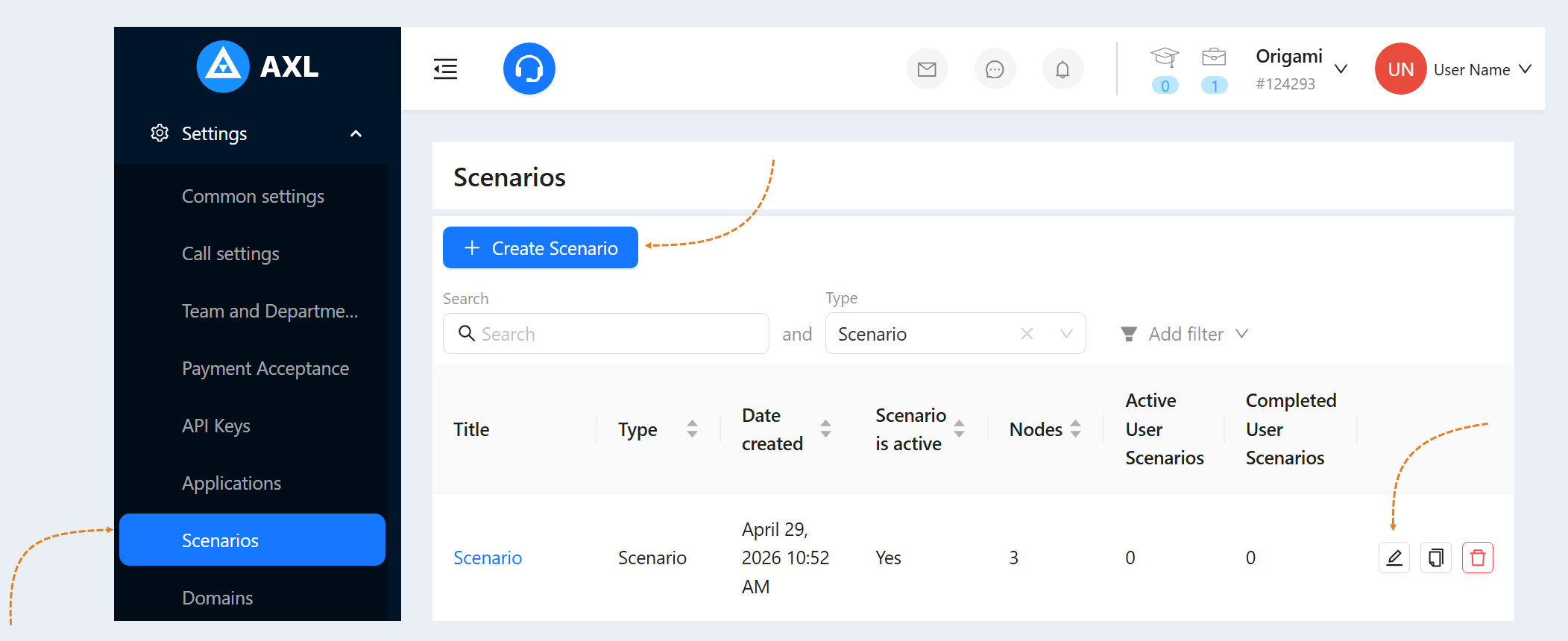
To create a new scenario for your account, go to the "Settings" section and select the "Scenarios" tab. Open a previously created scenario or create a new one.
Alternatively, open a scenario from any desired section, such as the "Products and Offers" section. For more information on creating a scenario, read the "Scenario" article.
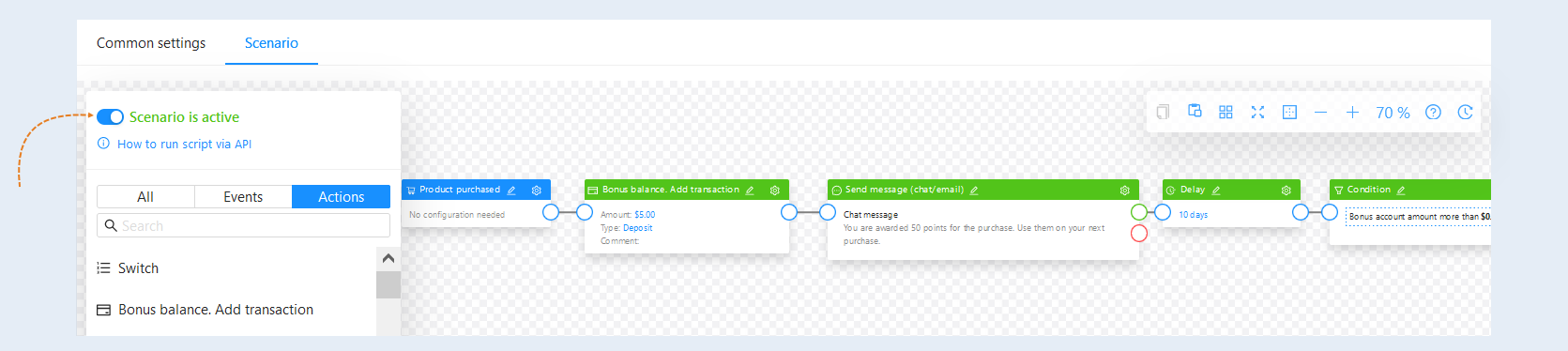
Below is an example of a scenario for awarding bonus points for purchasing a product. The scenario involves crediting points to the bonus balance with the ability to spend them again by making a purchase. Such bonus programs work great for increasing sales. In addition, bonus programs in which points have an expiration date can motivate users not to delay their purchase.
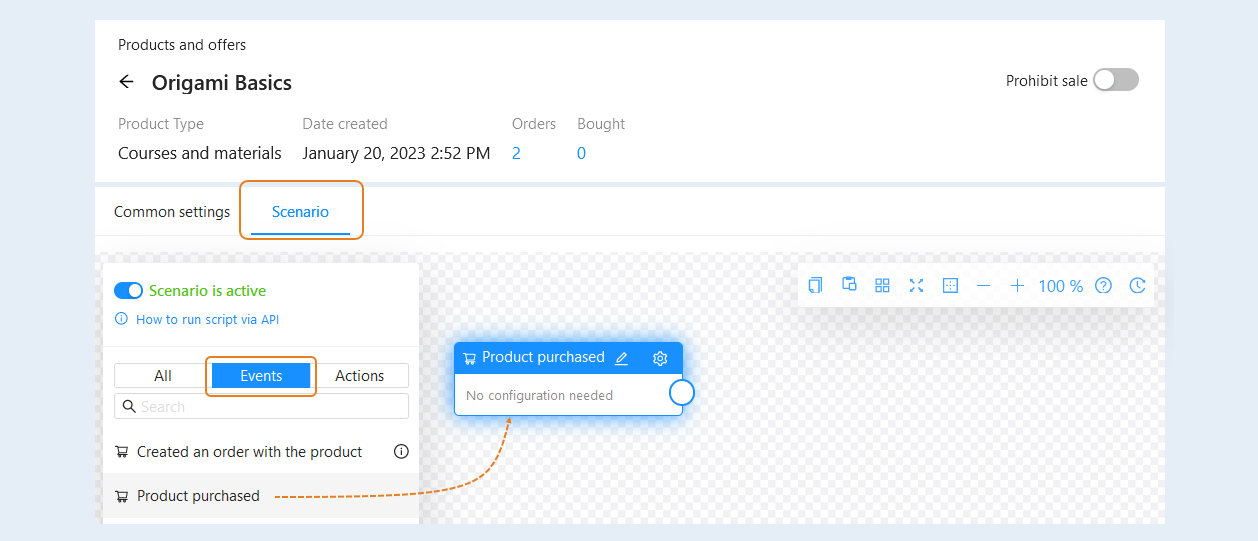
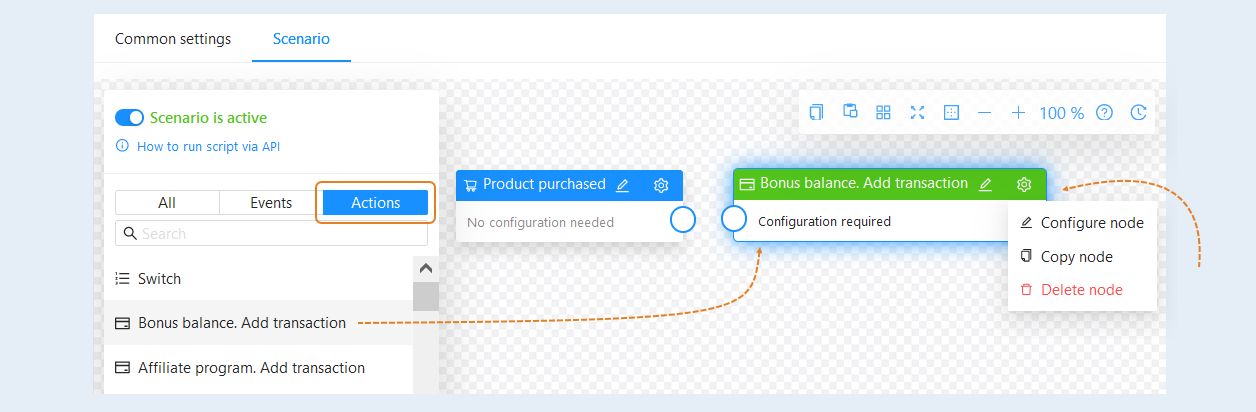
In the scenario, select the "Product Purchased" event and drag it into the scenario field. No additional settings are required for this node.
After that, you need to add an action to the scenario. Open the "Actions" tab, select the "Bonus balance. Add Transaction" action, and drag it into the scenario field. This action creates a transaction to replenish the bonus balance or debit from the user's bonus balance.
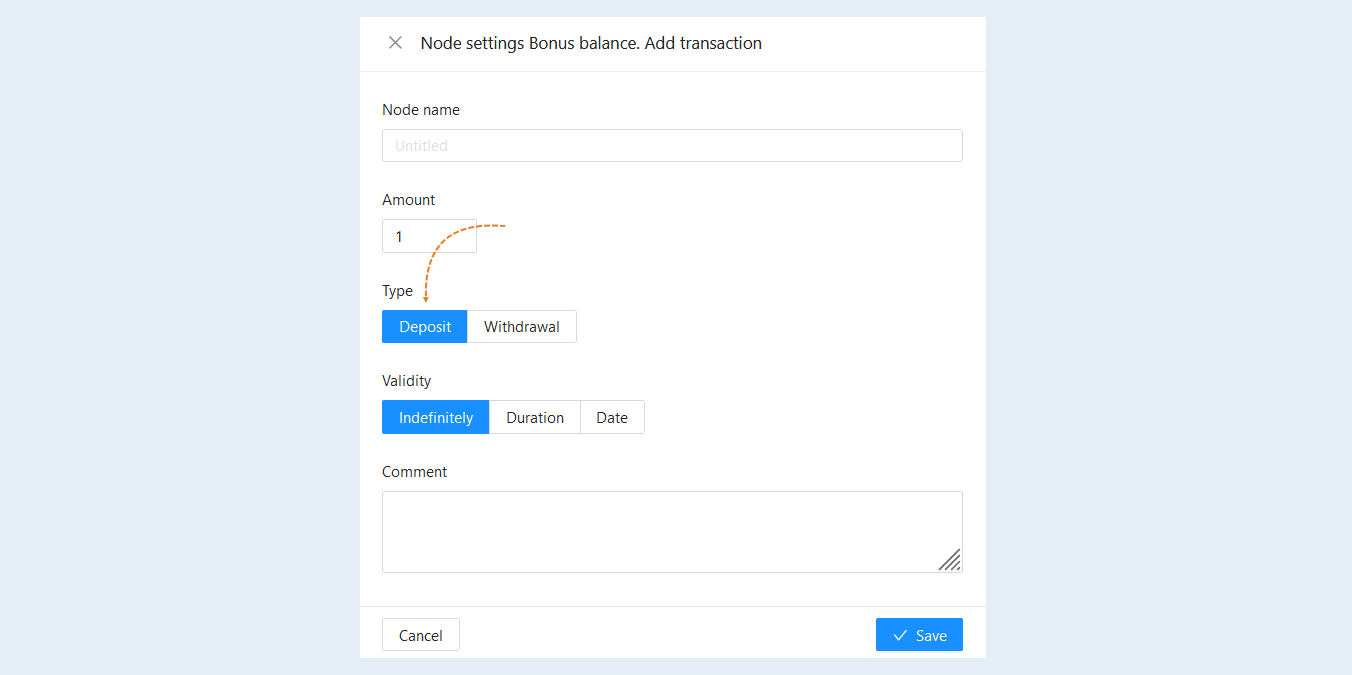
For the action, you need to configure the node settings. Click on the "Settings" button in the upper right corner of the action. In the opened " Node Settings Bonus balance. Add Transaction" window, fill in the fields:
- Node name. Specify the node name, you can name nodes in the scenario at your discretion.
Amount. Specify the amount to be credited. The amount is specified in the account's currency.
Type. Select the transaction type - Deposit. Deposit is a transaction for crediting bonus credits to the user's bonus balance.
Validity. Set the validity period of the accrued bonuses: indefinite, duration or date.
Comment. Add a comment to the transaction.
Click the "Save" button.
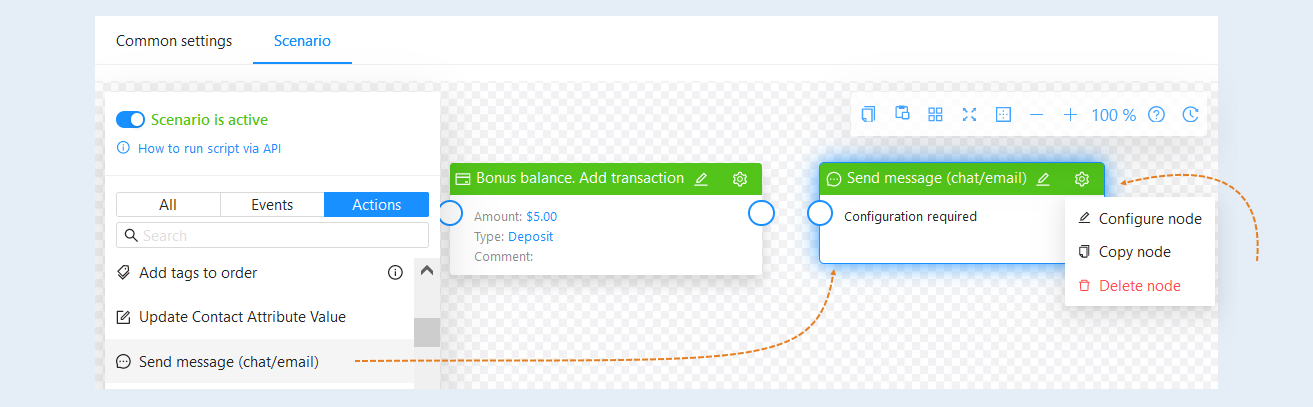
Next, you can add the "Send Message" action. For more information on the settings of the "Send Message" node, read the "Types of actions in the scenario and their configurations" article.
Thus, after purchasing a product, the user will be awarded bonus points and a message will be sent about the replenishment of the bonus balance and the validity period of the promotion.
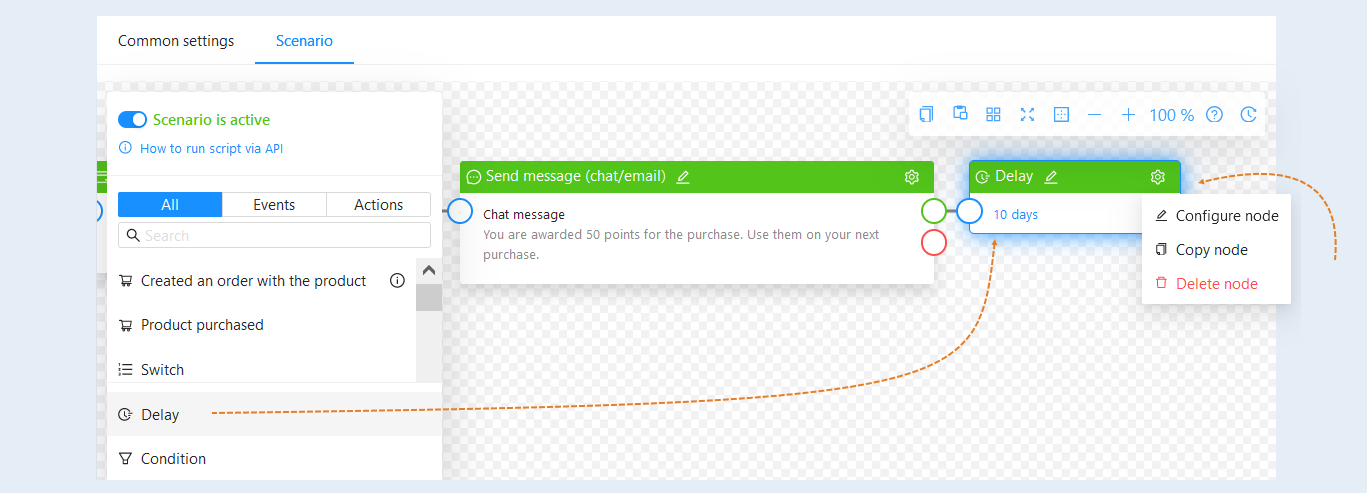
Bonus programs in which points have an expiration date can motivate the customer not to delay the purchase.
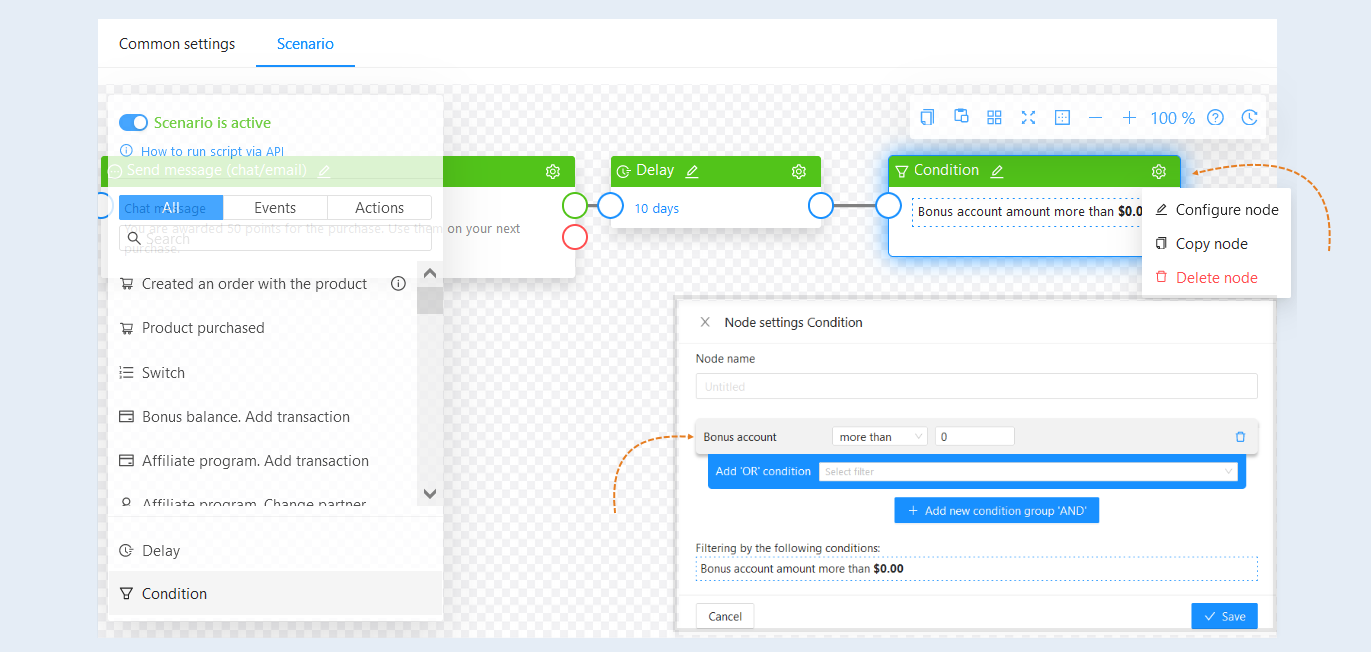
To set up the expiration of a promotion, add an "Delay" action. In the node settings, specify the delay period or the date after which the next action will be triggered.
Next, add a "Condition". In the node settings, add a condition, for example - "bonus account more than 0". This way, 10 days after topping up the bonus account, if the user still has points on the bonus account, they will receive a reminder email about the expiration of the bonus points.
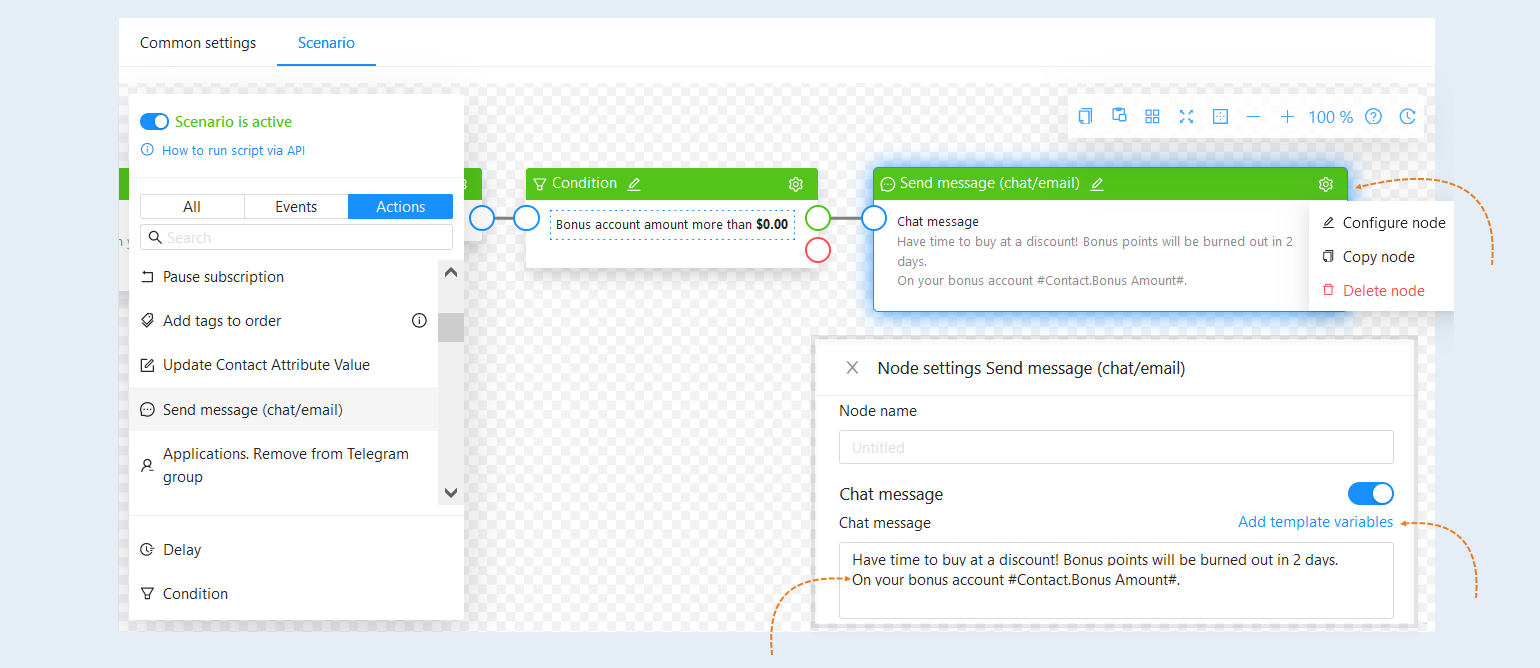
Configure the sending of a message warning about the expiration of the promotion. Add a "Send message" action. In the settings, specify the text of the message in which the user will be informed about the date when the points for purchase will expire. Use variables. Variables are values for automatic replacement with the data you choose. In the node settings, click the "Add variables" button. Then select the variable from the list - "amount of funds in the bonus account". In the message, this value will be replaced with the current state of the user's bonus account.
For more information about variables, read the article "Variables in Scenarios".
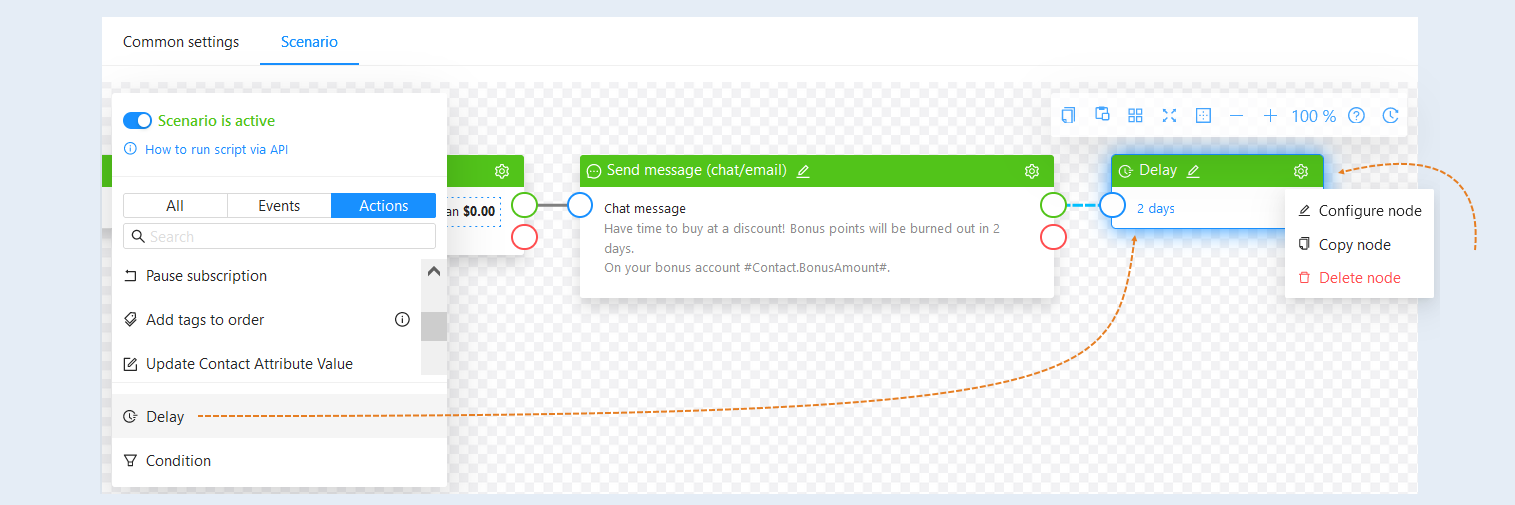
Add another "Delay" action. In the node settings, specify the delay period or the date after which the next action will be triggered. For example, specify a time period of 2 days. This way, 2 days after sending the warning email about the end of the promotion, the bonus points will be deducted from the account, and the promotion will be completed.
Add the action "Bonus balance. Add transaction" to the scenario.
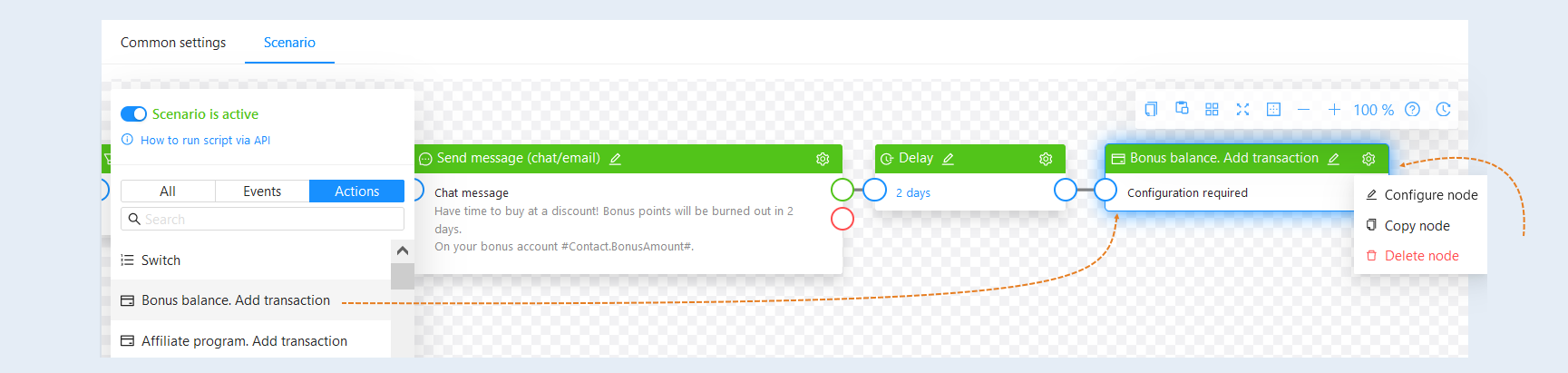
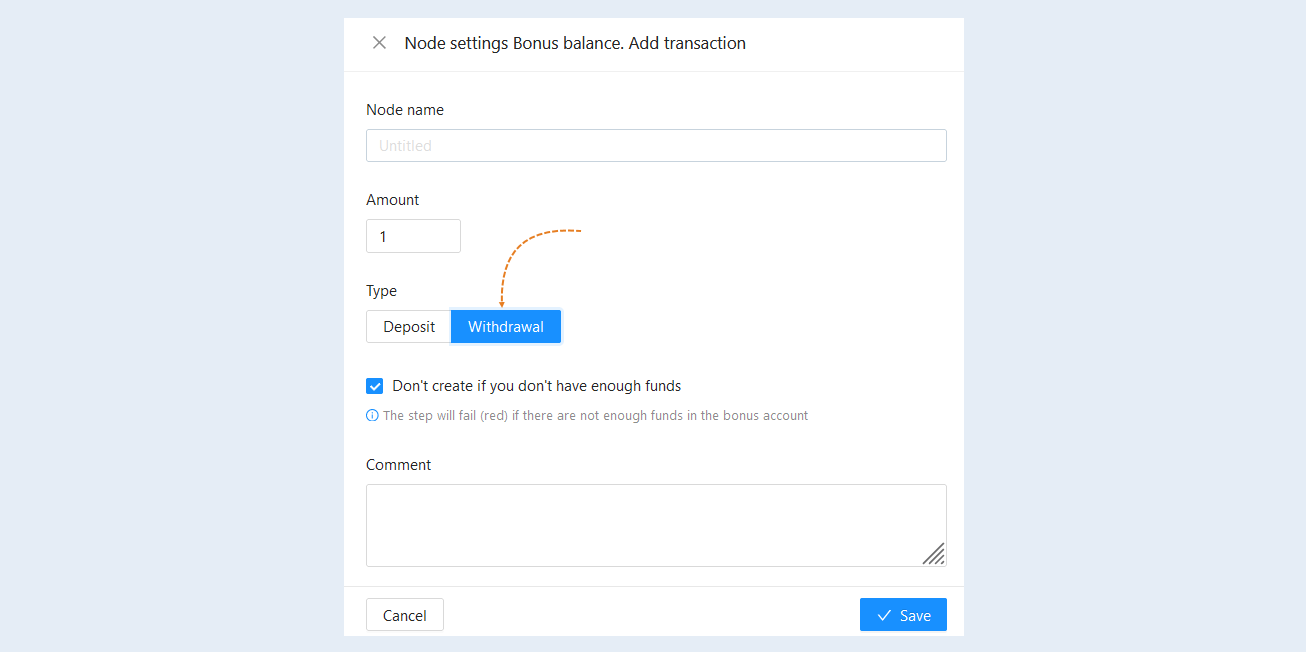
Click on the "Settings" button in the top right corner of the action. In the opened "Node settings Bonus balance. Add transaction" window, fill in the fields:
- Node name: Specify a name for the node, you can name the nodes in the scenario as you see fit.
Amount: Specify the withdrawal amount. The amount is specified in the account's currency.
Type: Select the transaction type - withdrawal. Withdrawal is a transaction to deduct bonus credits from the user's bonus balance.
Don't create if you don't have enough funds. Check the box to make the step fail (red) if there are not enough funds in the bonus account.
Comment: Add a comment to the transaction.
Click the "Save" button.
Next, it is necessary to connect all the events and actions together. Now your scenario is ready. To activate the scenario, slide the toggle to the active position.
Thus, after purchasing a product, the user will be credited with 50 bonus points (in the account's currency) and receive a message about the balance refill of the bonus balance and the expiration date of the promotion. After 10 days, if there are still points on the user's bonus balance, a reminder about the expiration of the points will be sent. And after 2 days from sending the reminder, the bonus points will expire.
For more information about scenario settings, read the article "Affiliate program scenario".
Bonus balance in Affiliate program
Bonus points can be awarded to users for attracting new customers within the framework of the affiliate program. For example, bonus points as a gift for registration through a partner link.
Go to the "Sales" section, then "Affiliate program". For more information on the settings of the affiliate program, read the article "Affiliate program".
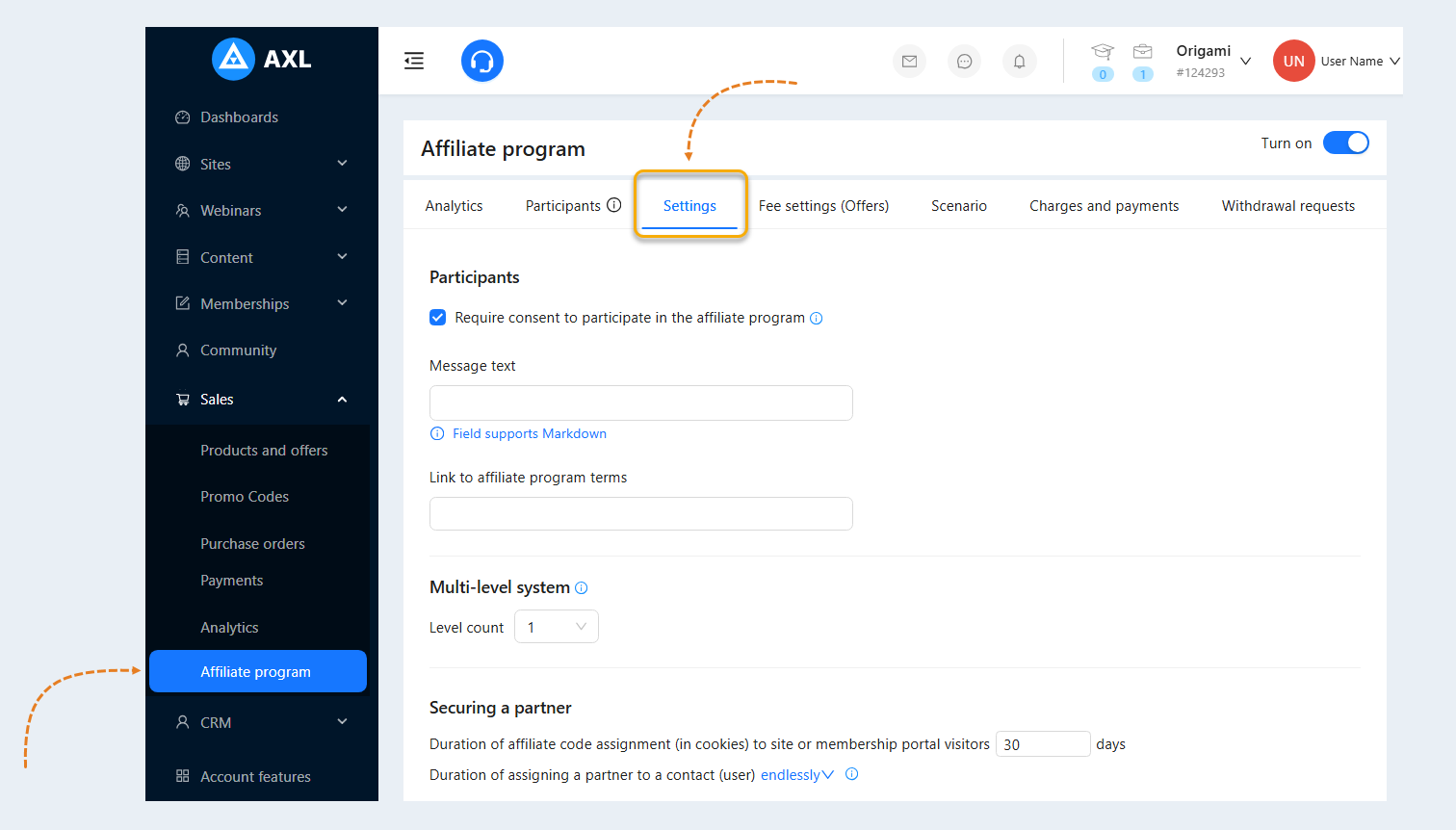
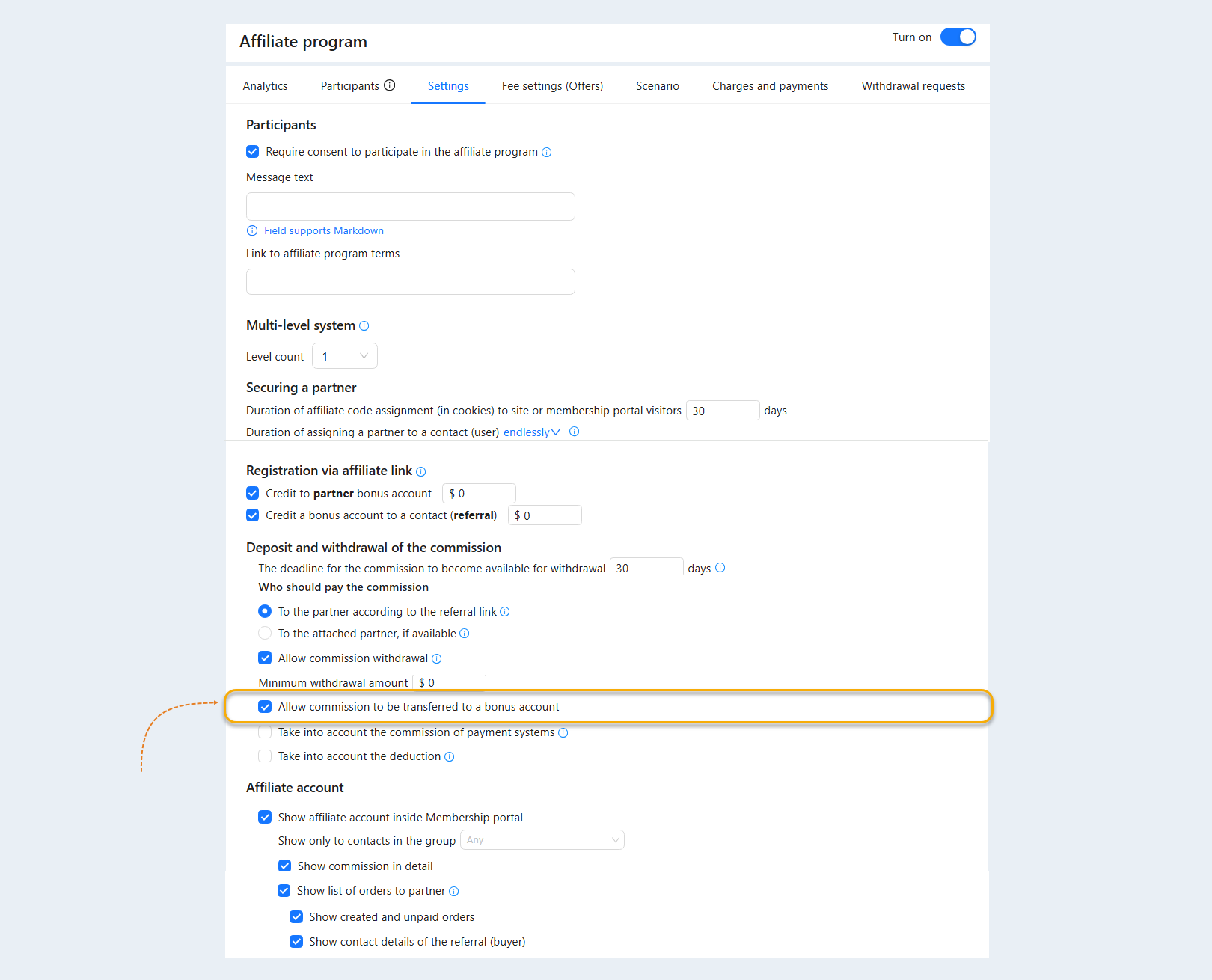
Open the "Settings" tab. In the field "Registration via affiliate link", check the boxes next to the necessary fields and specify the amount that will be credited to the bonus account.
Accumulation of points for registration to the partner's bonus account means that for each new user who registers through a unique partner link, the partner will receive a certain amount of bonus points. This function will work when creating (registering) a new contact (referral) through form submission on websites, registration in a chatbot, webinar, etc.
Credit to partner bonus account. Check the box to credit bonus points to the inviting partner for registration. Set the amount of points.
Credit a bonus account to a contact (referral). Check the box to credit bonus points to the new user (referral) for registration. Set the amount of points.
If you check both boxes, bonus points will be credited to both the inviting partner and the new contact (referral) for registration through the partner link, for example, 50 bonus dollars each. Users can use this amount in their bonus account when purchasing products.
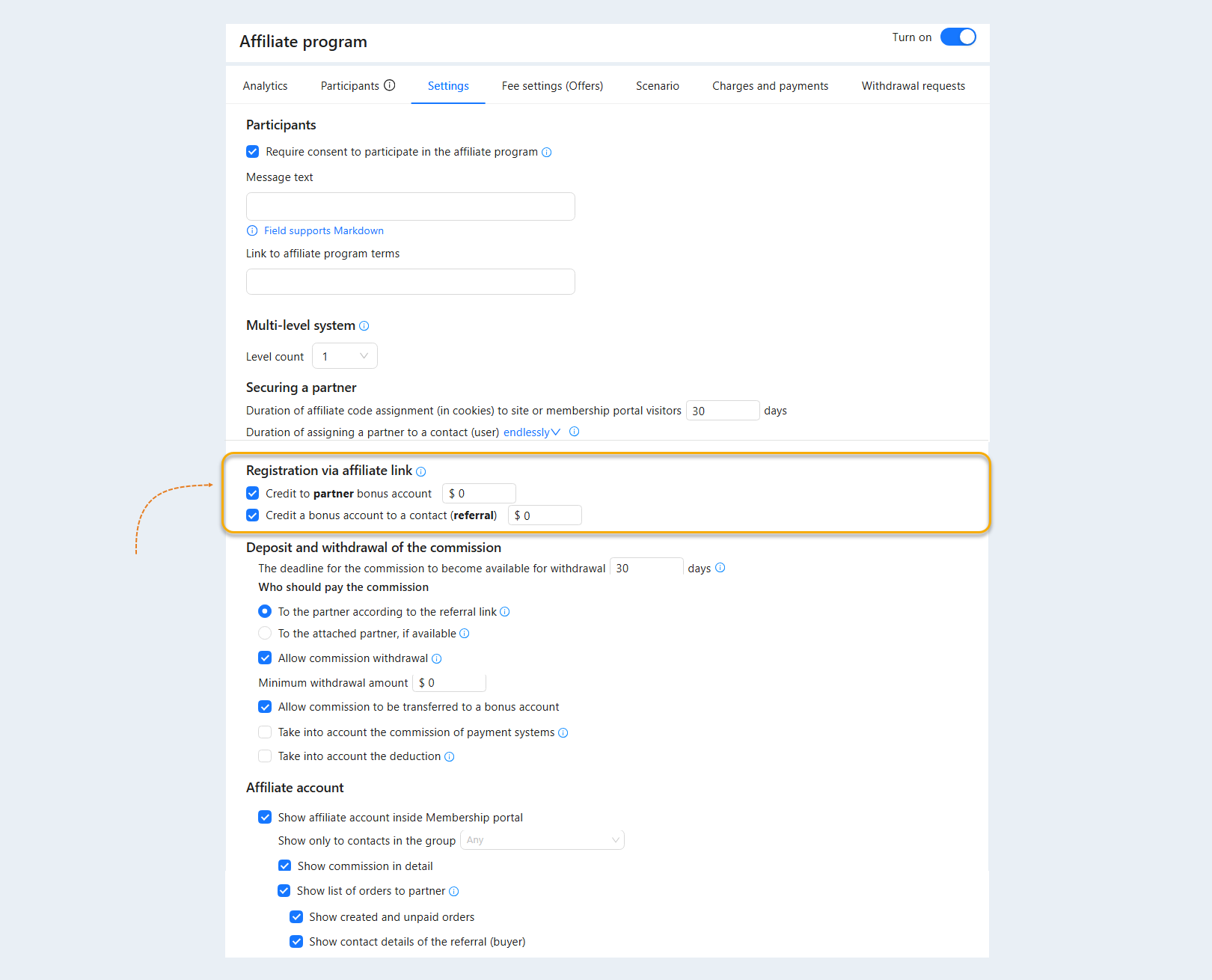
In the settings of the affiliate program, you can configure the ability for partners to transfer the commission for fulfilling the conditions of the affiliate program to the bonus account. To do this, in the "Deposit and withdrawal of the commission" section, check the box "Allow commission to be transferred to a bonus account".
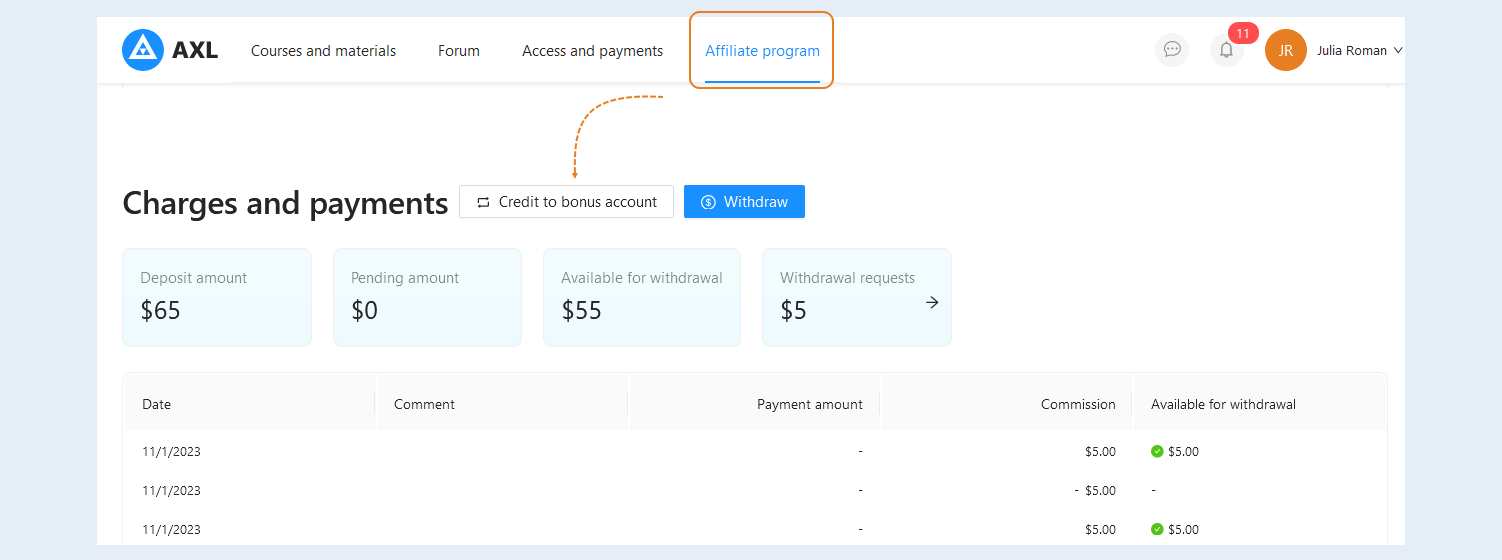
In this case, the user can create a request to withdraw the accumulated commission to the bonus account from their personal account. Open the user's personal account on the AXL platform, go to the "Affiliate program" tab. Click the "Credit to bonus account" button.
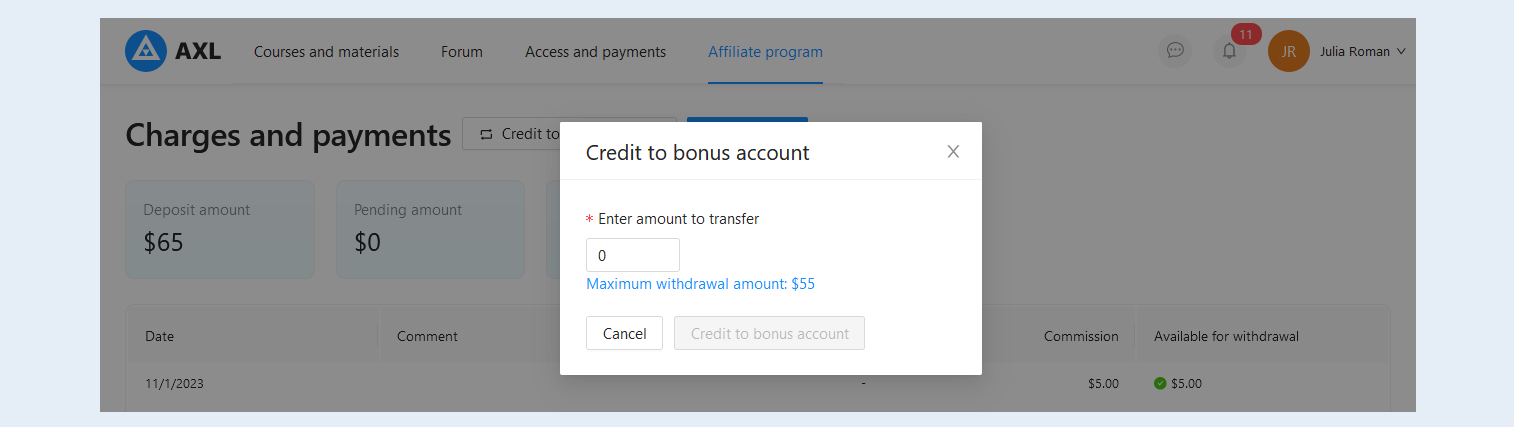
In the opened window, specify the amount to transfer. Below is a hint - the maximum amount for withdrawal. Then click the "Credit to the bonus account" button and confirm the transfer. This action does not require confirmation from the account administrator. The specified amount will be instantly reflected in the user's bonus account and the user can use it to pay for products.
How to use bonuses when making a purchase
Bonus points can be used to purchase products or receive certain privileges or services. Funds from the bonus balance are automatically deducted during the purchase. For each product, you can specify the maximum amount that can be paid with bonuses.
Go to the "Sales" section, "Products and Offers" tab. Open a previously created product or create a new one. For more information on creating a product, refer to the article "Products and Offers".
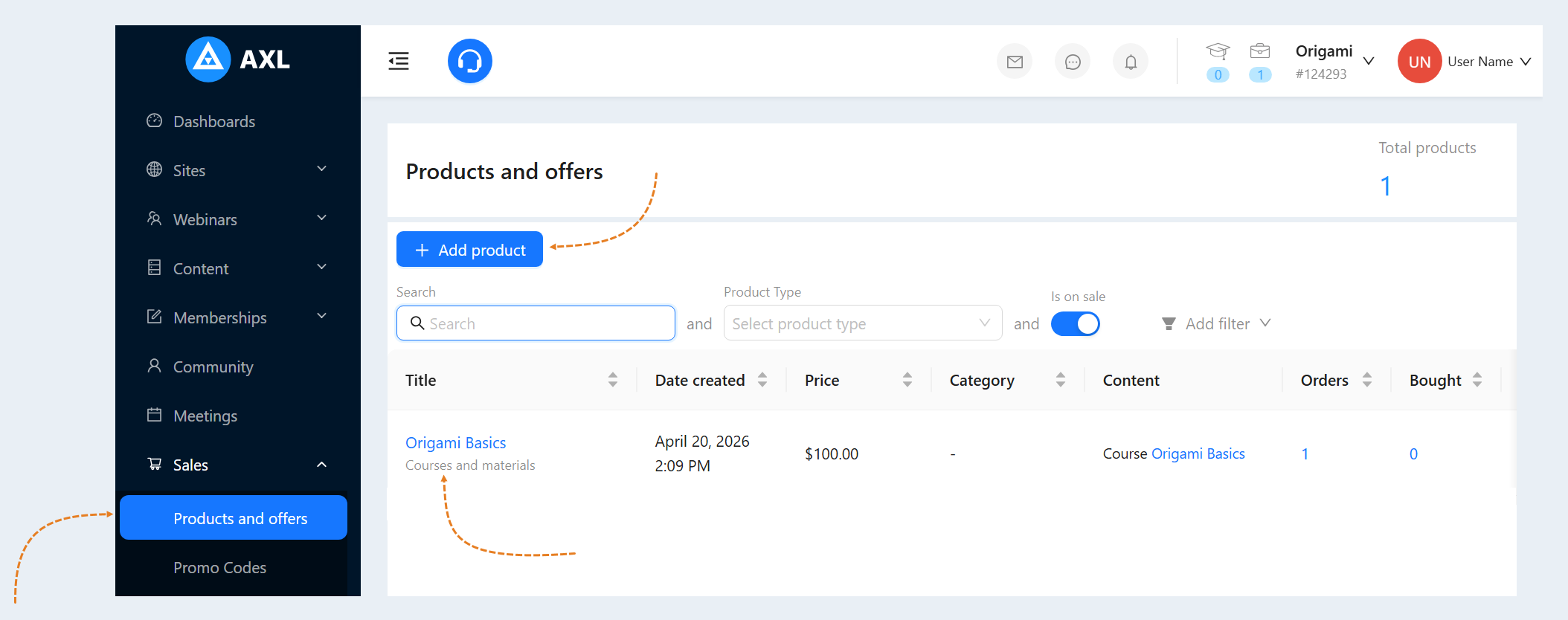
After you have accessed the product settings, a "Common Settings" tab will appear.
Slide the "Payment for the product with bonuses" slider to the active position, so that users can pay for part or the full amount of the product with points from the bonus balance.
Choose the payment with bonuses in the form of a percentage of the cost, or set the maximum fixed amount.
Specify the numerical value below. If you have chosen a percentage, set the percentage of the product's cost that can be paid with bonuses. If you have chosen a fixed amount, set the maximum amount that will be deducted from the bonus balance towards the product payment.
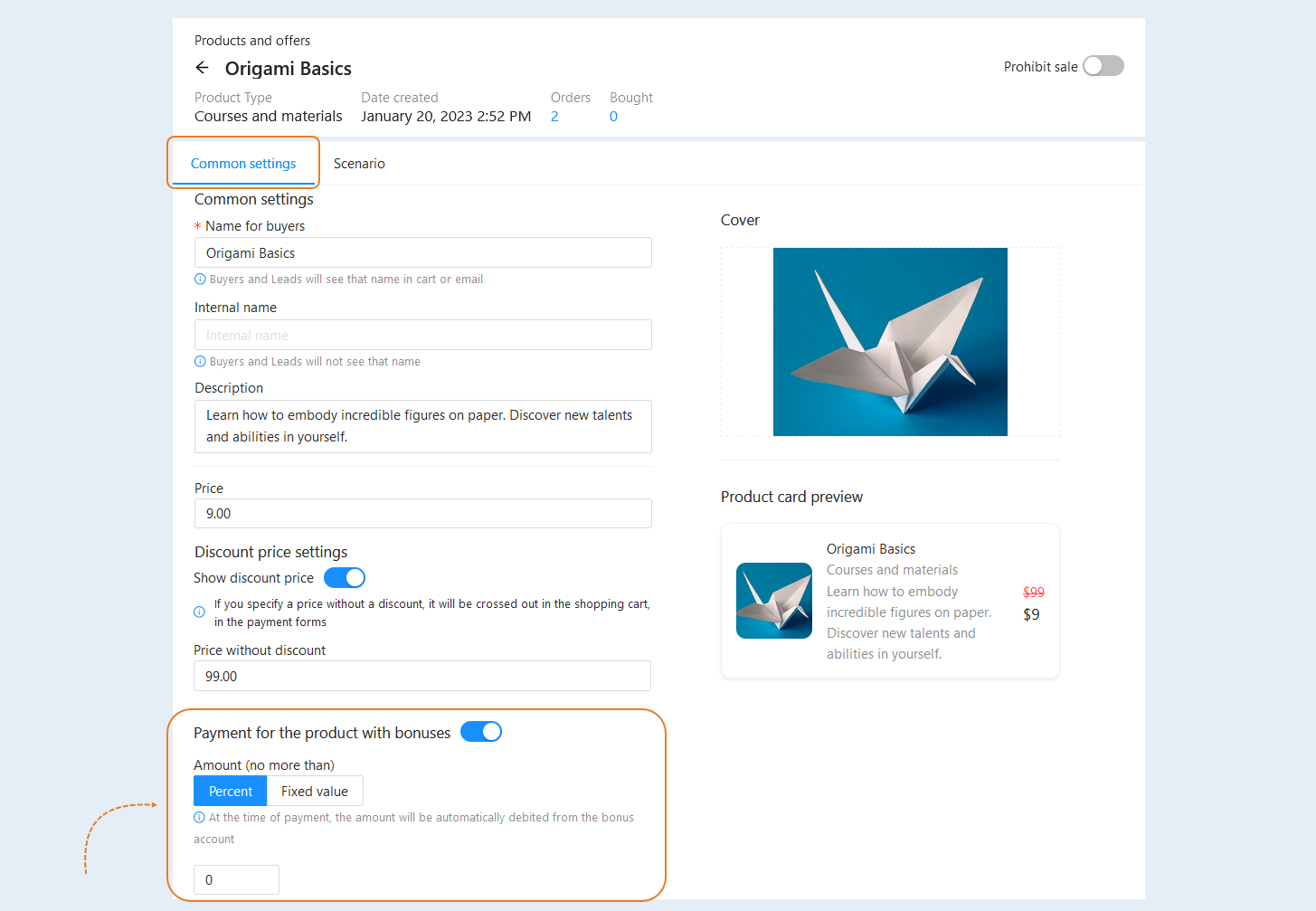
Save the changes. This way, when paying for the product, bonus points will be automatically deducted from the user's bonus balance.