A dashboard puts the numbers you watch on one screen: new contacts, payments, deals, website visits and more. You build it yourself from widgets, and every widget counts its data for the period you pick at the top. Open Dashboards at the top of the menu.
Create a Dashboard
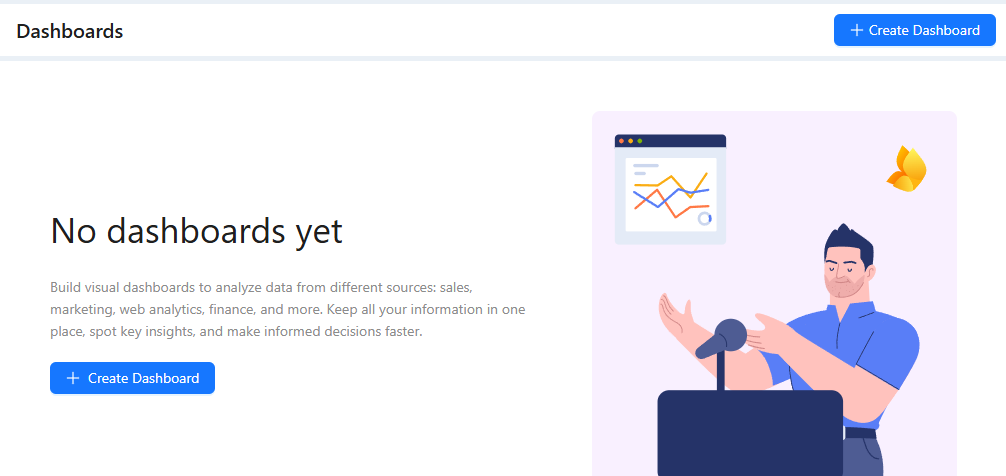
- Click Create Dashboard.
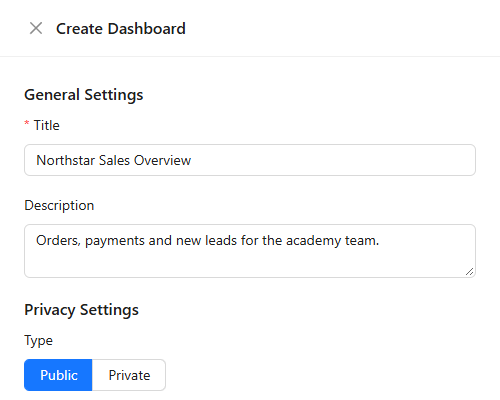
- Enter the Title and, if you like, a Description.
- Under Privacy Settings, choose Public to show the dashboard to everyone on your team who can open Dashboards, or Private to keep it for yourself.
- Click Save. The new dashboard opens empty, ready for widgets.
Add a Widget
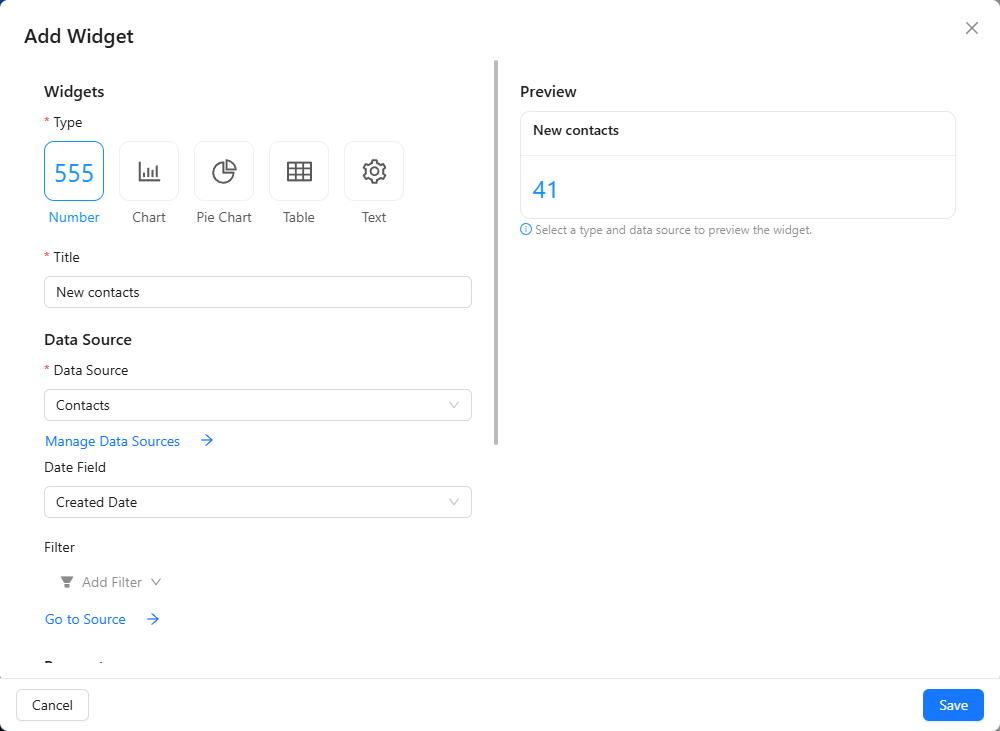
- Click Add Widget.
- Choose the Type: Number, Chart, Pie Chart, Table or Text, and enter the Title.
- Choose the Data Source: Contacts, Orders, Payments, Deals, Tasks, Conversions, Website Visits, Webinar Attendees or Emails.
- Date Field decides which date the dashboard period applies to, for example the date a contact was created. Clear it to count all rows regardless of the period.
- Add Filter narrows the rows, for example to contacts with a certain tag. Go to Source opens the same rows in their usual list.
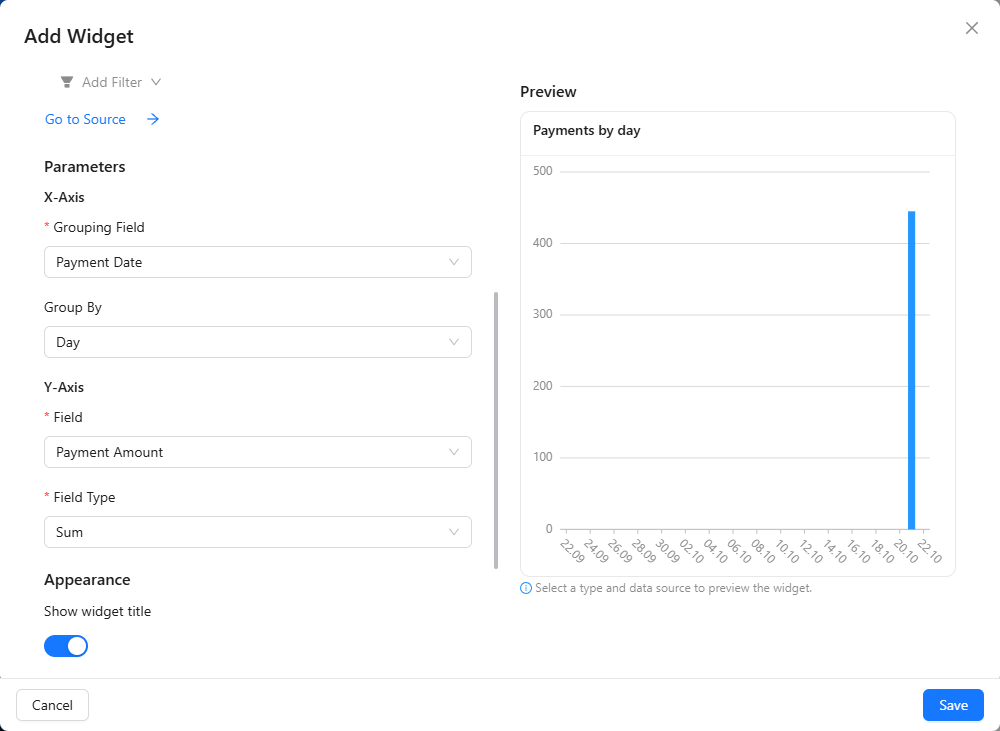
- Under Parameters, choose what to count. For a number, pick the Field, for example Number of Contacts, or a money field with its Field Type: Sum or Average.
- Check the Preview on the right and click Save.
For a chart, the X-Axis sets how rows are grouped, for example by Payment Date per Day, and the Y-Axis sets what is counted for each group, for example the sum of Payment Amount. Under Appearance, you can hide the widget title and change its colors.
Work with the Dashboard
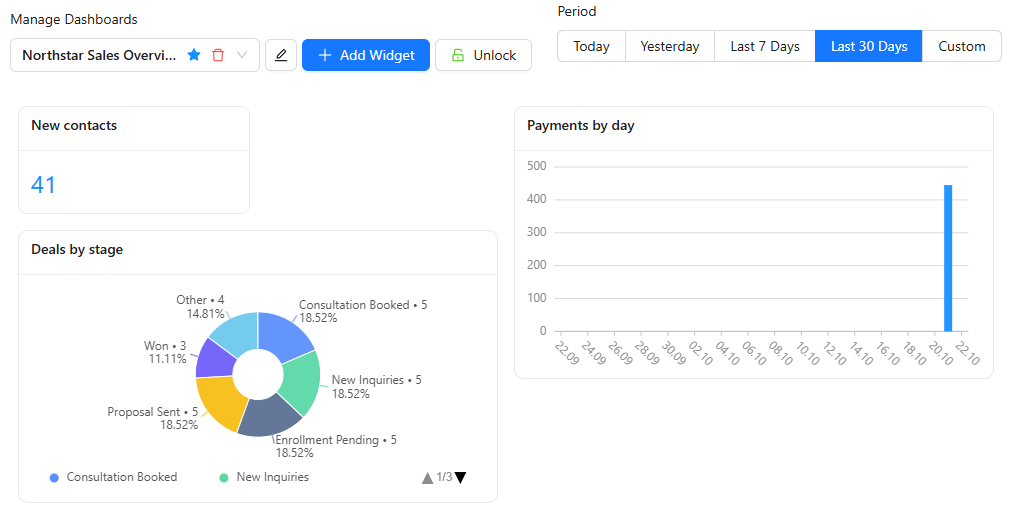
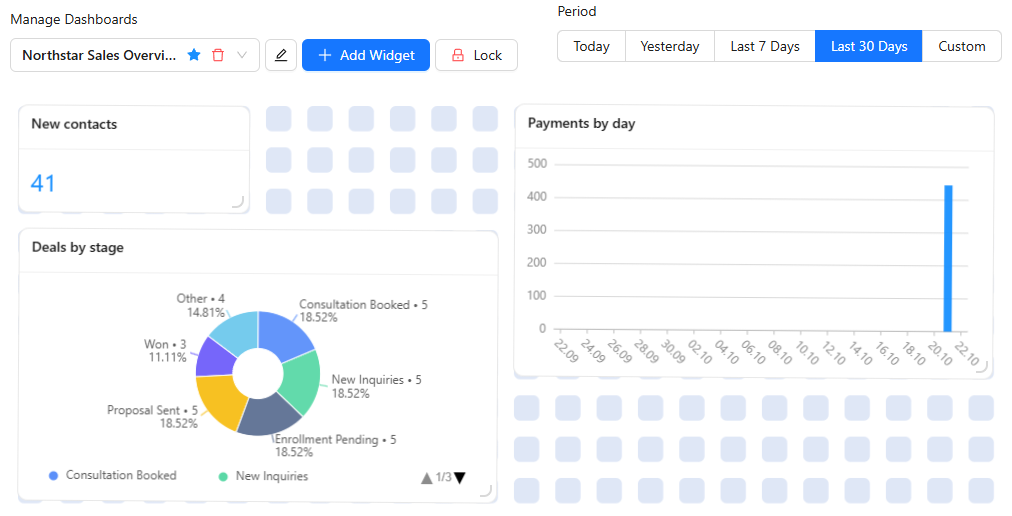
- Period: Today, Yesterday, Last 7 Days, Last 30 Days or Custom applies to every widget at once.
- Unlock lets you drag widgets around and resize them. Lock the dashboard again when the layout is right.
- The buttons in a widget's header copy the widget, open its source list, edit it or delete it.
- Manage Dashboards switches between your dashboards. The star sets the one that opens first when you open Dashboards, the pencil next to the list edits the title and privacy, and the trash can deletes the dashboard.
Your Own Data
To show numbers that are not in AXL, click Manage Data Sources in the widget dialog and create your own data source. Add its fields, then add rows by hand or send them from another system through the API: How to manage data via API shows the requests. Your data source then appears in the Data Source list like the built-in ones.
Ready-made reports for specific areas are described in "Sales Analytics" and "Website Traffic Analytics".