The file manager is an AXL section for storing your files (photos, text files, presentations, etc.). Here you can upload an unlimited number of files, store them and use them in your training courses and on websites.
The fee for storing files corresponds to your tariff plan on the AXL platform and is calculated from the amount of file volume.
Click on the desired section of the article to go to its description:
Uploading files
Go to the "Content" section, the "File Manager" tab. For the convenience of sorting and searching downloaded files, create folders. Click the "Create directory" button.
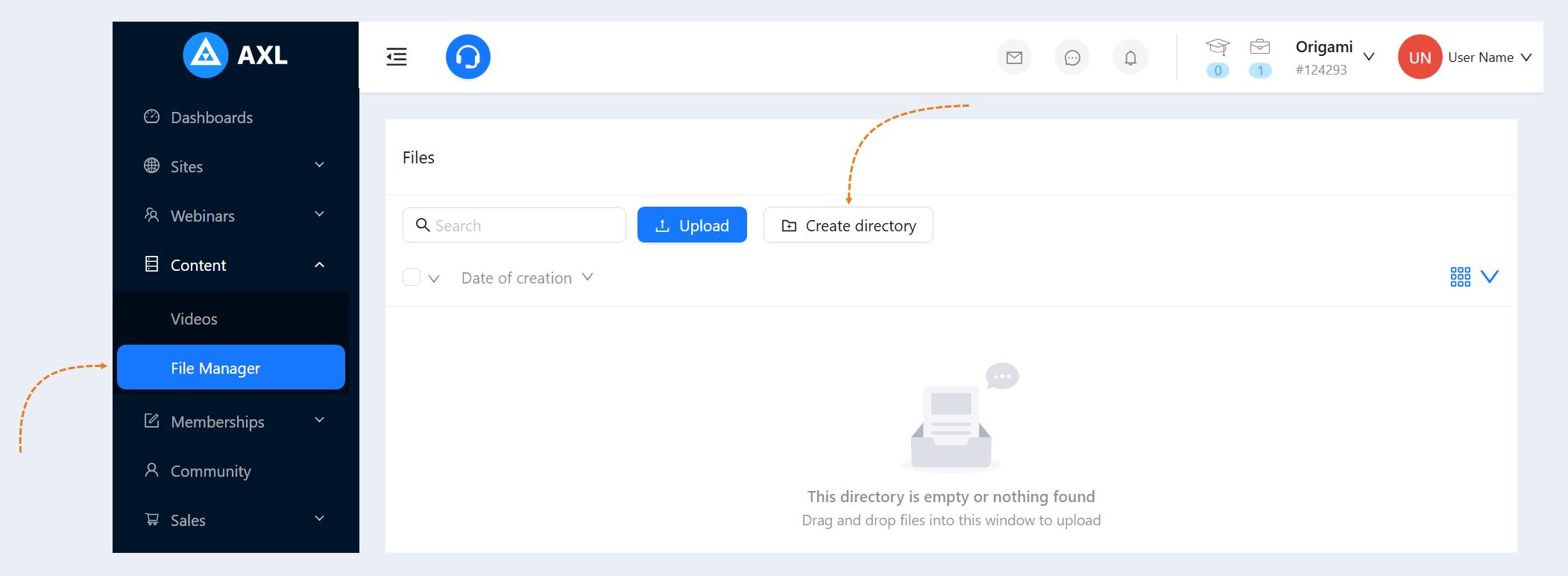
You will see the "Directory creating" window. Specify the name of the folder and click "Create".

Then upload the files to the created folder. Click the "Upload" button.
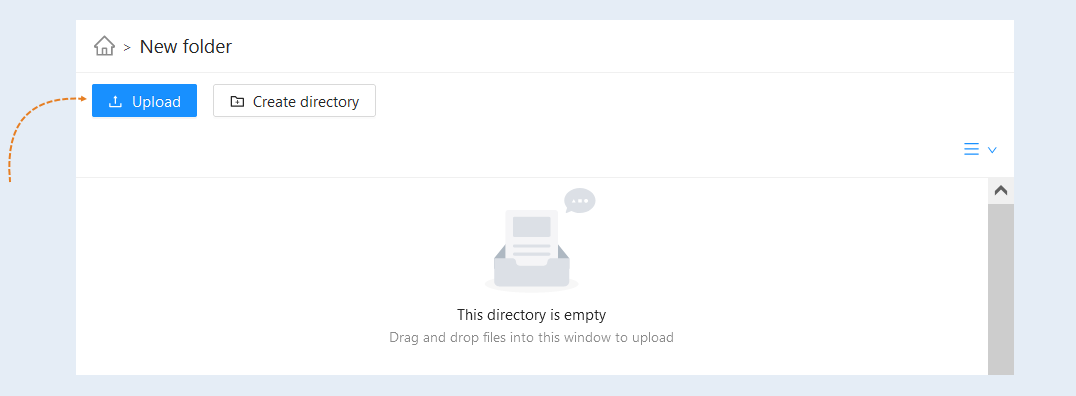
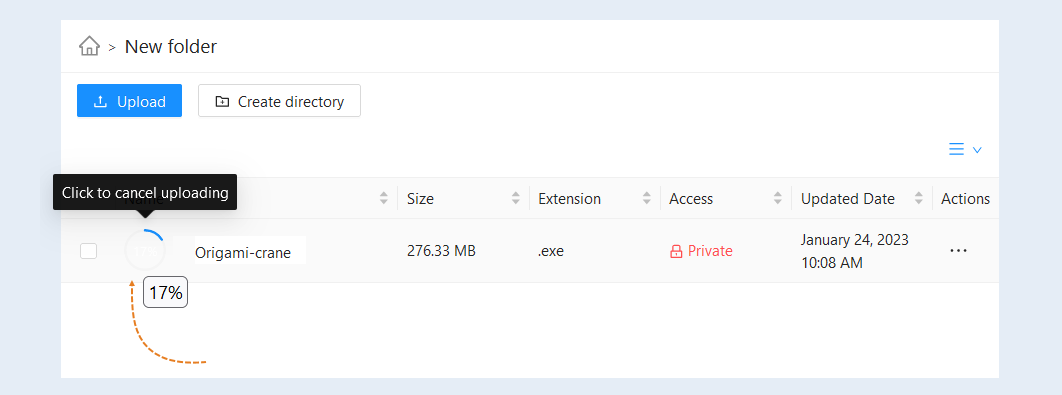
Select the file on your device (computer, laptop). The file will be uploaded to your account on the AXL platform. During the download, you can see the percentage of file downloads to the platform, and you can also cancel the download.
File Manager
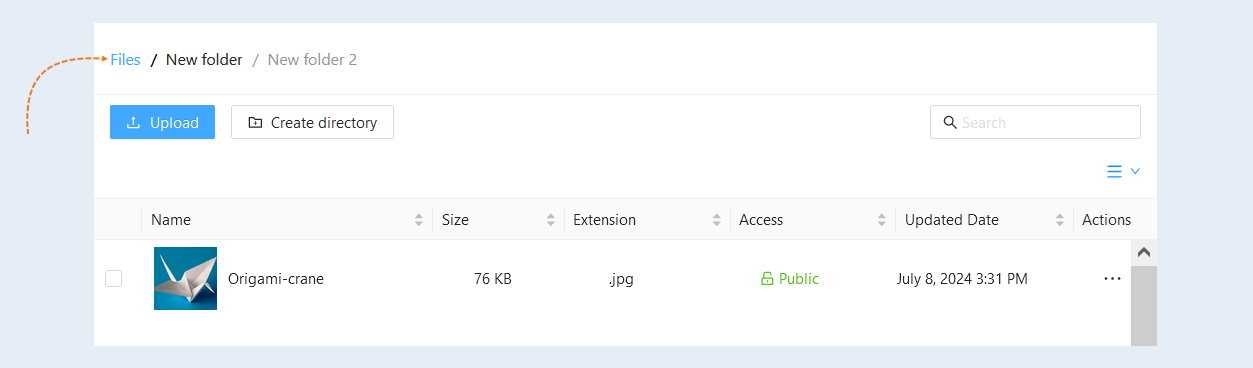
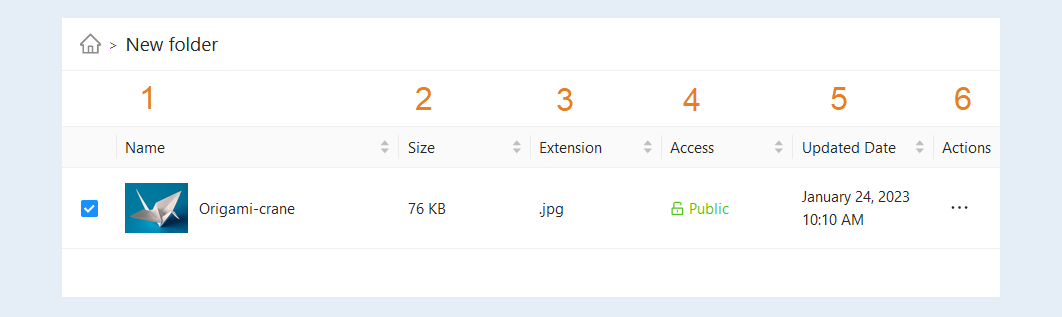
After adding a file to the platform, it will appear in the file list. Here you can see the following information:
- Name. Here you can see the name of the file.
Size. The size of the downloaded file is indicated here.
Expansion. Here you can see the file type.
Access. The uploaded file can be public or private.
The public file will be available to all users. The link to the public file is direct and such files can be downloaded from the link an infinite number of times.
Private files with limited access, they can only be viewed by those users who have been granted access to them. The link to the private file will be valid 24 hours after the user receives it. When adding a private link by clicking on the button in the site settings, the user will be able to download the file only by clicking the button. Thus, each time the button is pressed, a temporary link to the private file will be formed, which will be valid for 24 hours.Updated Date. Here you can see the exact date and time of the last update of this file.
Actions. Here you can use the buttons to manage the file.
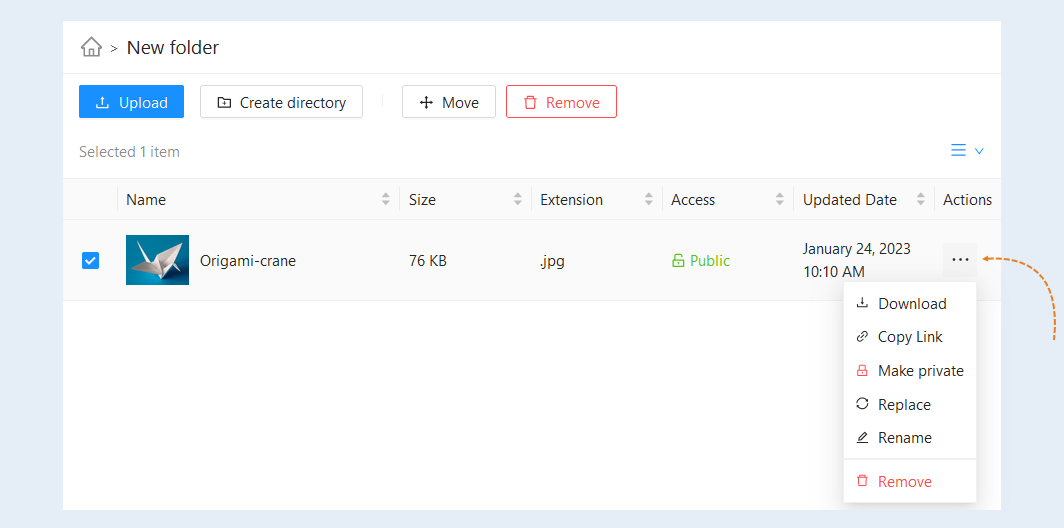
Click on the "Actions" button. The following actions are available to you with the file:
- Download. Click the button to download the file to your device (computer, laptop).
Copy link. Click the button to copy the file link to the clipboard.
Make private/public. Click the button to change the availability of the file to users.
Replace. Click the button to upload another file instead of the selected one.
Rename. Click the button to change the file name.
Remove. Click the button to delete the file from the list.
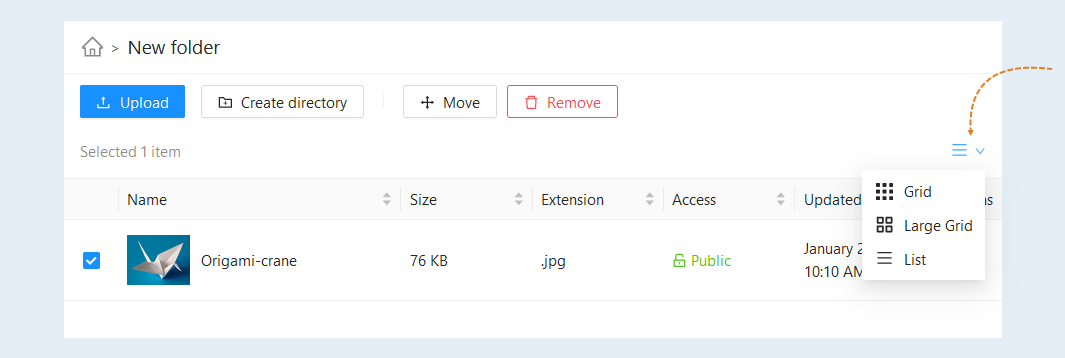
Click the "View" button to change the view of the file list: grid, large grid, list.
To speed up the work in the file manager, the function of saving the last open position (folder) is implemented. Thus, the next time you open the "File Manager" section, the page will be opened on the last folder used.
Click the "Files" button to return to the top of the file list.