Learning analytics shows how students move through your courses: how many are active, where each of them is right now, on which lesson people stop, how assignments are checked and how students rate the lessons. An AI review reads all of it and suggests what to fix in the courses and what to do with which students.
The numbers of a period (active students, lessons completed, assignments sent and checked) count what happened in the selected dates. Where students are now, Stuck and the students on each lesson always show today's state.
Open the analytics
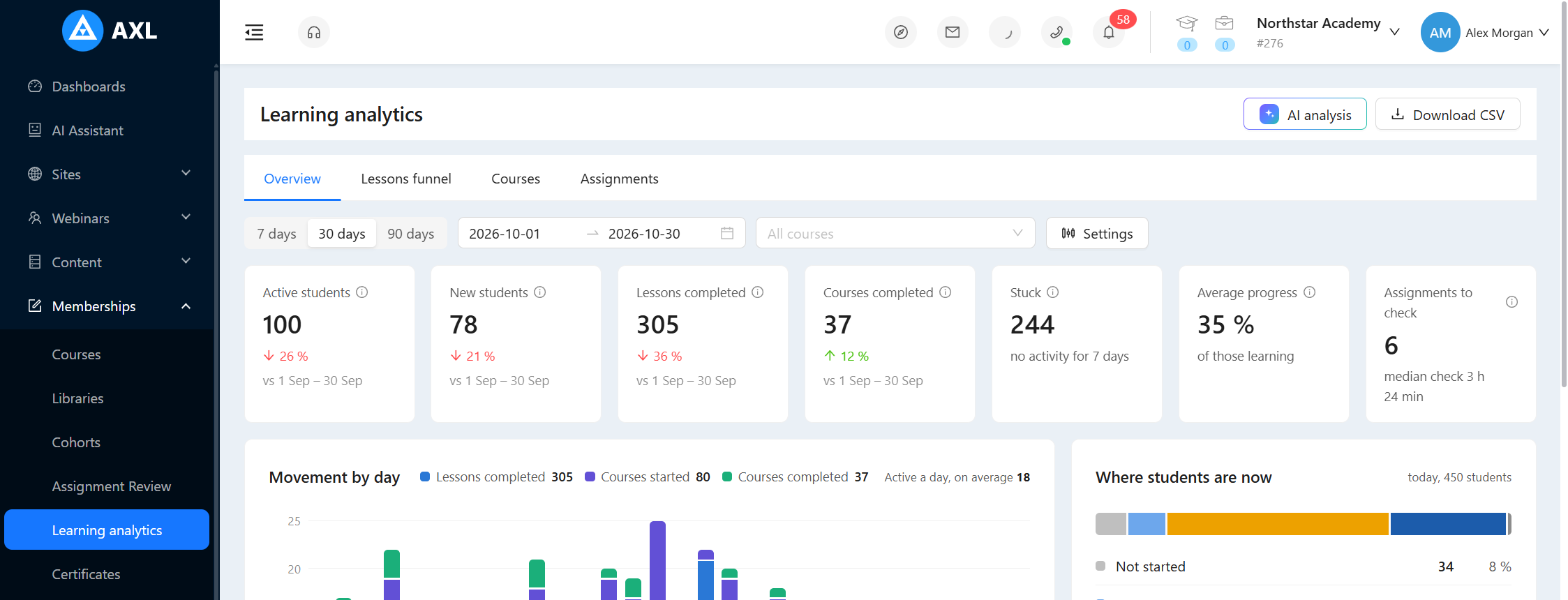
- Open Memberships → Learning analytics. The Overview tab opens with the last 30 days.
- Switch between Overview, Lessons funnel, Courses and Assignments with the tabs under the title.
The page is available to everyone who can work with courses. The Assignments tab and the assignment numbers are shown only to those who can review assignments.
Choose what to count
- Pick a period: 7 days, 30 days, 90 days, or any dates in the date field.
- To look at some courses only, choose them in All courses.
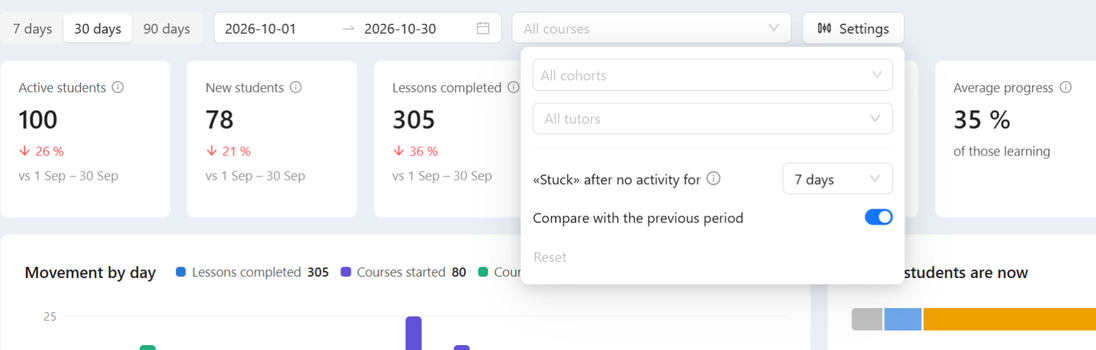
- Click Settings to narrow the students and change the rules:
- All cohorts — only the students of the chosen cohorts.
- All tutors — only the students the chosen tutors are responsible for.
- «Stuck» after no activity for — after how many days without activity a student who is learning counts as stuck (7 days by default).
- Compare with the previous period — the arrows under the tiles compare with the same number of days before.
The changes apply at once. Reset in the same window returns the default settings.
Every page uses your account's time zone. Download CSV at the top right saves the numbers of the open tab.
Overview
The tiles at the top:
- Active students — opened or finished lessons or sent assignments in the period.
- New students — got access to a course in the period.
- Lessons completed and Courses completed — finished in the period.
- Stuck — learning, with access, but no activity for the number of days from Settings.
- Average progress — of those who started a course and have not finished it.
- Assignments to check — answers waiting for a check now, with the median time to the first check.
Click the number on a tile (for example Stuck or Active students) to open the list of those students.
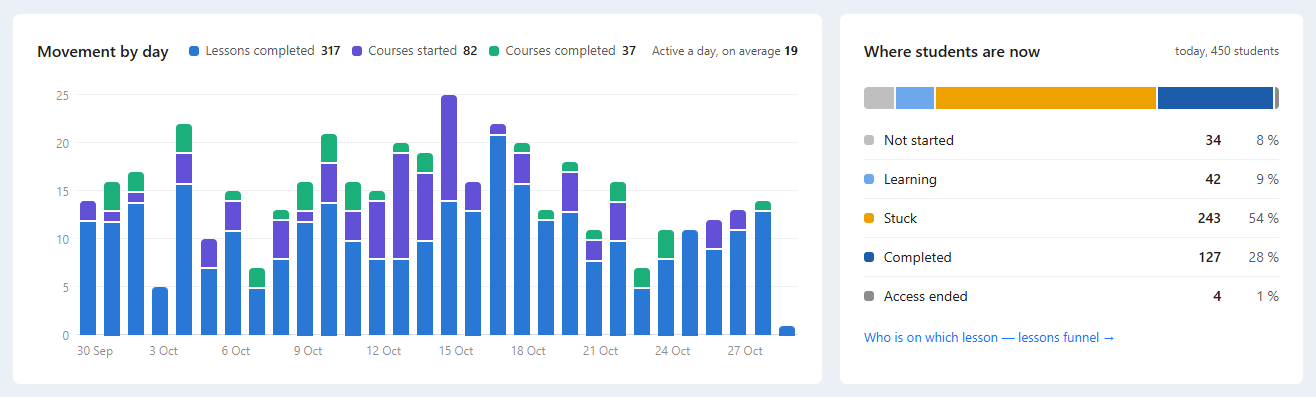
Where students are now splits every student in every course into Not started (has access but never opened a lesson), Learning, Stuck, Completed and Access ended (the access ran out before the course was finished). Click a line to see those students.
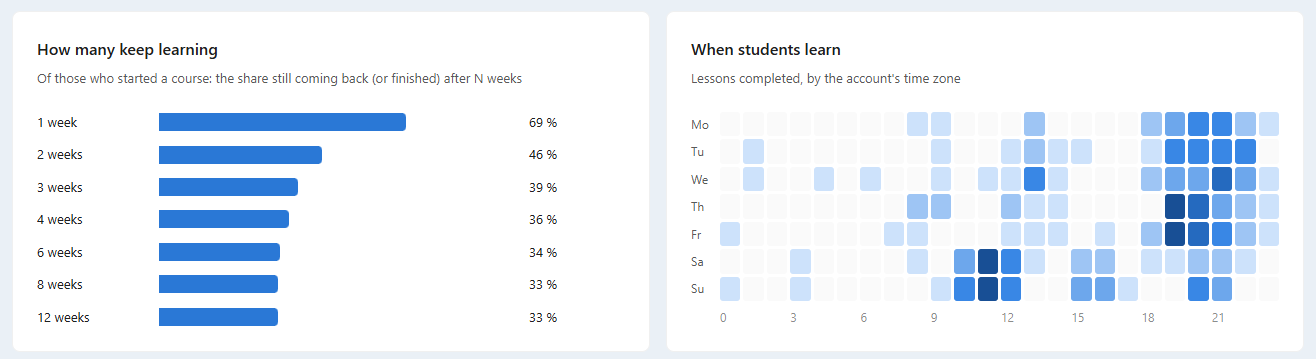
How many keep learning shows, of those who started a course in the last year, the share still coming back (or already finished) 1, 2, 3, 4, 6, 8 and 12 weeks after the start. When students learn shows when lessons are finished: use it to send reminders when your students actually study. By course at the bottom lists the main courses; All courses → opens the Courses tab.
Lessons funnel
The funnel shows one course lesson by lesson: how many students reached each lesson, how many passed it, who is on it now and where people leave.
- Open the Lessons funnel tab.
- Pick the course in the course field.
- Choose whom to count: Started the course in the last 90 days, 180 days or 365 days. The funnel follows these students from their start, whenever they reached each lesson.
- Click the arrow next to a module to see its lessons, or Expand modules to open all of them. Collapse closes everything.
The tiles above the table show how many started and completed the course, how many are learning now and how many of them are stuck, the Biggest drop lesson and the Median time to finish.
The columns of the table:
- Reached and Passed — opened and finished the lesson.
- Here now and Of them stuck — the lesson is the student's current one.
- leave N % next to the bar — reached this lesson but never reached the next required one. The lesson where most people leave is highlighted.
- Median — usual time from opening the lesson to passing it.
- Not accepted — the share of first answers to the lesson's assignment that were not accepted.
- Rating — the students' average rating of the lesson.
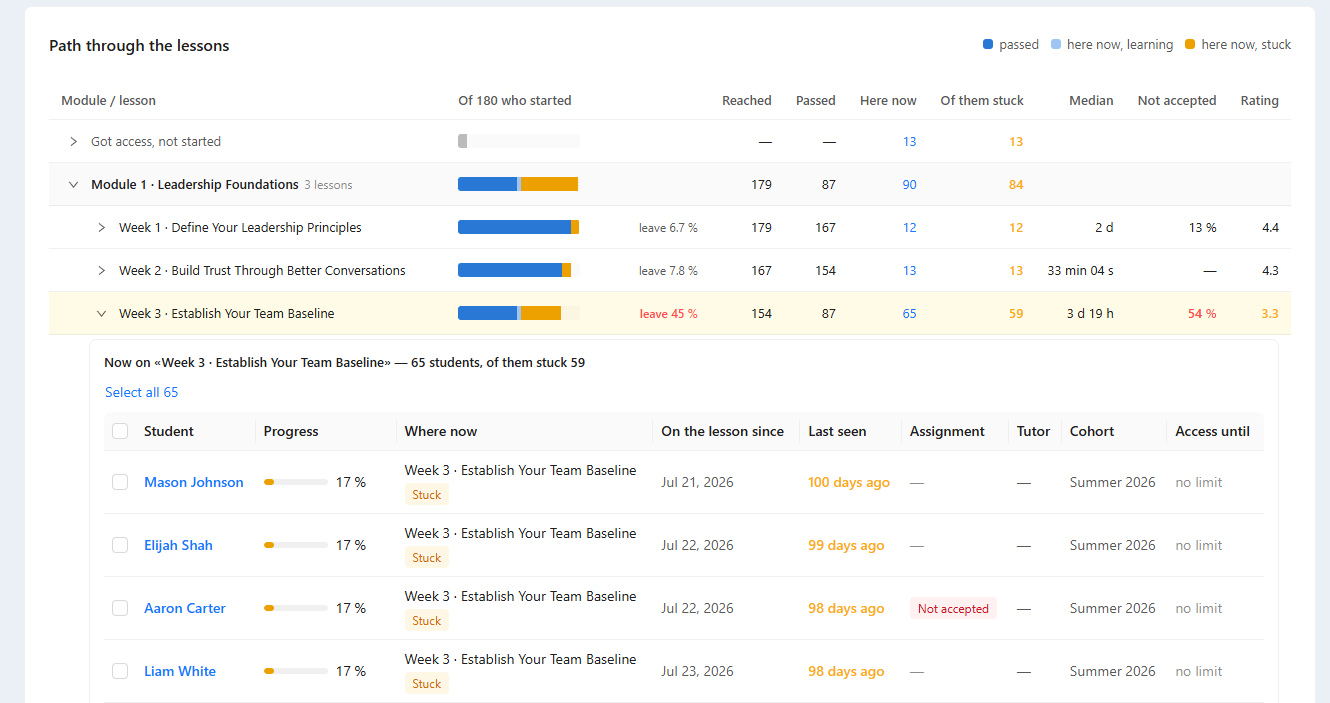
Click the arrow next to a lesson (or the number in Here now) to see who is on it: progress, since when, when they were last seen, the state of their assignment, their tutor, cohort and access. Stuck students come first. The rows Got access, not started and Completed the course open the same way.
Act on a group of students
- Open the students of a lesson, a module or a row as described above.
- Tick the students you need, or click Select all N to take all of them, including those on the next pages.
- A bar with Selected: N appears at the top. Click Bulk Actions and choose what to do: add tags, add them to a mailing list, run an automation, add a task, grant product access and other contact actions.
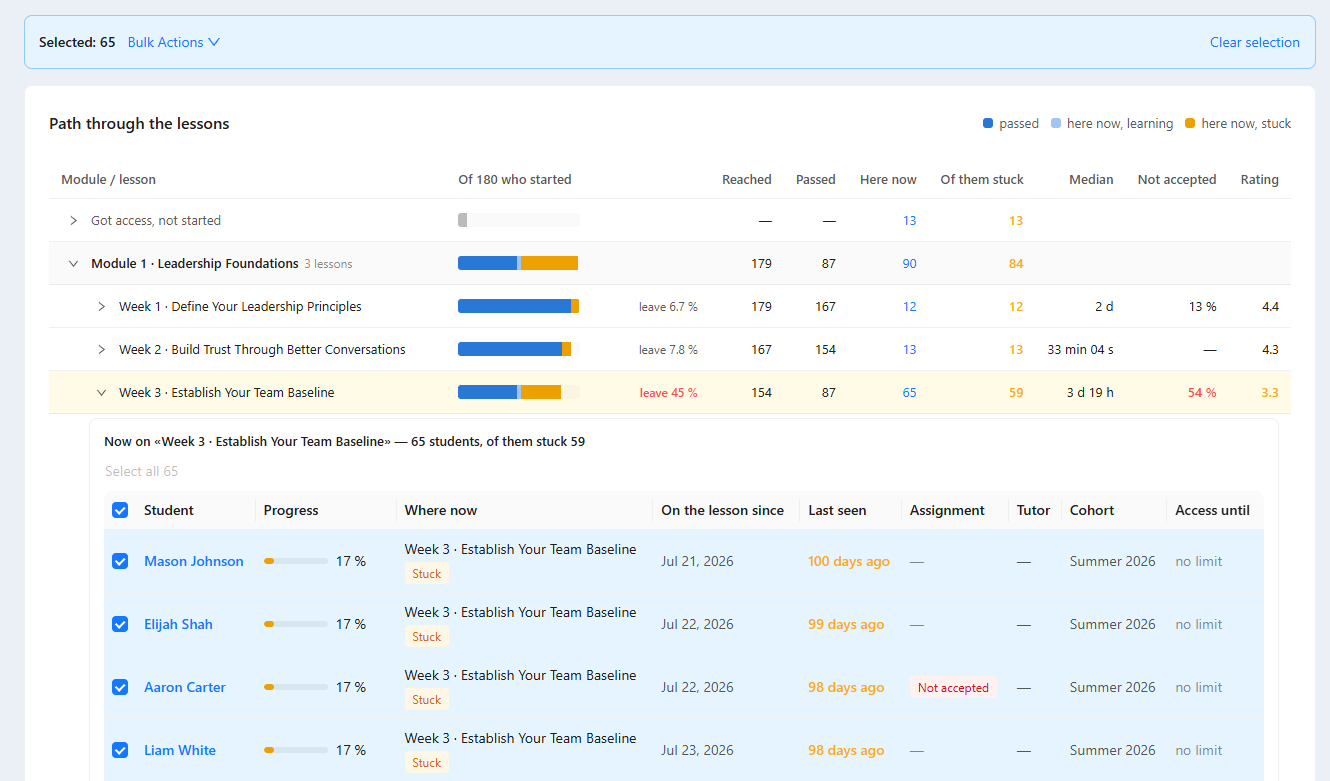
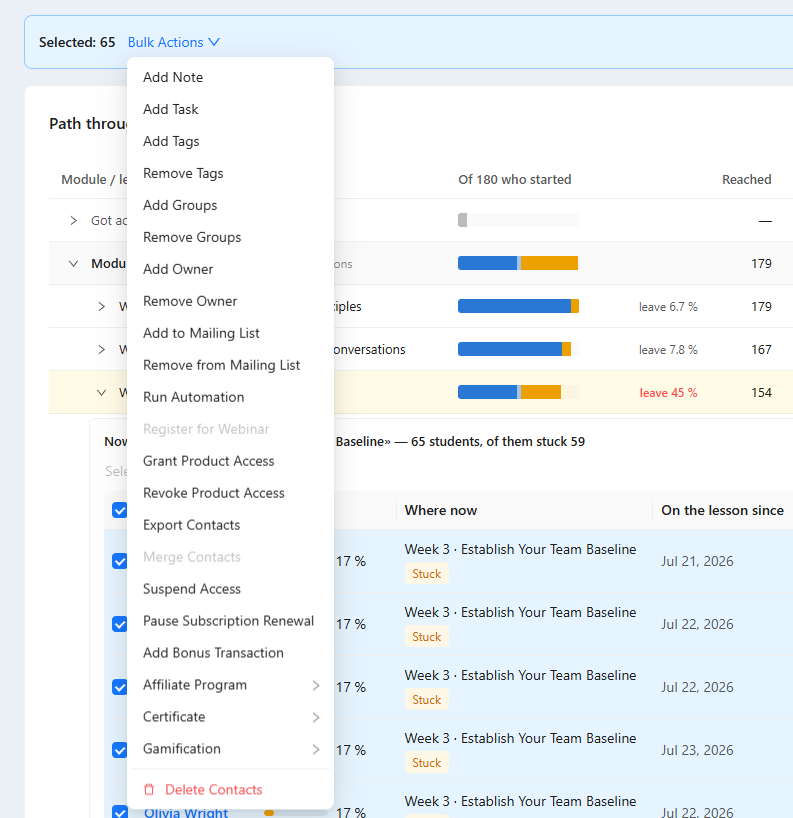
The actions are the same as in CRM → Contacts and follow the same permissions; the menu also contains Delete Contacts, so check the choice before confirming. Clear selection on the right of the bar drops the selection.
Courses
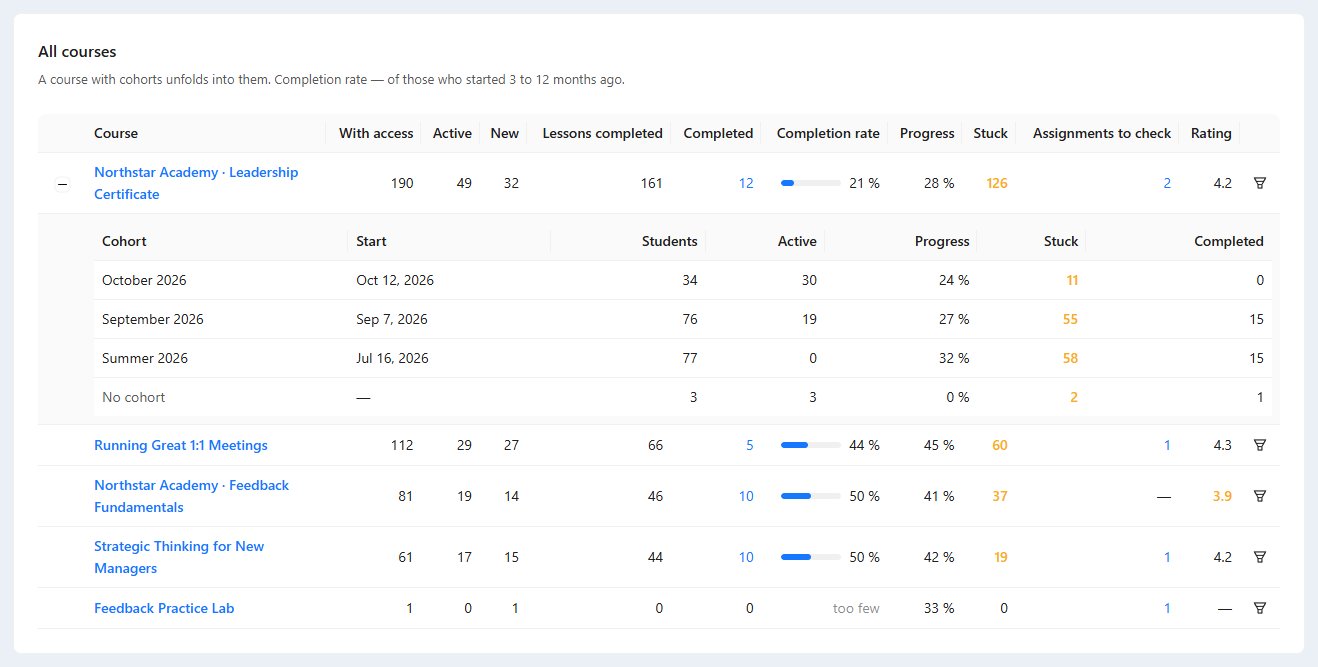
The Courses tab lists every course with its students: With access, Active, New, Lessons completed, Completed, Completion rate (of those who started 3 to 12 months ago, the share who finished), average Progress, Stuck, Assignments to check and Rating.
- Click the numbers in Completed, Stuck or Assignments to check to see those students.
- A course with cohorts has a + on the left: click it to see each cohort's students, activity, progress, stuck students and completions.
- The funnel icon at the end of a row opens the course on the Lessons funnel tab.
Lesson ratings
Under the course table, Lesson ratings collects the ratings students left after lessons in the period: the Average rating with the change, how many Ratings left, how many Low ratings (1–3), and how the ratings split by stars.
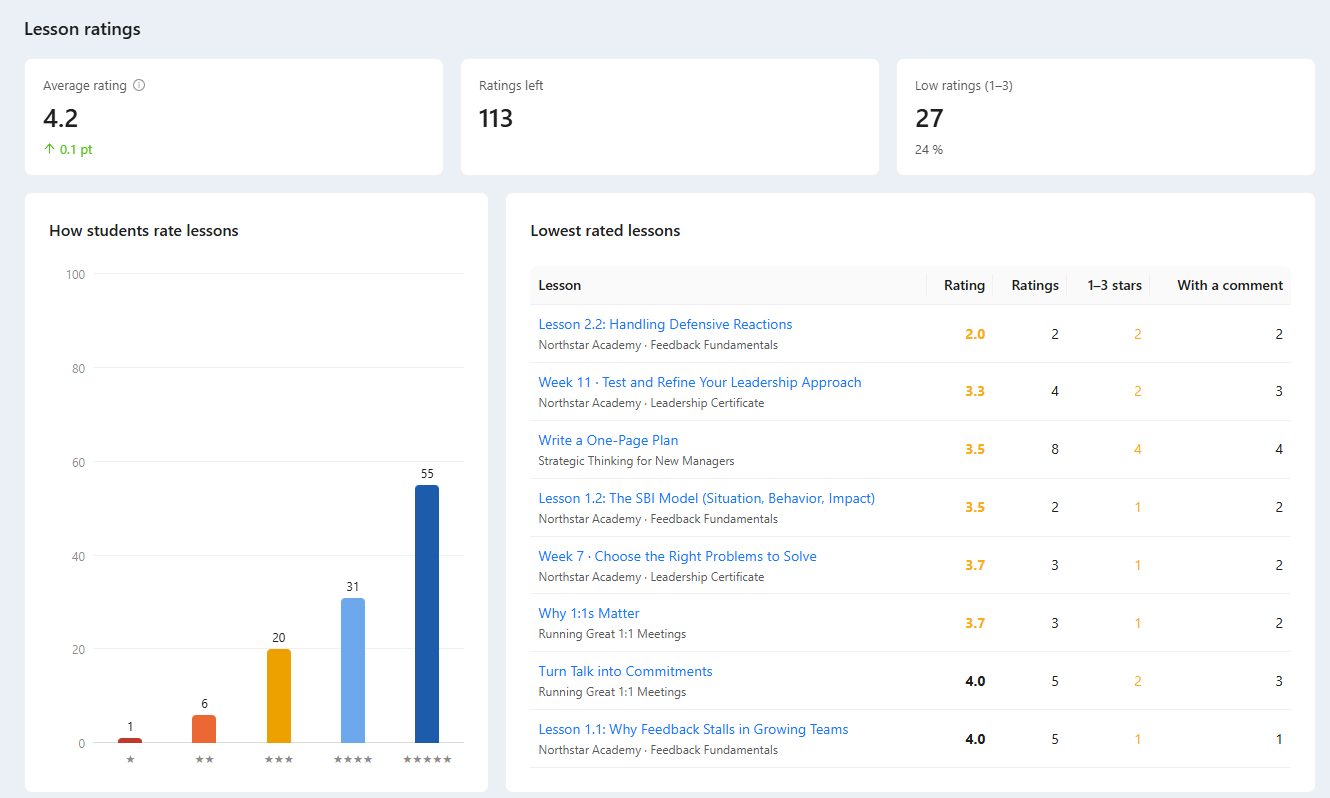
Lowest rated lessons shows the lessons with the lowest average first, with the number of low ratings and comments. Latest low ratings with a comment below it shows what students actually wrote: it is the quickest way to see what to change in a lesson. Click a lesson to open it in the course.
Ratings appear only on lessons where ratings are turned on. How to turn them on: Ratings.
Assignments
The Assignments tab shows how assignments are sent and checked in the period:
- Answers sent, every attempt counted.
- Assignments to check — waiting now, and how many of them for more than a day.
- Median check — from sending to the first check.
- Checked by the AI tutor — the share of checks made by the AI tutor.
- Not accepted the first time and Sent again after «not accepted».
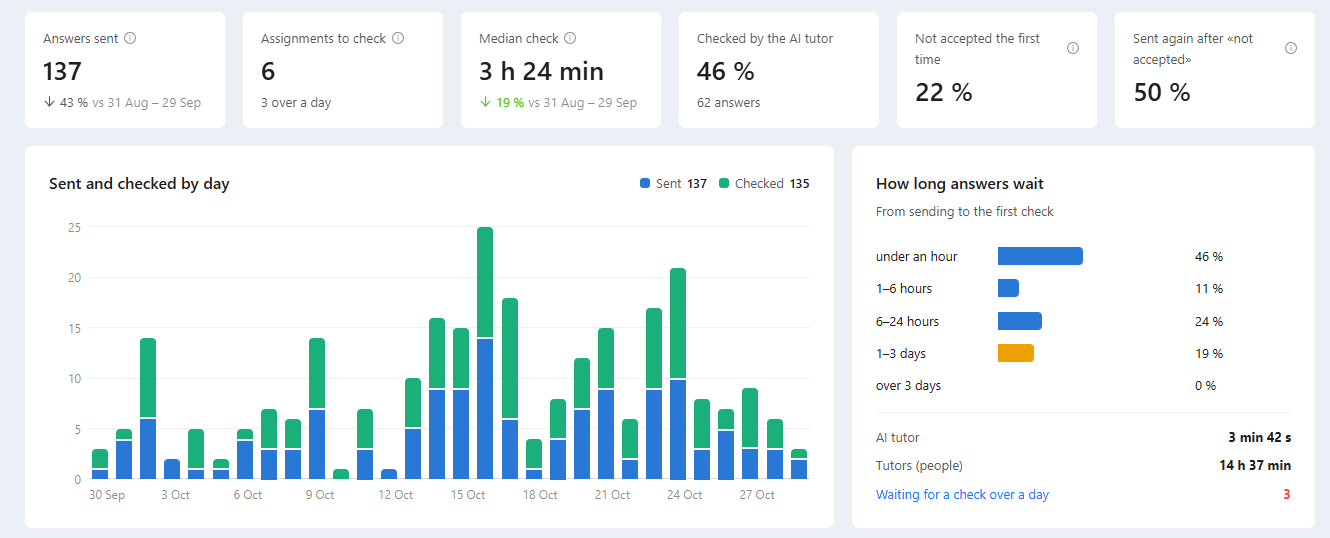
How long answers wait splits the checks by the time to the first check and compares the AI tutor with people. Waiting for a check over a day opens the students whose answers wait longest.
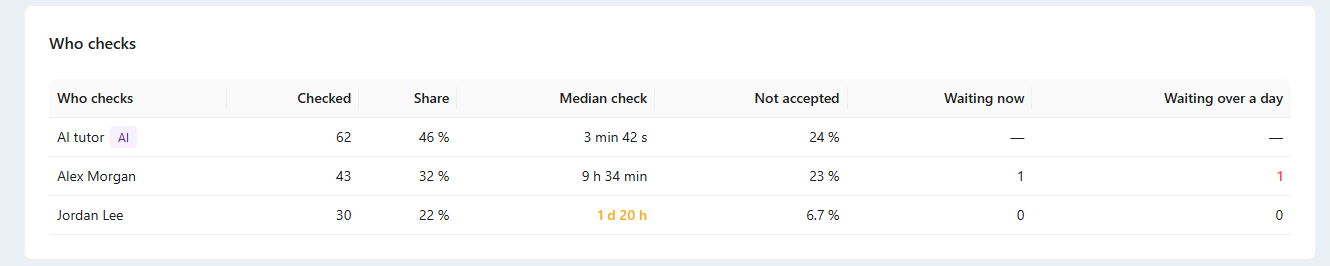
Who checks compares the AI tutor and each person: how many answers they checked, how fast, how often they do not accept, and how many answers of their students are waiting now.
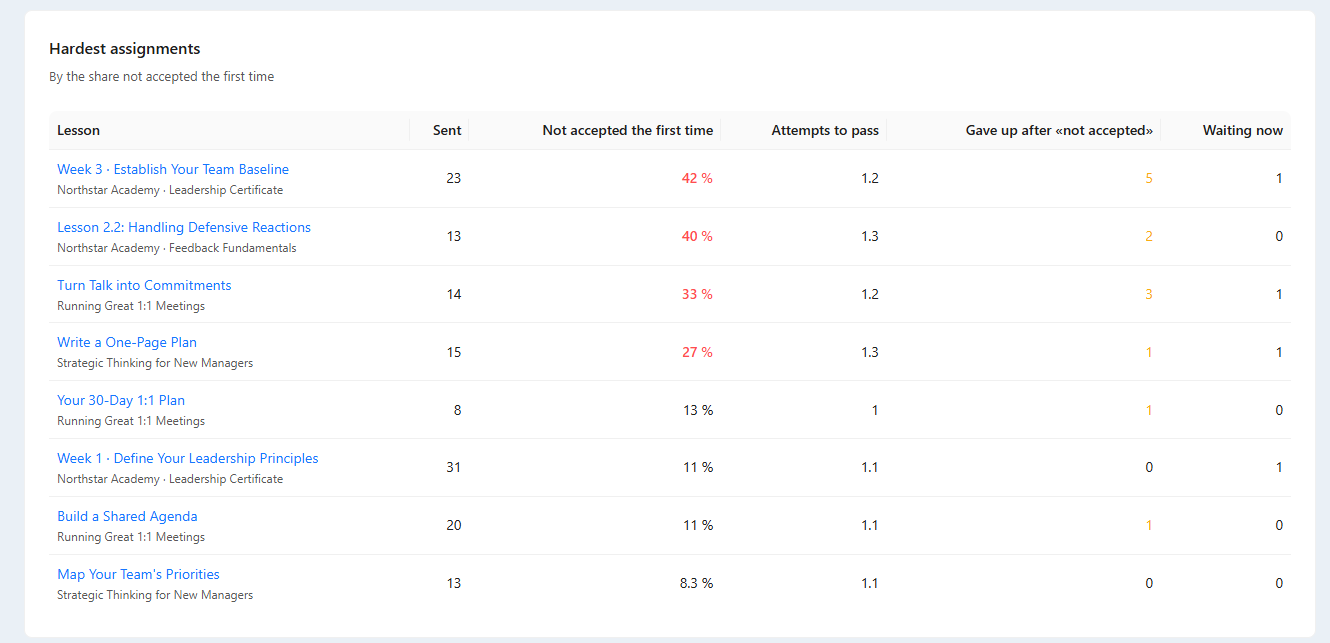
Hardest assignments lists the lessons whose assignments are not accepted most often the first time, with the attempts it takes to pass and how many students gave up after «not accepted». An assignment high on this list usually needs a clearer task or an example answer. How to set up the AI tutor: AI Tutor; how to check answers by hand: Checking Assignments.
Review with AI
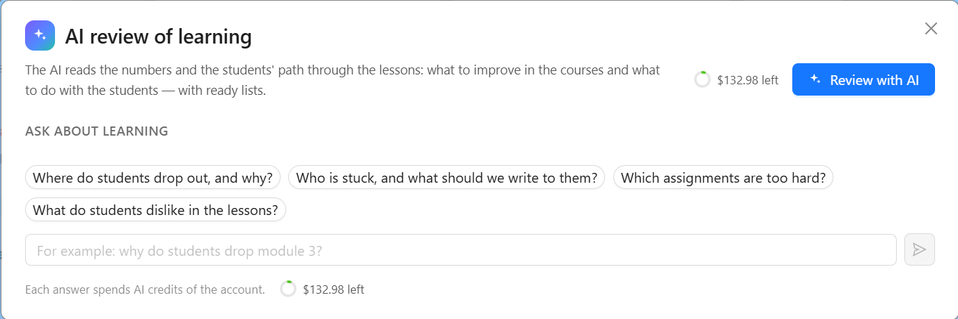
The AI review of learning reads the numbers, the lessons funnels of your main courses and the students' low ratings with comments, and writes a review you can act on.
- Click AI analysis at the top right of the page, next to Download CSV. The AI review of learning window opens.
- Click Review with AI. The review takes about half a minute.
- Read the summary at the top and the sections What goes wrong and What goes well.
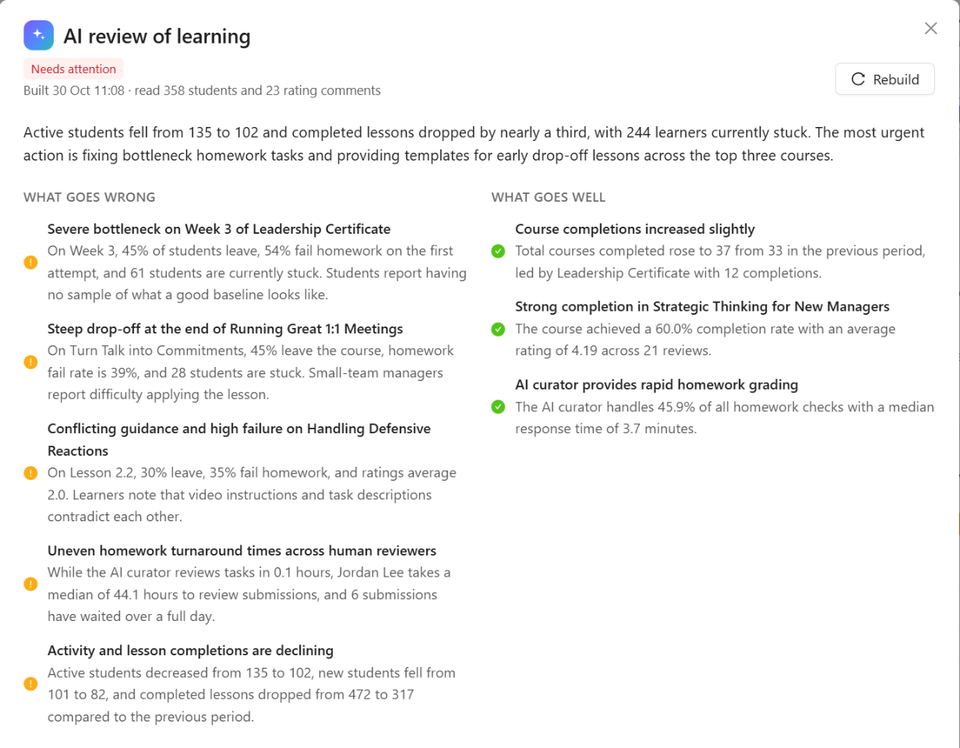
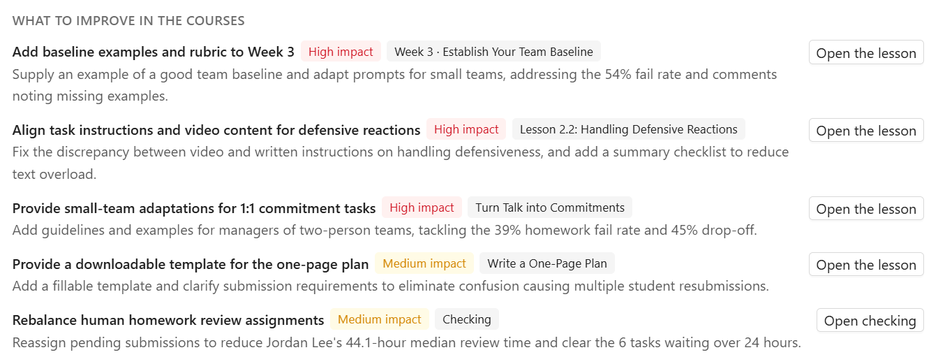
What to improve in the courses names the lesson or the area to change and why. Open the lesson opens that lesson in the course; Open checking opens the assignment review.
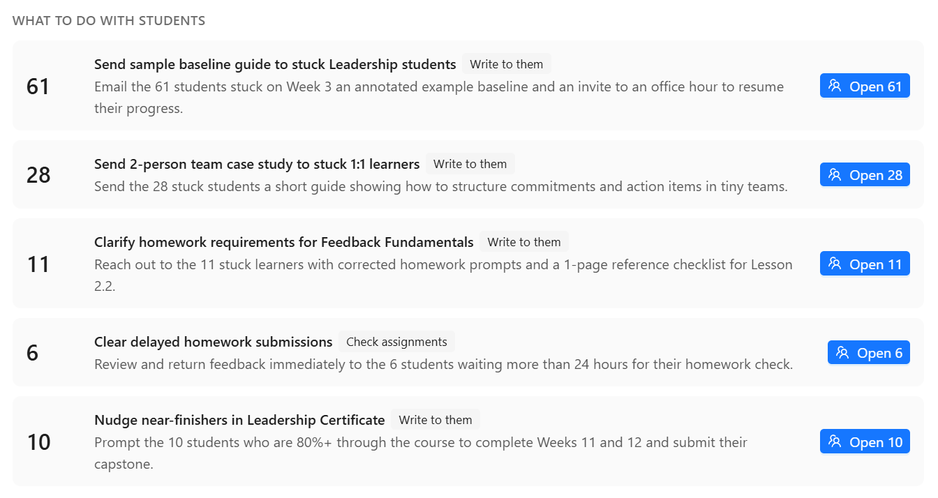
What to do with students lists groups of students with what to send or do and why: for example, those stuck on a lesson, those who never started, those close to finishing. The number on the left is the size of the group. Click Open N to see exactly these students; from there you can select them and use Bulk Actions. The AI only suggests: it sends nothing by itself.
In the same window, under the review, Ask about learning answers your own questions about the same data; the suggested questions are a good start. The review is remembered for a day for the same filter: opening AI analysis again shows it without spending (a dot on the button means a review is ready). Rebuild writes a new one. Every review and answer is paid from the account's AI credits; the balance is shown under the question field. Student names, emails and phone numbers are not sent to the AI.
Good to know
- A student counts in a course from the moment they get access to it. Access through an «all courses» license is not counted as access to every course, so such students appear in a course only after they open it.
- Lessons and courses finished before the analytics appeared are taken from the students' progress; assignments sent and checked before it are taken from the history of the answers.
- A student who studies two courses is counted in each of them; Active students counts each person once.