The AXL Microsoft Teams integration puts every booking into an Outlook calendar as an event with a Teams joining link. The guest receives the invitation, the event moves or is cancelled together with the booking, and the host's busy time in Outlook closes their booking slots.
Prerequisite: A Microsoft account. A Microsoft 365 work or school account with Teams gets everything: Teams links, busy time and meeting results. A personal account (Outlook.com, Hotmail) can be connected too: its bookings get Outlook events and busy time, and Teams links only if the account can create Teams meetings.
Adding the App
Follow these steps to connect a shared Microsoft account to AXL:
- Sign in to your AXL admin account.
- In the left-hand navigation menu, scroll down, click Settings, and then select Apps.
- On the Apps page, open All Apps, find the Microsoft Teams card and click Connect. In the panel that opens, click Authorize.
- You'll be redirected to the Microsoft sign-in page. Choose or sign in to your Microsoft account.
- Review the permissions AXL requests and click Accept. With a work or school account, Microsoft then asks a second time for the Teams permissions (finding a meeting and reading its attendance): accept them too. If Microsoft says that your administrator must approve the app, ask your Microsoft 365 administrator to allow it.
- Once you accept, you'll be redirected back to AXL automatically.
- Enter a Title for this connection (for example, "Sales team Teams") and click Connect.
Your Microsoft account is now linked to AXL. If you decline the second request, the account stays connected without meeting results.
Each Host's Own Account
A host can connect their own Microsoft account so that the bookings they host go to their own Outlook calendar. Each host does it themselves: open Meetings → My Calendar → My Connections, click Add, choose Microsoft 365 and accept the permissions. The row then shows the connected address and Connected. If it also says This account cannot create Teams meetings, the host's bookings get an Outlook event without a Teams link; on a Teams meeting page such a host is served by the page's shared account when one is selected.
With their own account connected, the host's busy time in Outlook hides their slots on every meeting page they host. Events marked Busy, Tentative or Out of office count; Free and Working elsewhere do not. Phone and in-person bookings of such a host also appear in their Outlook calendar, as plain events without a Teams link, unless the host has connected Google Calendar.
Usage
Feature: Automatically Create Teams Meetings for Bookings
Use case: When clients book a time slot on your AXL booking page, AXL creates an Outlook event with a Teams link in the assigned host's own account or in the page's shared account, invites the guest and adds the joining link to the booking.
Prerequisites: Connect a shared account using Adding the App above, or make sure each host has connected their own Microsoft 365 account in Meetings → My Calendar → My Connections. You must also have a meeting created in AXL.
How to use:
- Open Meetings in the left-hand menu, then select the Meetings tab.
- Click the title of the meeting you want to configure, then open its General tab.
- Scroll down to Meeting Format in the Format and duration card and click the Microsoft Teams tile.
- Integration appears. Choose Shared Page Account, then select the Microsoft Teams connection you added earlier. If you see No Microsoft Teams integrations connected, use Connect Microsoft Teams and complete the connection steps above. Alternatively, choose Hosts' Own Accounts if every assigned host has connected their own Microsoft 365 account.
- Click Save Changes at the bottom of the page.
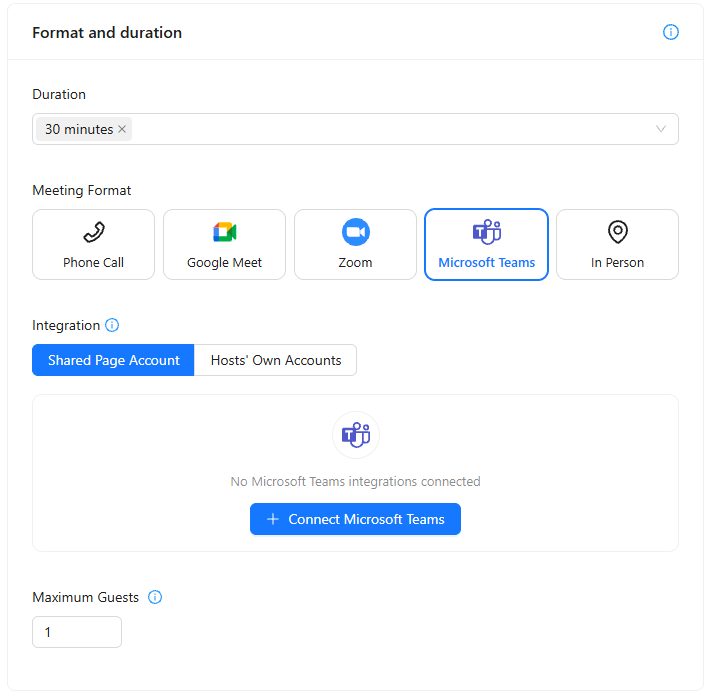
Which account is used? A host's own Microsoft 365 connection takes priority, even when a shared page account is selected. The shared account is the fallback for hosts without their own connection. With Hosts' Own Accounts, bookings for a host without a working connection do not get a Teams joining link.
What the guest gets: Microsoft sends the guest an Outlook invitation with the Teams link, in addition to the AXL confirmation email. When the booking is moved, the event keeps the same Teams link and the guest gets an update; when it is cancelled, Microsoft sends a cancellation.
Check the result: After a booking is created, open its details in AXL and check the online meeting link, then look for the event in the Outlook calendar of the account that created it. If the link is missing, check the host's connection in My Connections, the page's selected account, and that the Microsoft 365 account has a Teams licence.
Meeting Results
About an hour after a Teams meeting ends, AXL reads its attendance report. If the client joined, the booking becomes Held and the contact's timeline says Held (Confirmed by Microsoft Teams). If only the host joined, or nobody did, AXL asks the host to mark the result; AXL never marks a no-show by itself. Attendance reports come from the account that created the meeting and must be allowed by your organization's Teams meeting policy (they are on by default).
Removing the App
If you no longer want to use the Microsoft Teams integration, you can disconnect it and remove the app.
Step A: Remove the App from AXL
- Sign in to your AXL account.
- Go to Settings → Apps.
- On the Connected tab, find your Microsoft Teams app and click Delete.
- Confirm the deletion.
Step B: Revoke AXL's Access in Microsoft 365
Microsoft does not let apps revoke their own access, so removing the app in AXL does not do it. For a work or school account, open My Apps with the account that connected AXL, find AXL and revoke its permissions; if your organization manages app permissions, ask your Microsoft 365 administrator. For a personal account, open Apps and services in your Microsoft account and remove AXL.
Meetings already created: Removing the connection does not cancel events and Teams meetings already in Outlook; review them in Outlook separately. New bookings need a host with their own working connection or a shared account to get Teams links.