In the "Contacts" section, you can manage contact data (personal information of the client), as well as add or remove access to training courses at the membership portal, assign a responsible person, add tasks, see training history and more.
Go to the "CRM" section, the "Contacts" tab. Click on the customer's name. The client's profile (card) will open.
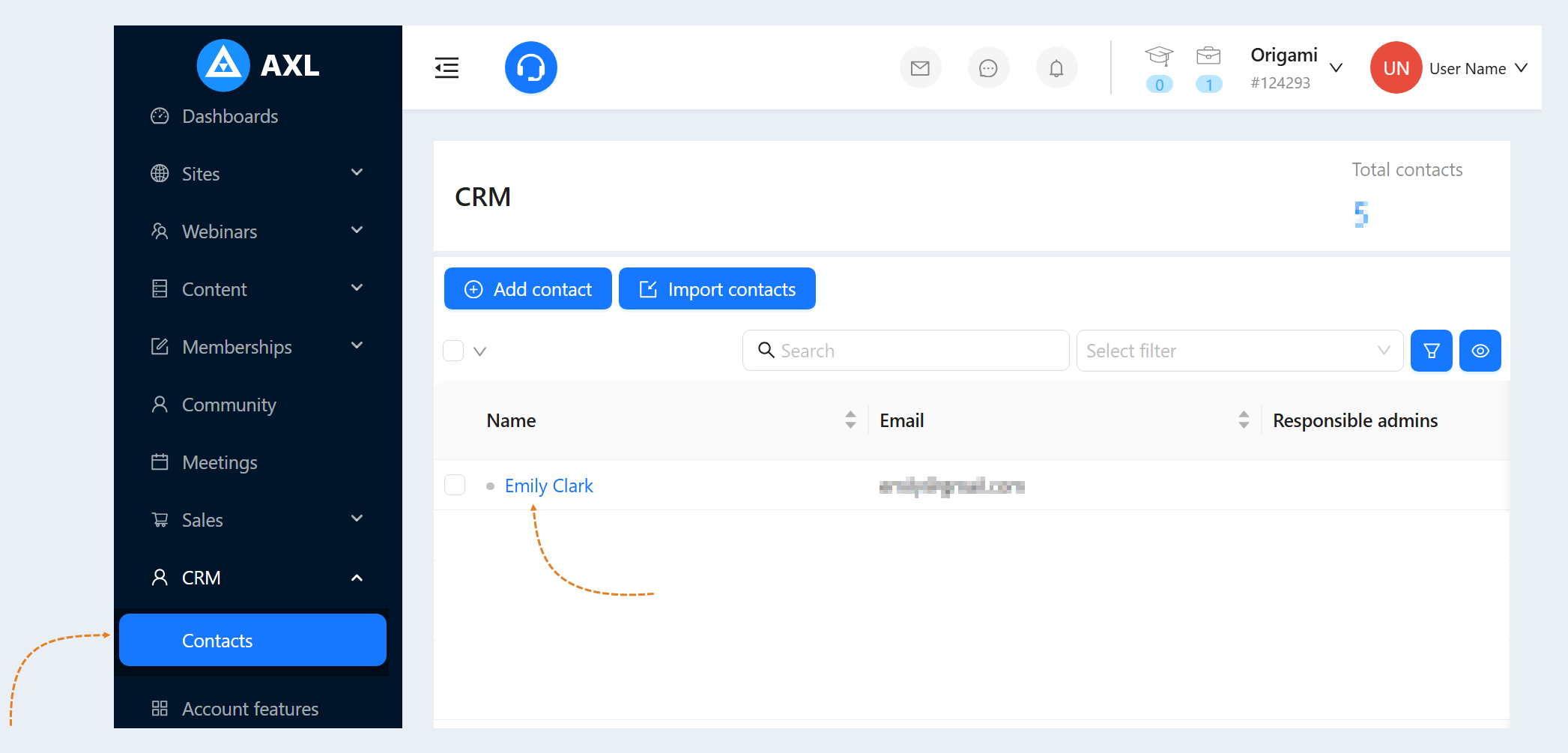
Contact card
Here you can see detailed information about the client himself (name, contacts), access to courses, as well as his actions at the membership portal.
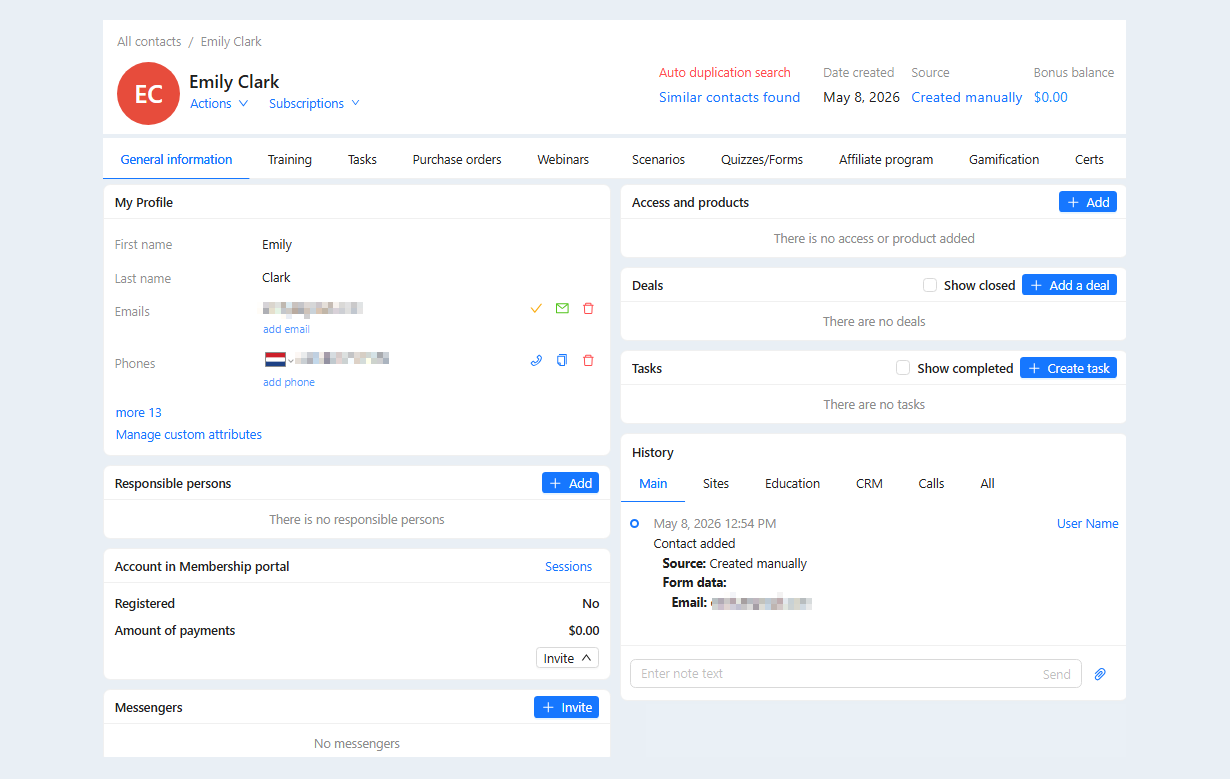
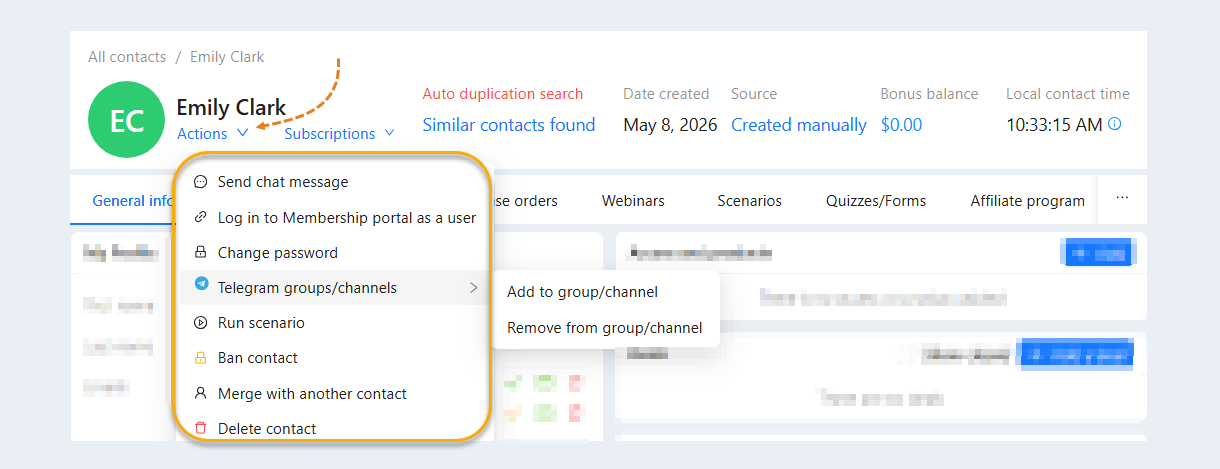
In the upper left corner you can see the client's name and the “Actions” button. When you click on the "Actions" button, actions are available to you:
Send chat message. Click on the "Send chat message" button, a chat window (dialogs) will open. Here you can write a message to this client or call.
Send email. Click on the "Write message" button, a chat window (dialogs) will open. Here you can write a message to this client or call.
Log in to the membership portal as a user. Clicking on the button opens the user's personal account.
Change password. You can set a new password to log in to the user's system.
Telegram groups. This action adds or removes a contact from the Telegram group. Read more about the Telegram group settings in the article "Telegram Group Application".
Run scenario. This action starts the selected Scenario for the contact. For more information about the Scenario settings, read the article "Scenario".
Ban contact. This action will block the contact. After blocking this contact: will not receive broadcast messages; will not be able to go to the membership portal or attend a webinar; will not be able to submit the form and quiz; will not be able to buy products.
Merge with another contact. This action allows you to combine several contacts into one, automatically transferring all data, accesses and the history of contact actions. For more information about merging contacts, read the article "Merging contacts".
Delete contact. Click to delete the contact card.
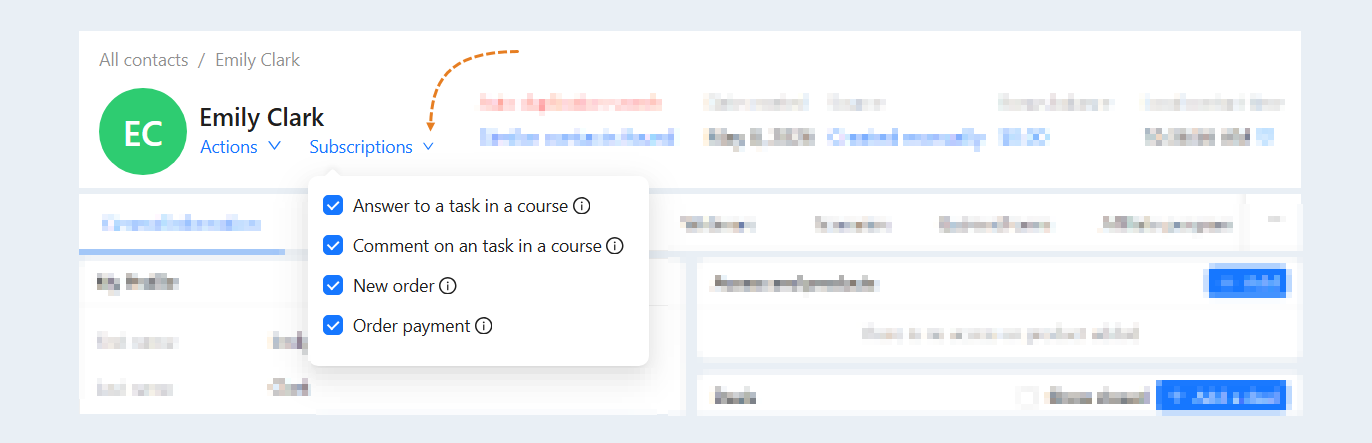
You can subscribe to notifications about user actions. When you click on the "Subscriptions" button, actions are available to you:
Answer to a task in a course. Receive notification each time a user gives an answer to an assignment in a course.
Comment on an task in a course. Receive a notification each time a user leaves a comment on an assignment while taking a course.
New order. Check the box to receive a notification every time a user creates an order.
Order payment. Receive a notification every time a user makes a payment for an order for any amount.
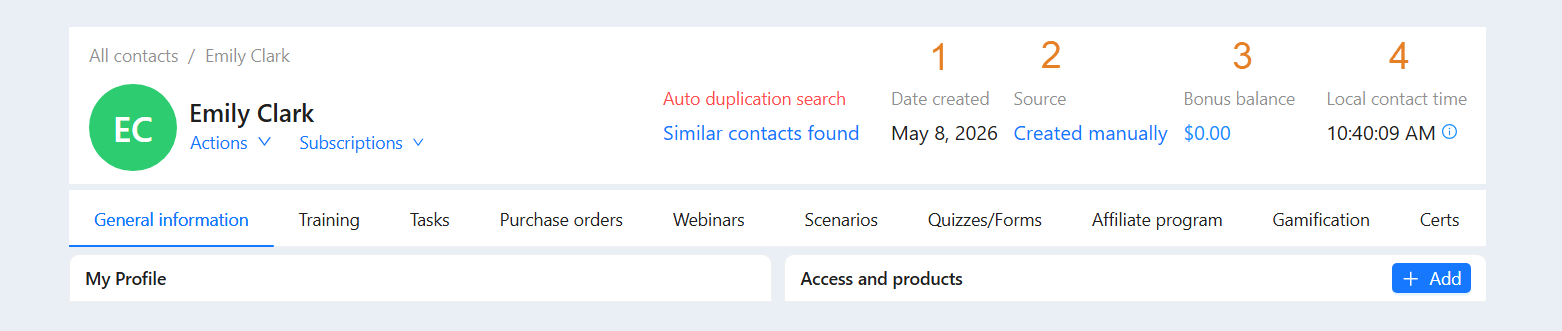
In the upper right part of the page you can see:
Date created. The exact date and time of the contact creation is indicated.
Source. The method of creating a contact is shown: manually created, sending a form on the site, a chatbot and others. Click on the source to see detailed information about the source of the contact (date of creation, website, page, visit, form data, etc.).
Bonus balance. The bonus account is presented in the form of bonus credits. Bonus credits will be reflected in the bonus account in the user's personal account. The user can use them to purchase products or receive certain privileges or services. Bonus credits are not subject to withdrawal. Funds from the bonus account are automatically debited upon purchase. For each product, when purchasing, you can specify the maximum amount that can be paid with bonuses. For more information about the bonus balance, read the article "Bonus balance".
Local contact time. The user's local time is shown. Click on the information icon to see the user's location and time zone in the window that opens.
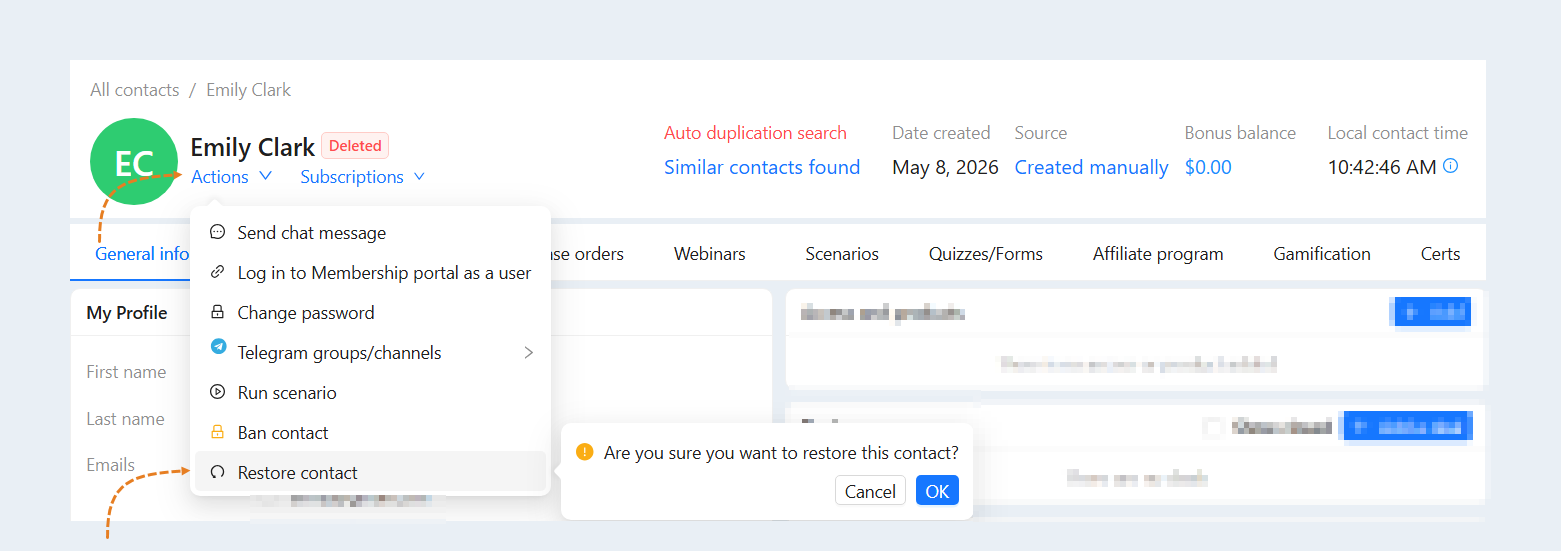
After deleting a contact, you will be able to restore it from the contact card itself. If the contact has been deleted, the "Deleted" icon will appear at the top of the contact card. To restore a contact, click the "Actions" button and select "Restore Contact".
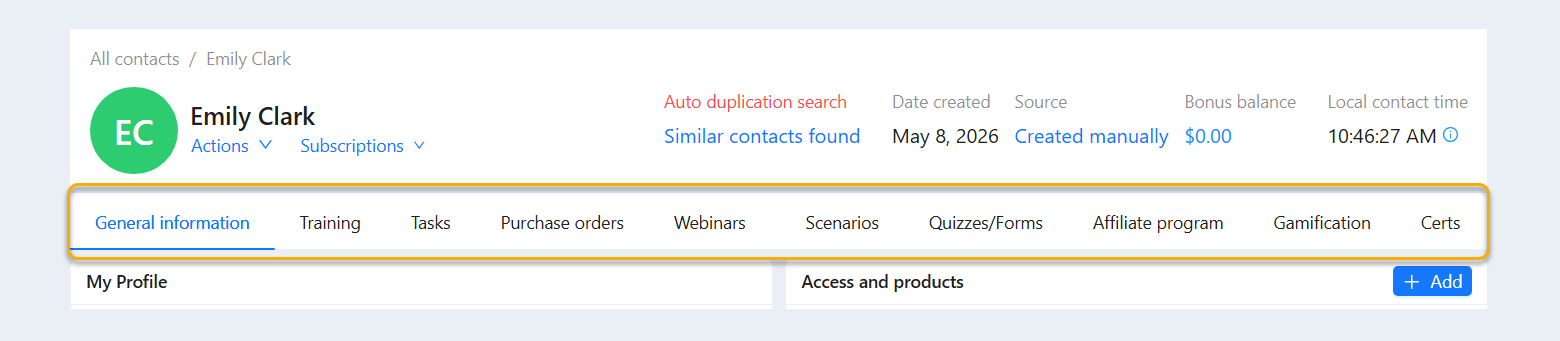
In the contact's profile, you see tabs:
- General information. In this section, you can see and manage the client's personal data, access to courses, assign responsibility, add tasks, etc.
- Training. Here you can see information about the courses available from the client.
- Tasks. In this section, you can add tasks to a contact, as well as see a list of existing tasks.
- Purchase orders. Here you can see information on customer orders.
- Webinars. In this section, you can see information about the webinars that the client attended.
- Scenarios. Here you can see the scenarios in which this contact is involved.
Quizzes/Forms. In this section you can see all the quizzes and forms filled out by the contact.
Affiliate program. This tab provides general information and personal analytics of the affiliate program. You can create unique affiliate links for the selected contact, create transactions, approve or reject commission withdrawal requests. For more information about the section, read the article "Affiliate program in the contact card".
Gamification. This tab provides general information and the history of Gamification transactions. Read more about the section in the article "Gamification".
Certs. Here you can view information about the client's issued certificates.
For a detailed description of each tab, see the articles: "Contact profile", "Membership portal account", "Training", "Tasks in the contact card", "Orders", and other articles on the topic.