VKontakte is a social network founded in 2006. The website allows users to create their profile, add friends, exchange messages, post photos and videos, view news feed, join groups and communities with common interests, and much more.
To create a VKontakte channel, you must have an account on the VKontakte website. To register, follow the link. Register in VKontakte following the instructions on the site pages.
1
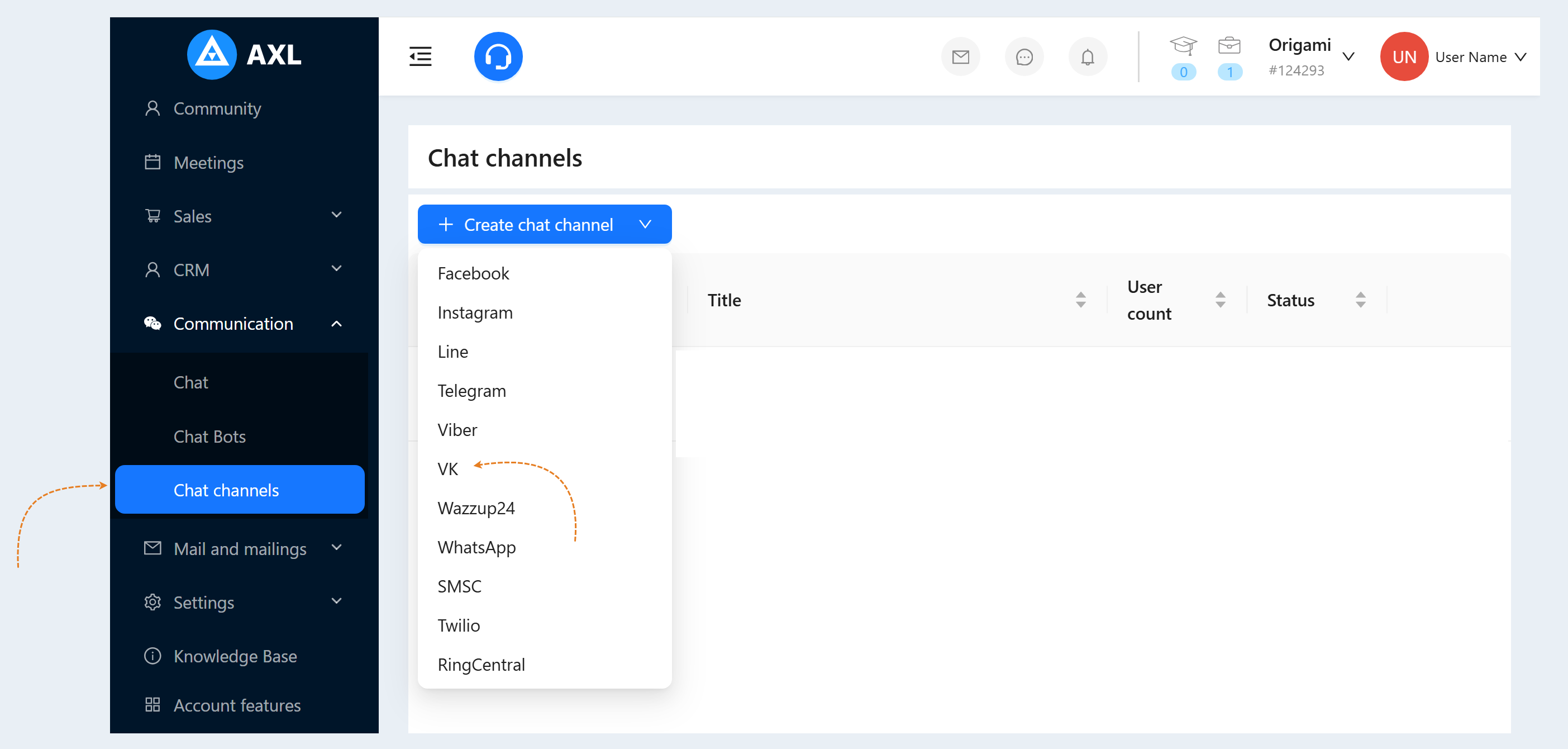
Return to your account on the AXL platform. Go to the "Communication" section, the "Chat Channels" tab. Click the "Create chat channel" button and select the "VKontakte" line in the list of channels.
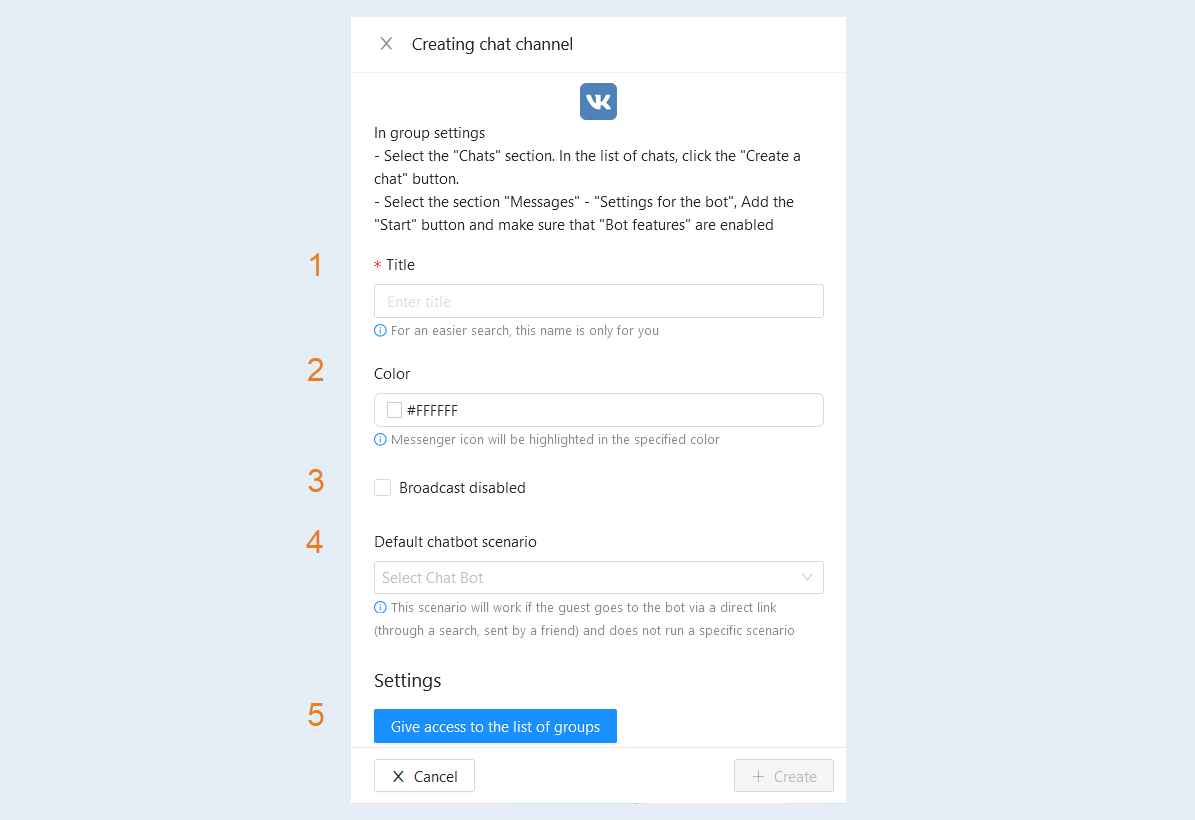
An additional window will open for you. Fill in the fields:
- Title. Enter the name of your channel.
Colour. Set the color of the messenger icon.
Broadcast disabled. Check the box to disconnect this channel from the mailing list.
Default chatbot scenario. Select a scenario from the list. This scenario will work if the guest goes to the bot via a direct link (through a search, sent by a friend) and does not run a specific scenario.
Click the "Give access to the list of groups" button.
2
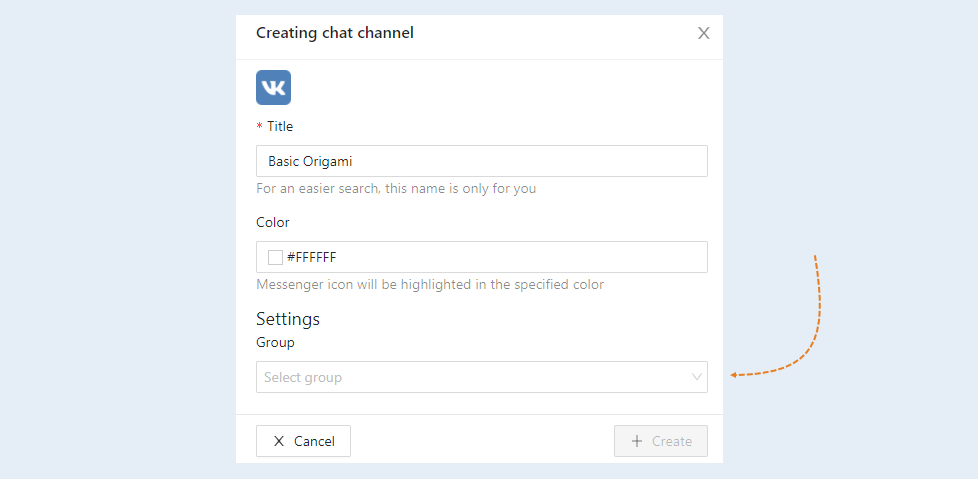
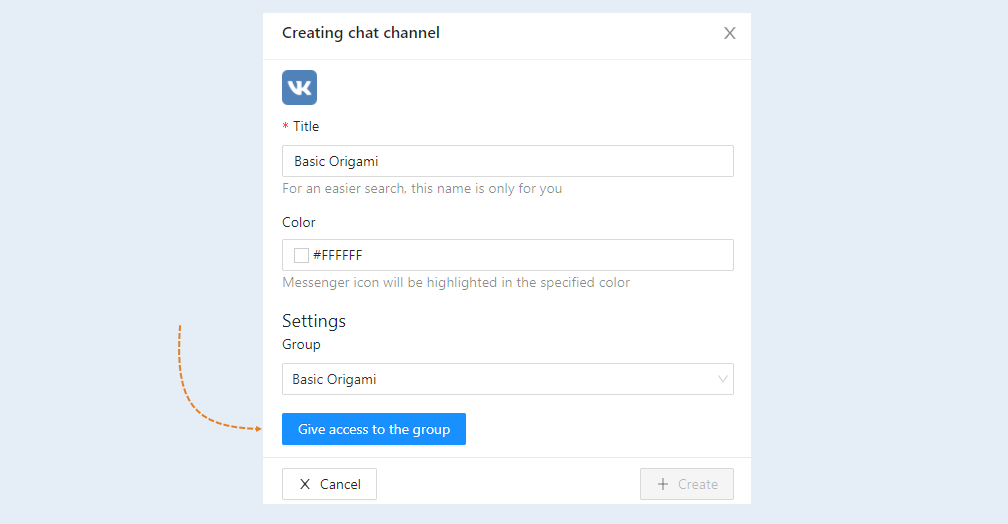
You will be asked to go through authorization on the VKontakte website. After that, an additional window "Channel creation" will open. In the "Group" settings, select the VKontakte group from the list that you want to connect to your account.
3
The group you selected appears in the group row. Click the Allow Group Access button.
4
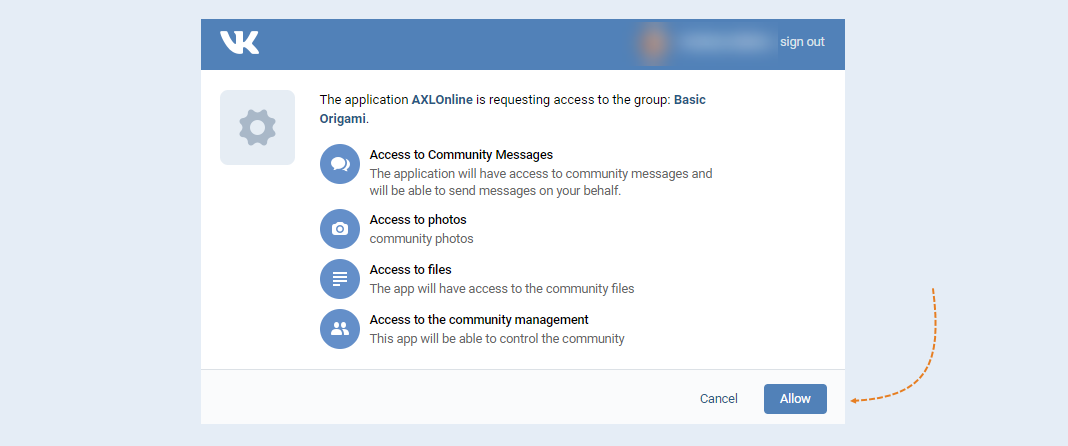
The VKontakte service will ask for permission to grant access to this group. Click the "Allow" button.
5
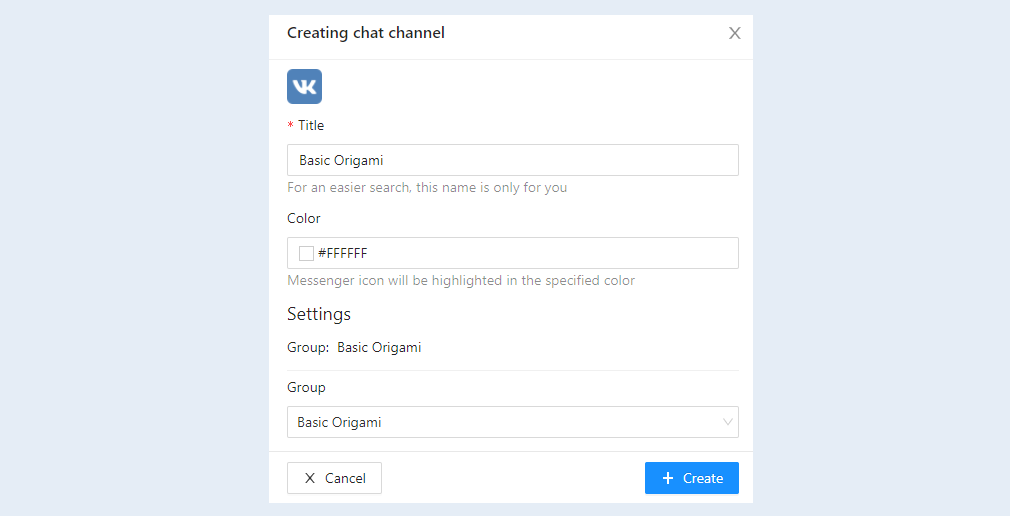
Click the Create button. The VK channel you created will appear in the list of chat channels.
6
Next, change the settings of the VKontakte group and add a group chat.
To do this, open the selected group on the "VKontakte" service page. Click the "Manage" button to go to the group settings.
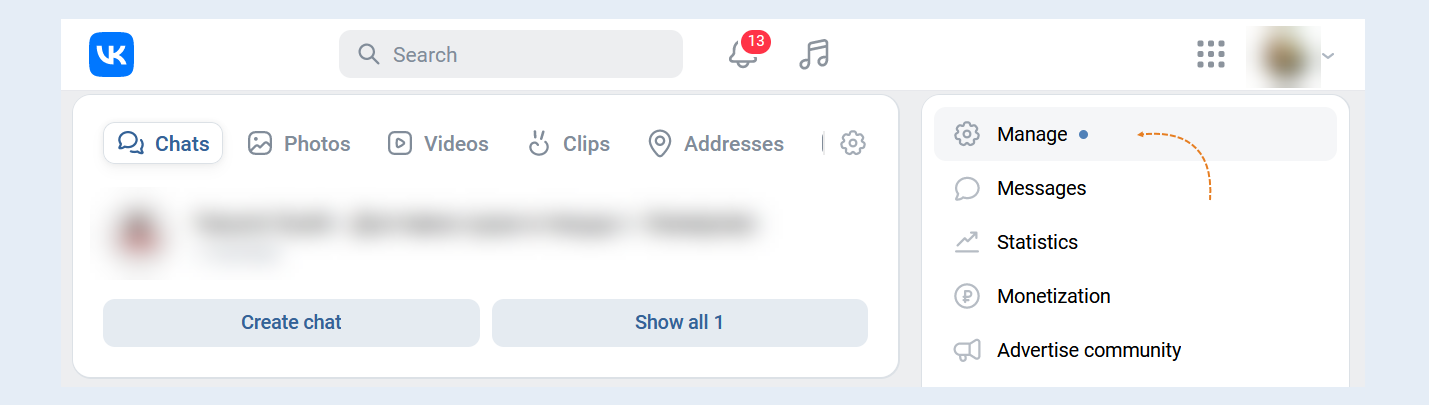
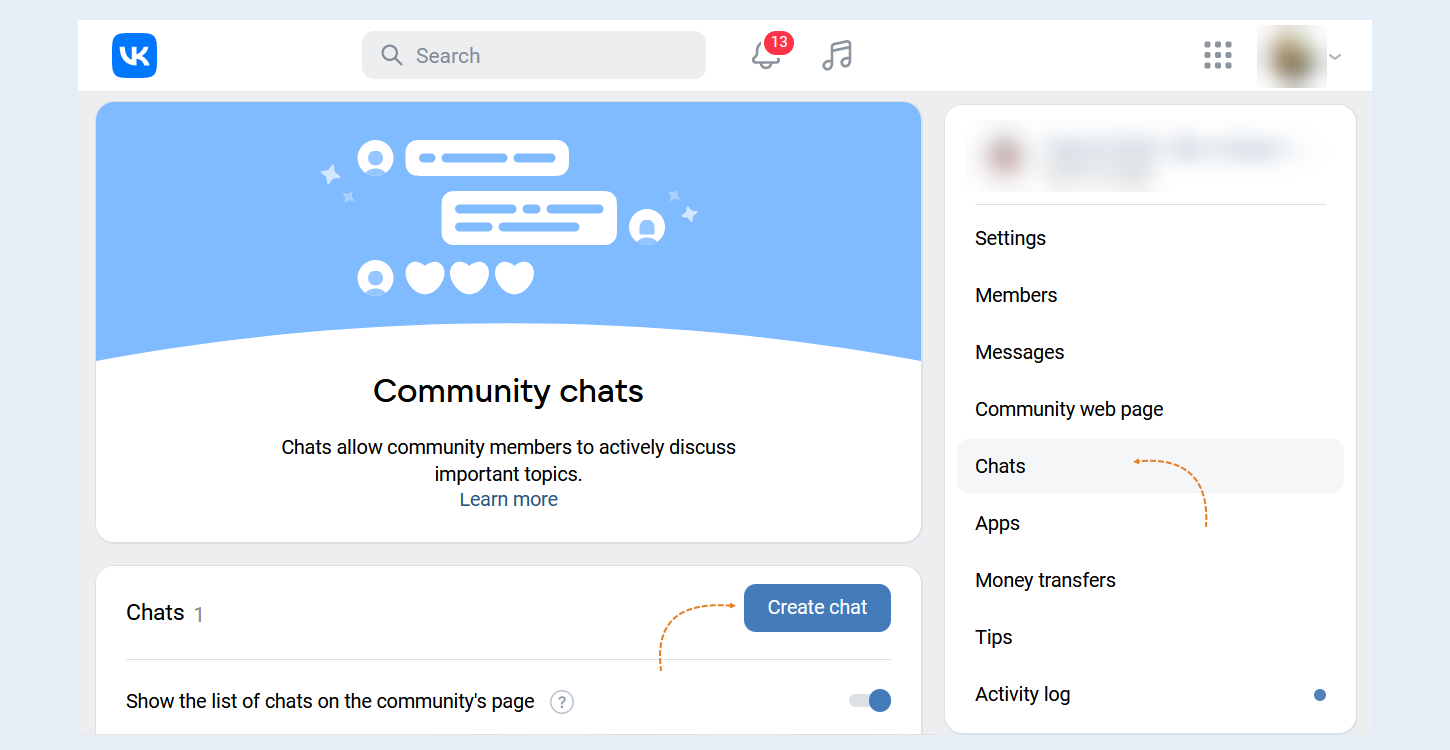
In the group settings, select the "Chats" section. In the list of chats, click the "Create chat" button.
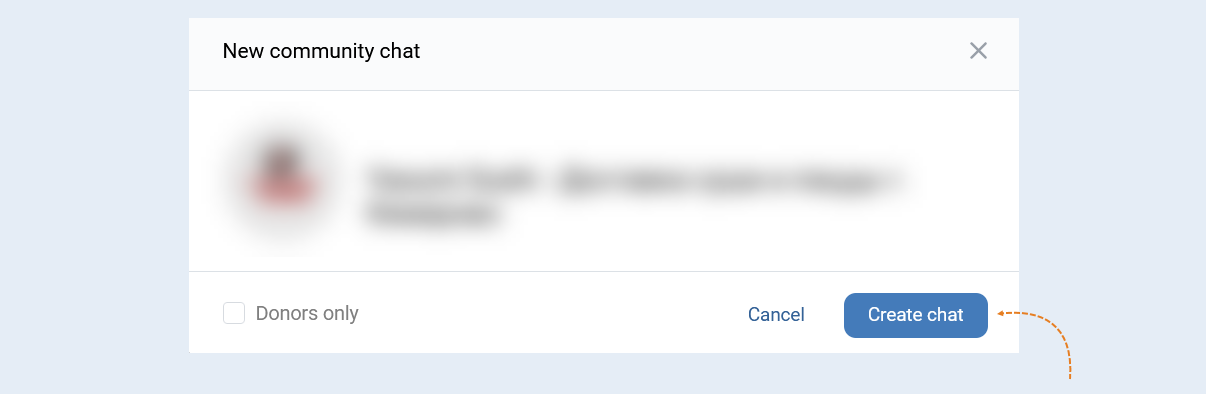
In the window that opens, click the "Create Chat" button. This way you will create a group chat.
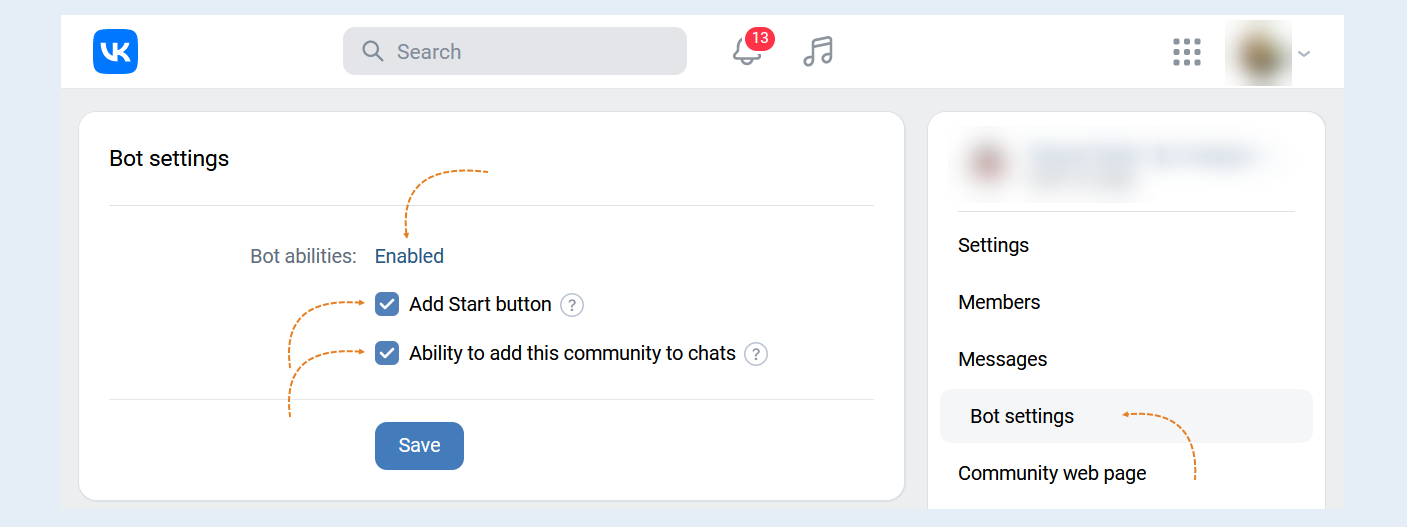
Next, in the group settings, select the "Messages" section - "Bot Settings".
Enable bot capabilities. Check the boxes "Add Start button" and "Allow adding community to chats" and click "Save".