Conditional show / hide
Visibility on devices. You can select the device on which this element will be displayed or choose the device on which this element will be hidden.
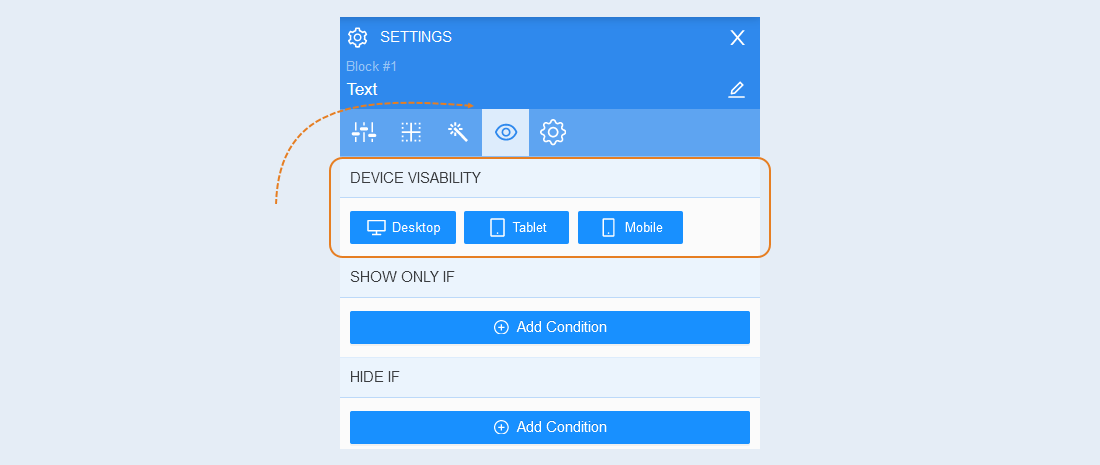
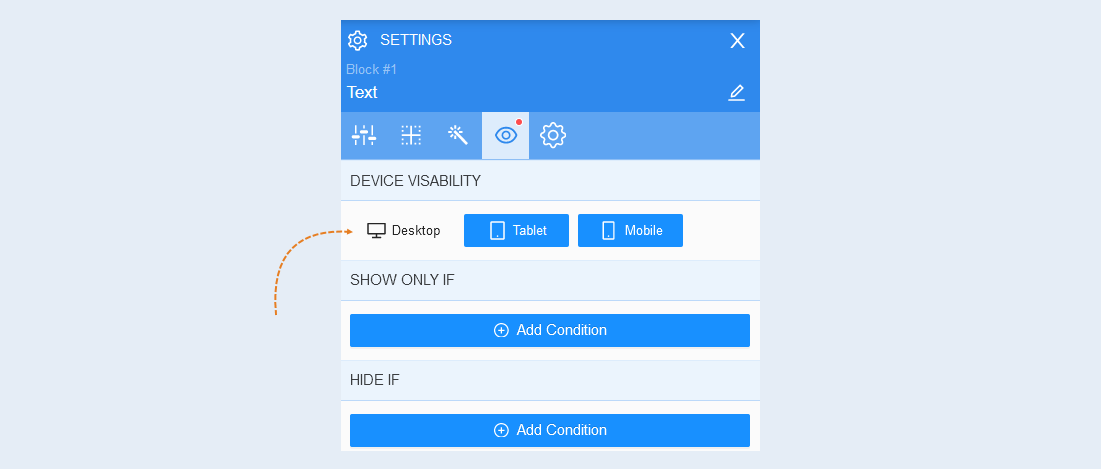
By default, visibility is set on all devices: desktop, tablet, mobile. To remove visibility from a device, click on the desired device, and it will become inactive.
Show only if
Show only if. In this section, you can choose a condition under which the element will be visible only to users who meet the selected condition.
Click the "Add condition" button. A list of conditions will open. Choose the desired condition.
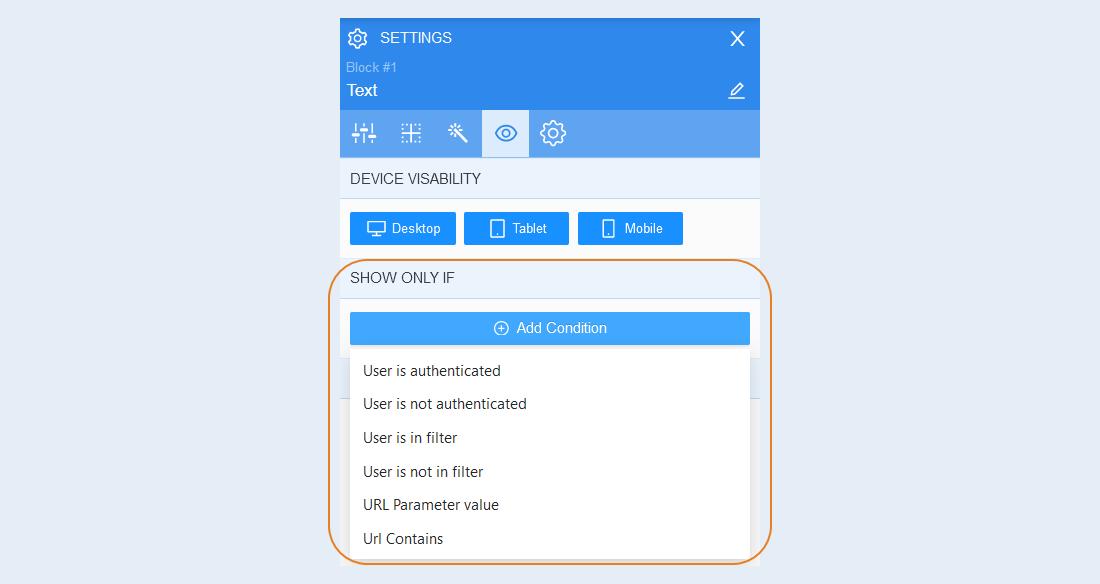
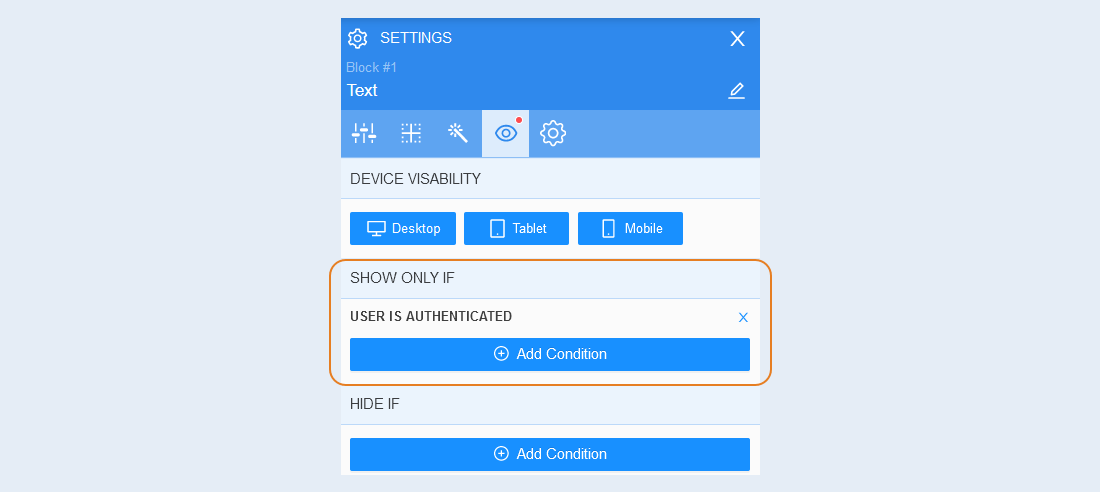
User is authenticated. An authenticated user is a visitor to the AXL platform who has completed the registration process and is logged into the system under their own username. When selecting this condition, the element will be shown only to authenticated users.
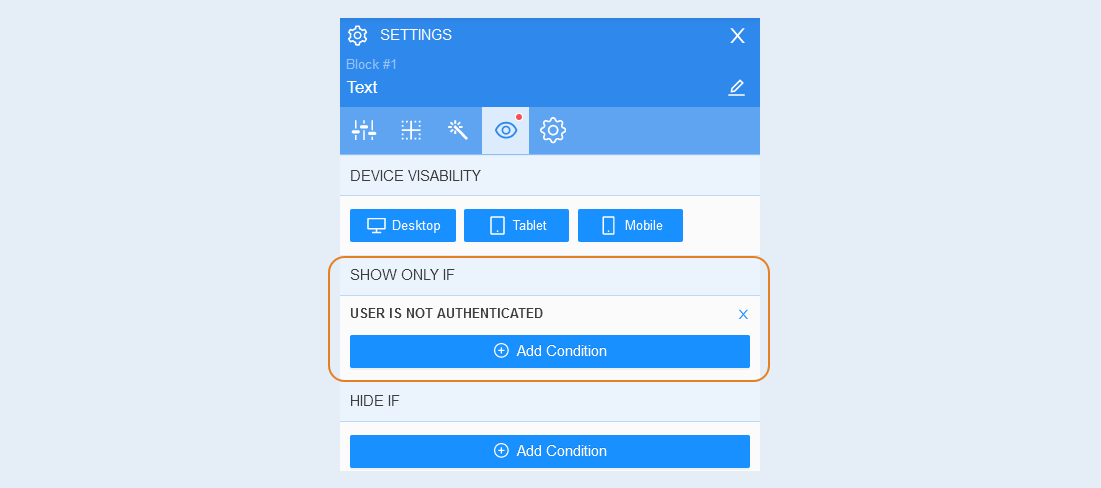
User is not authenticated. When selecting this condition, the element will be shown only to new users who have not completed the registration process.
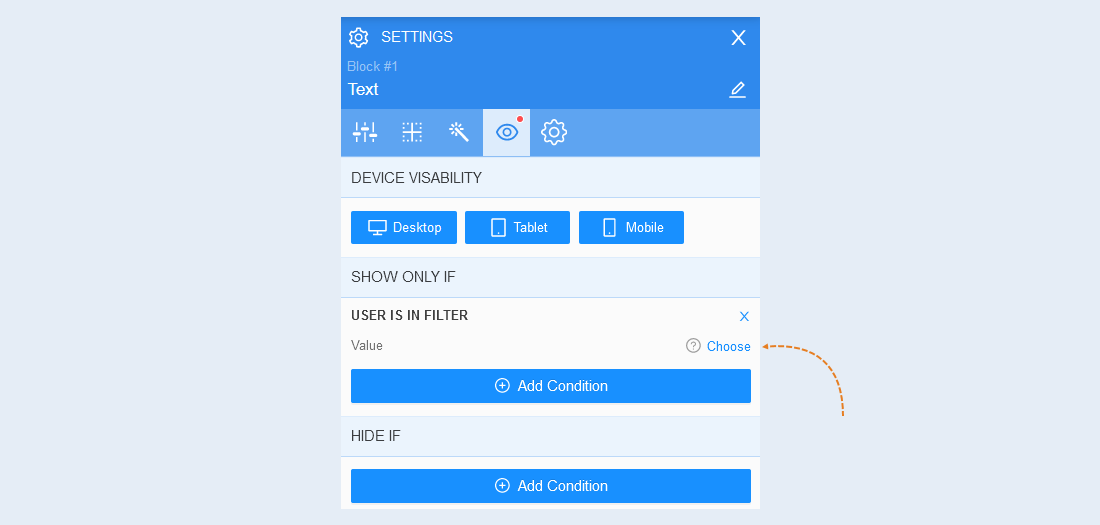
User is in filter. When selecting this condition, the element will be shown only to users who fall under the selected filter.
Click the "Select" button to set the desired filter.
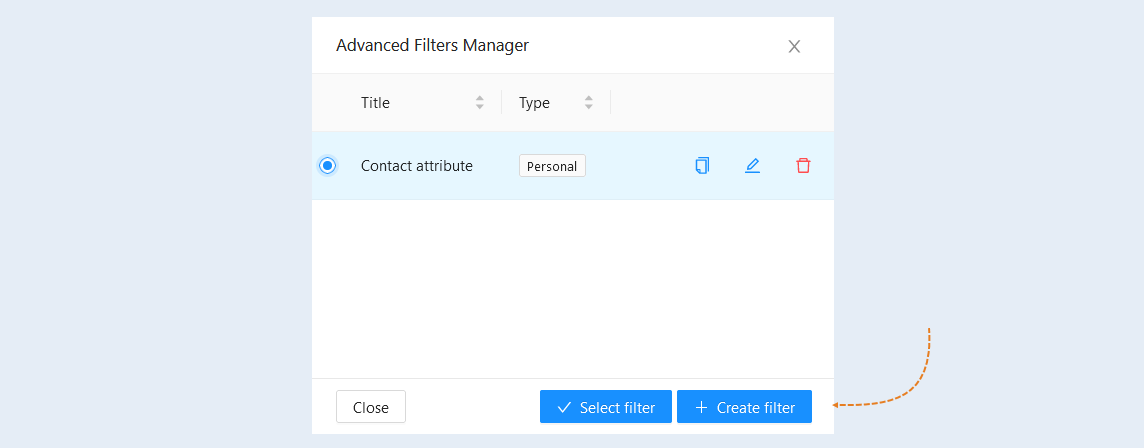
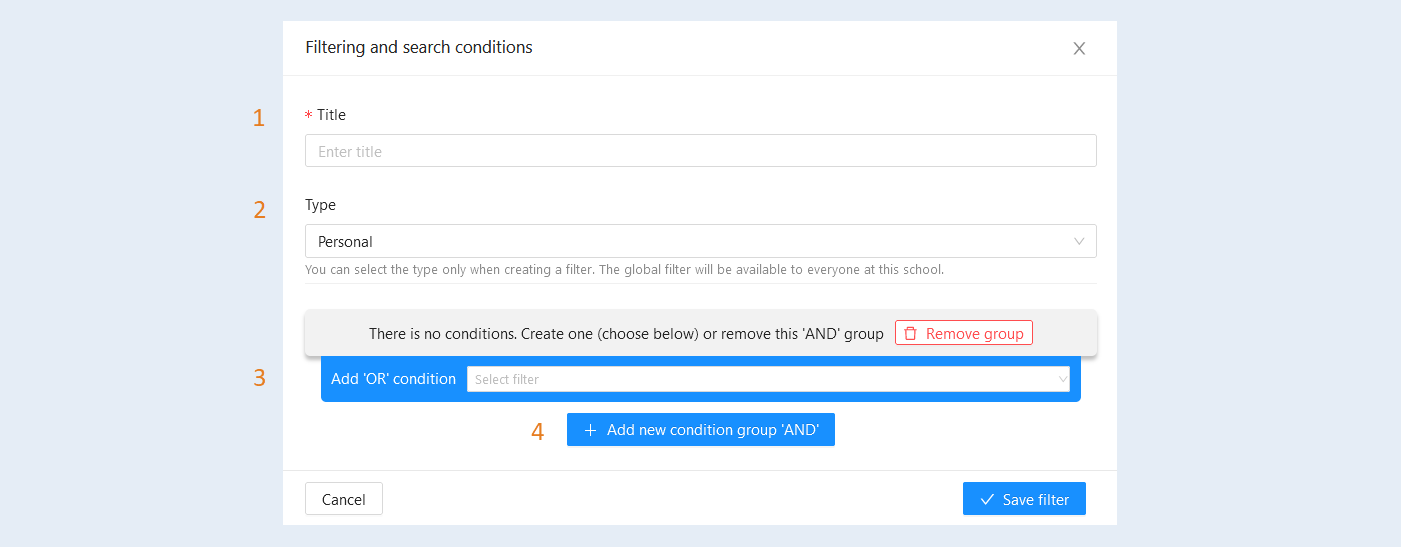
Then select an existing filter or create a new one. To create a new filter, click the "Create Filter" button.
Set the filter settings. Click the "Save Filter" button.
- Title. The name of the filter is displayed here. You can change the name.
Type. Choose a Personal or General filter type.
Add "OR" condition. Select a condition from the suggested list. The filter will include users who have met one of the established conditions.
Add new condition group "And". Select a condition from the suggested list or delete the group. The filter will include users who have met all the established conditions.
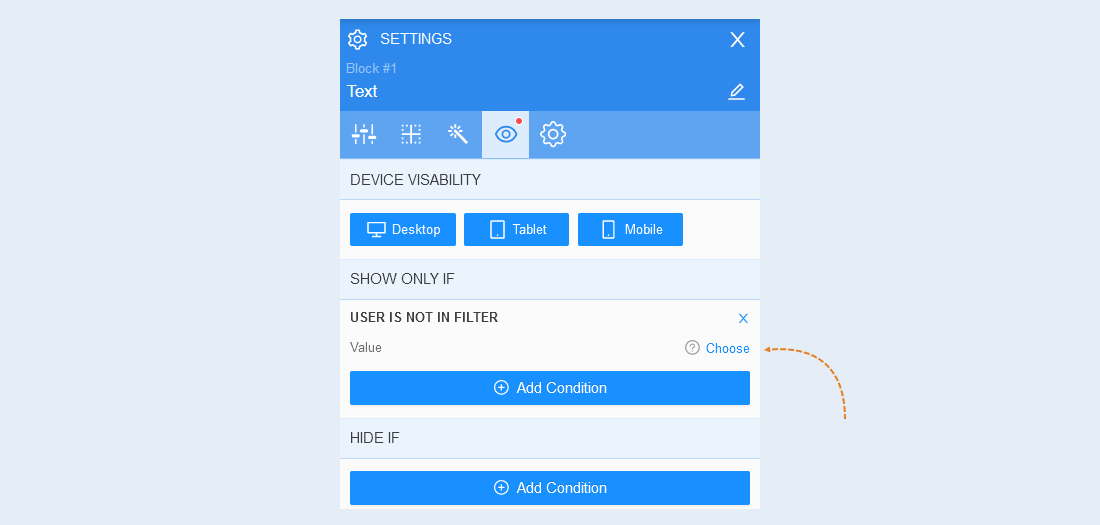
User is not in filter. When this condition is selected, the element will be shown only to users who do not fall under the selected filter.
Click the "Choose" button to set the desired filter.
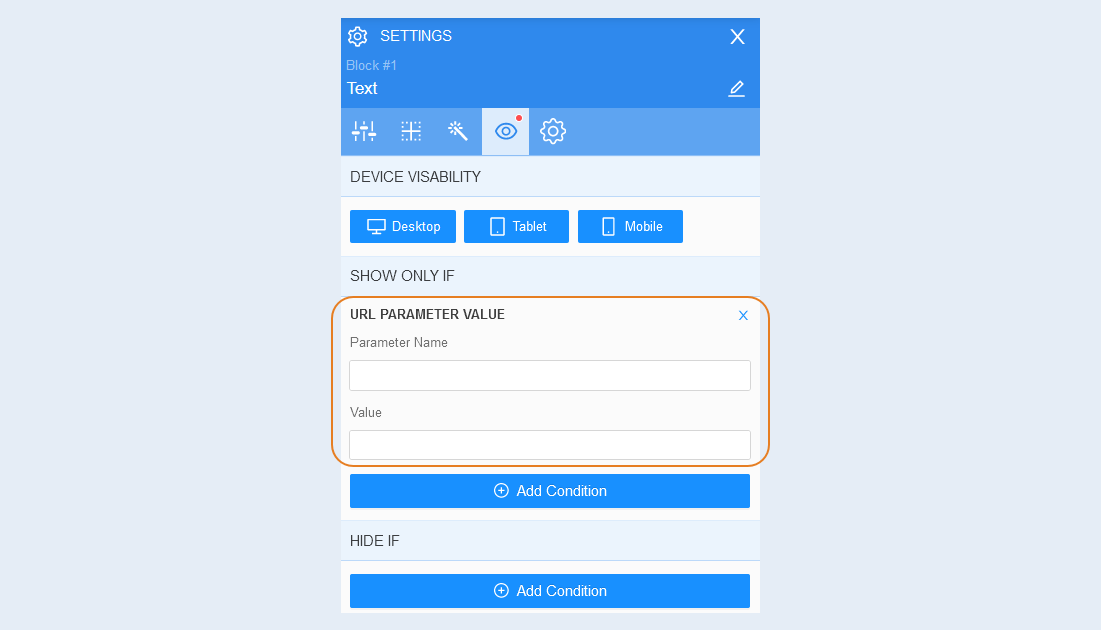
URL parameter value. When selecting this condition, the element will be shown only if it matches the specified URL parameter value. It is mainly used for UTM tags. Specify the required parameter and its value.
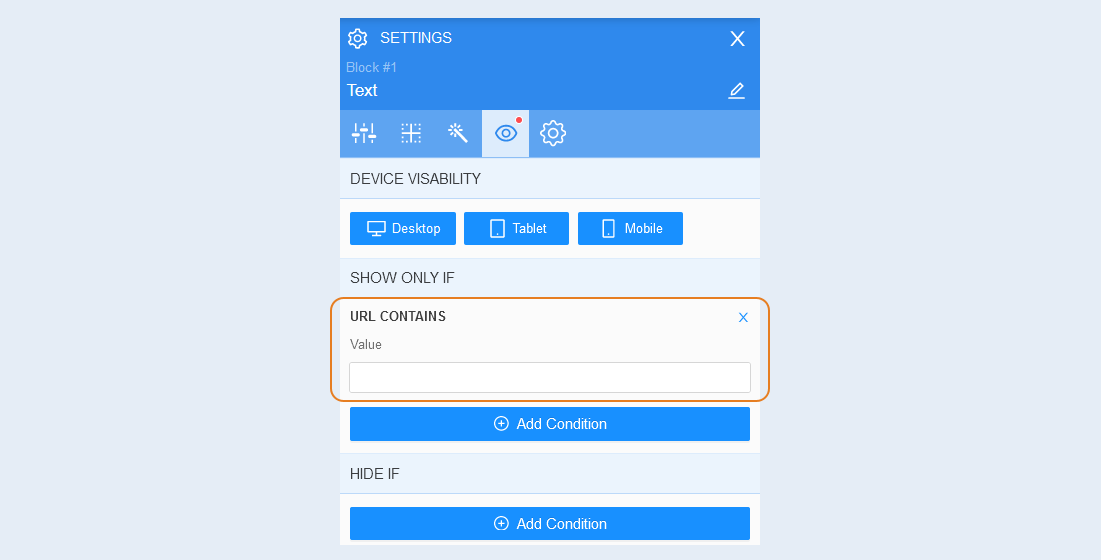
URL contains. When selecting this condition, the element will be shown only if the address visited by the user contains the specified value (for example, Facebook).
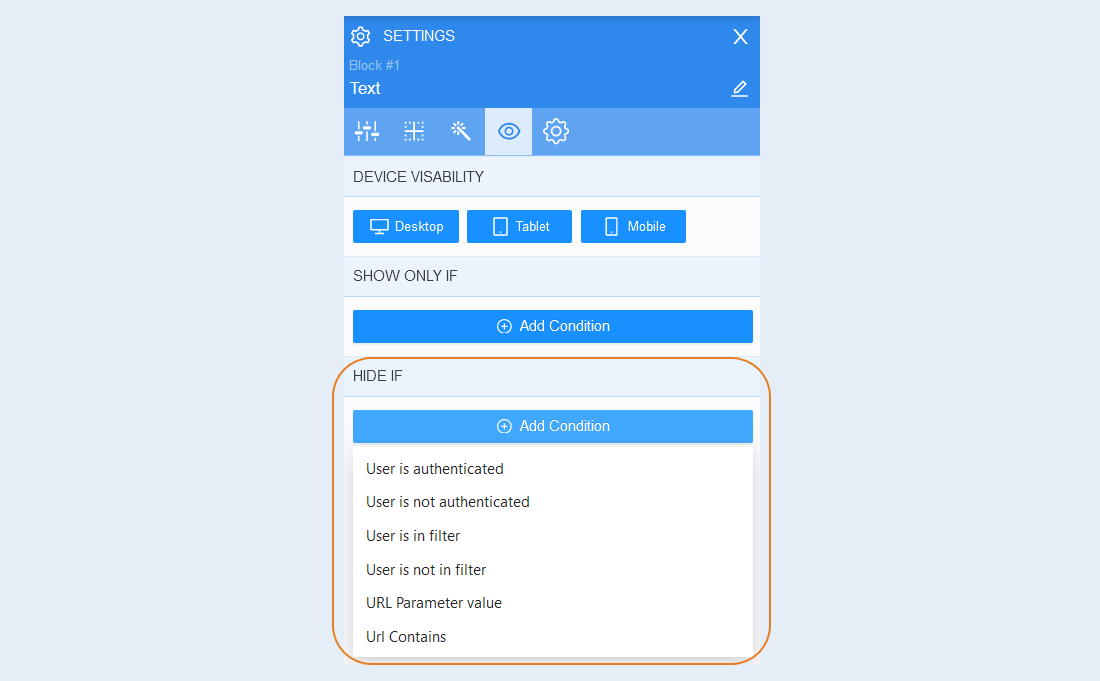
Hide if
Hide if. In this section, choose a condition under which this block will be hidden from the page visitor.
Click the "Add condition" button. A list of conditions will open. Choose the desired condition. Condition settings are identical to the previous block.