A popup window (pop-up) is an interface element that is displayed on top of a web page in a browser. It suddenly "pops up" without a user request or appears on click.
Marketers use it for lead generation, as well as for advertising the company's services and products. You can create pop-ups on your website, for example, in order to subscribe, offer a discount, offer to sign up for a consultation, etc.
Click on the desired section of the article to go to its description:
How to create a pop-up window
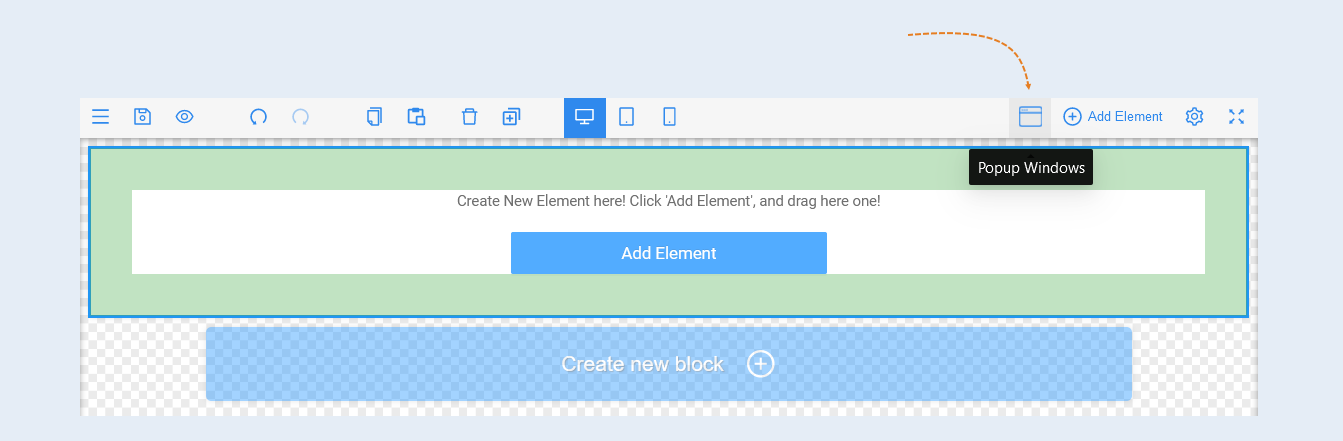
Open the page editor. In the upper-right corner, click the "Popup Windows" icon.
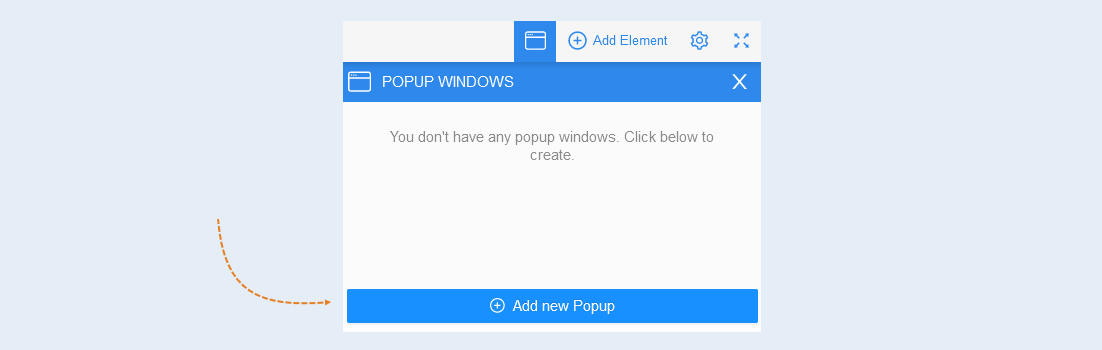
In the additional window that opens, click the "Add new Popup" button.
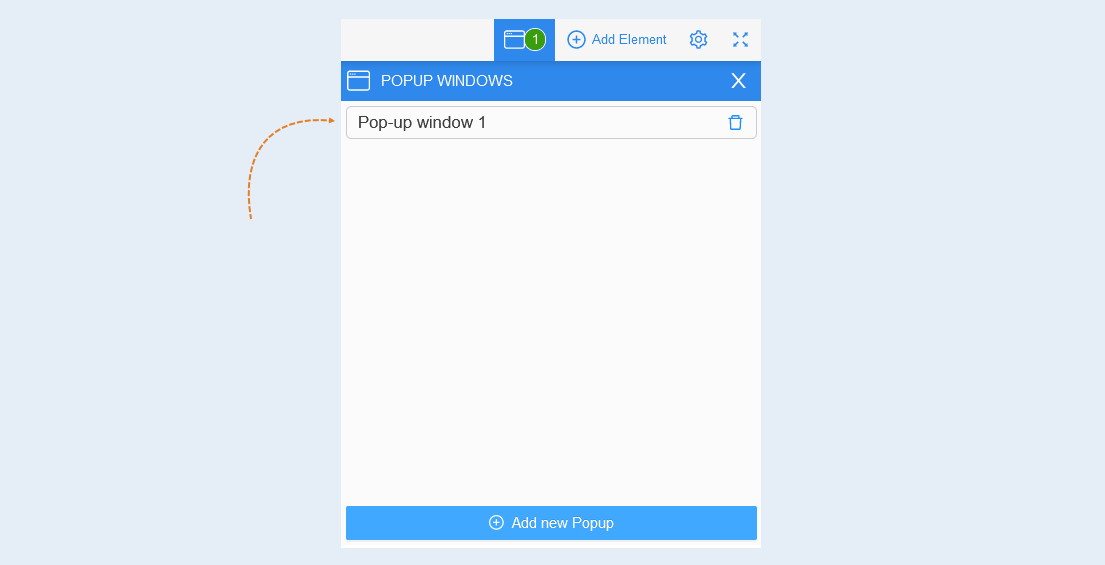
Enter the name of the pop-up window. If you click the "Add new Popup" button again, you will see another pop-up window in this list. Create the required number of pop-ups.
Click on the line with the name of the pop-up window. The editor opens. Here you can create the design of your pop-up window. Click the "Add Element" button. And add the necessary elements: text, title, picture, video, form, etc. How to create a page design, read the articles "The elements", etc.
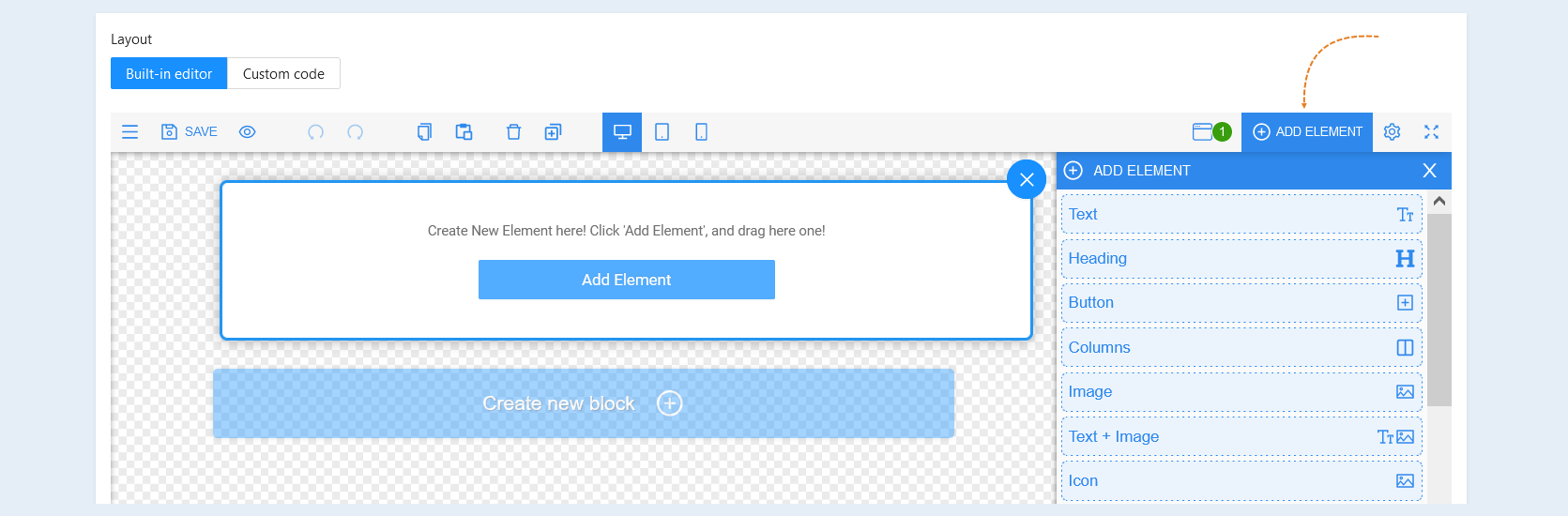
Settings
Select the "Pop-up Window" element. A panel with settings opened on the right.
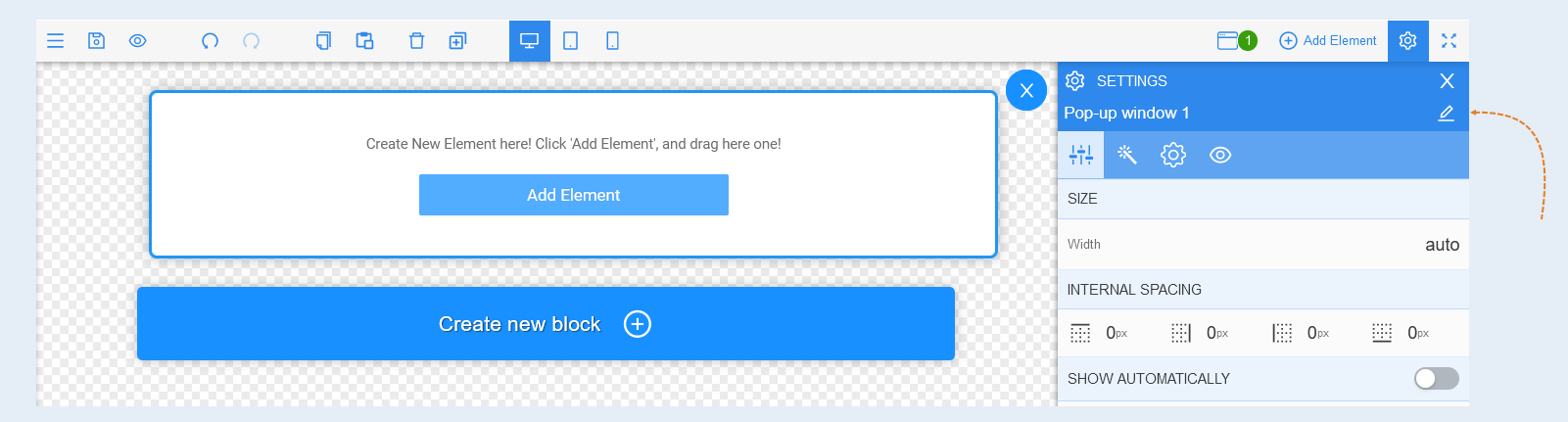
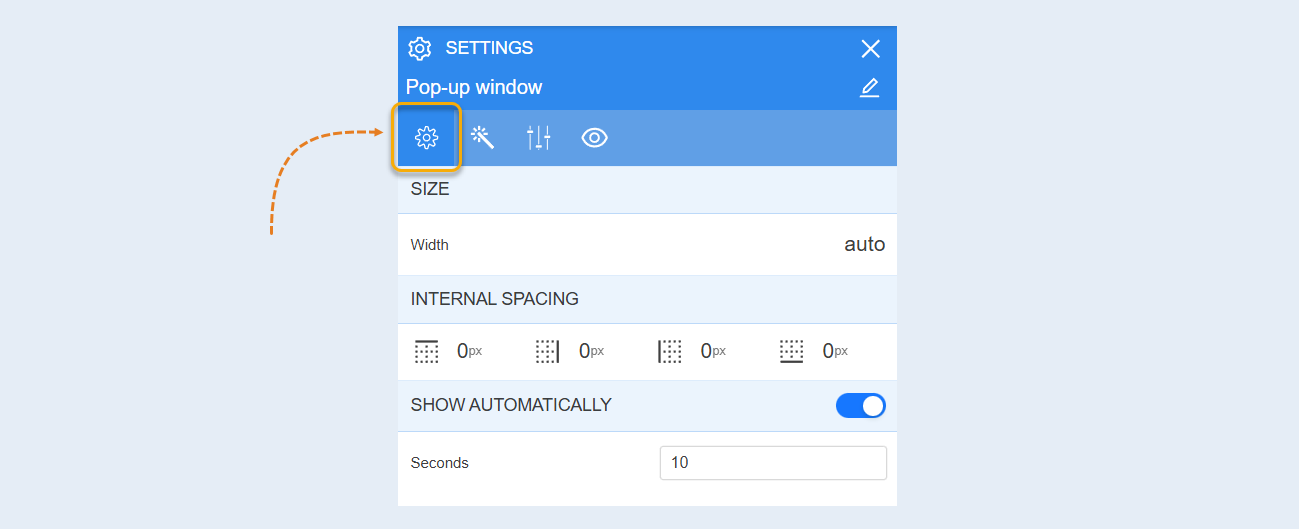
General Settings
Size. You can adjust the width of the popup window.
Internal spacing. You can change the indentation inside the window. This function is used if the element in the pop-up window needs to be moved away from the window borders.
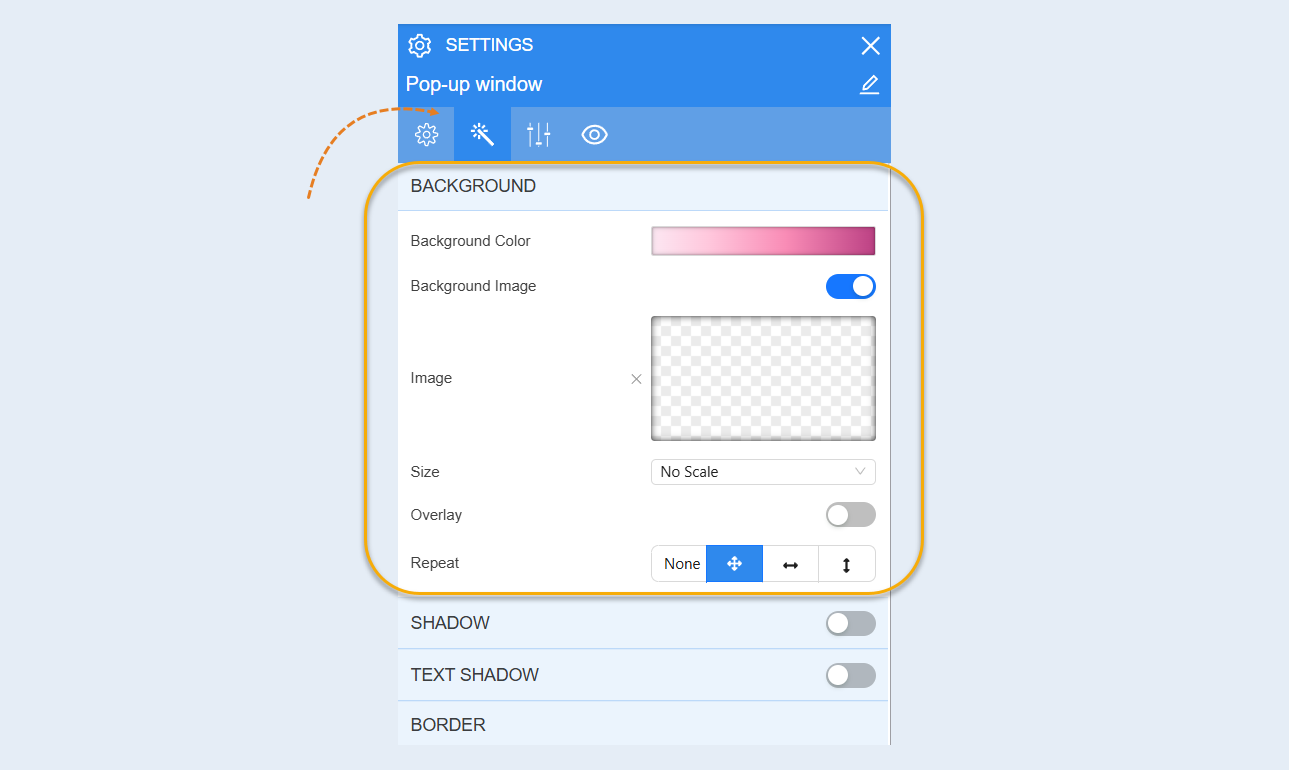
Style
Background. Choose the background color of the window, and you can also add a background image inside the window. Additional image settings are opened for the background image: image selection, size, image repetition and image position inside the window.
Shadow. You can add a shadow around the pop-up window and adjust the offset and blur of the shadow. You can also change the color of the shadow.
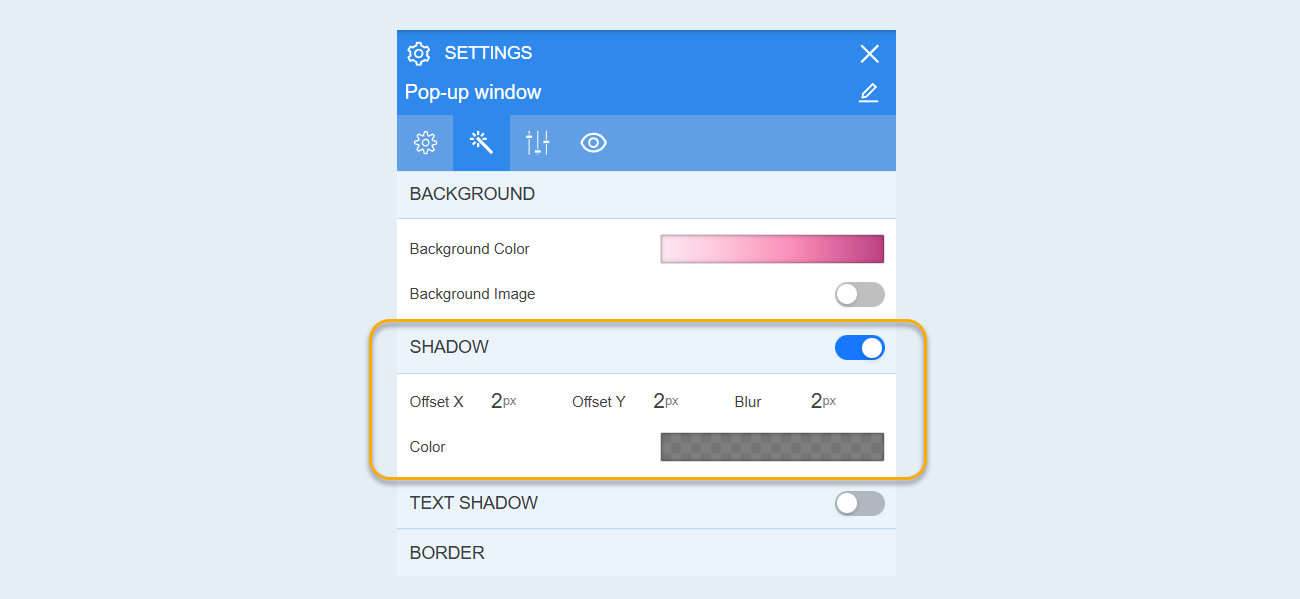
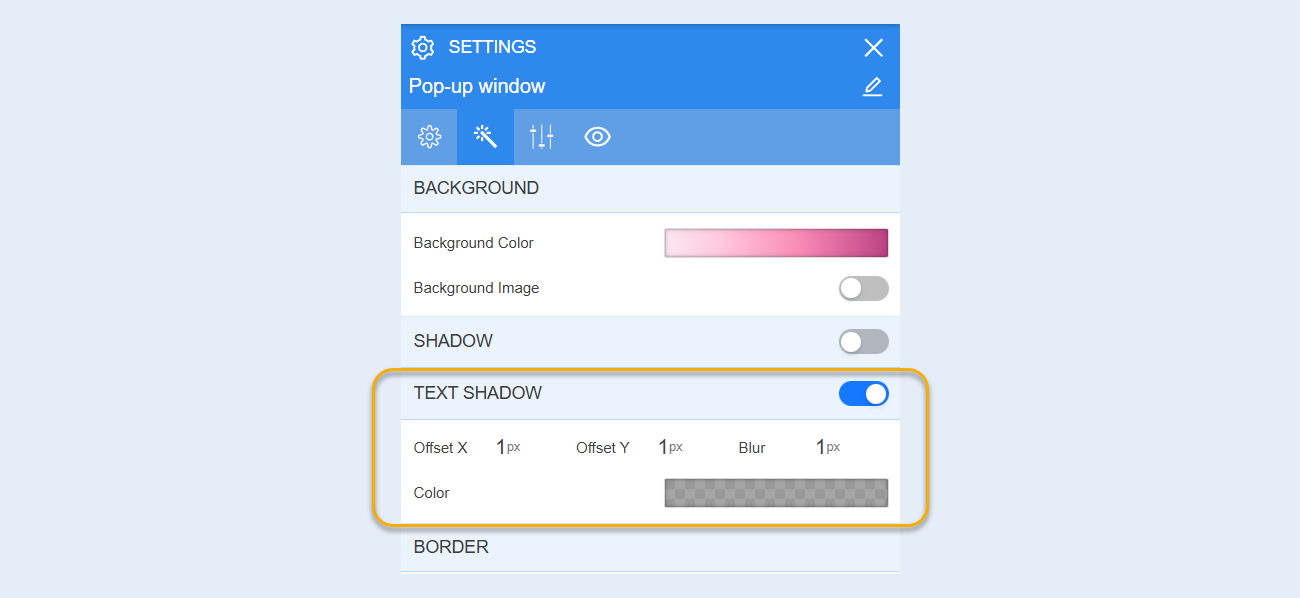
Text shadow. In this section, you can add a shadow to the text inside the pop-up window. Edit the offset and blur of the shadow, as well as the color of the shadow.
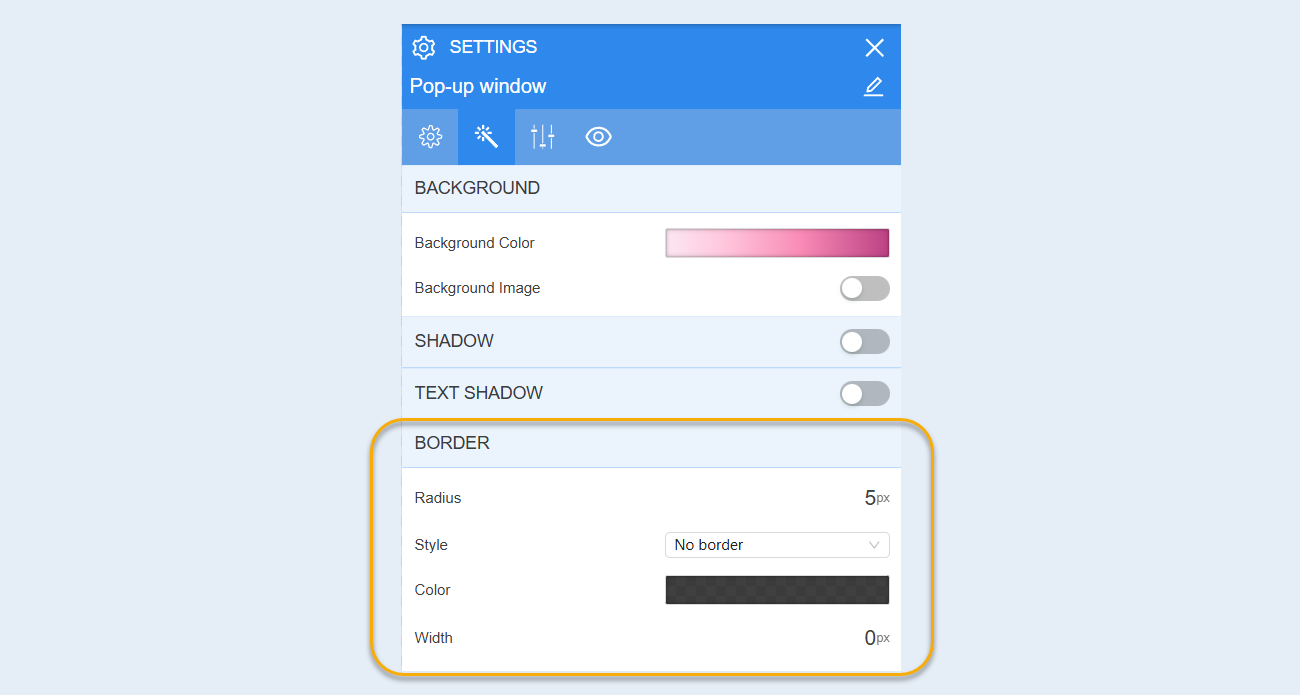
Border.You can customize the border around the pop-up window: radius (button corner rounding), style (no border, solid, dotted, dashed), border color, and border thickness.
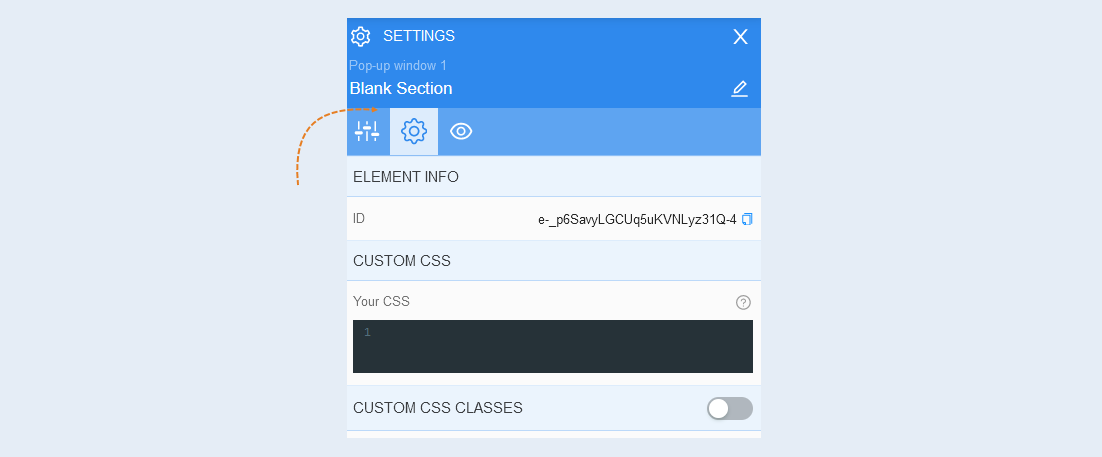
Advanced settings
For more information on the settings in this section, refer to the article "Advanced settings".
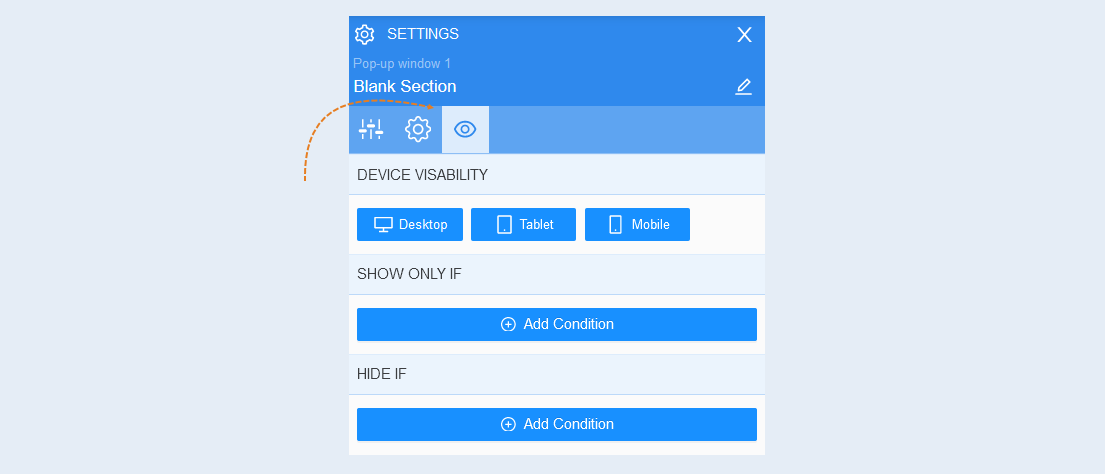
Conditional Show / Hide
For more information on the settings in this section, refer to the article "Conditional show / hide".