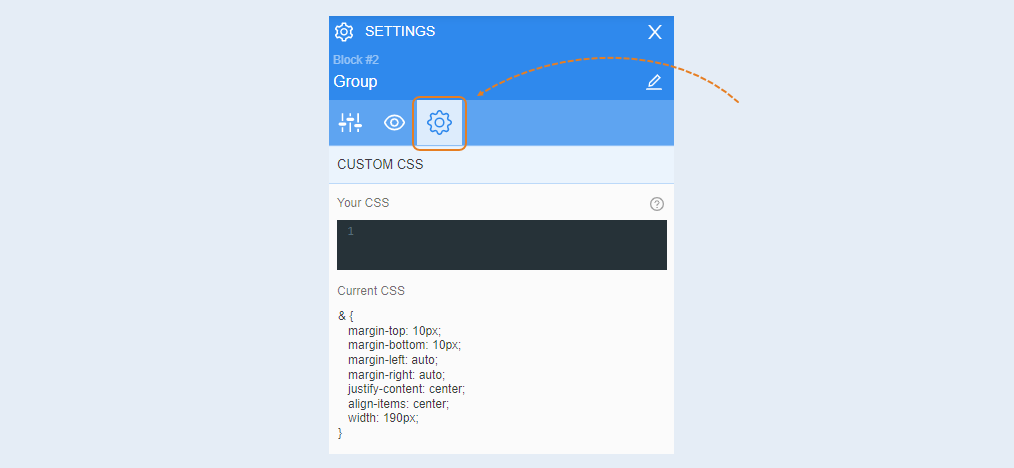
The "Group" element is an element that contains multiple elements.
Grouping elements can be used to move several elements on a page at once, copy or delete multiple elements, as well as to align a group of elements relative to the page borders or other elements.
Grouping elements allows you to create a style for multiple elements and copy it. If you need to list products and services or list the characteristics of your product, you can use element grouping. Create a style for one group of elements (for example, an image and text) and then copy it as many times as needed. Then edit the text and image.
Grouping can also be used when adapting your page to the mobile version of the website. When creating a mobile version, elements are shifted and moved to the line below. To prevent elements from mixing randomly, group them. For example, group an image with text, so in the mobile version, these elements will follow the order: first the image, then the text.
Select the element to open settings for that element. A toolbar opens on the right.
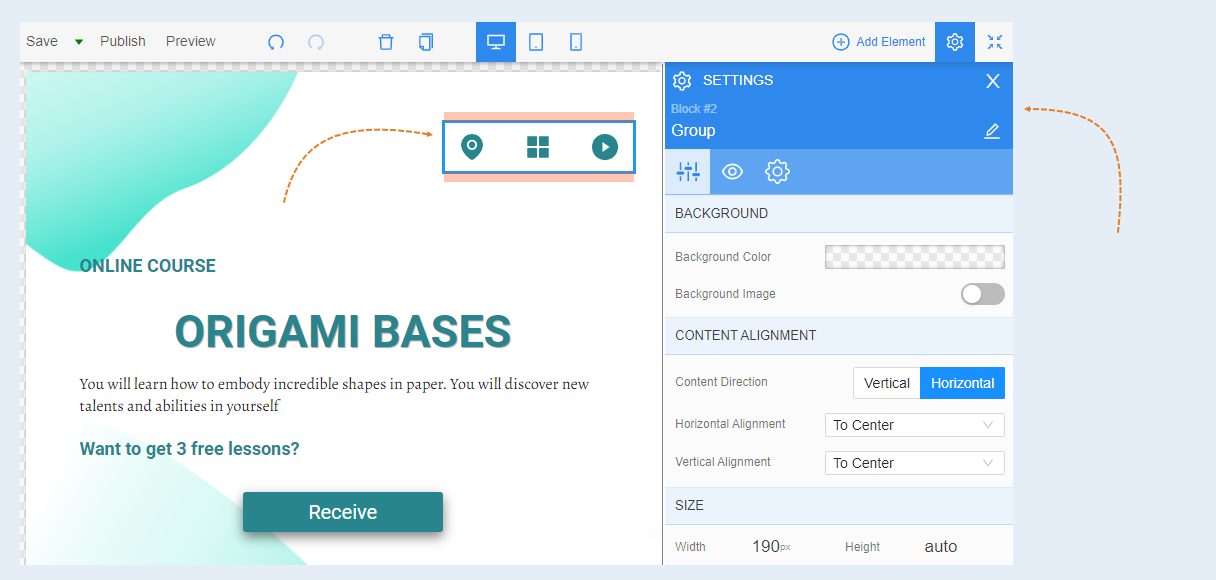
General settings
Content alignment. In this field, you can arrange the contents of the group vertically or horizontally. You can also align the contents of the columns relative to each other vertically and horizontally.

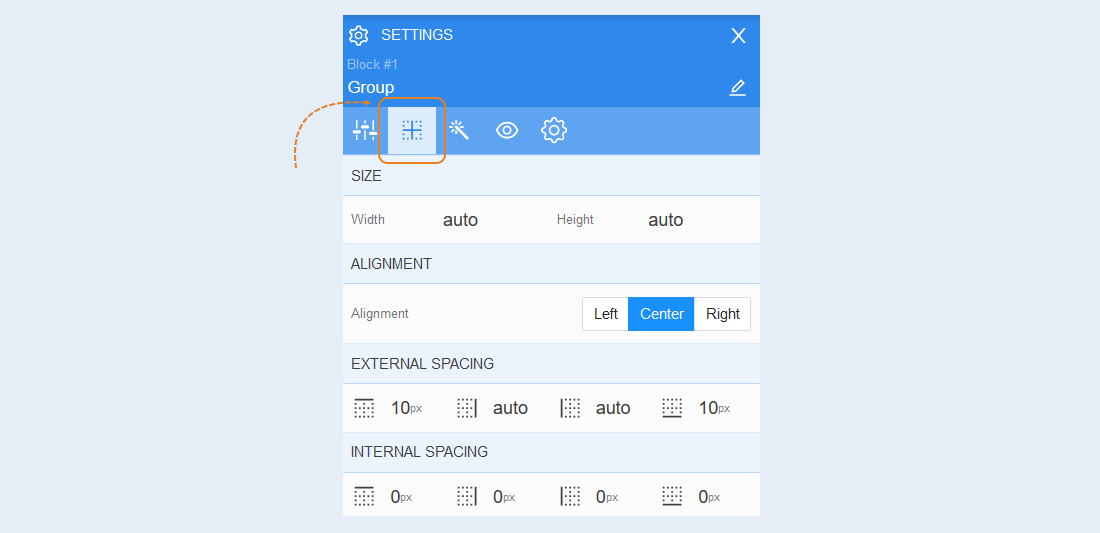
Positioning
For more information on the settings in this section, refer to the article "Positioning".
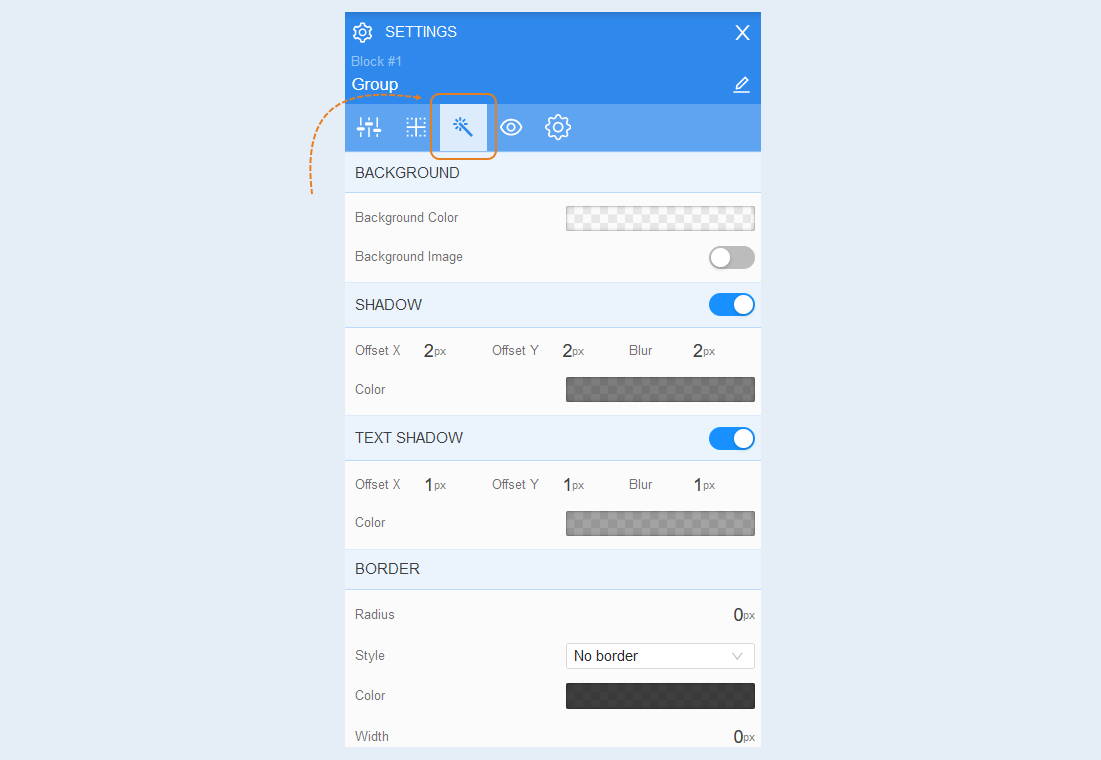
Style
Background. You can change the background color of the form, as well as add a background image to the form. For the background image, additional image settings are opened: image selection, size, image repetition and position of the image within the form.
Shadow. Add a shadow around the shape, you can adjust the shadow offset (left, right, up, down) and blur (bright or transparent shadow). And also the color of the shadow.
Text shadow. Choose the color of the text shadow, the direction of this shadow (left, right, up, down) and blur (make the shadow bright and clear or transparent). This effect is used if the background is not uniform and the text is poorly read in some places. And also to make the text more voluminous.
Border. You can customize the frame for the element: radius (rounding the corners of the frame), frame style (without frame, solid, dotted, dotted), frame width, color.
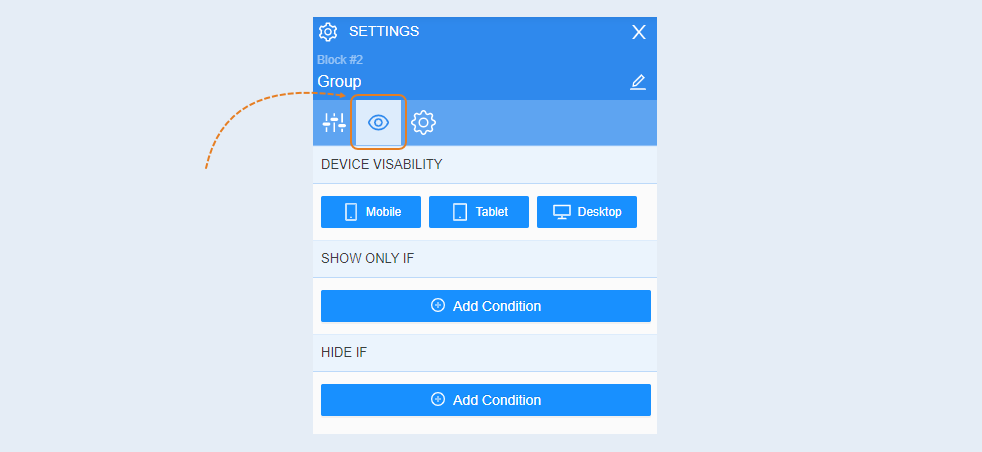
Conditional show / hide
For more information on the settings in this section, refer to the article "Conditional show / hide".
Advanced
For more information on the settings in this section, refer to the article "Advanced settings".