Upsell pages are a sequence of pages to which a user will be redirected after successfully paying for their initial order in a sales form. On upsell pages, the user will be offered the opportunity to purchase additional products. Upsell pages appear as additional sales steps in the process, after the customers have already decided to purchase the main product.
You can set up one or multiple upsell pages.
When configuring two upsell pages, after the user makes the payment for the main product on the checkout form, they will be automatically redirected to the first upsell page. On the first upsell page, when the user clicks the "Accept Offer" button, they will be directed to the payment page for the additional product. After making the payment, they will be sent to the second upsell page. If the user clicks the "Reject" button, they will be immediately directed to the second upsell page. On the second upsell page, the user will either be directed to the payment page for the second additional product and then to the thank you page, or if they click the "Reject" button, they will be immediately sent to the thank you page.
When setting up three or more upsell pages, the user will automatically be sent to each subsequent upsell page in sequence after completing the actions on the previous page.
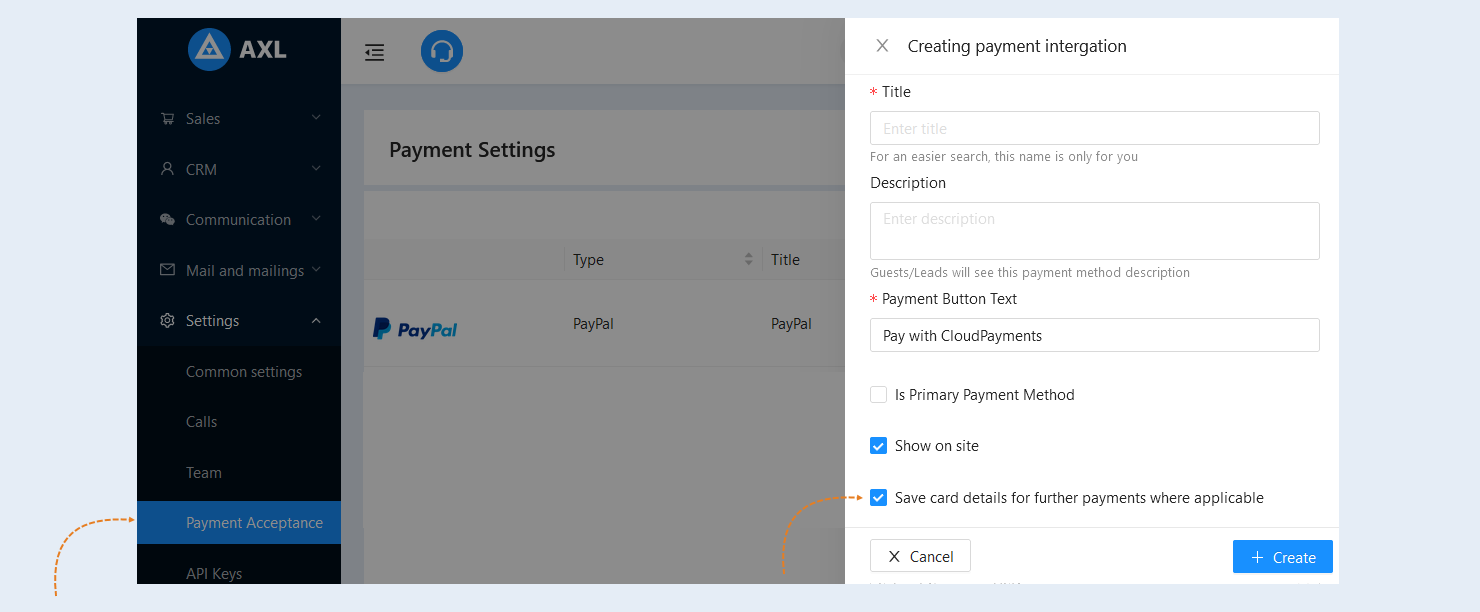
Please note that the upsell page will work if the payment settings of the selected payment method include the feature "Save card details for future payments where applicable." For more information on payment settings, please refer to the article "Payment Settings".
The upsell page automatically opens after the customers have entered their payment information in the payment form. They allow the purchase of an additional product, which is added to the order and does not require re-entering payment information.
Click on the desired section of the article to go to its description:
Creating an upsell page
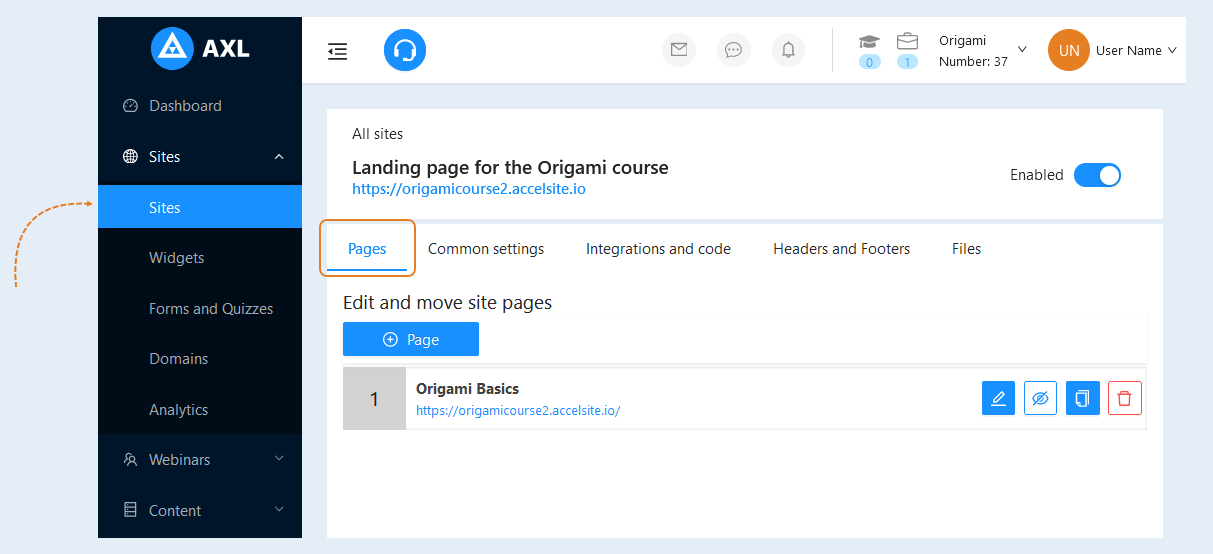
To create an upsell page, go to the "Sites" section, open the created site and go to the "Pages" section. How to create a website in AXL, read the article "Sites".
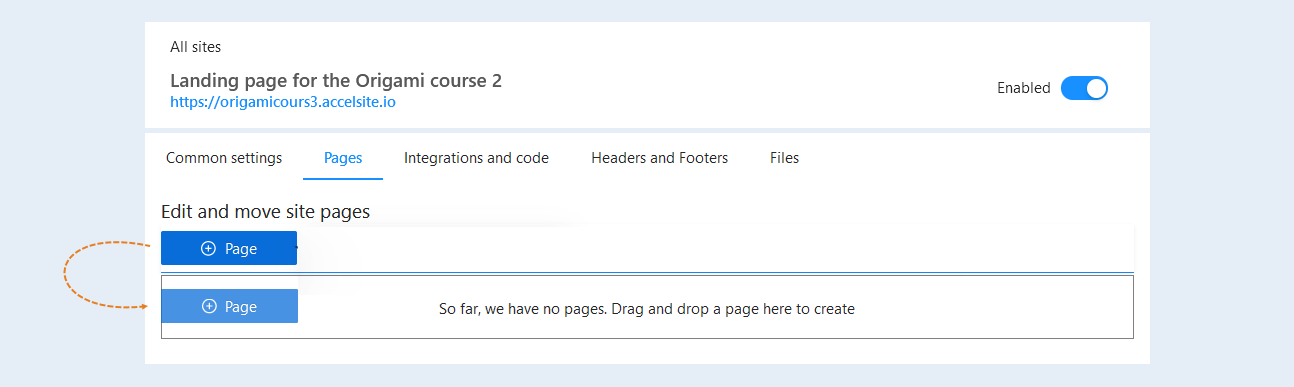
To add an upsell site, drag the “Pages” button into the field below the button.
An additional window will open. Fill in the fields:
- Title. The page name is displayed here. You can change the name.
Internal name. The internal name will be visible only to you and will not be shown to users. The internal name is created for the convenience of searching inside the system.
Short description. This description will be seen by site visitors. This field is optional. If this field remains empty, then visitors to this page will see the description of the site. The visible number of characters is 160.
Page address. Enter the page address in the field.
Redirect. If you need to enable redirection to another site, then check the box and enter the address of the site where the visitor will be redirected in the field that opens.
Hide from search robots. This function is used if you do not want search engines to find your site.
Make available. Check the box to publish the site page and it becomes available to visitors.
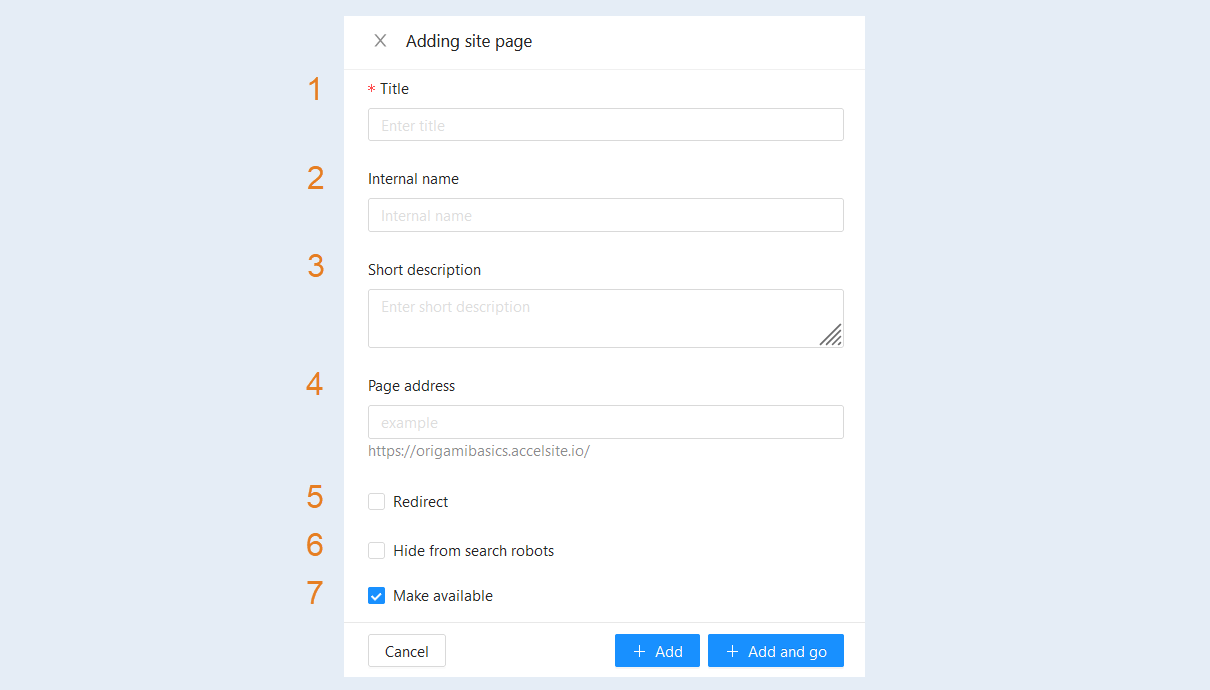
Click the "Add and Go" button.
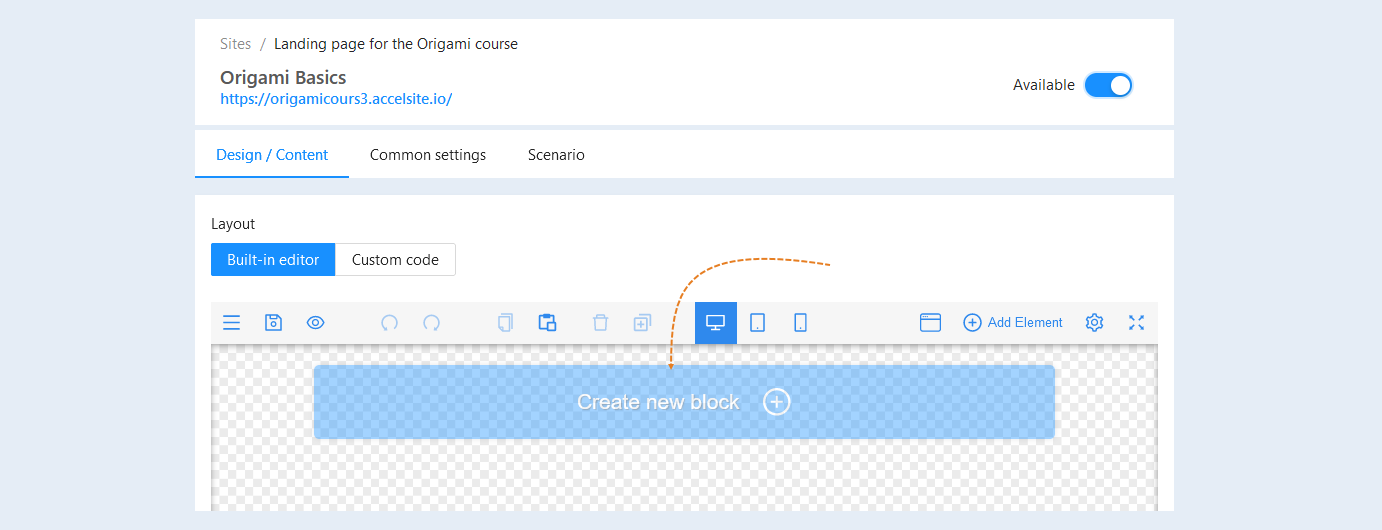
In the upsell page window that opens, click the "Create a new block" button.
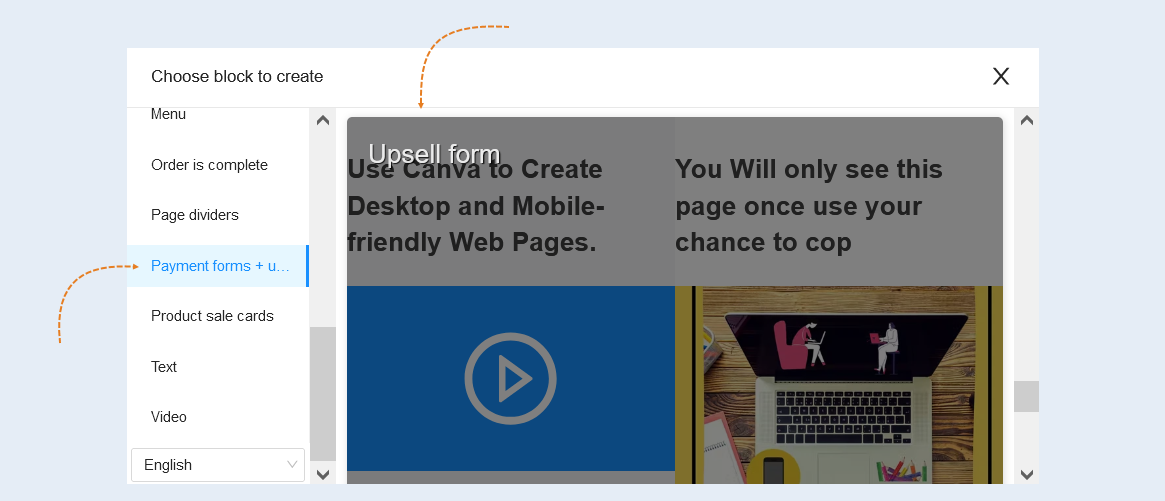
In the list of blocks that opens, select the "Payment form + upsell form" block. You can choose the type of the "Upsell Form" page from the suggested templates.
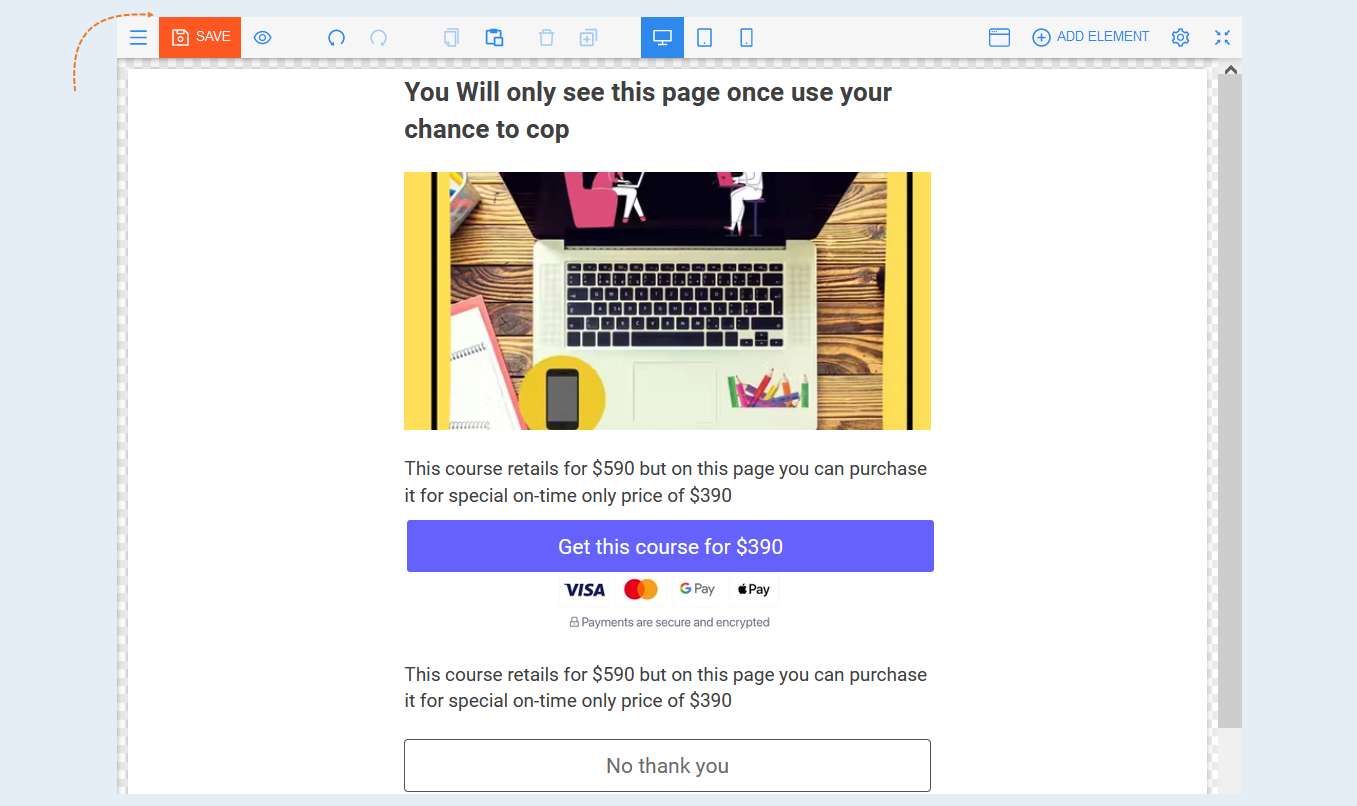
An example of an upsell page is shown in the picture below. Edit this page: replace the image and text, add a description of your product.
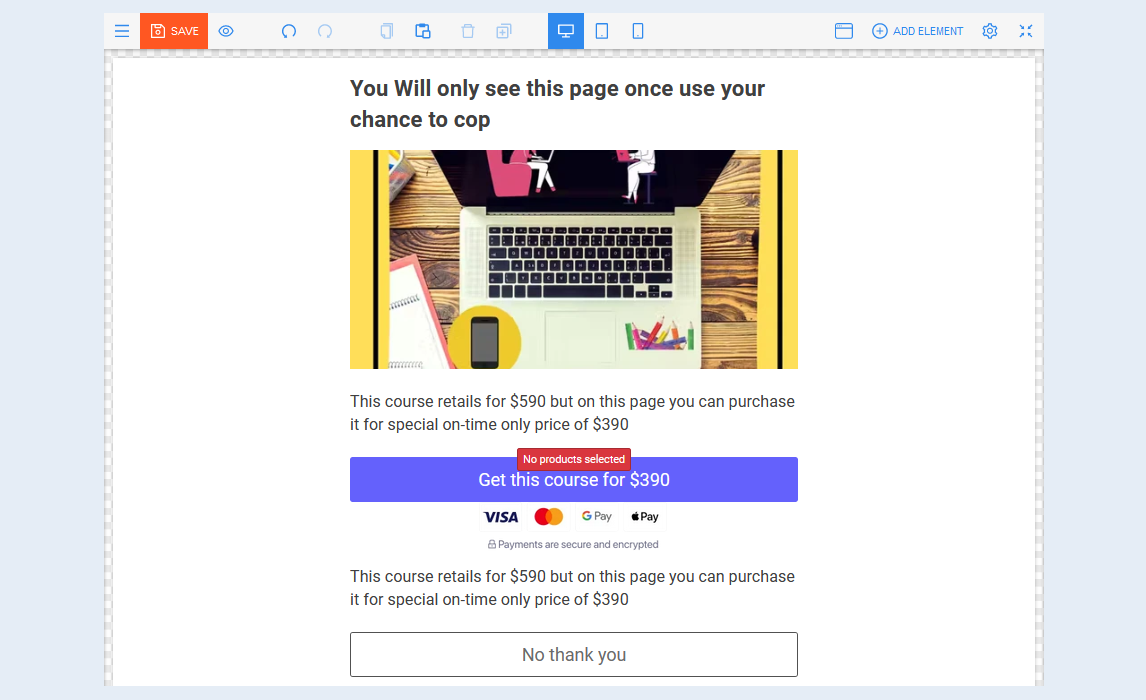
Alternatively, you can create your own version of an upsell page by adding the necessary elements to the website field. For more information on configuring website elements, please refer to the "Elements" article.
If you are creating your own version of an upsell page, you will need to add two buttons: "Accept Offer" and "Decline".
The "Accept Offer" and "Decline" buttons are mandatory elements of the upsell page. They allow the user to proceed to the next upsell pages or to the thank you page, which completes the purchase of the product in the form of payment. If there is no "Decline" button on the upsell page, the user will not be able to proceed to the thank you page and complete the purchase of the main product in the payment form.
If you are creating multiple upsell pages, the "Accept Offer" and "Decline" buttons should be on each upsell page.
Setting up the "Accept offer" button
On the upsell page, you need to add two buttons: "Accept Offer" and "Decline". To do this, click the "Add Element" button, click the "Payment Form" button, then select "Upsell Accept Button".
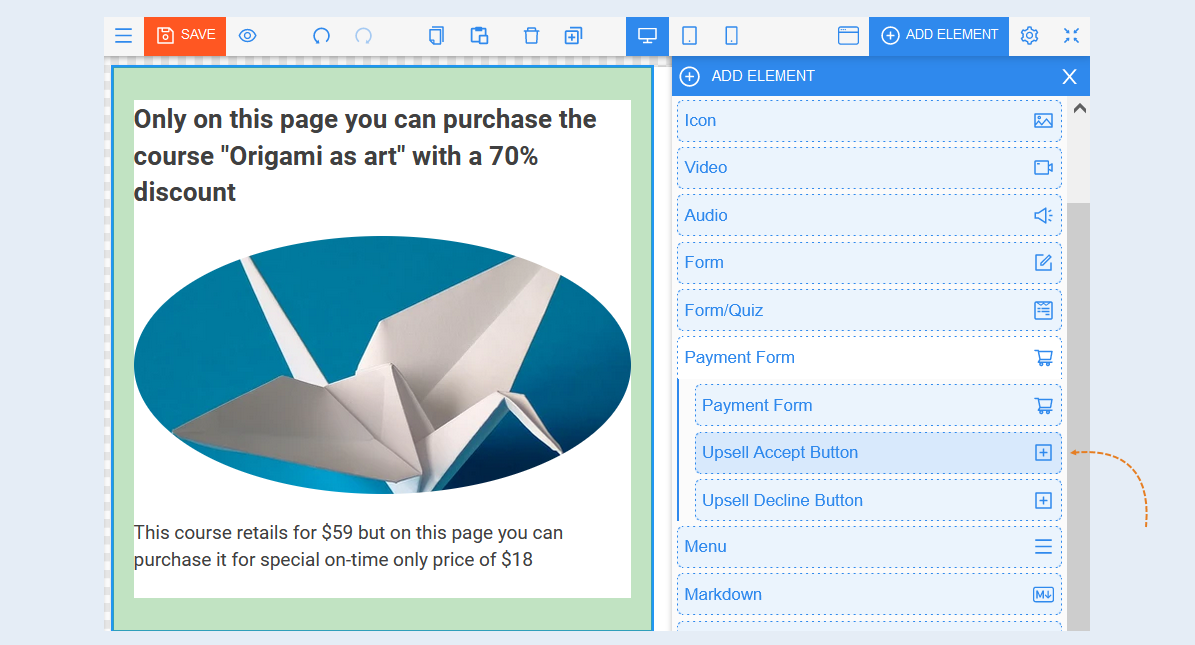
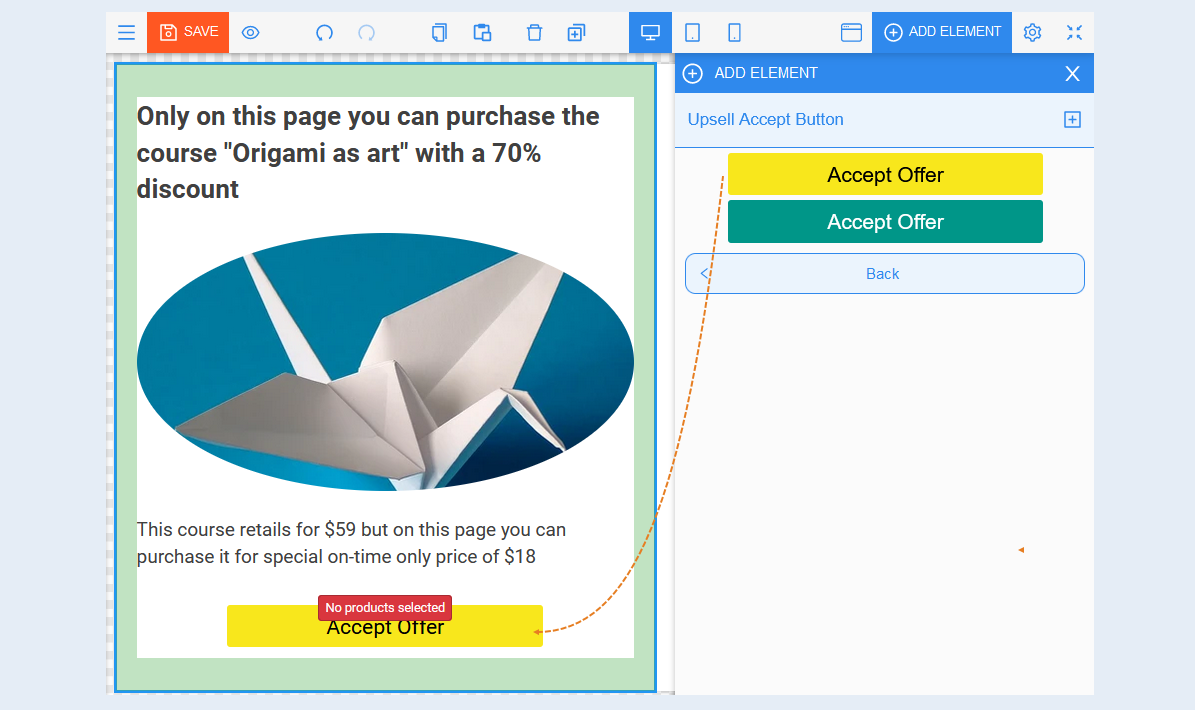
Drag any of the "Accept Offer" buttons to the upsell page field. The button can be located anywhere on the upsell page.
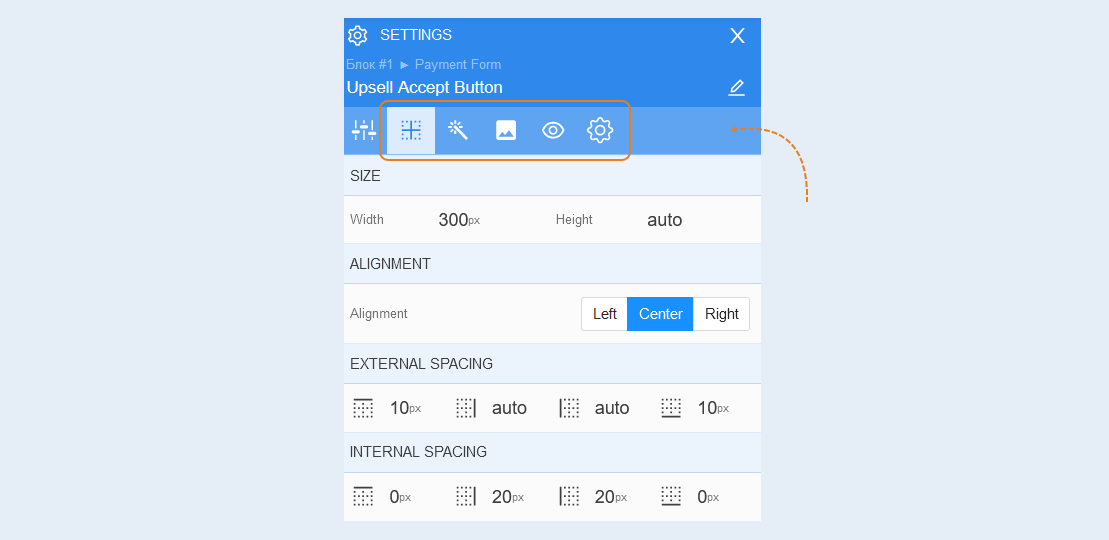
Element Settings
Upsell products. Highlight the "Accept Offer" button in the upsell page field and the button settings will open for you. In the settings, click the "Add Product" button and select the upsell product from the list. When the user clicks the "Accept Offer" button, it will be sent to the upsell product payment page.
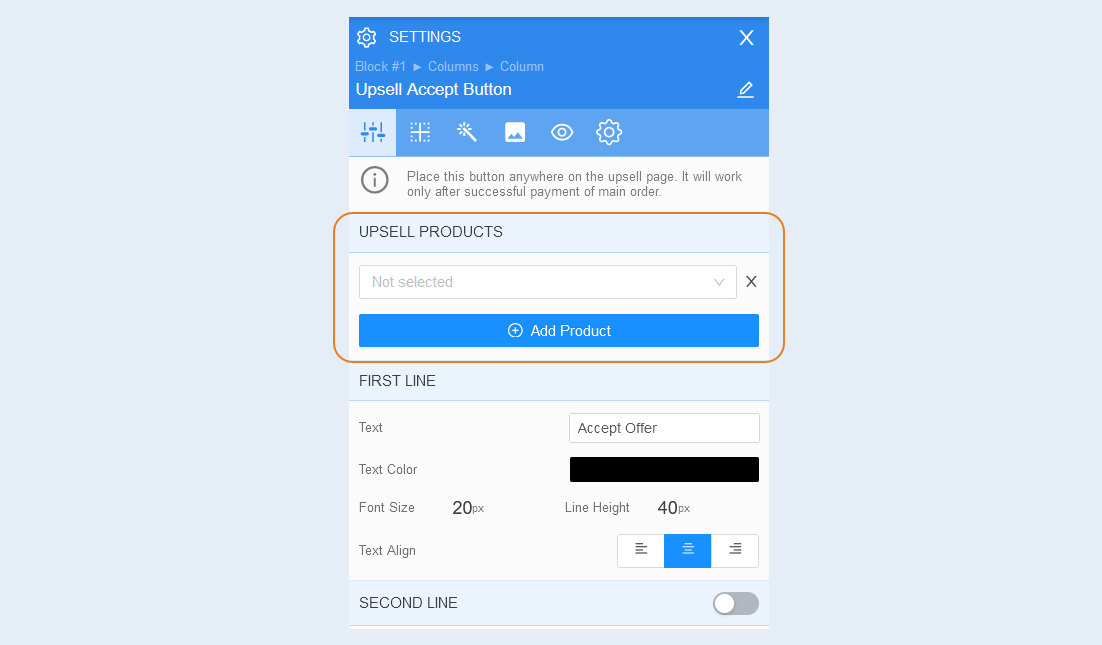
First line. In this section, you can write text inside the button, change the text color, font size, line height and text alignment.
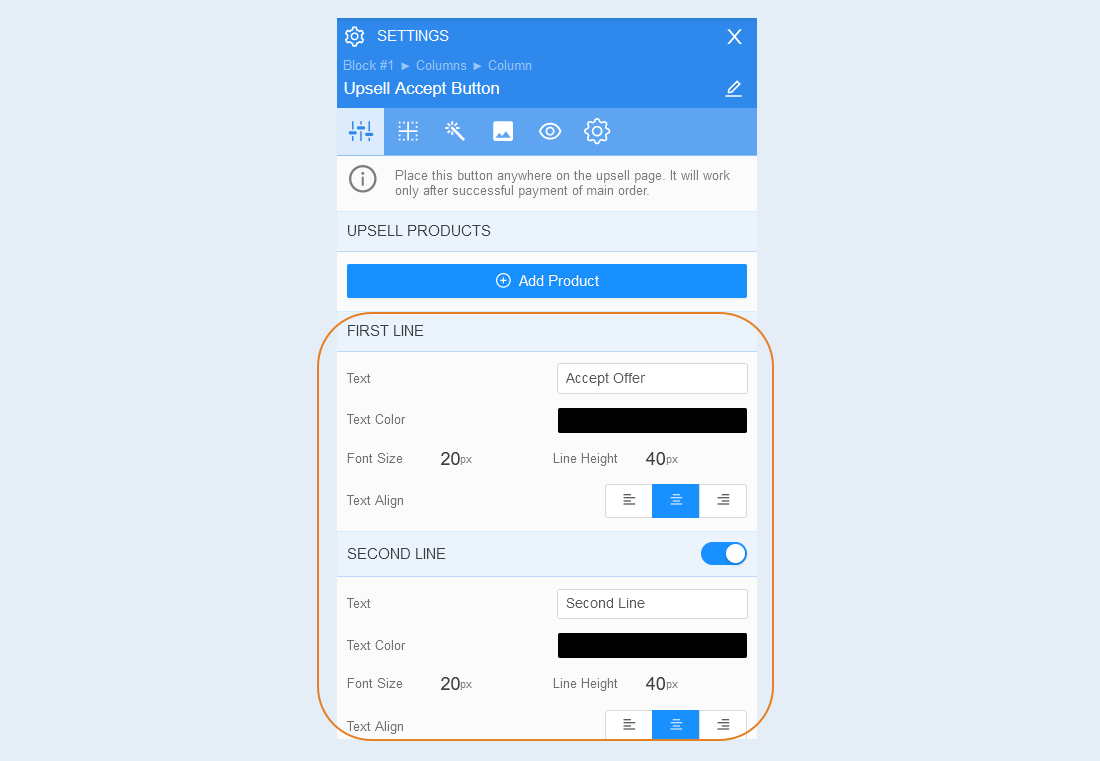
Second line. If necessary, you can add a second line inside the button - additional text. Move the slider on the right to the active position, you will open an additional line on the button. The settings of the second line are identical to the settings of the first line: enter text, select the text color, set the font size, line height and text alignment.
About the settings of the remaining tabs (positioning, style, icon, conditional show/hide, advanced), read the article "Button Element".
Setting up the "Decline" button
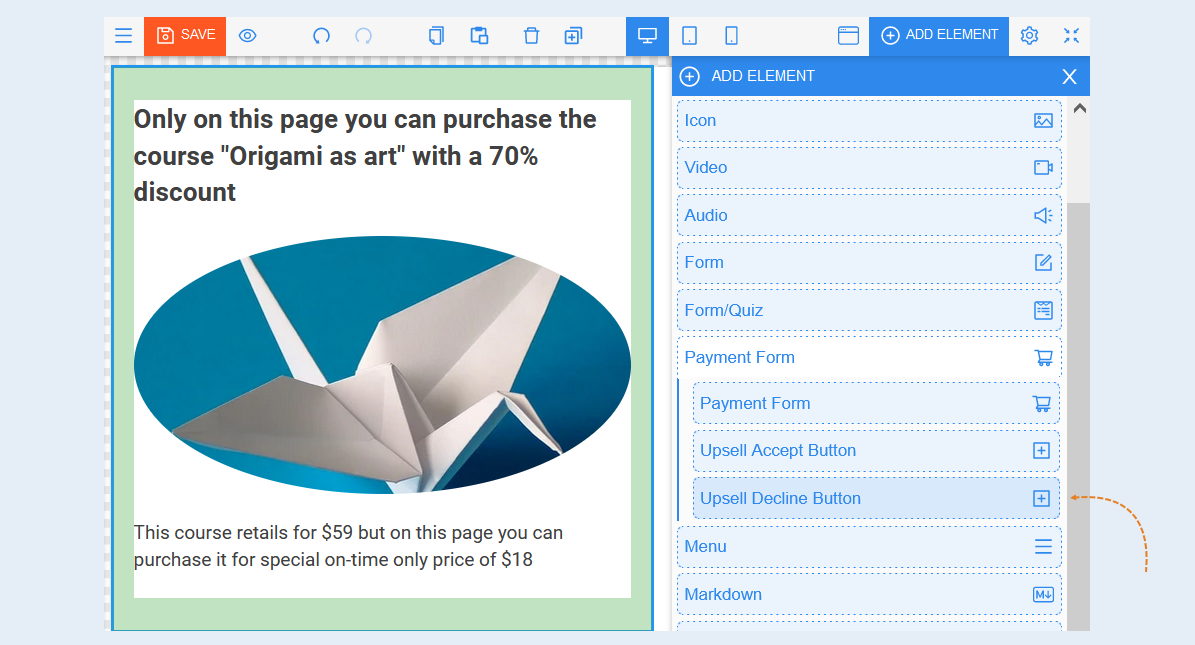
Click the "Add Element" button again, click "Payment form", then select "Upsell Decline Button".
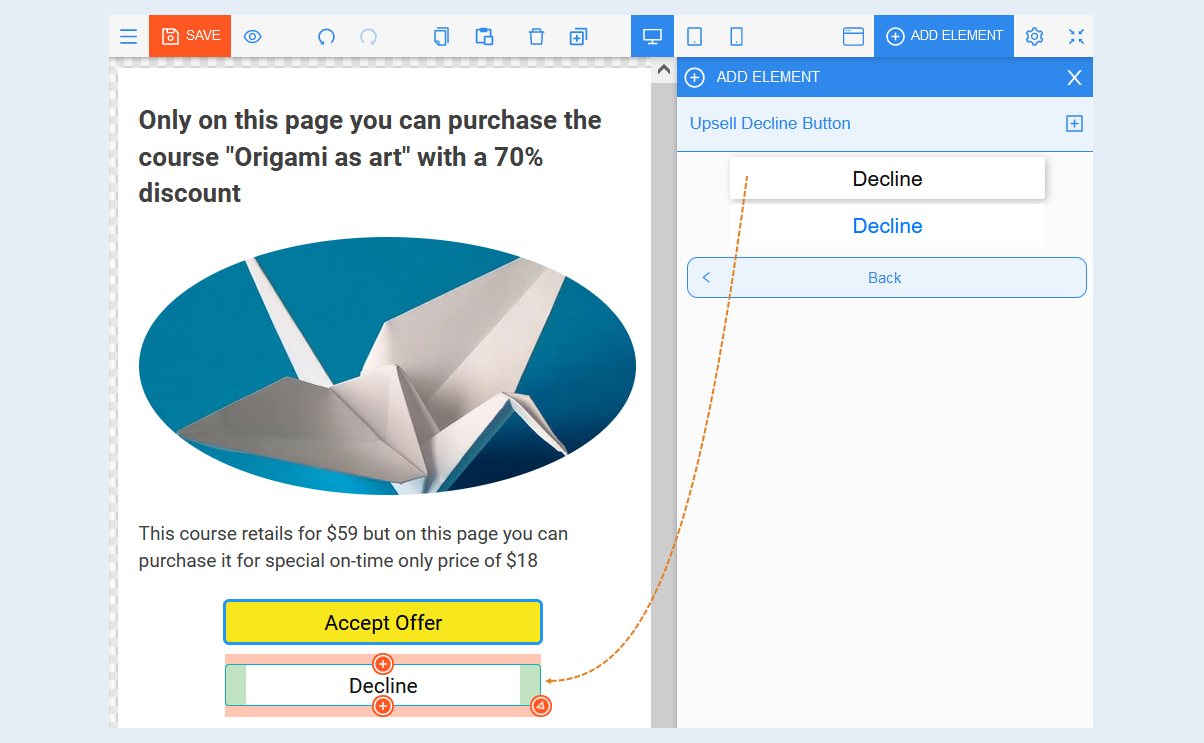
Drag any of the "Decline" buttons to the upsell page field. The button can be located anywhere on the upsell page.
The settings of the "Decline" button are identical to the settings of the "Accept Offer" button and are fully described above. You can also get acquainted with the button settings in the article "Button element".
After completing the settings of the upsell page, click the "Save" button.
Adding a upsell page to a payment form
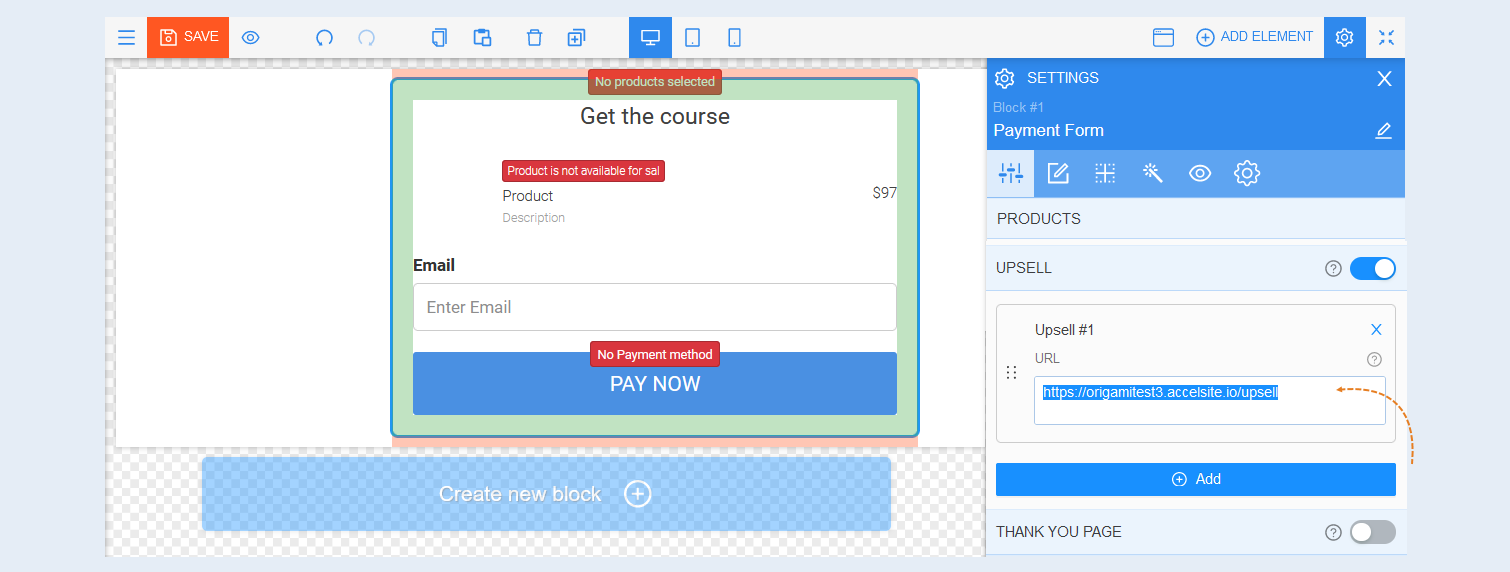
Copy the URL of the upsell page.
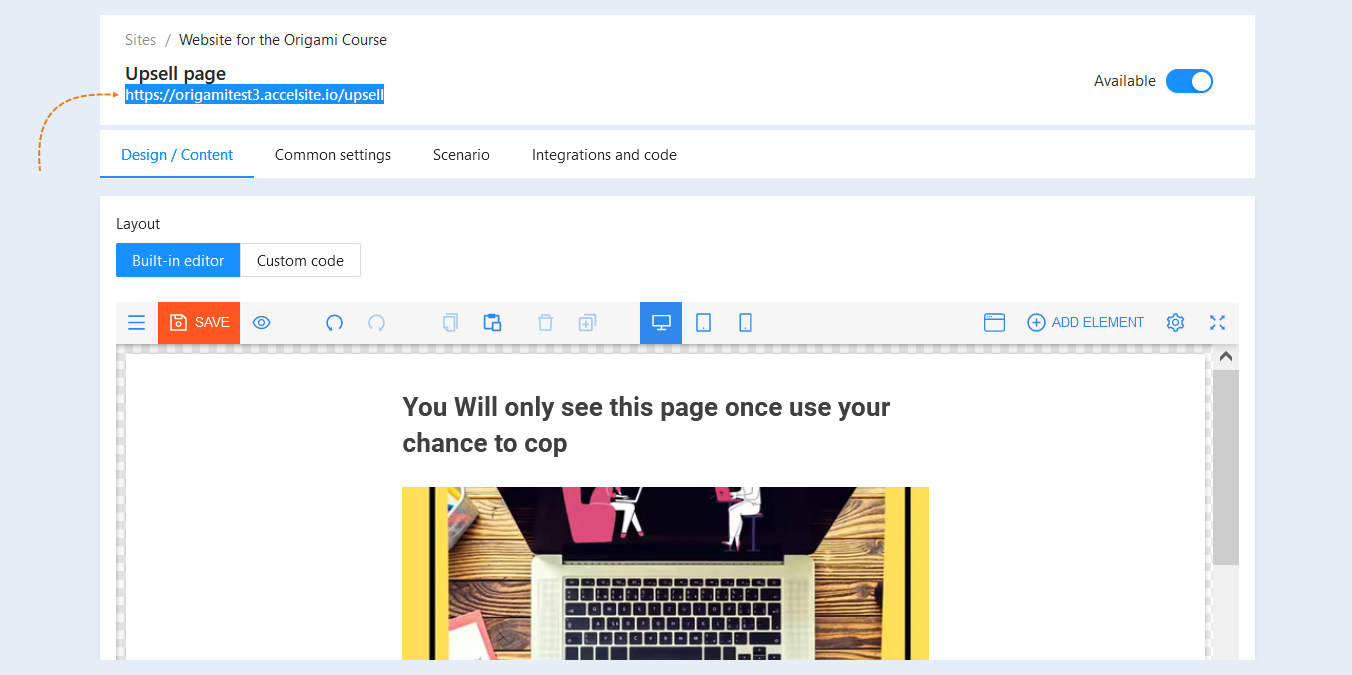
You will need to enter the URL of the upsell page in the appropriate field when setting up the "Payment Form" element. Read about this in the article "Form of payment".