An audio element is any audio recording that you upload from your computer or download from the internet and load onto a webpage.
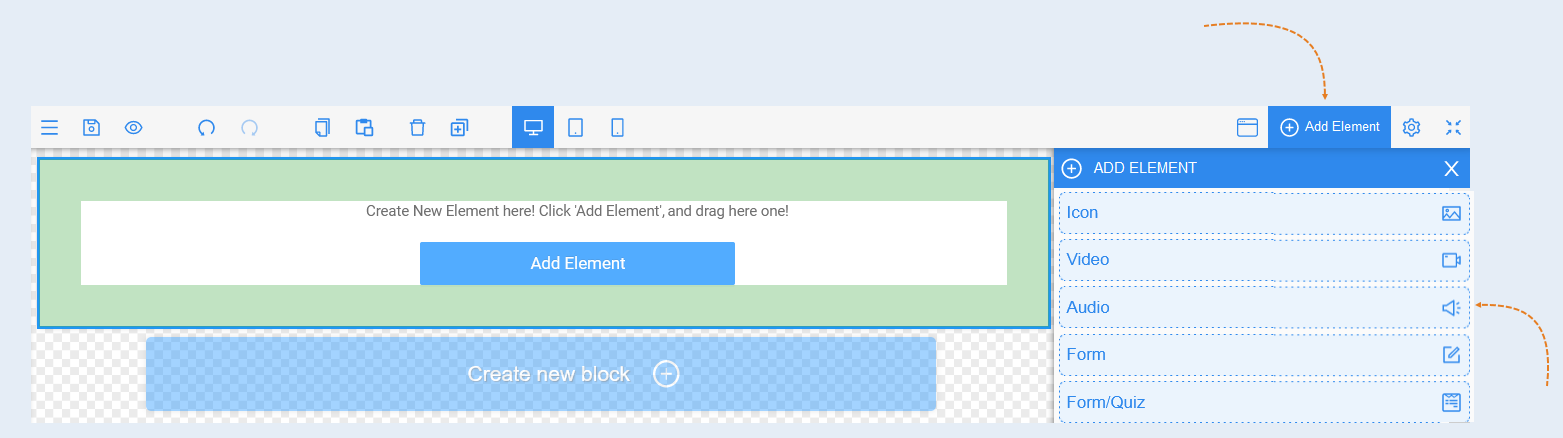
Click on the "Add Element" button and choose the "Audio" element. Then, configure the element settings.
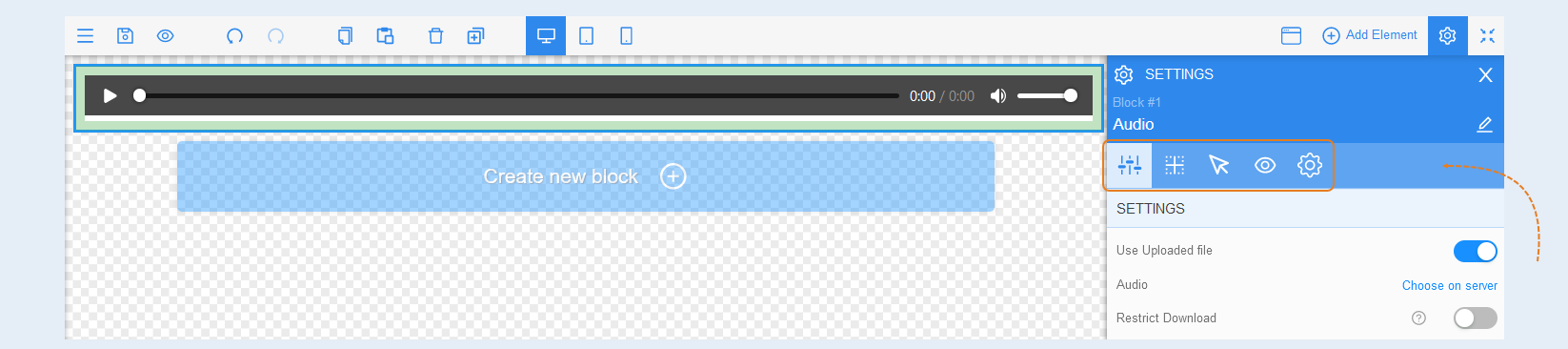
To edit an audio element, click on it to highlight it, and the settings for that element will appear on the right.
For audio elements, a panel with the following tools will open:
General Settings
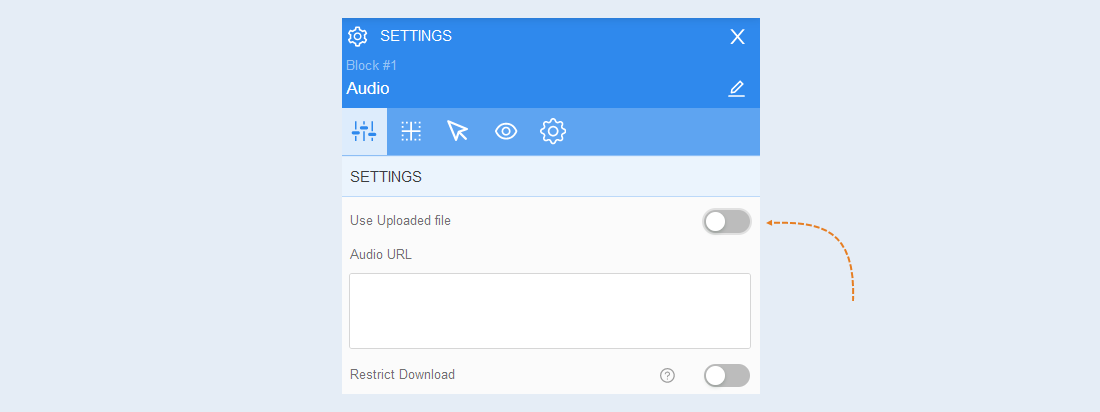
Settings. In this section, you can add an audio recording and prohibit or allow downloading it.
Move the "Use downloaded file" slider to the active position and click the "Select on server" button to download audio from your computer. Use mp3 files to support all browsers. Other formats will only work in some browsers.
Move the "Prohibit downloading" slider to the active position and the audio download button will be hidden from visitors. This option does not work in all browsers.
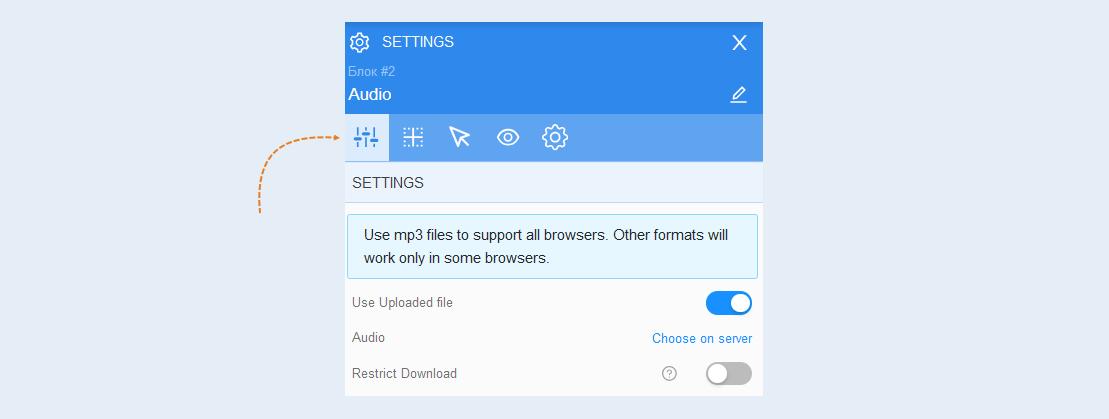
In order to download audio from the Internet, move the slider to the inactive position and add a URL link to the audio recording from the Internet.
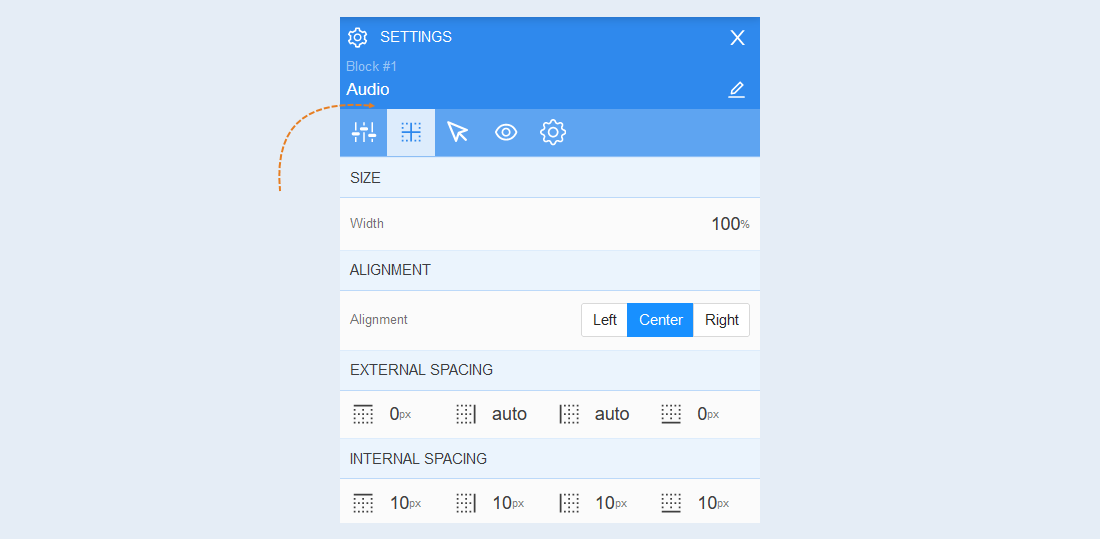
Positioning
For more information on the settings in this section, refer to the article "Positioning".
Interaction
Click. Audio is an interactive element, clicking on which the visitor follows the link.
Click the "Click click action" button and select an action from the suggested options:
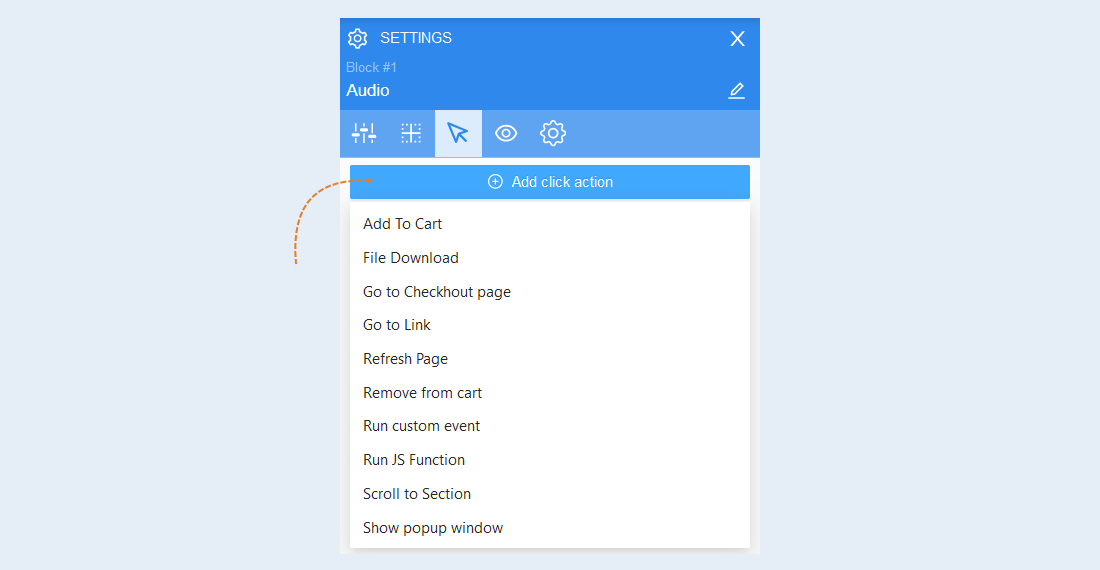
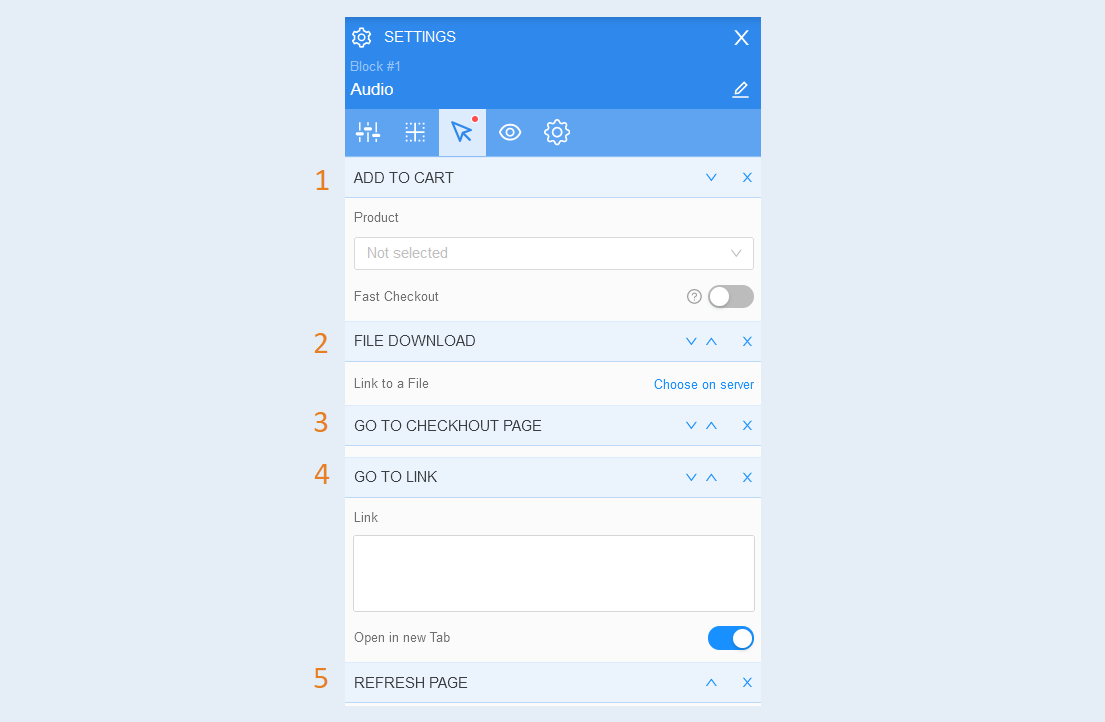
- Add to cart. When the user clicks on the element, the product will be automatically added to the cart. Specify the desired product by selecting it from the list of products. In order for the checkout process to start immediately after the user adds the order to the cart, move the “Quick Payment" slider to the active position.
File download. This action automatically starts downloading the selected file to the user's device. Attach the file by clicking the "Select on the server" button. And download the file from your computer.
Go to checkout page. The user will be instantly redirected to the checkout page. This action has no additional settings.
Go to link. When clicking on the element, the user will be redirected to the selected page. To select this action, paste the link into the field and move the "Open in a new tab" slider to the active position.
Refresh the page. When you click on the element, the user's page will be updated. This action has no additional settings.
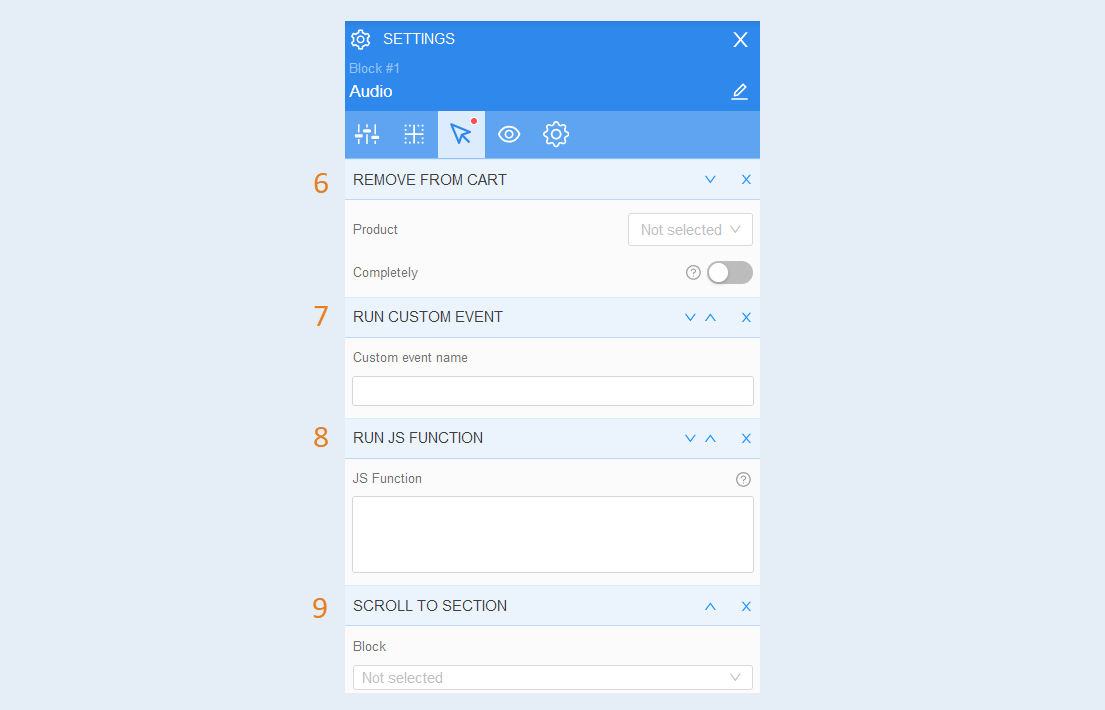
Remove from cart. When the user clicks on this item, the product will be automatically removed from the shopping cart. Select the desired product and turn the slider to the active state to completely remove the product from the basket.
Run custom event. You can create any event that will trigger the script. In the configuration settings, write the name of the event. To learn how to set up a custom event, read the article "Types of events in the scenario".
Run JS function. A JS function is a block of code designed to perform a specific task. When the user clicks on the element, the configured JS function will be launched.
- Scroll to section. This action redirects the user to another block on the same page where this button is located. Select the required block from the list to which the user will be directed.
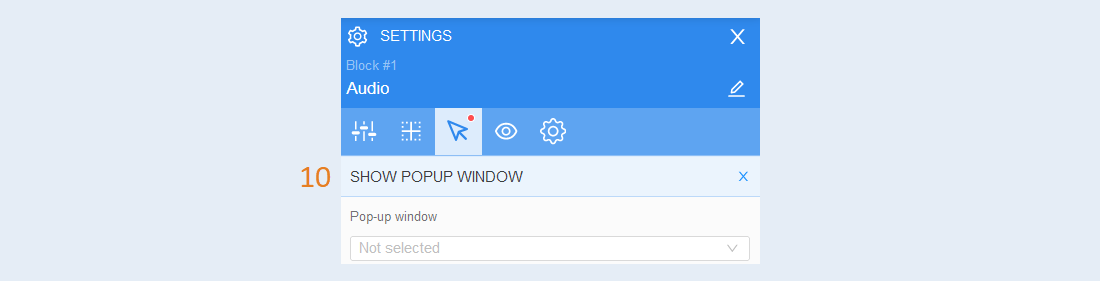
Show pop-up window. When you click on this element, an additional window will be displayed on top of the web page. To learn how to set up a pop-up window, read the article "Pop-up windows".
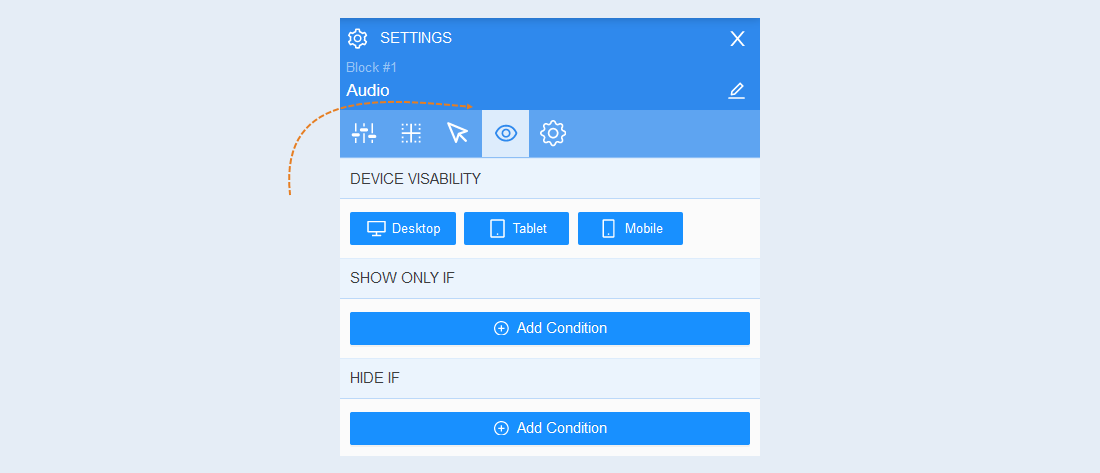
Conditional show / hide
For more information on the settings in this section, refer to the article "Conditional show / hide".
Advanced settings
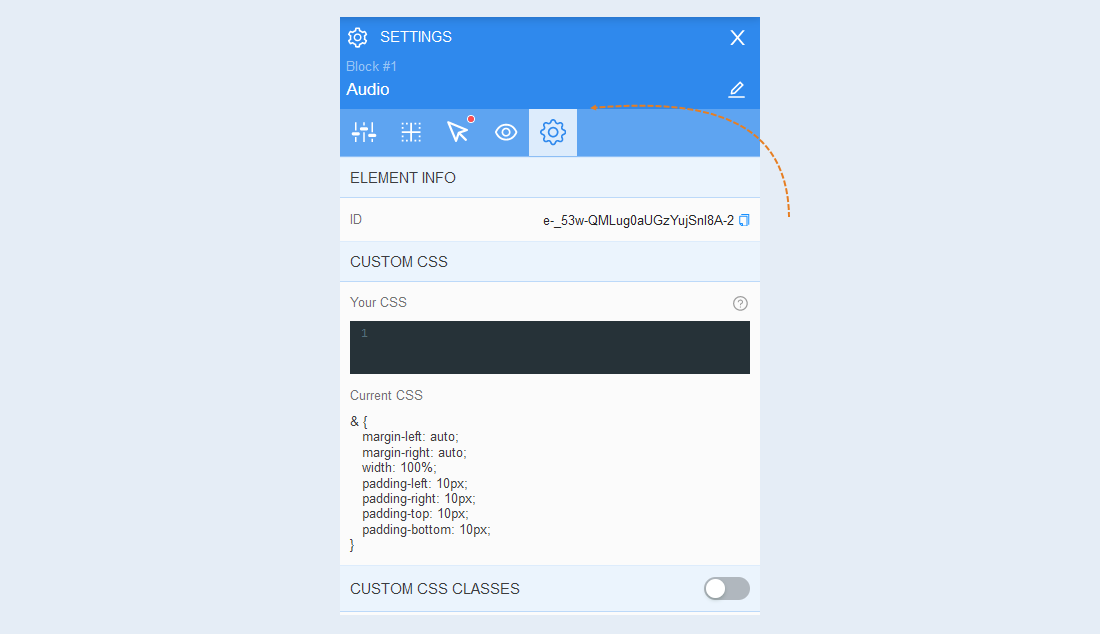
For more information on the settings in this section, refer to the article "Advanced settings".