A page element is a component of a web page. It includes all the textual and graphical components, as well as videos, images, icons, and buttons. You can add the necessary elements to the page and customize them in the right menu.
How to add an item
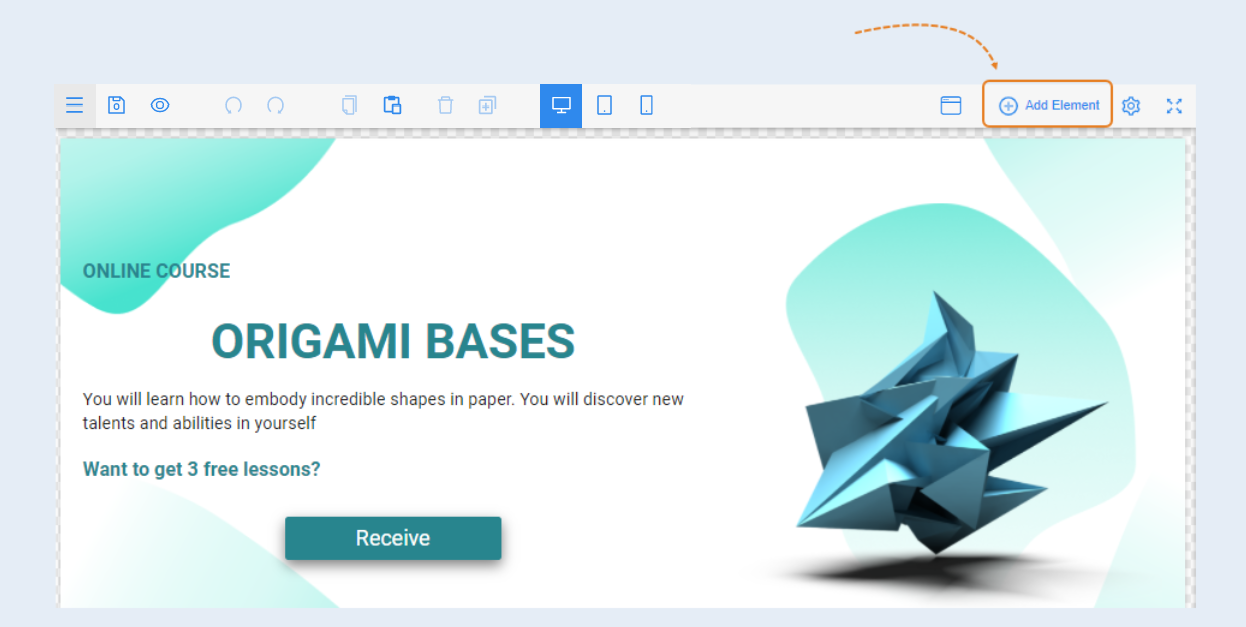
To add an element, click on the "Add Element" button in the top right corner of the page editor.
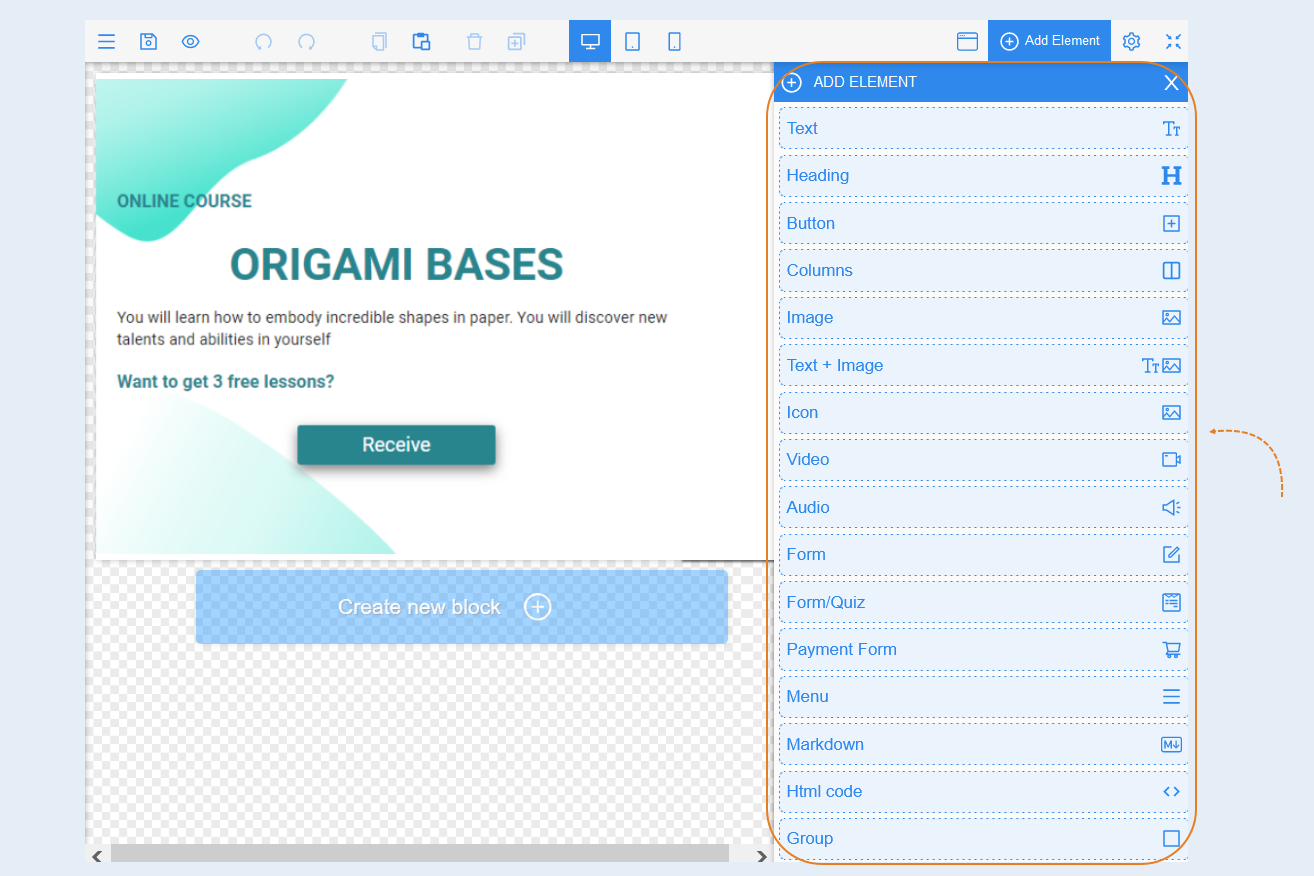
In the popup field, choose the desired element from the available 16 options.
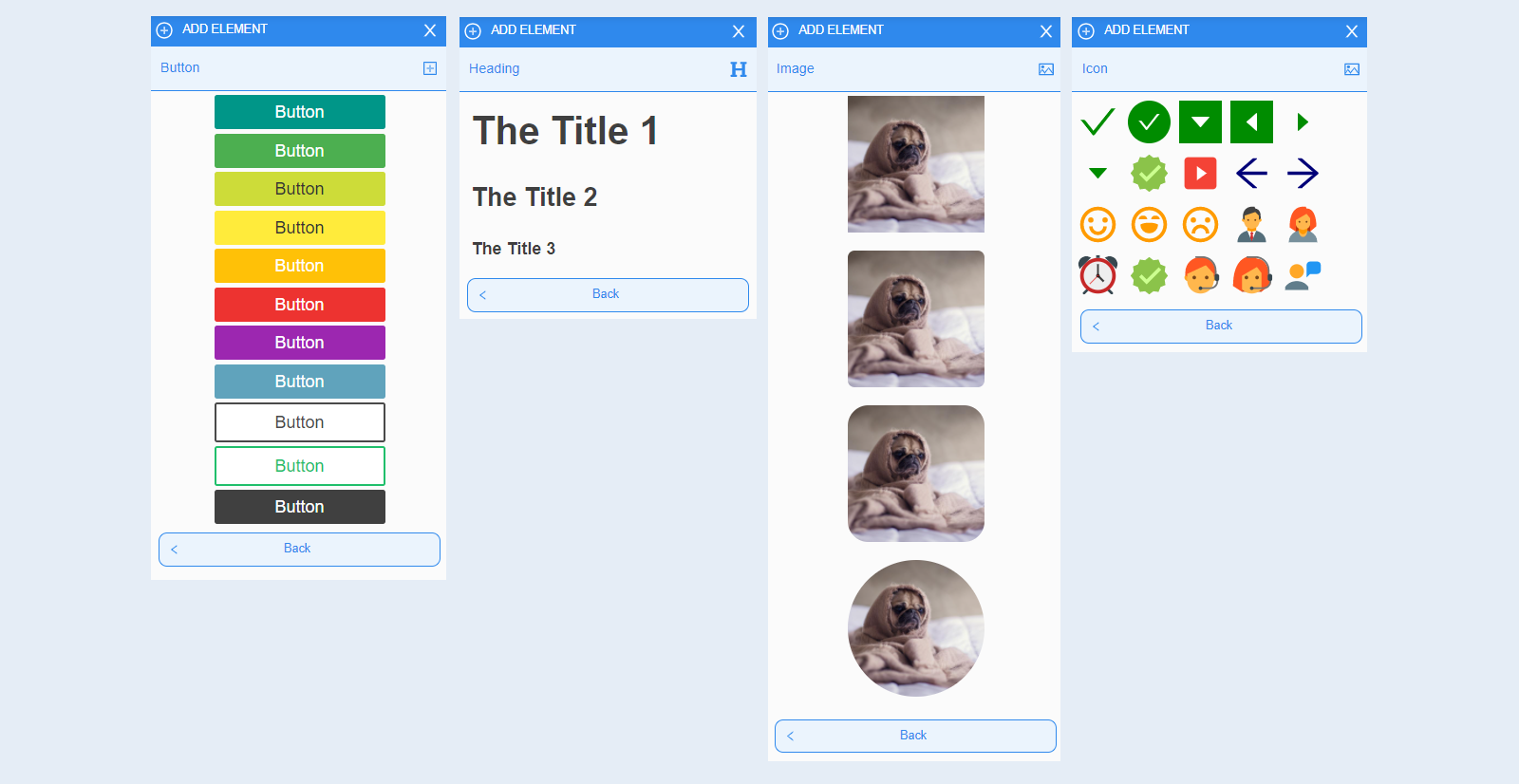
Click on the element, and you will be presented with several variations of each element in different styles.
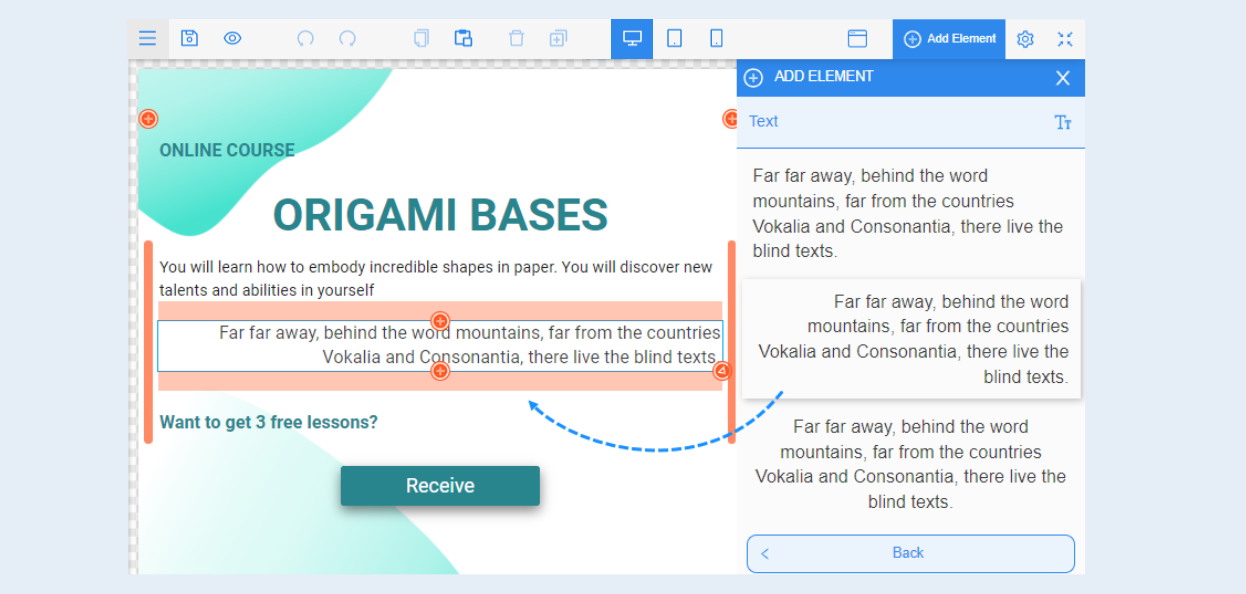
Right-click on the selected item and drag it onto the page.
After you have added an element to the page, you need to configure it.
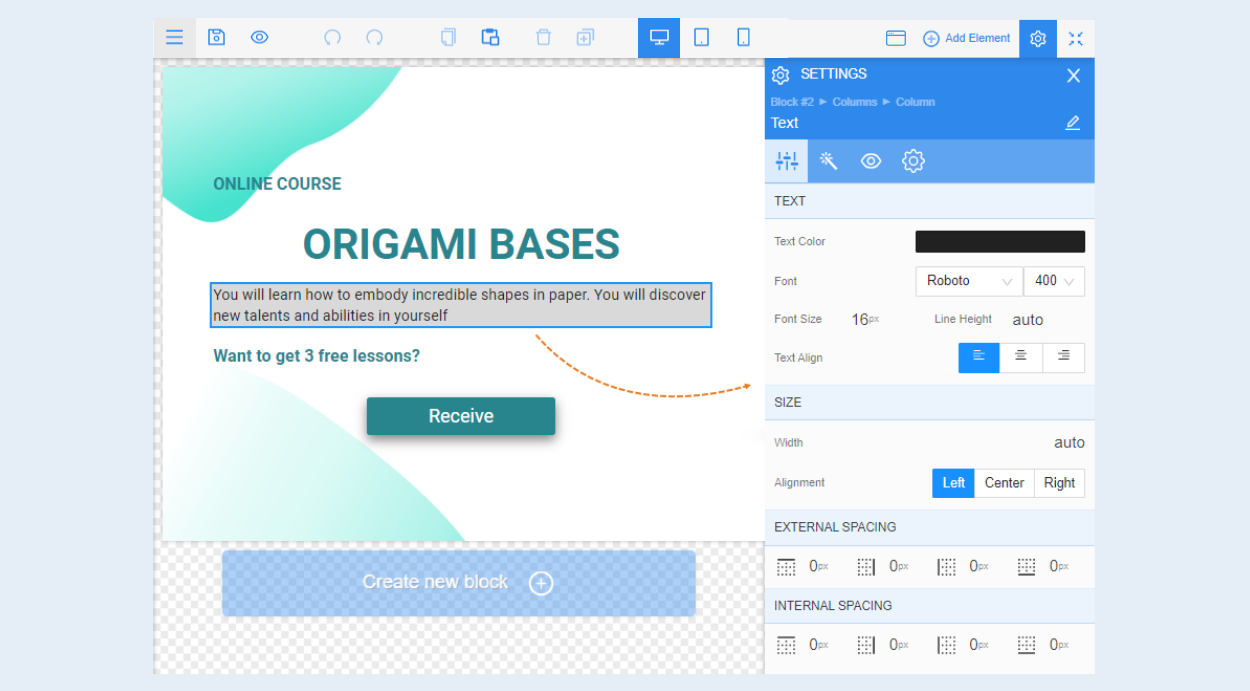
Select the entire block as a whole or select a separate element inside the block to edit it by clicking on it with the mouse. A toolbar opens on the right, it contains the settings for the element. These settings are unique for each element, but some of them are repeated. For example, text elements (text, title, form, button) have repetitive settings: text color, font, internal indentation.
Interactive elements are a form, button, icon. These elements differ from others in that they are clickable. These elements have the "Click action" setting - this is the action that will occur on the page when a site visitor clicks on a button (icon or form). A click action is going to another page, going to checkout for a product, submitting a form, etc.
Each element and its settings are described in detail in the corresponding article. See the "Sites" ection.