Markdown is a document markup using simple text characters that can be converted into HTML format and look the same in any browser. Text formatted in markdown is easy to read and write since it is created without code.
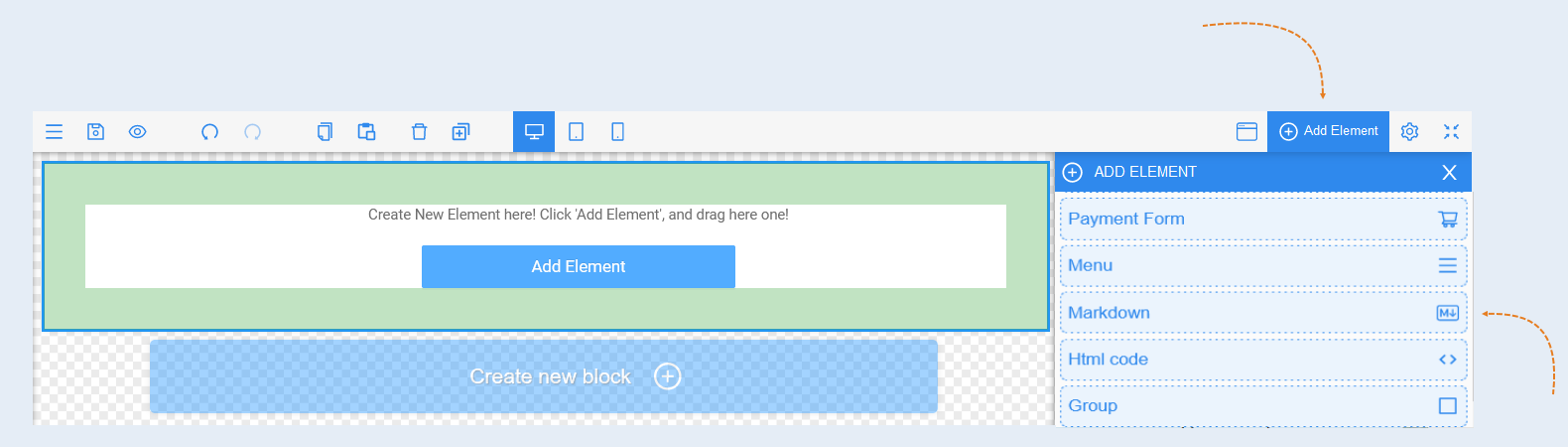
Click the "Add Element" button and select the "Markdown" element. Then, configure the element settings.
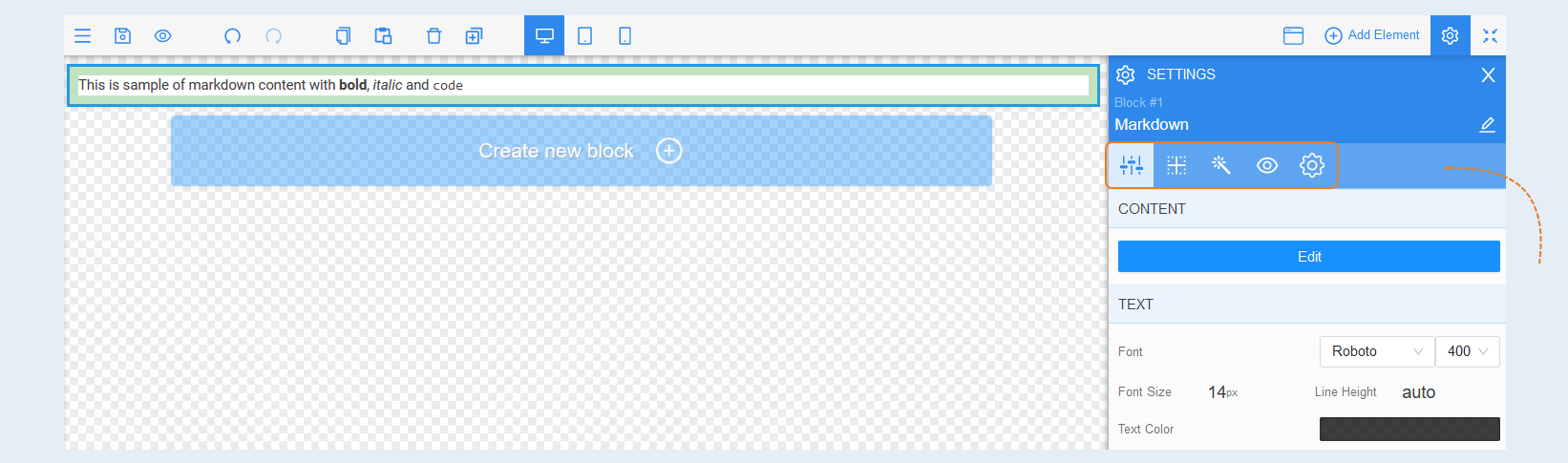
Select the element to edit it by clicking on it with the mouse. Settings for that element will open on the right.
For "Markdown" elements, a panel with the following tools will open:
General Settings
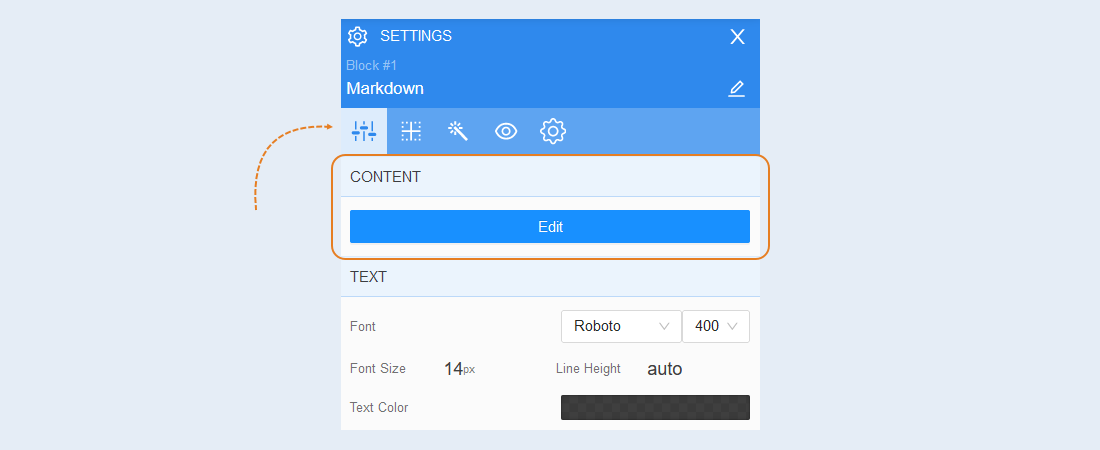
Content. Click the Edit button to make changes to the Markdown field.
A window opens for editing the Markdown element. Make the necessary adjustments.
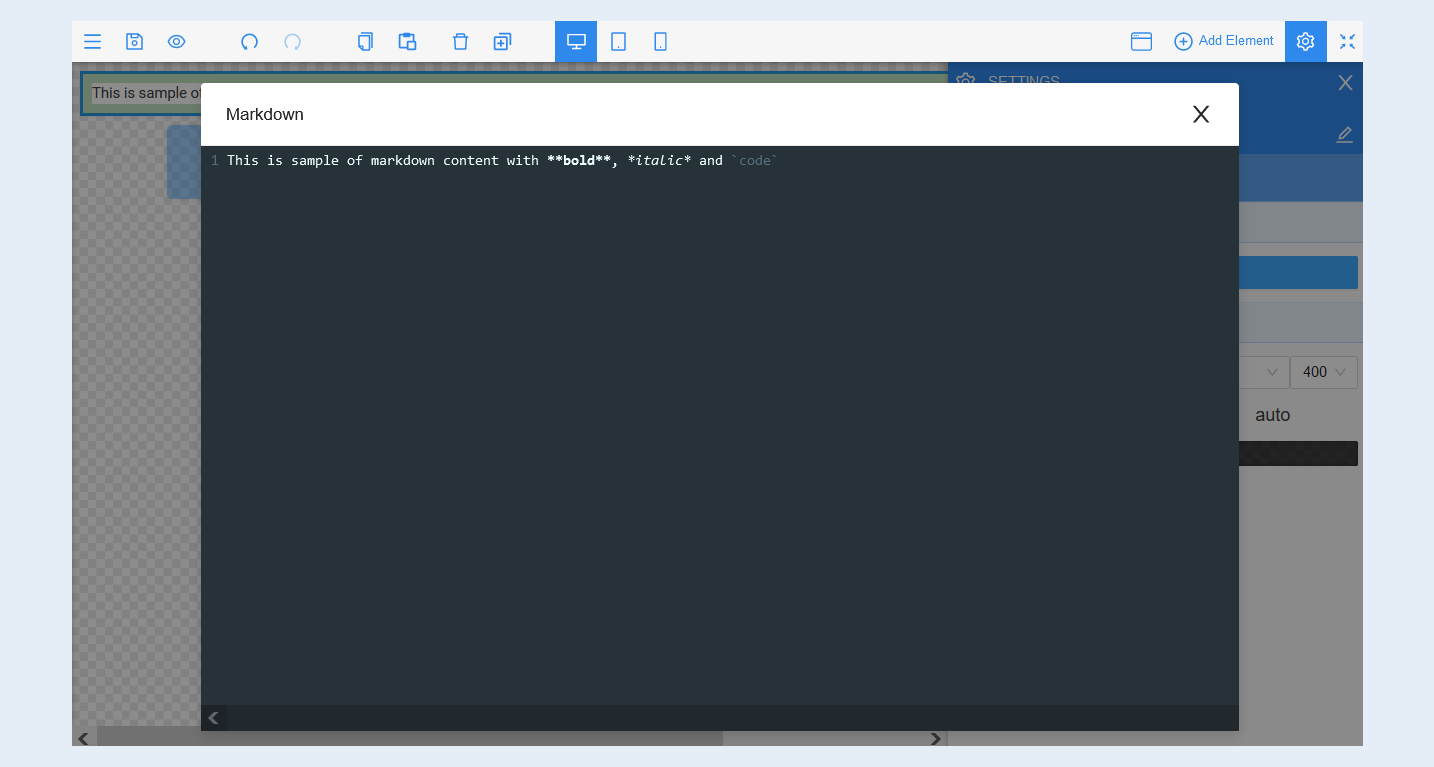
Text. You can change the text color, font, font size, line height. The default line height is set to automatic (auto). You can also set a numeric value in percentages (%) or pixels (px). By clicking on the cross, you reset the numeric value to auto.
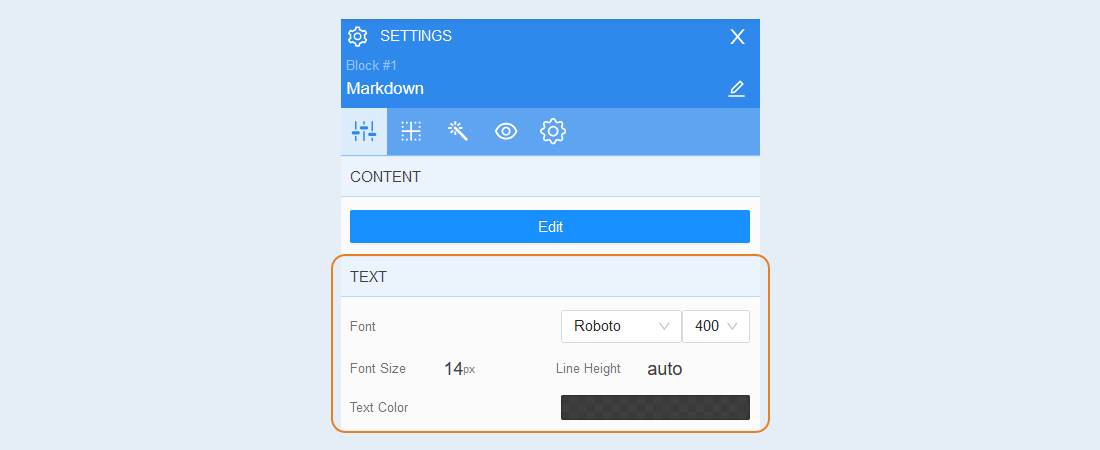
Positioning
For more information on the settings in this section, refer to the article "Positioning".
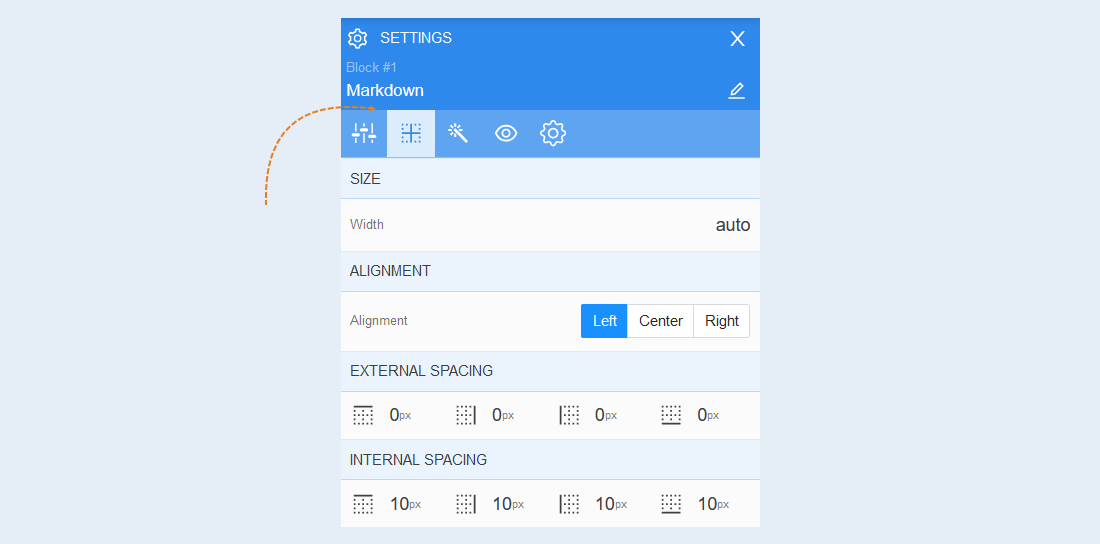
Style
Background. In this section, you can change the background color of the element, as well as add a background image to the element. For the background image, additional image settings are opened: image selection, size, image repetition and the position of the image inside the element.
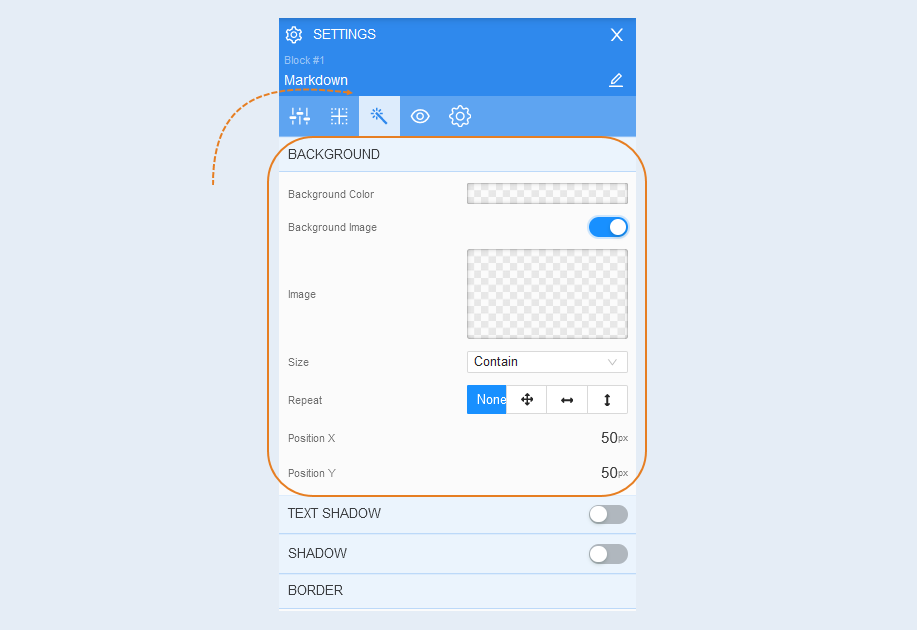
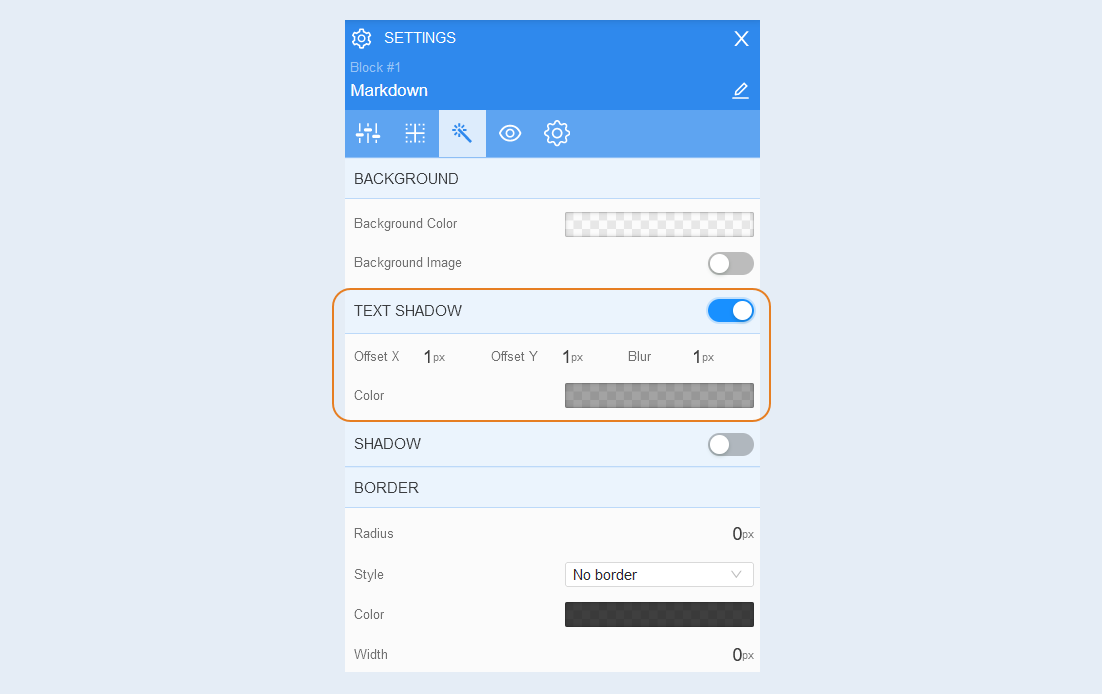
Text shadow. Choose the color of the text shadow, the direction of this shadow (left, right, up, down) and blur (make the shadow bright and clear or transparent). This effect is used if the background is not uniform and the text is poorly read in some places. And also to make the text more voluminous.
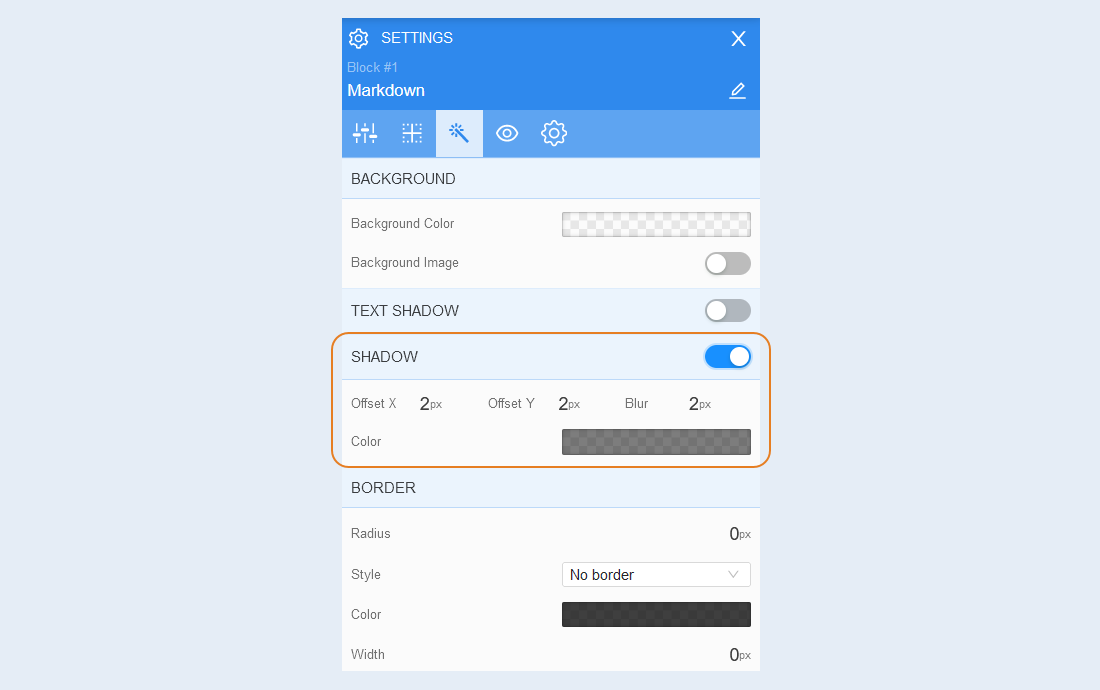
Shadow. You can add a shadow from the element around, adjust the offset and blurriness of the shadow. And also the color of the shadow.
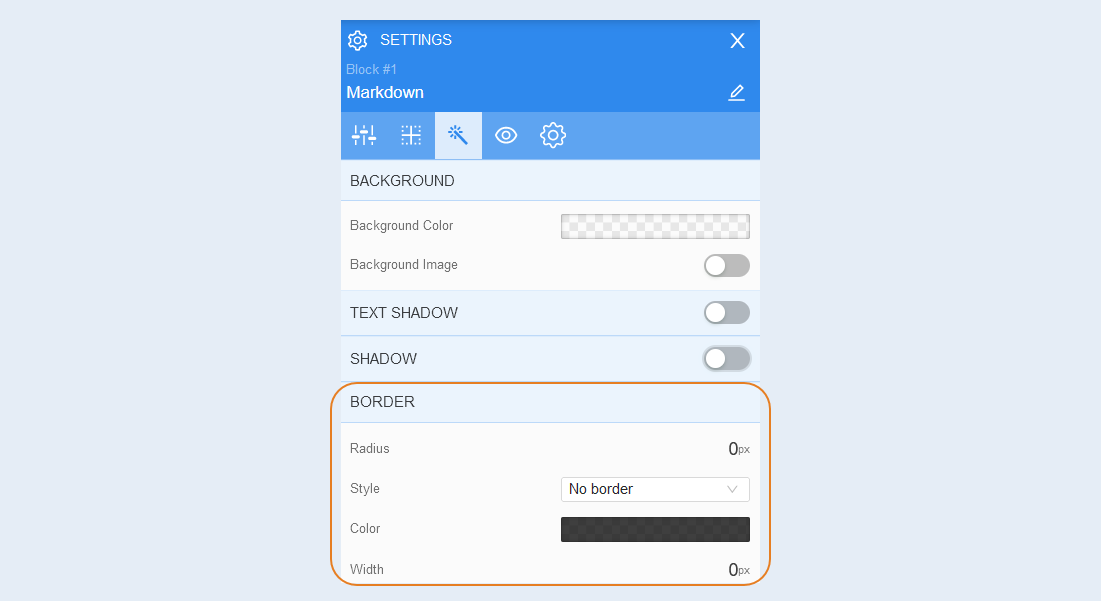
Border. You can customize the border for the element: radius (rounding the corners of the frame), border style (without frame, solid, dotted, dotted), border width, color.
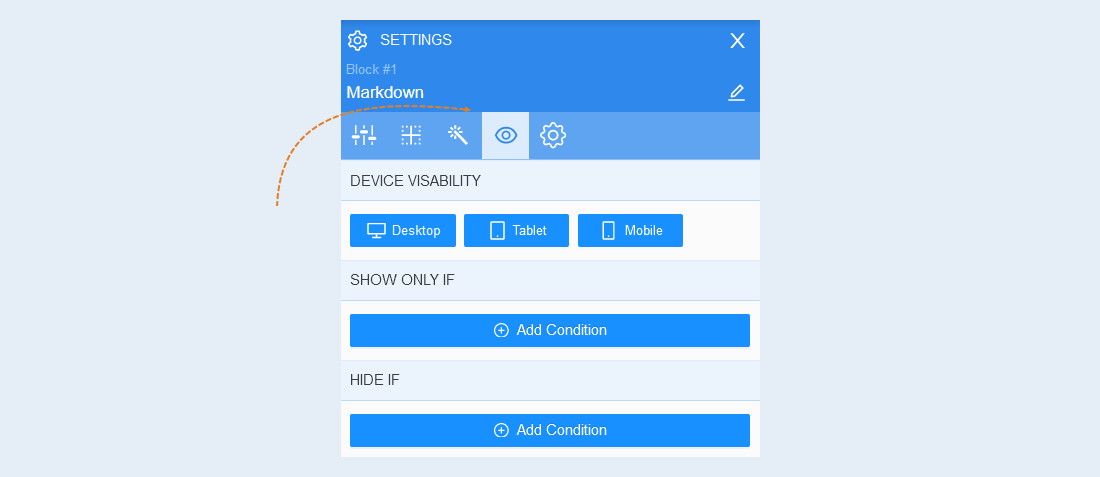
Conditional show / hide
For more information on the settings in this section, refer to the article "Conditional show / hide".
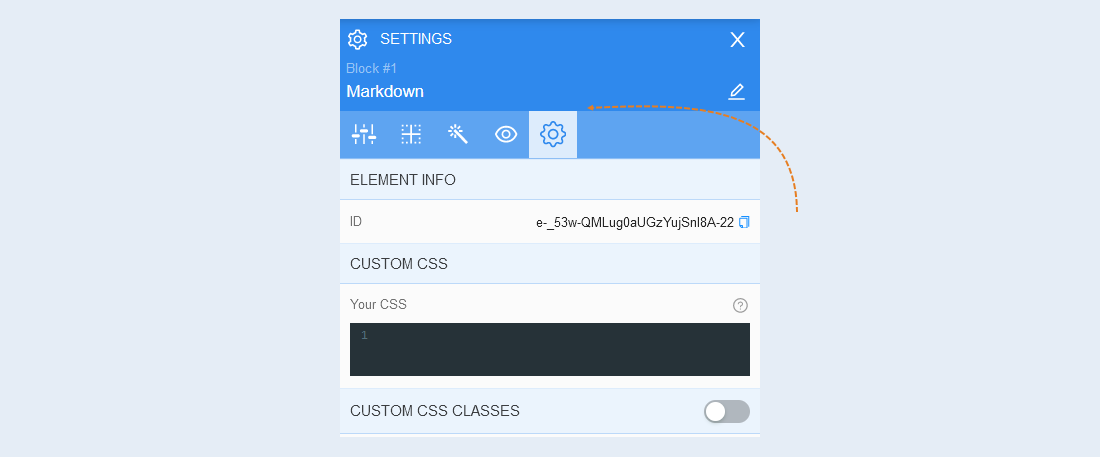
Advanced
For more information on the settings in this section, refer to the article "Advanced settings".