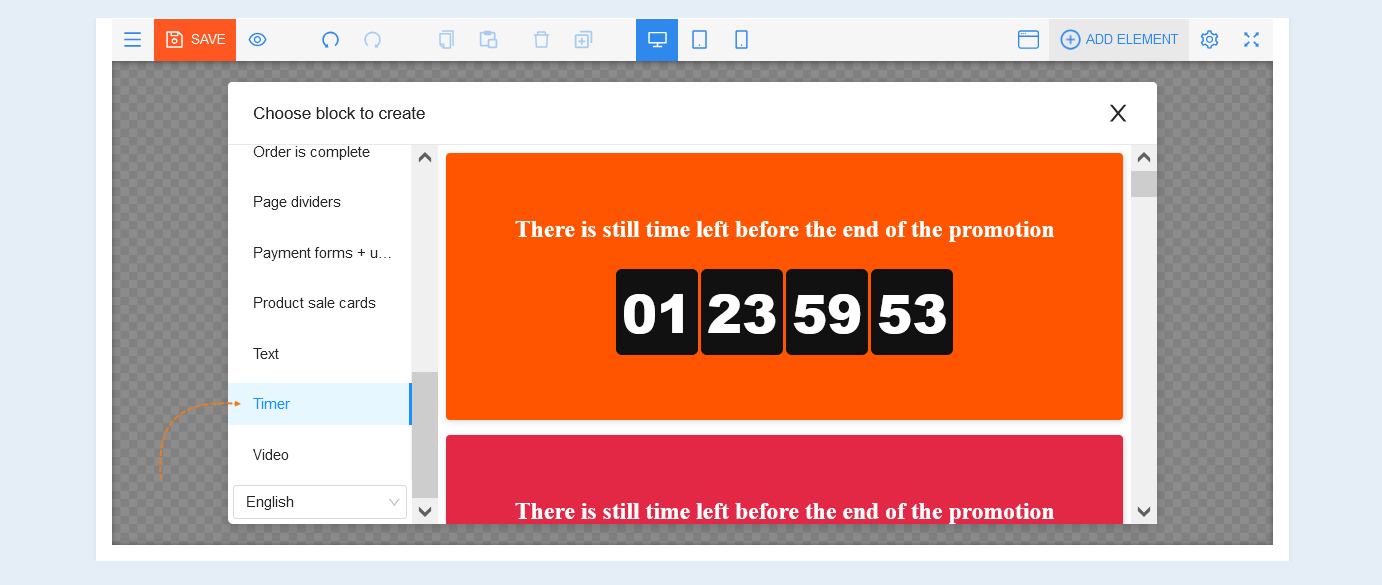
From the list of blocks that opens, select the Timer block to create a site page. Next, make the block settings.
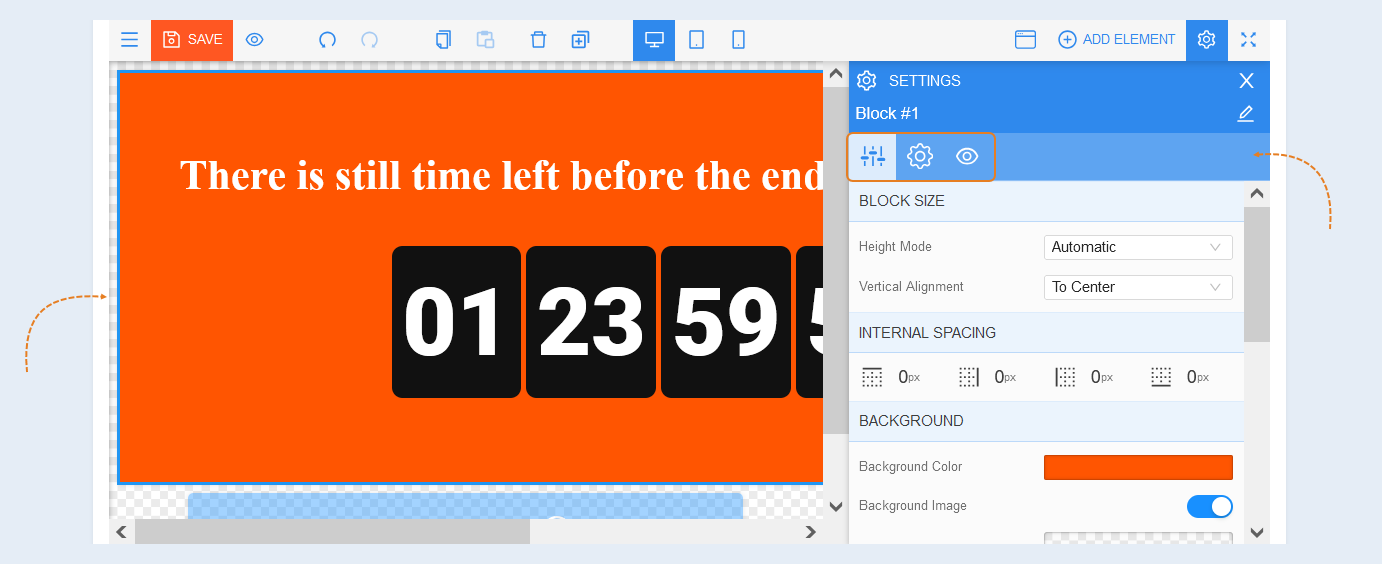
Select the entire block to open the settings for this element. A toolbar opened on the right.
General Settings
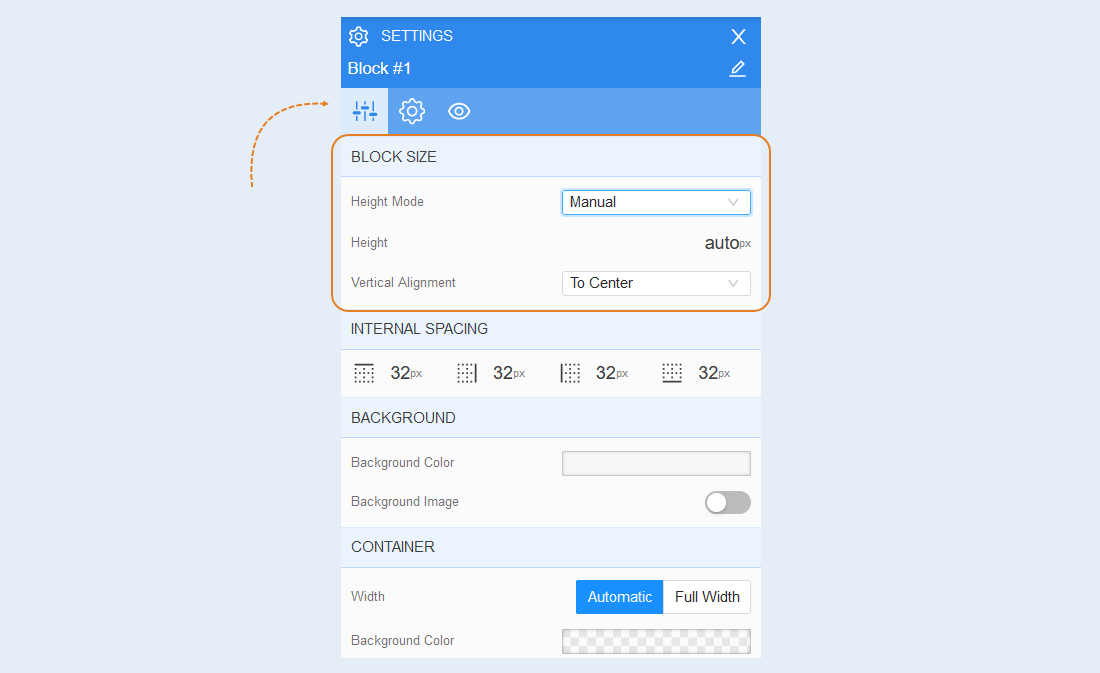
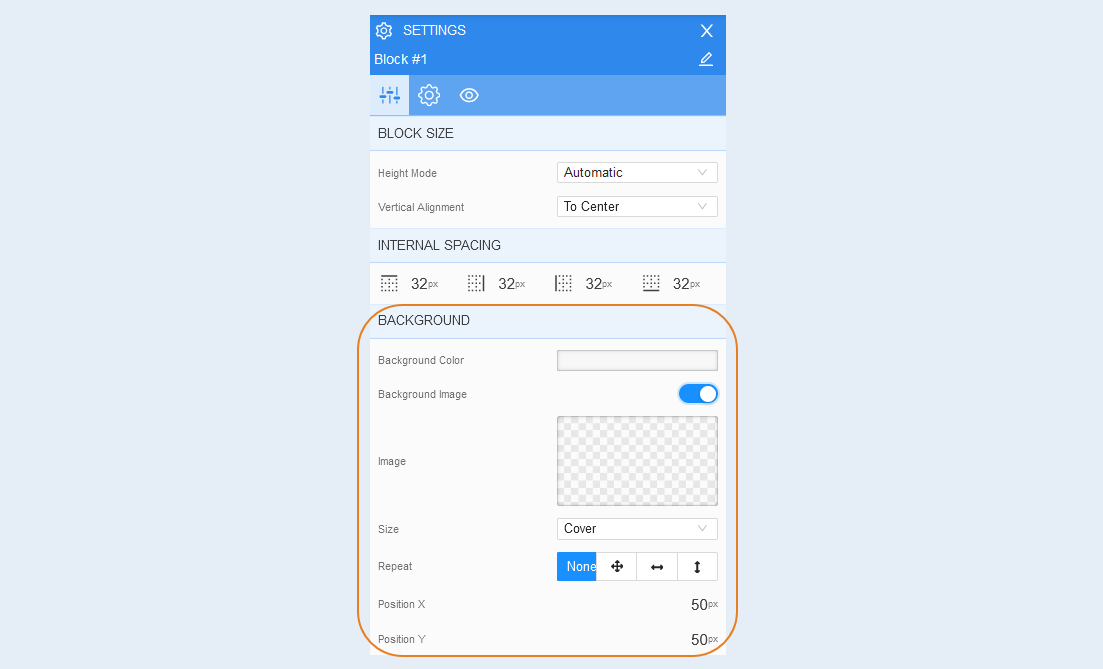
Block size. You can change the "Height mode" of the block: automatically, full height, manually. If you select automatically, then the height of the block corresponds to the size of the elements inside the block. The full height corresponds to the size of the laptop screen. By choosing the parameter manually, you determine the height of the block yourself. In the additional line "Height", set the value in pixels. Click on the cross to reset the settings and return to the auto - automatic height parameter.
In the "Vertical alignment" line, select from the list the value that determines the position of the elements inside the block: to the beginning, to the center, to the end, the space between, the space around.
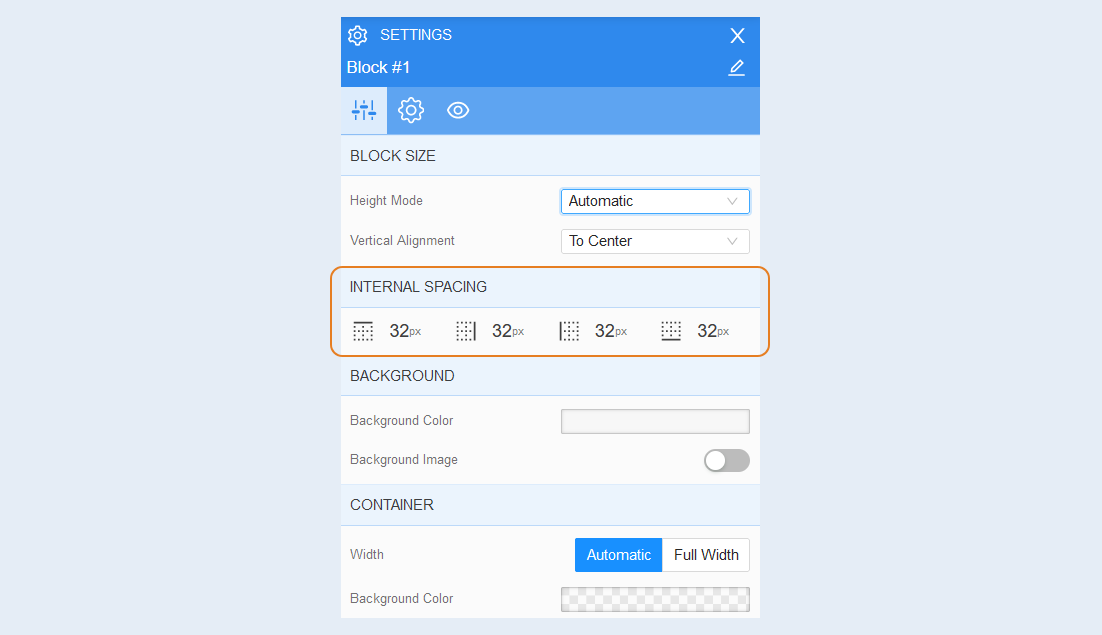
Internal spacing. You can change the indentation of elements inside the block. This function is used if any element is located close to the borders of the block and it is necessary to move it away from the borders.
Background. In this section, you can change the background color of the block, as well as add a background image for the block. Additional image settings are opened for the background image: image selection, image size (select from the list: cover, fill, fit, 50%, 100% and other sizes), image repetition and the position of the image inside the block.
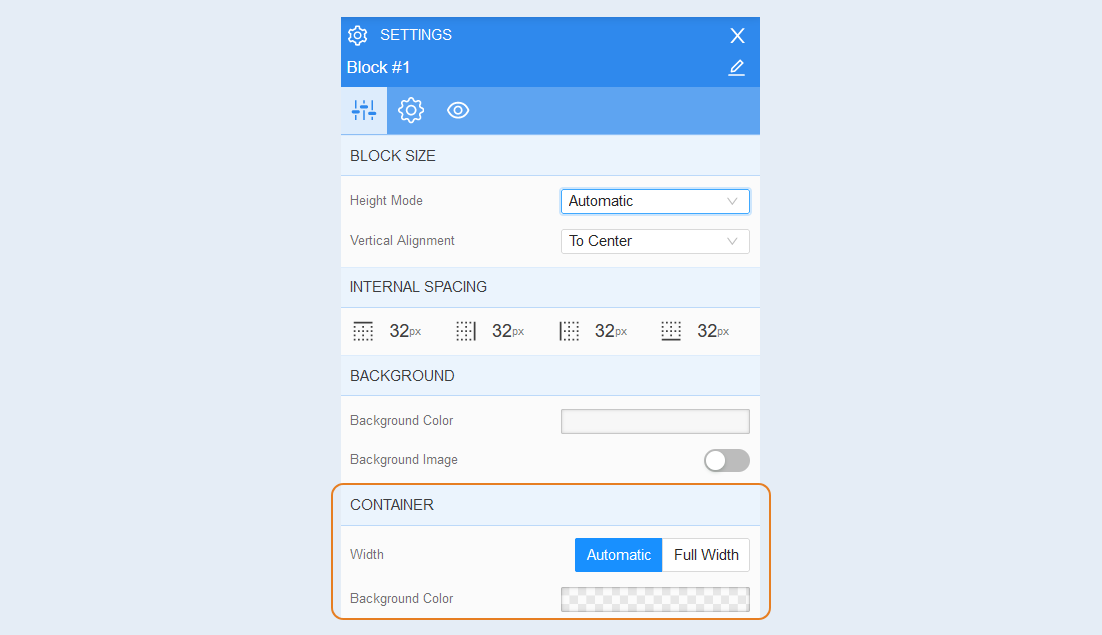
Container. In this section, you can change the width of the elements inside the block: automatically or full width. And also set the background color of the block.
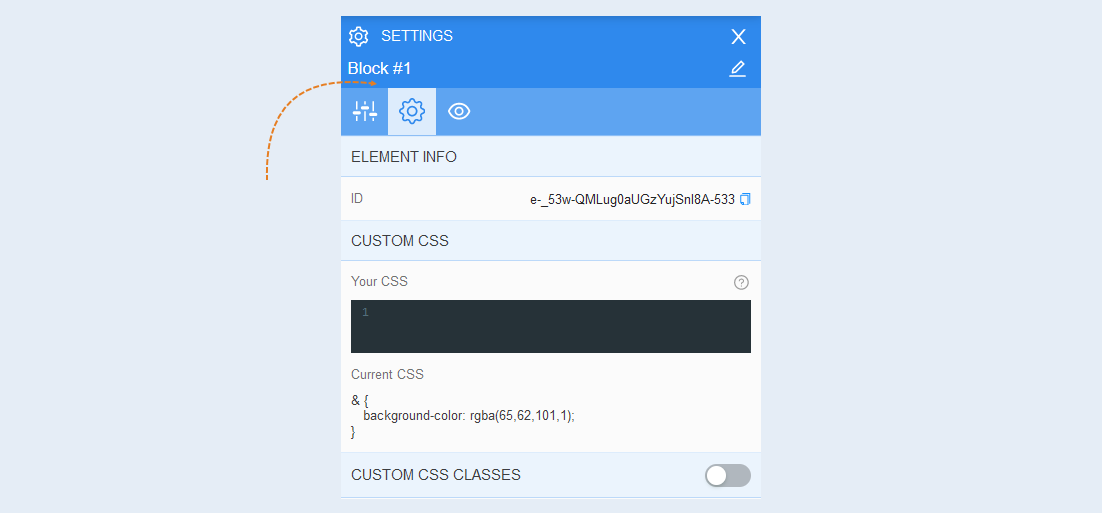
Advanced settings
Read more about the settings of this section in the article "Advanced settings".
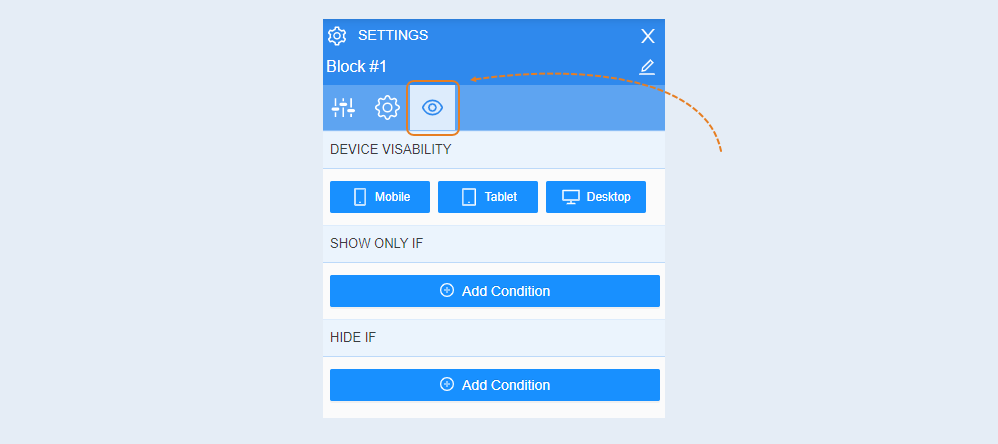
Conditional show / hide
Read more about the settings of this section in the article "Conditional show / hide".
For more information about the settings of each block element, read the articles "Element Title", "Element Timer".