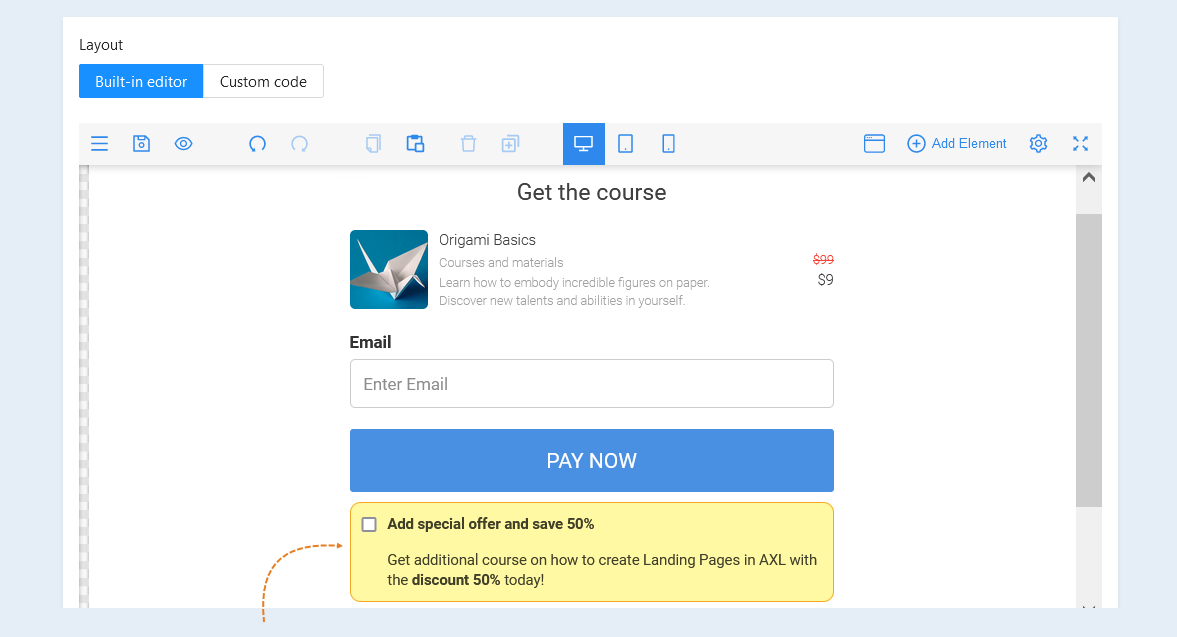
The order bump component. Order bump automatically adds or replaces an item in the order.
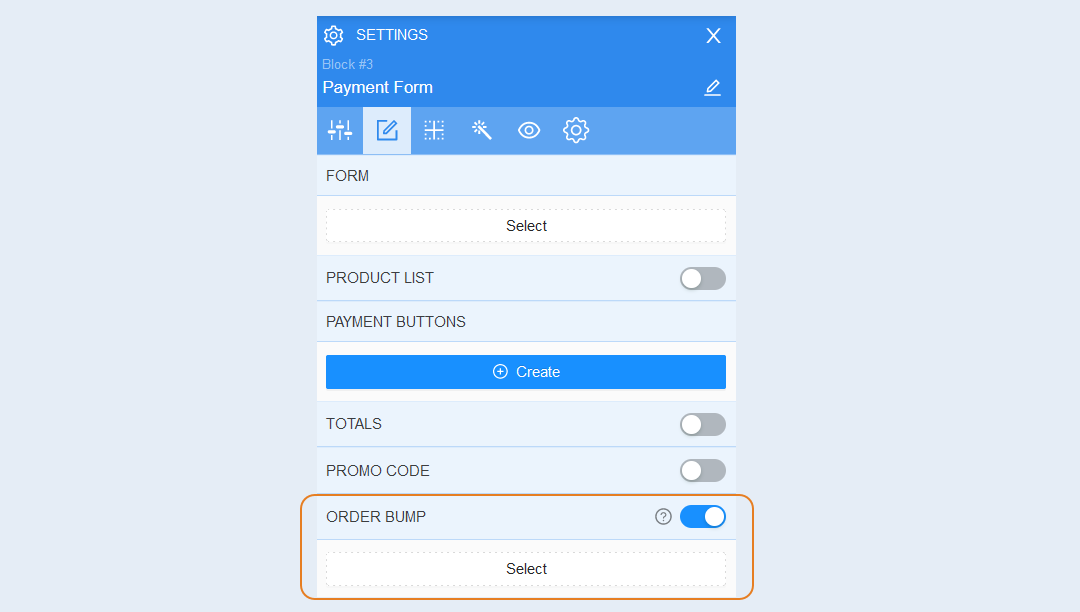
In the payment form settings window, move the "Instant additional sale" slider to the active position and click the "Select" button.
General Settings
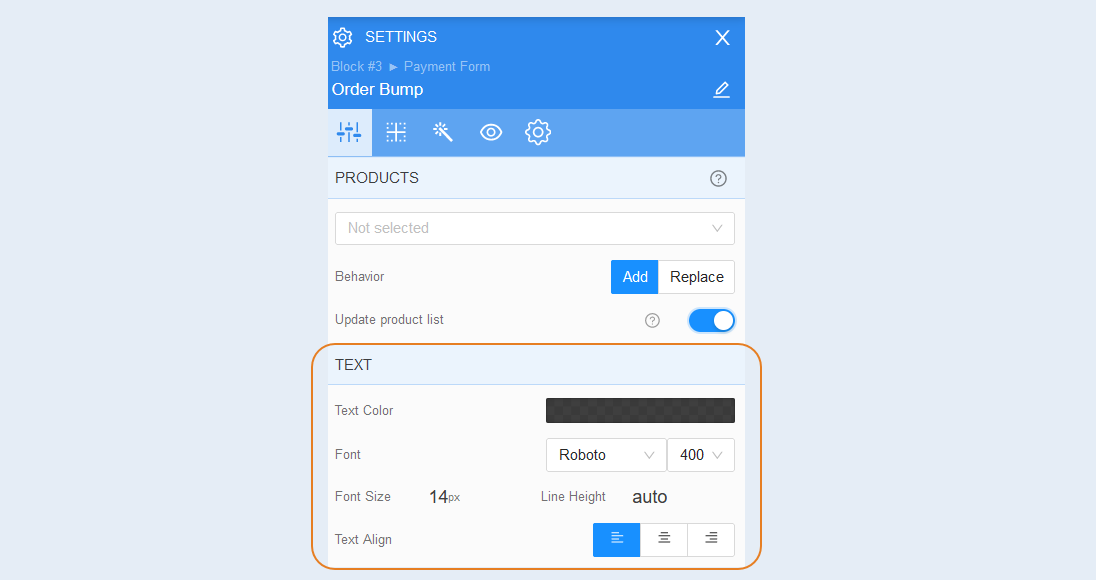
Select the instant additional sale element inside the payment form, advanced settings will open on the right. In the advanced settings of the order bump component, select which product will be sold after payment for the main product. Also select the behavior to be performed when the user selects the order bump conditions. An additional product can either be added to the basket to the main one, or it will completely replace the main product.
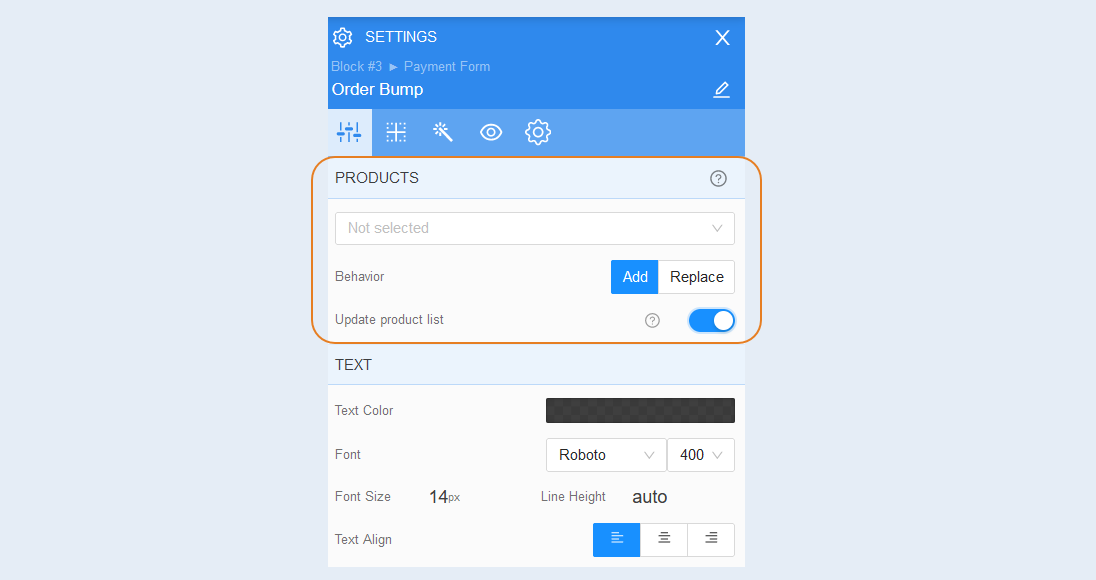
In the text section, you can change the text color, font, font size, line height and text alignment.
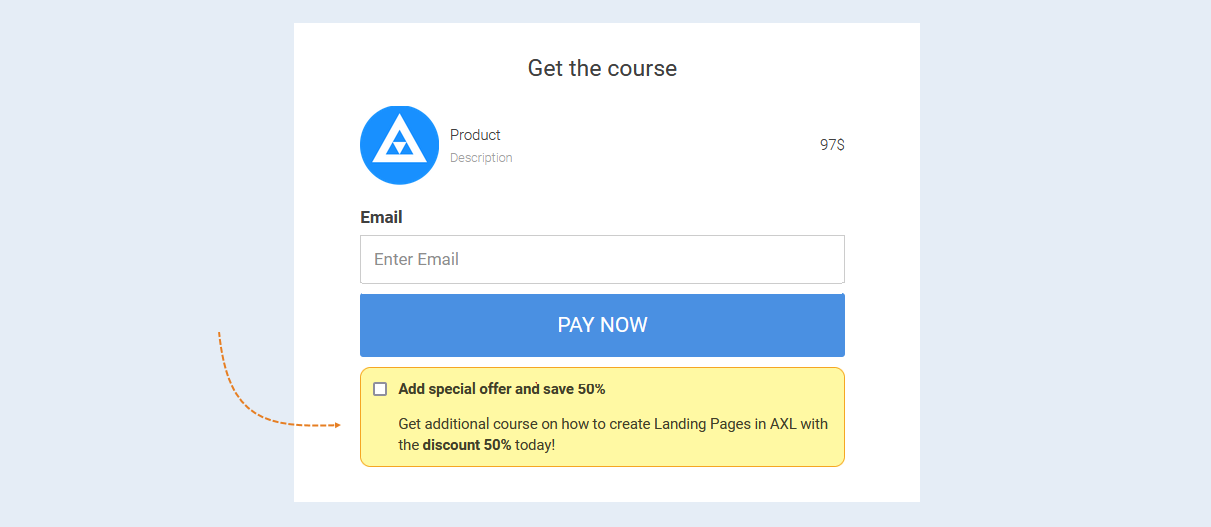
Inside the order bump field, you can change the text by double-clicking on the desired text field.
If the user checks the box "Add special offer and save 50%", then a second product will also be added to the cart, or the main product will be automatically replaced.
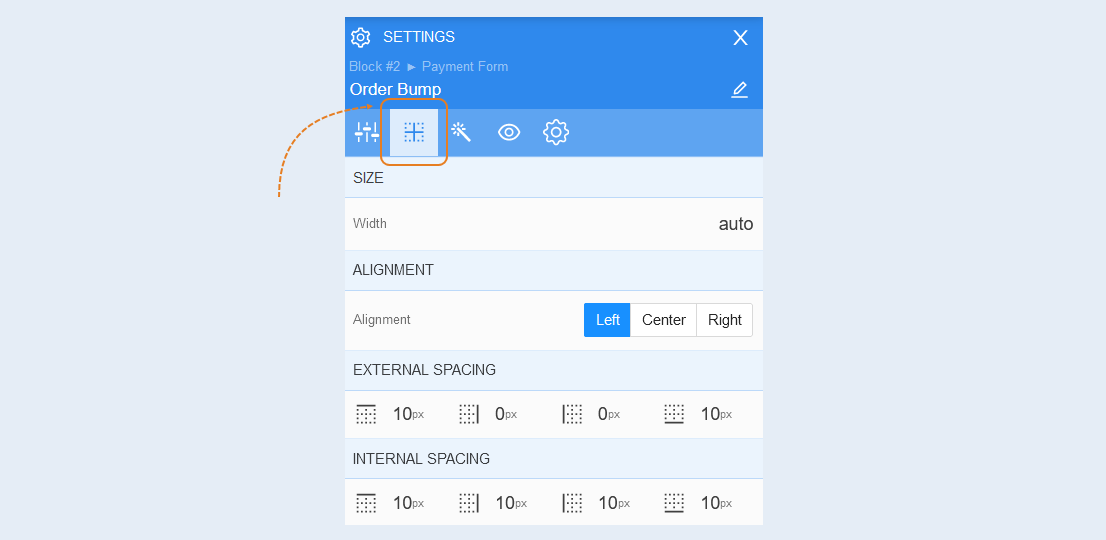
Positioning
Read more about the settings of this section in the article "Positioning".
Style
Background. You can change the background color of the form, as well as add a background image to the form. Additional image settings are opened for the background image: image selection, size, image repetition and image position inside the form.
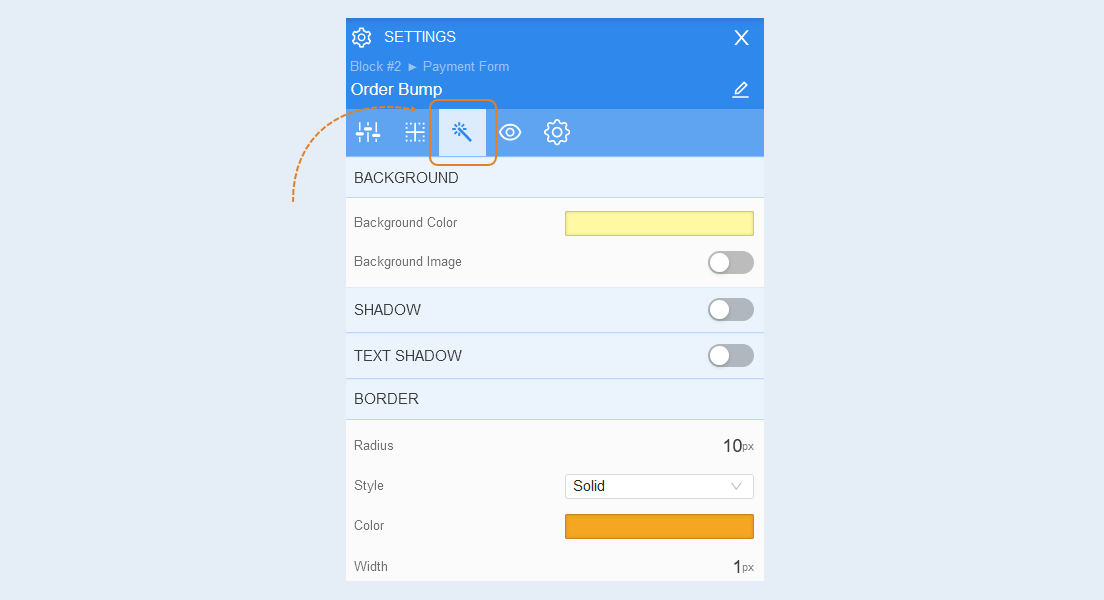
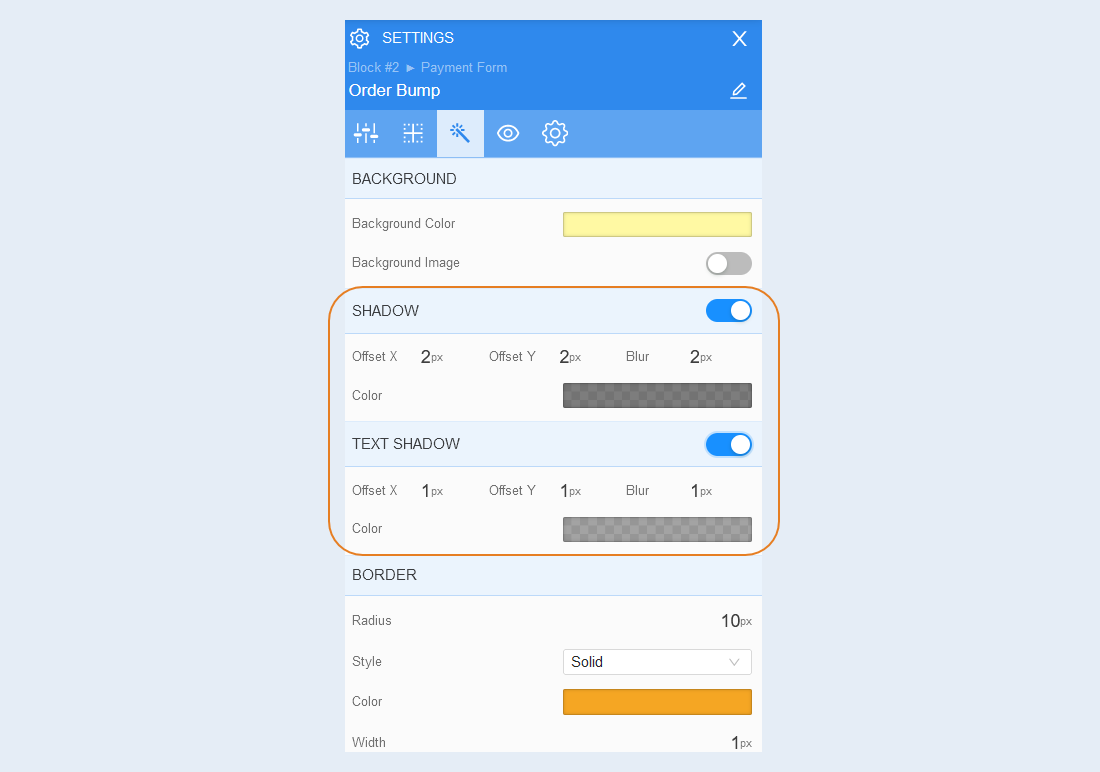
Shadow. Add a shadow around the shape, you can adjust the shadow offset (left, right, up, down) and blur (bright or transparent shadow). And also the color of the shadow.
Text shadow. Add a text shadow, you can adjust the shadow offset (left, right, up, down) and blurriness (bright or transparent shadow). And also the color of the shadow.
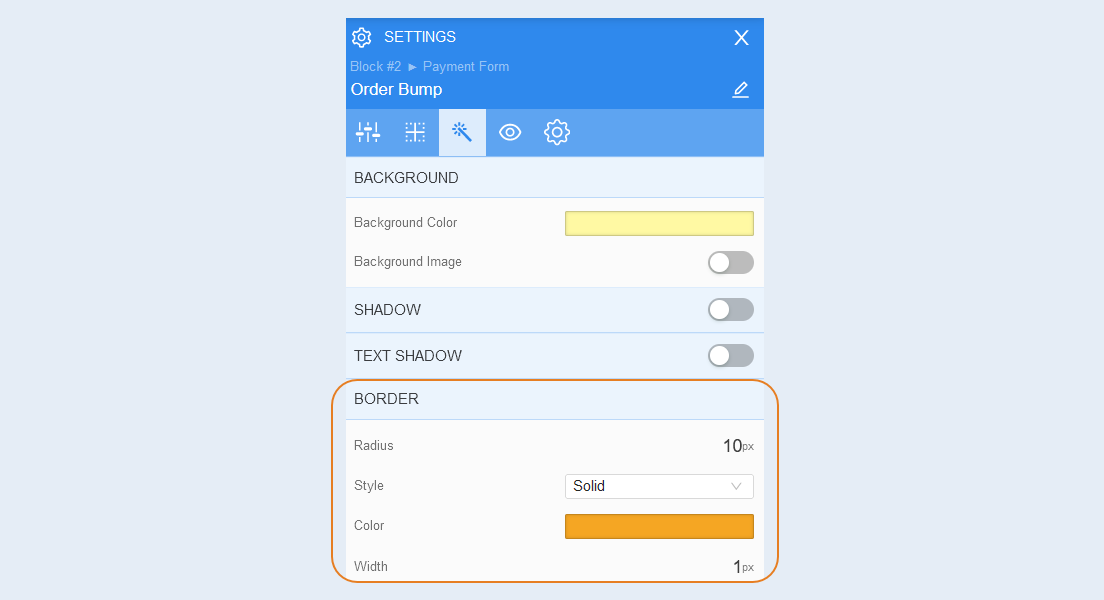
Border. You can customize the frame around the shape: the radius of the frame (rounds the corners of the margins), the color of the frame and the thickness.
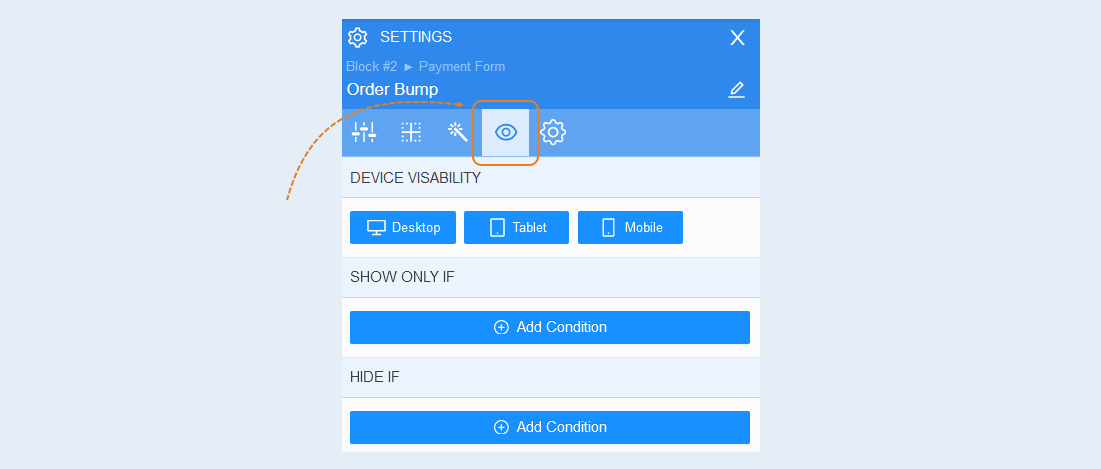
Conditional show / hide
Read more about the settings of this section in the article "Conditional show / hide".
Advanced settings
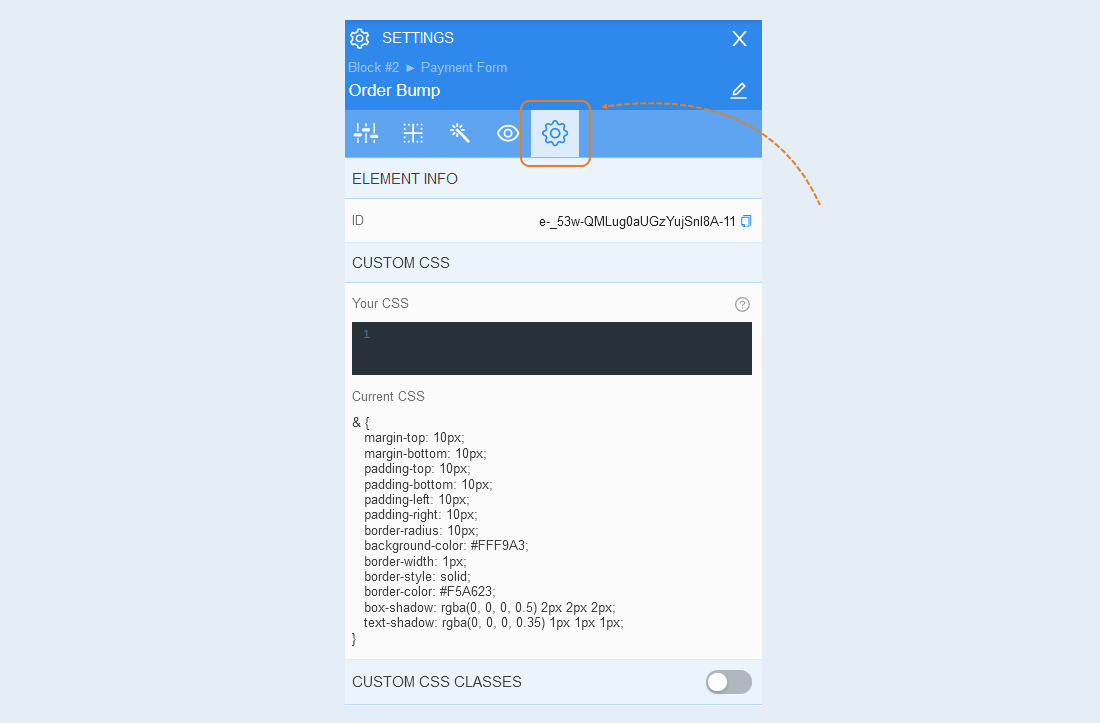
Read more about the settings of this section in the article "Advanced settings".