In the settings of the "text" element and the "heading" element, you can manage fonts. In the axl editor, you have access to 1052 fonts.
Font selection
Open your website and select the "text" or "heading" element. On the right, a toolbar will open. Here you will see the "font" line.
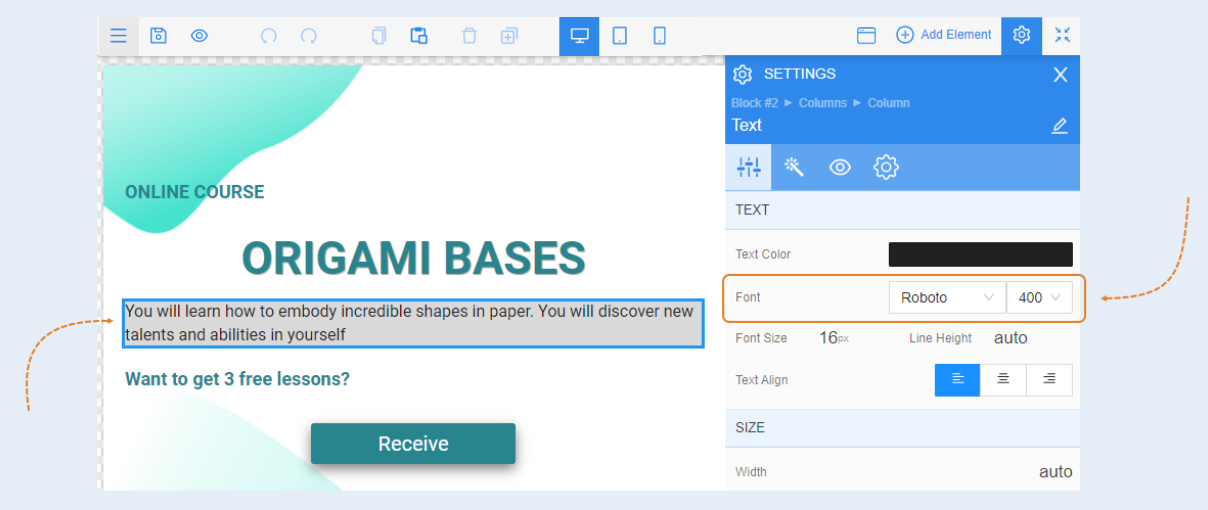
Click on the font name. You will see a list of available fonts. These are standard fonts. You can choose a font from this list.
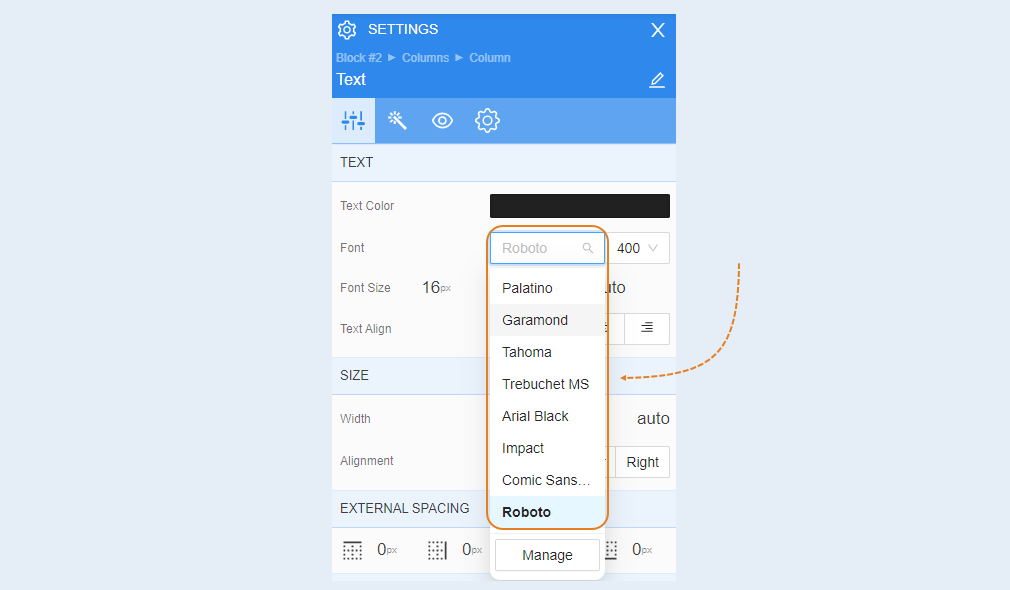
Below the list, there is a "manage" button. Click the button to see all font options. In the window that opens, you will see a list of 1052 fonts.
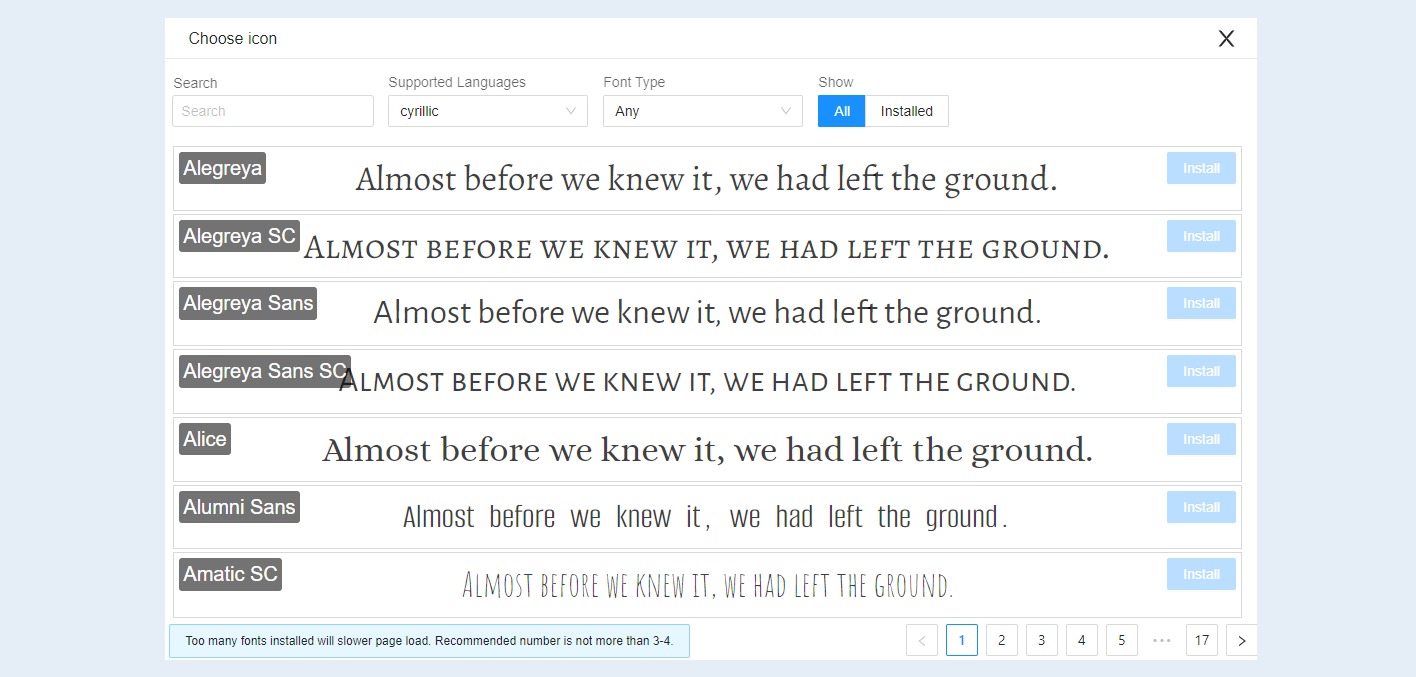
Font management
You will see a font gallery. You can scroll through, select a font, and set it for the website by clicking the "select" button. The font will be assigned to the selected object (text or heading). You can make this font the primary font for the entire website. To do this, click the "make primary" button. The font you have chosen will be applied to all headings and texts on the website.
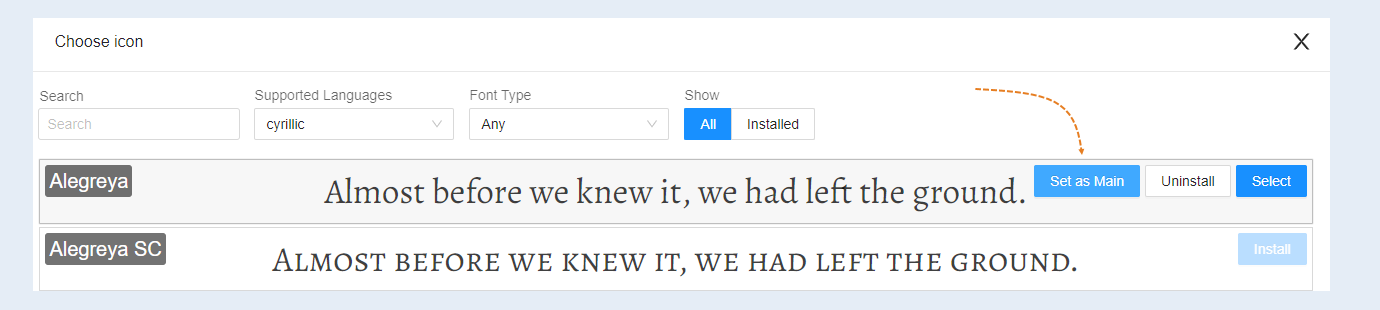
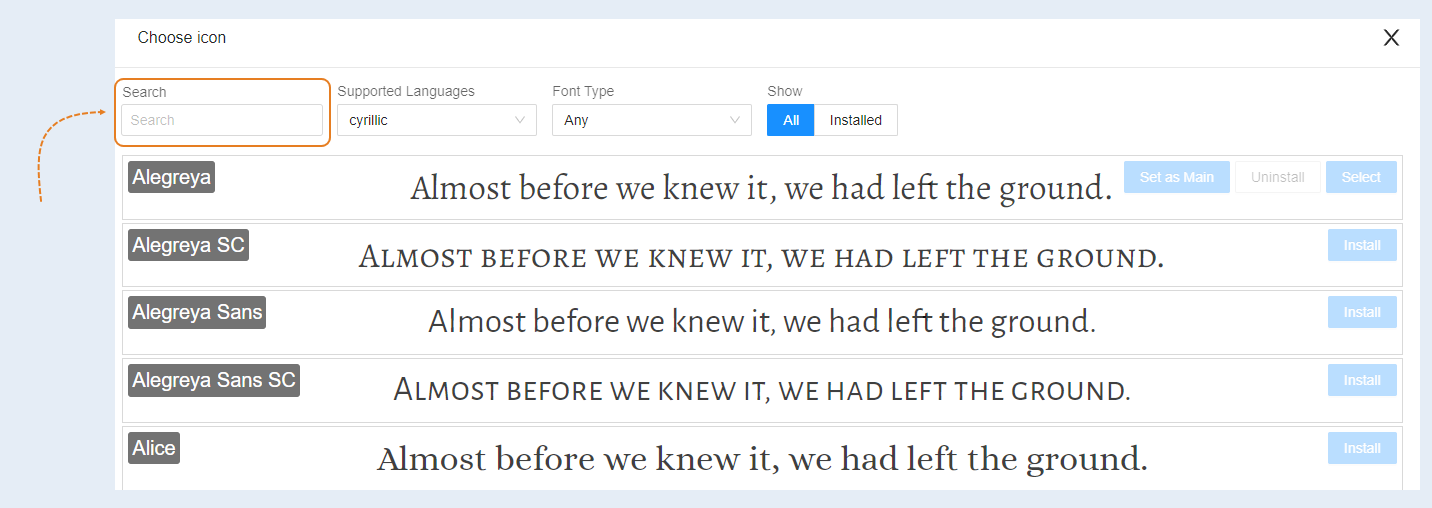
At the top, you have search fields available:
Search
Here you can enter the font name.
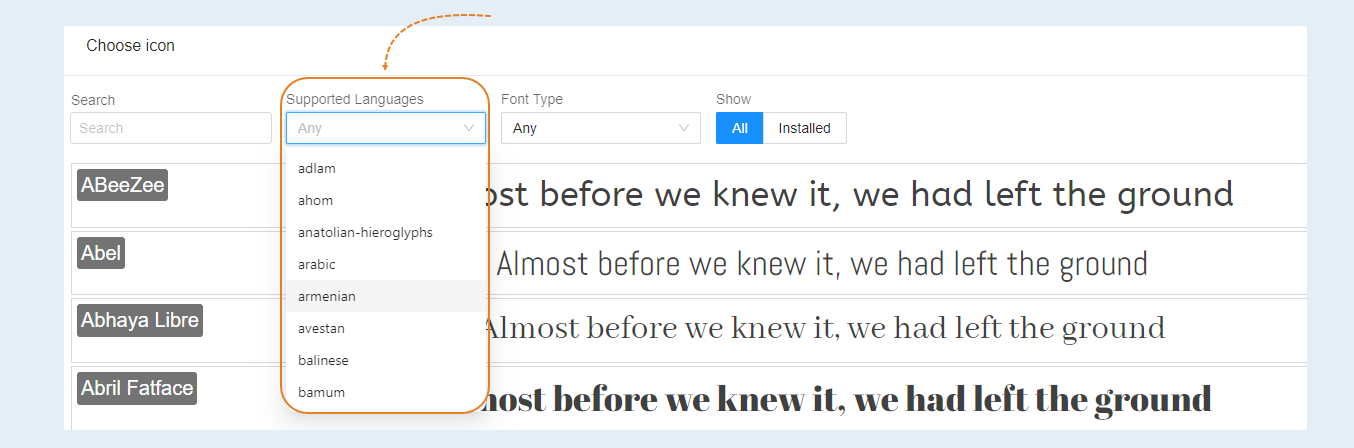
Supported languages
Choose a language from the list.
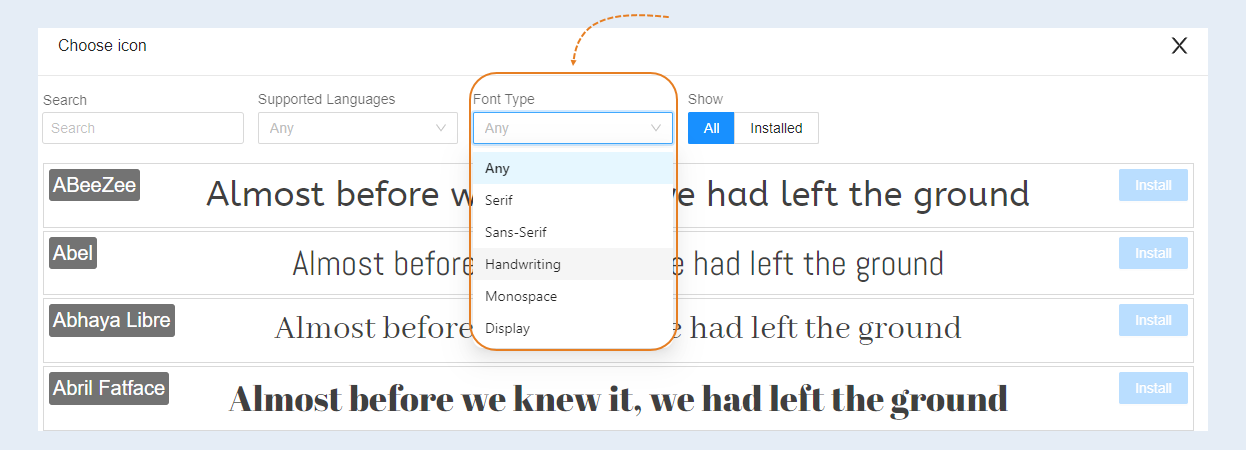
Font type
Choose a font type from the provided list.
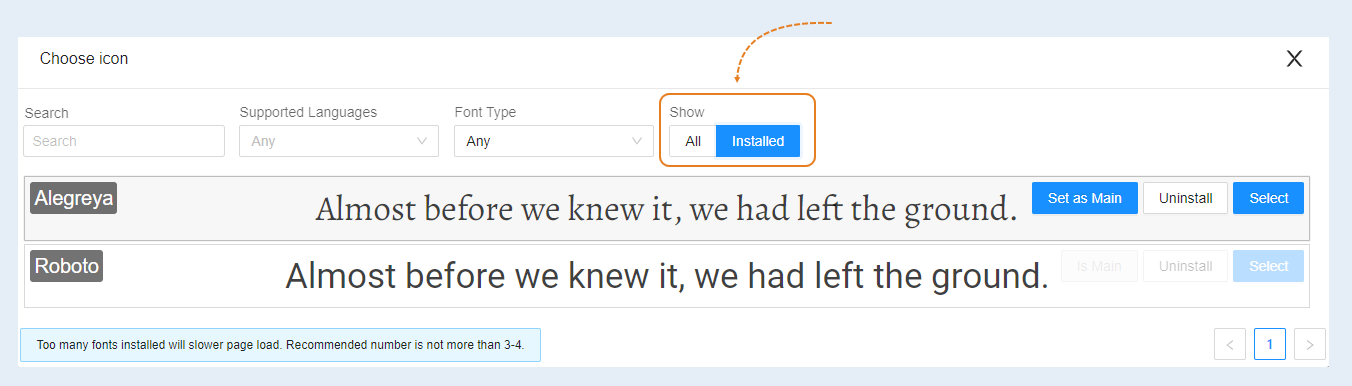
Show
Select "all" to see all fonts in the list, or "installed" to view only installed fonts.
To assign different fonts for headings and text, as well as set size, style, font color, return to the settings.
Highlight the text you want to edit. On the right toolbar, select the font, set the font for the text.
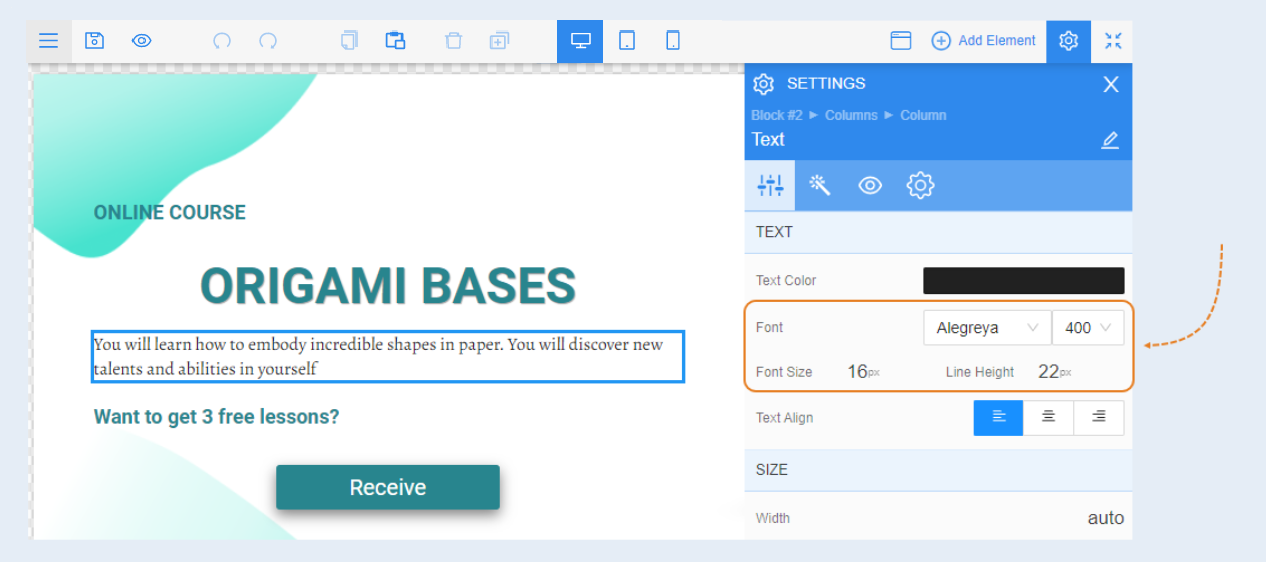
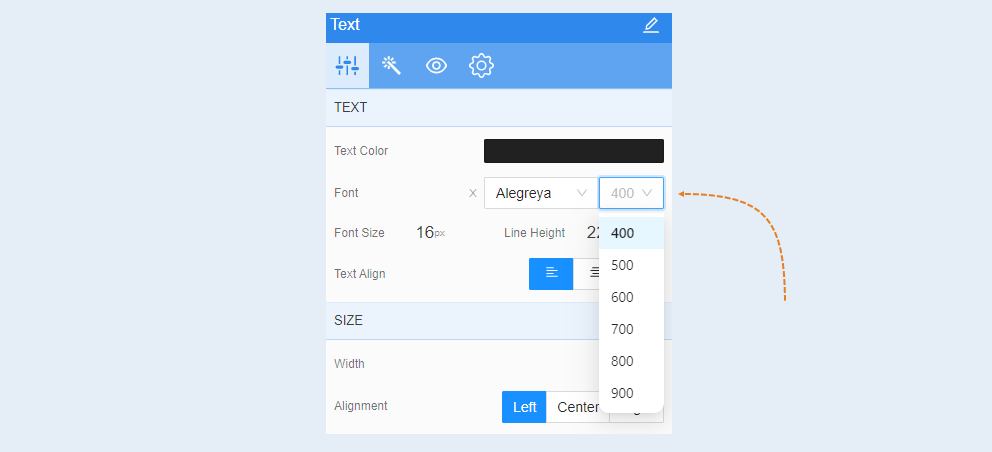
Then choose the font style: bold, semi-bold, thin. Here you can set a numerical value for the font style. Choose a value from the list.
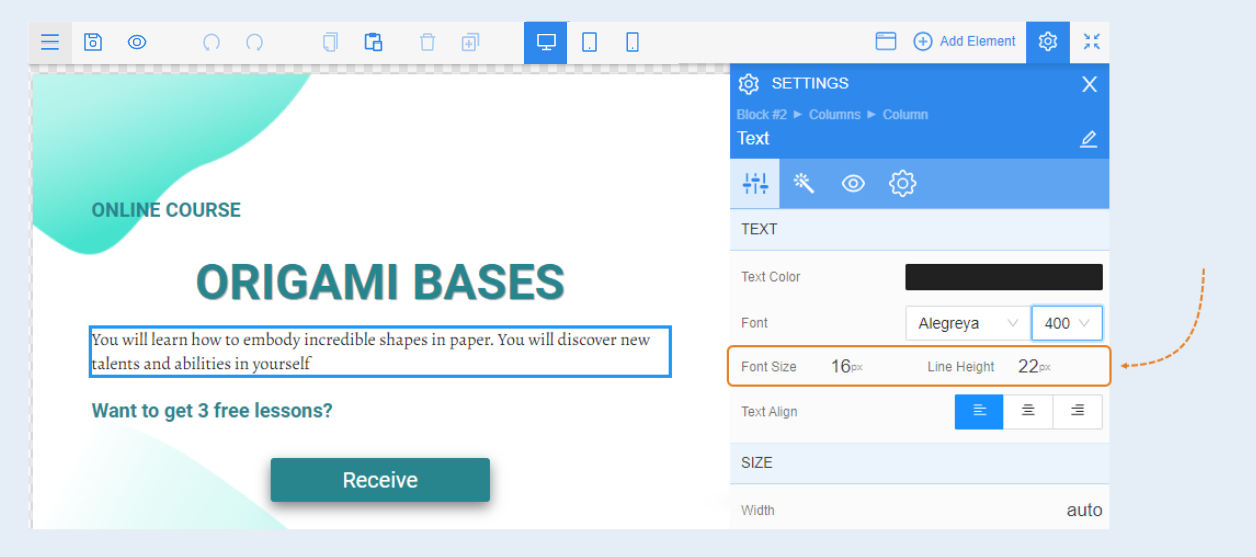
Set the font size and, if necessary, choose the line height. You can leave the line size as "auto" - automatic height.
Click the "save" and "publish" buttons.