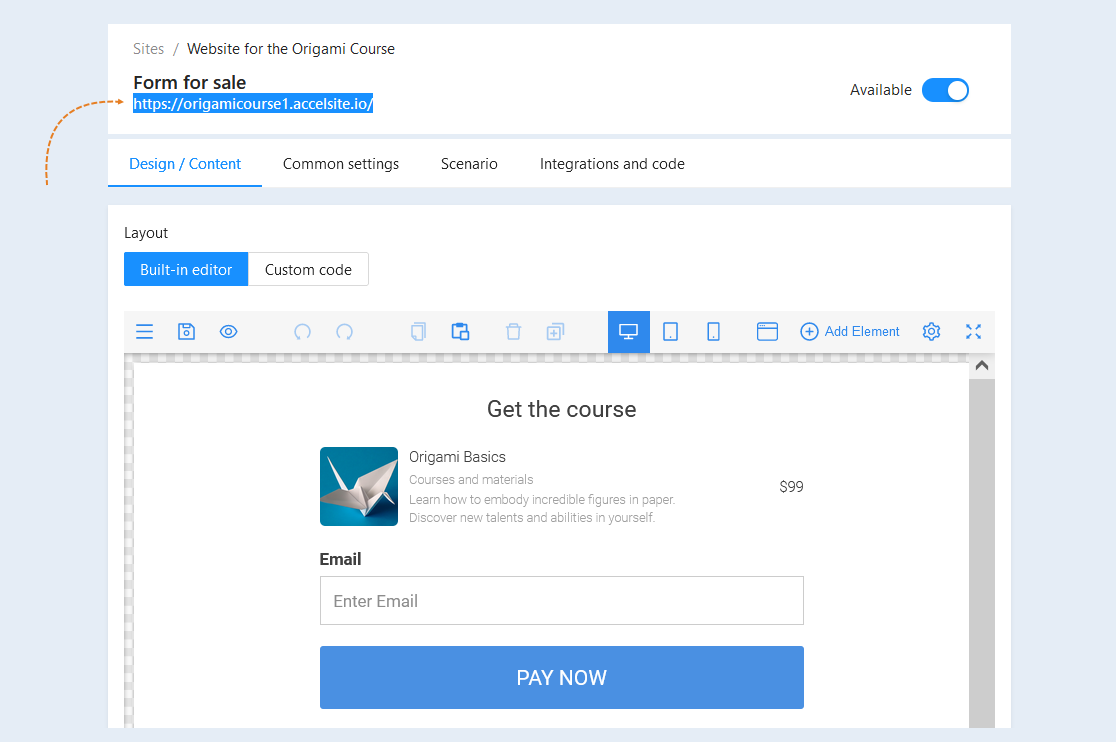
After you have created an account on the AXL platform, created a training course and added lessons to it, go to the settings for selling the course. Details on how to create and launch your account using the AXL platform are described in the article "How to create a course in 5 minutes".
In this article, we will consider in detail the sequence of actions for selling the course. Click on the desired section to go to its description:
1
Creating a product
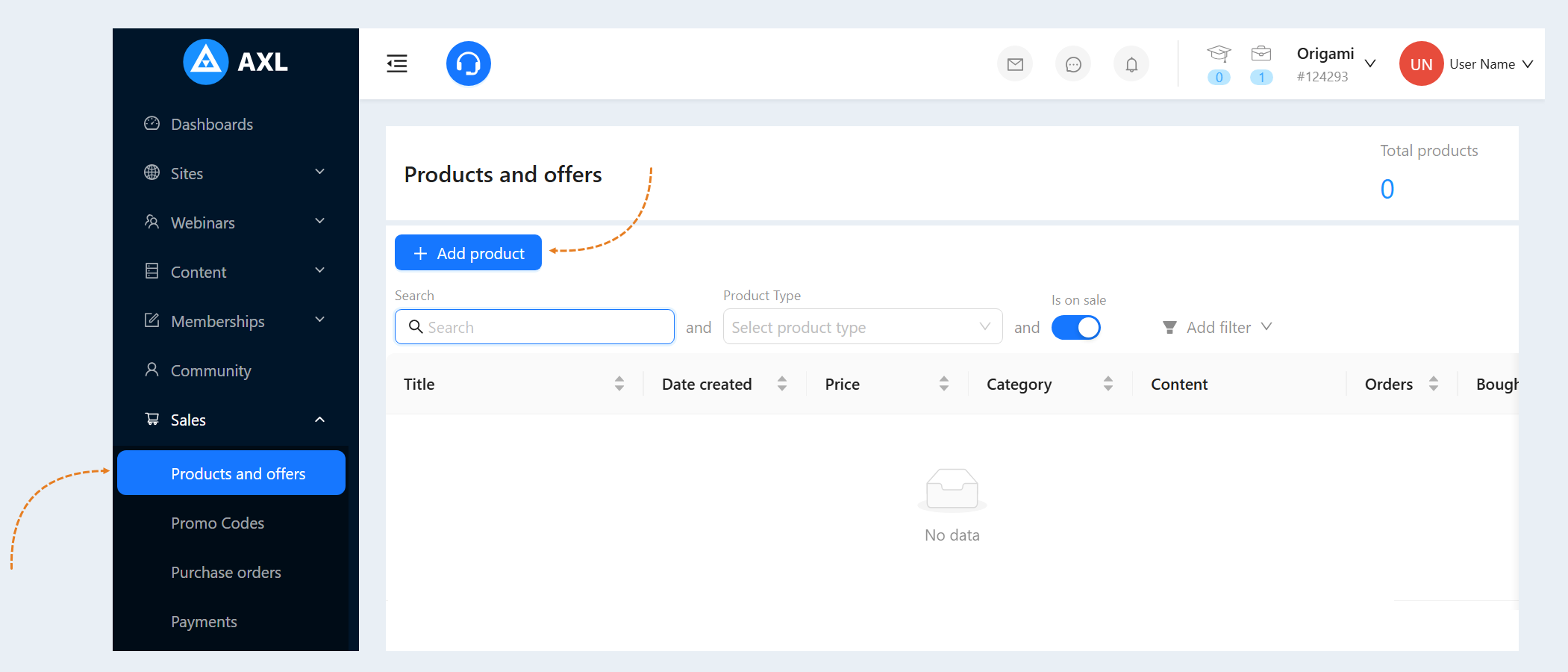
Go to the “Products and Offers" section. Click on the "Add Product" button.
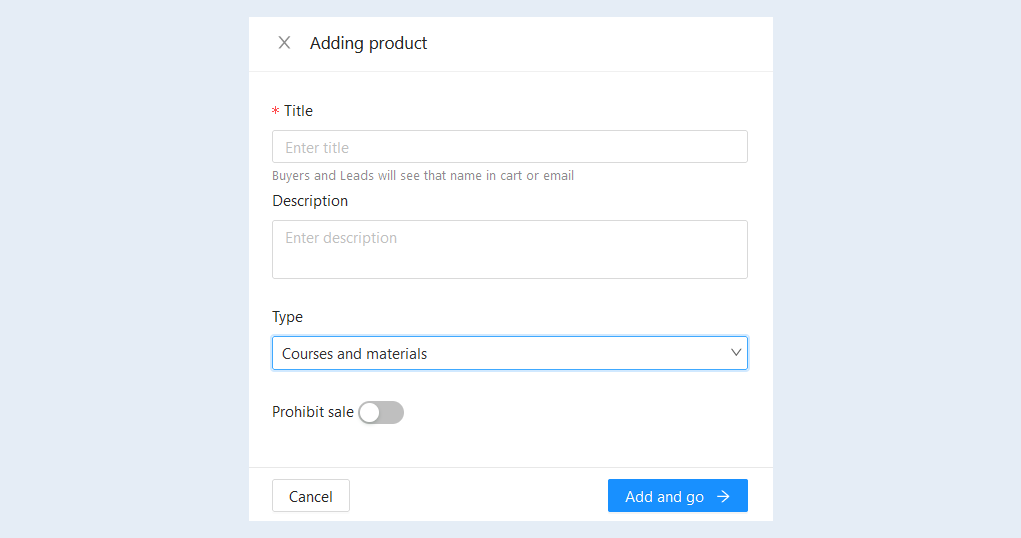
Specify the product name, add a description. In the "Type" line, select "Courses and materials". Then click the "Add and Go" button.
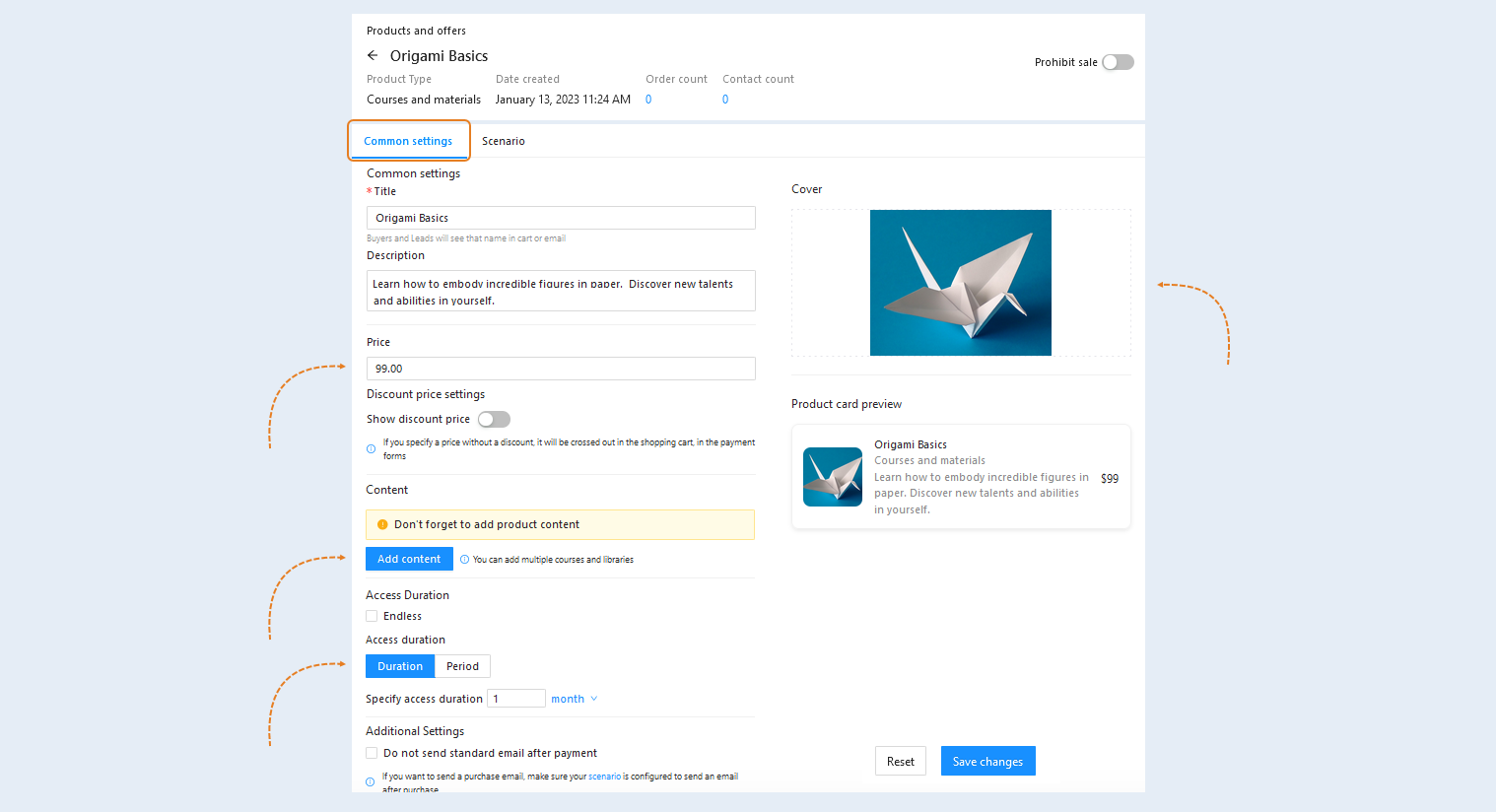
A window will open with the general settings of the created product. In the "Price" line, set the cost of the product. Click the "Add Content" button and select your course from the list. You can add multiple courses and libraries. Thus, when purchasing a product, the user will have access to the selected course. Next, set the duration of access to the product, upload the product image and click the "Save changes" button.
Setting up payments
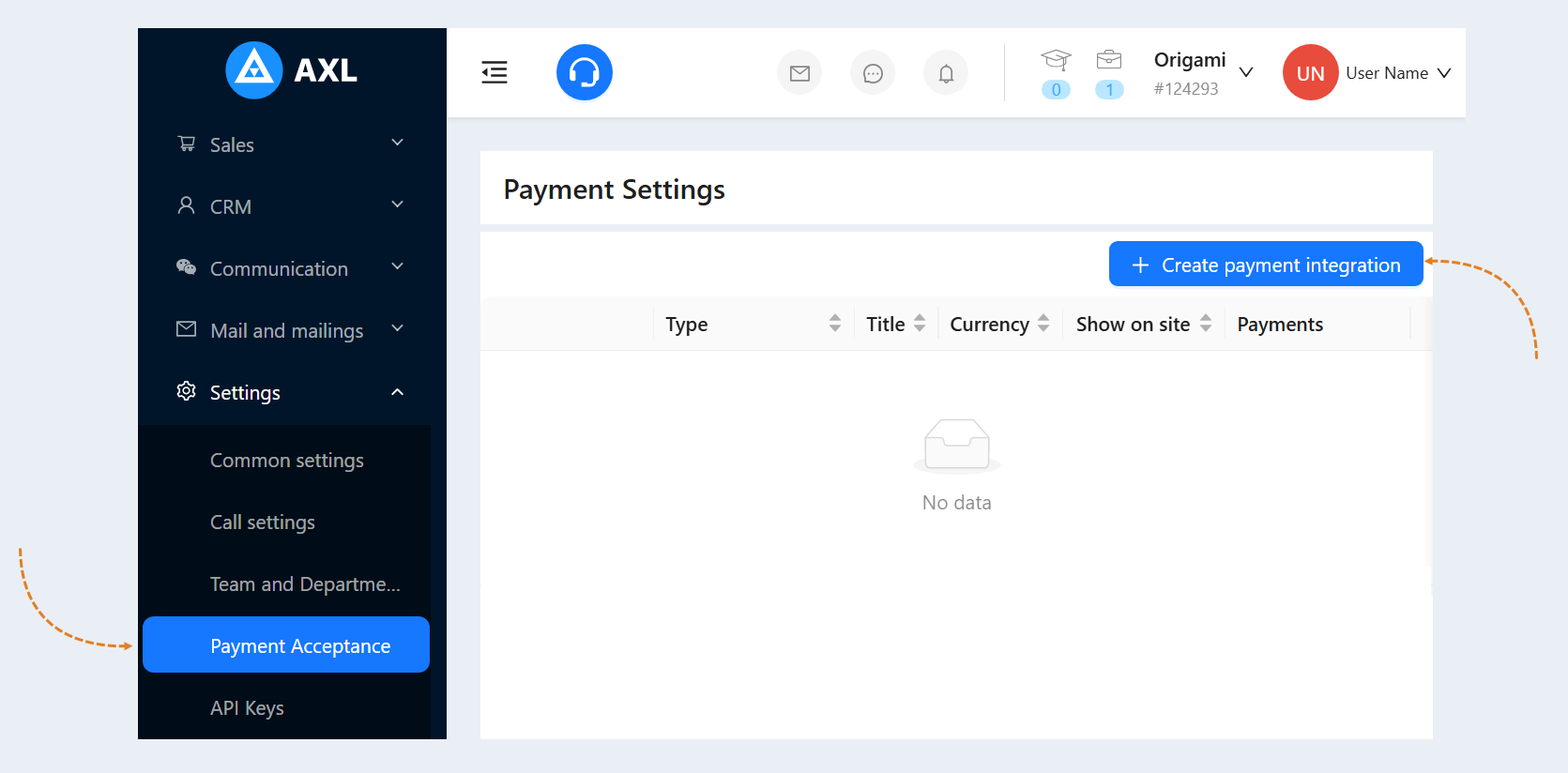
Go to the "Settings" section - "Payment settings". Click on the "Create payment Integration" button.
A list of available payment methods on the AXL platform will open. You can connect any of these methods or several at once. Click the "Create Payment Integration" button and select a payment method from the list.
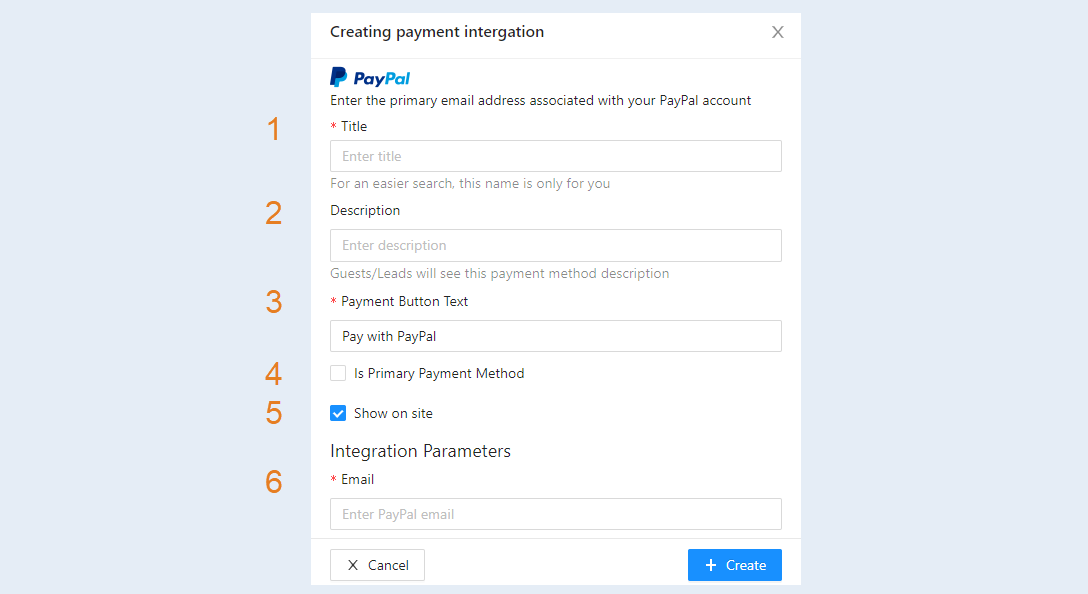
An additional window will open for you. Fill in the fields. All payment methods have similar settings:
Title. Write a name for this type of payment instrument.
Description. Add a description of the payment method that your customers will see.
Payment button text. Enter the text that will be displayed on the payment button on your website.
Is primary payment method. Check the box if you want to make this payment method the main one.
Show on the site. Check the box for this type of payment to appear on the site.
E-mail. Write the email address that is linked to your PayPal account. How to get an email address, read the article "PayPal settings".
Click the "Create" button. You have added payment integration to your account.
Creating a website
To create a Website on the AXL platform, go to the “Sites” tab and click the “Add site” button.
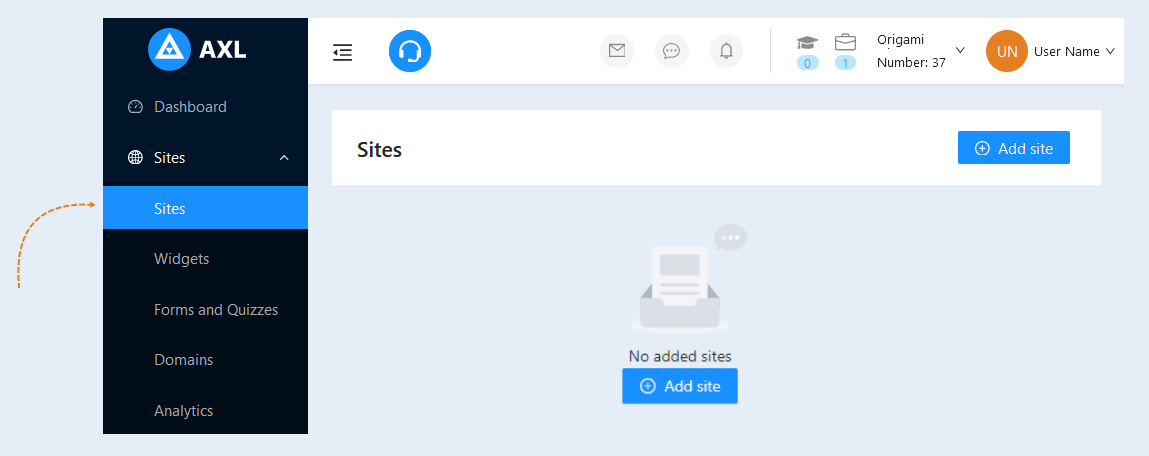
After the site is created, you need to make the settings. Read more about the site settings in the article “How to create a website".
Adding a site page
Next, you need to fill the site with pages. Open the created site. Drag the Pages button into the field.
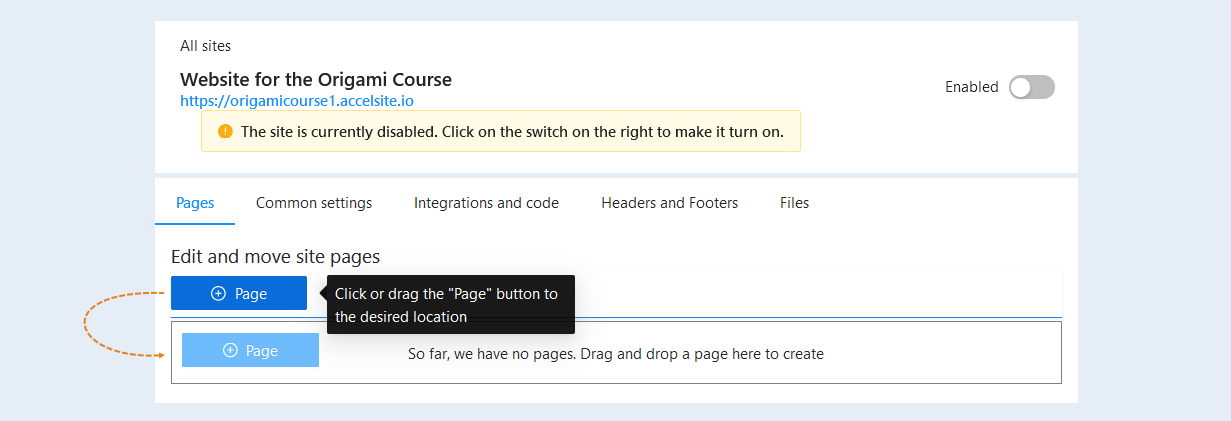
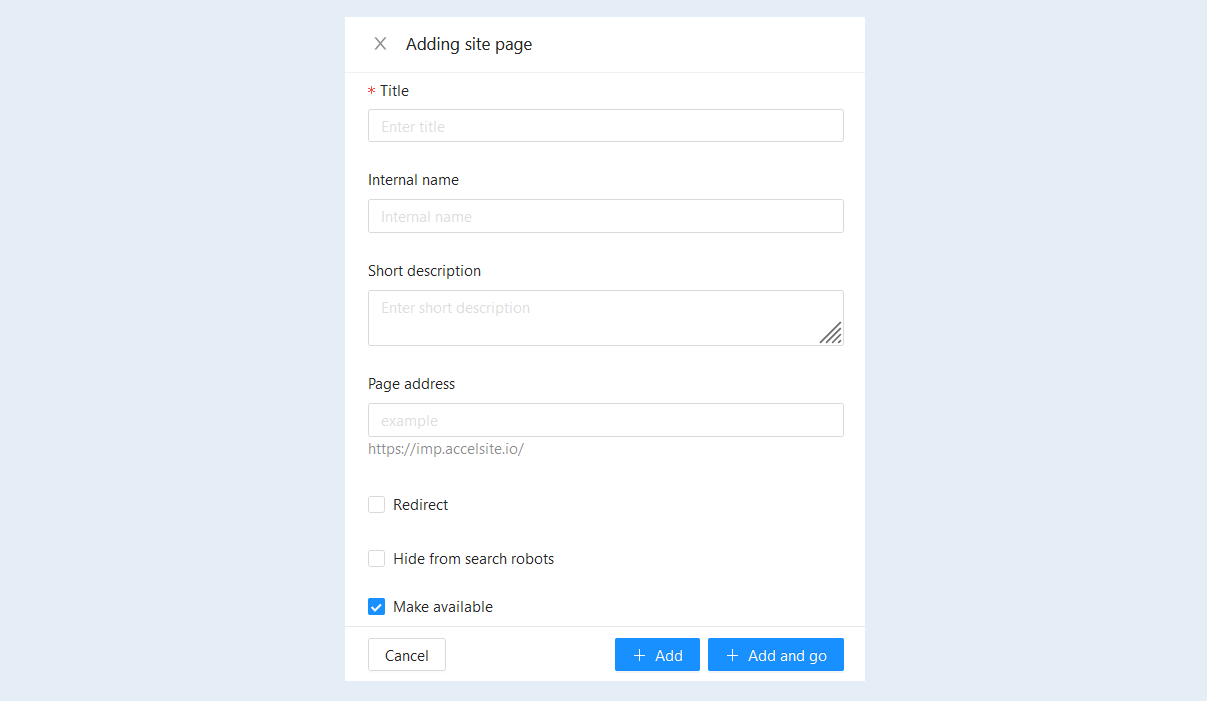
In the window that opens for adding a site page, specify the page name and page address. Then click the "Add and Go" button. You will open the site page editor.
Creating a form for payment
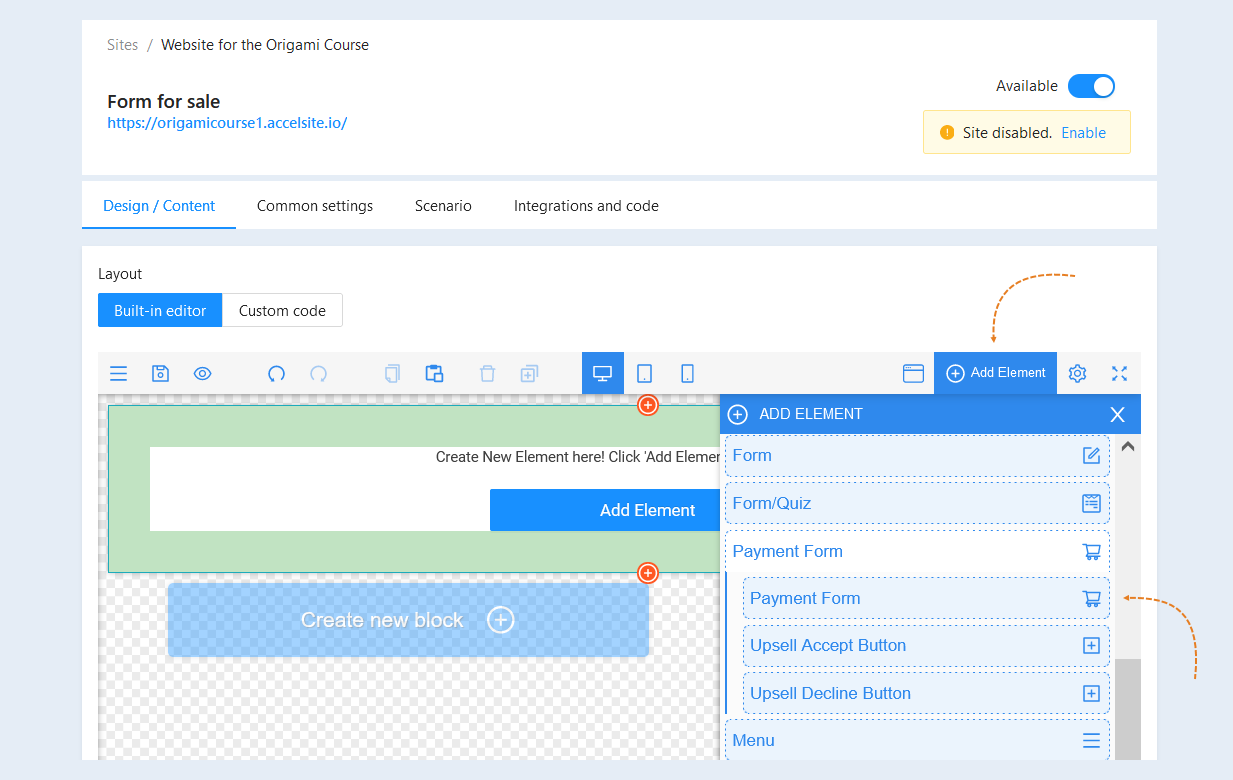
In the editor window of the site page, select "Empty block" and click "Add element". In the list of items, select "Payment form". Select the "Payment Form" element by transferring it to the element.
Select the entire payment form to open the settings for this item. The Settings toolbar opened on the right.
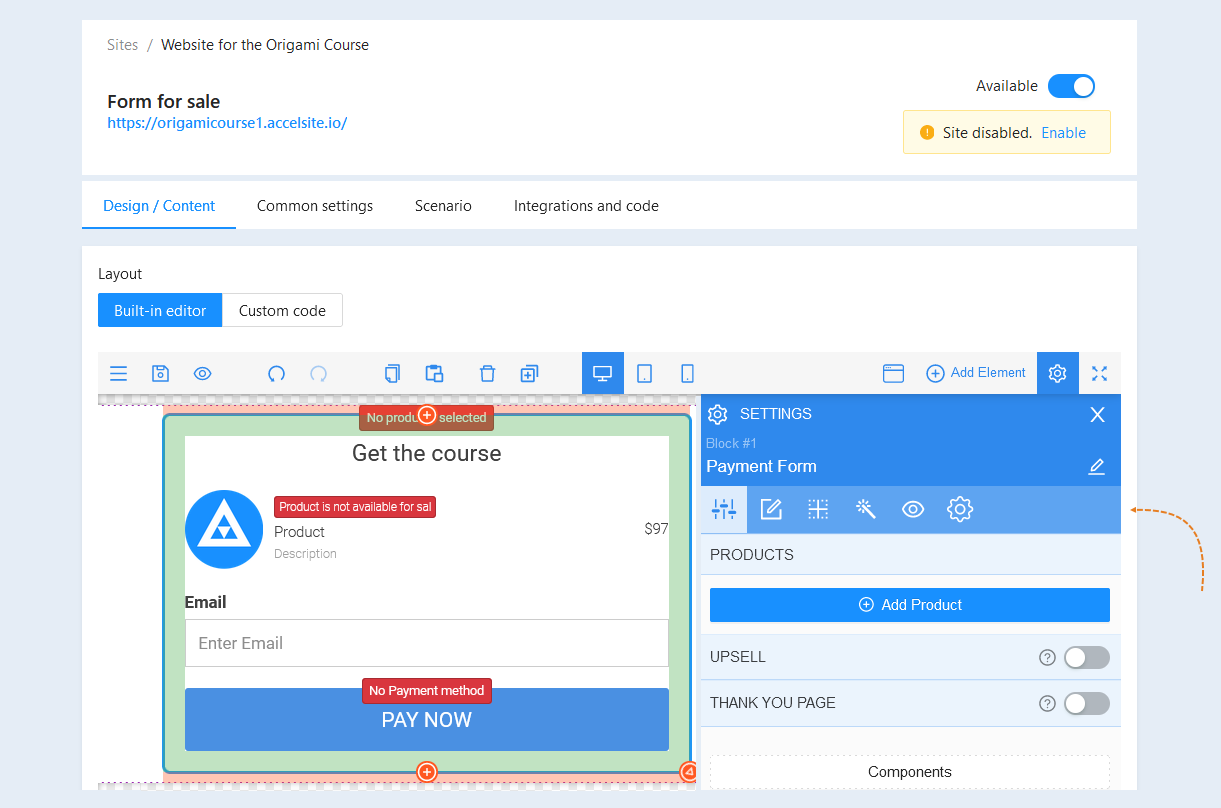
In the item settings, add one or more course products. When choosing multiple exchange rate products, they must be in the same currency.
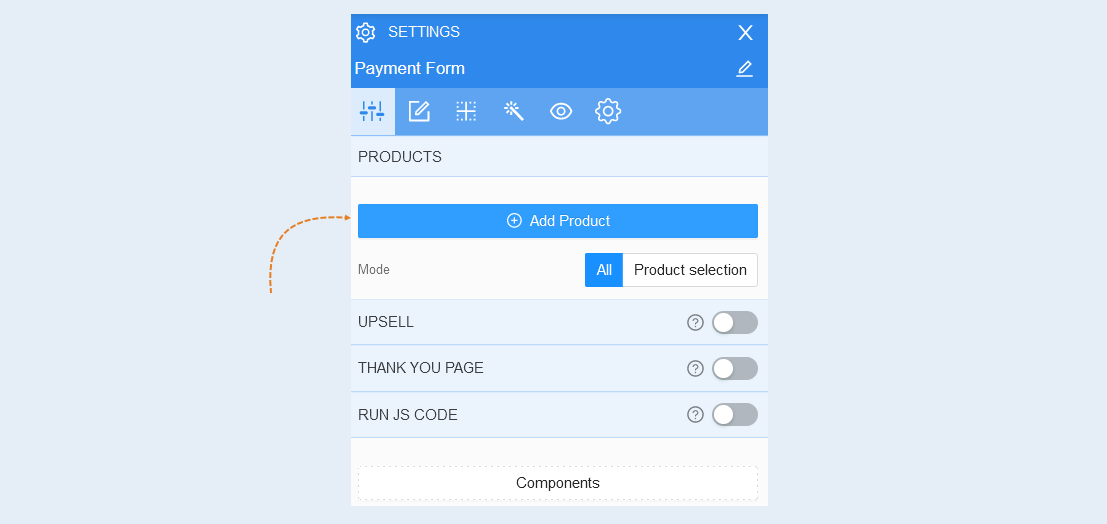
Next, open the "Components" section. In this section, add one or more payment buttons. Each payment button will be linked to its own payment system. Link a payment method to each button by selecting it from the list. How to create a payment method is described in this article below in the section "Payment settings".
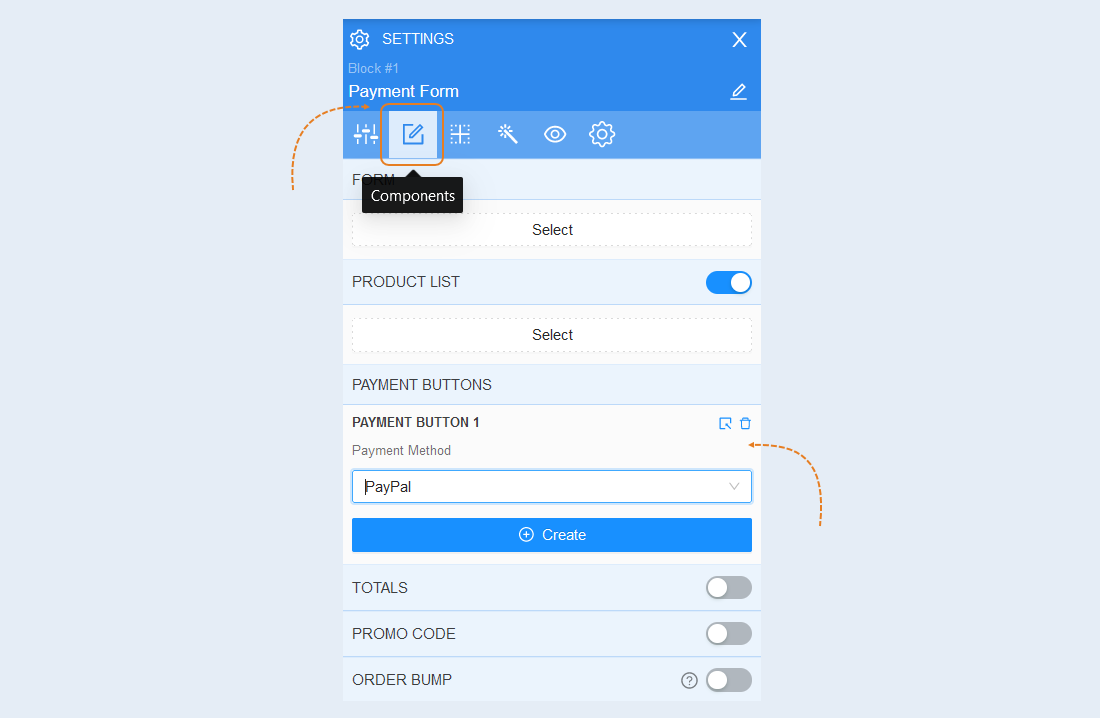
The basic settings of the payment form are completed. For more information about the settings of the payment form components, see the article “Sales Form".
Go back to the "Sites" section. Open the previously created site. In the upper right corner, move the "Enabled" slider to the active position and make the site page accessible to users.
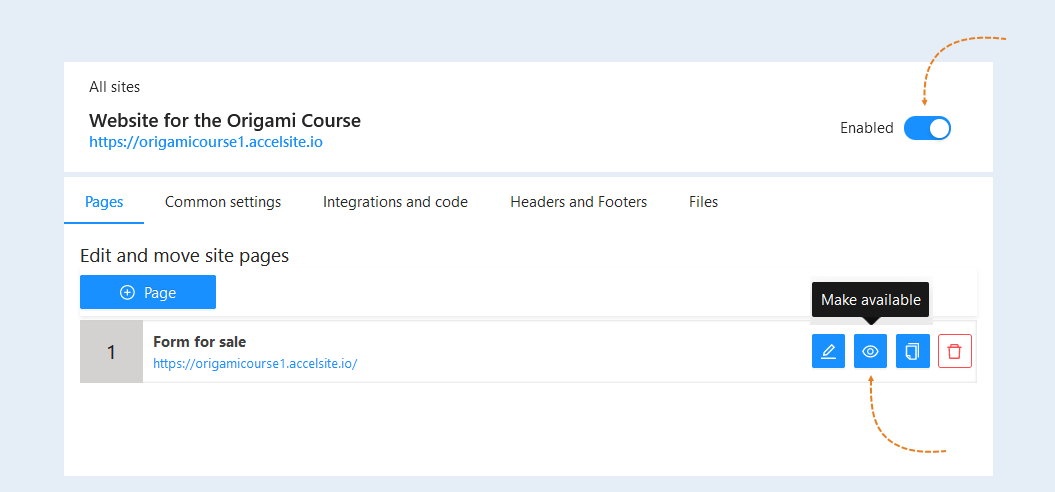
Open the site page. Copy the link to the course payment page in the upper left corner. You can use this link to the form for selling the course in newsletters to users.