The "Menu" block is a block containing a navigation menu for moving between the pages of the site. It simplifies the search for necessary information on the site for users. It can be used in the upper or side part of the site to navigate through courses, sections, and additional materials.
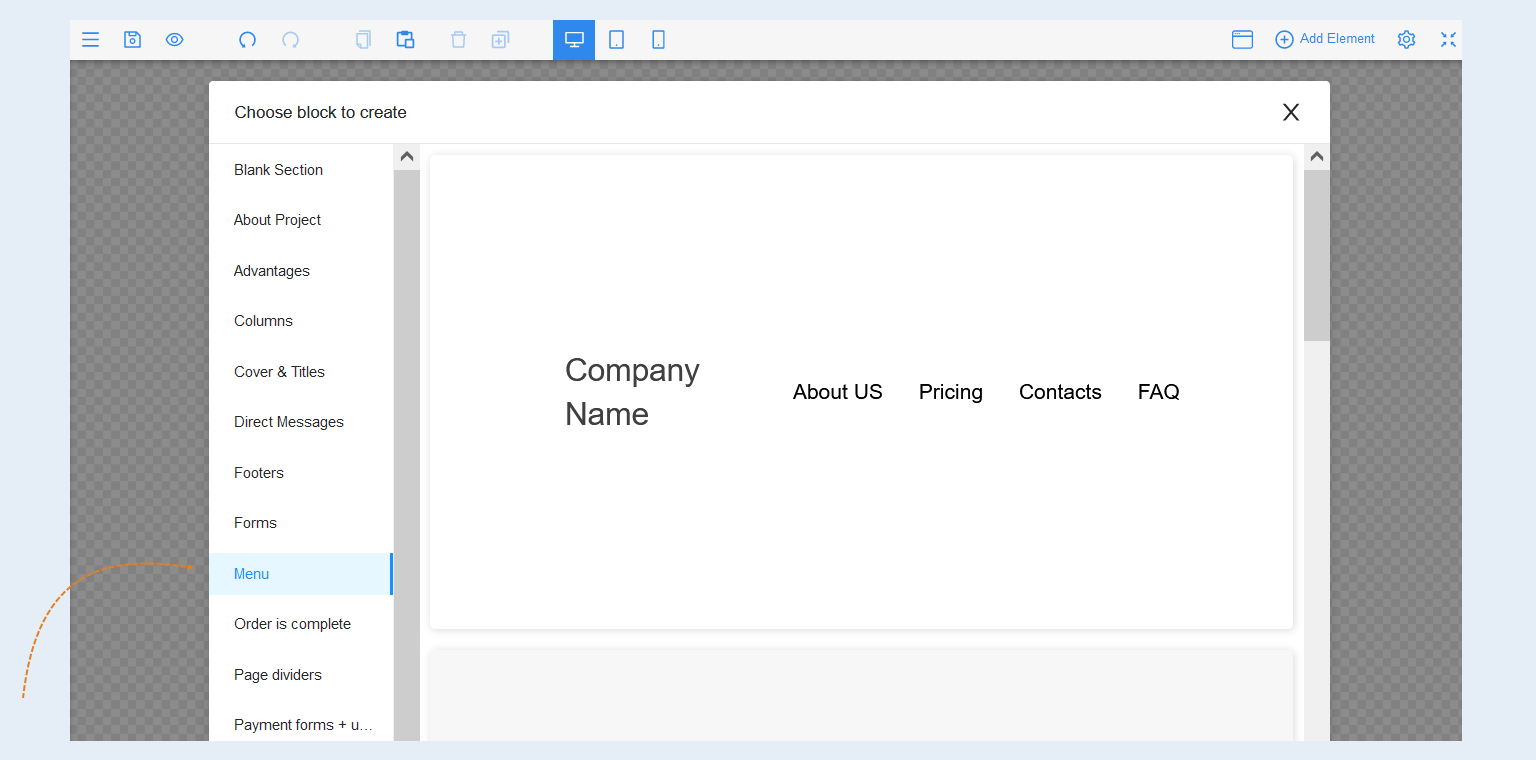
To add the block to a site page, navigate to the page editor. Click the "Create New Block" button and select the "Menu" block. You will be presented with several block options designed in different styles. Click on the corresponding block variant.
Highlight the column of the block to open the settings for this element. The toolbar panel will open on the right.
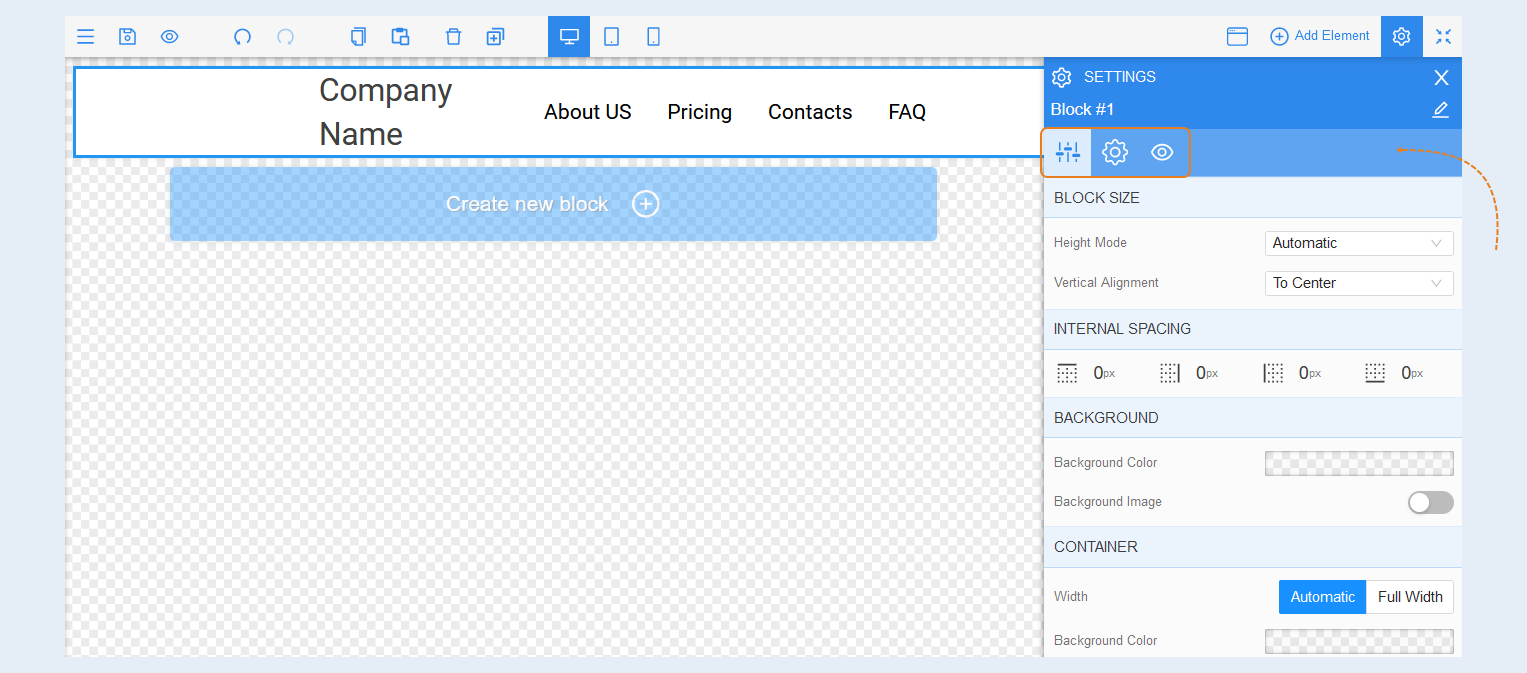
General Settings
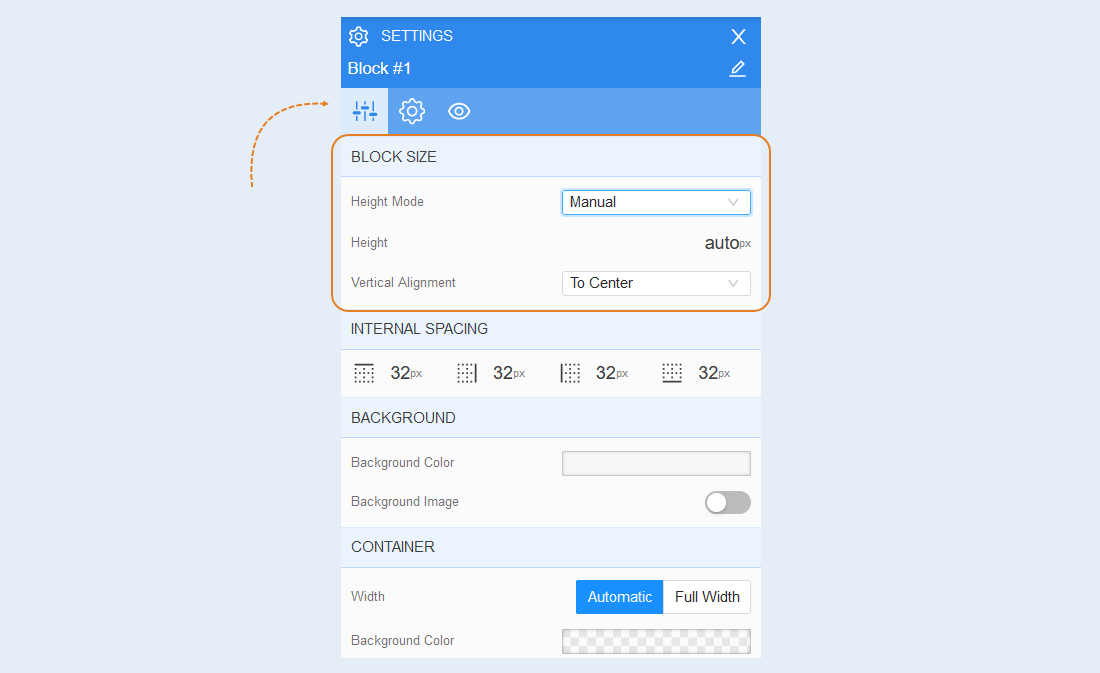
Block size. You can change the block's "height mode" to automatically adjust, full height, or manual. If you choose automatically, the block's height will match the size of the elements inside. Full height corresponds to the laptop screen size. By selecting the manual parameter, you can determine the block's height yourself. In the additional "height" field, set the value in pixels. Click on the cross to reset the settings and return to the "auto" - automatic height parameter.
In the "vertical alignment" line, select a value from the list that determines the position of the elements inside the block: top, center, bottom, space between, or space around.
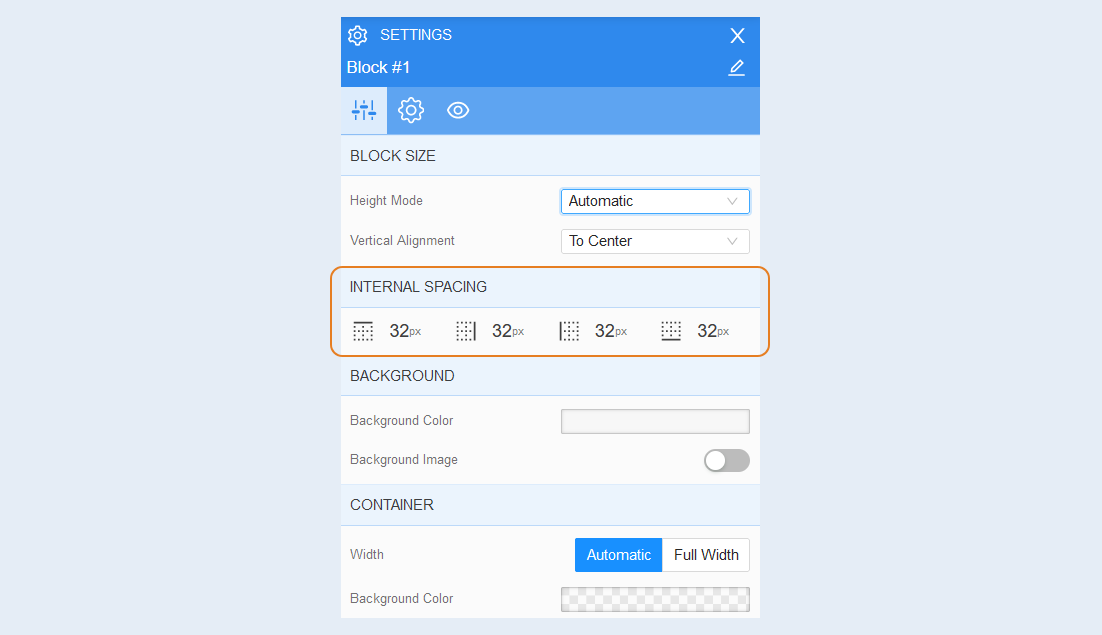
Internal spacing. You can adjust the padding of the elements inside the block. This function is applied when any element is close to the block's borders and needs to be moved away from them.
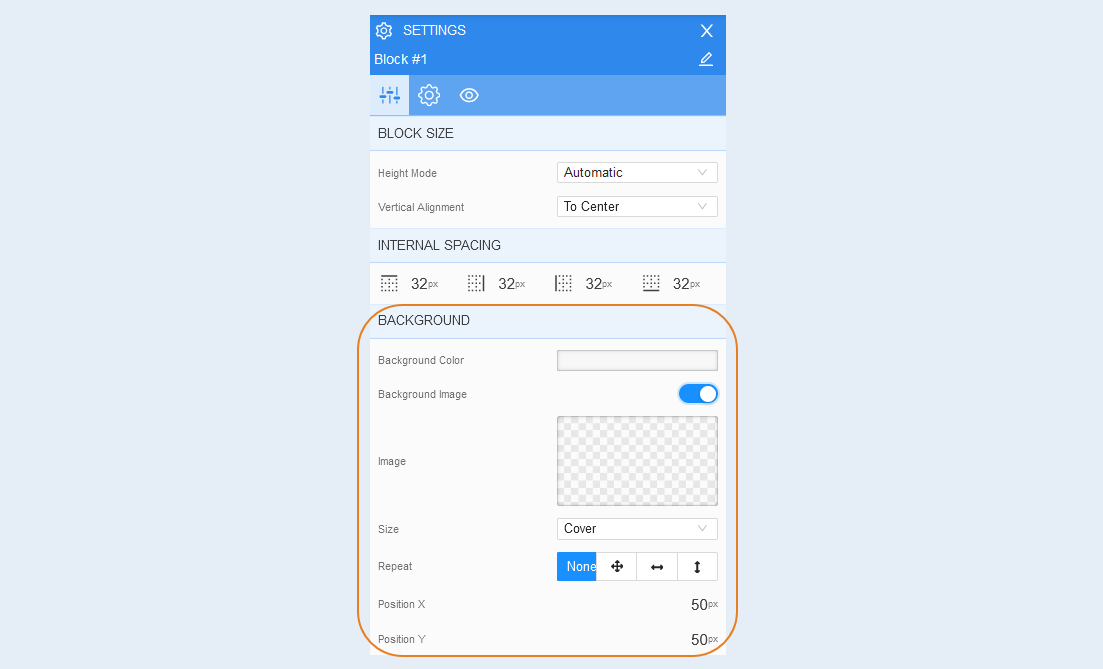
Background. In this section, you can change the block's background color and add a background image. Additional image settings will open for the background image: select an image, image size (choose from options like cover, contain, 50%, 100%, etc.), image repeat, and image position within the block.
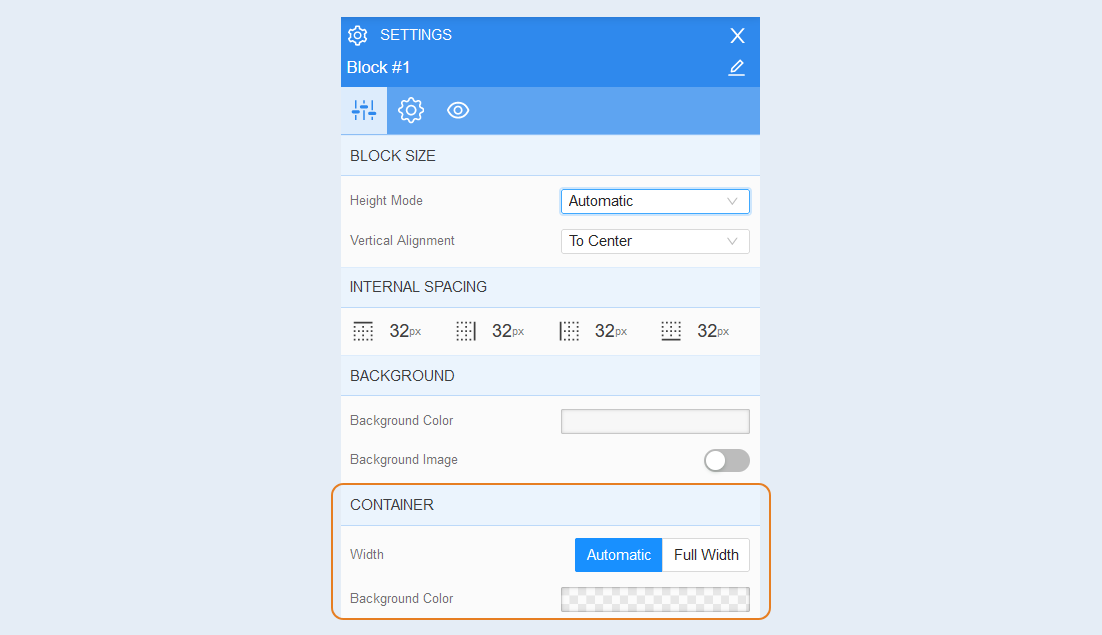
Container. In this section, you can change the width of the elements inside the block: automatically or full width. You can also set the background color of the block.
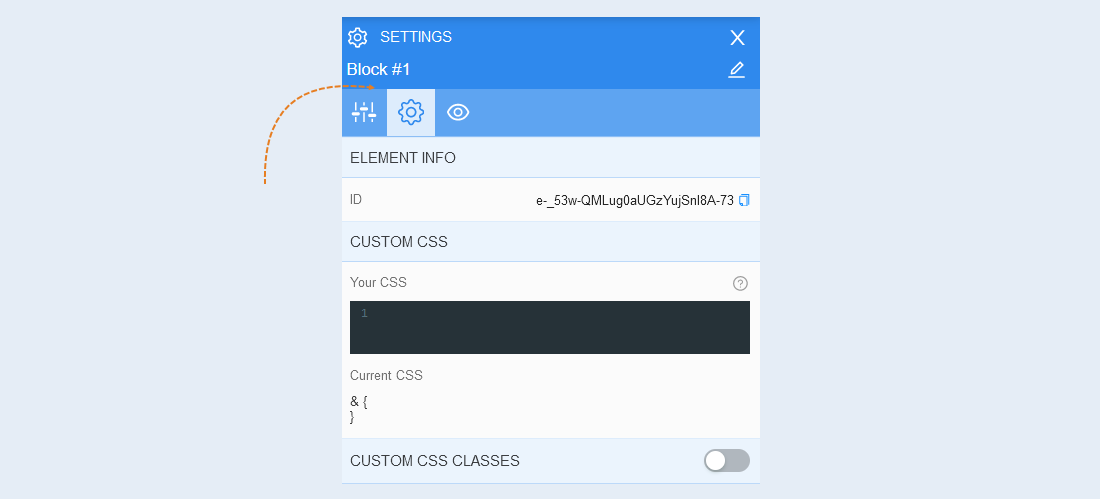
Advanced settings
Read more about the settings of this section in the article "Advanced settings".
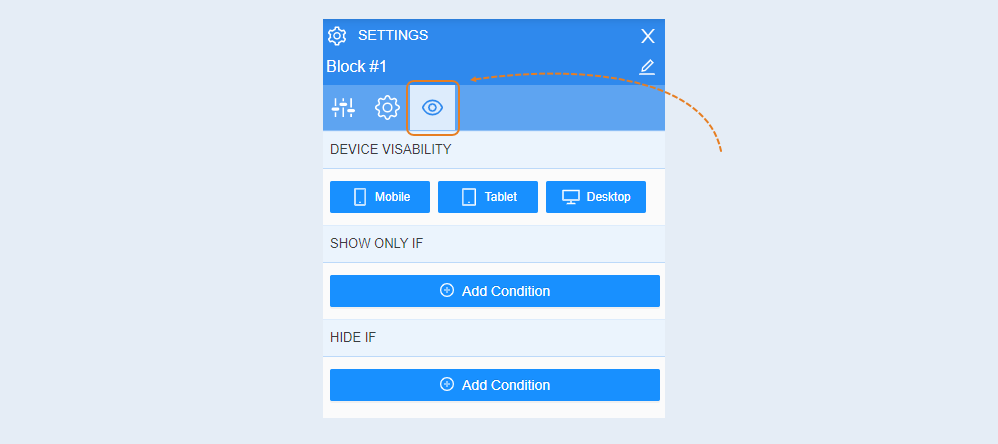
Conditional show / hide
Read more about the settings of this section in the article "Conditional show / hide".
For more information about the settings of each block element, read the articles "Element Column", "Element Text", "Element Title", "Element Picture".