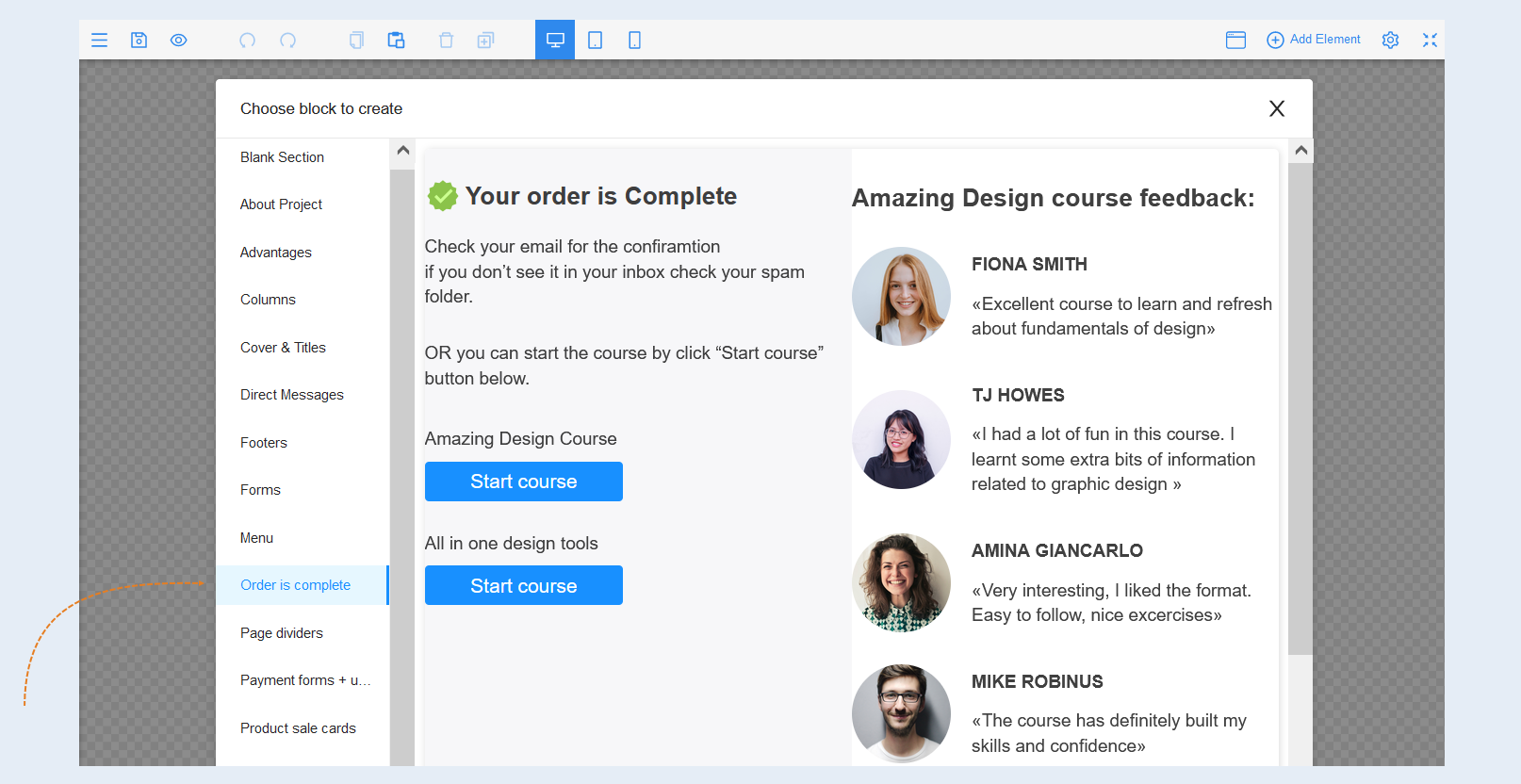
The "Order Completed" block is a block that informs the user that their order has been successfully completed. It notifies users about the completion of their transaction or order. This page can be used after successful payment of the order.
"To add the block to a site page, navigate to the page editor. Click the "Create New Block" button and select the "Order Completed" block. You will be presented with several block options designed in different styles. Click on the corresponding block variant.
Highlight the column of the block to open the settings for this element. The toolbar panel will open on the right.
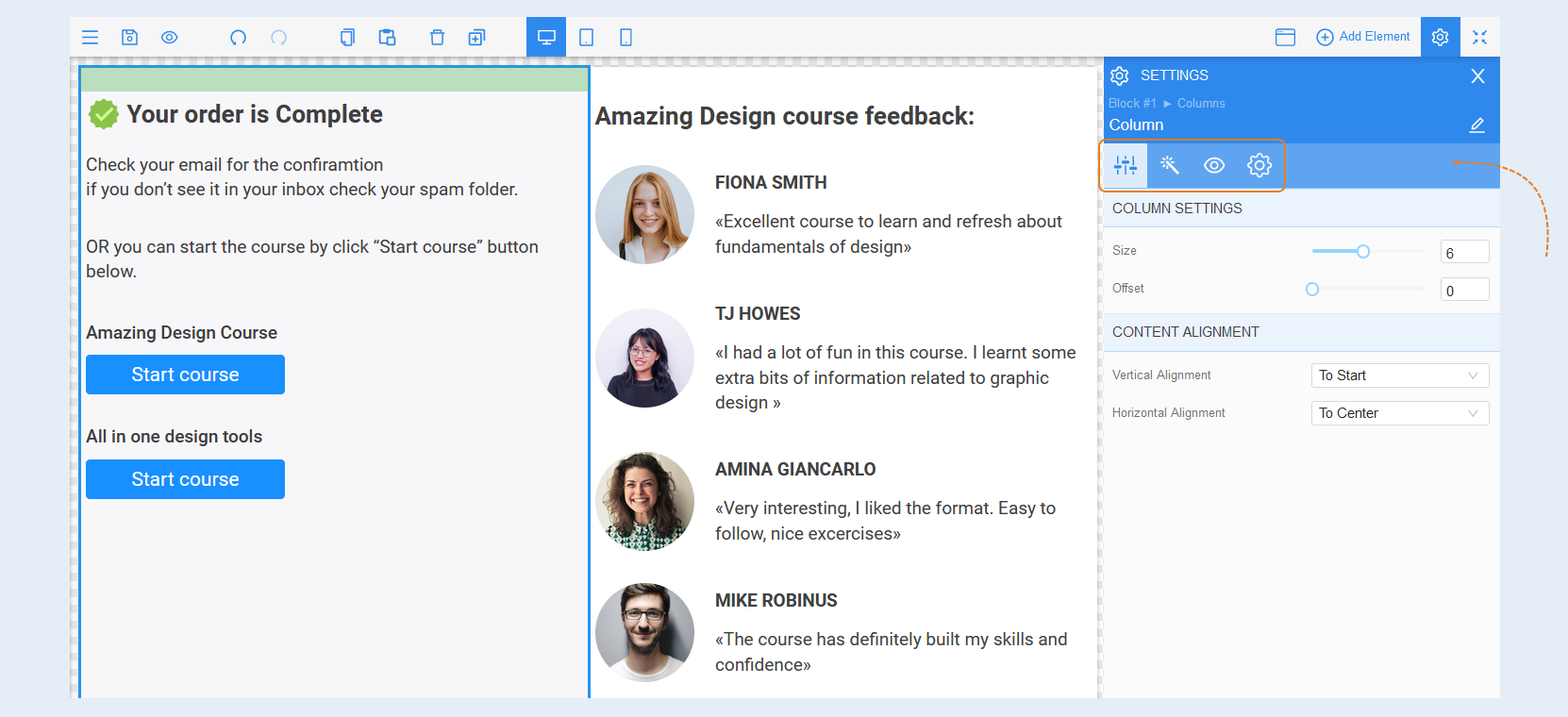
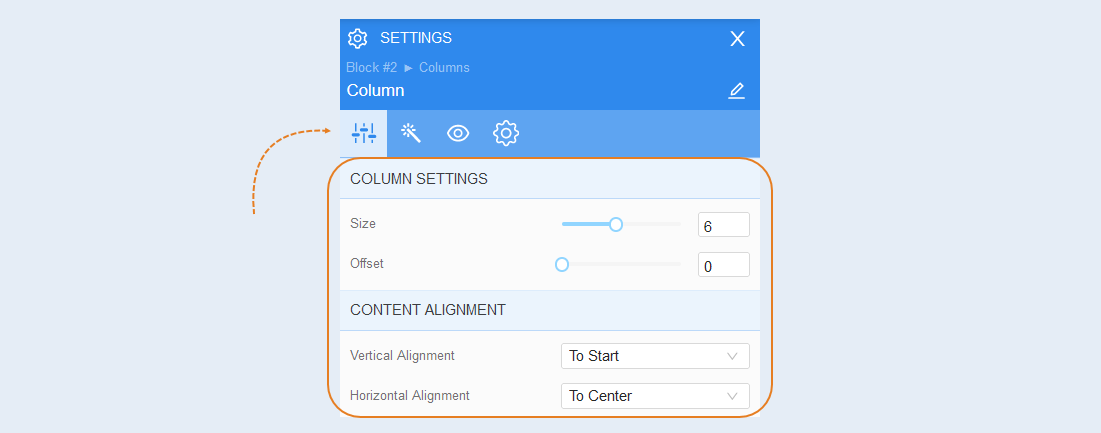
General Settings
Column settings. You can adjust the width of the column and shift it to the right on the page.
Content alignment. You can position the content of the column vertically or horizontally. You can also align the content of the column relative to each other vertically and horizontally.
Style
Internal spacing. You can adjust the padding of the content (text, image, etc.) inside the column. This function is applied when the content is inside the column and needs to be moved away from the column's borders.
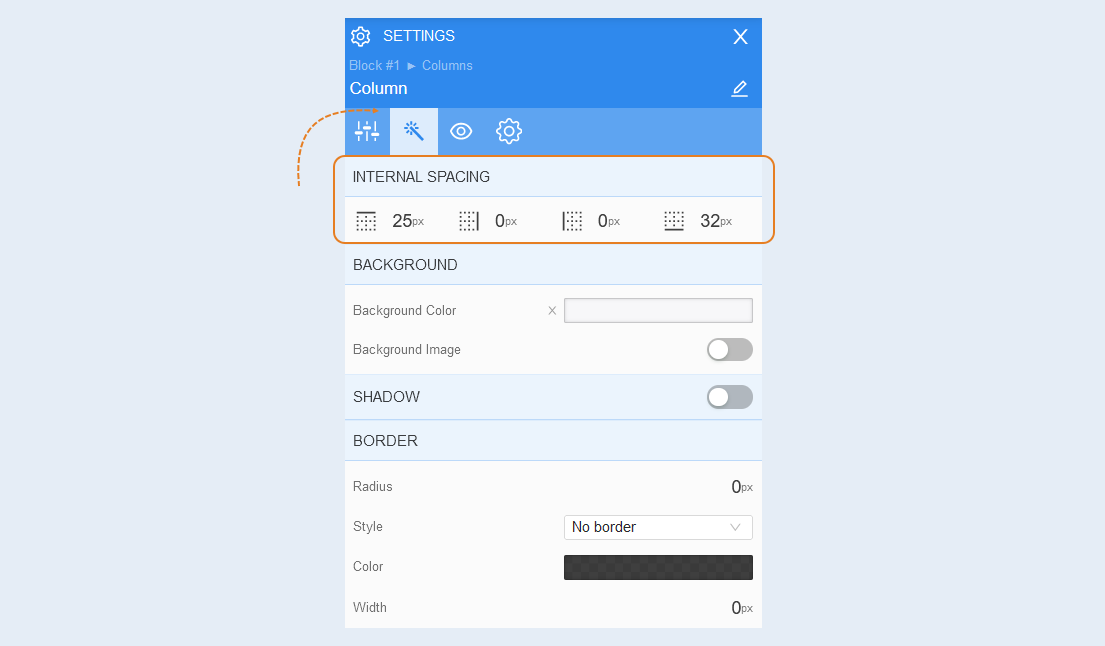
Background. You can set the background for the column. To do this, select the column and choose the background color from the right-side menu. You can also set a background image for the column: add or change the image, select the size (cover, contain, fill, or set the size in percentage), choose the image repeat, and position it within the column.
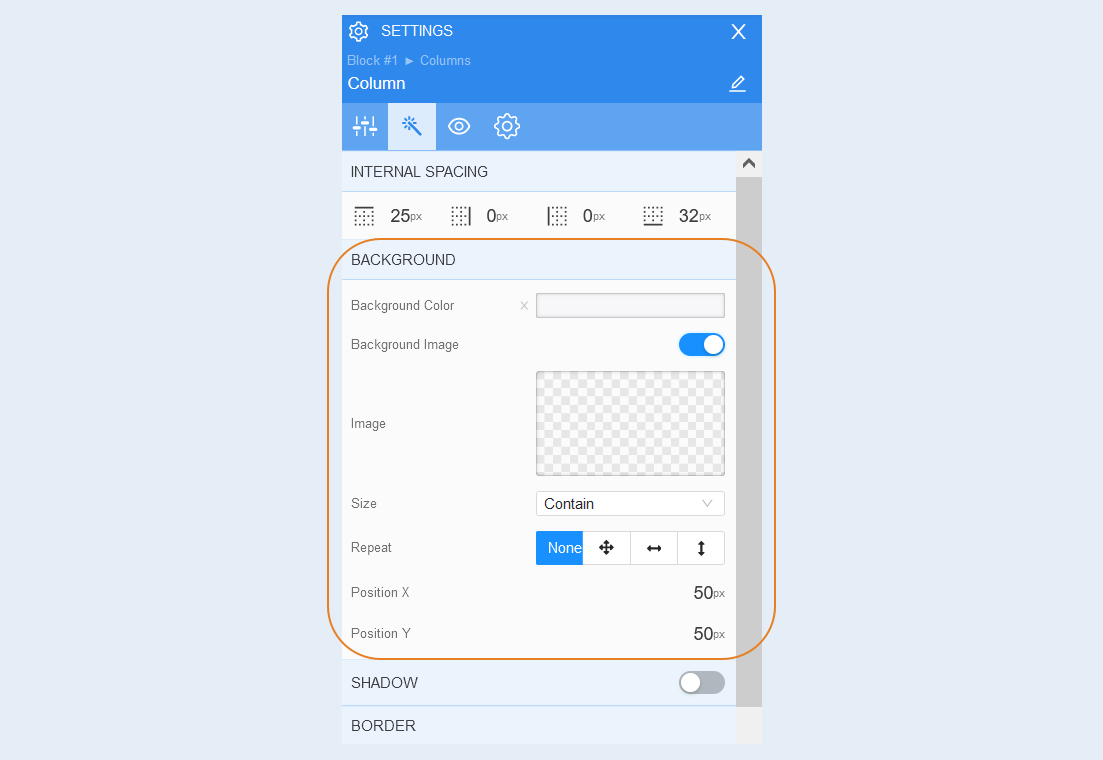
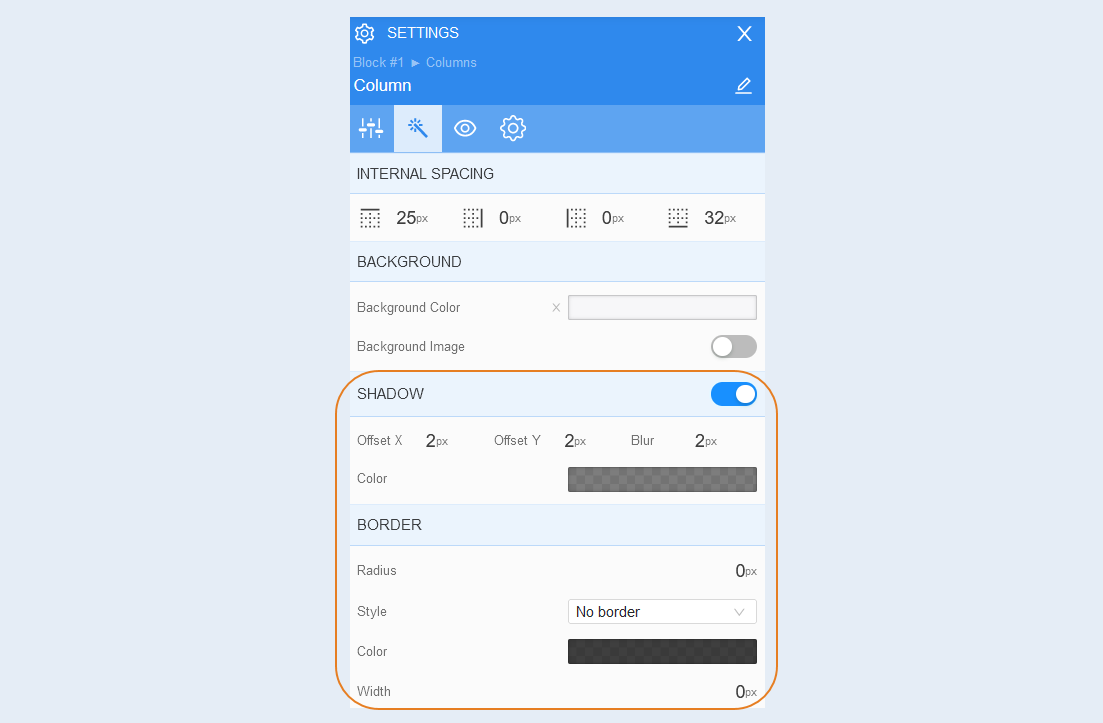
Shadow. Create a shadow around the column, adjust the offset, blur, and color of the shadow.
Border. You can customize the border around the column: radius (rounding the corners of the button), style (borderless, solid, dotted, dotted), border color and width.
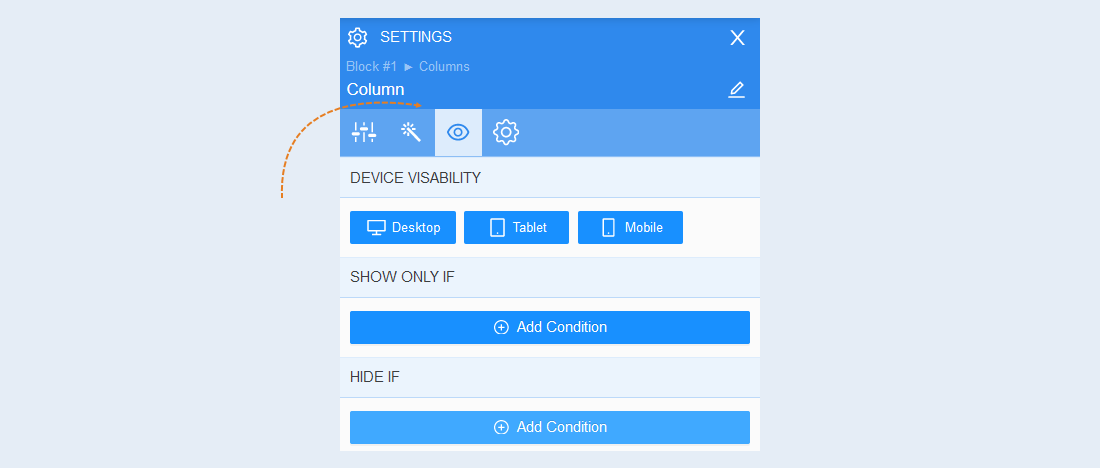
Conditional show / hide
Read more about the settings of this section in the article "Conditional show / hide".
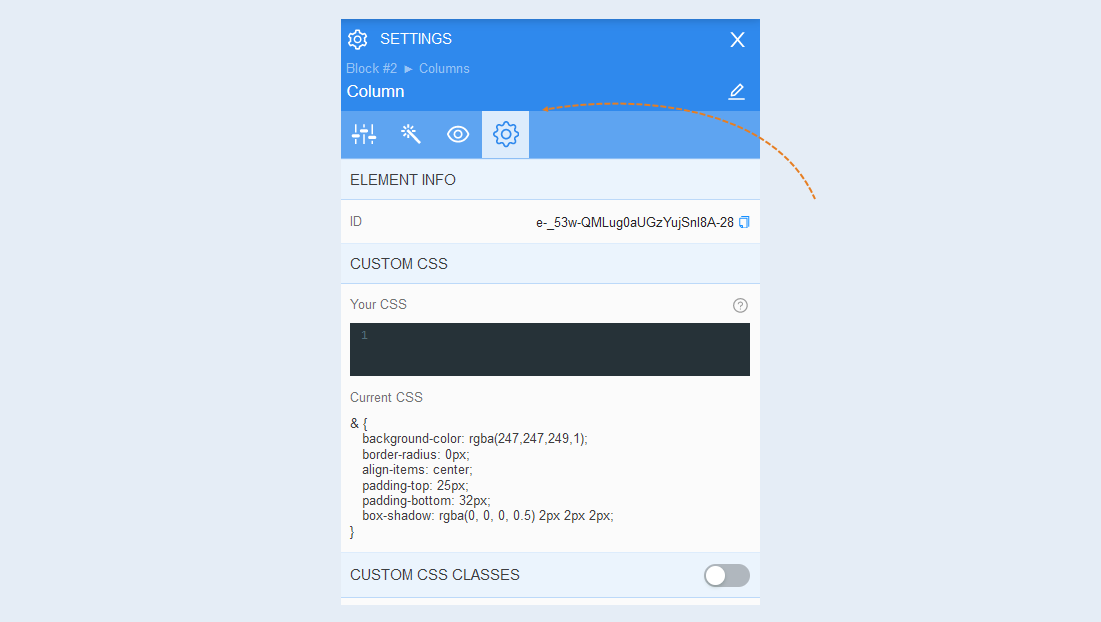
Advanced settings
Read more about the settings of this section in the article "Advanced settings".
After that, you need to edit each element of this page: replace the image, text, and reviews, add settings for the "Start Course" buttons.
For more information about the settings of each block element, read the articles "Element Column", "Element Text", "Element Title", "Element Picture", "Element Button".