A quiz is a short online survey at the end of which the user receives an answer to their consumer request, and the company gains the user's contact. It is a tool for generating leads on a website. The potential client goes through the quiz questions, choosing a suitable service or product for themselves, and eventually leaves their contact information.
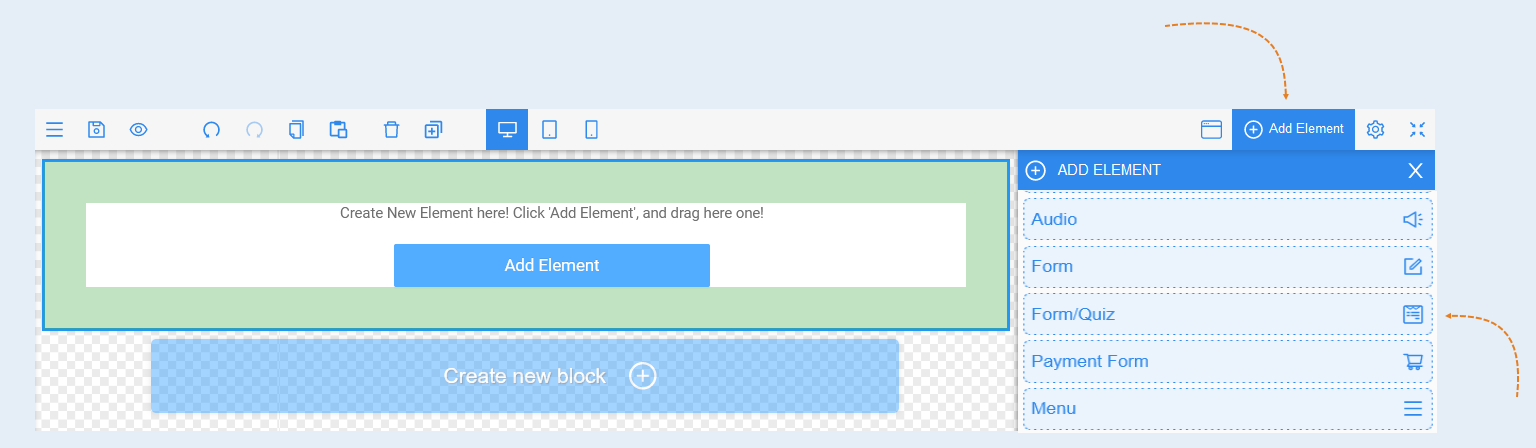
Click the "Add Element" button and select the "Form/Quiz" element. Then customize the settings of the element.
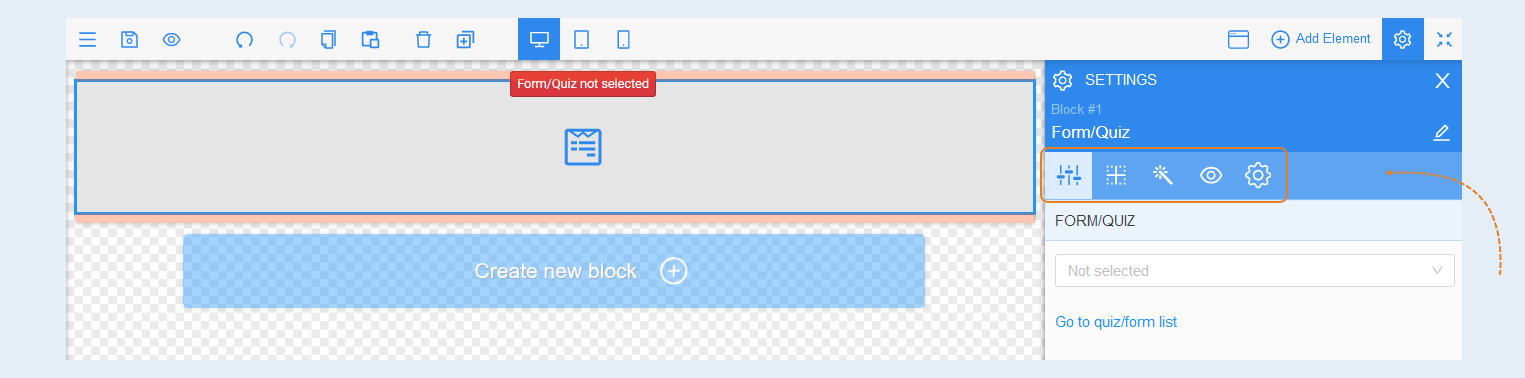
Highlight the element to edit it by clicking on it with the mouse. The settings for this element will appear on the right.
For the "Form/Quiz" elements, a panel with the following tools will appear:
Element Settings
Form/Quiz. In this section, you can add the necessary quiz form. Choose a quiz form from the list of already created forms. Or, to set up and create new forms, click the "Go to the form list" button.

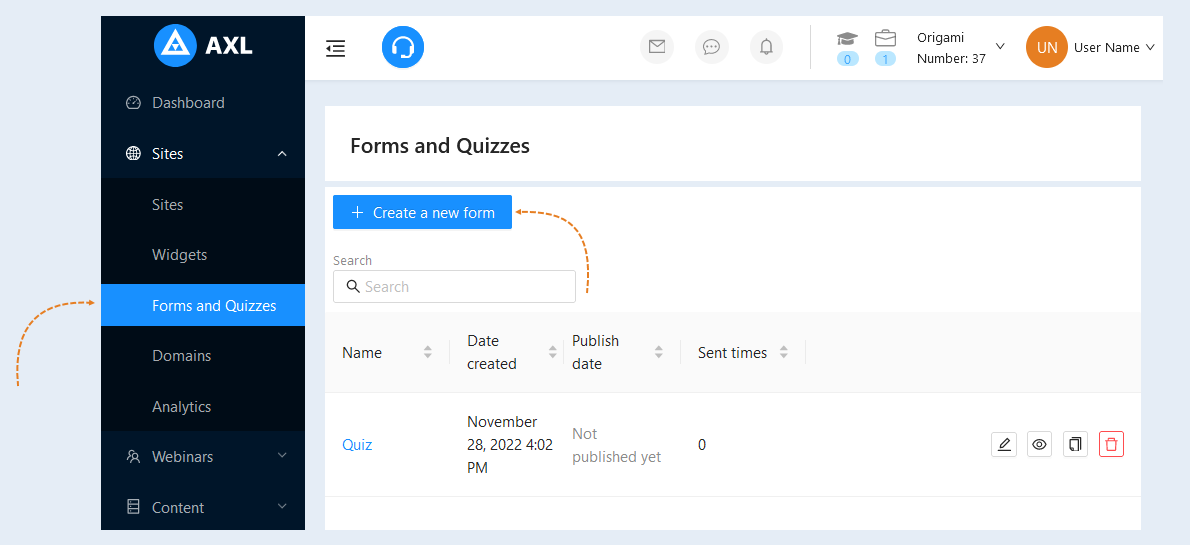
A new window will open with the section "Websites," the "Forms and Quizzes" tab. In this section, you can edit already created forms or create new ones.
Click the "Create a new form" button.
An additional window will open for you. Fill in the fields:
- Title. Enter the name of the form.
Description. Add a description of the form.
Template. Choose a form from the presented templates. The list of templates contains various forms: an empty template, feedback, quiz, testing, questionnaire, survey.
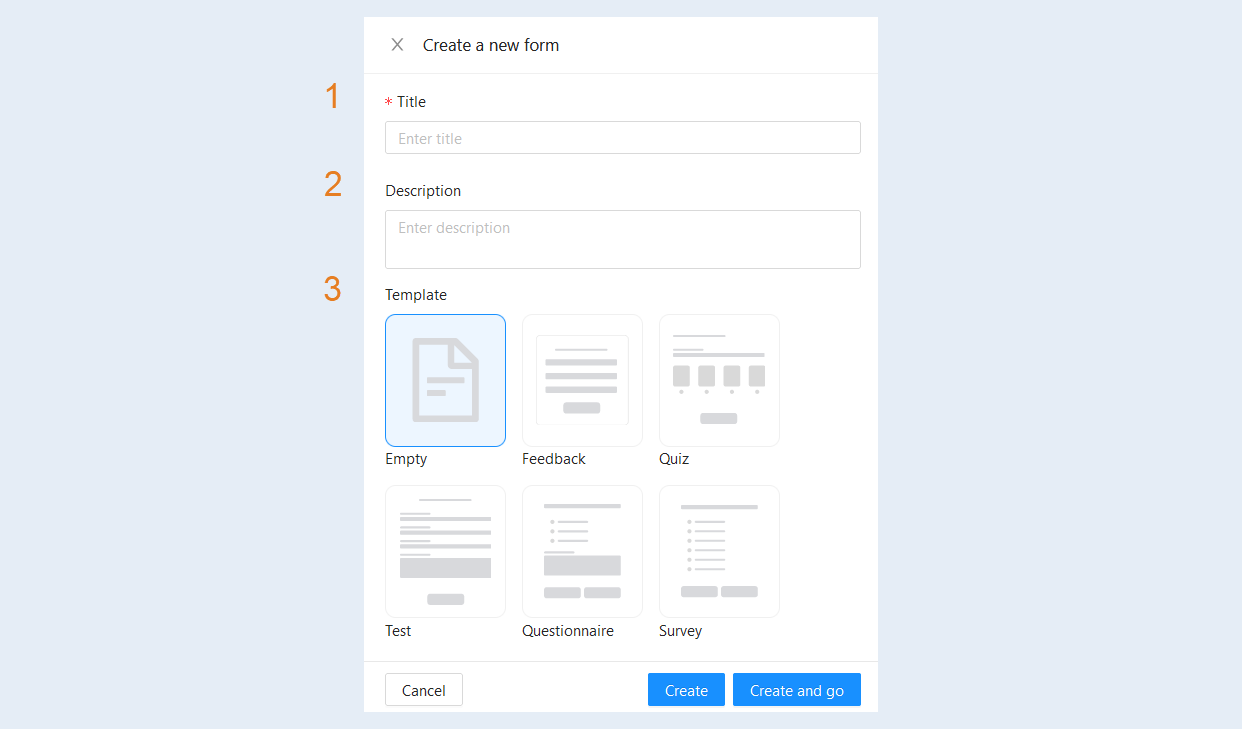
Click the "Create and Go" button to complete the form settings. For more information on how to create a form, read the article "Forms and quizzes".
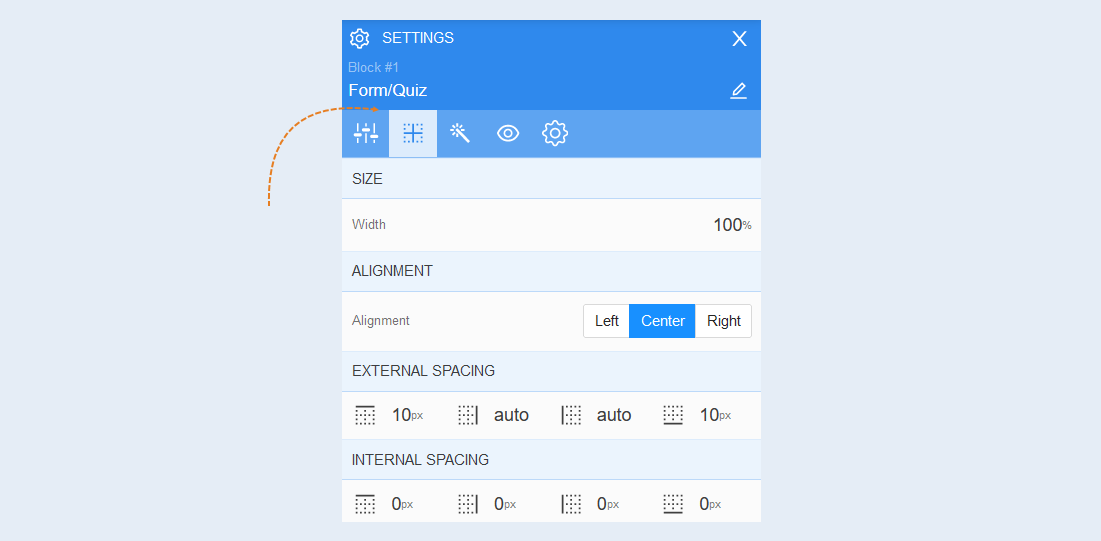
Positioning
For more information on the settings in this section, refer to the article "Positioning".
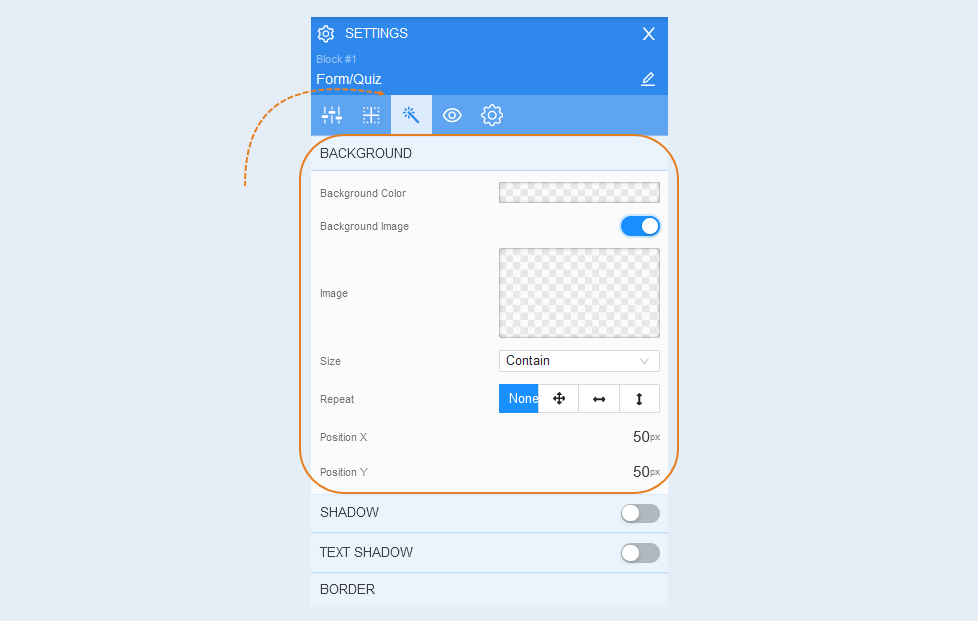
Style
Background. In this section, you can change the background color of the element, as well as add a background image to the element. Additional image settings are opened for the background image: image selection, size, image repetition and the position of the image inside the element.
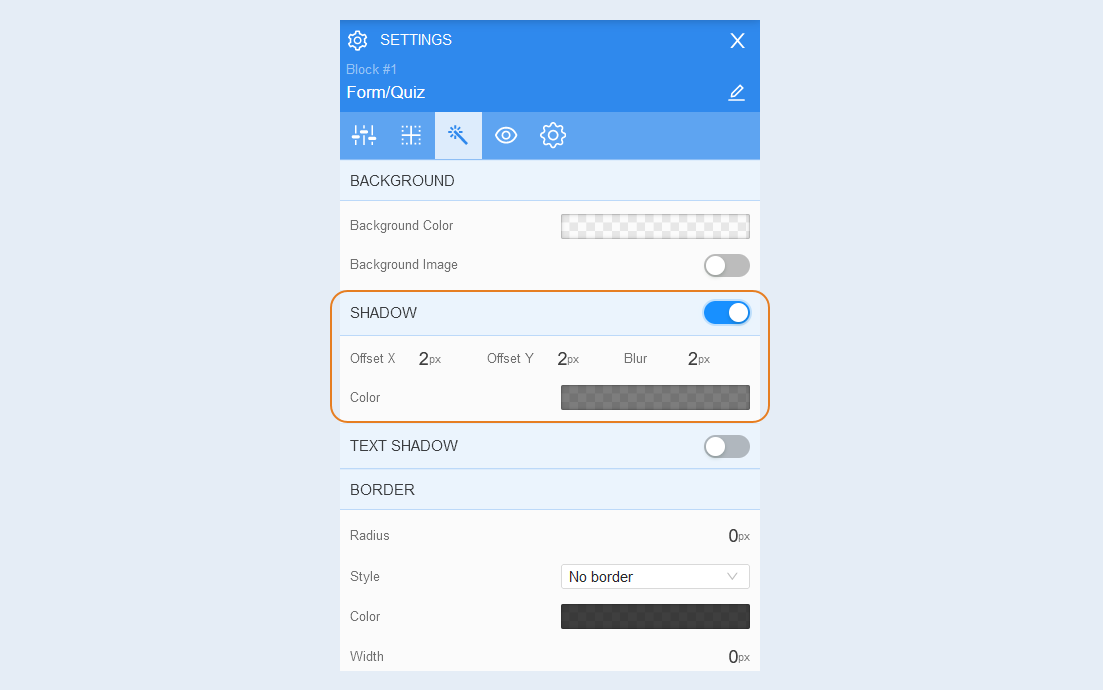
Shadow. You can add a shadow from the element around, adjust the offset and blurriness of the shadow. And also the color of the shadow.
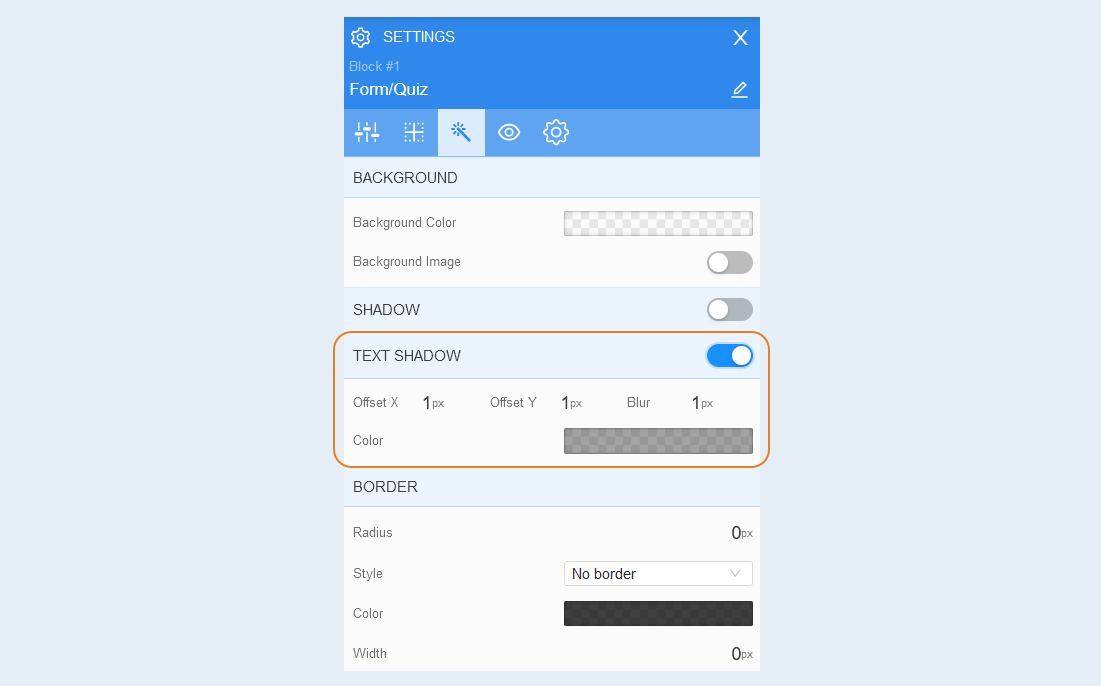
Text shadow. Choose the color of the text shadow, the direction of this shadow (left, right, up, down) and blur (make the shadow bright and clear or transparent). This effect is used if the background is not uniform and the text is poorly read in some places. And also to make the text more voluminous.
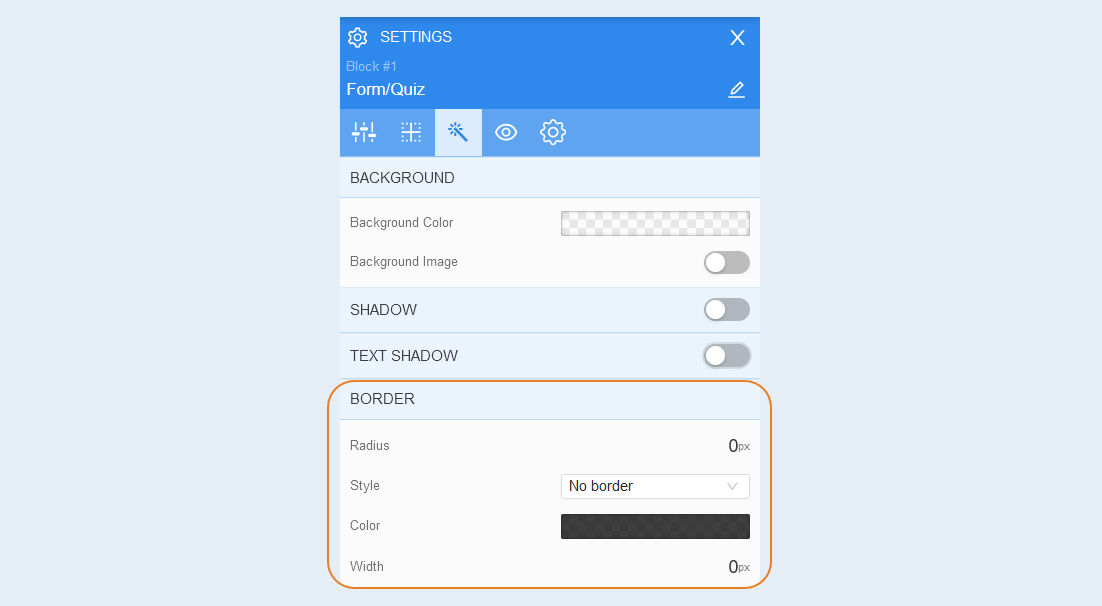
Border. You can customize the border for the element: the radius (rounding the corners of the frame), the style of the border (without a border, solid, dotted, dotted), the width of the border, color.
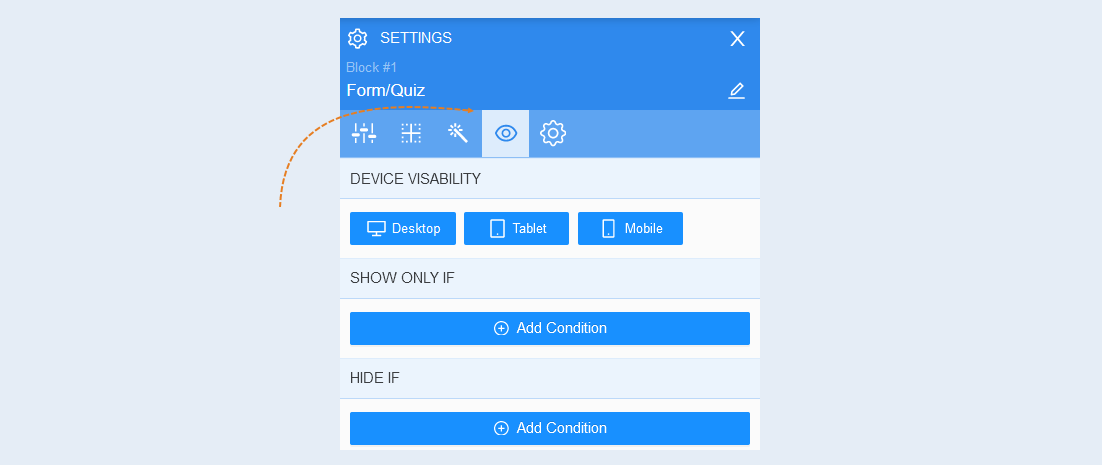
Conditional show / hide
For more information on the settings in this section, refer to the article "Conditional show / hide".
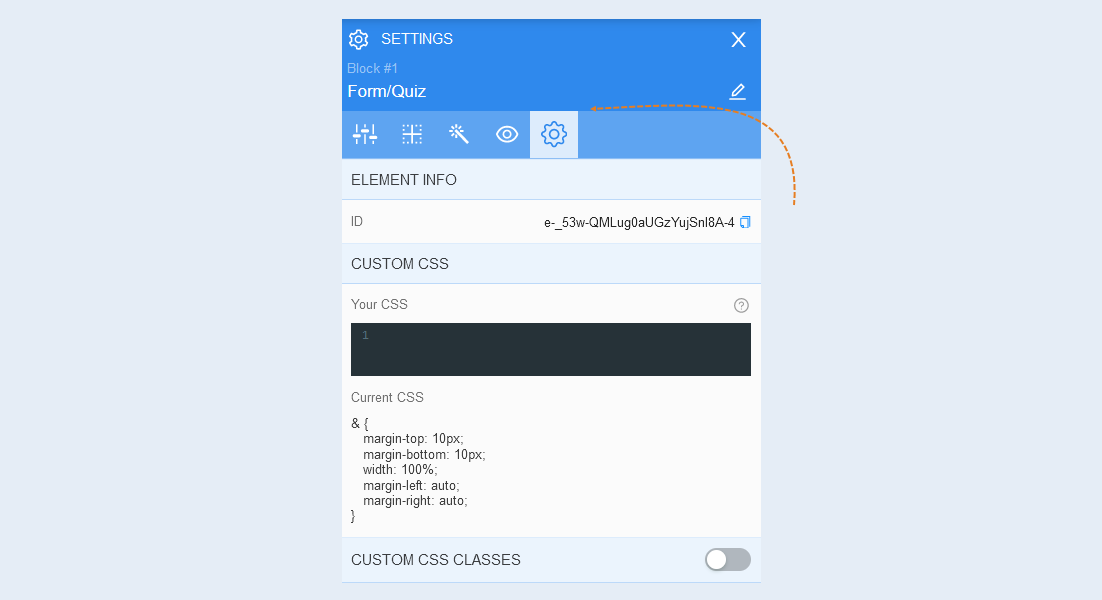
Advanced settings
For more information on the settings in this section, refer to the article "Advanced settings".