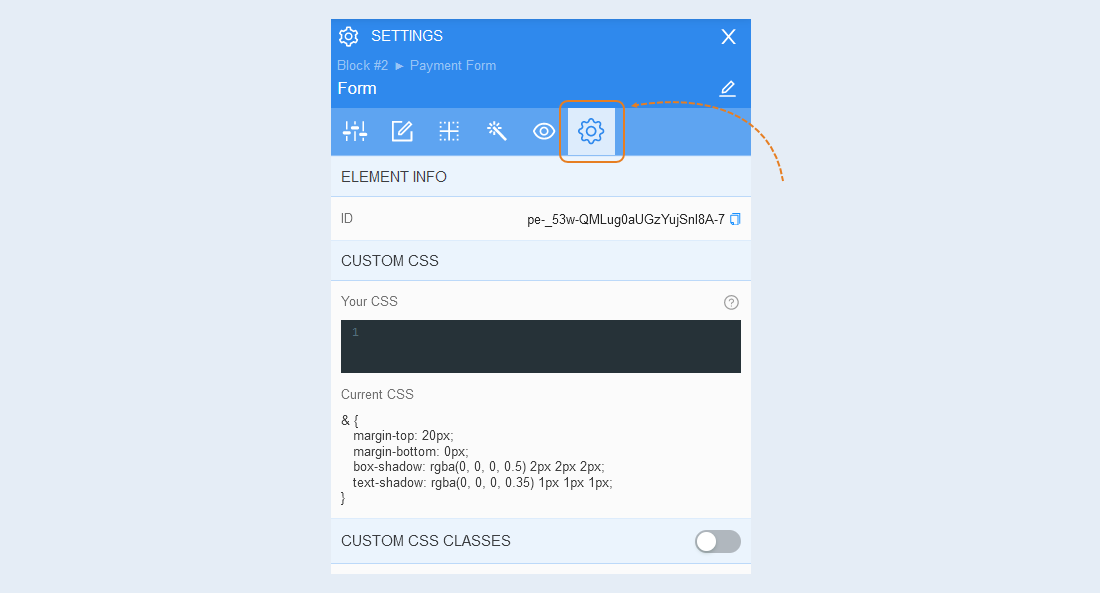
The credit card form component. This is an element in the payment form for entering credit card details. At the moment, the credit card form only supports Stripe. For more information about Stripe payment system integration, read the article "Stripe Settings".
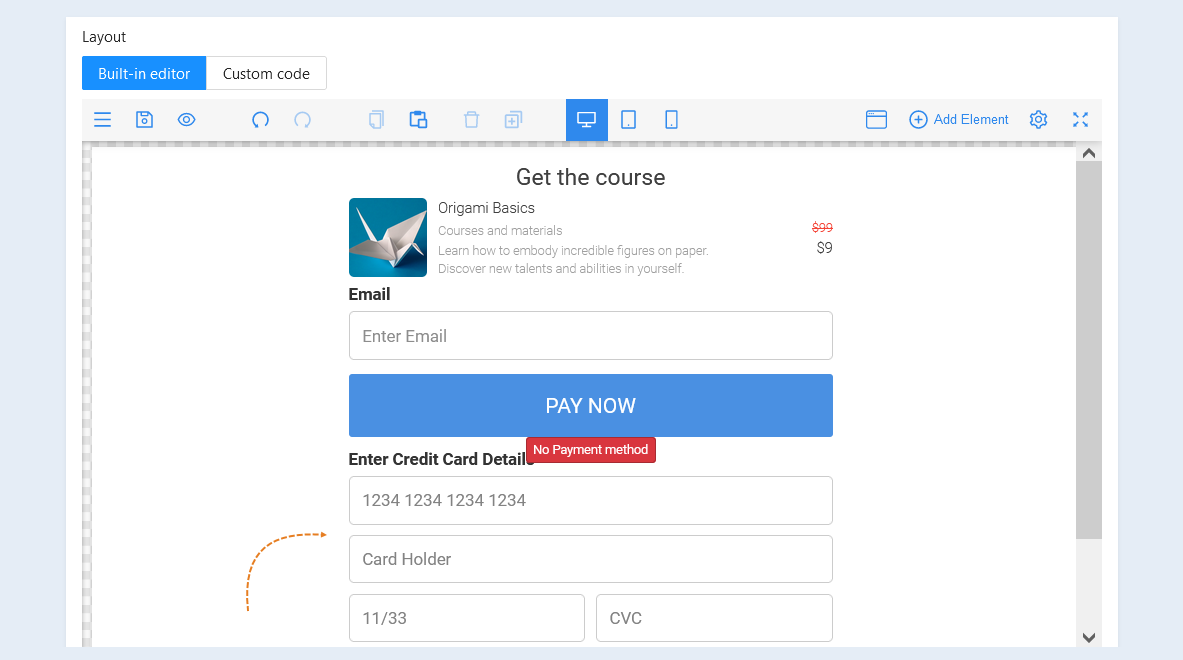
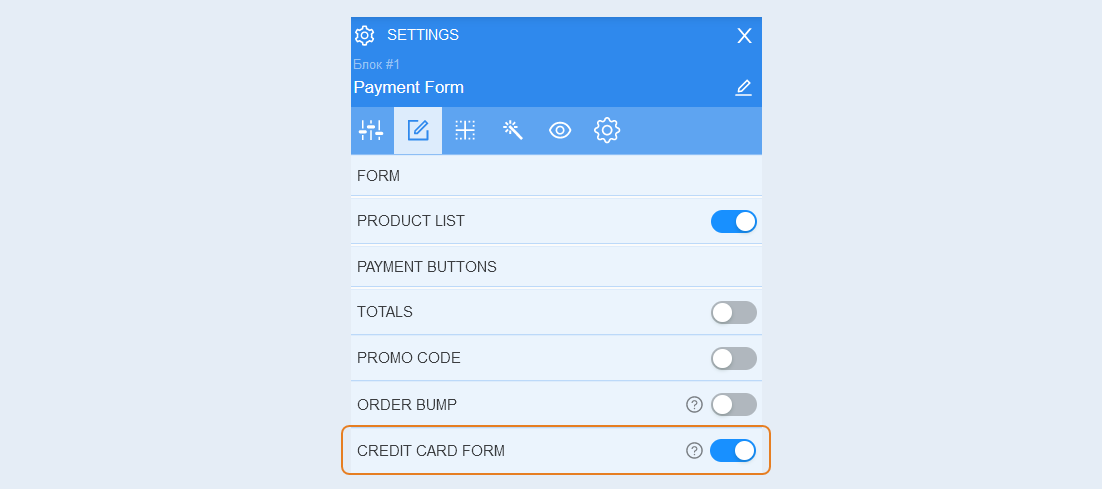
To open the advanced form settings, move the Credit Card Form slider to the active position and click the Select button.
General Settings
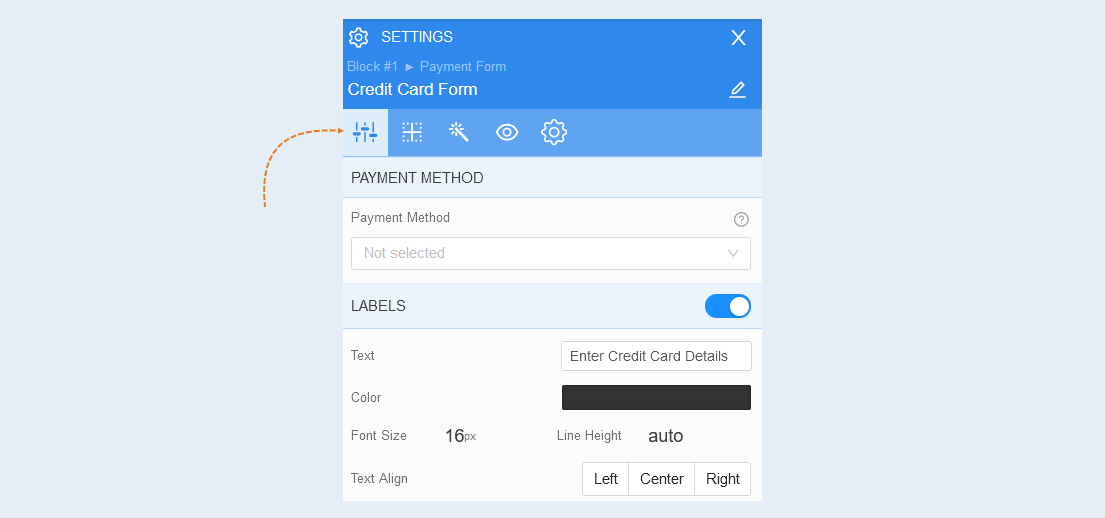
Select the element inside the form, the advanced settings of the credit card form component will open on the right. Open the "General Settings" tab.
Payment method. Select a payment method from the list. At the moment, the credit card form only supports Stripe.
Labels. In this section, you can write the text of the element title, change the text color, font size, line height, choose the font style and text alignment relative to the shape. You can also remove the title by moving the slider to the inactive position.
Positioning
Read more about the settings of this section in the article "Positioning".
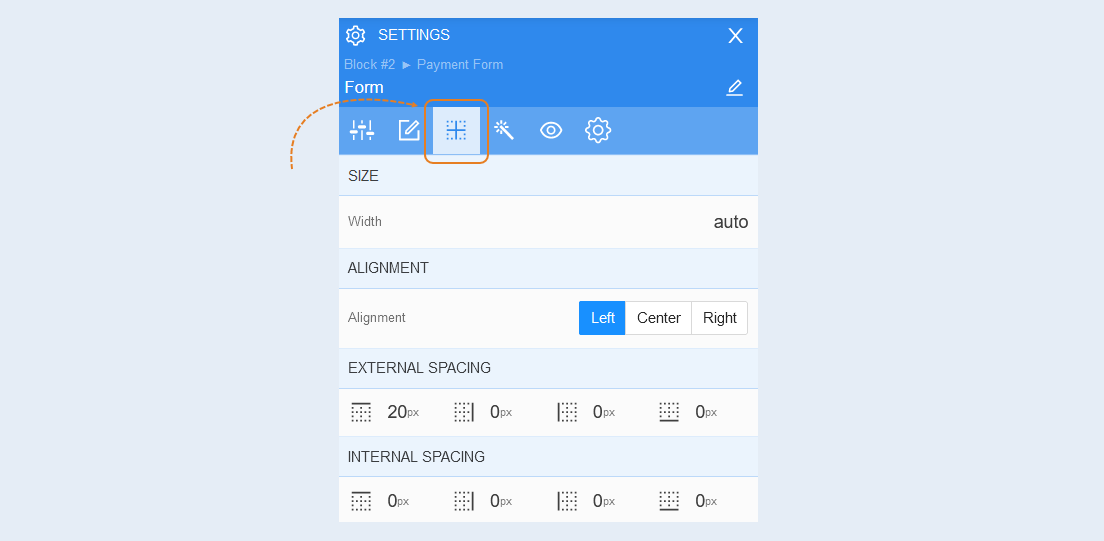
Style
Open the "Style" tab of the form.
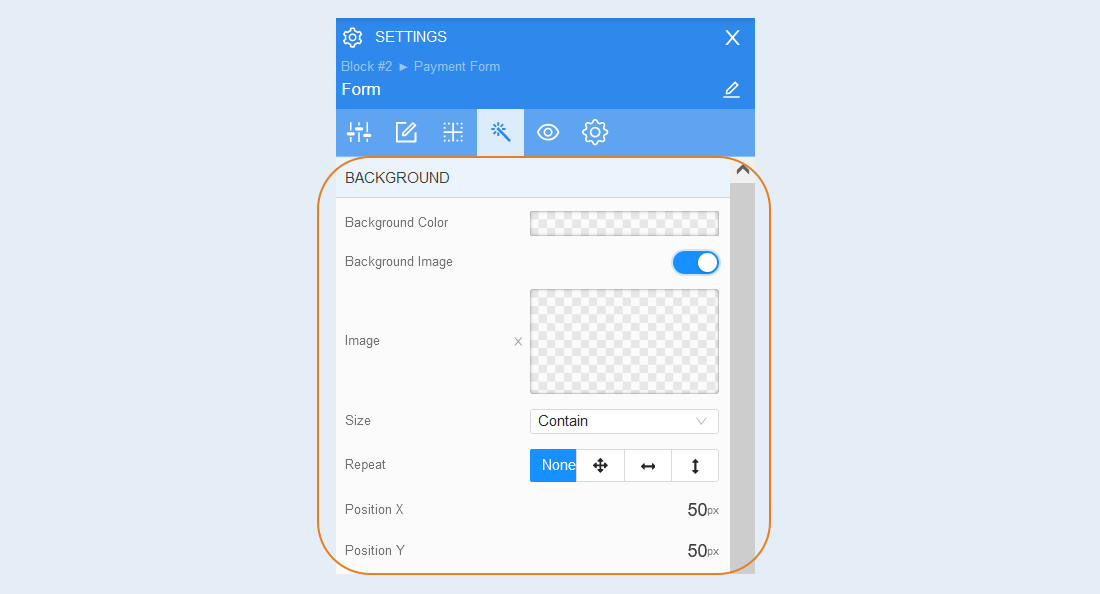
Background. You can change the background color of the form, as well as add a background image to the form. Additional image settings are opened for the background image: image selection, size, image repetition and image position inside the form.
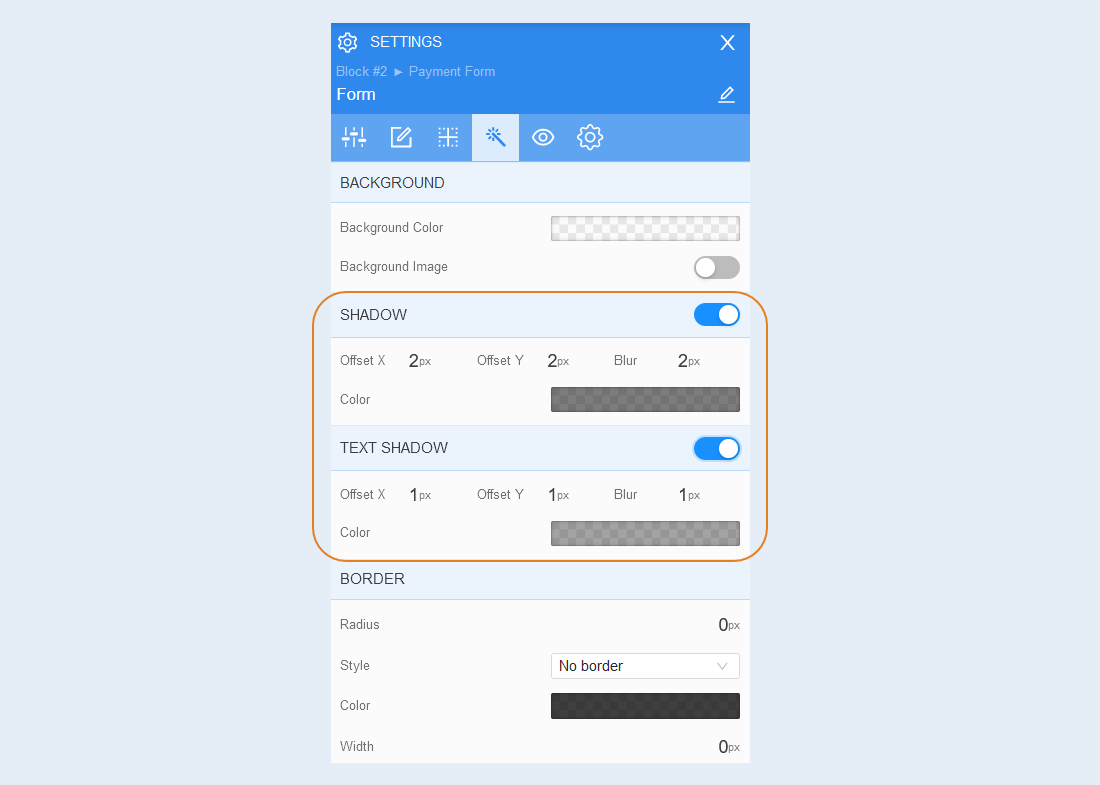
Shadow. Add a shadow around the shape, you can adjust the shadow offset (left, right, up, down) and blur (bright or transparent shadow). And also the color of the shadow.
The shadow of the text. Add a text shadow, you can adjust the shadow offset (left, right, up, down) and blurriness (bright or transparent shadow). And also the color of the shadow.
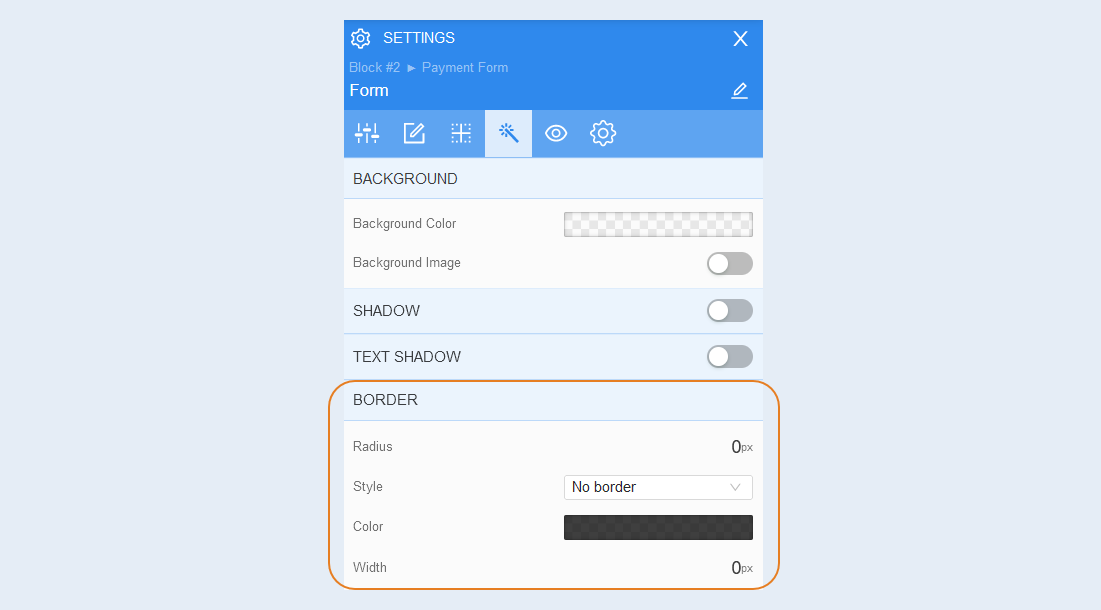
Border. You can customize the frame around the shape: the radius of the frame (rounds the corners of the margins), the color of the frame and the thickness.
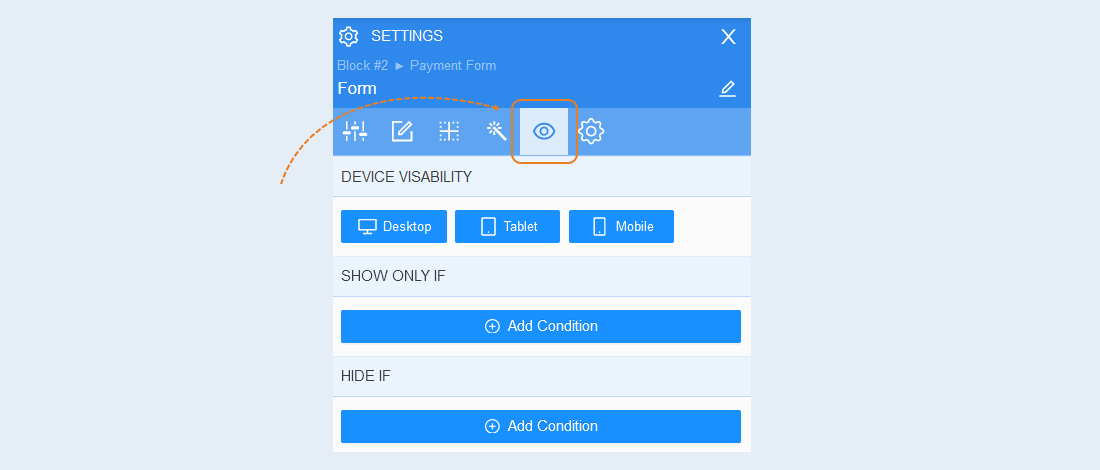
Conditional show / hide
Read more about the settings of this section in the article "Conditional show / hide".
Advanced settings
Read more about the settings of this section in the article "Advanced settings".