The Block element is a universal container that allows you to place various other elements inside, such as text, images, videos, buttons, and others. Blocks help to organize the content on the page and make it more structured and user-friendly.
A website page consists of several blocks. The blocks may differ from each other in design and number of elements. The first block on a website page usually looks brighter and more attention-grabbing than the rest of the blocks.Blocks allow you to split the content into logical parts, which simplifies navigation and perception of information.
Different elements can be combined inside the block, which makes it possible to create a variety of layouts and visual designs. Blocks can be easily moved, copied, or deleted, which simplifies the page editing process.
Click on the desired section of the article to go to its description:
Page editor
Blocks are created in the Page Editor. The Page Editor is located in the "Sites" and "Courses and Training" sections.
Go to the "Sites" section and select the website from the websites you have previously created. Click on the website name.
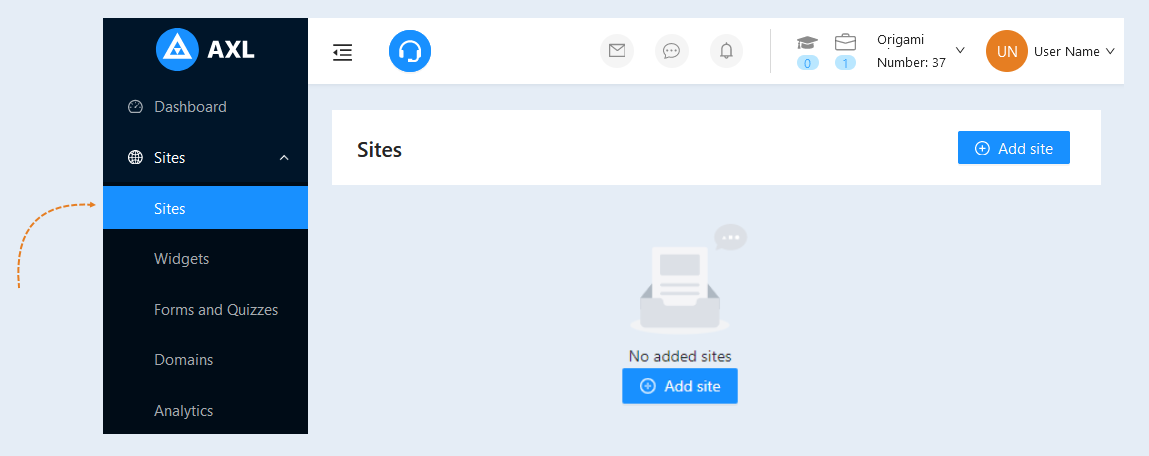
How to create a block
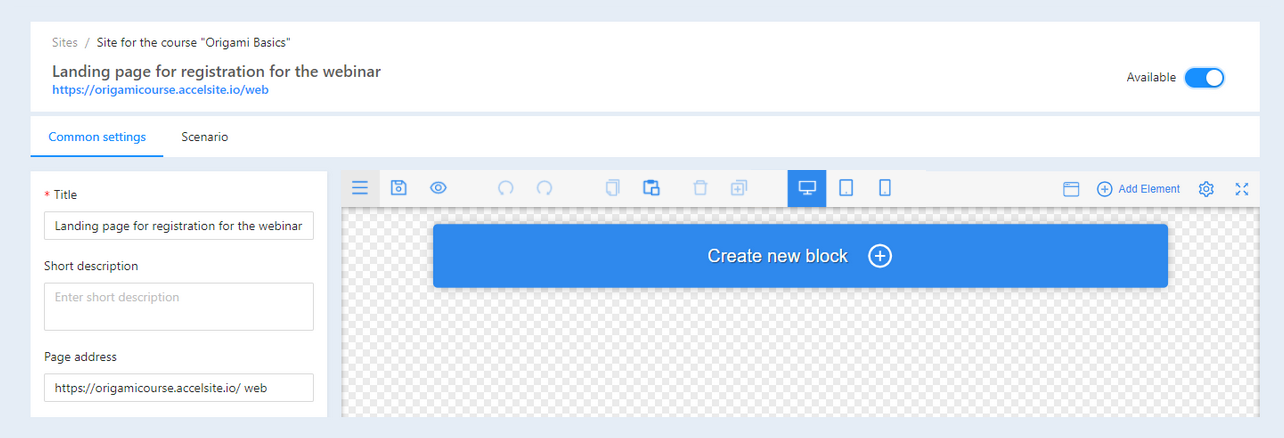
Go to the Page Editor. Click on the "Create New Block" button.
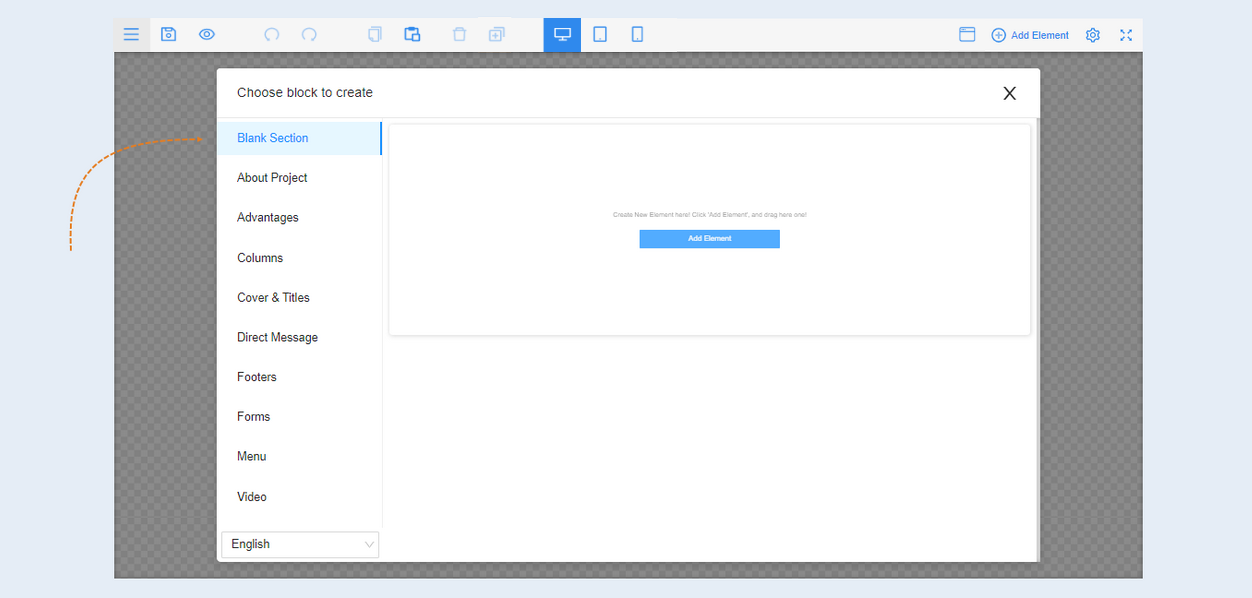
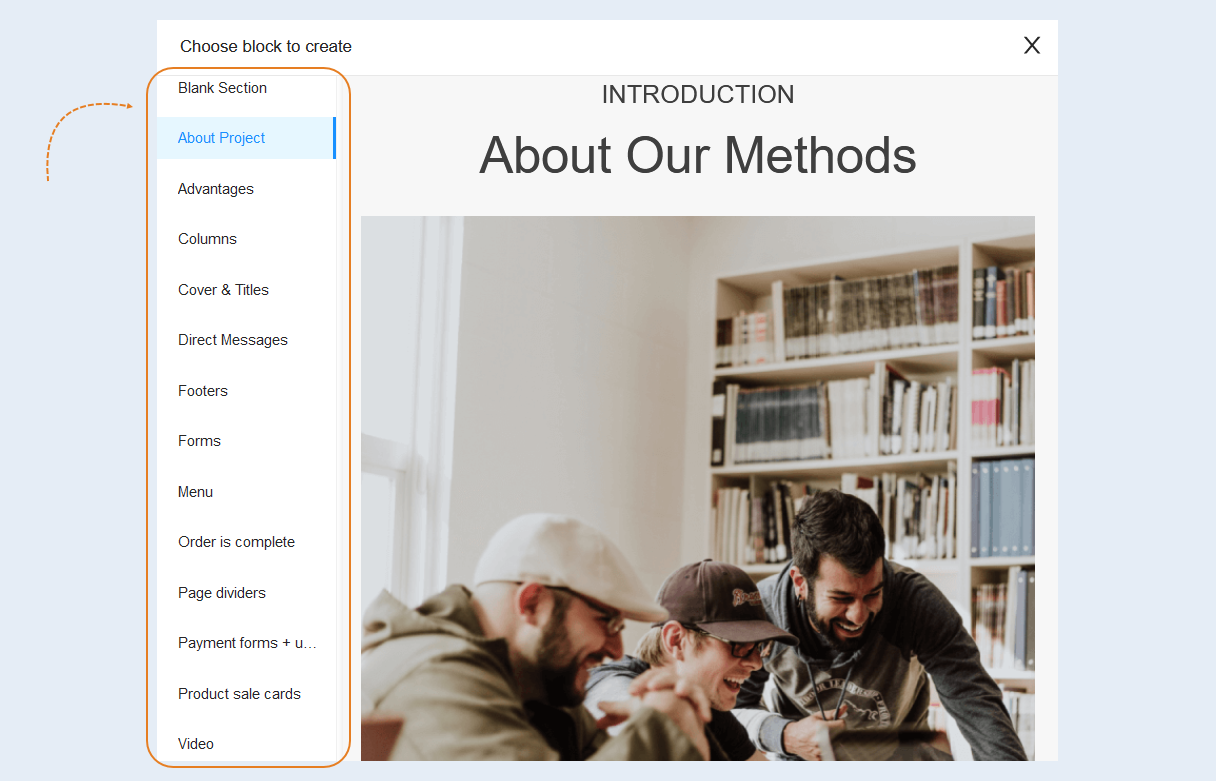
An additional window will open. Choose a block from the options provided: empty block, text, cover and headers, columns, video, miscellaneous.
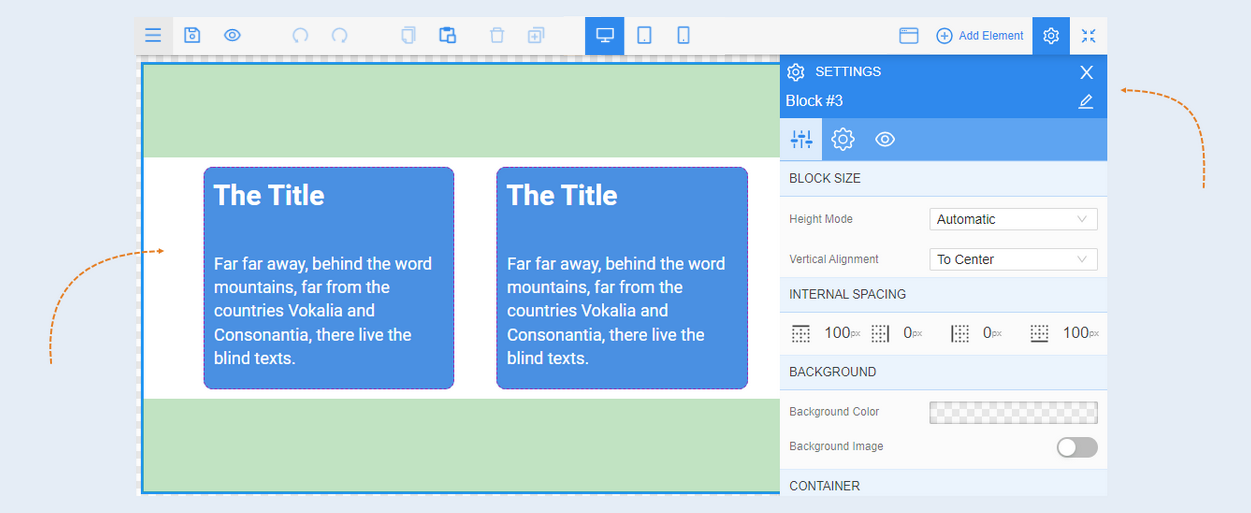
After that, you need to edit the elements and configure the block. Select the entire block or select a specific element inside the block for editing by clicking on it with the mouse. The toolbar will open on the right, which contains settings for the element.
Block types
There are several types of blocks on the AXL platform:
Blank Section. This is a block without content that allows elements to be added to the page. It enables the user to manually configure the page layout and integrate other blocks as desired. It can be used when space needs to be left for future content or to create a unique design.
Video. A block for adding video content, such as tutorial videos or webinars. It allows the user to visually absorb information, which can enhance understanding of the topic. It can be used on course pages, in program description sections, or as part of promotional materials.
Order is complete. A block that informs the user that the order has been successfully completed. It notifies users about the completion of their transaction or order. This page can be used after successful payment of the order.
Columns. A block that divides content into several columns for better structure and visual perception. It allows for organizing information in a compact format, making it easier to absorb multiple pieces of information. This block is used to create multiple columns on the page.
Menu. A block containing a navigation menu for moving around the site pages. It simplifies users' search for the information they need on the site. It can be used at the top or side of the site for navigation through courses, sections, and additional materials.
Cover and titles. A block with a large image and title that decorates the beginning of the page. It creates the first impression and captures users' attention. This block is used on the homepage of the course or site to showcase the product.
About project. A block with information about the educational platform or project itself. It informs users about the goals, mission, and values of the project. It can be used on "About Us" pages or in the project description section to tell about the company.
Advantages. A block that lists the key benefits of the project. It helps the user understand what value they will receive by choosing this course. It is used on course pages and in promotional materials.
Page dividers. A block that helps visually separate content on the page. It improves navigation and makes the content more readable. This block is used on pages with long content to separate different topics or sections.
Text. A block for adding text content. It conveys information, instructions, descriptions, etc. It can be used anywhere on the page where textual information needs to be provided.
Timer. This block allows adding a countdown timer to the page. It is one of the functional capabilities of the editor, designed to create interactive elements on the site pages. It creates urgency for users, which can stimulate purchases. It is used in promotional events or special offers.
Forms. A block for creating data input forms (e.g., for course registrations). It allows for collecting data from users such as name, email, etc. This block is used on registration pages, newsletter subscription pages, or in feedback forms.
Payment forms and Upsell forms. A block that allows not only payment, but also offers additional goods or services. It increases the average purchase amount by suggesting additional courses or products. This block is used on order confirmation or payment pages.
Footers. The footer is the area located at the bottom of each page of the site below the main content. It may contain information about the company, links, and contact details. It provides users with important information and links to pages such as privacy policy and terms of use. It is used for navigation convenience.
AXL Trademark. This is a symbol that serves to identify a company or brand. A trademark helps the audience identify and distinguish products and services from other companies. A trademark helps to establish a brand and protect it from counterfeiting or use by other companies. It also builds trust among customers, as they recognize and associate certain qualities with a particular trademark.
Product sale cards. These are visually designed blocks that contain information about the sale of specific goods or services. They usually include the product name, image, price, description, and a button for purchase or additional information. Product sale cards are designed for convenient presentation and sale of goods or services. They help users quickly get information about a product and make a choice, as well as promote conversions by turning website visitors into buyers.
Direct Message. A block for posting user reviews. Increases the credibility of the product through social proof. It is used on course pages or in the main sections to attract new users.
For a detailed description of the settings, see the articles: "Settings for the Cover and Titles block", "Settings for the Video block", "Settings for the Columns block".