The "Sites" section is a space where you can create and manage your websites and webpages. This section includes tools for website development.
A web page is a separate document on the Internet containing text, graphics, sound, etc. In other words, a web page is a website on the Internet. You place content information on the web page for the visitor (text, video, images, etc.). This content is read from the page by the browser and displayed to the user. Web pages can serve a variety of purposes, including providing information, selling products, training, communication, and many others.
Websites are becoming an important tool for businesses, allowing them to effectively interact with their audience and share information.
Website creation
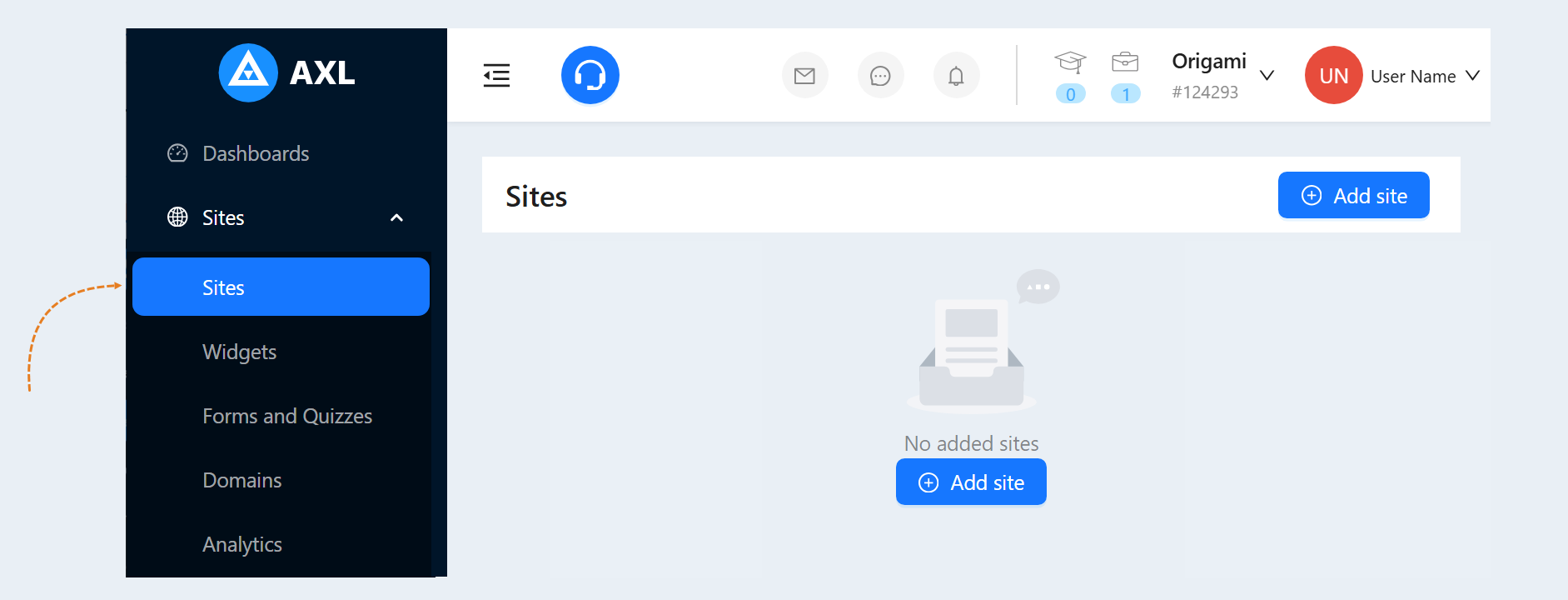
To create a website, go to the "Sites" tab and click the "Add site" button.
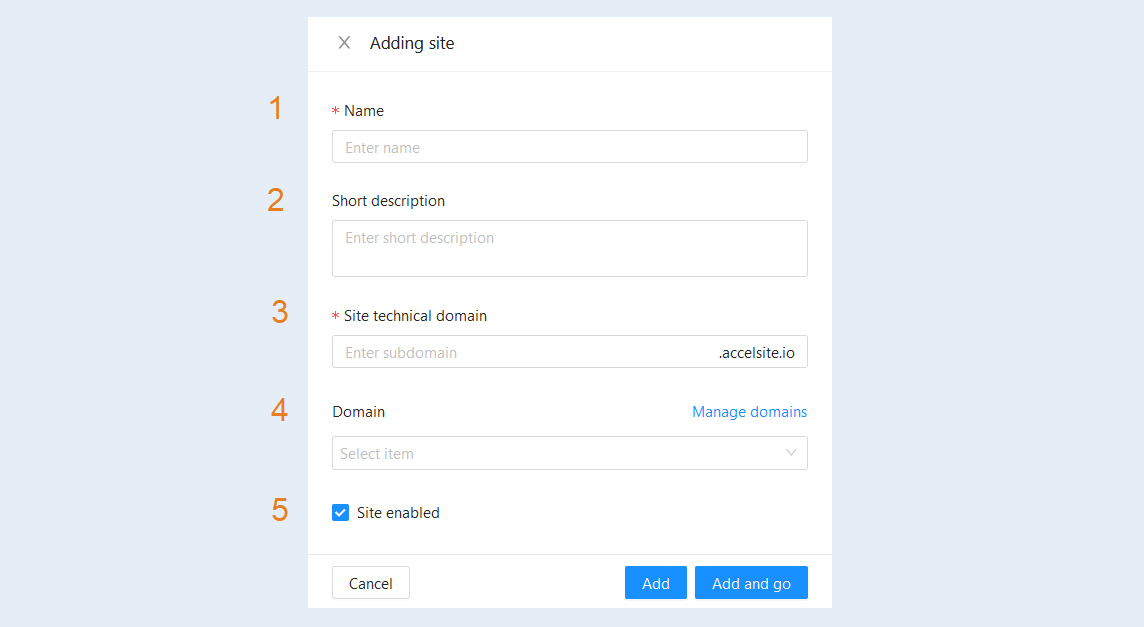
In the pop-up window, fill in the fields:
- Name. Write the name of the website.
Short description. This description will be visible to website visitors. The visible character limit is 160.
Site technical domain. Enter the technical URL using the Latin alphabet. A technical URL allows you to work on your website without purchasing your own domain. It is suitable for website development, however, when working with clients, we recommend connecting your own domain by following the instructions at: https://docs.axl.tech/domains
Site enabled.Check this box to enable website access for visitors.
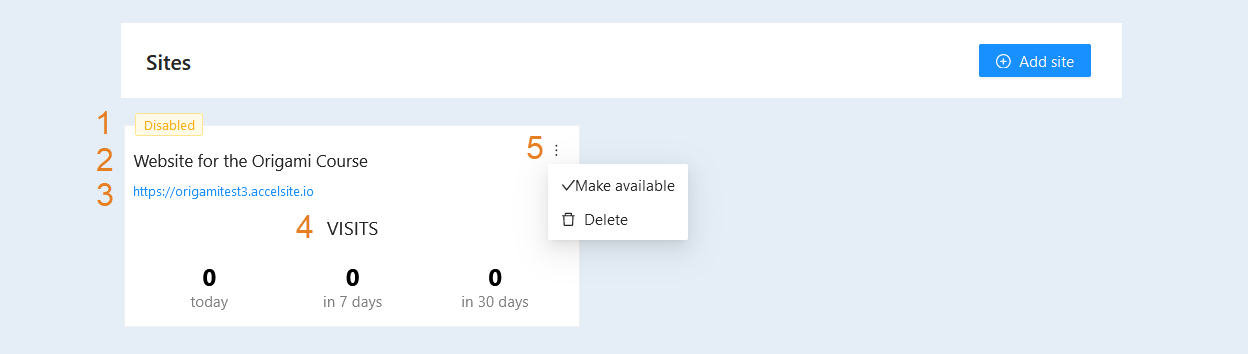
After creating the website, it will appear in the list as a card. To learn more about how to create a website, read the article "How to create a site".
On the site card, you can see:
- Status. Shows the status of the website, whether it is enabled or disabled.
Name. Specifies the name of the website.
Address. Displays the website's page address.
Site statistics. Shows the number of visits for today, 7 days, and 30 days.
Actions. In the top right corner of the card, there is a three-dot icon. Click on the icon and select:
Make available. Click to publish the website and make it accessible to visitors.
Delete. Click to delete the website.
After the site is created, you need to make settings and fill it with pages. For more information about creating pages, see the article "Sites Pages".